Set number format for an Excel range
1. Component introduction
Prerequisites: Start Excel or Get opened Excel
Use this component to set the number format for a range in Excel.
2. Inputs
For details about each input, see the help text in the component panel of the application flow editor.
3. Outputs
For details about each output, see the help text in the component panel of the application flow editor.
4. Component usage examples
4.1. Configuration example
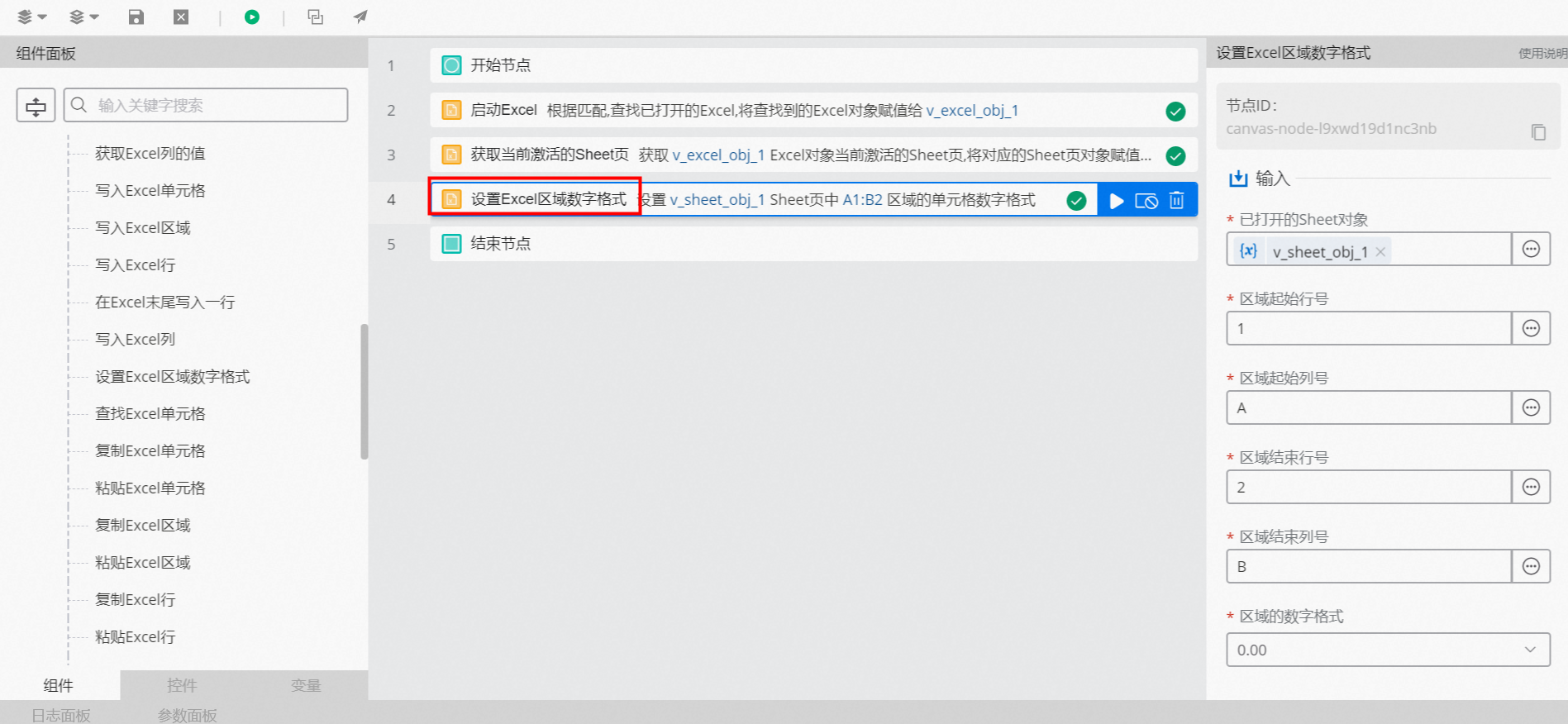
For
Opened sheet object, select v_Sheet_obj_1, which is the output of the Get active sheet or Activate sheet component.Set
Start row numberto 1.Set
Start column letterto A.Set
End row numberto 6.Set
End column letterto B.For the number format, select "0.00".
Advanced options: Default values
4.2. Example result
None
5. Sample flow
Build the flow
Use the Start Excel component to open the specified Excel file.
Use the Get active sheet component to retrieve the active sheet object.
Use the Set number format for an Excel range component to format the numbers in the cells to two decimal places.
Result
As shown in the following figure, after the flow runs successfully, it opens the Excel file and formats the cells in the specified range to two decimal places.