On-premises robot use cases
This topic describes typical use cases for on-premises robots.
Integration with APIs
This section uses an OpenAPI call as an example. This logic also applies to MCP Tool calls. Assume that you need to call five on-premises robots.
Prepare five on-premises robots.
Create five sub-accounts to log on to the on-premises robots. For more information, see Manage sub-accounts.
Assign a robot license to each of the five sub-accounts. For more information, see Assign on-premises robot licenses.
Install the on-premises robot client on five Windows hosts and log on to each client with its corresponding sub-account.
On the robot monitoring page in the console, you can verify that the on-premises robots are connected.
Prepare one sub-account for API calls.
Create one sub-account to call on-premises robots by using an AK/SK.
ImportantFor the sub-account used for OpenAPI calls:
You do not need to assign a robot license to this sub-account.
The 'On-premises robot access scope' for this sub-account must be set to 'All' or a 'Specified scope' that includes the target robots. For more information, see Configure on-premises robot access for an account.
Grant this sub-account permissions to run the required applications. For more information, see Configure application access scope.
Log on to the console with this sub-account to obtain the AK/SK and make OpenAPI calls.
Allocation by team
This use case describes how to allocate one on-premises robot to each of three teams. Team members can then run tasks manually by logging on to the Windows host remotely, or use scheduled tasks in the console.
The administrator prepares an on-premises robot for the first team.
Create one sub-account. For more information, see Manage sub-accounts.
Assign a robot license to this sub-account. For more information, see Assign on-premises robot licenses.
Install the on-premises robot and log on to the client.
Set the 'On-premises robot scope' for this sub-account to 'Specified scope' to restrict its access to a specific set of robots. For more information, see Configure on-premises robot access for an account.
The administrator provides the sub-account credentials to the team.
Team members request permission to use applications, and the administrator approves the requests.
Repeat these steps to complete the allocation for the other teams.
Dynamic application versioning
Scenario: This method is ideal when you have many API-triggered tasks in the queue and your RPA application is updated frequently. This ensures the robot always uses the latest default running version of the application.
This method requires your RPA application to maintain compatibility for process input parameters across different versions.
If you use this feature with an on-premises RPA server, the server version must be 4.16.0 or later.
Method: When you create a task by using an API call, set the appVersion parameter to dynamic. At creation, the task is not bound to a specific application version. Instead, the robot retrieves and uses the latest default running version of the application when the task begins.
The following example shows how this works:
Create two tasks consecutively by using API calls.
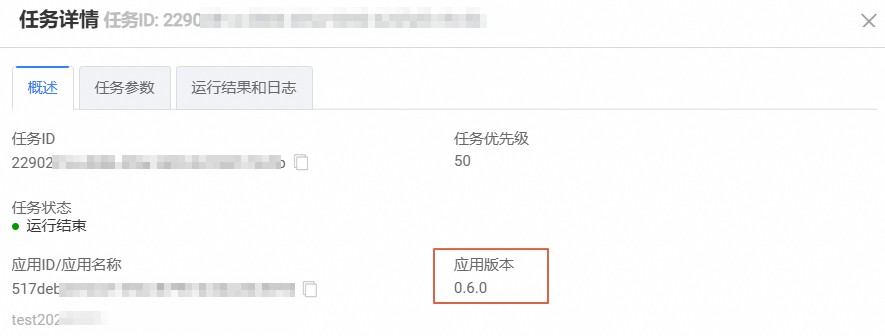
When the first task starts, the current default running version of the application is 0.5.0. The task details show that the application version used is 0.5.0.
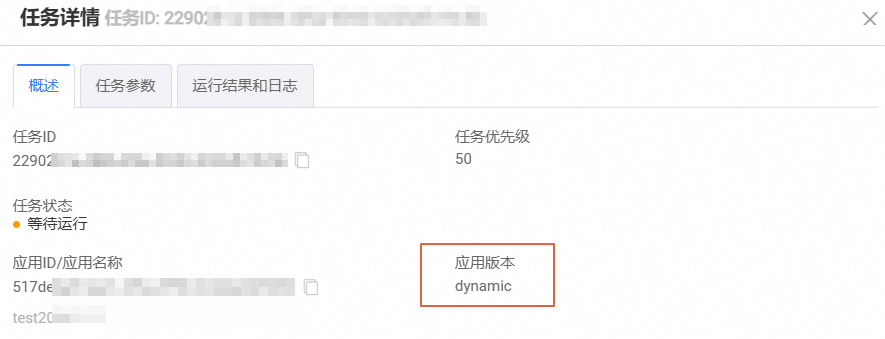
At this point, the second task is in the 'Pending' state. Its application version is displayed as 'dynamic'.
While the first task is running, you publish a new application version, 0.6.0.
When the second task starts, its task details show that the application version used is 0.6.0.