Collect standard output from Docker containers (legacy)
Docker generates two types of logs: file logs, which are written to a directory, and standard output, which is the container's real-time output stream. This topic shows how to use Logtail to collect standard output from containers and send it to a Logstore.
Overview
Use Logtail to collect standard output (stdout) and standard error (stderr) from your application containers on a Docker host. Logtail sends the collected logs to a Logstore for querying and analysis.

Prerequisites
-
Create a Project and a Logstore. For more information, see Manage Projects and Manage Logstores.
-
The host has installed and used Docker and Docker Compose and can continuously generate standard output logs.
NoteLogtail collects only incremental logs. If a log file is not updated after you apply a Logtail configuration, Logtail does not collect logs from the file. For more information, see Read logs.
Step 1: Install Logtail and create a machine group
-
Pull the Logtail image
Log in to the host and obtain the corresponding
${region_id}based on the region of the Simple Log Service Project. After you replace${region_id}, use the following command to pull the Logtail image.Important-
For the
${region_id}of each region, see Available regions. For example, the${region_id}for China (Hangzhou) iscn-hangzhou.
# Pull the Logtail image: docker pull registry.${region_id}.aliyuncs.com/log-service/logtail:v2.1.11.0-aliyun # If your server is in an Alibaba Cloud VPC network, run the following command to pull the Logtail image: docker pull registry-vpc.${region_id}.aliyuncs.com/log-service/logtail:v2.1.11.0-aliyun -
-
Start the Logtail container
-
Parameter descriptions
Parameter
Description
${region_id}Obtain the corresponding
${region_id}based on the region of the Simple Log Service Project. For the${region_id}of each region, see Service regions. To select a network type, see Logtail network types, startup parameters, and configuration files.-
Example: For a Project in the China (Hangzhou) region,
${region_id}iscn-hangzhoufor internal network access within Alibaba Cloud andcn-hangzhou-internetfor public network access.
${aliyun_account_id}The ID of the Alibaba Cloud account (primary account) that owns the Simple Log Service Project. To obtain the ID, see Obtain the ID of an Alibaba Cloud account (primary account) for Simple Log Service.
${user_defined_id}A custom identifier for the machine group, such as
user-defined-docker-1. This identifier must be unique within the Project's region. -
-
Replace the
${region_id},${aliyun_account_id}, and${user_defined_id}placeholders in the following command and run it to start the Logtail container.# Start the Logtail container. Replace ${region_id}, ${aliyun_account_id}, and ${user_defined_id}. docker run -d \ -v /:/logtail_host:ro \ -v /var/run/docker.sock:/var/run/docker.sock \ --env ALIYUN_LOGTAIL_CONFIG=/etc/ilogtail/conf/${region_id}/ilogtail_config.json \ --env ALIYUN_LOGTAIL_USER_ID=${aliyun_account_id} \ --env ALIYUN_LOGTAIL_USER_DEFINED_ID=${user_defined_id} \ registry.${region_id}.aliyuncs.com/log-service/logtail:v2.1.11.0-aliyunImportantIf you customize the startup parameters for the Logtail container, ensure the following conditions are met:
-
At startup, you must configure the
ALIYUN_LOGTAIL_CONFIG,ALIYUN_LOGTAIL_USER_ID, andALIYUN_LOGTAIL_USER_DEFINED_IDenvironment variables. -
Mount the
/var/rundirectory on the host to the/var/rundirectory in the Logtail container. -
Mount the root directory of the host to the
/logtail_hostdirectory in the Logtail container. -
If the
The parameter is invalid : uuid=noneerror appears in the Logtail log (/usr/local/ilogtail/ilogtail.LOG), create aproduct_uuidfile on the host, add a valid universally unique identifier (UUID), such as169E98C9-ABC0-4A92-B1D2-AA6239C0D261, to the file, and mount it to the/sys/class/dmi/id/product_uuiddirectory in the Logtail container.
-
-
Run the
docker pscommand to check whether the container started successfully.
-
-
Create a machine group with a custom identifier
Log on to the Simple Log Service console. In the Projects section, click the one you want.
In the navigation pane on the left, choose . In the Machine Groups list, choose
 > Create Machine Group.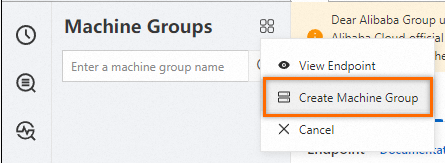
-
On the Create Machine Group page, enter a Name, select Custom Identifier as the machine group identifier, and then enter the value of the
${user_defined_id}parameter from Step 1 in the Custom Identifier field. In this example, the value isuser-defined-docker-1.
Parameter
Description
Machine Group Topic
Optional. The topic is used to identify the logs generated by different servers.
-
Check the machine group status
In the Machine Groups list, click the target machine group. On the Machine Group Configurations page, you can view the machine group configuration and server status.

If the Heartbeat status is OK, Logtail is connected. If the status is FAIL, wait one minute and click Refresh. If the status remains FAIL, check the following:
-
Verify that the Logtail container and the Project are in the same region.
-
Verify that the host's security group allows outbound traffic from Logtail on port 80.
For troubleshooting steps, see Troubleshoot container log collection exceptions.
-

Step 2: Create a Logtail configuration
On the tab, click the logstore you want.
-
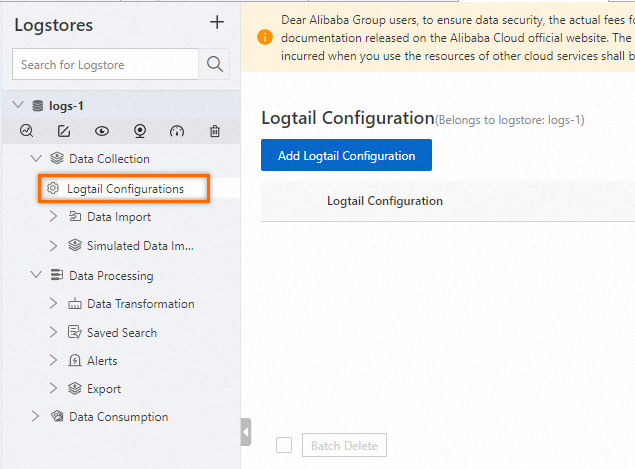
In the left-side navigation pane, click Logtail Configurations and then click Add Logtail Configuration.
-
On the Quick Data Import page, click Docker Standard Output - Legacy.
-
Click Use Existing Machine Groups.
-
In the Machine Group Configurations step, select the machine group that you created in Step 1, click > to add the machine group to the applied machine groups, and then click Next.
-
In the Logtail Configurations step, enter a Configuration Name and click Next.
-
In the Query and Analysis Configurations step, click Refresh to preview the collected logs. If no logs are displayed, confirm that the container continuously generates standard output logs. By default, standard output is stored in /var/lib/docker/containers/
/ -json.log. If you still cannot preview any logs, see How to troubleshoot container log collection errors.


Step 3: View the results
Logtail collects only incremental logs. If no new logs are written to standard output after you apply the Logtail configuration, Logtail does not collect previous logs. For more information, see Read logs.

By default, each log entry collected from Docker standard output includes the following fields:
|
Field name |
Description |
|
__source__ |
The IP address of the Logtail container. |
|
__tag__:__hostname__ |
The name of the Docker host where Logtail is located. |
|
__tag__:__receive_time__ |
The time when the log entry arrived at the server. |
|
_time_ |
The time when the data was uploaded. Example: |
|
_source_ |
The source of the log entry. Valid values: stdout and stderr. |
|
_image_name_ |
The name of the image. |
|
_container_name_ |
The name of the container. |
|
_container_ip_ |
The IP address of the application container. |
Related documents
-
To view information such as the running status of Logtail, see View Logtail container information.
-
For basic information about how to use Docker, see Install and use Docker and Docker Compose.
-
To collect text logs from Docker containers, see Collect logs from Docker containers (standard output and files).
-
To collect text logs from a host, see Collect text logs from a host. By default, the root directory of the host is mounted to the
/logtail_hostdirectory of the Logtail container. -
After logs are sent to a Logstore, you must create an index to query and analyze them. For more information, see Create an index and Quick start for log query and analysis.
-
If you encounter an exception while collecting logs from Docker containers with Logtail, see How to troubleshoot container log collection errors.