AI-powered video translation
ApsaraVideo VOD Workflow 2.0 integrates caption-level and voice-level translation from Intelligent Media Services (IMS) to automatically convert video content from a source language to one or more target languages. You can add a video translation node to a workflow to automate multilingual video processing.
This feature is available in the following regions:
China (Shanghai), China (Beijing), China (Shenzhen), Asia-Pacific Southeast 1 (Singapore), and Americas (US West).
Voice-level translation: China (Shanghai), China (Beijing), China (Shenzhen), Singapore, and US (West).
Prerequisites
To use the video translation node in a workflow, you must activate ApsaraVideo VOD and Intelligent Media Services and subscribe to the Standard Edition. For more information, see Subscription billing.
Advantages
End-to-end multilingual translation
Supports translation services for over 40 languages.
Supports more than 10 Chinese dialects to meet diverse voice requirements.
A single translation task supports output in more than 40 different target languages.
Original voice cloning and emotional synchronization
High-fidelity voice cloning replicates who is speaking.
Fine-grained emotional synchronization conveys the current emotion.
Seamless integration with multiple formats
Supports various mainstream video formats such as MP4, WebM, MOV, and M3U8 for seamless content integration.
Supports multiple audio formats, such as MP3 and WAV.
Create custom configurations to meet specific requirements in different scenarios.
Features
ApsaraVideo VOD workflows support caption-level translation and voice-level (narration) translation provided by IMS:
Feature | Description | Highlights |
Caption-level translation |
| Efficient and accurate text translation, suitable for quickly adding multilingual support. |
Voice-level (narration) translation | In addition to caption-level translation, this feature also supports:
| Adds a voice dimension to text translation, preserving the authenticity and emotional delivery of the original voice for a better viewer experience. |
Voice translation correction/secondary editing |
| Flexibly adjust translation output to meet custom needs and fine-tune results for the best effect. |
Billing
The video translation feature in ApsaraVideo VOD workflows is provided by IMS. You must purchase an IMS subscription and pay the usage fees. For more information, see Video translation.
Instructions
Step 1: Configure a video translation workflow in the console
You can create workflows only in the ApsaraVideo VOD console.
Log on to the ApsaraVideo VOD console.
In the navigation pane on the left, choose Configuration Management > Media Processing > Workflows to open the Workflows page.
Click Add Workflow and enter a name for the workflow.
On the workflow editing page, click the + icon to the right of the Start node to add a video translation node.

In the panel that appears on the right, configure the parameters as prompted:
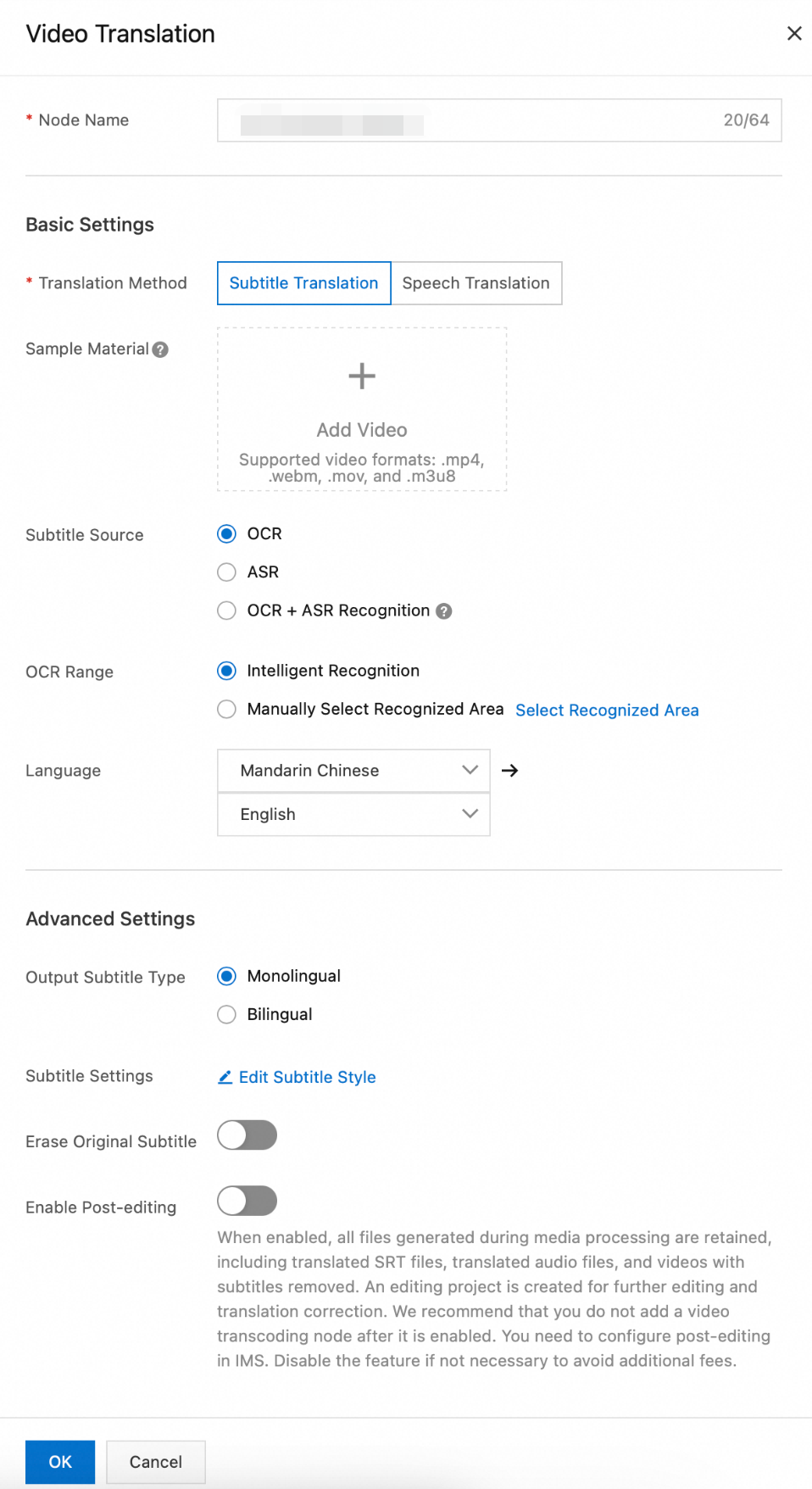
Node Name: A custom name for the video translation node.
Translation Method: Select Caption-level translation or Voice-level translation.
Sample Material: A sample video for configuring captions. This video is not processed by the workflow. MP4, WebM, MOV, and M3U8 formats are supported.
Caption Source: The source can be optical character recognition (OCR), automatic speech recognition (ASR), or OCR+ASR.
OCR: If you do not have a subtitle file but your video contains visible text, use OCR to extract caption text from video frames. To improve efficiency and accuracy, you can also specify an OCR recognition area.
ASR: If your video file does not have captions, use ASR to extract captions from the audio track.
OCR+ASR: Combines OCR and ASR to extract captions. OCR is used first, with ASR as a fallback if OCR fails.
Translation Languages: Select multiple target languages. After you submit the translation task, the system generates a video file for each target language.
Output Target Caption Type: Select single-language or bilingual captions.
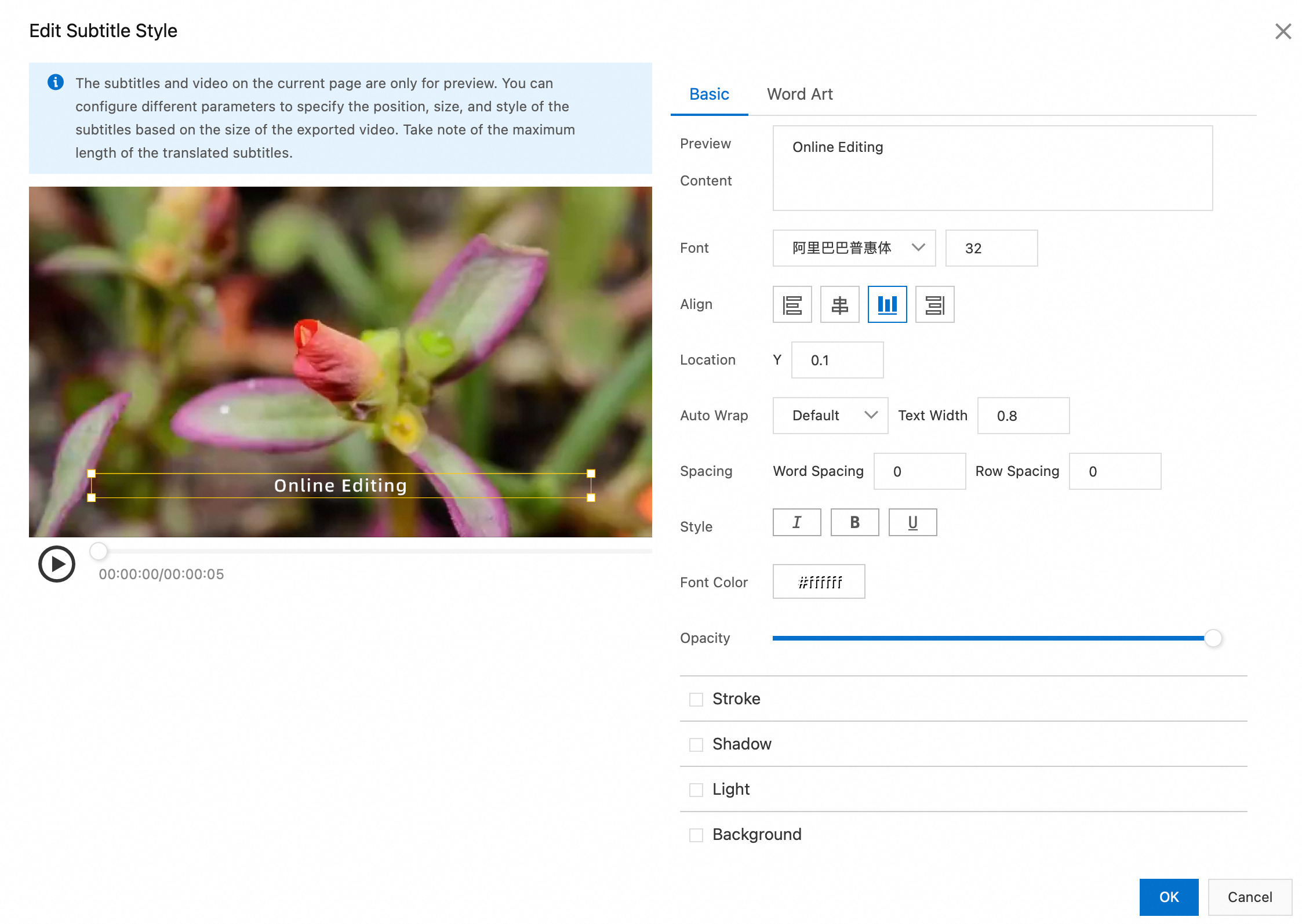
Caption Settings: If you select caption composition, configure the basic and fancy caption styles in the Edit Caption Style dialog box.
Basic Settings: Configure the font, alignment, position, auto wrap, pitch, style, font color, and opacity. You can enter text in the preview content field to preview the effect.
Fancy Caption Settings: Built-in fancy caption effects that you can apply as needed.
Remove Original Captions: Removes the original video captions. The recognition area can be identified automatically or selected manually.
Enable Secondary Editing: Retains all intermediate files, including target language captions, translated audio, and the video with original captions removed. An online editing project is also generated for further editing or correction. After you enable this feature, do not add new transcoding nodes. You must configure secondary editing in IMS. To avoid extra costs, disable this feature if you do not need it.
After you complete the configuration, click OK. Submit the workflow template to generate a workflow ID. Record this ID for future uploads.

Step 2: Trigger the workflow
Use the workflow to process videos. You can trigger a task during or after a video upload.
Start a workflow process in the console
Start during video upload
Log on to the ApsaraVideo VOD console.
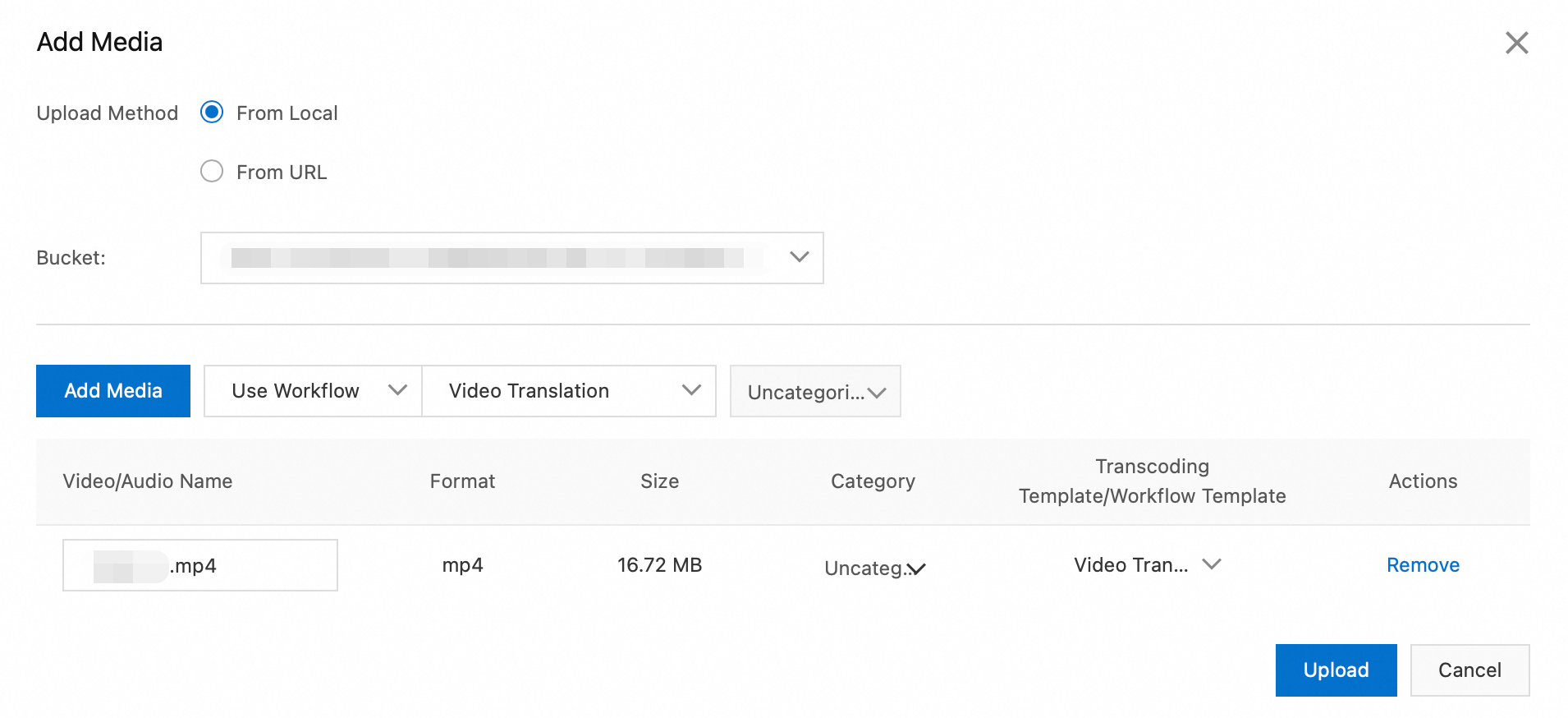
In the navigation pane on the left, choose Media Files > Audio/Video, and then click Upload Media.
On the Upload Media page, click Add Media. Configure parameters such as the upload method and storage address. Then, select Use Workflow and specify the workflow that you created in the previous step.
Start after video upload
Log on to the ApsaraVideo VOD console.
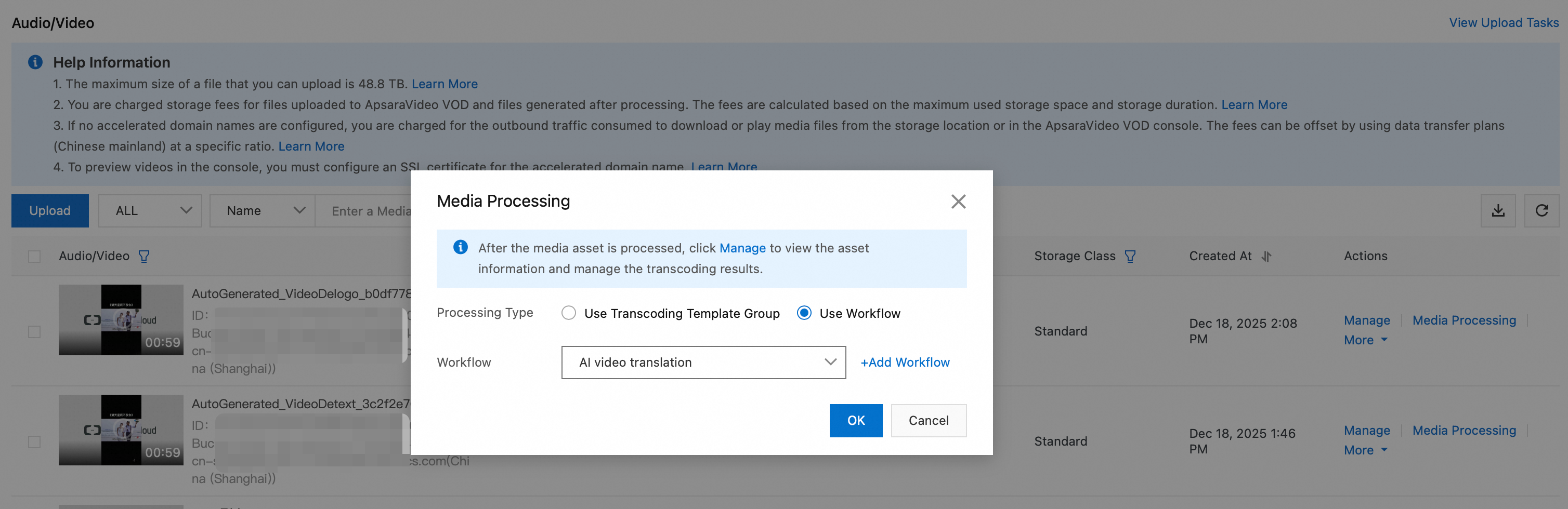
In the navigation pane on the left, choose Media Files > Audio/Video to open the Audio/Video list page.
In the Operation column for the target audio or video, click Processing. Then, select Process with Workflow and specify the workflow that you created in the previous step.

Start a workflow process using OpenAPI
Start during video upload
The CreateUploadVideo operation only obtains an upload URL and credentials and creates basic media asset information. You must implement the upload logic separately. For a complete upload example, see Upload media files using the ApsaraVideo VOD API.
When you call the CreateUploadVideo or UploadMediaByURL operation to upload an audio or video file, set the
WorkflowIdparameter to the ID of the workflow that you created. After the file is uploaded, ApsaraVideo VOD automatically processes the file based on the specified workflow.
Start after video upload
Call the SubmitWorkflowJob operation and set WorkflowId to the ID of the workflow that you created. This starts the workflow for the audio or video file.
Step 3: Query results
Query using the ApsaraVideo VOD console
Log on to the ApsaraVideo VOD console.
In the navigation pane on the left, choose Media Files > Audio/Video.
On the Audio/Video list page, find the translated video that was generated by the workflow. You can filter the results by criteria such as source video name and creation time.
Query using the Intelligent Media Services console
Log on to the Intelligent Media Services console.
In the navigation pane on the left, choose Intelligent Production > Video Translation.
On the task list page, find the translation task that was generated by the workflow. You can filter the results by criteria such as media asset ID and creation time.
When the task status is Complete, click View Details to view the following information:
Source video information for the translated video.
Storage address of the translated video.
Details such as translation method, translation language, status, and output results.
Query using workflow task callbacks
Configure HTTP or MNS callbacks.
When a workflow task is complete, the system triggers a WorkflowTaskComplete event and sends the complete results through the configured HTTP or MNS callback. The key fields are described as follows:
Status: The overall status of the task (SucceedorFailed).ActivityResults: A JSON string that contains the execution details of each node, such asVideoTranslation. TheResultfield contains key information from the translation output, such asMediaIdandJobId.TaskInput: The information about the input media, such as theMediaID and filename.
Parse the
ActivityResultsfield in the callback message body to fetch theMediaIdof the translated video for subsequent playback or distribution.
Query using OpenAPI
Call the following operations to query task results:
GetSmartHandleJob: Pass the
JobIdof the translation task (which you can obtain fromActivityResults.Result.JobIdin the workflow task) to retrieve the detailed status and output results of the translation job.ListSmartJobs: Lists all smart jobs, including translation jobs, for batch retrieval.
Step 4: Speech translation - post-editing (Optional)
The video translation node in ApsaraVideo VOD workflows supports post-editing. If you are not satisfied with the voice-level translation results, enable Enable Secondary Editing before you submit the task. You can use either of the following methods to correct voice-level translations.
You must enable Enable Secondary Editing when you configure the video translation node.
Make corrections using online editing (web SDK)
Prerequisites
For more information, see the online editing operation guide.
Procedure
Log on to the Intelligent Media Services console.
In the navigation pane on the left, choose Intelligent Production > Video Translation to go to the video translation task list page.
In the Actions column of the target task, click Translation Correction/Editing to open the corresponding online editing project. For more information about the next steps, see the video tutorial below:
Make corrections using OpenAPI
You can also use OpenAPI to correct speech-level translation results. For more information, see Speech Translation - Manual Correction.