Media playback
To help you integrate secure and stable audio and video playback into your applications, ApsaraVideo VOD provides a complete set of security mechanisms, from playback credentials and URL signing to video encryption, together with cross-platform player SDKs. You can implement video playback quickly and reduce development costs. This topic describes how media playback works, playback URLs, playback methods, and playback security.
How it works
Whether an audio or video file can be played depends on its Status. Only videos in the Normal state (the Status field is set to Normal) can be played, which means that you can obtain their playback URLs by using the ApsaraVideo VOD API or SDK.
Videos in the Checking or Blocked state can be previewed only in the ApsaraVideo VOD console, or accessed from the review security IP address that you configured.
The following diagrams show how the status of a video changes from upload to playback:
With transcoding

Without transcoding

Therefore, before you obtain a playback URL, make sure that the video status has changed to Normal.
Determination method
After you upload a video, the video is not immediately ready for playback. ApsaraVideo VOD must first confirm that the video is received. You can use event notifications to determine when an uploaded video can be played.
For a video or audio file that is not transcoded, you can play it after you receive the Video upload completed event notification. You can then call the GetPlayInfo operation to obtain the playback URL. Only files in the following formats can be played directly without transcoding: MP4, FLV, M3U8, MP3, and WEBM.
For a transcoded video, you can play it after you receive the Single definition transcoding complete event notification. To make sure that all definitions are available, wait until you receive the Transcode complete event notification before you process the video.
Prerequisites
Configure an accelerated domain name, and make sure that the ApsaraVideo VOD domain name that you enabled has completed ICP filing. For more information, see Domain name requirements. ApsaraVideo VOD does not require you to configure an accelerated domain name. Whether you must configure a CDN domain name depends on how you want to access the video: If you do not configure an accelerated domain name, you can call the GetPlayInfo operation (
GetPlayInfo) to obtain an OSS URL that carries time-limited authentication parameters, and use the URL for playback. Playback works even if you do not configure an accelerated domain name. After you configure an accelerated domain name, you can use the CDN domain name for anonymous access, or use URL signing to implement more flexible cache control. Both methods support normal playback, so configuring an accelerated domain name is not a required step for playing videos.Resolve the CNAME record of the domain name: Make sure that a CNAME record is attached to the domain name. Otherwise, playback fails. For information about how to attach a CNAME record, see Configure a CNAME record with Alibaba Cloud DNS. CNAME records configured on DNSPod are also supported.
Confirm the transcoding configuration: ApsaraVideo VOD can transcode or not transcode the media files that you upload. For more information, see Audio and video transcoding.
Confirm the security configuration: ApsaraVideo VOD provides multiple mechanisms to protect your video content, including access control, URL signing, remote authentication, video encryption, and secure download. Whether a video can be played is subject to these security configurations. For more information, see Video security.
Configure a License for ApsaraVideo Player SDK for web: Starting from version 2.37.8 of ApsaraVideo Player SDK for web, you must configure a License to use the SDK. A valid License is also required in a localhost test environment, and no temporary License is available. Create a Web Application in the ApsaraVideo VOD console and purchase a License binding free of charge. After you obtain the License Key and the bound domain name, integrate the code. Earlier SDK versions have data compliance issues. If you use the SDK outside the Chinese mainland, you must upgrade to a new SDK version and bind a License. For the detailed steps to apply for and configure a License, see License FAQ for ApsaraVideo Player SDK for web.
Playback URLs
Configure an accelerated domain name
After you configure an accelerated domain name in the ApsaraVideo VOD console, the playback URL of a video is a CDN file URL. You can view the URL on the Audio/Video > Manage > Video URL page in the ApsaraVideo VOD console. Playback URLs are of two types, fixed and dynamic, depending on whether the URL signing switch is turned on in domain name management. For information about how to turn on and configure URL signing, see URL signing.
Fixed address
A fixed address is suitable for scenarios that have low security requirements. The address remains permanently valid. It is the address that does not contain authentication information after you turn off the authentication switch. The value of the
auth_keyparameter in the URL is the authentication information. By default, the authentication switch is turned off after you add a domain name in the console.Dynamic address
A dynamic address is suitable for scenarios that have high security requirements. The address is dynamically generated and expires after a period of time. The default validity period of a dynamic address is the
default validity periodthat you configure in URL signing. You can also set an expiration time when you Generate Playback URLs or call GetPlayInfo. If the address expires, CDN returnsHTTP 403when the address is accessed.Example of a dynamic address:
http://example.aliyundoc.com/video/aliyun-sample.mp4?auth_key=1500523200-0-0-80cd3862d699b7118eed99103f2a****NoteIn this example, the value of the
auth_keyparameter starts with the prefix 1500523200, which corresponds to 12:00:00 on July 20, 2017. If the Default Validity Period is set to 60 minutes, the address expires at 13:00:00 on July 20, 2017.
No accelerated domain name is configured
If you do not configure an accelerated domain name, the returned playback URLs are OSS file URLs. In this case, URL signing is unavailable, but OSS authentication information is generated by default. For more information, see OSS - Include Signatures in URLs. When you call the GetPlayInfo operation to obtain a playback URL, you can still use the
AuthTimeoutparameter to specify the expiration time of the OSS URL of the video, but you cannot customize the authentication information based on an AccessKey.If you set the storage
Bucketto public-read on the Storage Management page in the console, you can ignore the OSS authentication information. For more information, see Storage Management. In this case, the address is permanently valid, but the video is exposed to the risks of hotlinking and illegal downloads. Therefore, set the storageBucketto private whenever possible.
For more information about common settings of playback URLs, see Common playback settings.
You can obtain a playback URL in one of the following ways:
Obtain it directly: view the event notification that is sent after transcoding is complete, or call the GetPlayInfo operation.
Automatically exchange it by using a playback credential: use ApsaraVideo Player SDK and call the GetVideoPlayAuth operation to obtain a playback credential. ApsaraVideo Player SDK automatically uses the playback credential to obtain the playback URL and play the video.
Playback methods
Preview in the ApsaraVideo VOD console
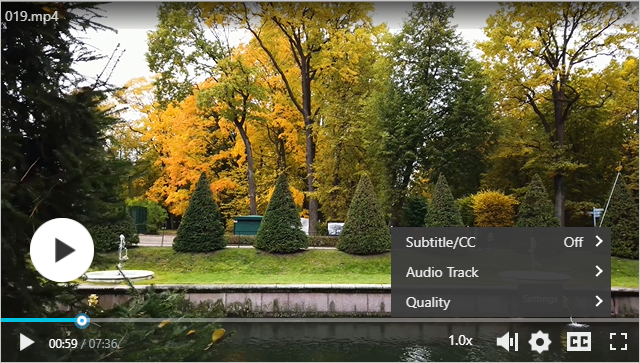
The ApsaraVideo VOD preview player provides features such as fast-forward, volume control, captions, audio tracks, definitions, and live comments, which makes video preview more convenient.
Integrate ApsaraVideo Player SDK
You can obtain a playback credential from the server and send it back to the client for playback. This method is more secure. For more information, see Obtain a playback credential. When you use ApsaraVideo Player SDK for web, note that you must configure a License. For the specific requirements, see the "Prerequisites" section.
ApsaraVideo Player supports playing a video directly by using a playback URL. You can pass the obtained playback URL directly to the player. For more information, see Play a video using a playback URL.
ApsaraVideo Player SDK is available in a standard edition and a professional edition. The professional edition additionally supports advanced features such as H.266 encoding, the DASH protocol, external subtitles, preloading, pre-rendering, and advanced ABR strategies. The standard edition does not include these features. If you need only basic playback control features, such as playback of on-demand or live videos, variable-speed playback, and resolution switching, the standard edition is sufficient. If you need the advanced features described above, we recommend that you purchase the professional edition.
Integrate a third-party player
You can integrate a third-party player to play a video using a playback URL.
After you obtain a playback URL, pass it to your own player for playback. This method is flexible, but you must implement features such as resolution switching and exception handling yourself.
Playback security (limits on playback and download)
Video security
To protect your video content, ApsaraVideo VOD provides multiple security features, including blacklists and whitelists, URL signing, and video encryption (Alibaba Cloud proprietary cryptography and HLS encryption). For more information, see Video security overview.
Account security
To ensure security, do not place the AccessKey pair of your Alibaba Cloud account or of a Resource Access Management (RAM) user on clients, especially web clients, to access ApsaraVideo VOD. For more information, see Overview.
Billing description
If you configure an accelerated domain name, you are charged for the CDN service when audio or video files are played.
If you do not configure an accelerated domain name, you are charged for outbound traffic from storage when audio or video files are played.
For more information, see Basic service billing.
FAQ
How do I troubleshoot video playback failures?
Check the network: Confirm that the client has normal network connectivity.
Check the video status: Call the Get Audio and Video Playback URLs operation, or check in the console whether the video status is
Normal.Check the playback URL or credential: Check whether the
auth_keyhas expired or whether the signature is correct.Check the player: Confirm that the player you use supports the video format. For information about the formats that ApsaraVideo Player supports, see Features of ApsaraVideo Player SDK.
Stuttering or loading failures when a mobile browser directly opens a copied playback URL: This occurs because the playback URL does not carry a URL signing signature, or because the domain name has Referer hotlink protection enabled and the request is blocked. Solution: Check whether URL signing is enabled for the playback URL and whether the URL carries a valid
auth_keysignature. Check the Referer hotlink protection whitelist configuration of the domain name. We recommend that you use a signed playback URL or access the video through ApsaraVideo Player SDK instead of directly exposing the original playback URL.Audio and video are out of sync during variable-speed playback in the
videocomponent of a WeChat mini program: This occurs because the nativevideocomponent of a WeChat mini program does not fully support edit lists at the underlying level, so the initial audio offset accumulates and is amplified during variable-speed playback or seek operations. Solution: We recommend that you use ApsaraVideo Player SDK for web instead of the nativevideocomponent, or transcode the video to improve compatibility.The web player stops working after a Chrome browser upgrade (an HLS compatibility issue): We recommend that you upgrade ApsaraVideo Player SDK for web to version 2.37.8 or later to resolve this compatibility issue, and apply for and configure a free License as needed. For information about how to apply for a License, see the description in the "Prerequisites" section.
For more information about other exceptions, see Troubleshoot playback errors.
How do I play encrypted videos?
ApsaraVideo VOD provides multiple encryption solutions, such as Alibaba Cloud proprietary cryptography and HLS encryption. You must configure an encrypted transcoding template group to transcode the video, and use ApsaraVideo Player SDK to decrypt and play the video. For more information, see Video encryption.
Encrypted playback reports an InvalidParameter error and indicates that the Rand parameter is invalid
If an InvalidParameter error is reported and the Rand parameter is indicated as invalid when you play an encrypted video, you must set the corresponding encryptType parameter in the playback configuration. For information about the configuration method, see Video encryption.