Configure serial devices
To use a serial device on a cloud computer, an administrator must configure the peripheral policy in the console, and the end user must complete the configuration on the Alibaba Cloud Workspace client and the cloud computer.
Get peripheral information
For USB peripherals, you need the VID (Vendor ID) and PID (Product ID), which are required when you configure peripheral policies. Both VID and PID are hexadecimal values, such as 0xa12c, where the 0x prefix is typically optional. You can look up the VID and PID of a connected USB peripheral in several ways.
The availability of peripheral devices on a cloud computer depends on multiple factors, including the type and version of the Alibaba Cloud Workspace terminal, the cloud computer image type and version, the type and version of the local device running the Alibaba Cloud Workspace client, and the brand and model of the peripheral device. You can visit the peripheral compatibility page to check whether a specific peripheral is compatible with a cloud computer. The data on this page was obtained under laboratory conditions and may differ from actual results.
From the Alibaba Cloud Workspace terminal
Open and log on to the Alibaba Cloud Workspace client.
In the upper-right corner of the client, click the icon, and then select Settings.
In the left-side navigation pane of the Settings window, click Peripherals, and then view the VID and PID of the USB peripheral on the Local USB Peripherals panel.
From the computer's device manager
You can find the VID and PID of a peripheral in the device management information on your computer.
Windows
In the Start menu, search for and open Device Manager.
In the Device Manager window, navigate to , and then double-click the USB device you want to look up.
On the Details tab of the properties dialog box, select Hardware Ids from the Property drop-down list. The VID and PID are displayed in the text box below.
macOS
In the system menu bar, choose , and then click More Info in the dialog box.
At the bottom of the About This Mac panel, click System Report.
In the left-side navigation pane of the new window, choose Hardware > USB, select the USB device you want to look up in the right-side panel, and then view the VID and PID below.
From the floating menu
Click the floating menu and select Peripherals & Printers.
On the Advanced Management tab, view the VID and PID of the USB peripheral in the device list.
Use a third-party tool
You can use the USB Device Tree Viewer tool to view peripheral information. This tool supports only Windows.
Download the tool: https://www.uwe-sieber.de/usbtreeview_e.html#download.
Extract the downloaded package, and then double-click
UsbTreeView.exeto open it.In the left-side directory of the tool, select the USB device you want to look up, and then view the VID and PID in the Device ID section of the right-side panel.
Hardware terminals
When you connect to a cloud computer through a hardware terminal (such as Alibaba Cloud Workspace Terminal, Alibaba Cloud Workspace Terminal Pro, or 23.8-inch Alibaba Cloud Workspace All-In-One Terminal), both the administrator and the end user must complete the following configuration steps.
Configure peripheral policies (administrator)
Peripheral management policies are part of the cloud computer policy, and must be created and maintained by an administrator in the console.
The following examples use the EDS Enterprise Edition console. For the Business Edition procedure, see Manage policies.
General procedure for creating or modifying peripheral policies
Create a custom policy and associate it with a cloud computer
Modify a custom policy already associated with a cloud computer
Peripheral policy settings
Enable USB redirection
Method 1: Globally enable USB redirection
Configuration path: .
Configuration requirements: Turn on the USB Redirection switch.

Method 2: Enable USB redirection for specific USB devices by using a peripheral whitelist
After you globally enable USB redirection, all USB devices can connect to the cloud computers associated with the policy. If you do not want all USB devices to connect to the cloud computers associated with the policy, you can turn off the USB Redirection switch and enable USB redirection for specific USB devices by adding a peripheral whitelist.
Configuration path: .
Configuration requirements: Enter the device name, VID, PID, and set Blacklist/Whitelist to Whitelist.

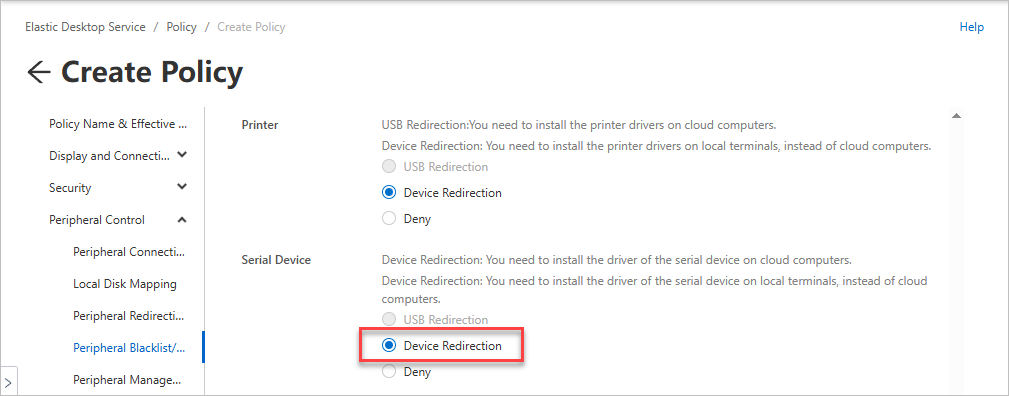
Enable device redirection for serial devices
Configuration path: .
Configuration requirements: Set the redirection mode for serial devices to Device Redirection.
Configure and use peripherals (end user)
Connect peripherals
You must connect peripherals to the on-premises computer running the Alibaba Cloud Workspace client before you can connect the peripherals to a cloud computer.
When you connect a cloud computer to a peripheral for the first time, a connection configuration dialog box appears in the lower-right corner of the cloud computer desktop. In the dialog box, you can select the device type, specify whether to turn on auto-connect, and specify whether to remember the current configurations.
Install drivers
When using USB redirection, serial devices cannot be used directly after connection. You must first install the driver on the cloud computer. When using device redirection, no driver installation is required on the cloud computer. Multiple installation methods are available.
Automatic scan and install
The first time you connect a peripheral, the system automatically scans for a matching driver. If one is found in the driver library, a Download and Install Driver dialog box appears. Click Install Now.
This feature requires the following conditions:
-
Cloud computer image: Windows operating system, image version V2.5.0 or later.
-
Alibaba Cloud Workspace terminal:
-
Alibaba Cloud Workspace Terminal: version V7.5 or later.
-
Alibaba Cloud Workspace Terminal Pro: version V7.5 or later.
-
Alibaba Cloud Workspace Notebook: version V7.5 or later.
-
Alibaba Cloud Workspace Notebook Pro: version V7.5 or later.
-
Install through Cloud Computer Manager
Cloud Computer Manager is a built-in utility on your cloud computer for system and peripheral management.
-
Open Cloud Computer Manager in one of the following ways:
-
Double-click the Cloud Computer Manager shortcut icon on the cloud computer desktop.
-
Click the floating ball on the cloud computer desktop and then click Cloud Computer Manager.
-
-
On the Cloud Computer Manager home page, click Peripherals & Printers.
-
On the Peripherals & Printers page, find the peripheral whose status is Driver Missing and click Repair.
-
If a driver is found in the driver library, click Download and Install Driver in the dialog box. After installation, click Close.
-
If no driver is available in the driver library but the driver is detected on your local device, click Upload and Install Local Driver in the dialog box. After installation, click Close.
-
If no driver is available in the driver library or on your local device, visit the peripheral manufacturer's website from your cloud computer and download the driver.
When the peripheral status changes to Connected, the driver installation is successful and the peripheral is ready for use.
-
Install through WUYING Application Center
WUYING Application Center is a tool for administrators to distribute and manage applications centrally. You can also use it to install peripheral drivers.
Connect to the cloud computer. On the desktop of the cloud computer, double-click the
 icon to open Wuying App Center.
-
In the left-side navigation pane of Application Center, click Driver Center.
NoteThis feature is supported only in WUYING Application Center on Windows cloud computers with image version V2.10.0 or later.
-
On the WUYING Driver Library or Enterprise Driver Library tab, search by device type or brand, and then click Download and Install on the card of the target peripheral.
Manual installation
If none of the preceding methods work, visit the peripheral manufacturer's website from your cloud computer and download the official driver.
Windows client
When you connect to a cloud computer by using the Windows client, both the administrator and the end user must complete the following configuration steps.
Configure peripheral policies (administrator)
Peripheral management policies are part of the cloud computer policy, and must be created and maintained by an administrator in the console.
The following examples use the EDS Enterprise Edition console. For the Business Edition procedure, see Manage policies.
General procedure for creating or modifying peripheral policies
Create a custom policy and associate it with a cloud computer
Modify a custom policy already associated with a cloud computer
Peripheral policy settings
Enable USB redirection
Method 1: Globally enable USB redirection
Configuration path: .
Configuration requirements: Turn on the USB Redirection switch.
Method 2: Enable USB redirection for specific USB devices by using a peripheral whitelist
After you globally enable USB redirection, all USB devices can connect to the cloud computers associated with the policy. If you do not want all USB devices to connect to the cloud computers associated with the policy, you can turn off the USB Redirection switch and enable USB redirection for specific USB devices by adding a peripheral whitelist.
Configuration path: .
Configuration requirements: Enter the device name, VID, PID, and set Blacklist/Whitelist to Whitelist.

Enable device redirection for serial devices
Configuration path: .
Configuration requirements: Set the redirection mode for serial devices to Device Redirection.
Configure and use peripherals (end user)
Install UsbDk
You need to install UsbDk on the local Windows computer only when you use Windows client and access peripherals through USB redirection. UsbDk is not required in other scenarios.
UsbDk (USB Development Kit) is an open-source driver library for Windows that provides applications with direct and exclusive access to USB devices. It is essential for USB peripherals to function properly on a cloud computer. The Windows client installer includes UsbDk installation. If you skipped this step during installation, peripheral issues may occur. Follow these steps to reinstall UsbDk.
Open the Alibaba Cloud Workspace client download page and download the latest version of Windows client.
Double-click the installer to run it. On the Select Components screen, make sure to select UsbDk Runtime Libraries, and then follow the prompts to complete the installation.
Restart your computer after installing UsbDk Runtime Libraries.
Connect peripherals
You must connect peripherals to the on-premises computer running the Alibaba Cloud Workspace client before you can connect the peripherals to a cloud computer.
When you connect a cloud computer to a peripheral for the first time, a connection configuration dialog box appears in the lower-right corner of the cloud computer desktop. In the dialog box, you can select the device type, specify whether to turn on auto-connect, and specify whether to remember the current configurations.
Install drivers
After a peripheral connects to a cloud computer, it generally cannot be used directly. You must first install the driver. You can use various methods to install the driver.
Automatic scan and install
The first time you connect a peripheral, the system automatically scans for a matching driver. If one is found in the driver library, a Download and Install Driver dialog box appears. Click Install Now.
This feature requires the following conditions:
-
Cloud computer image: Windows operating system, image version V2.5.0 or later.
-
Alibaba Cloud Workspace client:
-
Windows client: version V7.6 or later.
-
macOS client: version V7.6 or later.
-
Install through Cloud Computer Manager
Cloud Computer Manager is a built-in utility on your cloud computer for system and peripheral management.
-
Open Cloud Computer Manager in one of the following ways:
-
Double-click the Cloud Computer Manager shortcut icon on the cloud computer desktop.
-
Click the floating ball on the cloud computer desktop and then click Cloud Computer Manager.
-
-
On the Cloud Computer Manager home page, click Peripherals & Printers.
-
On the Peripherals & Printers page, find the peripheral whose status is Driver Missing and click Repair.
-
If a driver is found in the driver library, click Download and Install Driver in the dialog box. After installation, click Close.
-
If no driver is available in the driver library but the driver is detected on your local device, click Upload and Install Local Driver in the dialog box. After installation, click Close.
-
If no driver is available in the driver library or on your local device, visit the peripheral manufacturer's website from your cloud computer and download the driver.
When the peripheral status changes to Connected, the driver installation is successful and the peripheral is ready for use.
-
Install through WUYING Application Center
WUYING Application Center is a tool for administrators to distribute and manage applications centrally. You can also use it to install peripheral drivers.
Connect to the cloud computer. On the desktop of the cloud computer, double-click the
icon to open Wuying App Center.-
In the left-side navigation pane of Application Center, click Driver Center.
NoteThis feature is supported only in WUYING Application Center on Windows cloud computers with image version V2.10.0 or later.
-
On the WUYING Driver Library or Enterprise Driver Library tab, search by device type or brand, and then click Download and Install on the card of the target peripheral.
Migrate drivers from a local device
If the local device running the Alibaba Cloud Workspace client already has a peripheral driver, you can migrate it directly to the cloud computer. Migrated drivers are also uploaded to your organization's driver library and shared with other cloud computers in the organization.
Prerequisites
-
Cloud computer image: Windows operating system, image version V2.6.0 or later.
-
Alibaba Cloud Workspace client:
-
Only Windows client (version V7.7 or later) is supported.
-
Sufficient permissions to package the driver for migration (read access to the driver directory on drive C).
-
-
Cloud computer policy: Disk redirection must be enabled. If not, contact your IT administrator.For more information, see Configuration reference.
-
Local device storage: at least 500 MB of available storage space.
-
Network: a stable connection for transferring driver files.
Before migrating a driver, verify that it works correctly with the peripheral on your local device.
Procedure
-
Open Cloud Computer Manager in one of the following ways:
-
Double-click the Cloud Computer Manager shortcut icon on the cloud computer desktop.
-
Click the floating ball on the cloud computer desktop and then click Cloud Computer Manager.
-
-
On the Cloud Computer Manager home page, click Peripherals & Printers.
-
On the Peripheral Management page, click Peripherals & Printers.
-
On the Peripherals & Printers page, click Driver Migration.
-
On the Driver Migration page, select the peripheral type, accept the Driver Migration Privacy Agreement, and then click Scan Now.
-
On the Install Driver page, select a detected driver, accept the agreement, and click Install.
Repeat this step if you need to migrate multiple drivers.
Manual installation
If none of the preceding methods work, visit the peripheral manufacturer's website from your cloud computer and download the official driver.
After the drivers are successfully installed, restart the cloud computer. After restart, reconnect the cloud computer to the peripherals and use the peripherals.
Troubleshooting
For common questions about cloud computer policies, see Policy FAQ.
For common questions about peripherals, see Peripheral FAQ.
For troubleshooting methods for common issues, see Self-help Guide for Peripheral Issues.