Configure webcams
To use a webcam with a cloud computer, an administrator must first configure a peripheral policy in the console. The end user must then configure settings on the Alibaba Cloud Workspace client and the cloud computer.
Get peripheral information
For USB peripherals, you need the VID (Vendor ID) and PID (Product ID), which are required when you configure peripheral policies. Both VID and PID are hexadecimal values, such as 0xa12c, where the 0x prefix is typically optional. You can look up the VID and PID of a connected USB peripheral in several ways.
The availability of peripheral devices on a cloud computer depends on multiple factors, including the type and version of the Alibaba Cloud Workspace terminal, the cloud computer image type and version, the type and version of the local device running the Alibaba Cloud Workspace client, and the brand and model of the peripheral device. You can visit the peripheral compatibility page to check whether a specific peripheral is compatible with a cloud computer. The data on this page was obtained under laboratory conditions and may differ from actual results.
From the Alibaba Cloud Workspace terminal
Open and log on to the Alibaba Cloud Workspace client.
In the upper-right corner of the client, click the icon, and then select Settings.
In the left-side navigation pane of the Settings window, click Peripherals, and then view the VID and PID of the USB peripheral on the Local USB Peripherals panel.
From the computer's device manager
You can find the VID and PID of a peripheral in the device management information on your computer.
Windows
In the Start menu, search for and open Device Manager.
In the Device Manager window, navigate to , and then double-click the USB device you want to look up.
On the Details tab of the properties dialog box, select Hardware Ids from the Property drop-down list. The VID and PID are displayed in the text box below.
macOS
In the system menu bar, choose , and then click More Info in the dialog box.
At the bottom of the About This Mac panel, click System Report.
In the left-side navigation pane of the new window, choose Hardware > USB, select the USB device you want to look up in the right-side panel, and then view the VID and PID below.
From the floating menu
Click the floating menu and select Peripherals & Printers.
On the Advanced Management tab, view the VID and PID of the USB peripheral in the device list.
Use a third-party tool
You can use the USB Device Tree Viewer tool to view peripheral information. This tool supports only Windows.
Download the tool: https://www.uwe-sieber.de/usbtreeview_e.html#download.
Extract the downloaded package, and then double-click
UsbTreeView.exeto open it.In the left-side directory of the tool, select the USB device you want to look up, and then view the VID and PID in the Device ID section of the right-side panel.
Configure peripheral policies
Peripheral management policies are part of the cloud computer policy, and must be created and maintained by an administrator in the console.
The following examples use the EDS Enterprise Edition console. For the Business Edition procedure, see Manage policies.
General procedure for creating or modifying peripheral policies
Create a custom policy and associate it with a cloud computer
Modify a custom policy already associated with a cloud computer
Peripheral policy configuration instructions
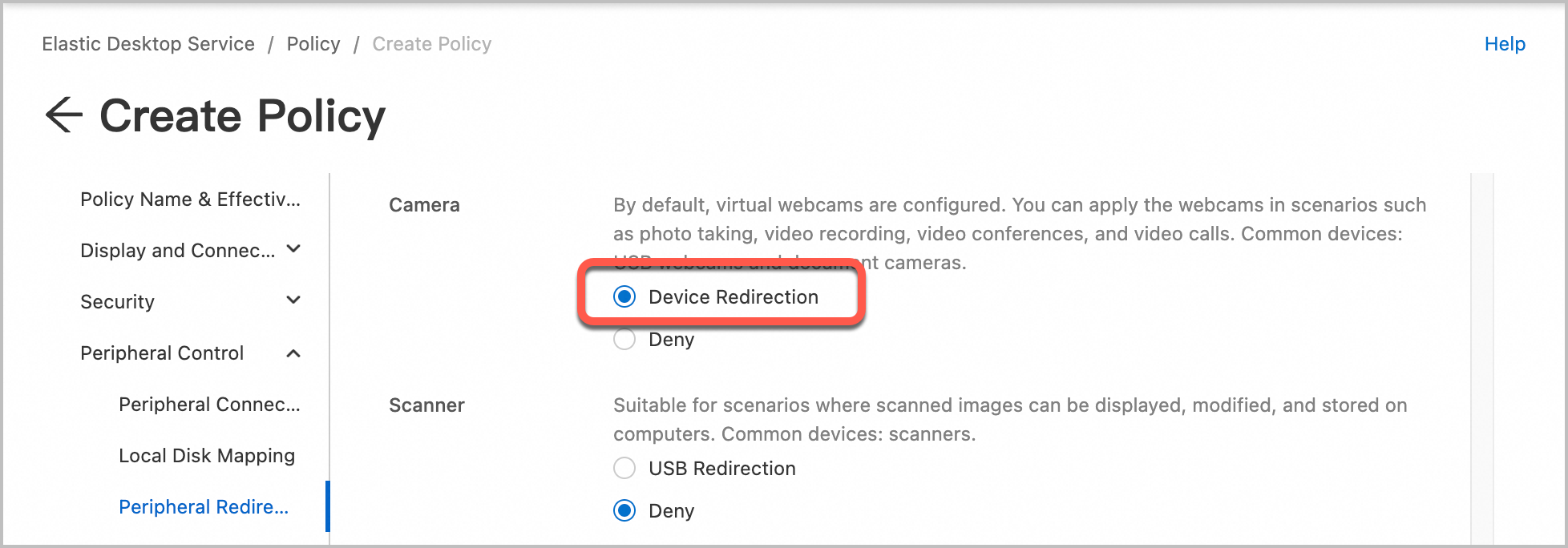
Enable device redirection for cameras
Configuration path: .
Configuration requirements: Set the redirection mode for cameras to Device Redirection.
Configure and use peripherals
Connect peripherals
You must connect peripherals to the WUYING Terminal oron-premises computer running the Alibaba Cloud Workspace client before you can connect the peripherals to a cloud computer.
When you connect a cloud computer to a peripheral for the first time, a connection configuration dialog box appears in the lower-right corner of the cloud computer desktop. In the dialog box, you can select the device type, specify whether to turn on auto-connect, and specify whether to remember the current configurations.
Set the webcam application mode (Optional)
For clearer image quality, set the application mode to Scanner in the peripheral management module of the Wuying terminal.
Path: Wuying terminal > > Settings > Peripherals.
Troubleshooting
For common questions about cloud computer policies, see Policy FAQ.
For common questions about peripherals, see Peripheral FAQ.
For troubleshooting methods for common issues, see Self-help Guide for Peripheral Issues.