Create a traffic dashboard
To monitor traffic across multiple systems, you can create a Traffic Dashboard. A Traffic Dashboard provides a centralized view of key metrics for your applications and interfaces, such as passed QPS, blocked QPS, exception QPS, RT, and concurrency, for an enhanced monitoring experience.
Prerequisites
Your application is connected to AHAS Application Protection or Gateway Protection.
- To connect to Application Protection, see Access an application.
- To connect to Gateway Protection, see Gateway Protection.
Background information
A Traffic Dashboard can improve O&M efficiency. For example, in a typical e-commerce scenario, a shopping website's backend relies on multiple interconnected systems. To monitor the performance of checkout operations, you can add all related interfaces to a dashboard. This allows O&M personnel to view all relevant traffic information in one place, improving efficiency by eliminating the need to check individual systems.
You can add applications connected to either Application Protection or Gateway Protection to a Traffic Dashboard.
Procedure
Log on to the AHAS console and select a region in the upper-left corner.
- In the navigation pane on the left, choose .
- On the Traffic Dashboard page, click Create Dashboard.
- In the Create Dashboard dialog box, complete the following steps:
- Enter a dashboard name.
- Select the applications for the dashboard.The list includes applications connected to Application Protection and Gateway Protection.
- In the left pane of the dual list box, select the interfaces to monitor and click >.The selected interfaces appear in the right pane.
- Click OK.
Results
- The new dashboard appears on the Traffic Dashboard page.
- To edit a dashboard, click the edit icon in its upper-right corner.
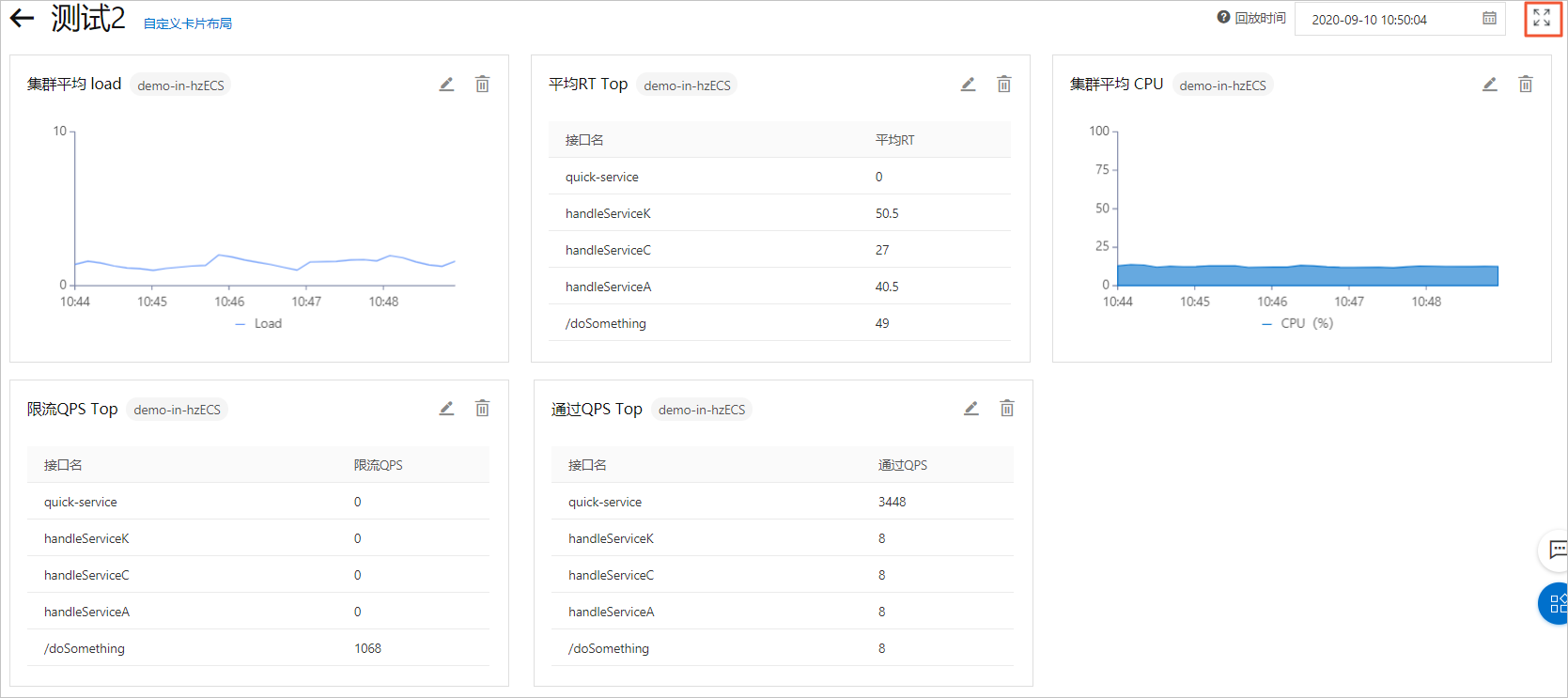
- Click a dashboard to view metrics for its interfaces, such as passed QPS, blocked QPS, exception QPS, RT, and concurrency.
- Click the expand icon in the upper-right corner of the page to view the Traffic Dashboard in full-screen mode.