This topic lists common call-related questions and their solutions. Read it carefully.
1. During a call, I cannot hear the other party or they cannot hear me. How do I troubleshoot this?
Use the latest version of Google Chrome to log on to the agent workspace. Test your audio on first use to ensure both parties can hear each other.
Using a laptop with a standard single-jack mobile headset
This issue usually occurs because Cloud Contact Center is not configured to use the correct speaker and microphone devices. Rarely, it may be caused by a laptop hardware fault or using a browser other than Google Chrome.
Log on to Cloud Contact Center using Google Chrome. Plug in your headset. Click device detection at the top of the page. On the new page that opens, run the test. The test succeeds if you can hear your own voice through the headset.
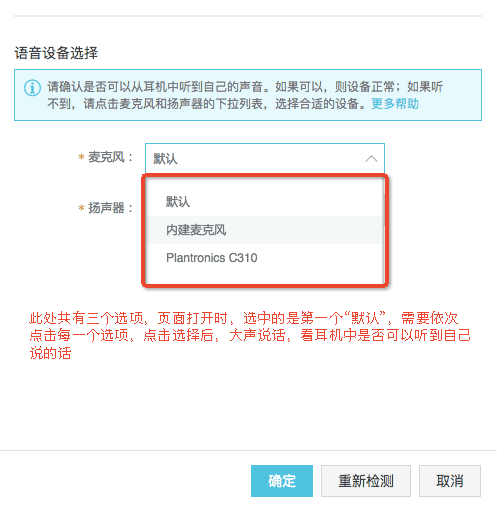
In the microphone drop-down menu, click each option in sequence. After selecting an option, speak loudly and check whether you can hear your voice through the headset. If not, select the next option in the microphone menu and repeat until you have tried all options.
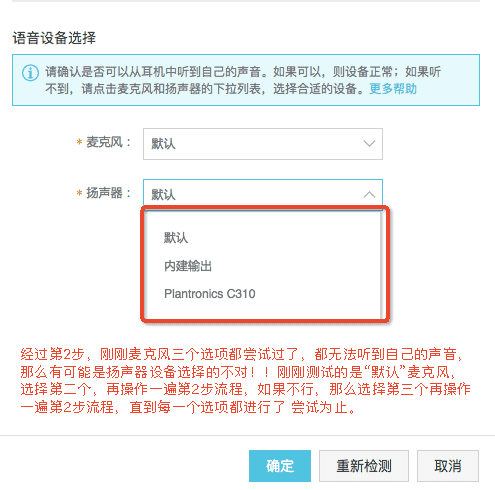
If you still cannot hear your own voice, in the speaker drop-down menu, select the next option and repeat Step 2. Continue this process until you have selected and tested all options in the speaker drop-down menu.
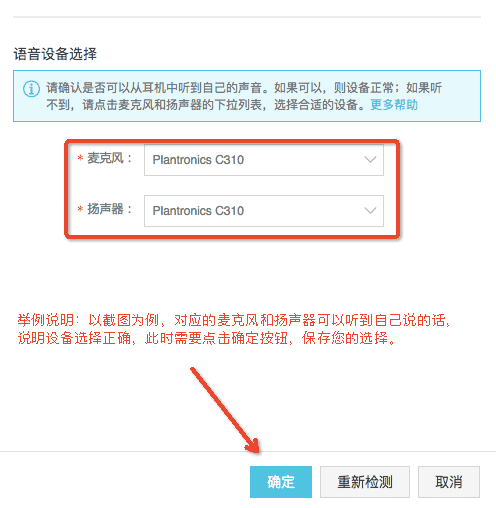
If steps 1–3 identify the correct microphone and speaker devices, click the confirm button on the device detection page to ensure calls work properly.
If you still cannot hear any sound, try making a voice or video call using another app such as QQ or WeChat to verify whether audio works normally.
You can also use the built-in Voice Recorder app in Windows to record a short audio clip and check whether the exported file contains sound. In older Windows versions, find it at Start > Programs > Accessories > Voice Recorder. In newer versions, search for "Voice Recorder." If you are using a laptop, we recommend using a USB headset.
If you still cannot hear your own voice—but steps 4 and 5 work correctly—submit a ticket. Our support team will assist you.
Other scenarios
If you are using a laptop with a mobile headset but not using the headset’s microphone (instead using the laptop’s built-in microphone), the call will sound like speakerphone. The other party may hear you faintly or with background noise. This is normal. Speak louder and use a quiet environment for calls.
Cloud Contact Center does not support mobile browsers. Use only desktop browsers.
If you are using a professional headset (not a mobile headset) and occasionally hear static, this is usually due to poor signal quality on the caller’s mobile device.
For other cases, see Device detection usage guide.
2. Outbound call limits: three calls per day, five per month
Answer: The "three calls per day, five per month" limit means that Cloud Contact Center restricts how often a number can call the same recipient—up to three times per day and five times per month. This policy prevents harassment and avoids complaints that could lead to number or line suspension.
The exact limits depend on the carrier. Not all ISPs enforce the "three per day, five per month" rule.
3. Outbound call fails with "Call restricted. Do not exceed permissions."
Carriers impose outbound calling policies to prevent harassment and reduce end-user complaints.
Call frequency limit: Typically "three per day, five per month." You can call the same number up to three times per day and five times per month. Each attempt counts—even if the recipient does not answer.
Calling time window: Usually 9 a.m. to 9 p.m. local time. Calls outside this window are blocked.
To change these limits, submit your calling script to the carrier for review. If approved, the carrier may adjust the rules. Otherwise, changes are not allowed. Contact your number provider for details.
4. Common SIP signaling codes shown in outbound call interface
Code 472: Call restricted—usually due to frequency or time window limits.
Code 480: Typically blocked by the carrier.
Code 487: Usually means the recipient declined the call or a mobile app blocked it.
Codes 500 and above: Contact your number carrier.
Codes 600 and above: Contact your number carrier.
These are possible causes. Confirm details directly with your carrier.
5. Occasional sudden silence or choppy audio during calls
Answer: Sudden silence or choppy audio usually happens when one party has poor signal or network conditions—similar to regular mobile calls where weak signal degrades call quality.
6. Agents miss incoming calls
Incoming call flow:
Caller dials the number.
Call reaches the IVR flow bound to the number.
Based on the IVR flow, the call routes to a configured skill group.
The call rings only if an agent in that skill group is online and idle.
Troubleshooting steps:
Check whether the called number is bound to an IVR flow. If not, bind it by following How to bind a number to an IVR flow. If already bound, check the call records. If records exist, proceed to step 2. If no records appear, contact Cloud Contact Center technical support.
If call records exist, go to the record > details > expand to view the IVR node path. If the call did not reach the transfer to agent node, the IVR configuration may be incorrect. Identify which module the call reached and review that IVR section. If the call reached the transfer to agent node, note which skill group it routed to and proceed to step 3.

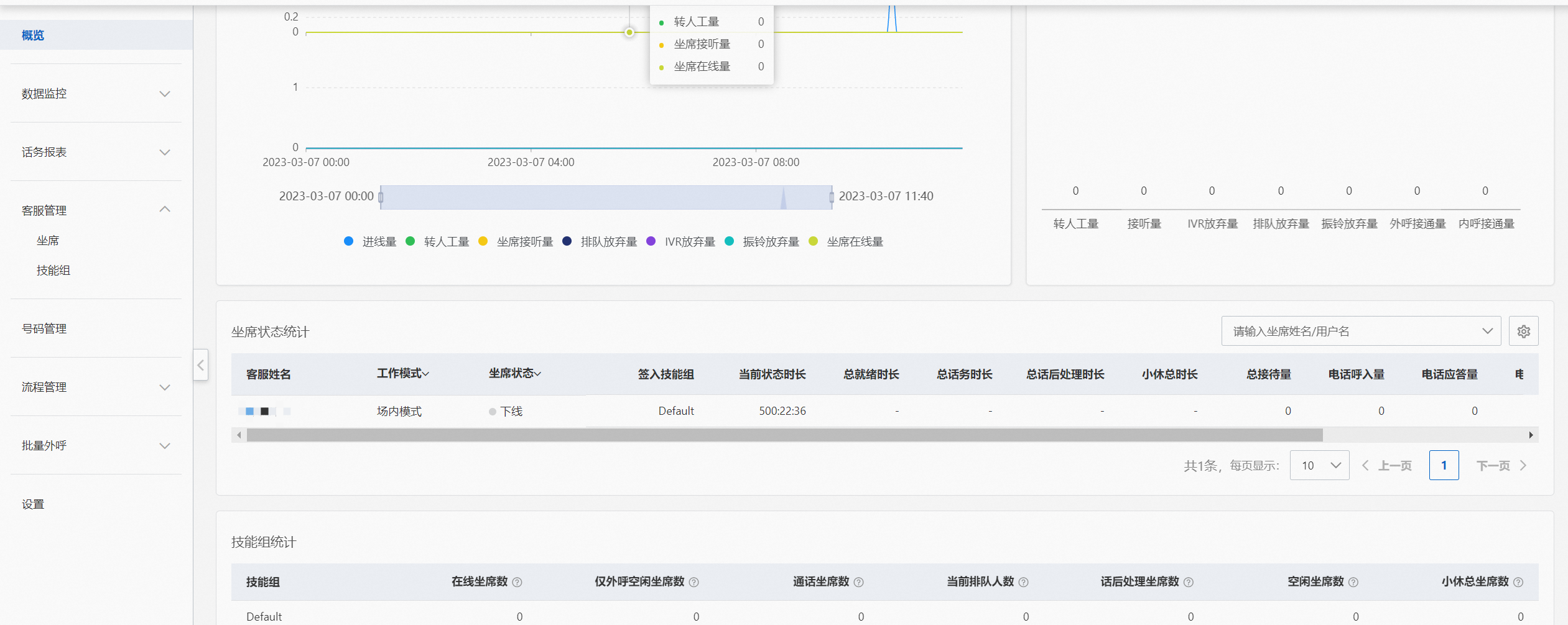
Check whether the agent is idle. In overview, verify that the agent is signed in to the skill group identified in step 2 and that their status is idle. If agents in the target skill group are online and idle, calls should not be missed.
7. Incoming call rings once, then the agent disconnects automatically. What causes this?
Answer: This usually happens when network instability at the agent’s location breaks the SIP connection, causing the agent to go offline.
8. During a call, I cannot hear the other party or they cannot hear me
Answer: For more details, see References to troubleshoot.