This topic answers common questions about system operations.
1. How to view your Alibaba Cloud account UID
Log on to your Alibaba Cloud account and go to https://account.console.aliyun.com/?#/secure. Your Alibaba Cloud UID is the Account ID displayed to the right of your profile picture.
2. How to log on to a Cloud Contact Center instance as a RAM user
A:
On the logon page, select RAM User. If you attempt to log on using an Alibaba Cloud account, an error message appears indicating an incorrect username or password.
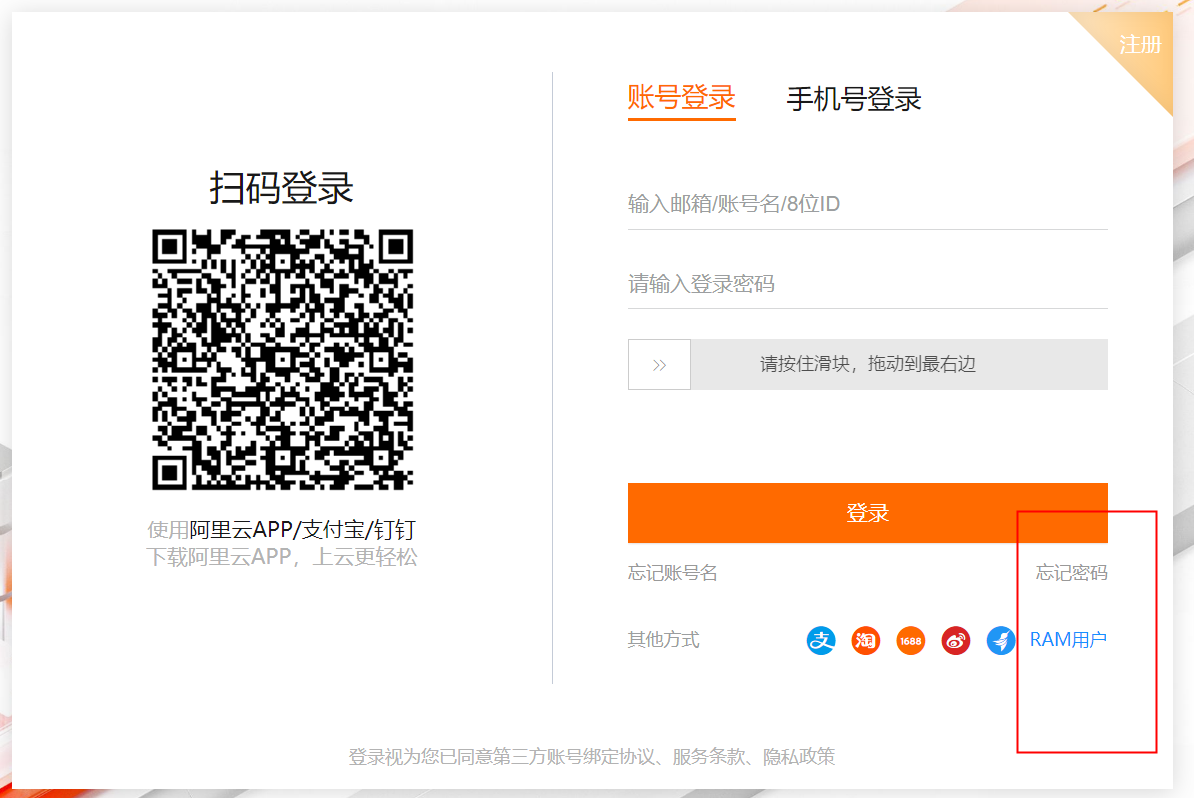
After you log on, you are redirected to the Cloud Contact Center console. If you have console permissions, click the link under Access URL. If you do not have console permissions, copy the access link from the email you received and paste it into your browser.
3. How to find the Cloud Contact Center instance ID
You can view this information in two ways:
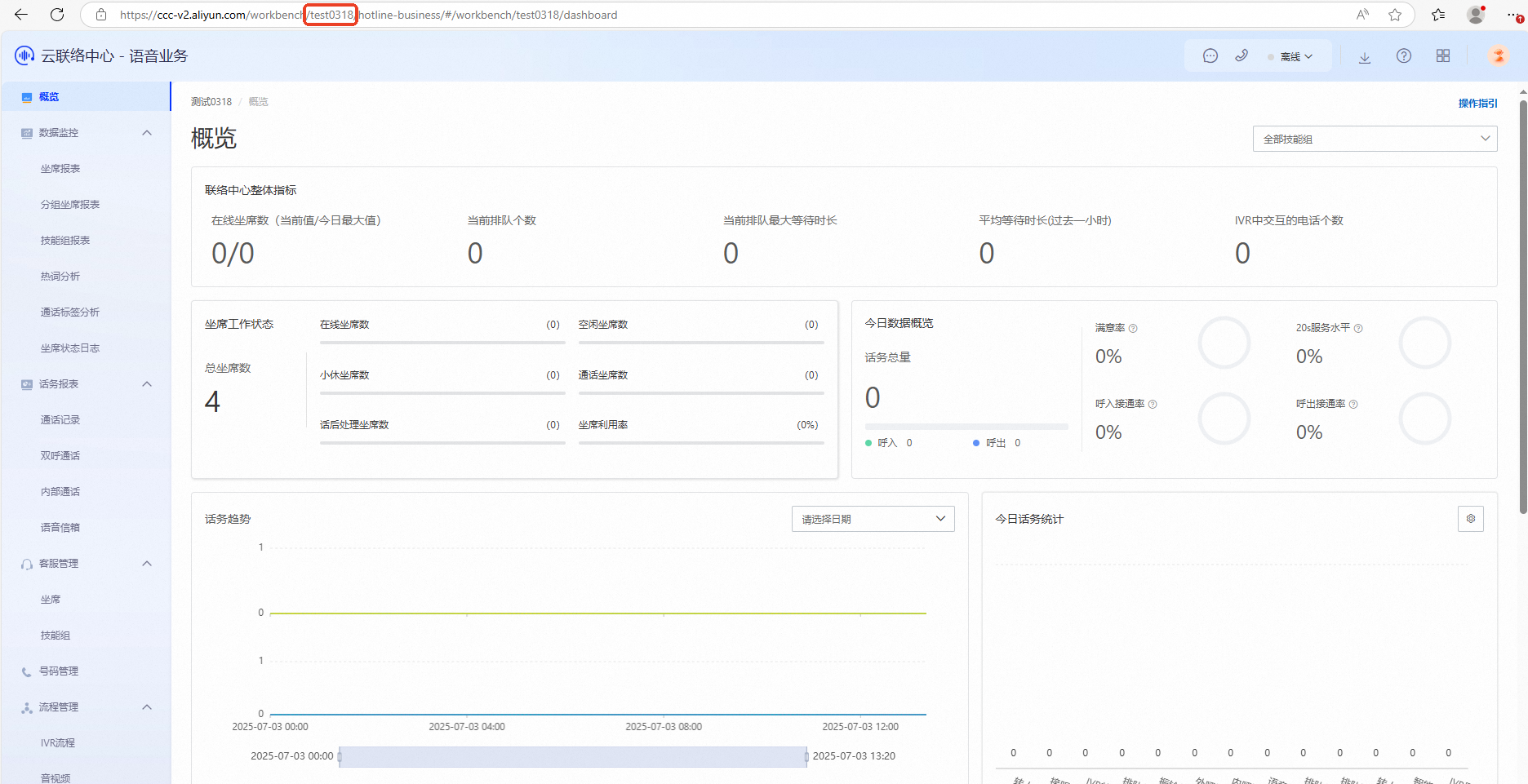
Method 1: Log on to the Cloud Contact Center console and view the information.

If you do not have console permissions, you can find the instance ID in the workbench URL. It is the string between `workbench/` and `/agentdest`.
4. How to attach a number to a Cloud Contact Center instance
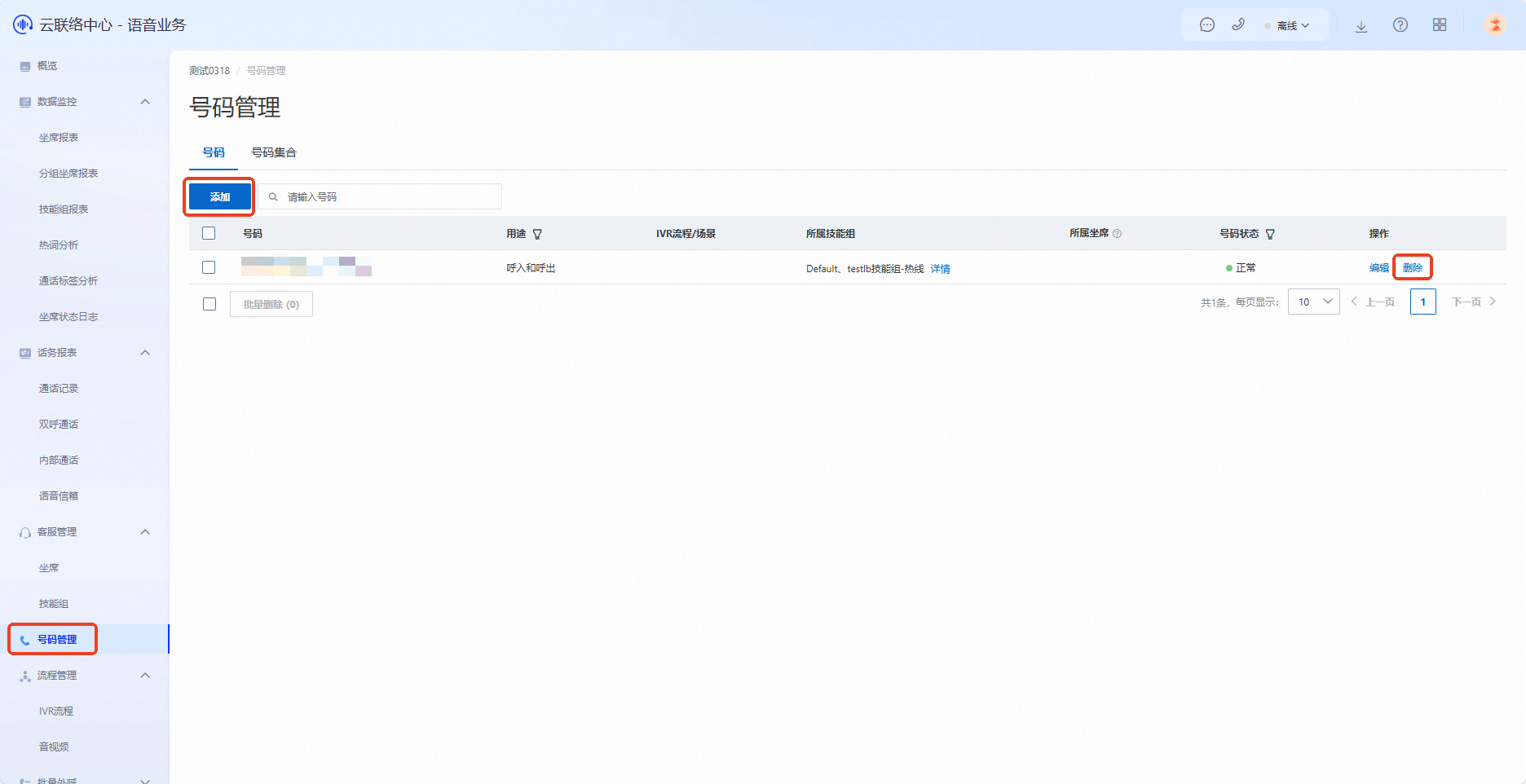
In the Number Management menu, you can click Add to attach a number to an instance or click Delete to detach a number.
5. How to attach or remove a number from a skill group
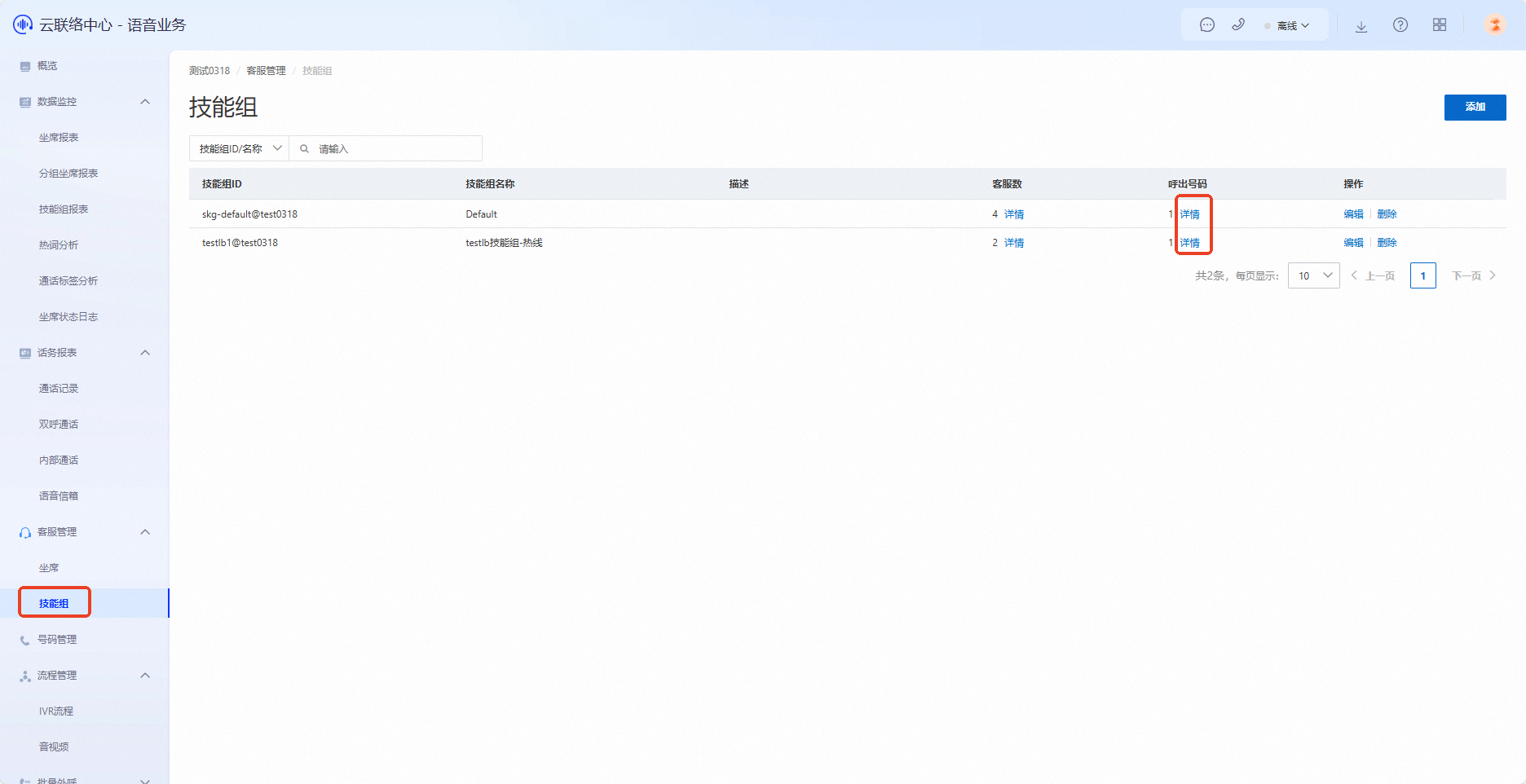
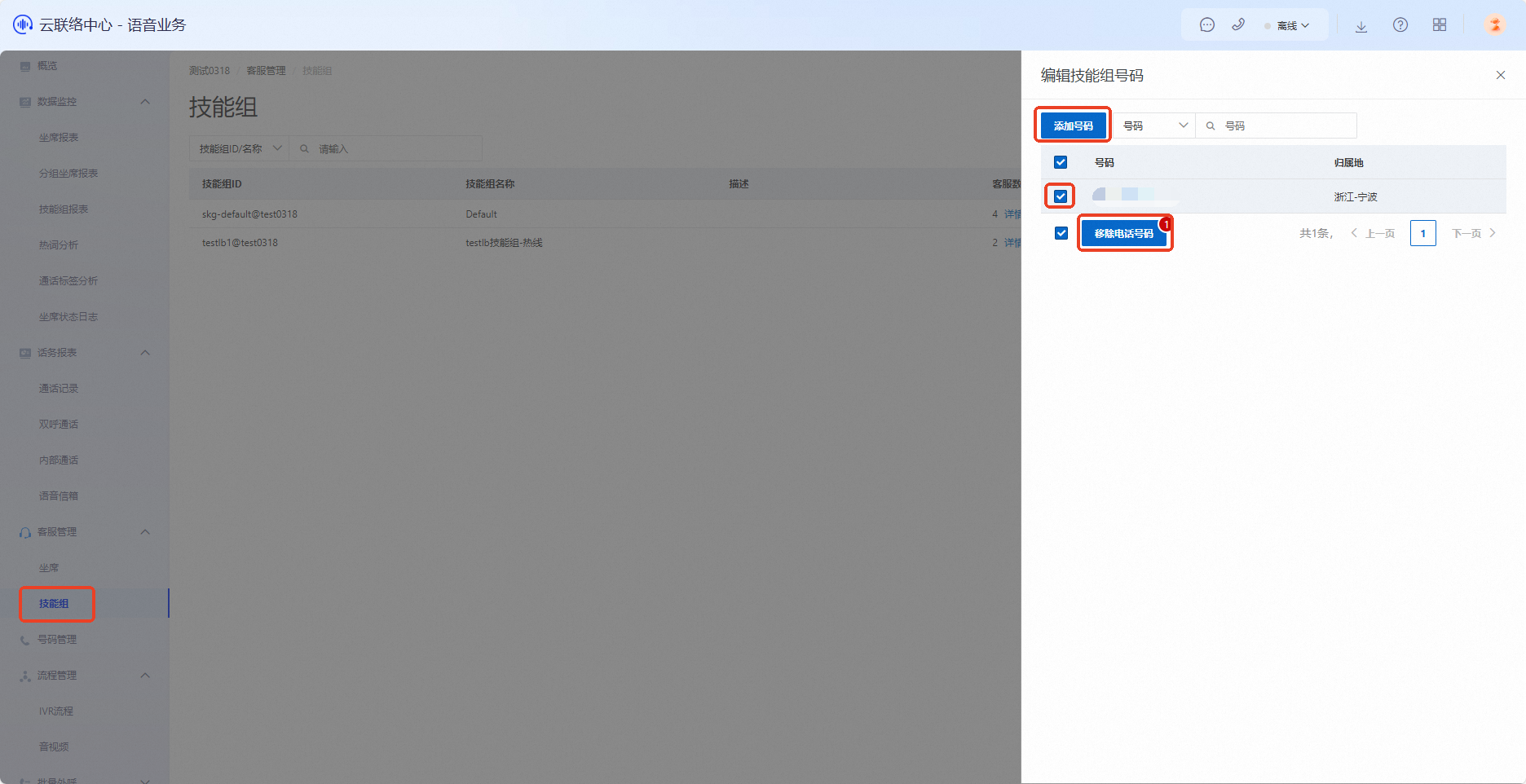
In the Skill Group menu, click Details for the outbound number. Then, click Add Number or Remove.
After you attach a number to a skill group, all agents in that group can use it to make calls. Agents must refresh the page and go online again for the new number to appear. Otherwise, the new configuration will not be loaded.
6. How to attach a number to an IVR flow
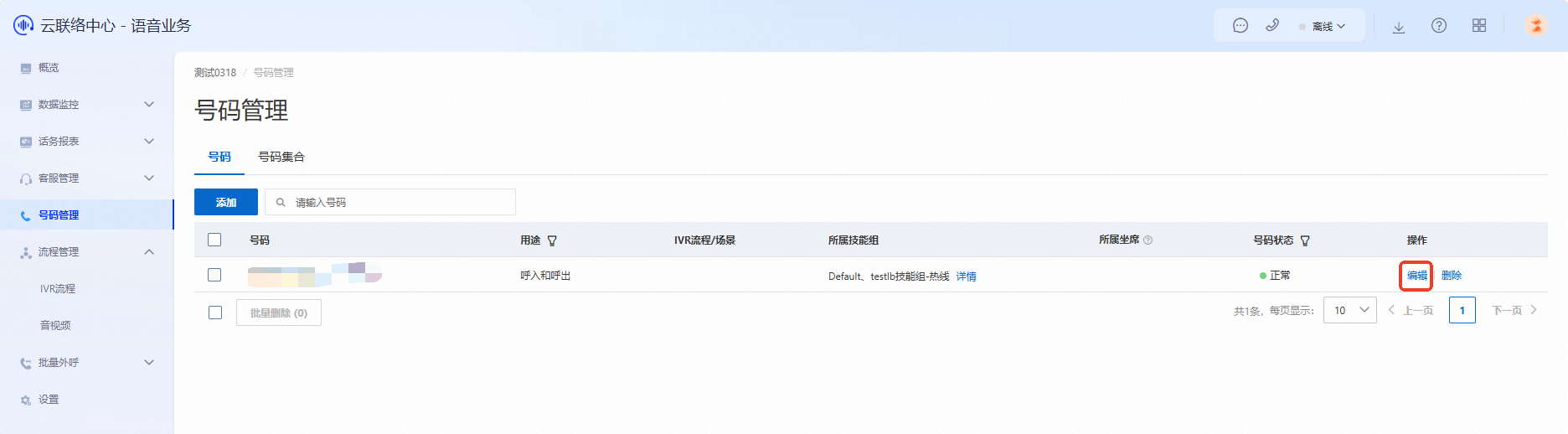
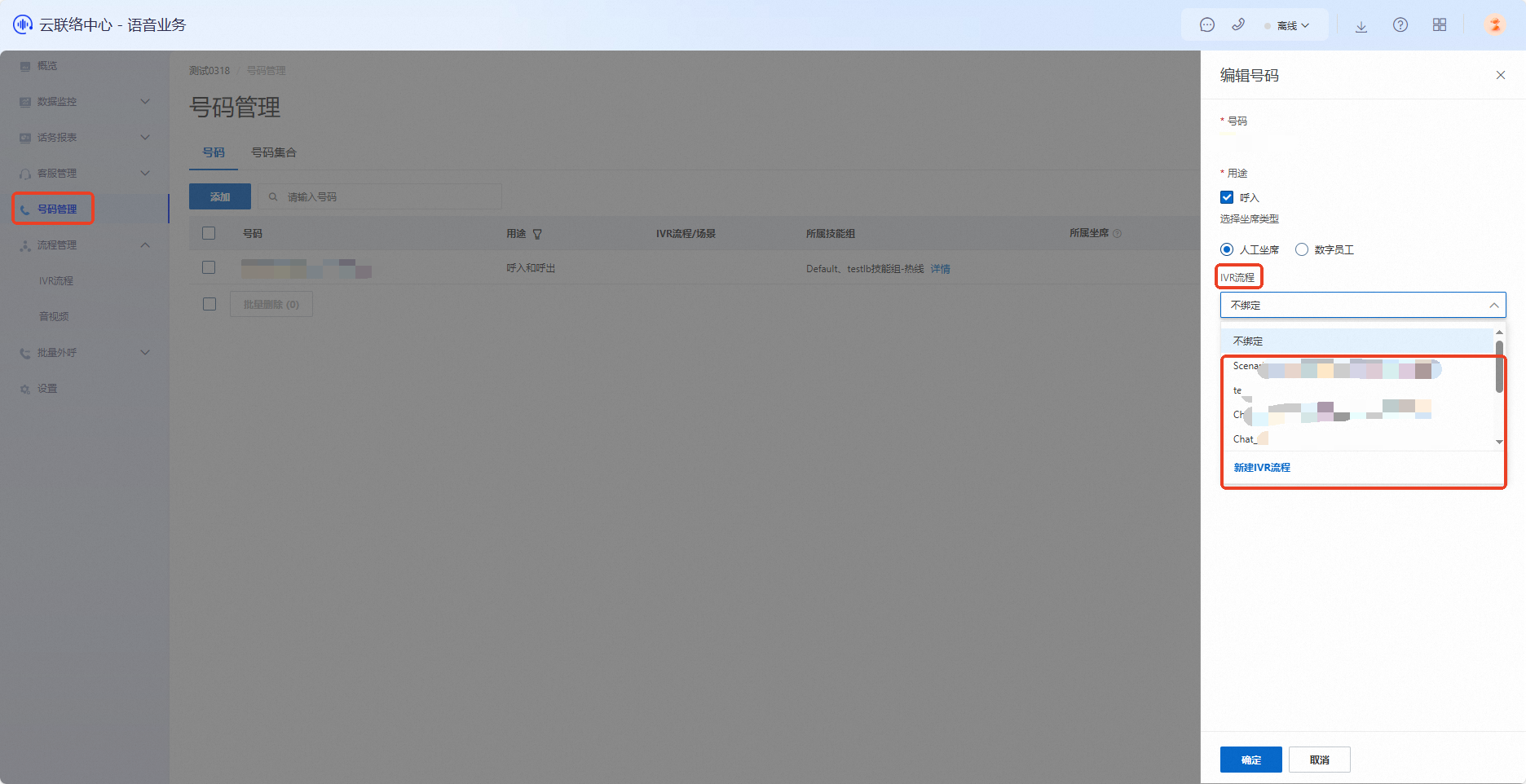
From the Number Management menu, click Edit and select the IVR flow to attach.
7. How to add an agent to an instance
A:
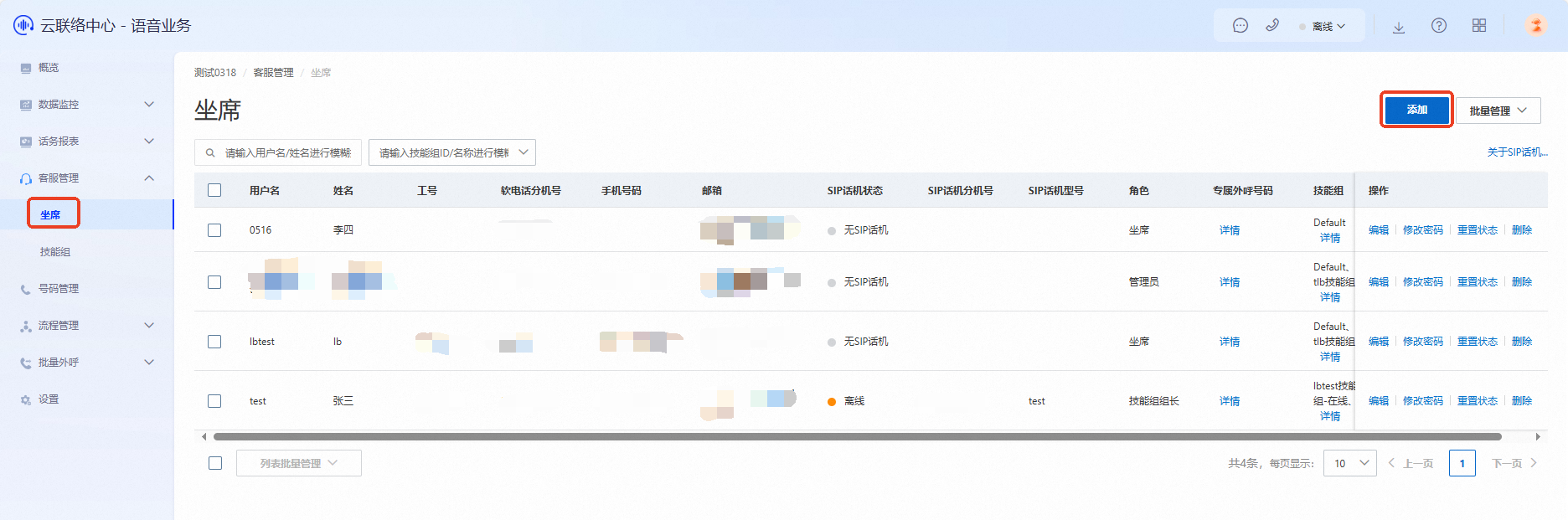
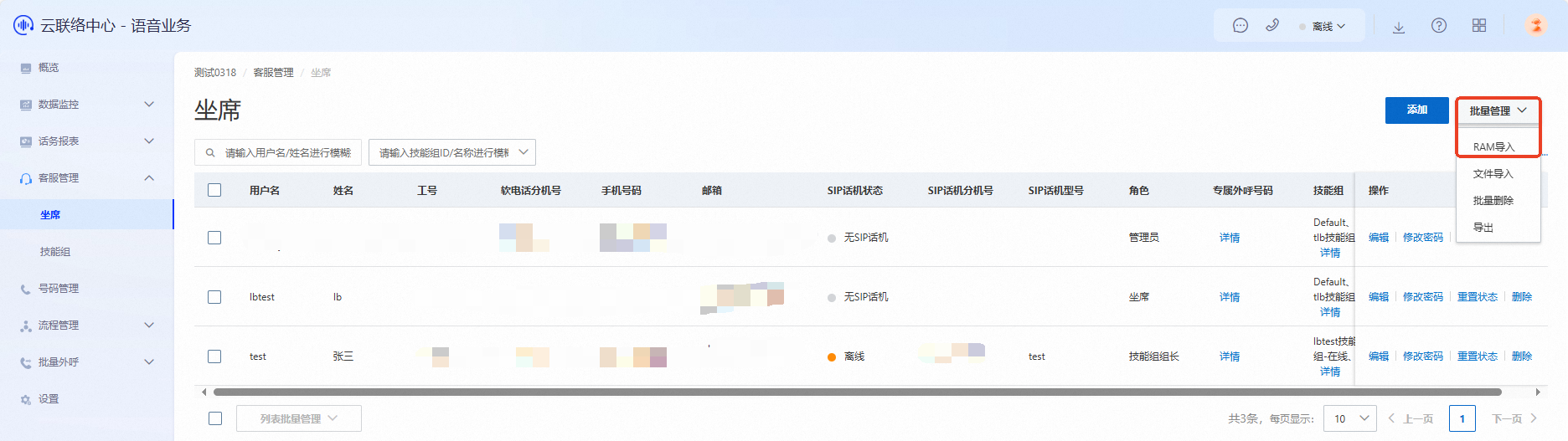
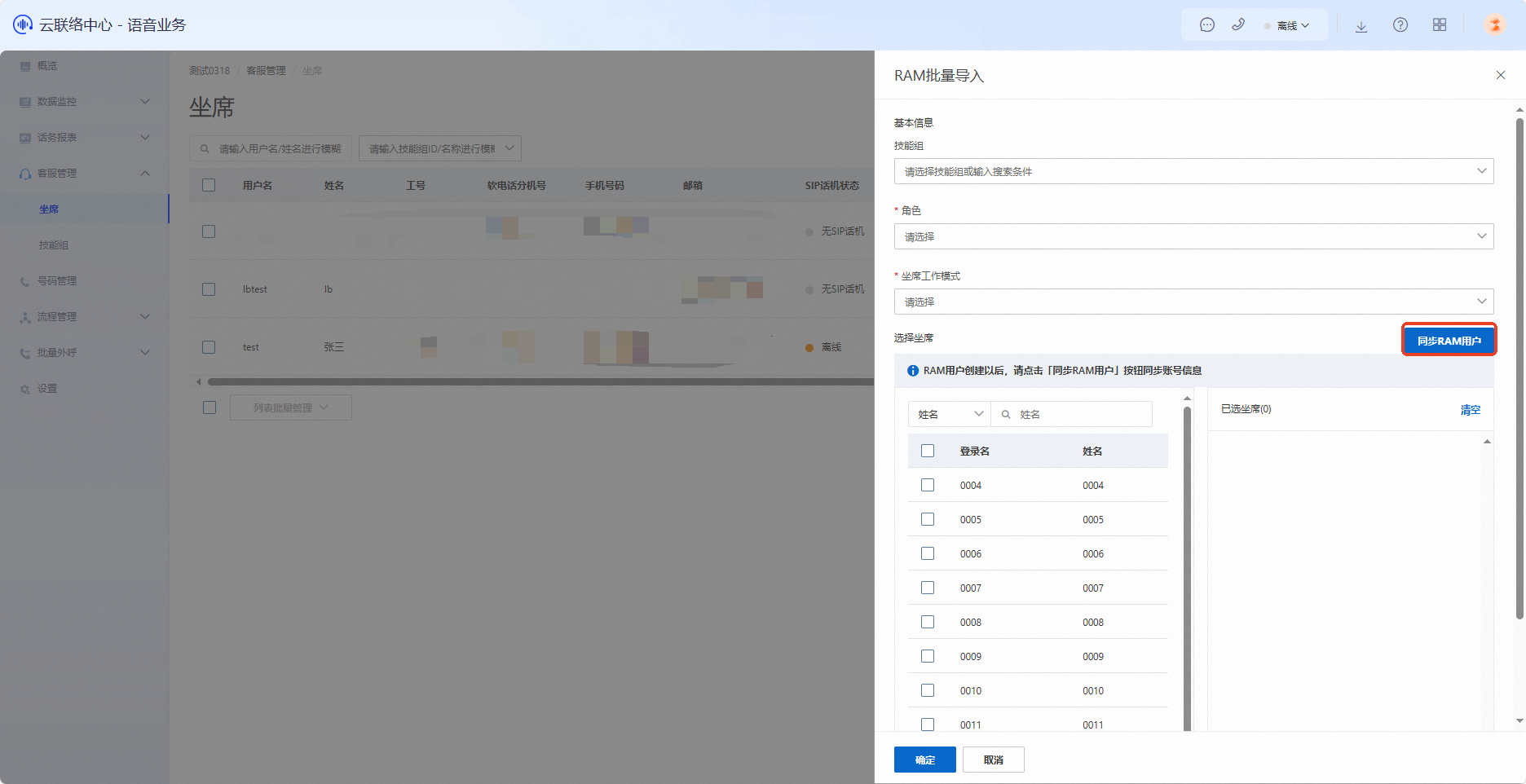
In the Agent menu, click Add. Enter the correct email address. Account credentials will be sent to this address.
NoteCreating new agents is disabled in Cloud Contact Center V1.0.

If the account already exists in Resource Access Management (RAM), you can import it directly. If it is not listed, click Sync RAM Account.
8. How to attach an agent to a skill group
You can do this in two ways:
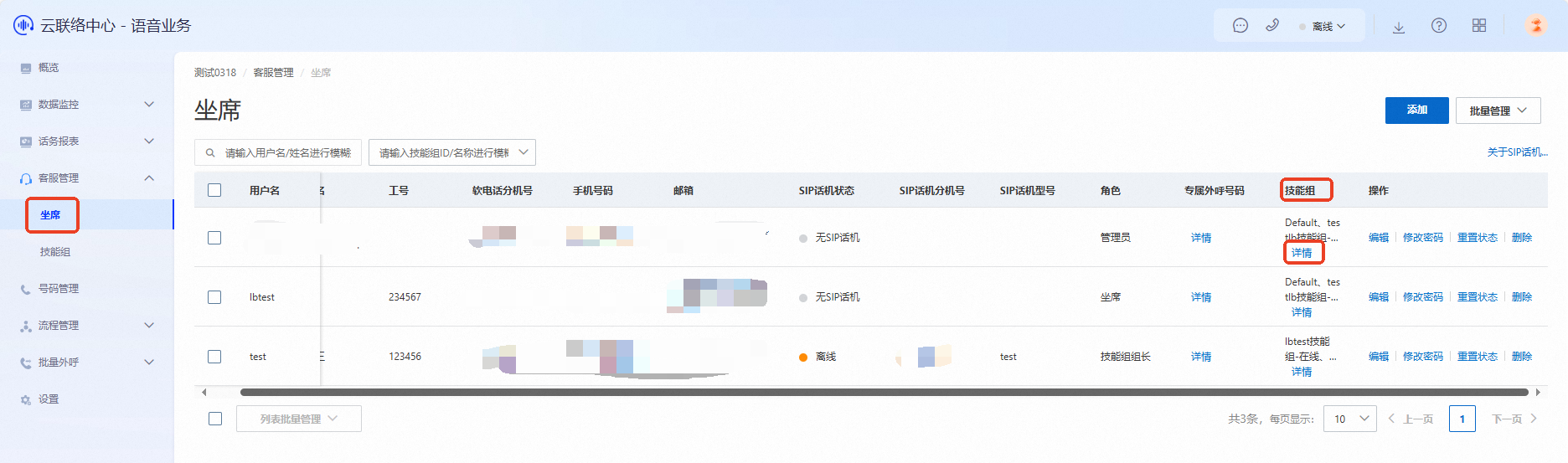
Method 1: In the Agent menu, find the Skill Group field and click Details to add a skill group.
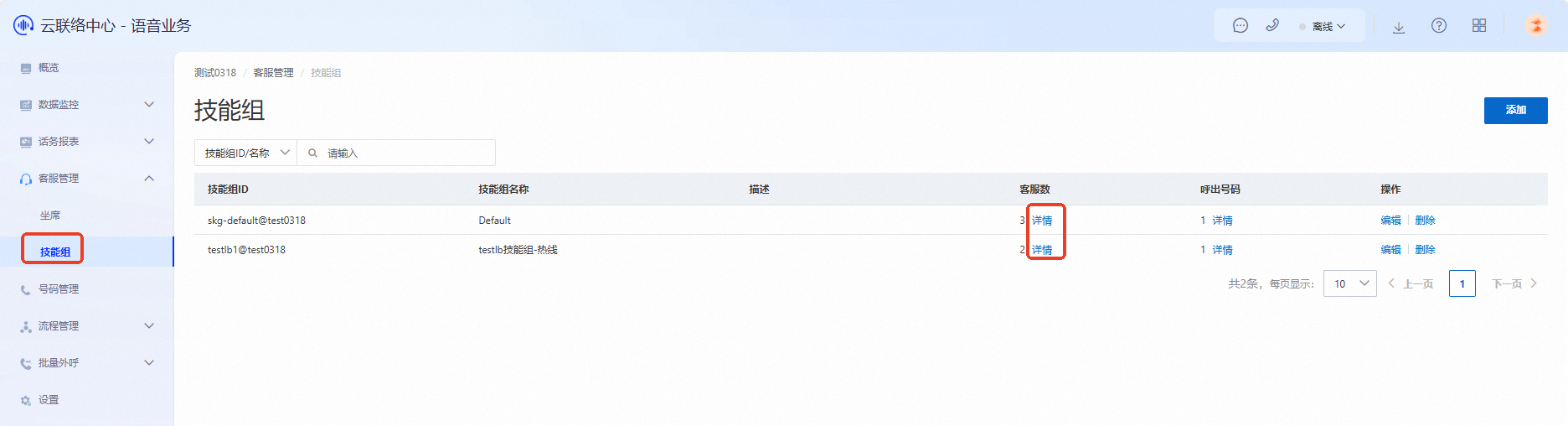
Method 2: In the Skill Group menu, navigate to the Number of Agents field and click Details to attach the agent.
9. How to view the call ID
Go to the Traffic Report > Call Record menu.
10. How to transfer incoming calls to an agent's mobile phone (off-site mode)
To answer incoming calls on a mobile phone, certain prerequisites must be met. For more information, see 11. Does Cloud Contact Center support transferring calls to a mobile phone?.
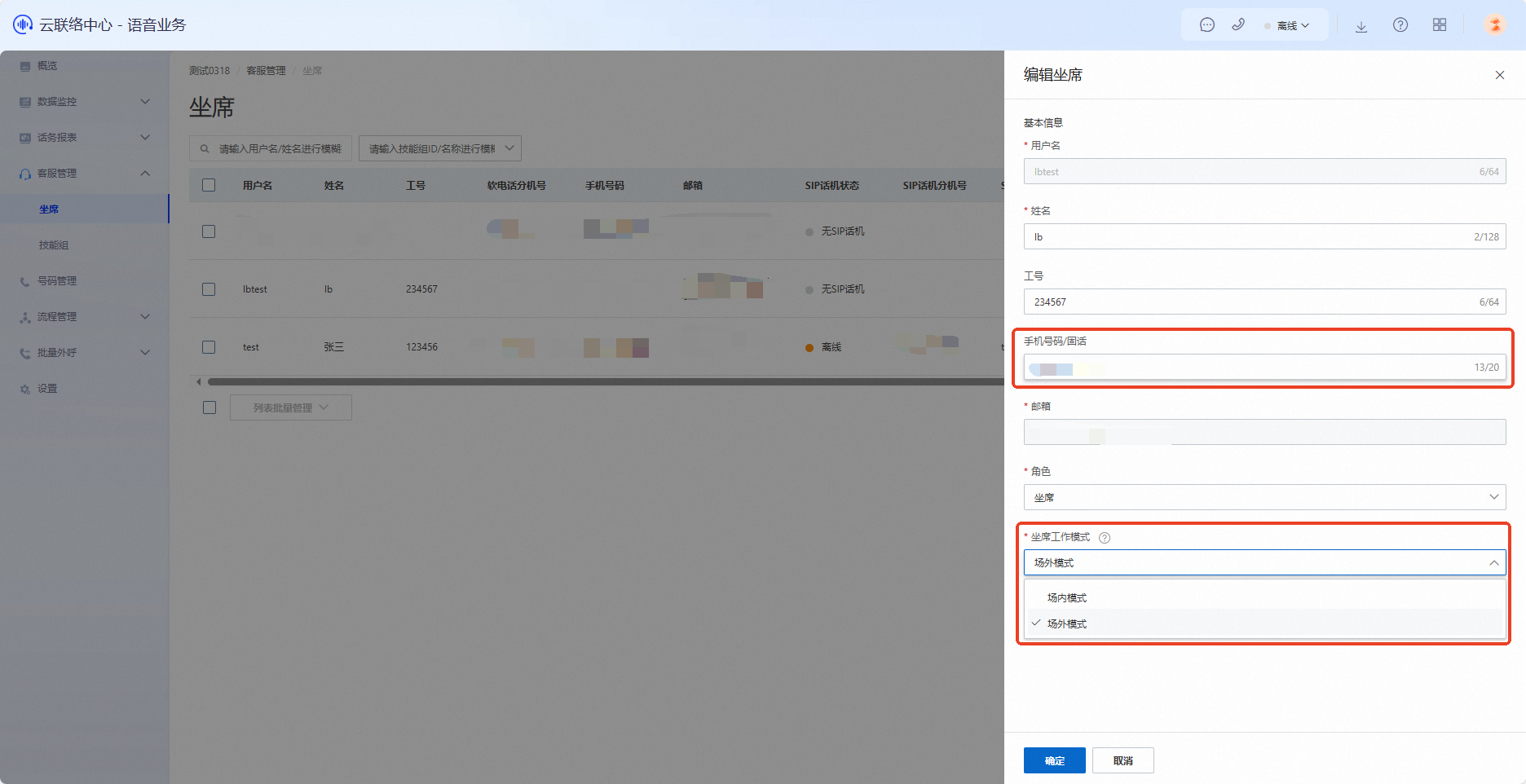
In the Agent menu, click Edit to attach the Mobile Number to answer calls.
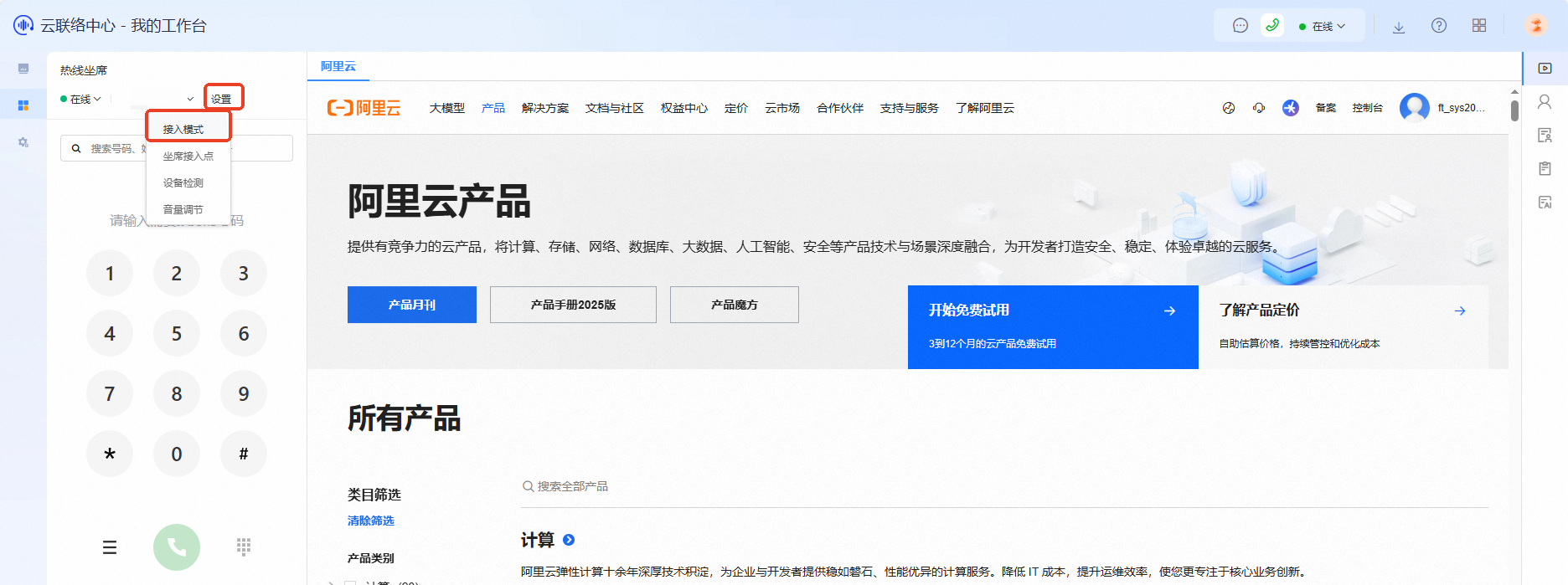
An administrator can set the agent's work mode to Off-site Mode, or the agent can do so by clicking Off-site Mode in the workbench.
ISPs typically limit the call frequency of a single number. This means the first few call transfers may succeed, but subsequent transfers might fail after the limit is reached. To resolve this, you can ask your ISP to whitelist the mobile number and the outbound number attached to Cloud Contact Center. Not all ISPs offer whitelisting, so the final outcome depends on your ISP's policies.

11. How to obtain an AccessKey pair
For more information about how to create an AccessKey pair, see Create an AccessKey.
The AccessKey secret is displayed only when the AccessKey pair is created and cannot be retrieved later. You must store it securely.
If an AccessKey pair is leaked or lost, create a new one. You can create a maximum of two AccessKey pairs.
The AccessKey ID and AccessKey secret are used together. The AccessKey ID identifies the user, and the AccessKey secret is used to authenticate the user's requests.
To create an AccessKey pair for a RAM user programmatically, call the CreateAccessKey operation.
12. How to set the number of keypress timeouts in an IVR
You can configure this setting in the Number Collection node. For more information, see https://help.aliyun.com/document_detail/212696.html#section-fee-q9l-qbj.
13. How to configure an IVR to announce the agent's name and ID before the agent answers
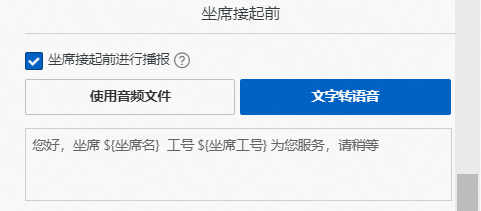
You can configure this setting in the Transfer to Agent node. This lets you play an audio file after the call is connected but before the agent answers. The audio file can contain custom content, such as the agent's name and ID. The call is connected to the agent only after the audio finishes playing.
14. How to identify your Cloud Contact Center version
Cloud Contact Center V1.0 instance logon URL: https://ccc.console.aliyun.com/AccInstance
Cloud Contact Center V2.0 instance logon URL: https://ccc.console.aliyun.com/AccV2Instance
Determine whether you are using version 1.0 or 2.0 of Cloud Contact Center from the annotated figure below: