Deploy EDAS hybrid cloud applications on CloudBox
This topic describes how to create an EDAS hybrid cloud ECS cluster using Alibaba Cloud CloudBox.
Background information
Enterprise Distributed Application Service (EDAS) provides a complete solution for scaling out, networking, and managing hybrid cloud ECS clusters. You can connect Alibaba Cloud public cloud ECS instances, servers in on-premises data centers, or servers from other cloud service providers over an Express Connect circuit or the internet. You can then add these resources to an EDAS hybrid cloud ECS cluster to host applications and leverage the application hosting capabilities of EDAS. For more information, see Application hosting overview (ECS).
CloudBox extends the public cloud to your on-premises data center. It deploys infrastructure, such as compute, storage, and network resources, to your on-premises data center as an integrated hardware and software unit. This effectively addresses issues related to elasticity, security, and network connectivity. You can add ECS instances from CloudBox to an EDAS hybrid cloud ECS cluster and use the management capabilities of EDAS. This helps meet business application requirements for data security, local data processing, and low latency in a hybrid cloud scenario. It also enables unified management of different ECS instances and applications in a hybrid cloud environment.
The following figure shows the architecture of the solution for deploying EDAS hybrid cloud applications on CloudBox.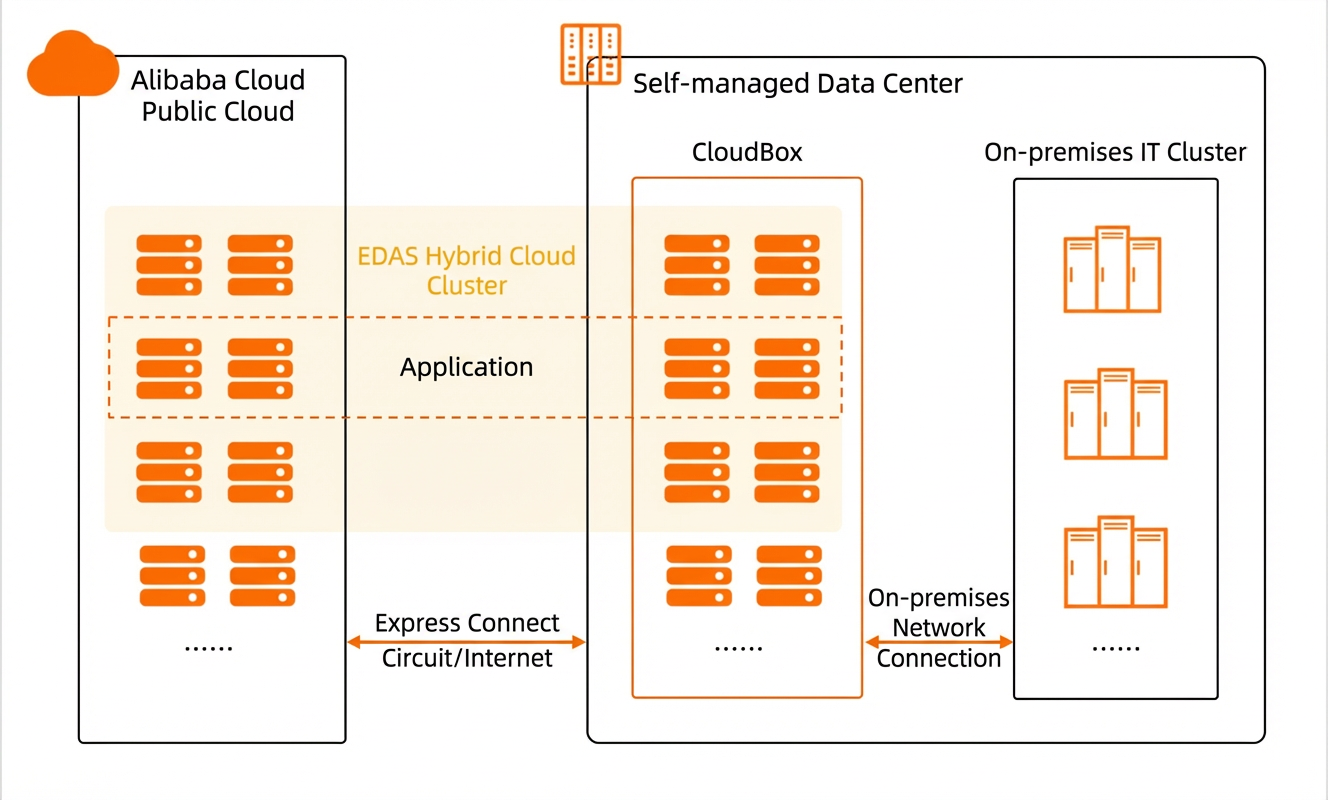
Preparations
Before you start, complete the following preparations:
Purchase the CloudBox service and then create an ECS instance in CloudBox. For more information, see Getting started.
Activate EDAS (Professional Edition or Platinum Edition). For more information, see Activate EDAS.
Step 1: Create a hybrid cloud cluster
Log on to the EDAS console.
In the navigation pane on the left, choose .
In the top menu bar, select the region where your CloudBox is located.
On the EDAS ECS Clusters page, select a microservices namespace from the drop-down list at the top, and then click Create Cluster.
You can select the microservices namespace on this page or in the Create Cluster dialog box.
If you do not require environment fencing, select the default microservices namespace.
If you require environment fencing, select a microservices namespace that you created. For more information about how to create a microservices namespace, see Create a microservices namespace.
In the Create Cluster dialog box, set the cluster parameters, and then click Create.
Parameter
Description
Cluster Name
Enter a custom name. The name can contain letters, digits, underscores (_), and periods (.). The name can be up to 64 characters in length.
Cluster Affiliation
Select Non-Alibaba Cloud.
Cluster Type
Only ECS is supported. This parameter cannot be changed.
Cluster Network Type
Select VPC.
VPC
Select the VPC to which the CloudBox belongs.
Microservices Namespace
Select the microservices namespace to which the cluster belongs. By default, the microservices namespace selected on the EDAS ECS Clusters page is displayed. Select a namespace as needed.
Resource Group
Select the resource group to which the cluster belongs. This resource group is created in Resource Management under the current Alibaba Cloud account. For more information, see Create a resource group.
After the cluster is created, you can view its information on the EDAS ECS Clusters page. At this point, the cluster is empty. You must add ECS instances to the cluster.
Step 2: Add ECS instances to the cluster
After you create the hybrid cloud cluster, you can add ECS instances to it. These can be public cloud ECS instances or ECS instances from CloudBox.
In the EDAS console, obtain the installation command for the EDAS Agent.
On the EDAS ECS Clusters page, click the ID of the cluster that you created.
On the cluster details page, in the ECS Instances section, click Add Existing ECS.
In the dialog box that appears, copy the installation command for the EDAS Agent.
NoteFor hybrid cloud clusters, you can install the EDAS Agent only by manually running a command.
Log on to each ECS instance that you want to add to the cluster and run the installation command for the EDAS Agent.
You can add public cloud ECS instances or ECS instances from CloudBox. To do so, follow these steps:
Remotely connect to the ECS instance.
For more information about how to connect to an ECS instance, see Methods for connecting to ECS instances.
Run the command to install the EDAS Agent.
After the EDAS Agent is installed, the ECS instance is automatically added to the cluster. The following output indicates that the installation is successful:

Step 3: Open the required ports
After you add ECS instances to the cluster, open the required ports for the instances. This ensures that your applications in the hybrid cloud can use all EDAS capabilities.
In the ECS console, go to the Security Groups page. Find the security group to which the ECS instance belongs and click its ID.
On the Security Group Rules tab, add security group rules.
Add the inbound security group rules as described in the following table.
Authorization Policy
Protocol Type
Port or Port Range
Authorization Object
Purpose
Allow
TCP
Port 8182
0.0.0.0/0
Used to scrape logs for infrastructure monitoring and trace monitoring.
Allow
TCP
All ports in the range 12200-12300
0.0.0.0/0
Used for RPC calls.
Allow
TCP
All ports in the range 65000-65535
0.0.0.0/0
Web ports.
Verify the results
Return to the EDAS ECS Clusters page to view and confirm the type, status, and number of instances for the target cluster.
The configuration is successful if the cluster information meets the following conditions:
Cluster type: ECS cluster (external).
Cluster Status: Normal.
Number of Instances: Matches the number of ECS instances that you added.
Click the ID of the target cluster to open the cluster details page. In the ECS Instances section, confirm the instance information.
If the Health Check status for each ECS instance is Running, the instances are running properly.
What to do next
After the hybrid cloud ECS cluster is created, you can deploy applications to it. For more information, see Overview of creating and deploying applications.