Add a Blockchain as a Service data source
This document describes how to add a Blockchain as a Service data source in DataV and explains the related parameter settings. With Alibaba Cloud Blockchain as a Service (BaaS), you can use a REST API to call smart contracts to query on-chain information. You can also query block and transaction information.
Prerequisites
You have prepared a Blockchain as a Service data source.Add a Blockchain as a Service data source
Log on to the DataV console.
On the My Data tab, select Data Source Management and click Add Data.
- From the Type list, select Blockchain as a Service.
- Configure the parameters for the Blockchain as a Service data source.
Parameter Description Custom Data Source Name The display name of the Blockchain as a Service data source. You can enter a custom name. Endpoint The REST API address of the Blockchain as a Service data source. To obtain the address, go to the Blockchain as a Service console and click . 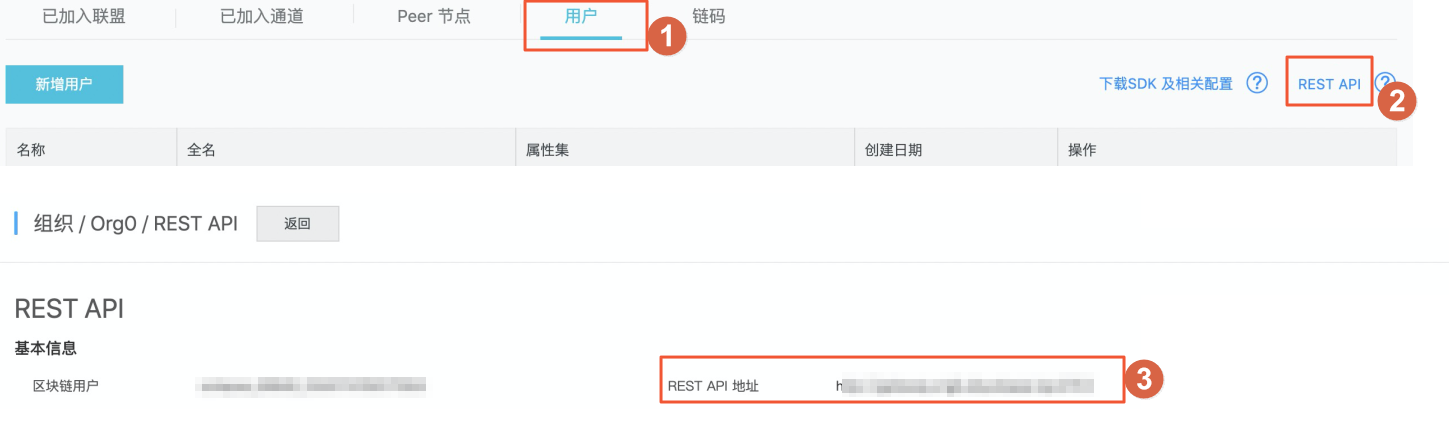
refreshToken The access token for the Blockchain as a Service data source. It is used to authenticate the request initiator. To get the token, go to the Blockchain as a Service console, click , click Generate Token in the sidebar, and then obtain the token from the information displayed. 
network The channel name of the Blockchain as a Service data source. To obtain the name, go to the Blockchain as a Service console and click . 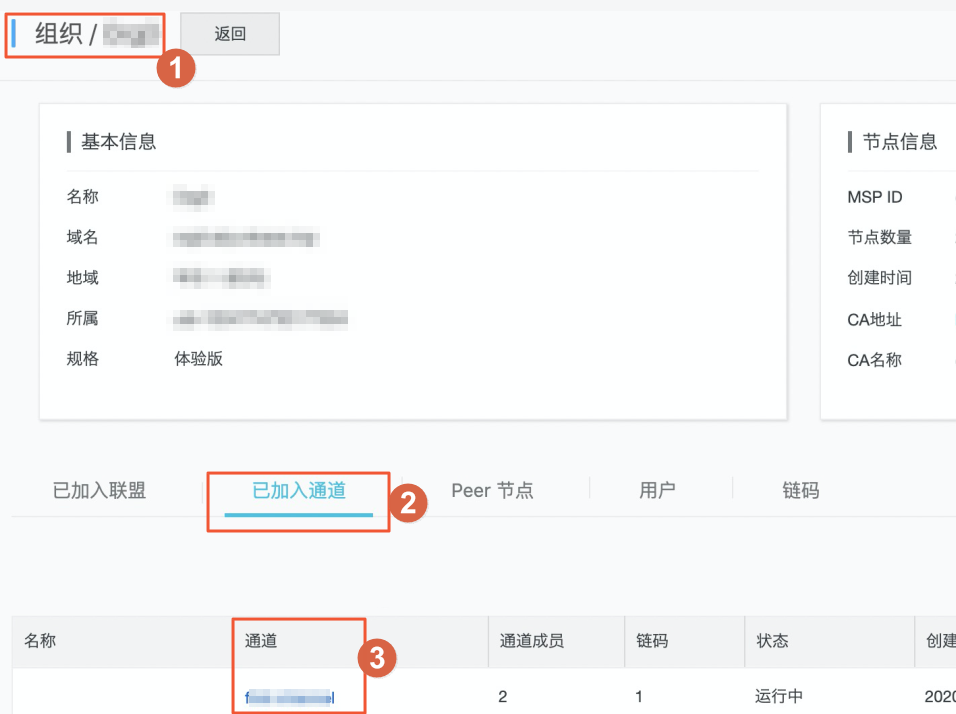
- After you configure the parameters, click OK to add the data source.
The new data source appears in the data source list.
Use a BaaS data source
Log on to the DataV console.
On the My Visualization page, hover the pointer over the visualization application that you want to edit, and then click Edit.
ImportantIf you do not have any visualization applications on the My Visualization page, create one. For more information, see Create a PC visualization application using a template.
On the canvas editor page, click a widget on the canvas.
If the canvas does not have any widgets, add one. For more information, see Add an asset.
In the configuration panel for the widget on the right, click the Data tab, and then click Configure Data Source.
- On the Set Data Source page, set Data Source Type to Blockchain as a Service.
- From the Select Existing Data Source list, select the configured Blockchain as a Service data source.
- In the Query Parameter editor, enter the required blockchain query parameters.
Note Because you can query blockchain data in multiple ways, you must enter the query parameters that correspond to the data type.
- Click Preview Data Source Response to view the returned data.