Add an Open API data source
This topic describes how to add and configure an Open API data source in DataV. Open API lets you call API operations for Alibaba Cloud products to control them or query data. A common use case in DataV is calling the API operations of other cloud products to retrieve and display data.
Prerequisites
You have an Open API data source that is ready to be added.Procedure to add an OpenAPI data source
Log on to the DataV console.
On the My Data tab, select Data Source Management and click Add Data.
- From the Type list, select Open API.
- Enter the Open API information.
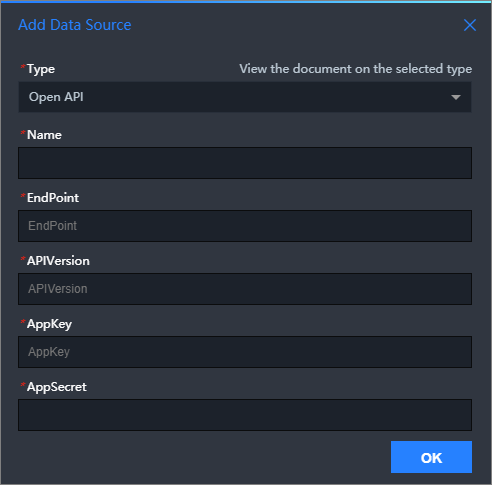
Parameter Description Name The display name of the data source. You can enter any name. EndPoint The endpoint of the Open API. You can get this from the API documentation of the cloud product. For example, the Open API endpoint for ECS is ecs.aliyuncs.com. The Open API endpoint for Cloud Monitor in the China (Hangzhou) region ismetrics.cn-hangzhou.aliyuncs.com.APIVersion The API version of the cloud product. You can get this from the API documentation of the cloud product. For example, the API version for Cloud Monitor is 2017-03-01.AppKey The AccessKey ID of the account that can call the Open API. AppSecret The AccessKey secret of the account that can call the Open API. - After you enter the information, click OK to add the data source.
The new data source appears in the data source list.
Use an Open API data source
Log on to the DataV console.
On the My Visualization page, hover the pointer over the visualization application that you want to edit, and then click Edit.
ImportantIf you do not have any visualization applications on the My Visualization page, create one. For more information, see Create a PC visualization application using a template.
On the canvas editor page, click a widget on the canvas.
If the canvas does not have any widgets, add one. For more information, see Add an asset.
In the configuration panel for the widget on the right, click the Data tab, and then click Configure Data Source.
- In the Set Data Source panel, set Data Source Type to Open API.
- From the Select Existing Data Source list, select the Open API data source that you configured.
- In the Request Method drop-down list, select a request method. You can select GET or POST.
- Enter the API Operation Name.
In the editor, enter the name of the API operation to call. This name corresponds to the Action parameter in the API call. You can obtain the value from the API list that is provided by the cloud product, such as
DescribeMetricListfor Cloud Monitor. - Optional: Enter the Response Result Path.
Specify a part of the Open API response to use as the response result path.
For example, if the Open API returns:{ "data": [ { "x": 1, "y": 2 }, { "x": 2, "y": 4 } ] }If you enter data for Response Result Path, the data response is:[ { "x": 1, "y": 2 }, { "x": 2, "y": 4 } ]Note You can also perform this transformation using a filter. You can leave this parameter empty. - In the editor, enter the query parameters.
- The query parameters are the request parameters for the Open API operation. Enter them as a JSON object.
- For more information about parameter names, see the request parameter descriptions in the API documentation for the cloud product.
- Enter the callback ID as a value in the JSON object.
The following example shows the query parameters for the Cloud Monitor DescribeMetricList API operation.{ "MetricName": "cpu_idle", "Namespace": "acs_ecs_dashboard", "Dimensions": [ { "instanceId": "i-j6c0kyh2qh7fi0r4k351" } ], "StartTime": "2021-01-27 14:00:00", "EndTime": "2021-01-27 15:00:00", "Period": "60" } - Select Object to Array to automatically convert the returned object into an array.For example:
// Original data
{
  "name": "..."
}
 =>
// Transformed data
[{
  "name": "..."
}]
Note This configuration item is not commonly used. You can use a filter to transform the data format. - Click Preview Data Source Response to view the data response.