Bar chart
This topic describes the style and configuration panels for the Bar Chart widget.
When you add a BI analysis widget in the canvas editor, an analyzer is automatically generated for the widget in the layer pane. You must create a dataset before you can configure and use the BI analysis widget.
Chart style
A bar chart displays differences across multiple data dimensions in a compact space. You can select dataset fields and configure data mapping styles.
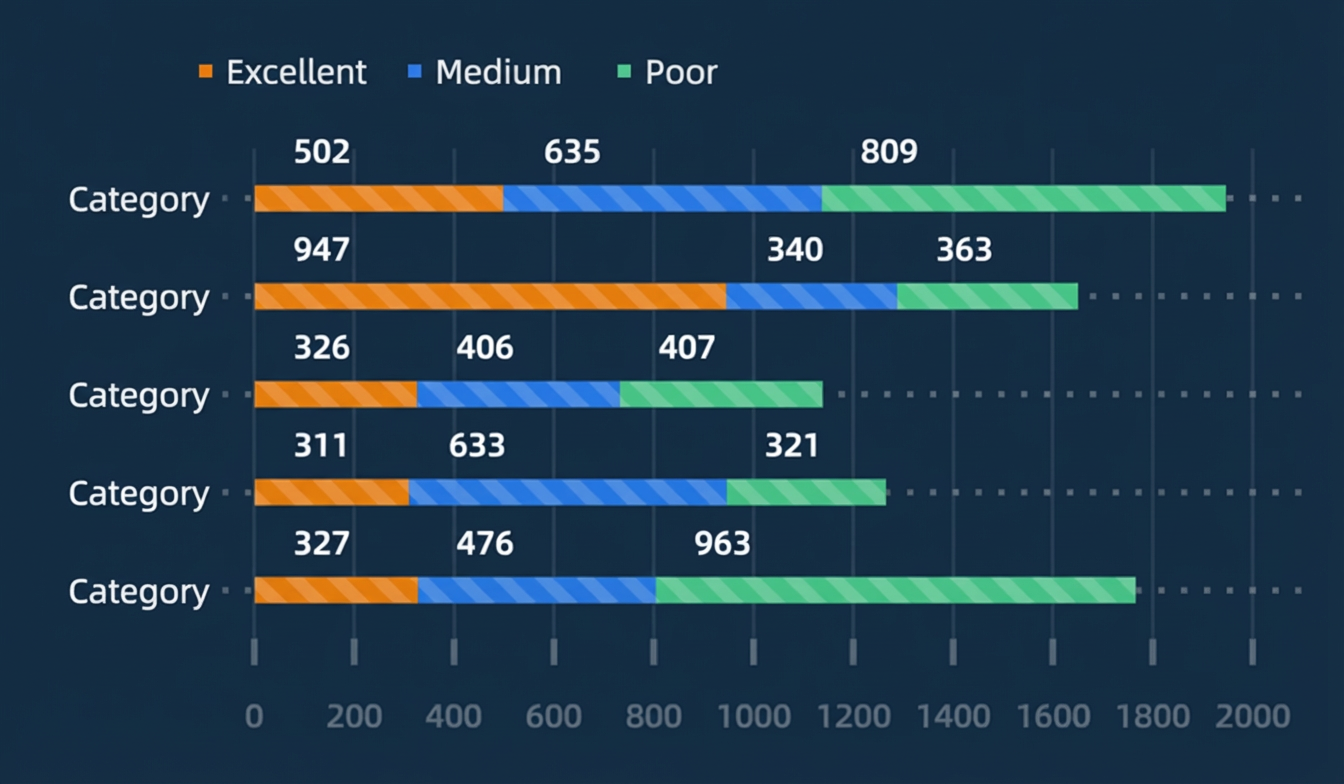
Configuration panel
- Size: indicates the size of a widget, including its pixel width and height. You can click the
 icon to proportionally adjust the width and height of a widget. After you click this icon again, you can adjust the width and height as needed.
 - Position: the position of a widget, which is indicated by pixel X and Y coordinates. X-coordinate indicates the pixel distance between the upper-left corner of the widget and the left border of the canvas. Y-coordinate indicates the pixel distance between the upper-left corner of the widget and the upper border of the canvas.
- Rotation Angle: the angle of a rotation that uses the center point of a widget as the rotation point. The unit is degrees (°). You can use one of the following methods to control the rotation angle of a widget:
- Directly enter the degrees in the Rotation Angle spin box or click the plus sign (+) or minus sign (-) to increase or decrease the value in the Rotation Angle spin box.
- Drag the black dot in the
 icon.
icon. - Click the
 icon to horizontally flip a widget.
 - Click the
 icon to vertically flip a widget.
- Opacity: the opacity of a widget. Valid values: 0 and 1. If this parameter is set to 0, the widget is hidden. If this parameter is set to 1, the widget is completely displayed. Default value: 1.
Graphic
Parameter
Description
Chart Margin
Click the
 icon to show or hide the chart margin settings. When enabled, you can configure the distance between the bar chart area and the top, bottom, left, and right borders of the widget. The default unit is px.
Custom Grouping
Enable this option to split the data into finer granularities based on the trace field in the data panel. After the data is split, it is displayed as a stacked group. If this option is disabled, the data is grouped by the colorField by default.
Intra-group Spacing
Enable this option to set the spacing in pixels (px) between bars within the same category after the data is split. This option is available in the following cases:
When Custom Grouping is enabled.
When Custom Grouping is disabled and Display Mode is set to Group.
Inter-group Spacing
Enable this option to set the spacing in pixels (px) between bars of different categories after the data is split. This option is available in the following cases:
When Custom Grouping is enabled.
When Custom Grouping is disabled and Display Mode is set to Group.
Display Mode
The display format when bars are grouped by the colorField in the data panel. Options include Stacking and Group. This option is available only when Custom Grouping is disabled.
Bar Width
The width of the bars in pixels (px). Click the
icon to show or hide this setting.Bar Color
The color of the bars. For more information, see Use the color mapper to configure the color mapping style for different bars.
Connected Area
The style of the connected area between data points of the same series across different categories. This is triggered by Hover or Click. Click the
icon to show or hide this setting.Bar Label
The style of the bar labels. Click the
icon to show or hide this setting.Label Field: The content of the label. This must correspond to a field in the data panel. By default, the content of the x field is used.
Number Format: The number format for the label. Options include Default, 11 (Integer), 11.1 (Floating-point Number), 11.11 (Floating-point Number), 11% (Percentage), 11.1% (Percentage), 1,111 (Thousands Separator), and 1,111.1 (Thousands Separator). For more information, see Data display formats. This option is available only when the label field is set to x.
Prefix and Suffix: The prefix and suffix for the bar label.
Label Position: The display position of the label. Options include Left, Center, and Right.
Relative Offset: The vertical and horizontal offset of the bar label relative to the bar, in pixels (px).
Text Style: The text style of the bar label, including font, weight, size, and color.
Text Outline: The text outline style of the bar label, including outline width and color.
Texture
The texture style of the bars. Click the
icon to show or hide this setting.Type: The type of texture. Options include Point, Line, and Square.
Fill Style: The fill style of the texture. For more information, see Color picker to configure the texture color.
Outline Style: The outline style of the texture. For more information, see Color picker to configure the texture color. This option is available when Type is set to Point or Square.
Additional Styles: Other texture styles, including Graphic Size, Graphic Spacing, Line Spacing, Rotation Angle, and the Interlaced switch.
Coordinate: The widget coordinate system includes an x-axis and a y-axis.
X-axis
Show X-axis: You can enable this option to show the x-axis in the widget or disable it to hide the x-axis.
Display Range: The display range of the minimum and maximum values on the x-axis.
Parameter
Description
Minimum
The minimum value for the x-axis. You can enter a custom value or select Data minimum to use the minimum value from the data.
Maximum
The maximum value for the y-axis. You can enter a custom value or select Data maximum to use the maximum value from the data.
Axis Line: The style of the x-axis line, including its shape, width, and color. You can click the
icon to show or hide this setting.NoteIf you set the line type to Dashed Line or Dotted Line, you can also configure the dash length and the spacing between dashes.
Axis Title: The style of the x-axis title. You can click the
icon to show or hide this setting.Parameter
Description
Title Display
The text content of the x-axis title.
Display Method
The display method of the x-axis title, including the angle and offset of the title.
Text Style
The font, weight, size, and color of the x-axis title text.
Tick Line: The style of the x-axis tick lines, including their length, width, and color. You can click the
icon to show or hide this setting.Axis Label: The style of the x-axis labels. You can click the
icon to show or hide this setting.Parameter
Description
Display Format
The number format for the x-axis labels. Options include Default, 11 (Integer), 11.1 (Floating-point Number), 11.11 (Floating-point Number), 11% (Percentage), 11.1% (Percentage), 1,111 (Thousands Separator), and 1,111.1 (Thousands Separator). For more information, see Data display formats.
End Spacing
The distance between the x-axis labels and the two ends of the axis, in percentage (%).
Label Display
The display style of the labels, including the desired number of ticks for the x-axis labels, the prefix and suffix, angle, offset, and alignment of the labels.
Text Style
The font, weight, size, and color of the x-axis label text.
Gridline: The style of the x-axis gridlines, including their line type, width, and color. You can click the
icon to show or hide this setting.NoteIf you set the line type to Dashed Line or Dotted Line, you can also configure the dash length and the spacing between dashes.
Y-axis
Show Y-axis: You can enable this option to show the y-axis in the widget or disable it to hide the y-axis.
Data Type: The data type for the y-axis. Options include Numeric, Categorical, and Time.
Display Range: The display range of the minimum and maximum values on the y-axis. This option is available only when Data Type for the y-axis is set to Numeric.
Parameter
Description
Minimum
The minimum value of the y-axis. You can enter a custom value or select Data Minimum to use the minimum value from the data.
Maximum
The maximum value of the y-axis. You can enter a custom value or select Data Maximum to use the maximum value from the data.
Axis Line: The style of the y-axis line, including its shape, width, and color. You can click the
icon to show or hide this setting.NoteIf you set the line type to Dashed Line or Dotted Line, you can also configure the dash length and the spacing between dashes.
Axis Title: The style of the y-axis title. You can click the
icon to show or hide this setting.Parameter
Description
Title Display
The text content of the y-axis title.
Display Method
The display method of the y-axis title, including the angle and offset of the title.
Text Style
The font, weight, size, and color of the y-axis title text.
Tick Line: The style of the y-axis tick lines, including their length, width, and color. You can click the
icon to show or hide this setting.Axis Label: The style of the y-axis labels. You can click the
icon to show or hide this setting.Parameter
Description
Display Format
The number format for the y-axis labels. Options include Default, 11 (Integer), 11.1 (Floating-point Number), 11.11 (Floating-point Number), 11% (Percentage), 11.1% (Percentage), 1,111 (Thousands Separator), and 1,111.1 (Thousands Separator). For more information, see Data display formats.
End Spacing
The distance between the y-axis labels and the two ends of the axis, in percentage (%).
Label Display
The display style of the labels, including the number of y-axis labels, the prefix and suffix, angle, offset, and alignment of the labels.
Text Style
The font, weight, size, and color of the y-axis label text.
Gridline: The style of the y-axis gridlines, including their line type, width, and color. You can click the
icon to show or hide this setting.NoteIf you set the line type to Dashed Line or Dotted Line, you can also configure the dash length and the spacing between dashes.
Animation: The animation effect for the bar chart.
Parameter
Description
Enable Animation
Enable this option to configure animation effects for the bar chart.
Animation Effect
The type of animation effect. The system provides various common animation effects, such as Grow Horizontally, Grow Vertically, Zoom In, and Slide In. This option is available only after you enable animation.
Animation Duration
The duration of the animation effect in milliseconds (ms). This option is available only after you enable animation.
Interaction: The interaction effects for the bar chart widget.
Tooltip: The style of the tooltip that appears when you hover over or click a bar in preview or publish mode. You can click the
icon to enable or disable the tooltip.Parameter
Description
Mode
The mode of the tooltip. Options include Simple and General.
Trigger Method
The method to trigger the tooltip. Options include Hover and Click.
Display Position
The display position of the tooltip. Options include Top, Bottom, Left, and Right.
Title Spacing
The spacing between titles in the tooltip, in pixels (px).
Title Text
The style of the title text in the tooltip, including font, weight, size, and color.
Content Display
Click the
icon to add a content display series or click the icon to delete one. Click the or icon to arrange multiple content display series. Click the icon to copy the current content display series configuration and create a new one with the same settings.Field Name: The field name for the tooltip content. This must match a field in the data panel.
Display Name: The display name for the tooltip content.
Suffix: The suffix for the tooltip content.
Content Spacing
The spacing between content text items in the tooltip, in pixels (px).
Content Text
The style of the content text in the tooltip, including font, weight, size, and color.
Popup Background
The background style of the tooltip popup.
Background Margin: The horizontal and vertical margins of the tooltip background.
Background Color: The background color of the tooltip.
Border Style: The border style of the tooltip, including border line type, border radius, line width, and border color.
Axis Pointer
The style of the axis pointer for the tooltip, including its type, width, and color. Click the
icon to enable or disable the axis pointer.Note
If you set the line type to Dashed Line or Dotted Line, you can also configure the dash length and the spacing between dashes.
Selected State: The style that is applied when a bar is selected. You can click the
icon to enable or disable this style. Parameter
Description
Trigger Method
The method to trigger the selected state. Options include Hover and Click.
Selection Method
The method to select bars. Options include Single Select and Multi-select. If you select Single Select, the click event emits data for only one item as an object, and only one bar can be highlighted. If you select Multi-select, the click event can emit data for multiple items as an array, and multiple bars can be highlighted.
Column Color
The color of the bar in the selected state.
Bar Outline
The style of the bar outline, including the line type, width, and color.
Note
If you set the line type to Dashed Line or Dotted Line, you can also configure the dash length and the spacing between dashes.
Enhanced Interaction: If the bar chart contains a large amount of data, you can configure an enhanced interaction style. You can click the
icon to enable or disable this effect.Parameter
Description
Interaction Method
The data interaction method. Options include Thumbnail Axis and Scrollbar. The enhanced interaction feature is not supported for Time data types.
NoteTime-based data does not support enhanced interaction for large datasets.
Default Range
The data range displayed by the thumbnail axis. The value ranges from 0 to 1. This option is available only when the thumbnail axis style is enabled.
Slider Style
The style of the thumbnail axis slider, including its height, foreground color, and background color. This option is available only when the thumbnail axis style is enabled.
Text Style
The style of the text on the thumbnail axis, including font, weight, size, and color. This option is available only when the thumbnail axis style is enabled.
Handle Style
The style of the handles at both ends of the thumbnail axis, including handle width and height, default and highlighted background colors, border radius, and border color. This option is available only when the thumbnail axis style is enabled.
Scrollbar Width
The width of the scrollbar in pixels (px). This option is available only when the scrollbar style is enabled.
Scrollbar Color
The color of the scrollbar, including its foreground and background colors. This option is available only when the scrollbar style is enabled.
Legend: The style of the bar chart legend.
Parameter
Description
Enable Legend
You can configure the legend style only when the switch is on.
Legend Position
The position of the legend relative to the widget's starting coordinate. Options include Top Left, Top Center, Top Right, Bottom Left, Bottom Center, Bottom Right, Left Top, Left Center, Left Bottom, Right Top, Right Center, and Right Bottom.
Text Style
The font, weight, size, and color of the legend text.
Chart Spacing
The horizontal and vertical spacing between the legend and the chart.
Categorical Legend
This section describes the style of a categorical legend. A legend is displayed as a categorical legend only when Graphics > Bar Color > Mapping Type in the component style panel is set to Categorical.
Legend Marker: The shape and size of the legend markers.
Legend Spacing: The horizontal and vertical distance between different legend categories.
Maximum Width: The maximum width of the legend in pixels (px).
Allow Paging: Enable this option to allow paging for the legend. You can configure the page number and arrow styles for when the number of legend items exceeds the display limit. If this option is disabled, all legend items are displayed on a single page.
Maximum Rows: The maximum number of rows for the legend. If the number of rows exceeds this value, the legend will be paginated.
Page Number Style: The style of the page numbers, including font, weight, size, and color.
Arrow Style: The size, default color, and disabled color of the pagination arrows.
Continuous Legend
The style of the continuous legend. The legend is displayed as a continuous legend only when Mapping Type under Graphic > Bar Color in the widget's style panel is set to Continuous or Partitioned.
Slider Style
Type: The type of the legend slider track. Options include Rectangle and Triangle.
Length: The length of the legend slider track.
Height: The height of the legend slider track.
Background Color: The background color of the legend slider track.
Handle Style: The style of the handles on the legend slider.
Minimum: The minimum value of the slider. You can enter a custom value or select Auto to use the minimum value from the data.
Maximum: The maximum value of the slider. You can enter a custom value or select Auto to use the maximum value from the data.
Size: The size of the slider handles.
Color: The color of the slider handles.
Label Style: The style of the text labels on the legend.
Alignment: The alignment of the legend text labels relative to the slider track. Options include Top, Center, and Bottom.
Spacing: The distance between the legend text labels and the slider track.
Condition: Describes the conditional styles.
Conditional Style: You can click the
icon to add a conditional style or click the icon to delete one. You can click the or icon to arrange multiple conditional styles. You can click the icon to copy the current conditional style configuration and create a new one with the same settings. For more information about the configuration, see Use the condition tree.Bar Color: You can enable this option to configure the bar color for this conditional style. If this option is disabled, you cannot configure the bar color for this conditional style.
 icon to show or hide the chart margin settings. When enabled, you can configure the distance between the bar chart area and the top, bottom, left, and right borders of the widget. The default unit is px.
 icon to add a content display series or click the
  icon to delete one. Click the
  or
or  icon to arrange multiple content display series. Click the
  icon to copy the current content display series configuration and create a new one with the same settings.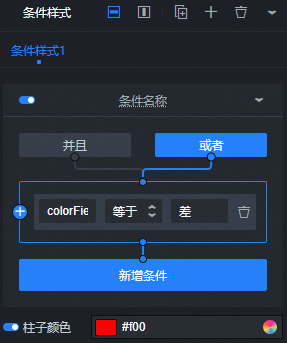
Data panel (default mode)
Field configuration
Field | Description |
| The category for each bar in the bar chart, which corresponds to the x-axis value. |
| The value for each bar in the bar chart. |
| (Optional) The color mapping field. Used to configure various color mapping styles for the bars. |
| (Optional) The split field. Used to configure data splitting and grouping for the bars. This is used with the Custom Grouping parameter in the style panel. |
Parameter | Description |
Controlled Mode | Turn on the switch to prevent data requests in the initial asset state. Data requests can be initiated only by using a callback ID or a method configured in Blueprint Editor. Turn off the switch to enable automatic data requests. The switch is turned off by default. |
Auto Data Request | Select this check box to enable dynamic polling. You can also manually specify the polling interval. If you clear this check box, data is not automatically updated. You must manually refresh the page or trigger a data request by using Blueprint Editor or a callback ID event. |
Data Source | Click Configure Data Source. In the Set Data Source panel, you can change the data source type and data query code, preview the data source response, and view the data response result. For more information, see Configure asset data. |
Data Filter | Data filters allow you to convert data structures, filter data, and perform simple calculations. Click Add Filter to configure a data filter script in the Set Data Source panel. For more information, see Filter configuration and application. |
Data Response | Displays the response result of a data request. When the data source changes, you can click the icon on the right side to view the data response result in real time. |
Data panel (BI analysis mode)
Before you can use the BI analysis feature provided by DataV datasets, the system makes the following changes to the bar chart.
The data source Bar Chart API is switched from Static Data to DataV Dataset.
The DataV dataset configuration is updated. This operation does not cause any loss of field configurations.
For more information about the operations in the BI analysis data configuration panel, see BI analysis mode data panel.
Field configuration
Field | Description |
| The category for each bar in the bar chart, which corresponds to the x-axis value. |
| The value for each bar in the bar chart. |
| (Optional) The color mapping field. Used to configure various color mapping styles for the bars. |
| (Optional) The split field. Used to configure data splitting and grouping for the bars. This is used with the Custom Grouping parameter in the style panel. |
For widgets added from the BI analysis module, the data panel is in analysis mode by default. For v5.x widgets not under BI analysis, the data panel is in default mode. After a widget is added in analysis mode, you can click Default Mode in the upper-left corner of the data panel. In the dialog box that appears, confirm that you want to exit analysis mode and delete the analyzer that corresponds to the BI analysis widget. After you exit analysis mode, the current BI analysis widget is converted to a v5.x widget, and its data panel is in default mode.
Interaction panel
Interaction description
Interaction | Description |
When a data item is selected | Select Enable to turn on the widget's interaction feature. The Bar Chart widget has an interaction configuration. When a data item is clicked, a callback value is emitted. By default, the x and y fields from the data are emitted. For more information about the configuration, see Configure a callback ID for a widget. |
When a legend item is clicked | Select Enable to turn on the widget's interaction feature. The Bar Chart widget has an interaction configuration. When a legend item is clicked, a callback value is emitted. By default, the value and checked fields from the data are emitted. For more information about the configuration, see Configure a callback ID for a widget. |
Blueprint Editor interaction configuration
You cannot configure Blueprint Editor interactions for a bar chart widget in BI analysis mode. You can configure the blueprint only in default mode.
- In Canvas Editor, right-click a widget in the Layer panel and select Add to Blueprint Editor.
- Click the icon in the upper-left corner of the page.
On the Blueprint Editor configuration page, click the Bar Chart widget in the Imported Nodes pane. The configuration parameters for the bar chart in the Blueprint Editor are displayed on the canvas.
Events
Event
Description
When a request to the bar chart API is successful
An event that is triggered when the data API request is successfully returned and processed by the filter. The processed data is in JSON format. For a data example, see the Data Response section on the Data tab of the widget's configuration panel in the canvas editor.
When a request to the bar chart API fails
An event that is triggered when the data API request fails because of a network issue or an API error. The processed data is in JSON format. For a data example, see the Data Response section on the Data tab of the widget's configuration panel in the canvas editor.
When a data item is selected
An event that is triggered when you click a bar in the bar chart. The data item that corresponds to the bar is emitted.
When a legend item is clicked
An event that is triggered when you click a legend item in the bar chart. The data item that corresponds to the legend item is emitted.
Actions
Action
Description
Request bar chart API
Requests data from the server again. Data from upstream data processing nodes or layer nodes is used as a parameter. For example, if a bar chart's API data source is
https://api.testand the data passed to the Request bar chart API action is{ id: '1'}, the final API request ishttps://api.test?id=1.Import bar chart API
Processes data based on the component's drawing format, then imports the data to redraw the component. This action does not request new data from the server. For a data example, see the Data Response area on the Data tab in the component's configuration pane on the right side of the canvas editor.
Highlight
Highlights the element corresponding to a data item. The following code shows a data example.
return {
  "data": {
    "x": data.x, // The data item to highlight
    "colorField": data.colorField
  },
  "style": {
    "fillStyle": "#f00" // Fill color
  }
}
Reset selections
Clears the selected items in the component. This action requires no parameters.
Update component configuration
Dynamically updates the component's style configuration. First, go to the component's Configuration pane and click Copy Configuration to Clipboard to get the configuration data. Then, change the field values for the styles in the data processing node of the blueprint editor as needed.
Show
Shows the component. The following code shows a data example.
return{
  "animationType": "",
  "animationDuration": 1000,
  "animationEasing": "linear"
}
Hide
Hides the component. The following code shows a data example.
return{
  "animationType": "",
  "animationDuration": 1000,
  "animationEasing": "linear"
}
Toggle visibility
Shows or hides the component. The following code shows a data example.
return {
  "animationIn": {
    "animationType": "",
    "animationDuration": 1000,
    "animationEasing": "linear"
  },
  "animationOut": {
    "animationType": "",
    "animationDuration": 1000,
    "animationEasing": "linear"
  }
}
Move
Moves the component to a specified position. The following code shows a data example.
    return{
      // The move method. Absolute positioning: to. Relative positioning: by. Default value: to.
        "positionType": "to",
      // The target position. x-coordinate, y-coordinate.
      "attr": {
        "x": 0,
        "y": 0
      },
      // The animation method.
      "animation": {
        "enable": false,
        // The animation duration.
        "animationDuration": 1000,
        // The animation curve. Valid values: linear, easeInOutQuad, or easeInOutExpo.
        "animationEasing": "linear"
      }
    }
 icon in the upper-left corner of the page.