Event interface configuration
This topic describes how to configure event interfaces for a block.
In the block editor, click the  icon in the upper-right corner. On the Event Settings tab, you can perform the following event configuration operations.
Switch modes
At the top of the dialog box, you can switch the event mode. The available modes are View mode and Code mode.
| Mode | Description |
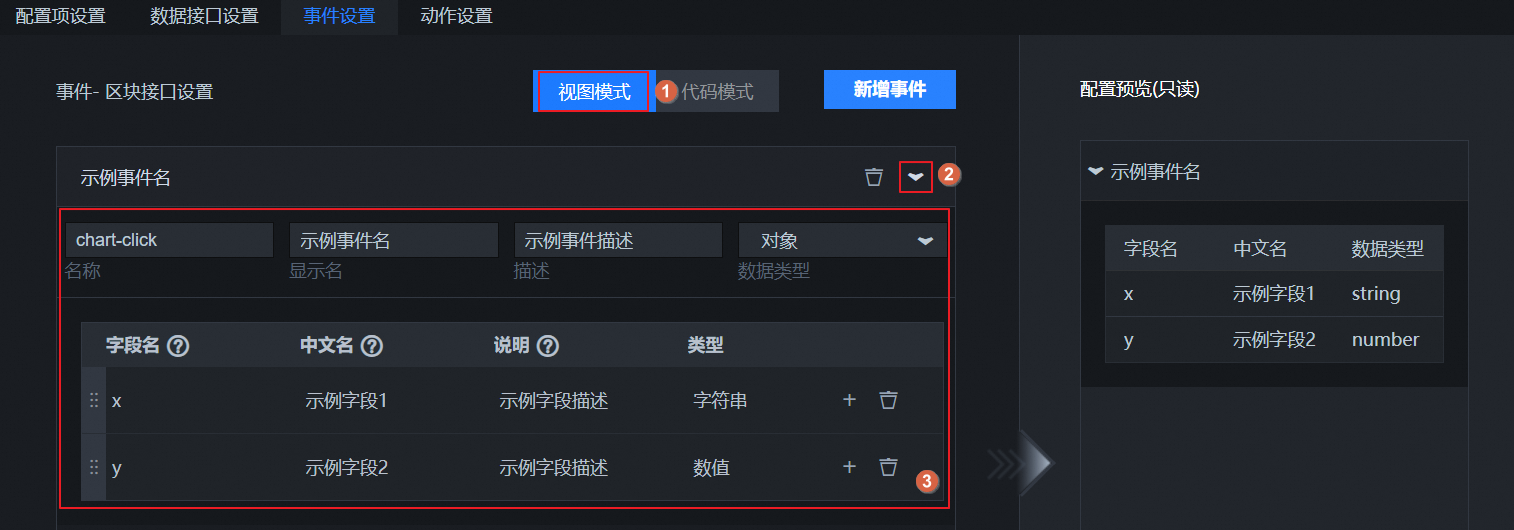
| View mode | In View mode, you can see the style of a sample event. You can then customize the event content based on the sample style without writing code.
|
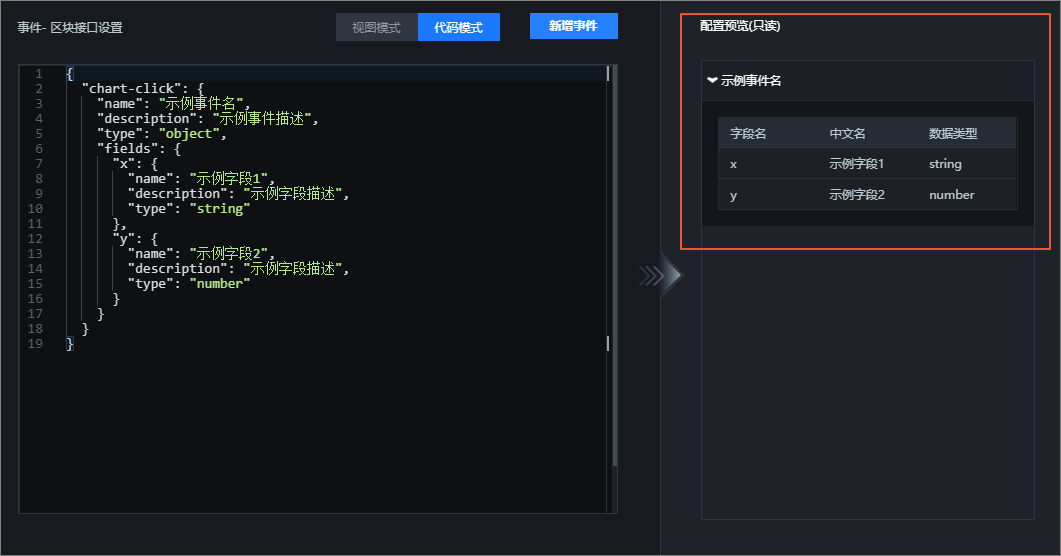
| Code mode | In Code mode, you can write custom code for your event based on the sample event code. This lets you add or configure event content.
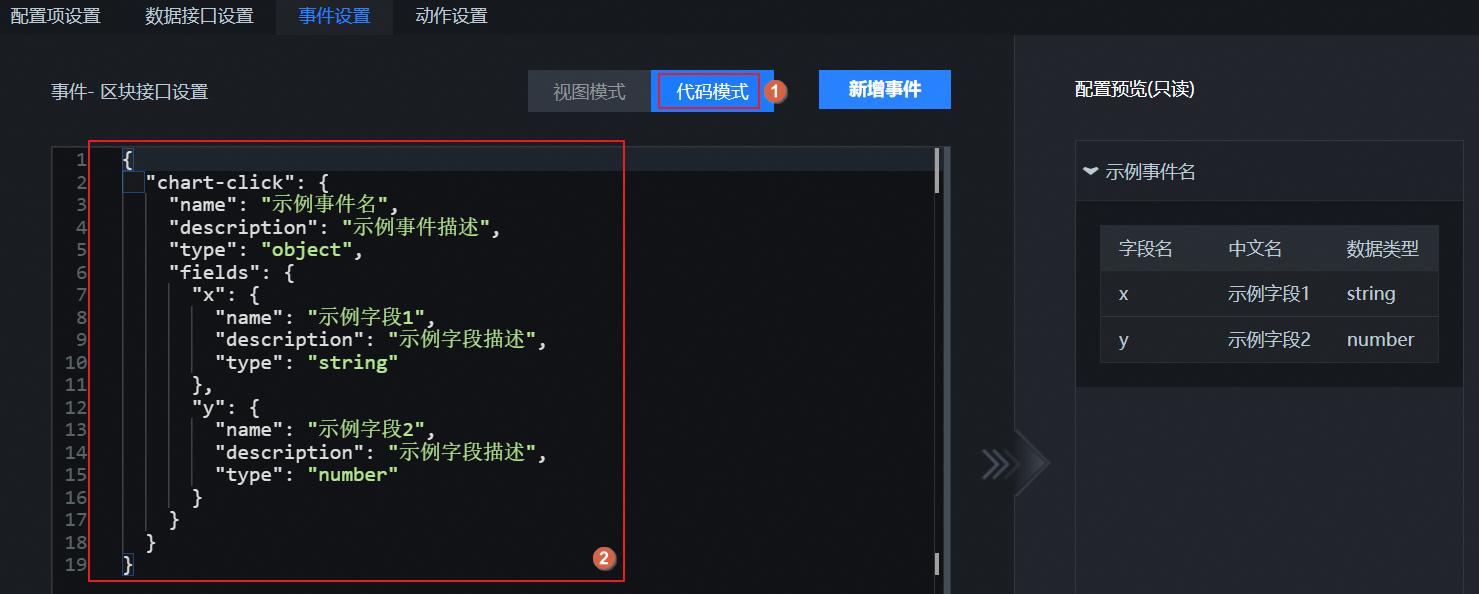
Note For more information about the code specifications for event interfaces, see
Widget developer specifications.
|
Configure event interfaces
On the Event Settings tab, a sample event is provided by default. You can customize the event content.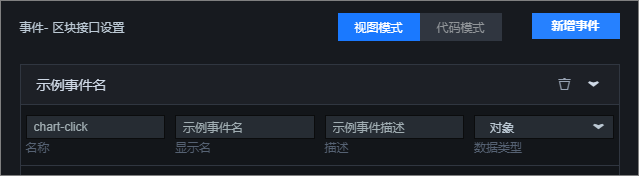
| Operation | Description |
| Expand the event details list | Click the  icon to the right of the sample event to open its detailed configuration list. icon to the right of the sample event to open its detailed configuration list. |
| Edit basic event information | Each event contains multiple parameters. You can edit the basic information parameters for an event.
|
| Delete an event | Click the  icon to the right of the event to delete it. icon to the right of the event to delete it. |
| Add an event | On the Event Settings tab, click Add Event. A new event is added to the event configuration area below.
Note You can add or edit multiple events for the block interface.
|
Configure event fields
The event configuration panel includes two sample event fields by default. You can customize the event fields.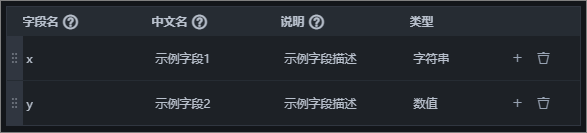
| Operation | Description |
| Edit basic field information | Each event field contains multiple parameters. You can edit the field parameters.
|
| Add a field | Click the  icon to the right of a field row and select Add Sibling to add a new field row. icon to the right of a field row and select Add Sibling to add a new field row. |
| Adjust field position | After you add multiple field rows to an event, you can click the  icon on the far left of a field row and drag the row to reorder it. icon on the far left of a field row and drag the row to reorder it. |
| Delete a field | Click the  icon to the right of a field row to delete the field. icon to the right of a field row to delete the field.
Note After you delete all fields in the list, you can click
Add Field in the field list to quickly add a new field row.
 |
View and use event interfaces in a visualization application
After you configure event interfaces in the block editor, you can view all the event interface information for the block when you use it in the canvas editor. To configure and view the interface information in a visualization application, perform the following steps.
- In the block editor, preview and test the configured event interface. After the test is successful, publish the block. For more information, see Preview a block and Publish a block.

- Go to the My Visualizations page in the console. Hover over a visualization application and click Edit to open the canvas editor.
- Click the icon to expand the All Assets list. Select the Blocks module. You can view all published blocks in the block list.
- Click a block to add it to the canvas editor.
- Select the block on the canvas. In the configuration panel on the right, select the Interaction tab. You can view all the configuration information for the block's event interfaces. For more information about how to modify the interaction events of the block, see How to configure the callback ID for a ticker board widget.
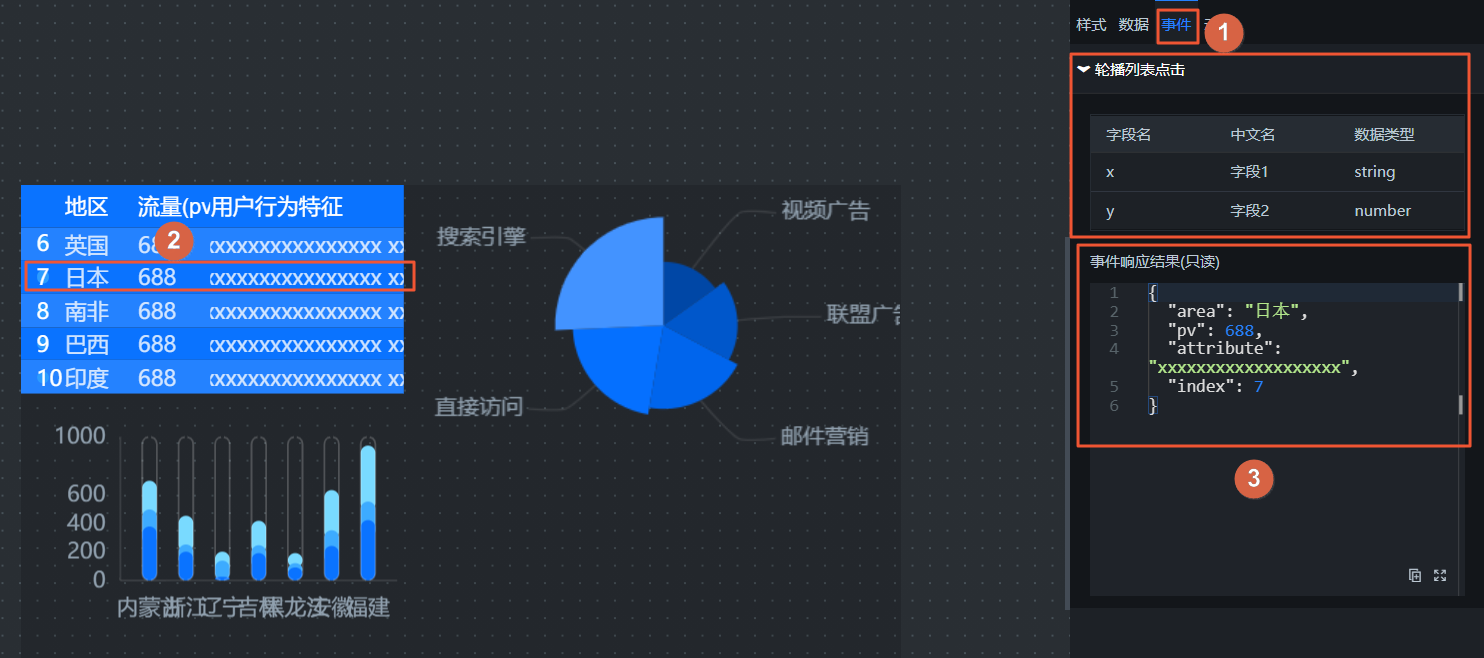
 icon to expand the All Assets list. Select the Blocks module. You can view all published blocks in the block list.
Preview event configurations in real time
On the Event Settings tab, the left side of the dialog box is the area where you customize event configurations. The right side is the real-time preview area. All event parameters that you configure on the left are immediately displayed in the preview area on the right. This makes it easy to view the configured event content.