Manage the 3D view and camera editor panel
This topic describes the features for adjusting and editing the camera view in the 3D view and camera editor panel.
Adjust the camera view in the 3D view
In the 3D view, you can use your mouse to pan, rotate, and scale the camera view as follows:
Press the Alt key and hold the left mouse button to rotate the camera view.
Click and hold the left mouse button to pan the camera view.
Scroll the mouse wheel or use the trackpad to scale the camera view.
If you are not satisfied with the base data in the 3D view, you can click the feedback hyperlink to open the feedback page and submit your suggestions.
Features of the camera path and camera elevation panels
The multi-view camera editor lets you edit the camera's path and orientation from a third-person perspective. It provides a 2D space to edit longitude and latitude, and a 1D space to edit elevation. The camera path supports both linear and Bézier interpolation modes, which lets you create any curve. The camera properties in the keyframe panel, the 3D view, the path panel, and the elevation panel are synchronized during editing. The features are described in the following table.
In the 3D view and the camera editor panel, you can edit the camera properties of a keyframe in the current shot.
Feature |
Description |
Edit the longitude and latitude of a frame |
Instructions:
|
Change the longitude and latitude of an existing keyframe |
|
Change the elevation of an existing keyframe |
|
Use Bézier path interpolation |
|
View the full camera path |
Click the |
Camera Path Scaling Panel |
Click the
Note
Alternatively, you can hover the mouse over the camera path panel and scroll the mouse wheel or use the trackpad to zoom the map. |
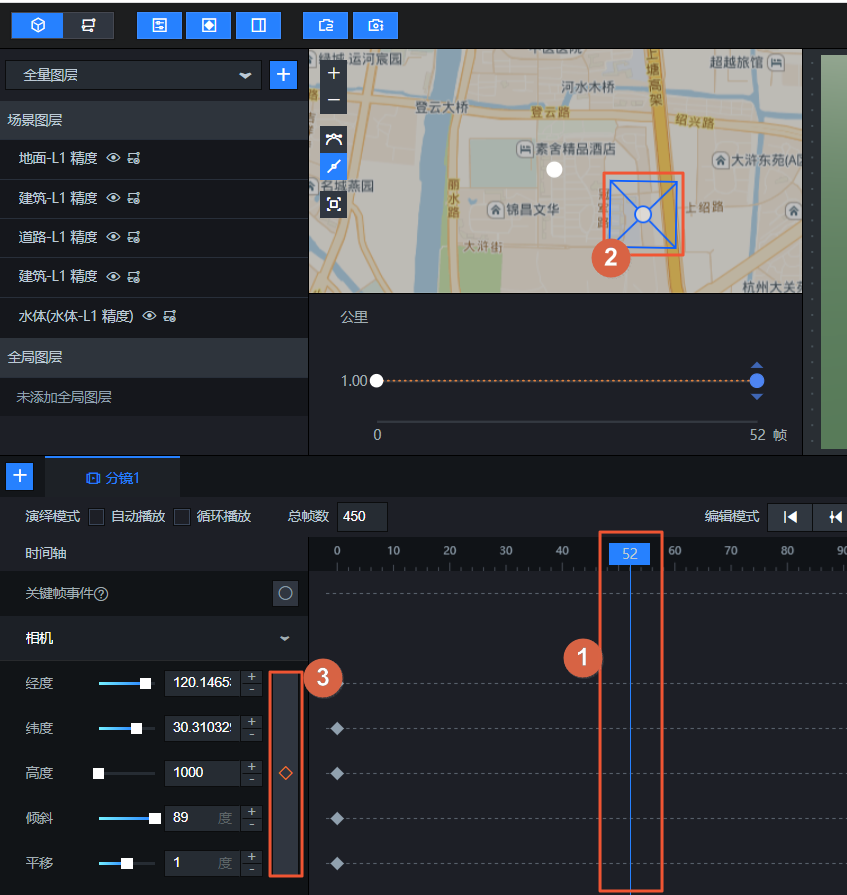
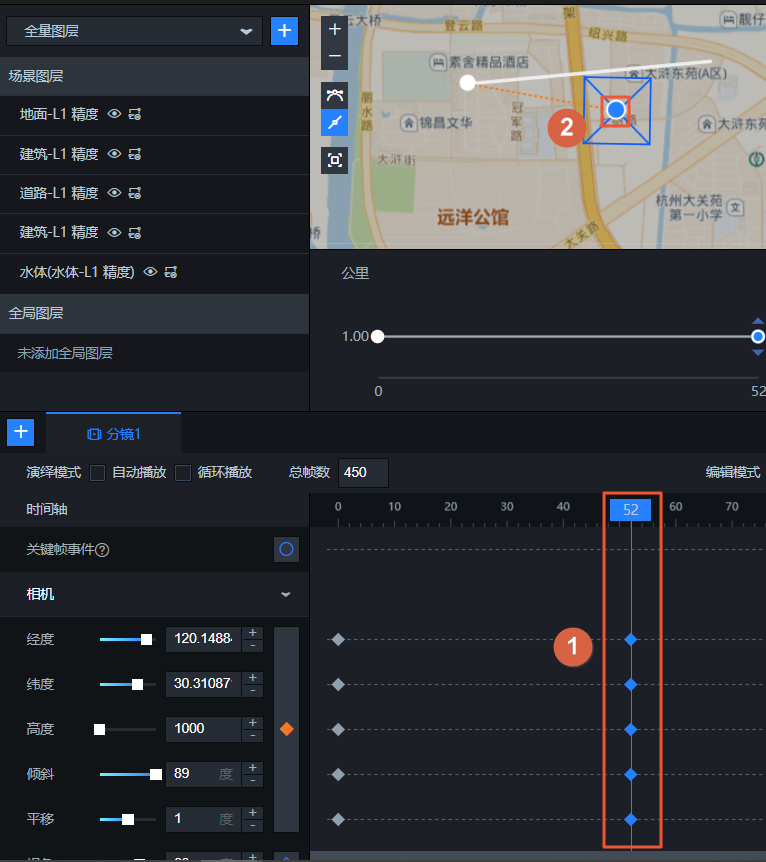 Instructions:
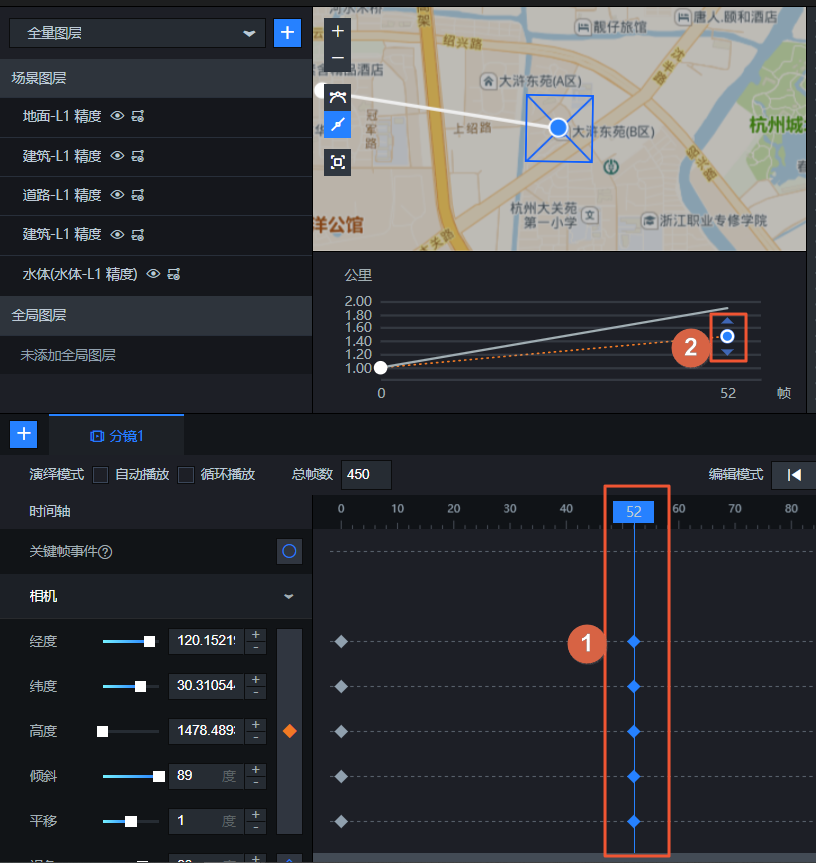 Instructions:
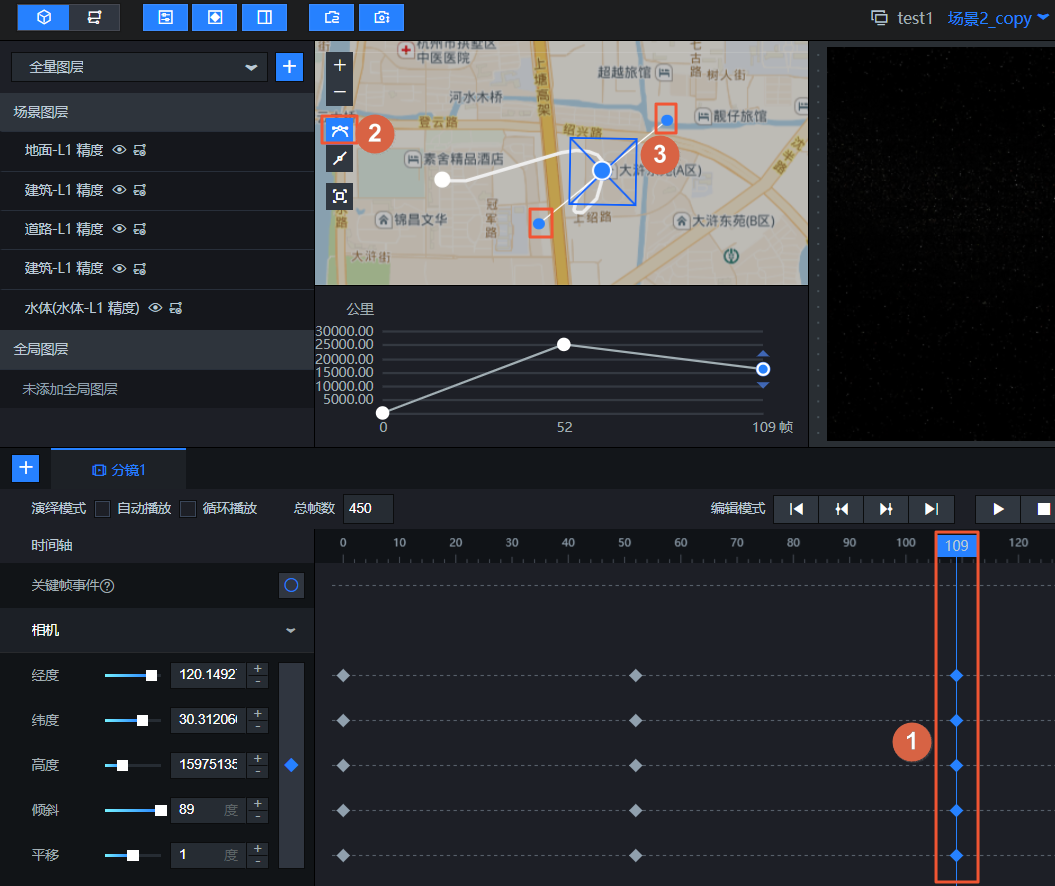 Instructions:
 icon on the left to switch to the Bézier interpolation mode.
 icon on the left side of the camera path panel to center the full path of all keyframes from the current shot within the panel.
 and
and  icons on the left side of the camera path panel to zoom in or out on the map.