Point light
A point light is a layer in the 3D City Builder that adds extra illumination. It simulates the lighting and color effects of light emitting uniformly from a single point. You can independently configure the style of a point light, including its intensity, color, and the longitude and latitude of the point. This topic describes the configuration items for a point light.
In the layer list on the left of the scene editor, click the Point light layer to open the configuration panel. In the panel, you can configure the style and data for the Point light layer.
This widget is available only to users of DataV Professional Edition or later. To use this widget, you must upgrade your edition to Professional Edition or later.
If the Point light layer is not in the layer list, it means you have not added it. To add the Point light layer, see Add a sub-widget.
Configuration
Avoid adding multiple point lights. This can cause high performance overhead, which may lead to page stuttering or slow loading.
-
Search Configuration: To quickly find a specific configuration item, click on the Configuration panel in the upper right corner and enter the item's name in the Search Configuration field. The system utilizes a fuzzy match to assist in locating items. For more information, see search configuration items.
General
Parameter
Description
Light Source Position
Sets the position of the point light source.
Longitude: Drag the slider to set the longitude of the point light. The value ranges from -180 to 180.
Latitude: Drag the slider to set the latitude of the point light. The value ranges from -90 to 90.
Altitude: Drag the slider to set the height of the point light from the ground. The value ranges from -1000 to 2000000.
Graphic
Parameter
Description
Light Color
The color of the point light. To change the color, see Color picker.
Light Distance
The radius that the point light can illuminate. Drag the slider to set the light distance. The value ranges from 0 to 5000. A value of 0 indicates an infinite distance.
Light Intensity
Drag the slider to set the light intensity coefficient. The value ranges from 0 to 100.
Cast Shadow
Turn on the switch to enable the shadow casting effect for the point light. Turn off the switch to disable the effect.
NoteTo enable shadow casting for a point light, the materials of other widgets must support receiving shadows. The light and shadow effects affect all materials that support this light source. Casting shadows increases performance overhead. Use this feature with caution.
Helper
Turn on the switch to display the point light helper. Turn off the switch to hide the point light helper.
Data panel
This layer does not require data configuration.
Blueprint interaction
On the Scene Editor page, click the
 icon to the right of Point Light in the layer list on the left.
Click the
 icon in the upper-left corner of the page.
On the Blueprint Editor page, click the Point light layer in the Import Node bar. The configuration parameters for the point light appear on the canvas, as shown in the following figure.
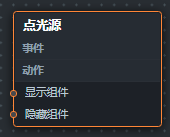
Events: None.
Actions
Action
Description
Show Widget
Shows the widget. No parameters are required.
Hide Widget
Hides the widget. No parameters are required.