Miniapps support custom navigation bars. You can customize the style of the navigation bar, such as the title position and the back button style. This topic describes how to implement a custom navigation bar for a miniapp based on the 10.1.68 baseline. The procedure includes the following three steps:
Procedure
Set the navigation bar for the miniapp
Open Android Studio and find the
custom_config.jsonfile in the assets > config directory. Add the following code to disable the native miniapp navigation bar.{ "value": "NO", "key": "mp_ta_use_orginal_mini_nagivationbar" }In the res > drawable directory, add the image resources shown in the following figure. Click here to download the image resource package.
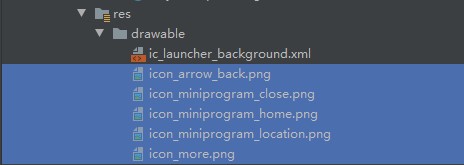
Right-click the layout directory in the res directory and select New > XML > Layout XML File.
In the Layout File Name text box, enter a name for the layout file and click Finish.
In the
h5_new_title_layout.xmlfile, add the following code to set the navigation bar layout.<?xml version="1.0" encoding="utf-8"?> <com.alipay.mobile.nebula.view.H5TitleBarFrameLayout xmlns:android="http://schemas.android.com/apk/res/android" android:id="@+id/titlebar" android:layout_width="match_parent" android:layout_height="match_parent"> <LinearLayout android:id="@+id/il_layout" android:layout_width="match_parent" android:layout_height="52dp" android:layout_gravity="center_vertical"> <ImageView android:id="@+id/back" android:layout_width="26dp" android:layout_height="26dp" android:layout_gravity="center_vertical" android:layout_marginLeft="12dp" android:scaleType="centerInside" android:src="@drawable/icon_arrow_back" /> <ImageView android:id="@+id/home" android:layout_width="26dp" android:layout_height="26dp" android:layout_gravity="center_vertical" android:layout_marginLeft="12dp" android:scaleType="centerInside" android:src="@drawable/icon_miniprogram_home" android:visibility="gone" /> <LinearLayout android:layout_width="0dp" android:layout_height="match_parent" android:layout_weight="1" android:gravity="center_horizontal" android:orientation="vertical"> <TextView android:id="@+id/mainTitle" android:layout_width="wrap_content" android:layout_height="match_parent" android:gravity="center" android:textColor="@android:color/white" android:textSize="20sp" /> <TextView android:id="@+id/subTitle" android:layout_width="wrap_content" android:layout_height="match_parent" android:visibility="visible" /> </LinearLayout> <FrameLayout android:id="@+id/options1" android:layout_width="wrap_content" android:layout_height="match_parent" android:visibility="gone"> <ImageView android:id="@+id/o1image" android:layout_width="26dp" android:layout_height="26dp" android:layout_gravity="center_vertical" /> </FrameLayout> <LinearLayout android:id="@+id/options" android:layout_width="wrap_content" android:layout_height="match_parent" android:layout_gravity="center_vertical" android:layout_marginRight="12dp" android:orientation="horizontal" android:visibility="gone" /> </LinearLayout> </com.alipay.mobile.nebula.view.H5TitleBarFrameLayout>Create the TinyNavigationBar class.
In the TinyNavigationBar class, add the following code to implement a custom title bar.
 public class TinyNavigationBar extends AbsTitleView {
     private H5TitleBarFrameLayout content;

     private TextView mainTitleView;

     private TextView subTitleView;

     private View btnBack;

     private View optionContainer;

     private View options1;

     private View btHome;

     private Context context;
     public TinyNavigationBar(Context context) {
         ViewGroup parent = null;
         this.context = context;
         if (context instanceof Activity) {
             parent = (ViewGroup) ((Activity) context).findViewById(android.R.id.content);
         }
         content = (H5TitleBarFrameLayout) LayoutInflater.from(context).inflate(R.layout.h5_new_title_layout, parent, false);
         content.getContentBgView().setColor(context.getResources().getColor(R.color.colorPrimary));
         mainTitleView = (TextView) content.findViewById(R.id.mainTitle);
         subTitleView = (TextView) content.findViewById(R.id.subTitle);
         btnBack = content.findViewById(R.id.back);
         btnBack.setOnClickListener(new View.OnClickListener() {
             @Override
             public void onClick(View v) {
                 invokePageBackEvent();
             }
         });
         optionContainer = content.findViewById(R.id.options);
         btHome = content.findViewById(R.id.home);
         int statusBarHeight = H5StatusBarUtils.getStatusBarHeight(context);
         content.setPadding(0, statusBarHeight, 0, 0);
         btHome.setOnClickListener(new View.OnClickListener() {
             @Override
             public void onClick(View v) {
                 invokeHomeClickEvent();
             }
         });
         options1 = content.findViewById(R.id.options1);
         options1.setOnClickListener(new View.OnClickListener() {
             @Override
             public void onClick(View v) {
                 invokeOptionClickEvent(1, false);
             }
         });
     }
     @Override
     public int getBackgroundColor() {
         return content.getContentBgView().getColor();
     }
     @Override
     public void setBackgroundAlphaValue(int i) {
         content.getContentBgView().setAlpha(i);
     }
     @Override
     public void setBackgroundColor(int i) {
         if ((i & 0xffffff) == 0xffffff) {
             mainTitleView.setTextColor(Color.BLACK);
         } else {
             mainTitleView.setTextColor(Color.WHITE);
         }
         content.getContentBgView().setColor(i);
         notifyTitleBarChanged();
     }
     @Override
     public String getTitle() {
         return mainTitleView.getText().toString();
     }
     @Override
     public void setTitle(String s) {
         mainTitleView.setText(s);
     }
     @Override
     public void setSubTitle(String s) {
         subTitleView.setText(s);
     }
     @Override
     public void setTitleImage(Bitmap bitmap) {
     }
     @Override
     public TextView getMainTitleView() {
         return mainTitleView;
     }
     @Override
     public TextView getSubTitleView() {
         return subTitleView;
     }
     @Override
     public void resetTitle() {
         content.getContentBgView().setColor(context.getResources().getColor(R.color.colorPrimary));
     }
     @Override
     public void showCloseButton(boolean b) {
     }
     @Override
     public View getContentView() {
         return content;
     }
     @Override
     public void showBackButton(boolean b) {
         btnBack.setVisibility(b ? View.VISIBLE : View.GONE);
     }
     @Override
     public void showBackHome(boolean b) {
         btHome.setVisibility(b ? View.VISIBLE : View.GONE);
     }
     @Override
     public void showOptionMenu(boolean b) {
         optionContainer.setVisibility(b ? View.VISIBLE : View.GONE);
         options1.setVisibility(b ? View.VISIBLE : View.GONE);
     }
     @Override
     public View getOptionMenuContainer(int i) {
         if (i == 1) {
             return options1;
         }
         return optionContainer;
     }
     @Override
     public void setOptionMenu(boolean reset, boolean override, boolean isTinyApp, List<MenuData> menus) {
         for (int i = 0; i < 2 && i < menus.size(); i++) {
             MenuData menuData = menus.get(i);
             if (isTinyApp) {
                 String iconUrl = menuData.getIcon();
                 if (!TextUtils.isEmpty(iconUrl)) {
                     H5ImageUtil.loadImage(iconUrl, new H5ImageListener() {
                         @Override
                         public void onImage(Bitmap bitmap) {
                             ((ImageView)options1.findViewById(R.id.o1image)).setImageBitmap(bitmap);
                         }
                     });
                 }
             }
         }
     }
     @Override
     public void showTitleLoading(boolean b) {
     }
     @Override
     public View getPopAnchor() {
         return optionContainer;
     }
 }
Set the OptionMenu for the miniapp
Right-click the layout directory in the res directory and select New > XML > Layout XML File.
In the Layout File Name text box, enter a name for the layout file and click Finish.
In the
layout_tiny_right.xmlfile, add the following code to set the layout of the OptionMenu control area.<?xml version="1.0" encoding="utf-8"?> <FrameLayout xmlns:android="http://schemas.android.com/apk/res/android" android:layout_width="wrap_content" android:layout_height="match_parent" android:layout_gravity="center_vertical"> <LinearLayout android:id="@+id/option_bg" android:background="#9fffffff" android:layout_width="wrap_content" android:layout_height="42dp" android:layout_gravity="center_vertical" android:gravity="center_vertical"> <ImageView android:id="@+id/more" android:layout_width="26dp" android:layout_height="26dp" android:src="@drawable/icon_more"/> <ImageView android:id="@+id/close" android:layout_width="26dp" android:layout_height="26dp" android:layout_marginLeft="12dp" android:src="@drawable/icon_miniprogram_close"/> </LinearLayout> </FrameLayout>Create the TinyOptionMenuView class.
In the TinyOptionMenuView class, add the following code to implement a custom OptionMenu control area.
 public class TinyOptionMenuView extends AbsTinyOptionMenuView {

     private View container;

     private ImageView ivMore;

     private View ivClose;

     private Context context;

     private View bgView;

     public TinyOptionMenuView(Context context) {
         this.context = context;
         ViewGroup parent = null;
         if (context instanceof Activity) {
             parent = (ViewGroup) ((Activity) context).findViewById(android.R.id.content);
         }
         container = LayoutInflater.from(context).inflate(R.layout.layout_tiny_right, parent, false);
         ivClose = container.findViewById(R.id.close);
         ivMore = (ImageView) container.findViewById(R.id.more);
         bgView = container.findViewById(R.id.option_bg);
     }

     @Override
     public View getView() {
         return container;
     }

     @Override
     public void setOptionMenuOnClickListener(View.OnClickListener onClickListener) {
         ivMore.setOnClickListener(onClickListener);
     }

     @Override
     public void setCloseButtonOnClickListener(View.OnClickListener onClickListener) {
         ivClose.setOnClickListener(onClickListener);
     }

     @Override
     public void setCloseButtonOnLongClickListener(View.OnLongClickListener onLongClickListener) {
         ivClose.setOnLongClickListener(onLongClickListener);
     }

     @Override
     public void onStateChanged(TinyAppActionState state) {
         if (state == null) {
             ivMore.setImageDrawable(context.getResources().getDrawable(R.drawable.icon_more));
         } else if (state.getAction().equals(TinyAppActionState.ACTION_LOCATION)) {
             ivMore.setImageDrawable(context.getResources().getDrawable(R.drawable.icon_miniprogram_location));
         }
     }

     @Override
     protected void onTitleChange(final H5TitleView title) {
         super.onTitleChange(title);
         int color = title.getBackgroundColor();
         if ((color & 0xffffff) == 0xffffff) {
             bgView.setBackgroundColor(Color.RED);
         } else {
             bgView.setBackgroundColor(Color.GREEN);
         }
     }

     @Override
     public void setH5Page(H5Page h5Page) {
         super.setH5Page(h5Page);
         // title becomes available from here.
         if (getTitleBar().getBackgroundColor() == -1) {
             bgView.setBackgroundColor(Color.RED);
         }
     }

     @Override
     public void hideOptionMenu() {

     }
 }
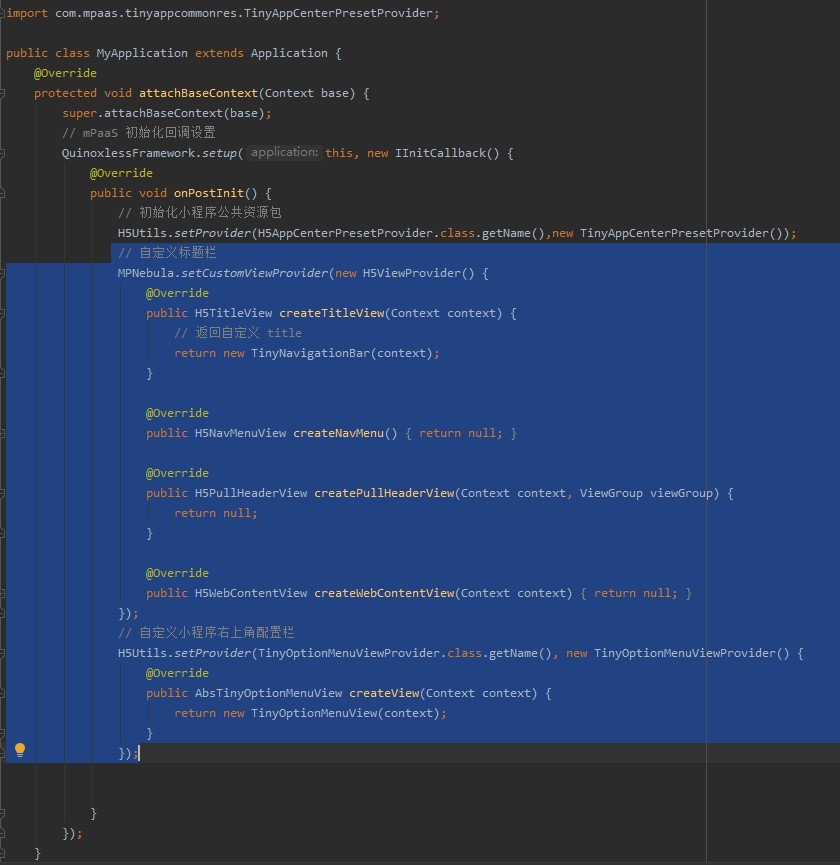
In the IInitCallback initialization callback of the MyApplication class, add the following code to implement a custom title bar and a custom OptionMenu in the upper-right corner.
  // Custom title bar
                 MPNebula.setCustomViewProvider(new H5ViewProvider() {
                     @Override
                     public H5TitleView createTitleView(Context context) {
                         // Return a custom title
                         return new TinyNavigationBar(context);
                     }

                     @Override
                     public H5NavMenuView createNavMenu() {
                         return null;
                     }

                     @Override
                     public H5PullHeaderView createPullHeaderView(Context context, ViewGroup viewGroup) {
                         return null;
                     }

                     @Override
                     public H5WebContentView createWebContentView(Context context) {
                         return null;
                     }
                 });
                 // Custom configuration bar in the upper-right corner of the miniapp
                 H5Utils.setProvider(TinyOptionMenuViewProvider.class.getName(), new TinyOptionMenuViewProvider() {
                     @Override
                     public AbsTinyOptionMenuView createView(Context context) {
                         return new TinyOptionMenuView(context);
                     }
                 });
Run the miniapp to view the navigation bar and OptionMenu
Click
 to run the program on a physical device.
Click Hello World! to start the miniapp. After the miniapp loads, the interface appears as shown in the following figure. You can see the custom OptionMenu in the upper-right corner.
Under Basic components, click Icon to view the custom navigation bar layout on the Icon page.