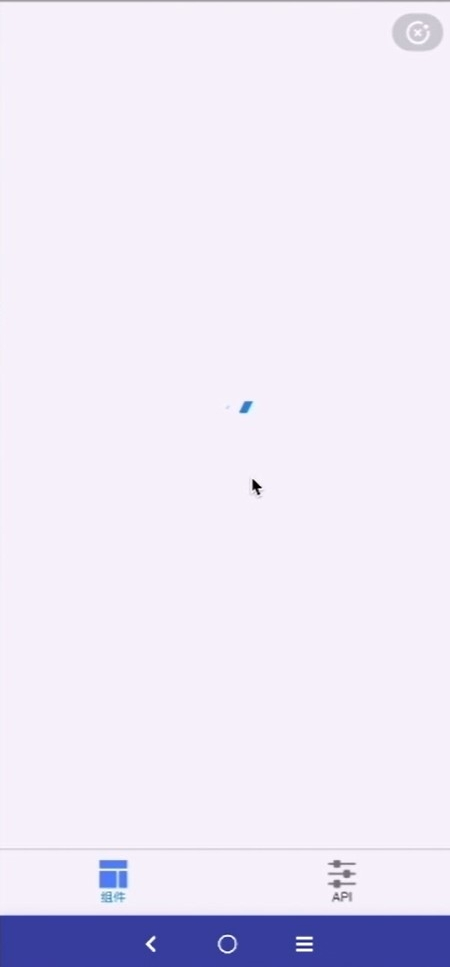
When you start a miniapp that is not yet installed on your device, the miniapp container displays a loading page. After the miniapp is installed, the loading page closes and the miniapp opens. This topic describes how to create a custom startup loading page.
Procedure
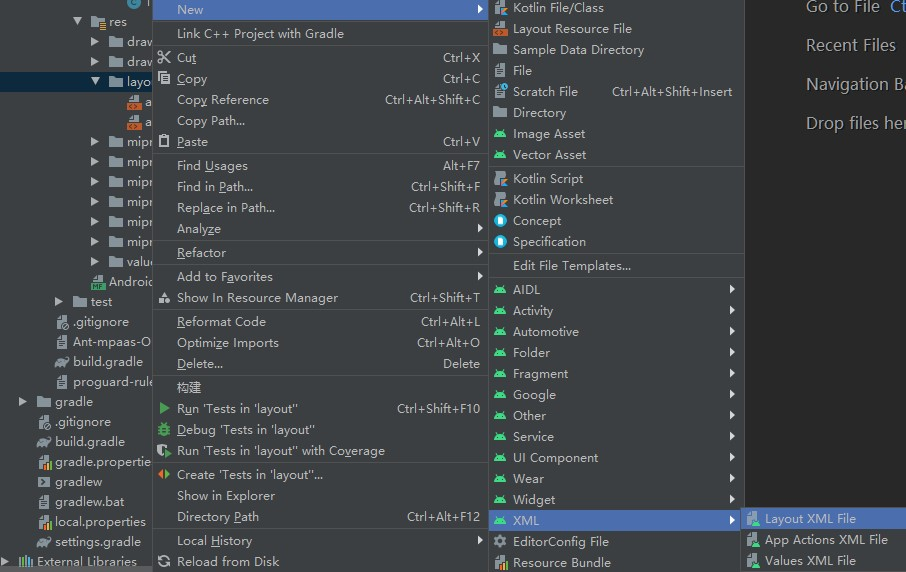
Right-click the layout directory under res and select New > XML > Layout XML File.
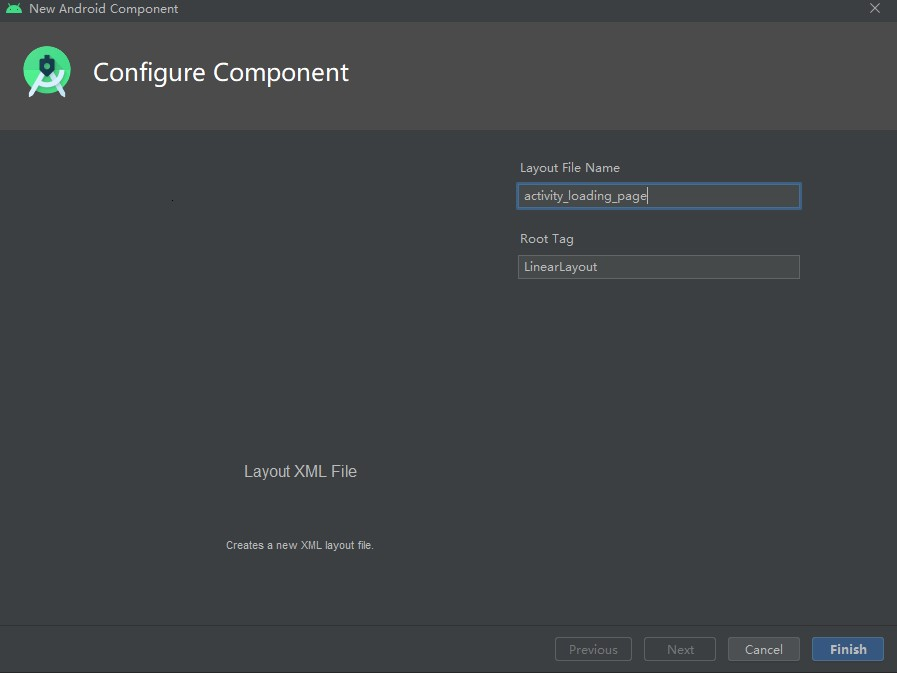
In the Layout File Name box, enter a name for the layout and click Finish.
Set the loading page layout in the
activity_loading_page.xmlfile using the following code.<?xml version="1.0" encoding="utf-8"?> <LinearLayout xmlns:android="http://schemas.android.com/apk/res/android" android:orientation="vertical" android:layout_width="match_parent" android:layout_height="match_parent"> <com.alipay.mobile.antui.basic.AUTitleBar android:id="@+id/title" android:layout_width="match_parent" android:layout_height="wrap_content" /> <RelativeLayout android:background="@android:color/white" android:layout_width="match_parent" android:layout_height="match_parent"> <LinearLayout android:layout_width="wrap_content" android:layout_height="wrap_content" android:orientation="vertical" android:layout_centerInParent="true"> <TextView android:id="@+id/tv_app" android:layout_width="wrap_content" android:layout_height="wrap_content"/> <com.alipay.mobile.antui.basic.AUProgressBar android:id="@+id/progress" style="?android:attr/progressBarStyleSmall" android:layout_gravity="center" android:layout_width="wrap_content" android:layout_height="wrap_content" /> <TextView android:id="@+id/tv_tips" android:visibility="gone" android:layout_width="wrap_content" android:layout_height="wrap_content" /> </LinearLayout> </RelativeLayout> </LinearLayout>Create the
TinyStartupLoadingViewclass that inherits fromMPTinyBaseIntermediateLoadingView. Initialize the interface and set a listener for the back button.public class TinyStartupLoadingView extends MPTinyBaseIntermediateLoadingView { private TextView tvAppName; private View progressBar; private TextView tvTips; public TinyStartupLoadingView(Context context) { super(context); init(); } public TinyStartupLoadingView(Context context, AttributeSet attrs) { super(context, attrs); init(); } public TinyStartupLoadingView(Context context, AttributeSet attrs, int defStyleAttr) { super(context, attrs, defStyleAttr); init(); } private void init() { LayoutInflater.from(getContext()).inflate(R.layout.activity_loading_page, this, true); tvAppName = (TextView) findViewById(R.id.tv_app); progressBar = findViewById(R.id.progress); tvTips = (TextView) findViewById(R.id.tv_tips); ((AUTitleBar)findViewById(R.id.title)).getBackButton().setOnClickListener(new OnClickListener() { @Override public void onClick(View v) { Activity host = getLoadingActivity(); if (host != null) { host.finish(); } } }); } /** * Invoked during initialization. The miniapp ID is passed in. Other information, such as the name, icon, and version, may be empty. */ @Override public void initView(AppInfo info) { tvAppName.setText(info.appName); } /** * Invoked when the miniapp fails to load. */ @Override public void onError() { tvTips.setText("Failed"); tvTips.setVisibility(VISIBLE); progressBar.setVisibility(GONE); } /** * Invoked when the miniapp information is pulled. This provides the application ID, name, icon, and version. */ @Override public void update(AppInfo info) { tvAppName.setText(info.appName); } }To enable custom configuration before the miniapp starts, add the following code to the click event listener in
MainActivity:MPTinyHelper.getInstance().setLoadingViewClass(TinyStartupLoadingView.class);Click
 to run the program on a physical device.
Click Hello World! to start the miniapp. While the miniapp loads, the interface appears as follows: