Developer device
IoT Platform provides a software development kit (SDK) with built-in protocols for device-to-platform communication. You can use this SDK to develop firmware that connects your physical devices to the Internet of Things (IoT). This topic describes how to develop and flash device firmware using the Bluetooth Mesh SDK (V1.2.6) for AliOS Things and a TG7100B development board as an example.
Prerequisites
- You have set up the development environment and installed the required dependency packages. For more information, see Preparations.
- The Bluetooth Mesh SDK for AliOS Things is available. For more information, see Obtain the SDK.
Prepare the development environment
- Set up the development environment for the SDK.
Set up the device-side SDK development environment on a 64-bit Ubuntu system. You can use vim to edit the code. If you use Windows 10, you can download and install Ubuntu 20.04 LTS from the Microsoft Store. For other operating systems, you must install virtual machine software. For instructions, see the relevant online documentation.
- Install the runtime libraries for Ubuntu 20.04 (64-bit).
Run the following commands in order.
sudo apt-get update sudo apt-get -y install libssl-dev:i386 sudo apt-get -y install libncurses-dev:i386 sudo apt-get -y install libreadline-dev:i386 - Install the dependency packages for Ubuntu 20.04 (64-bit).
Run the following commands in order.
sudo apt-get update sudo apt-get -y install git wget make flex bison gperf unzip sudo apt-get -y install gcc-multilib sudo apt-get -y install libssl-dev sudo apt-get -y install libncurses-dev sudo apt-get -y install libreadline-dev sudo apt-get -y install python python-pip - Install the Python dependency packages.
Run the following commands in order.
python -m pip install setuptools
python -m pip install wheel
python -m pip install aos-cube
python -m pip install esptool
python -m pip install pyserial
python -m pip install scons
Note After the installation is complete, run the aos-cube --version command to check the version number of aos-cube. Make sure that the version is 0.5.11 or later.If you have network issues during installation, you can use a Chinese mirror.
### Install or upgrade pip
python -m pip install --trusted-host=mirrors.aliyun.com -i https://mirrors.aliyun.com/pypi/simple/ --upgrade pip
### Use pip to install third-party packages and aos-cube
pip install --trusted-host=mirrors.aliyun.com -i https://mirrors.aliyun.com/pypi/simple/   setuptools
pip install --trusted-host=mirrors.aliyun.com -i https://mirrors.aliyun.com/pypi/simple/   wheel
pip install --trusted-host=mirrors.aliyun.com -i https://mirrors.aliyun.com/pypi/simple/   aos-cube
Develop the device firmware
- Download the device-side SDK code.
The Bluetooth Mesh SDK is developed in C. This SDK is currently available only to specific users. To request permission, see Obtain the SDK.
- Upload the downloaded ZIP package to your development environment and decompress the package.
- In the root directory of the SDK, run the compile command.
This topic uses the compilation of the light_ctl program on the TG7100B development board as an example. Run one of the following commands.
./build.sh bluetooth.light_ctl tg7100b 1aos make bluetooth.light_ctl@tg7100b
The following output indicates that the compilation is successful.
AOS MEMORY MAP |=================================================================| | MODULE | ROM | RAM | |=================================================================| | newlib_stub | 0 | 270 | | kv | 0 | 3615 | | bt_common | 0 | 7705 | | crc | 0 | 128 | | mcu_tg7100b | 0 | 38556 | | rhino | 0 | 19885 | | vfs | 0 | 860 | | libgcc | 0 | 8552 | | ref_impl | 0 | 1972 | | bt_mesh | 0 | 54456 | | bt_host | 0 | 43334 | | cli | 0 | 9039 | | yloop | 0 | 1205 | | board_tg7100b | 0 | 965 | | libc_nano | 0 | 13100 | | genie_service | 0 | 24533 | | auto_component | 0 | 2 | | driver_bt | 0 | 18408 | | osal | 0 | 950 | | log | 0 | 428 | | armv6m | 0 | 336 | | light_ctl | 0 | 2841 | | *fill* | 0 | 938 | |=================================================================| | TOTAL (bytes) | 0 | 252078 | |=================================================================| [INFO] Create bin files sign all partitions with key:def_otp ---------------------------------------------------------------- bomtb, 0, 0, 0x11002100, 0x00001000, 0x11003100, bomtb FCDS, 0, 0, 0x11004000, 0x00001000, 0x11005000 imtb, 0, 0, 0x11005000, 0x00002000, 0x11007000, imtb kv, 0, 0, 0x11007000, 0x00002000, 0x11009000 boot, 0, 0, 0x11009000, 0x00005000, 0x1100e000, boot jumptb, 1, 2, 0x1100e000, 0x00001000, 0x1100f000, jumptb prim, 1, 2, 0x1100f000, 0x00012000, 0x11021000, prim misc, 0, 0, 0x11021000, 0x00039000, 0x1105a000 xprim, 1, 2, 0x1105a000, 0x00026000, 0x11080000, xprim bomtb, 16 bytes boot, 17696 bytes jumptb, 1024 bytes prim, 70996 bytes xprim, 140172 bytes imtb, 8192 bytes ---------------------------------------------------------------- [out/bluetooth.light_ctl@tg7100b/binary/fota.bin]FULL==>:jumptb,size:1024,[isforce:0] [out/bluetooth.light_ctl@tg7100b/binary/fota.bin]FULL==>:prim,size:70996,[isforce:0] [out/bluetooth.light_ctl@tg7100b/binary/fota.bin]FULL==>:xprim,size:140172,[isforce:0] Build complete Making .gdbinit build time is 9min 48s - Check the compilation result.
After the compilation is successful, the out/bluetooth.light_ctl@tg7100b/binary directory contains the total_image.hexf file. This file is the firmware to be flashed to the device. The fota.bin file is the firmware for over-the-air (OTA) updates.
Flash the firmware
- Connect the TG7100B development board to your computer with a USB cable and open the TG71XX Programmer.exe flashing tool.
If the hardware driver is not installed on your computer, follow the prompts to install it.
- Select the UART Setting check box in the upper-right corner and set the parameters for the development board's serial port as shown in the following figure.
After the driver is installed, the TG71XX Programmer.exe tool automatically detects your serial port number. In this example, the port is COM3.
- Click Connect.
The following log appears in the Log area.
******************************* Current port: COM3 Current baudrate: 115200 Current stopBits: 1 Current parity: No Serial opened!! ******************************* - Select , double-click the blank area (marked as ③ in the figure), and upload the file to be flashed.
- On the Single tab in the lower-left corner, select MAC from the TYPE list and configure the MAC address.
The MAC address must be set to the device's DeviceName. For more information, see Add a device.
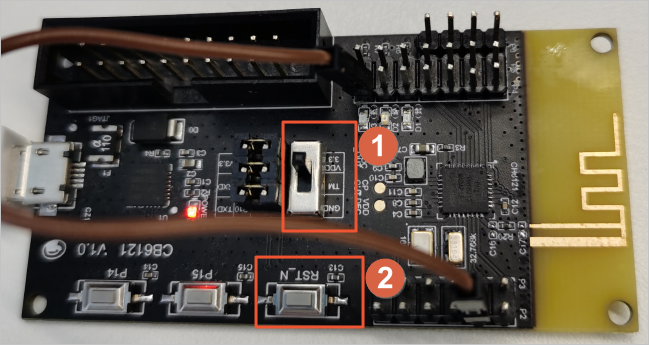
- Make sure that the DIP switch on the TG7100B development board is set to VDD (marked as ① in the figure), and press the reset button (marked as ② in the figure) to reset the hardware.
The Log area displays the following content.
UART RX : cmd>>: - At the top of the Flash_writer tab, click Erase to erase the flash memory.
The following log content in the Log area indicates that the erase was successful.
Send erase successfully! Receive #OK! Erase successfully! - At the top of the Flash_writer tab, click Write to flash the firmware.
The following log content in the Log area indicates that the firmware was flashed successfully.
============Write hexf File [10/10]============
Send cpbin successfully!
UART RX ASCII: by hex mode:
Receive image request!
Send image successful! Waiting to receive checksum...
Send checksum successfully!
UART RX ASCII: checksum is: 0x0041c6a4
#OK>>:
Receive #OK!
Write images successfully!
write address: 0x4000, value: 0xB276A87A
write address: 0x4004, value: 0x0000FA28
Write registers successfully!
Flash the device certificate
- Disconnect the TG71XX Programmer.exe flashing tool, set the DIP switch on the development board to GND, and press the reset button on the board.
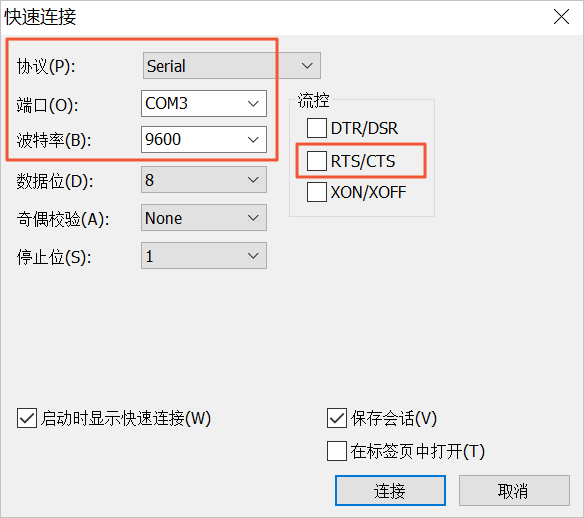
- Open the SecureCRT serial debugging tool, select , and set the parameters for the development board's serial port as shown in the following figure.
Note The port number must be the same as the port number that is automatically detected by the TG71XX Programmer.exe tool. You can also find the port number in Device Manager. To open Device Manager, right-click My Computer and select . The path to Device Manager may vary based on the operating system.
- Click Connect.
- (Optional) Run the AT+MESHMAC? command to view the device's MAC address.
# +MESHMAC: 28:xx:xx:xx:xx:b2 OK - Run the AT+FACTYTEST command to enter factory test mode.
The command returns the following result.
# OK DUT Start - Run the following command to flash the device certificate.
AT+TRITUPLE=<product id>,<Device Secret>,<Device Name>Note- In this command, product id, Device Secret, and Device Name (the MAC address) are the device certificate details generated when you add a device.
- After you enter the command in the serial flashing tool, press Enter to add a carriage return (CR) and a line feed (LF).
The command returns the following result.
55xxx10 aaded522xxxxxxxc88105d10e81d 28xxxxxxxb2
OK