Stuck report
A stuck event is categorized as either a launch stuck or an ANR stuck. When a stuck event occurs, the client uploads the relevant information in real time. This data appears on the console after a typical delay of a few seconds to a few minutes.
Type | Android | iOS |
Launch stuck | The app fails to navigate past the splash screen or reach the home screen within 30 seconds of launch. | A method on the |
ANR stuck | Refers to a system ANR (Application Not Responding). For a detailed definition, see the official Android documentation on ANRs. | A method on the |
The stuck report provides the total stuck count, stuck rate, and the total number of affected devices. You can also analyze detailed data for launch stuck and ANR stuck events separately.
To view the stuck report:
Log on to the
mPaaS consoleand select performance monitoring > crash analysis from the left navigation pane.Click the Stuck Report tab to view the analysis data.
Filter the stuck analysis data by platform,
app version, and time.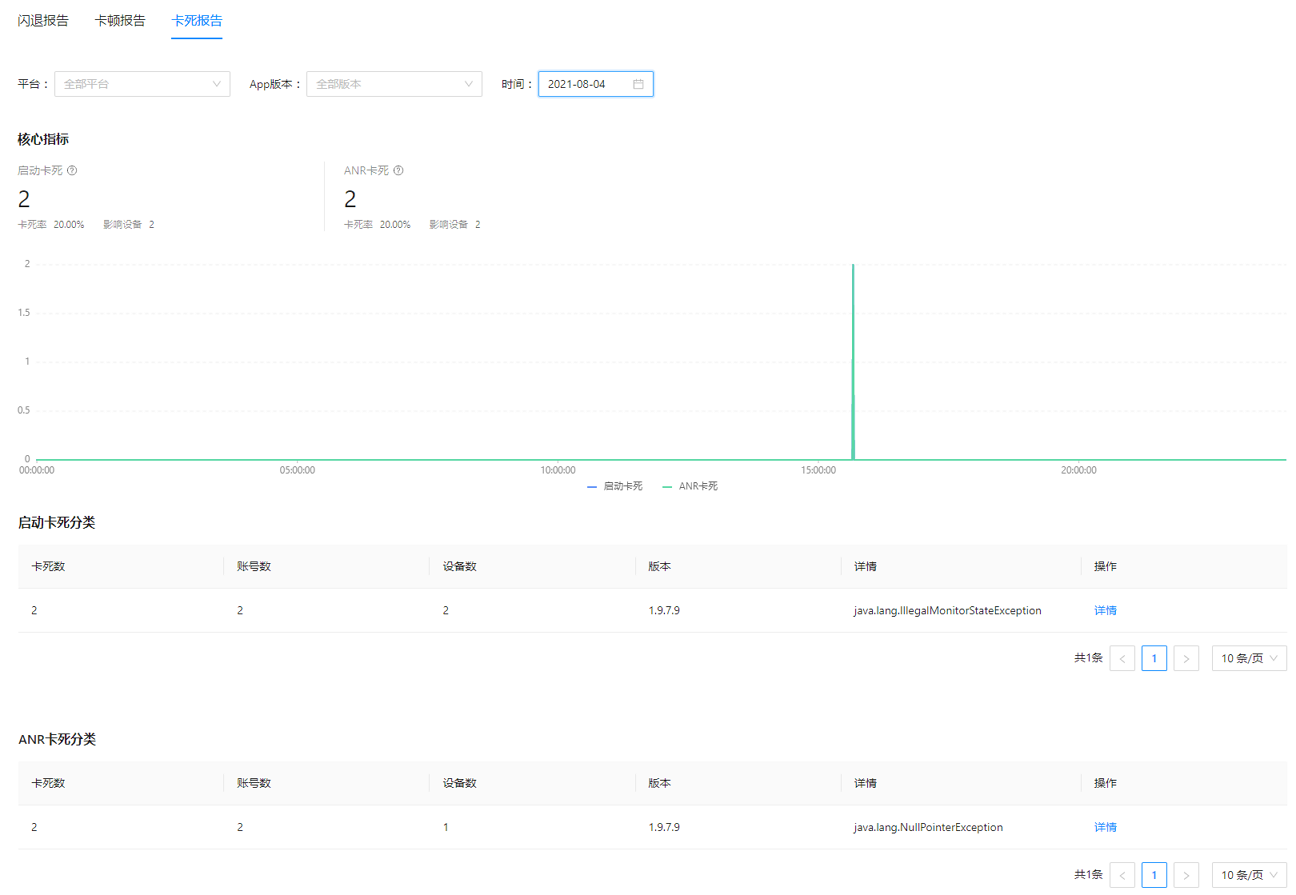 Note
NoteStuck analysis data is currently supported only on the iOS and Android platforms.
Key metrics
This section displays a line chart of per-minute data for launch stuck and ANR stuck events. Click the Launch Stuck or ANR Stuck metric card to view the corresponding trend data.
Metric | Launch stuck | ANR stuck |
Stuck count | The number of | The number of |
Stuck rate | The number of | The number of |
Affected devices | The total number of unique devices that experienced a | The total number of unique devices that experienced an |
Stuck categories
This section displays data for launch stuck and ANR stuck events for the selected date. Logs are grouped and aggregated based on the cause of the stuck event.
Stuck count: The total number of
stuckevents in the same category (the number ofstucklogs).Account count: The number of unique user IDs for
stuckevents of the same category, based on theuser IDin the log. If theuser IDis empty, the default value is 1.Device count: The number of unique device IDs for
stuckevents of the same category, based on thedevice IDin the log. If thedevice IDis empty, the default value is 1.Version: The app version recorded in the
stucklog.Details: The
call stackof thestuckevent recorded in the log.
For Android devices, you can view the
call stackinformation in the details of thestuck report. For alaunch stuckevent, the information includes the call stacks of all current threads to help with troubleshooting.For iOS devices,
call stackinformation is available only for non-launchstuckevents. Thestuck reportdoes not providecall stackinformation forlaunch stuckevents.
Stuck details
In the stuck categories list, click the Details link in the Actions column to open the details page for that error group, where you can view information about that specific category of launch stuck or ANR stuck events, including error group information and error samples.
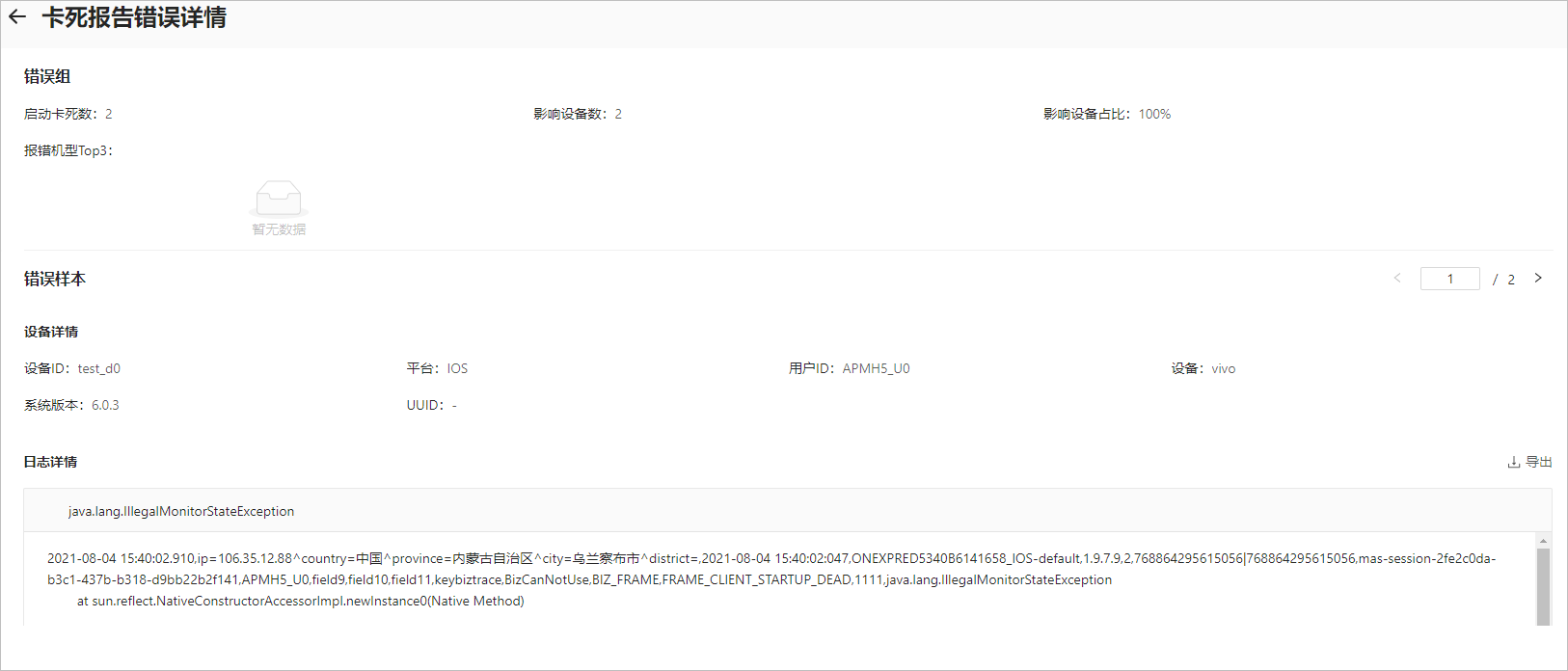
Error group:
Launch/ANR stuck count: The total number of
stuckevents in this category (the number ofstucklogs).Affected devices: The number of unique devices that experienced this type of
stuckevent, deduplicated bydevice ID.Device ratio: The number of devices affected by this type of
stuckevent divided by the total number of devices that have experienced anystuckevent.Top 3 device models: The percentage of
stuckevents from the top three device models with the most occurrences.
Error sample: Displays information for the current sample, such as
device detailsandlog details. You can navigate between samples by using the < and > buttons.Device details: Displays the Device ID, Platform, User ID, Device Model, and OS Version for the current sample.
Log details: Displays the
stucklog for the current sample and allows you to export the data. For more information about log details, see stuck event tracking.
If the device ID is empty or a hyphen (-), the device count is not incremented.