Troubleshoot Messages
This document helps developers diagnose issues with push notifications, such as push failures.
Procedure
Log on to the EMAS Management Console and select the Mobile Push product.
On the Mobile Push product page, in the navigation pane on the left, choose Troubleshooting Tools > Troubleshoot Messages to go to the message troubleshooting page.
On the Troubleshoot Messages tab, enter a message ID (required) and a device ID (optional), and then click Query to view message details.
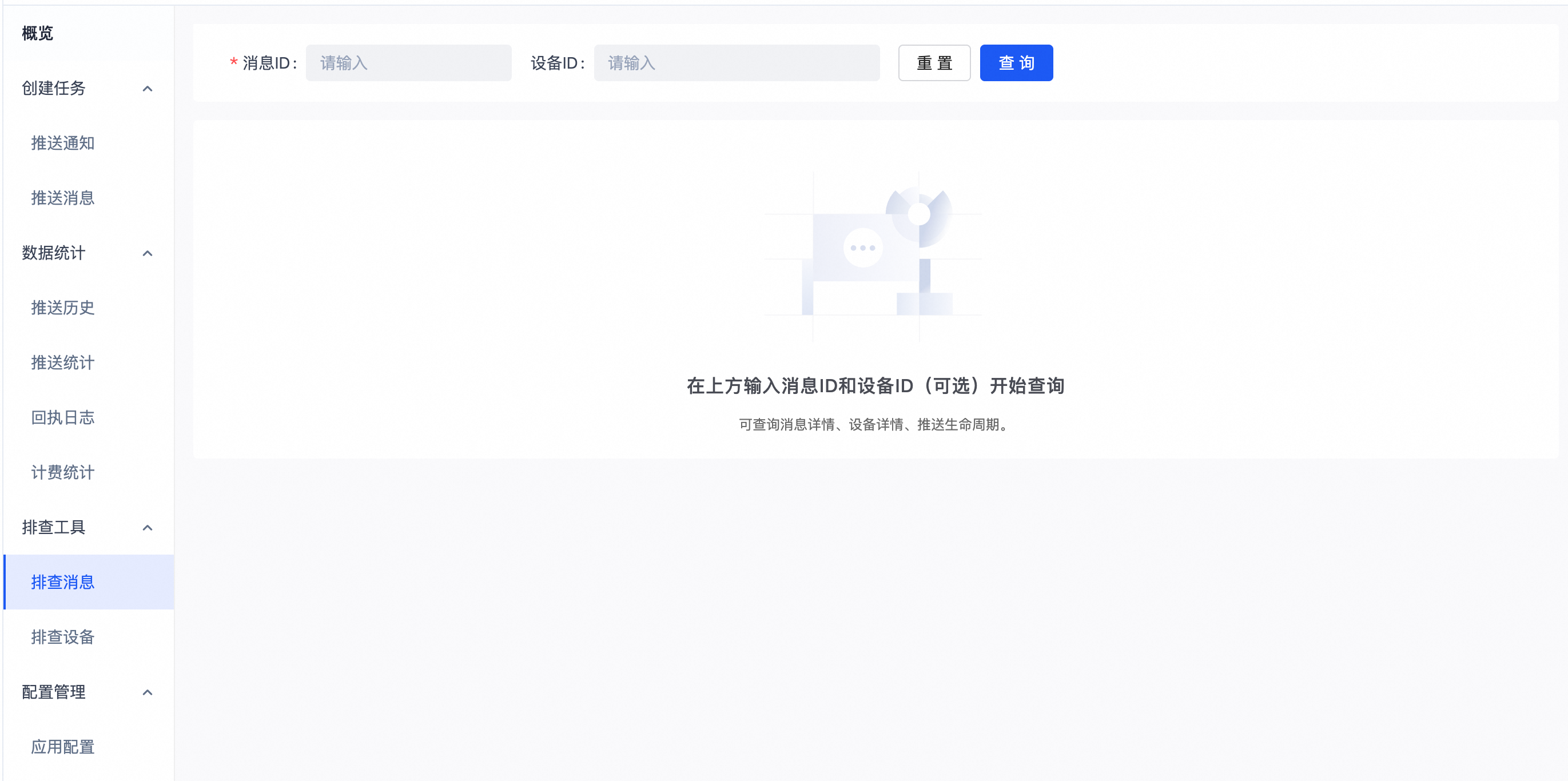
Troubleshooting involves several key steps to help you diagnose and resolve issues in the push process. The general procedure is described in the following sections.
1. Message ID
Each message has a corresponding message ID, which you can find in the OpenAPI response or the push history in the console. Enter the message ID of the message that you want to troubleshoot to query its push details.
a. Message ID and device ID
A device ID is required to query messages pushed to a specific device. For detailed information, you can perform a query using both the message ID and the device ID.

b. Message ID
If you do not have the device ID, you can use the message ID to retrieve the device IDs for up to the first 20 devices that received the message. Then, you can use a specific device ID with the message ID to query the push details for that device.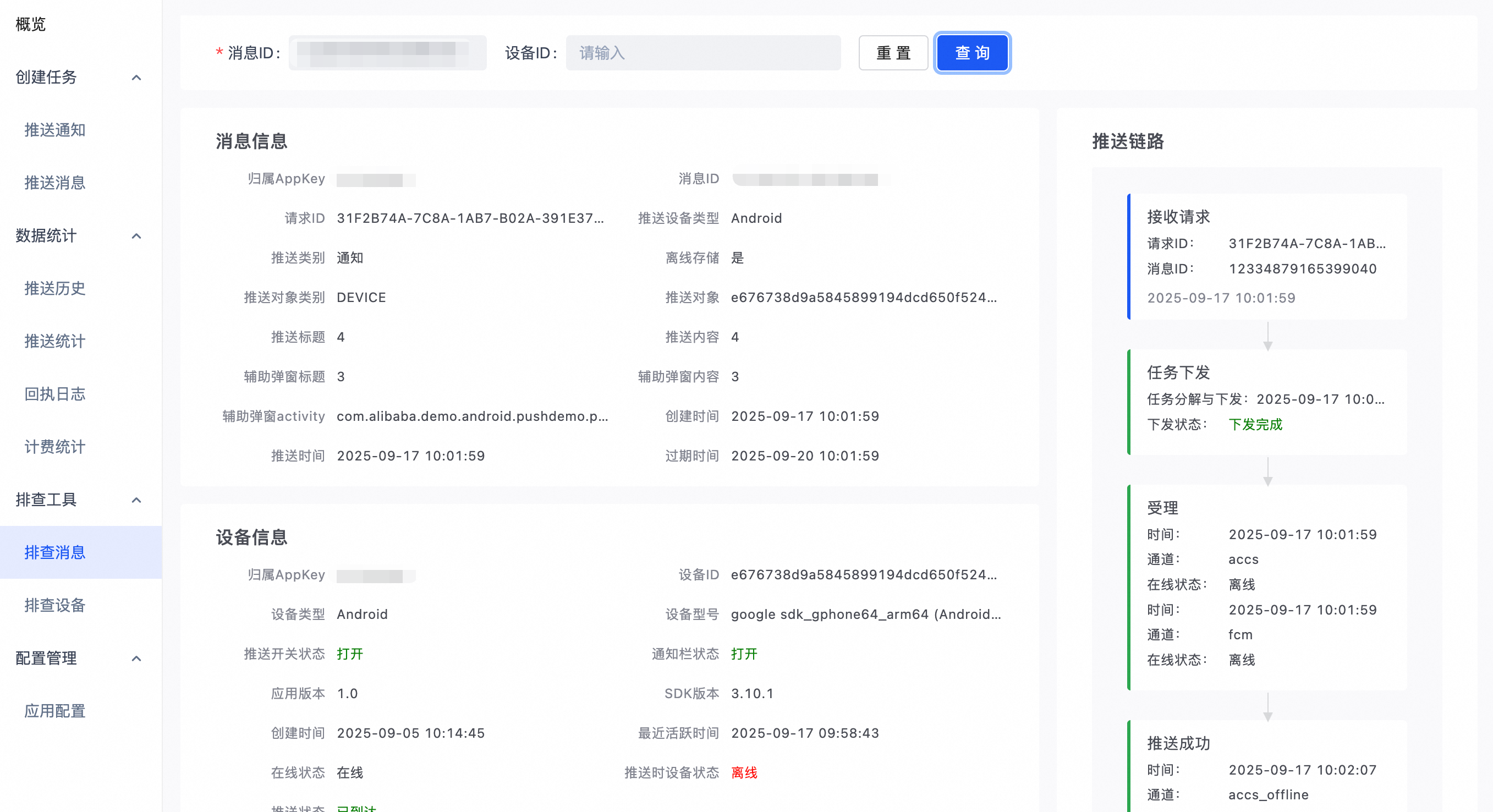
2. Check push device information
Push messages contain configuration information. Some push failures can be caused by incorrect configurations. Pay close attention to the sections highlighted in red on the interface because they may indicate misconfigurations or uncommon settings. For example, if a push message is not configured to be saved for offline devices, it is delivered only to online devices.
3. View the push flow
The push flow shows the entire process, from the moment the request is received to the completion of the push. In a normal push flow, as shown in the following image, the system receives the request, generates a request ID, dispatches the task, processes it through the push gateway, and delivers it through the appropriate channel. The final result can be either successful or failed. A delivery is marked as "arrived" when the client returns an ACK or the vendor channel returns a delivery receipt.
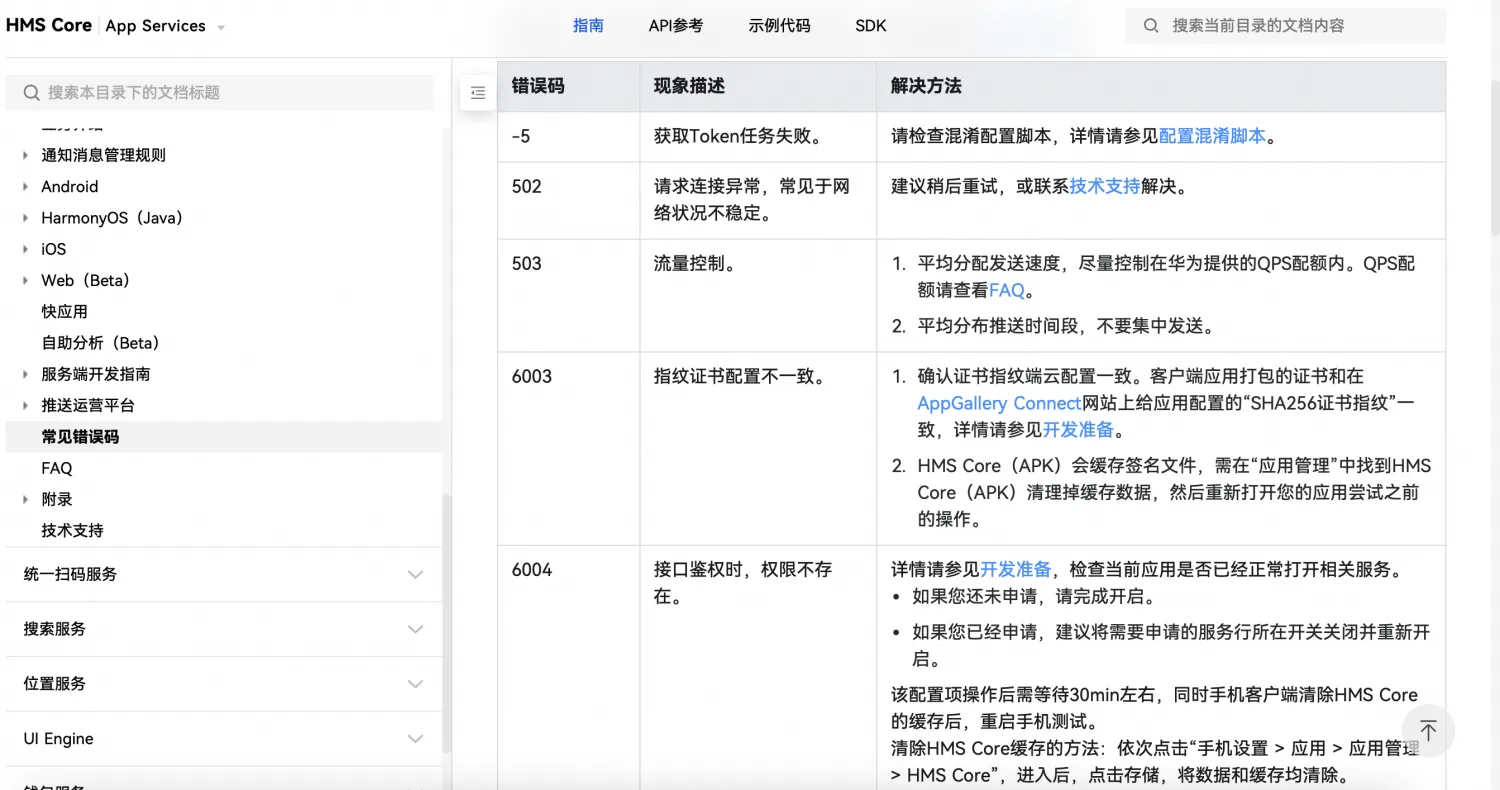
If a push fails, you can use the error code or error message in the push flow to troubleshoot the issue. For more information, see Error codes and causes for Mobile Push vendor channels.

4. View device information
You can use a device ID on the device troubleshooting page to view device information and check for incorrect settings. For example, a push may be successful, but no notification appears on the device because its notification bar is disabled. If a push message is sent to only one device, its information is displayed directly on the current page. The following figure shows an example where no devices meet the push conditions.
5. Check the vendor channel
If you cannot identify the problem by troubleshooting the push link, you must obtain the third-party channel's message ID and device token to troubleshoot the issue on its platform. The message ID can be found in the successful or failed push nodes of the push link, and the device token can be found on the device you are troubleshooting.
