Address book field display
Control which contact fields employees can see in the address book, how fields are displayed, and in what order.
This feature is available only in the AI Ultimate Edition. For more information about version differences, see Version comparison.
1. Feature overview
Administrators can control the visibility, display format, and order of contact fields in Alibaba Mail. By customizing the information shown on contact details pages and contact cards per department, subsidiary, or partner, companies can balance collaboration efficiency with data privacy.
2. Access the feature
Log on to the Alibaba Mail domain management console. Go to the Enterprise Customization module and find Address Book Field Display in the feature list. It is located before the Feature Switches item.

3. Core features
3.1 Field visibility control
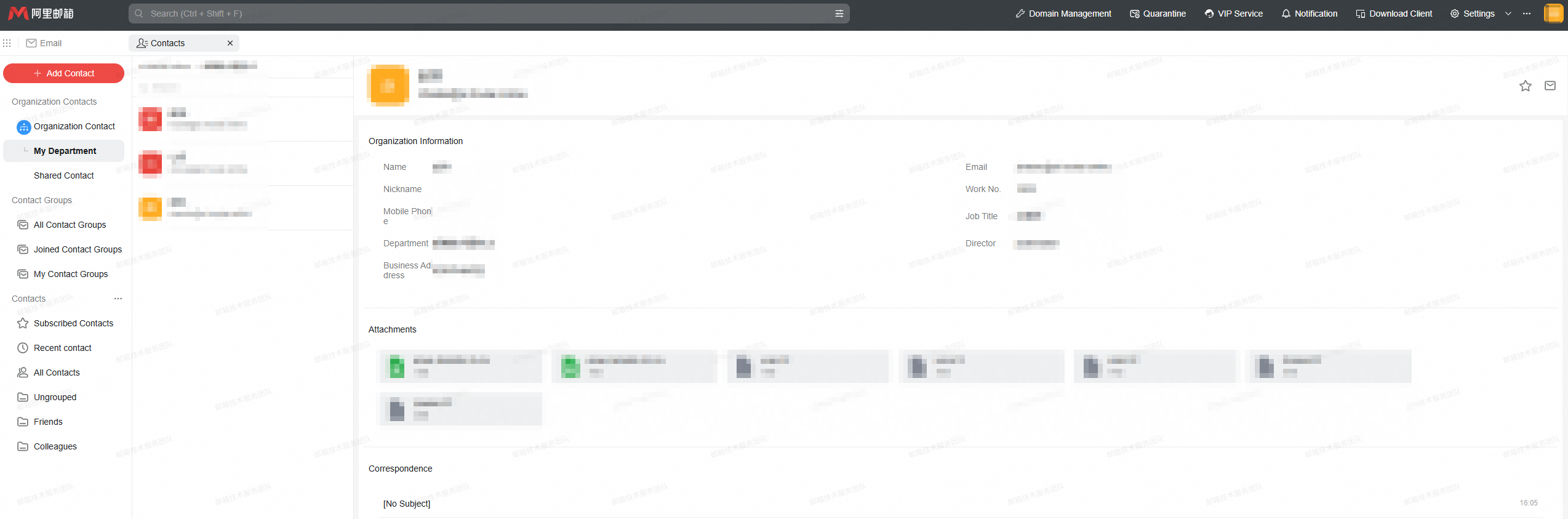
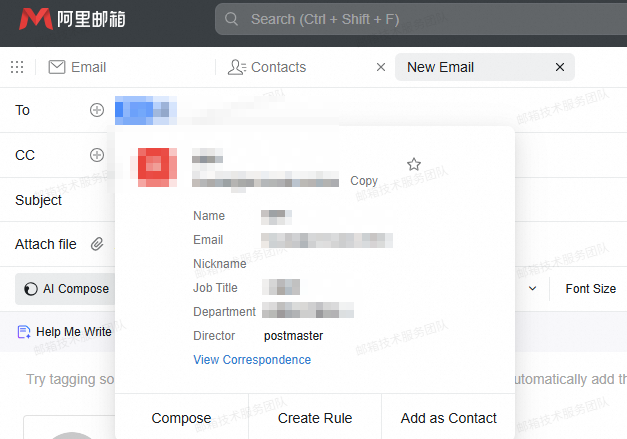
Administrators can configure each field in two locations:
-
Contact details page: The full profile page that appears when you click a contact.
-
Contact card: The summary card that appears when you compose an email or send a calendar invitation.
Procedure:
-
Select the checkbox to make the field visible to all employees.
-
Clear the checkbox to hide the field from all employees.
3.2 Sensitive field display mode (for mobile numbers only)
Two privacy protection modes are available for the mobile number field:
|
Display mode |
Example |
Scenarios |
|
Show All |
12345678900 |
Customer service teams and roles that require frequent phone calls. |
|
Mask middle digits |
138****8888 |
Executives and departments with high confidentiality requirements. |
3.3 Custom field management
Beyond the default system fields, administrators can create custom fields to meet specific business needs.
Supported operations:
-
Add a field: Click Add Field.
-
Edit a field: Modify the field name or type.
-
Delete a field: Remove a custom field that is no longer in use.
Field types and limits:
|
Type |
Description |
Input limit |
|
Text |
Plain text, such as "Office Extension". |
≤ 50 characters |
|
Link |
A clickable URL, such as a personal homepage. |
Valid URL format |
|
Image link |
An image other than the profile picture, such as an ID badge photo. |
Valid image URL |
Note: You can also set the visibility for custom fields on the contact details page and the contact card.
3.4 Field sorting
Administrators can reorder fields in the address book to improve readability.
Procedure:
-
Click the Adjust Order button to enter sorting mode.
-
A drag icon appears next to each field.
-
Press and hold the icon, then drag it up or down to the desired position.
The new order applies to both the contact details page and the contact card, provided the field is enabled in both locations.
3.5 Default field configuration
By default, the following fields are enabled:
|
Location |
Default displayed fields |
|
Contact details page |
Name, Mailbox, Nickname, Employee ID, Mobile, Position, Department, Supervisor's Email, Work Location |
|
Contact card |
Name, Mailbox, Nickname, Position, Department, Supervisor's Email |
Administrators can adjust these defaults as needed.
4. Feature integration
Import/Export custom fields
-
Import or export custom fields by using a CSV template for batch maintenance of employee information.
Dynamic mailing list filter conditions
-
Custom fields such as "Project Group" or "Office City" can serve as filter conditions for dynamic mailing lists, enabling targeted group communication.
For example, to create a mailing list named "Hangzhou R&D Center", you can set the filter conditions to
Department = "R&D"andWork Location = "Hangzhou".