Enterprise business knowledge
On the Knowledge and Work Manual page, the Enterprise Business Knowledge tab displays the enterprise business knowledge (including general knowledge and dedicated knowledge) that has been added to your organization. An administrator can add standardized content, such as business definitions and metric specifications, to ensure that AI-driven analysis aligns with your organization's business context. This topic describes how to add and manage enterprise business knowledge.
Prerequisites
Subscription: Your organization has purchased Quick BI AIPro.
Permissions: Only an administrator (a user with centralized management permissions for AIPro) can add and manage enterprise business knowledge. For more information about permission settings, see User Permissions.
Feature access
Go to the Quick BI AIPro Management Center, click Knowledge and Work Manual in the left-side navigation pane, and then click the Enterprise Business Knowledge tab.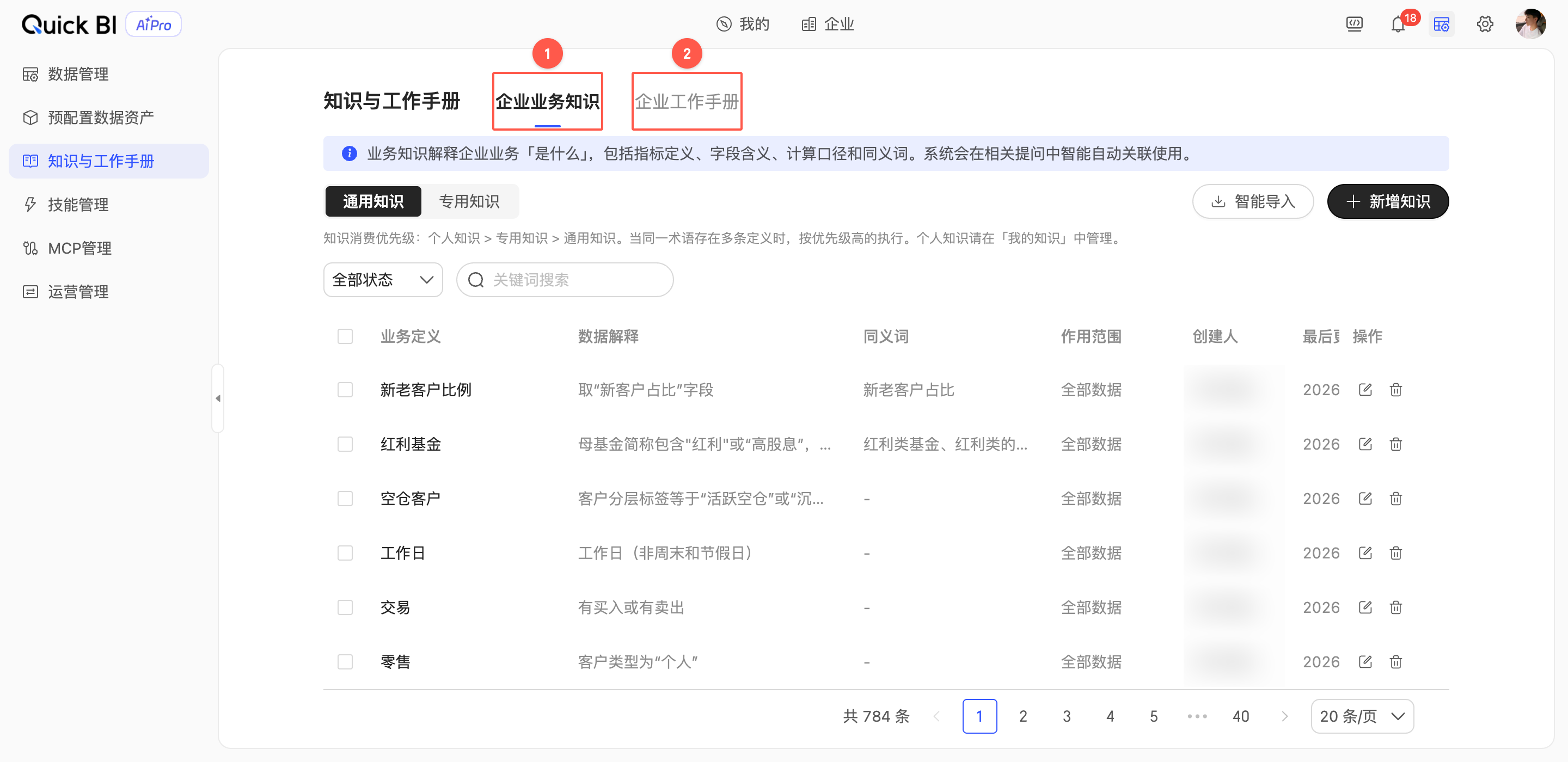
The Enterprise Business Knowledge tab defines your business concepts, including metric definitions, field meanings, calculation logic, and synonyms. It contains two sub-tabs: General Knowledge and Dedicated Knowledge. The AI uses this information as context to answer relevant questions.
Add knowledge
On the Enterprise Business Knowledge tab, you can add general knowledge and dedicated knowledge:
General knowledge can apply to all or multiple data assets within your organization.
Dedicated knowledge can only be linked to a single data asset and has a higher priority than general knowledge.
You can switch to the corresponding knowledge type tab to add knowledge manually or use Smart Import. You can also generate enterprise knowledge directly from the dialog box on the New Task page by providing a natural language description or uploading a file.
Add manually
Add a single entry of enterprise knowledge by configuring it manually. Use this method to add a few entries and verify them individually. Perform the following steps:
In the upper-right corner of the page, click Add Knowledge.
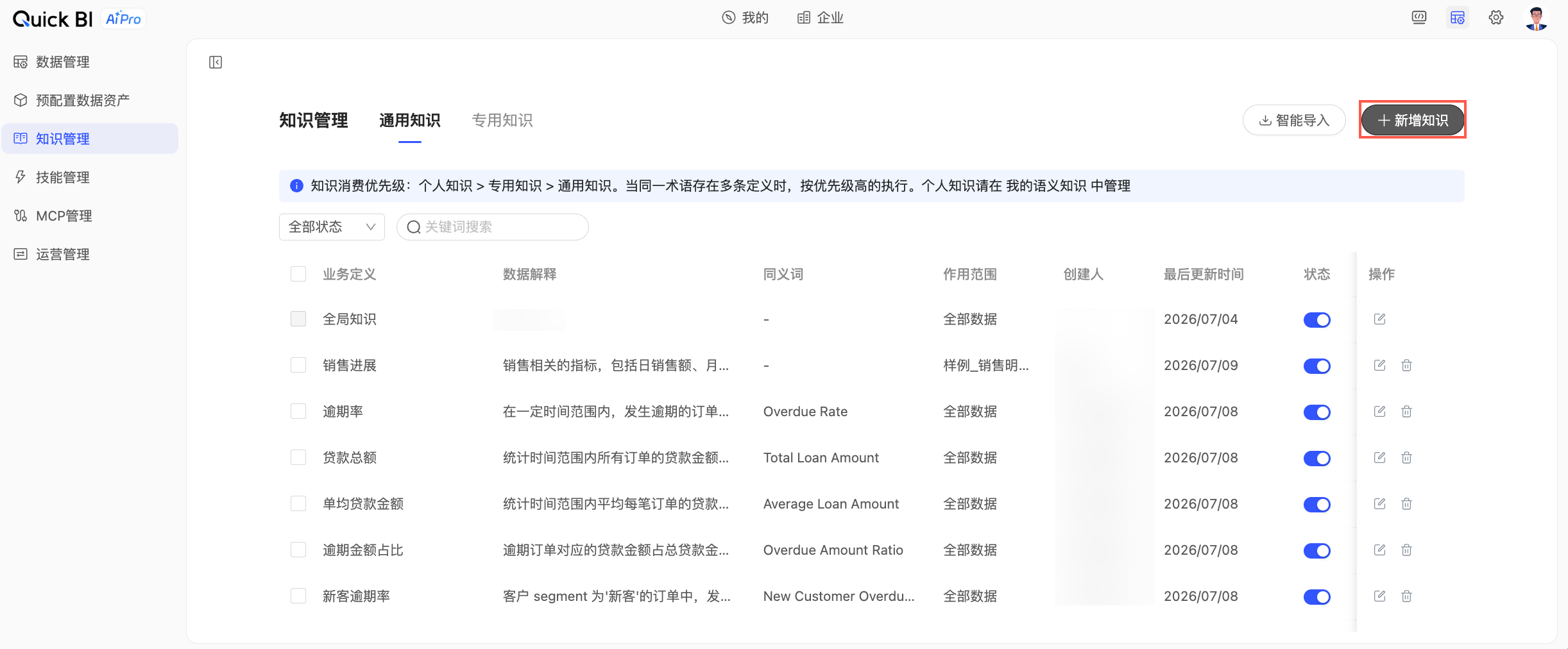
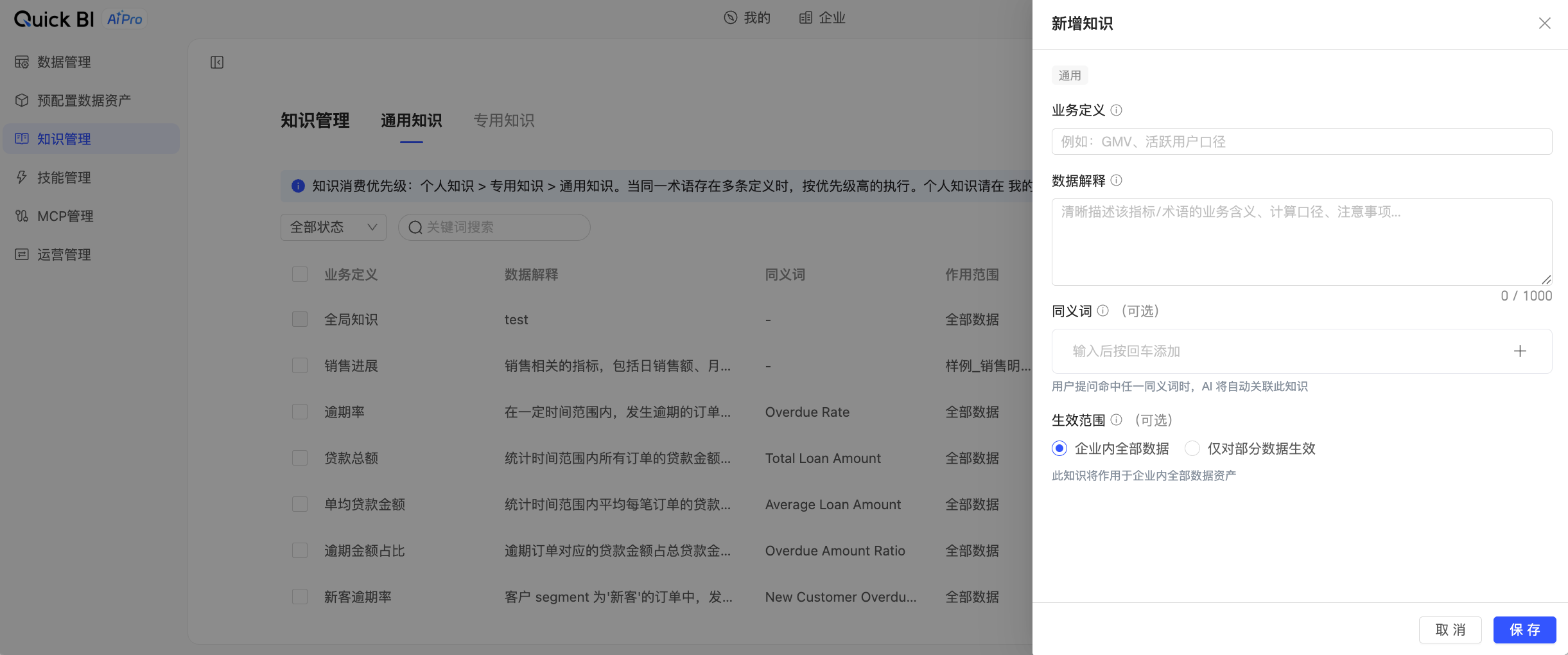
On the Add Knowledge page, configure the knowledge details.
General knowledge
Parameter
Description
Business definition
Define a general business concept within your enterprise. You can enter common and standard business terms, such as "Sales Progress" or "GMV". The maximum length is 100 characters.
Data interpretation
Provide a detailed explanation of the business definition, including its meaning, calculation logic, and any important notes. This helps the large language model (LLM) accurately interpret the business definition. The maximum length is 1,000 characters.
Synonym
Enter other common names or aliases for the business term. This helps the LLM map various user queries to the same business definition.
Press Enter after typing a synonym to add it. You can enter multiple synonyms at once by separating them with a semicolon (;). If a user's question about an applicable data asset contains a synonym, the AI automatically links the question to this knowledge.
Effective scope
Specify the scope in which the business definition is effective. You can set it to All data in the enterprise or Effective for only some data.
All data in the enterprise: The business definition applies to all data assets in the enterprise.
This mode is suitable for standardized and unified business knowledge, such as enterprise-level core metrics or general business concepts.
Effective for only some data: The business definition applies only to specific data assets. In the asset selection area, you can switch between category tabs to browse and select data assets. You can select one or more data assets across different types. Selected assets are displayed at the bottom of the panel.
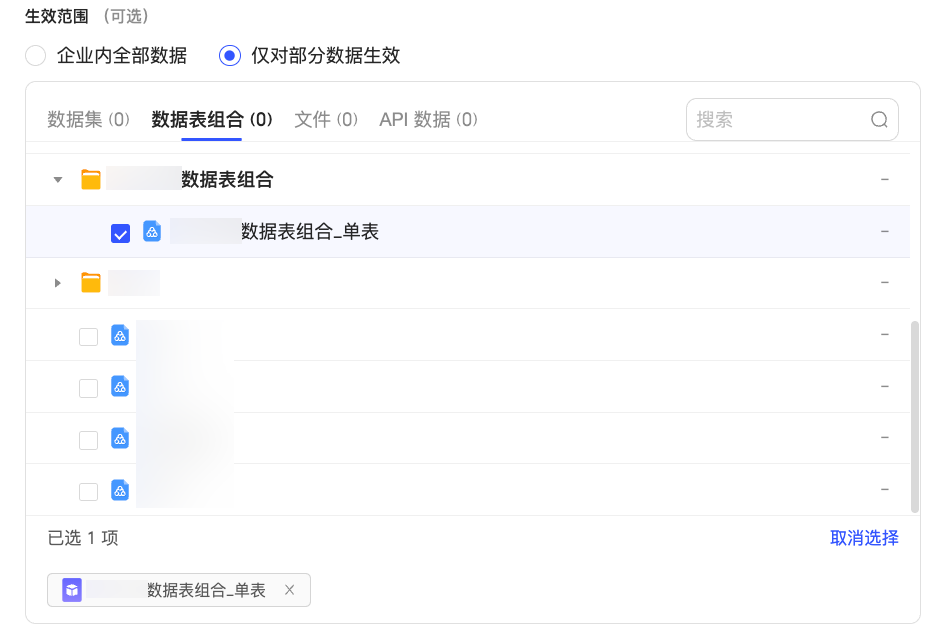
This mode is suitable for homonyms (terms with different meanings in different contexts) or for business knowledge specific to certain scenarios.
Dedicated knowledge
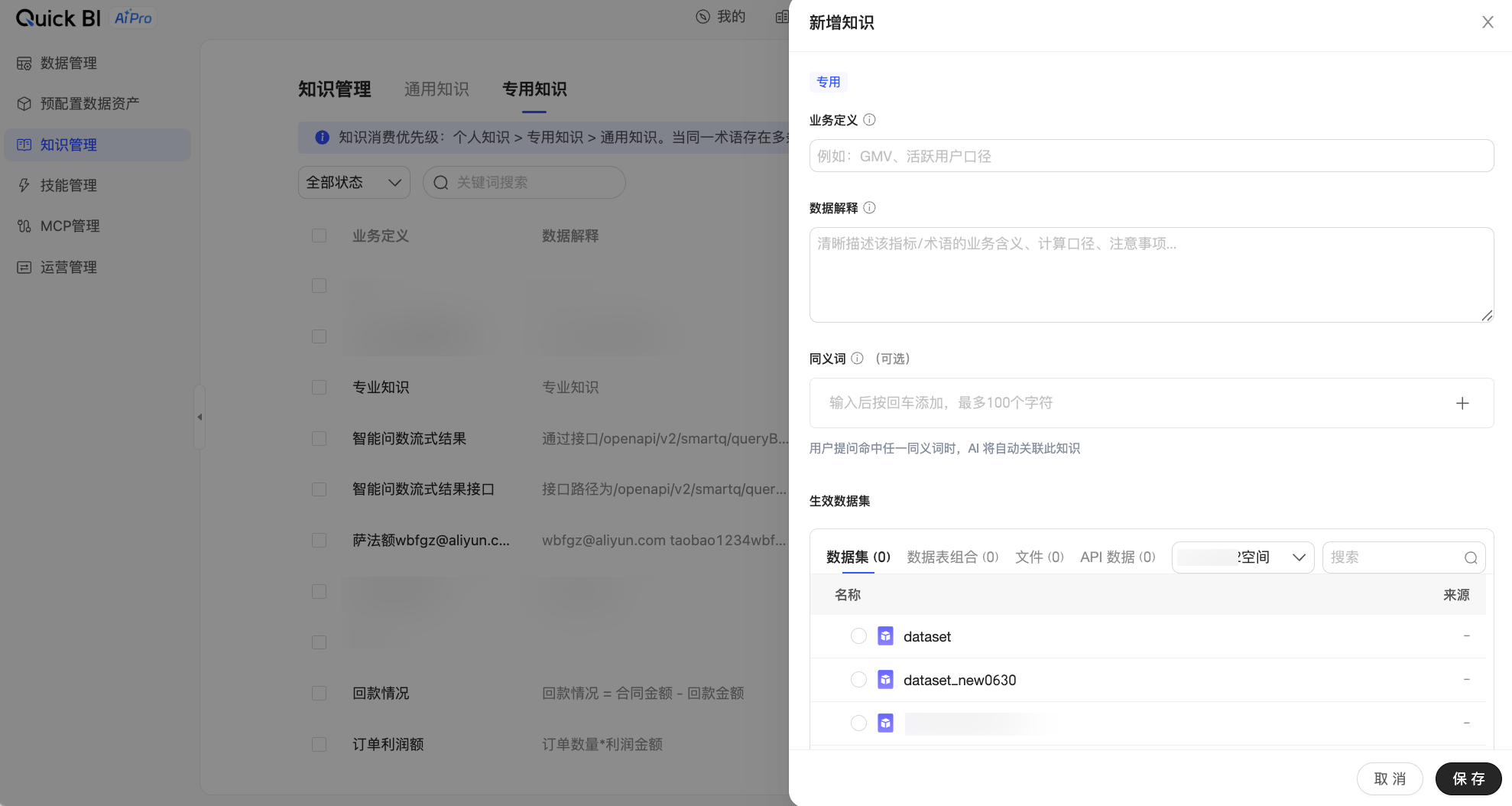
Parameter
Description
Business definition
Enter a business concept that is specific to a data asset, such as a dedicated business concept or exclusive metric. The maximum length is 100 characters.
Data interpretation
Provide a detailed explanation of the business definition, including its meaning, calculation logic, and any important notes. This helps the LLM better understand the business definition. The maximum length is 1,000 characters.
Synonym
Enter other common names or aliases for the business term. This helps the LLM map various user queries to the same business definition.
Press Enter after typing a synonym to add it. You can enter multiple synonyms at once by separating them with a semicolon (;). If a user's question about the applicable data asset contains a synonym, the AI automatically links the question to this knowledge.
Effective scope
Select the data asset to which this business definition applies. You can bind dedicated knowledge to only a single data asset. In the asset selection area, you can switch between category tabs to view and select a specific data asset.
Click Finish and Import to add the enterprise knowledge. The added knowledge is enabled by default. When users perform analysis tasks on the effective data assets, the AI automatically uses this knowledge.
Smart Import
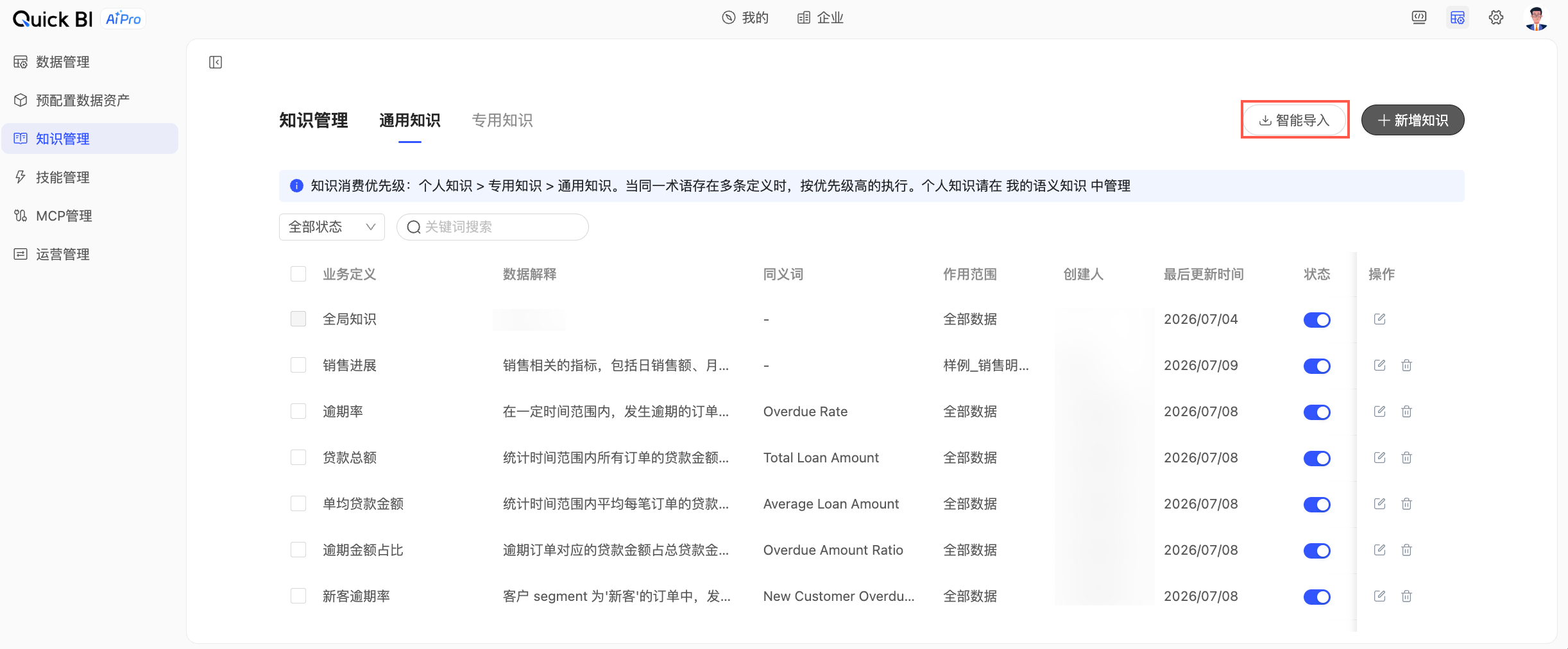
Upload local files and use AI to automatically identify and extract business knowledge from them. This method is ideal for quickly building a knowledge base from existing business documents, such as metric definition spreadsheets or data dictionaries. Perform the following steps:
In the upper-right corner of the page, click Smart Import.

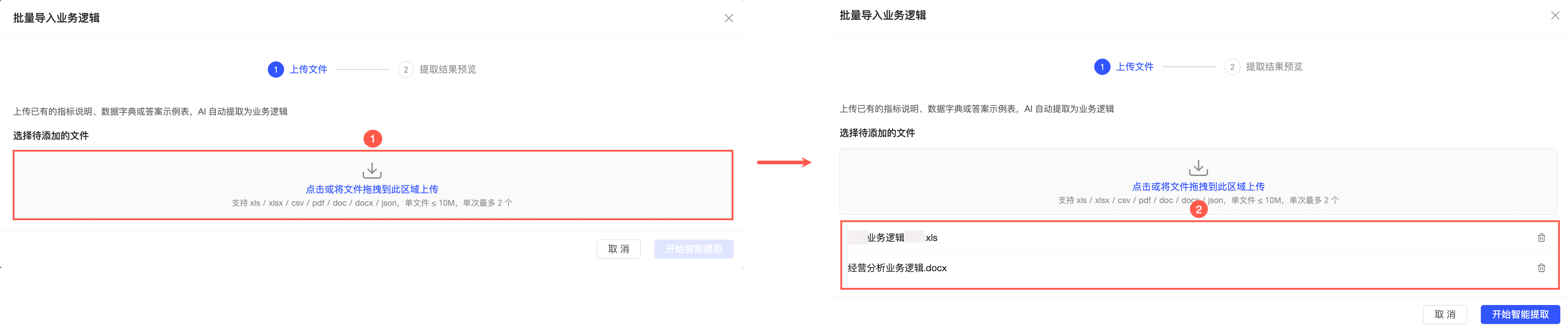
In the Batch Import Business Logic dialog box, configure the files to upload in the Upload Files step.
Area
Description
① Upload files
Click or drag files to area ① to upload them.
NoteYou can upload files in .xls, .xlsx, .csv, .pdf, .doc, .docx, and .json formats. Each file must be 10 MB or smaller, and you can upload up to five files at a time.
② List of files to upload
This area displays the queue of selected files ready for upload. If a file was selected by mistake or is no longer needed, click the
icon next to the file to remove it.Click Start Smart Extraction. The system parses the files and extracts the knowledge. When the process is complete, you are automatically taken to the Preview Extraction Results step, which displays the extracted knowledge.
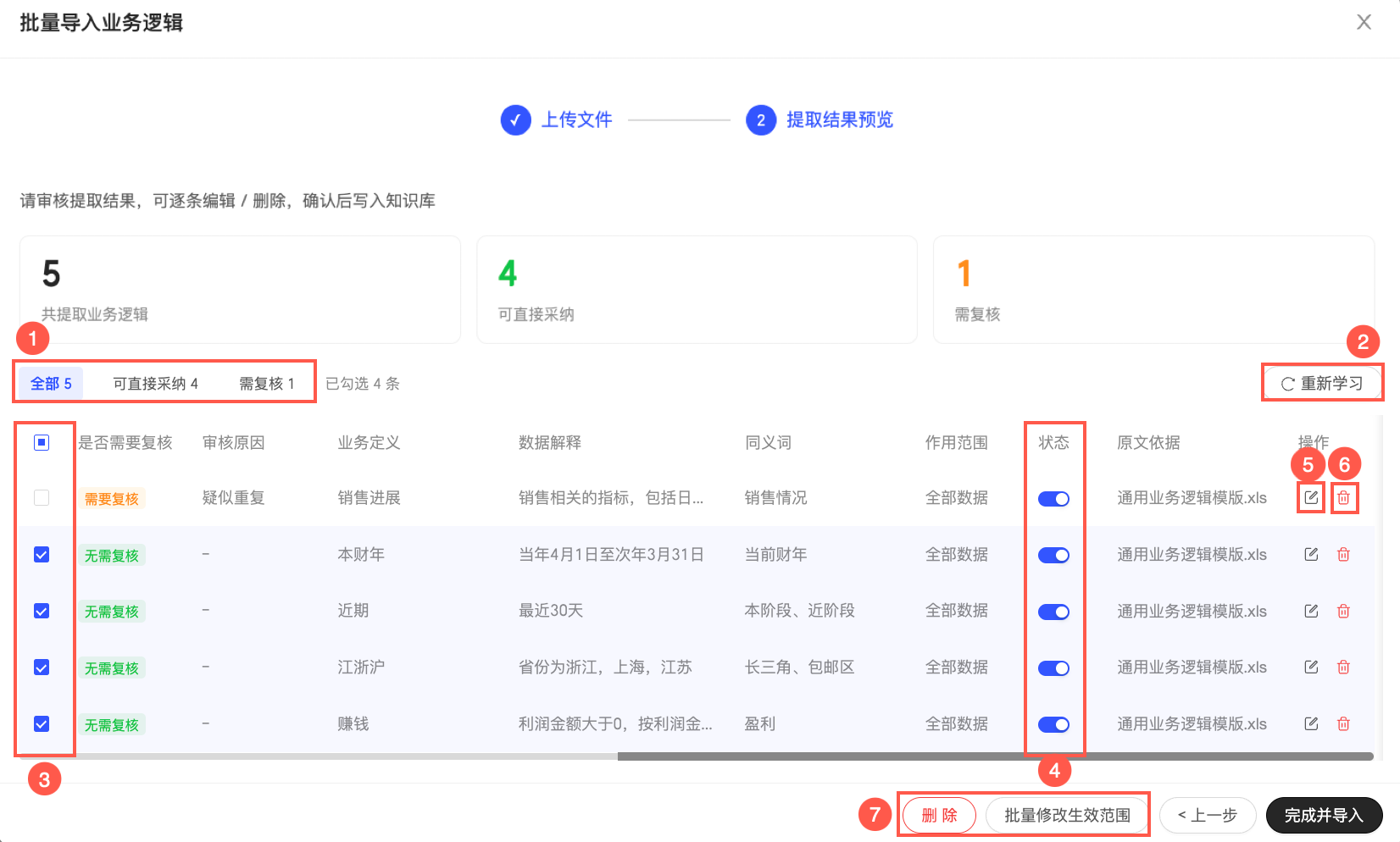
Actions
Description
① Filter by tag
After parsing and extracting knowledge, the system classifies it as can be adopted directly or needs to be reviewed. You can switch between these tabs to view and manage the knowledge in each category.
② Re-learn
Click Re-learn to make the system parse the documents and extract the knowledge again.
③ Select knowledge
Select the knowledge that you want to import into Quick BI AIPro. When the system finishes extracting knowledge, it automatically selects all entries marked as can be adopted directly.
④ Status
Extracted knowledge is enabled by default. You can change the status by using the toggle in the Enabled column.
⑤ Edit
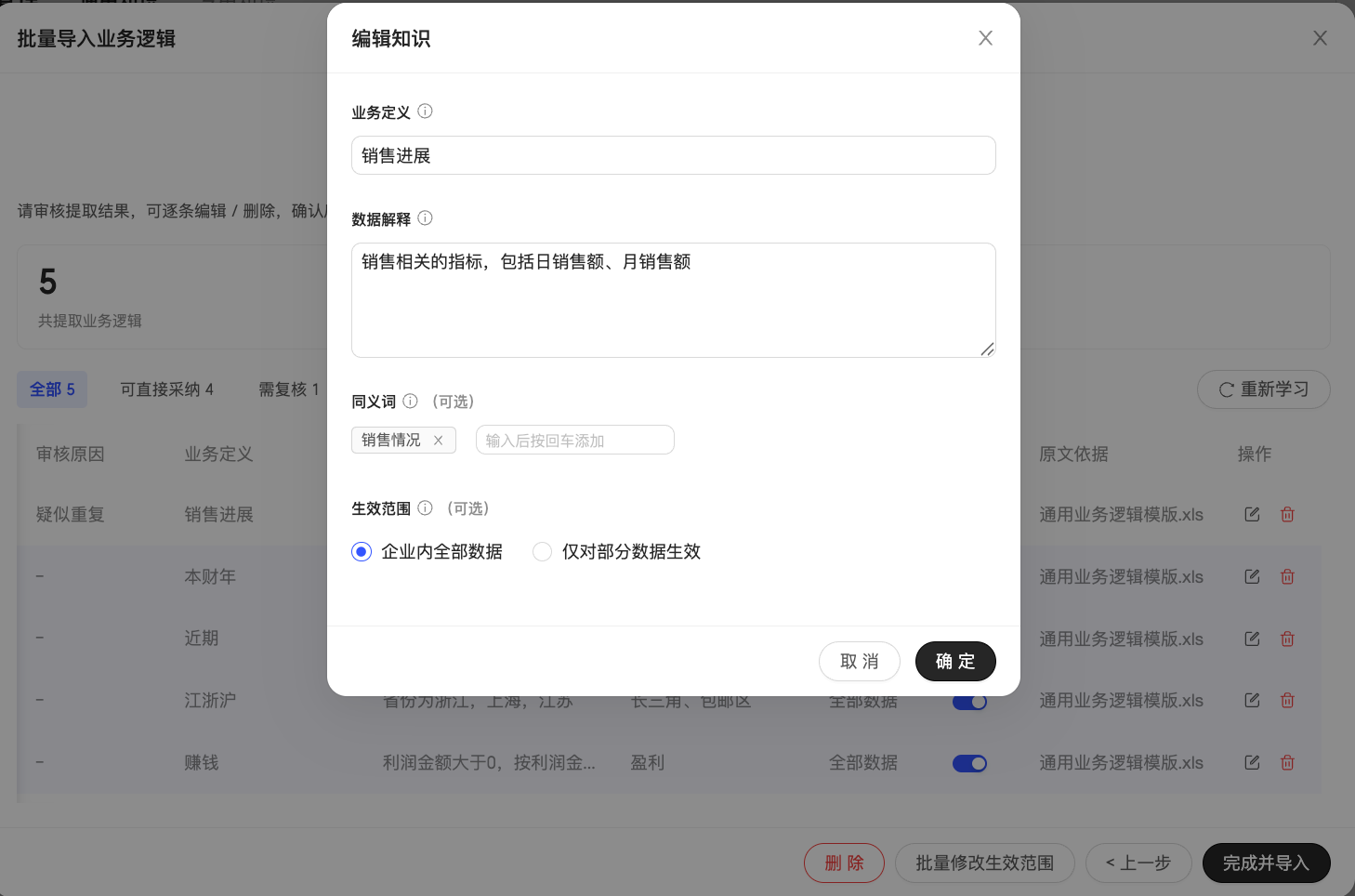
Click the
icon to open the Edit Knowledge dialog box, where you can modify the details of the current knowledge entry.⑥ Delete
Click the
icon and confirm in the pop-up dialog box to delete any knowledge that is no longer needed.⑦ Batch operations
You can select multiple knowledge entries to perform batch operations, such as modifying the effective scope or deleting entries.
Click Finish and Import to add the enterprise knowledge. The added knowledge is enabled by default. When users perform analysis tasks on the effective data assets, the AI automatically uses this knowledge.
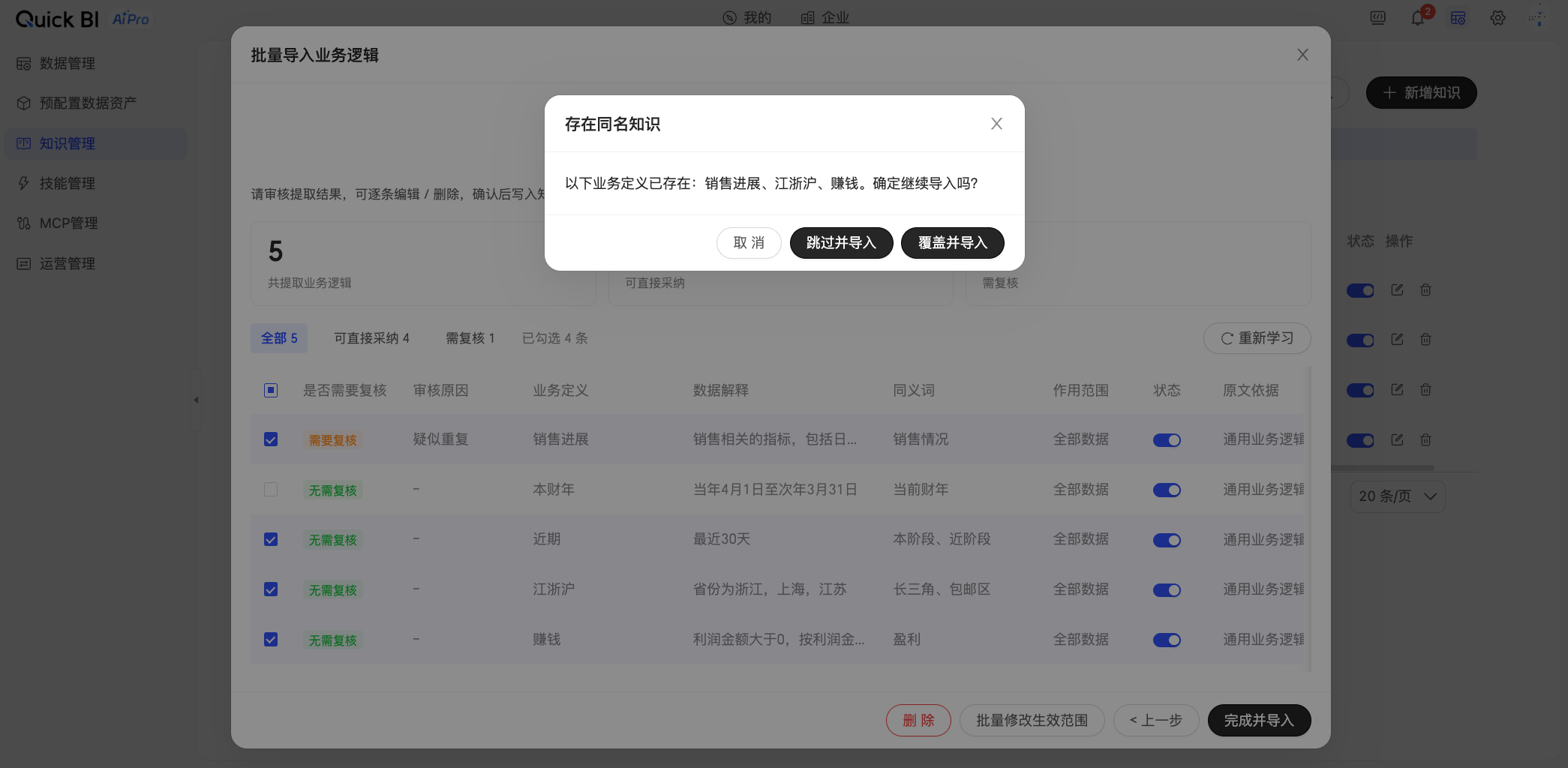
NoteThe system automatically checks for enterprise knowledge entries with the same name. If duplicates are found, a confirmation dialog box appears where you must choose Cancel Import, Skip duplicates and import, or Overwrite and import.
 icon next to the file to remove it.
 icon to open the Edit Knowledge dialog box, where you can modify the details of the current knowledge entry.
 icon and confirm in the pop-up dialog box to delete any knowledge that is no longer needed.
Generate from conversation
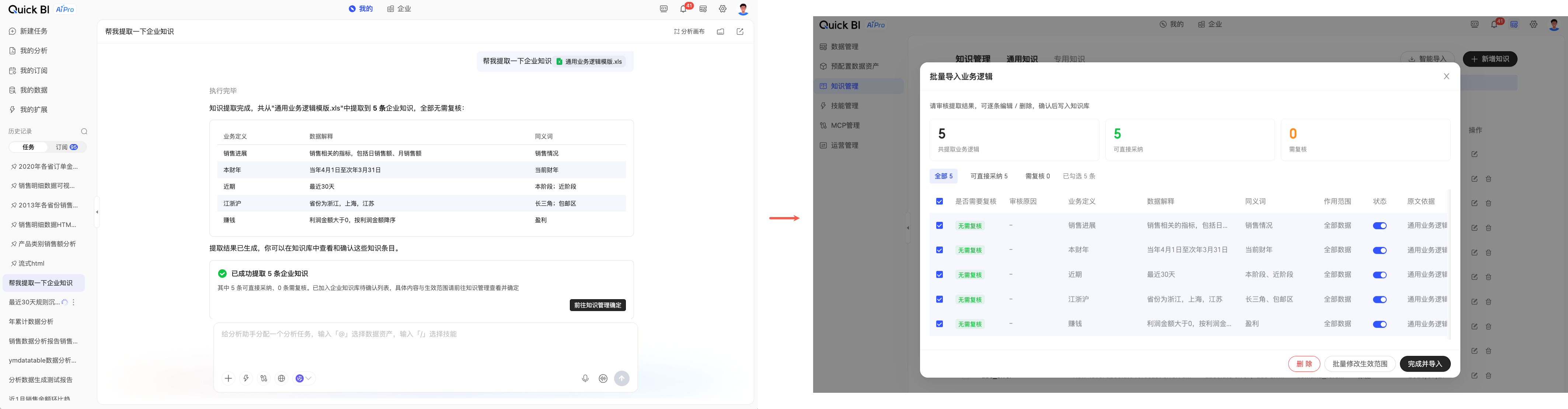
In the analysis task dialog box, you can add enterprise knowledge by providing natural language descriptions or uploading files. This approach is useful for capturing fragmented business rules in real time or quickly parsing existing knowledge documents within your workflow.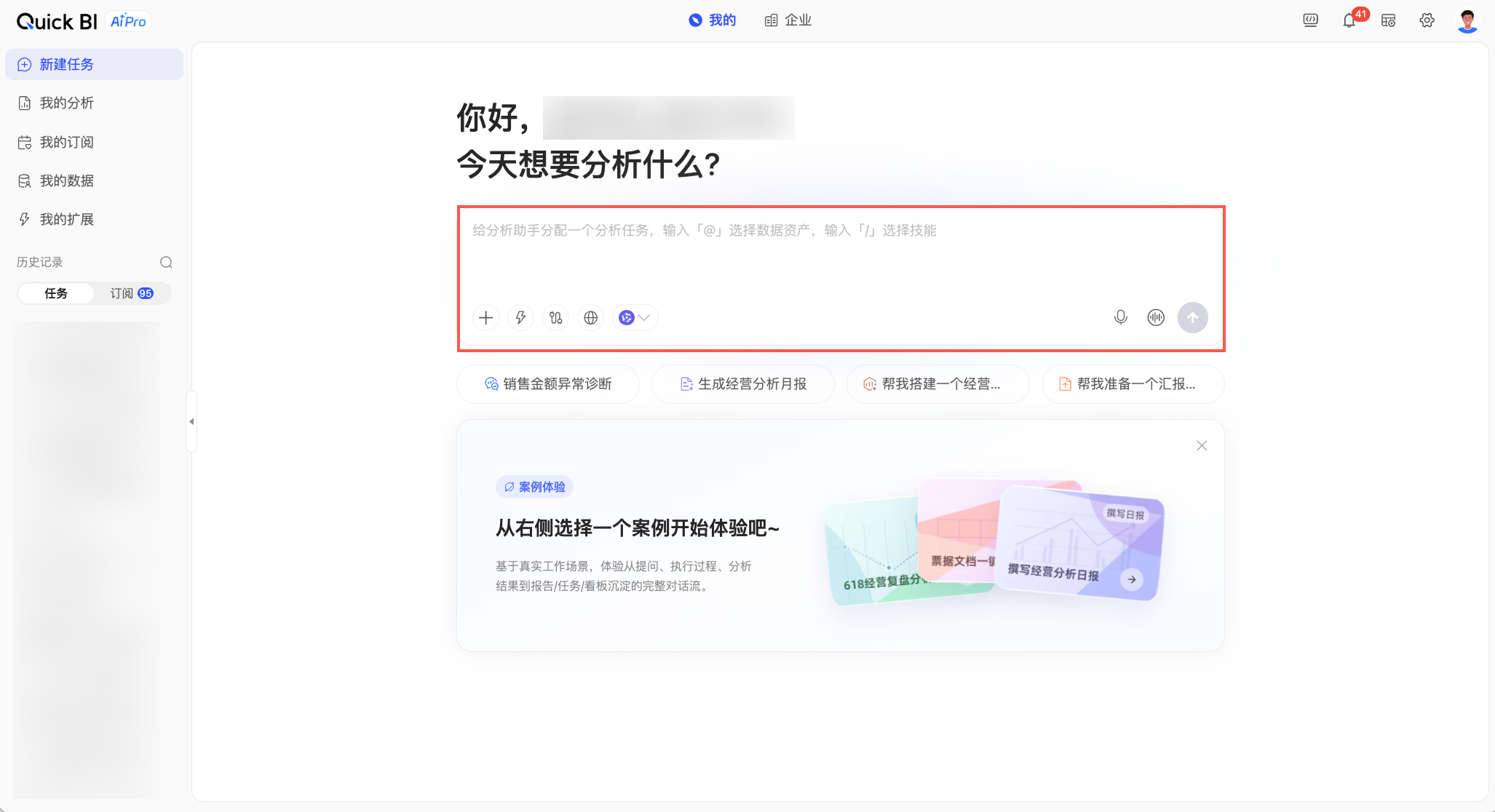
Generation method | Description | |
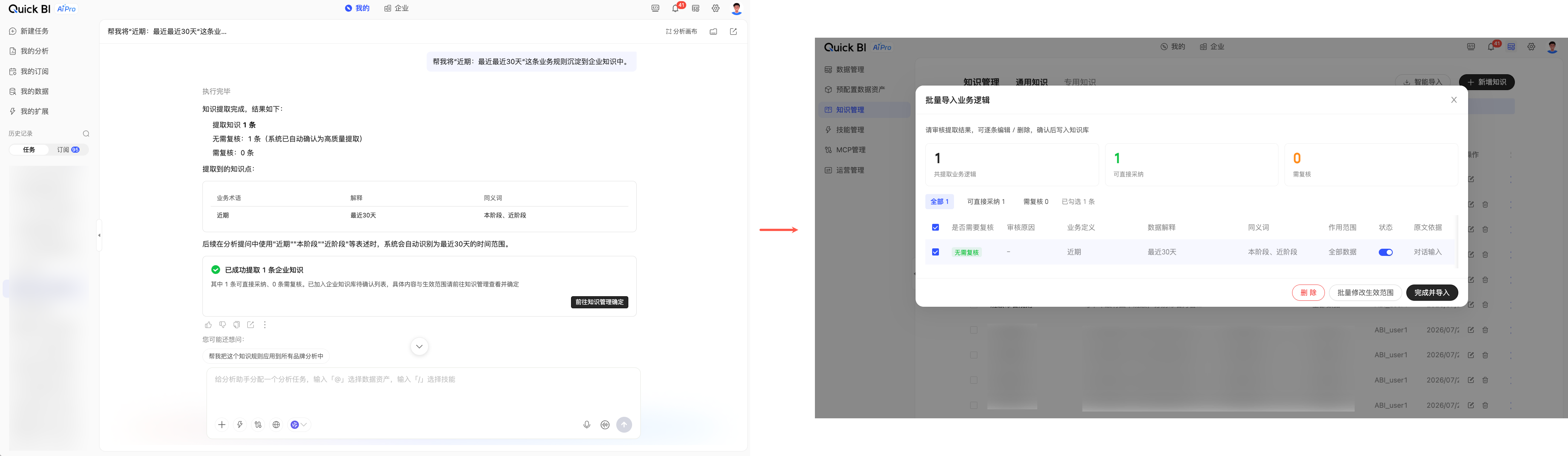
Generate from natural language | How to trigger | When a business definition needs to be saved during your workflow, you do not need to switch to the Knowledge and Work Manual page to enter it manually. Instead, give the AI a command in the dialog box, such as "Help me remember a business rule" or "Add this description to the enterprise knowledge." The AI recognizes your intent and starts the knowledge extraction process. |
Result | After extraction, click Go to Knowledge Management for Confirmation. On the resulting Knowledge and Work Manual > Batch Import Business Logic page, verify the content and click Finish and Import to add the knowledge. | |
Generate from uploaded file | How to trigger | In the dialog box, upload a file containing business knowledge and instruct the AI to extract it with a command, such as "Help me extract enterprise knowledge from this file." The AI recognizes the intent and begins the parsing process. Note You can upload files in .xls, .xlsx, .csv, .pdf, .doc, .docx, and .json formats. You can upload up to five files at a time, and each file must be 10 MB or smaller. |
Result | After the file is parsed, the system displays a summary of the extracted entries. Click Go to Knowledge Management for Confirmation to navigate to the Knowledge and Work Manual > Batch Import Business Logic page. Review the extracted content and click Finish and Import to add the knowledge.
| |
Manage knowledge
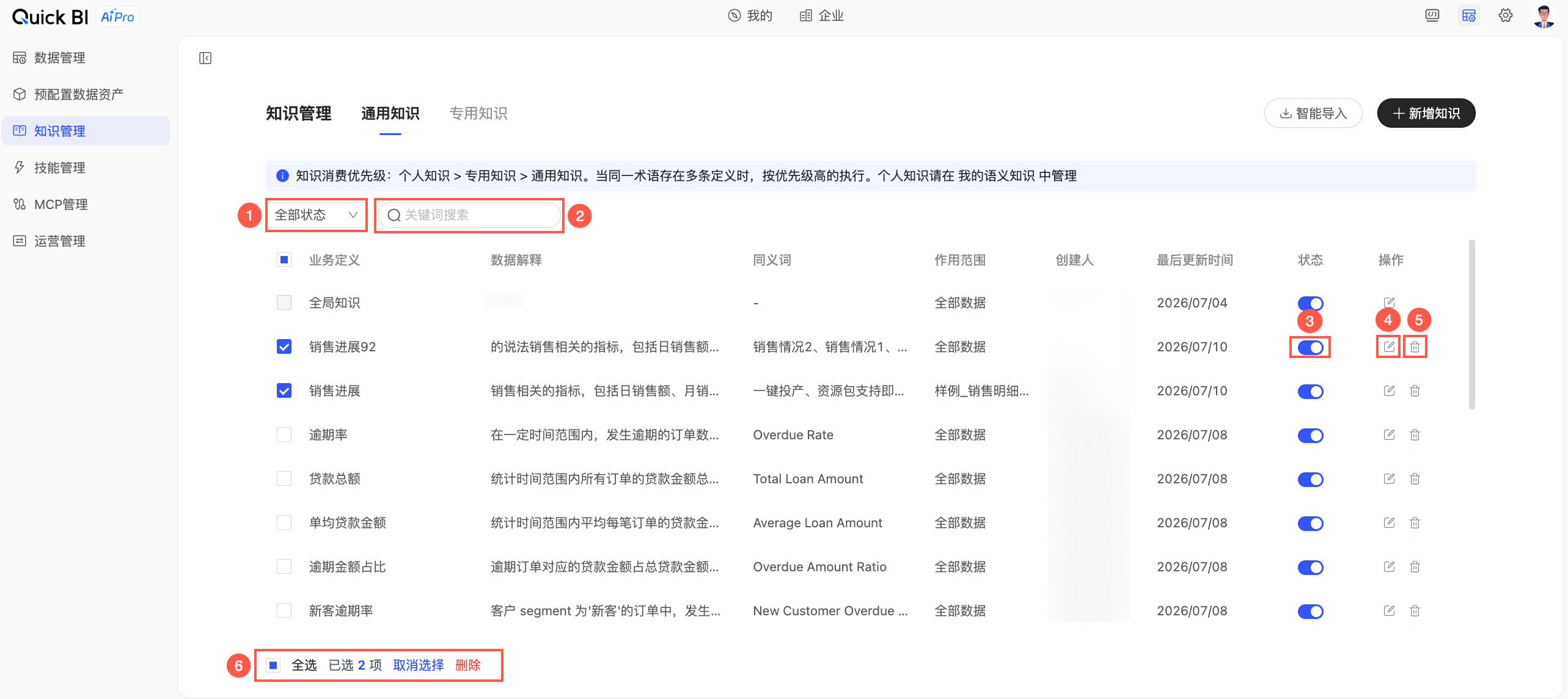
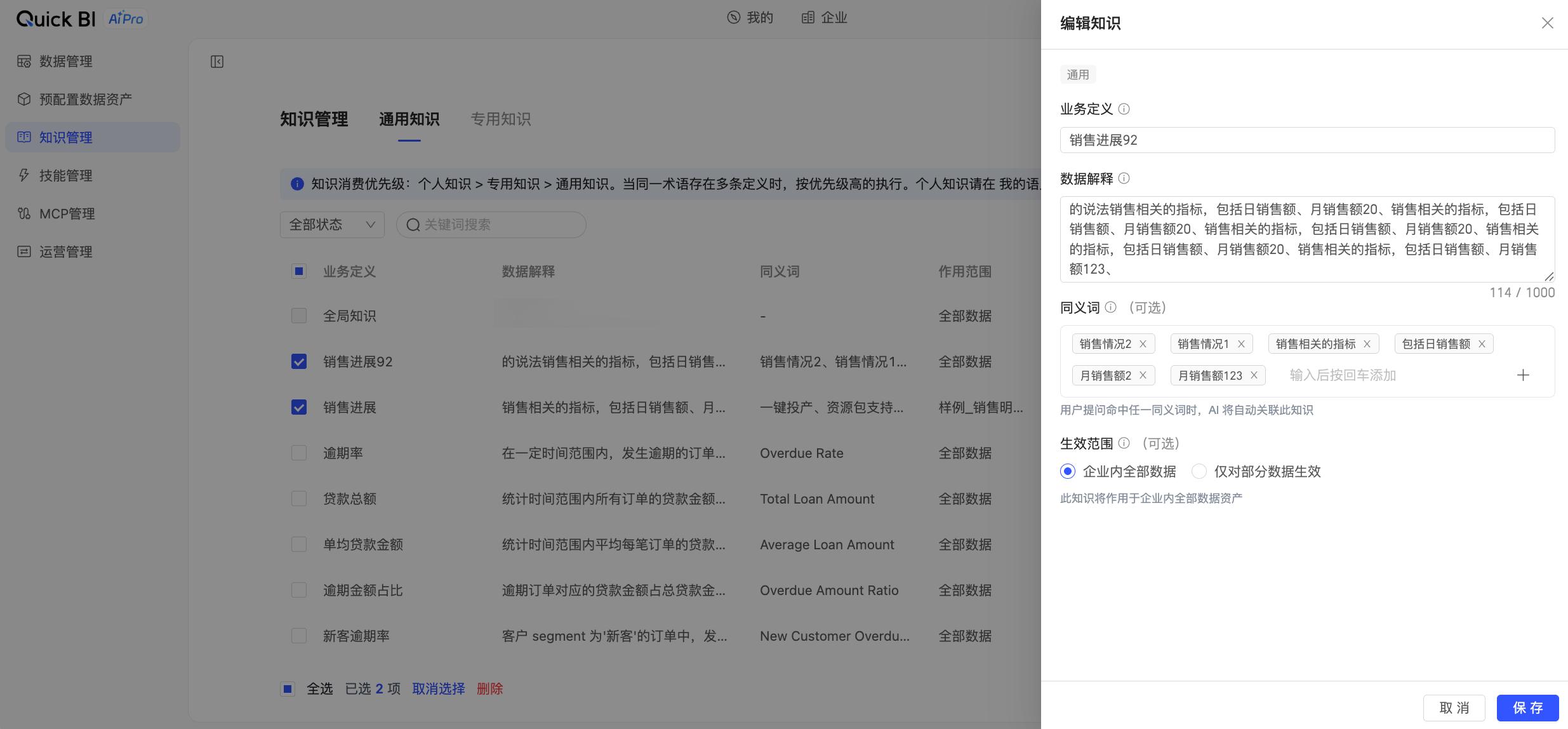
The Enterprise Business Knowledge list page displays the business definitions added to your organization, along with their data interpretations, synonyms, and effective scopes. You can perform the following management operations on this page:
Actions | Description |
① Filter business definitions | Click the status dropdown list in the upper-left corner of the page and select All Statuses, Enabled, or Disabled to quickly filter business definitions by their status. |
② Search for business definitions | If your organization has a large number of business definitions, you can use the search box to quickly locate a specific business definition by entering keywords. |
③ Set status | After a business definition is added, it is enabled by default. You can change its status by using the toggle in the Enabled column. |
④ Edit | Click the |
⑤ Delete | Click the |
⑦ Batch operations | You can select multiple business definitions to perform a batch delete operation. |
Related topics
To define default, long-term work rules for the AI to follow within your organization, see Enterprise Playbook.
This topic describes how to configure enterprise-level business knowledge. To manage personal knowledge that applies only to you, see Quick BI AIPro Overview.