When you build a website with Wan Xiao Zhi, some features require calling an external service, such as a data API, an external model, or a third-party backend service. Secret management lets you centrally store secrets, such as an API Key, required by these external services. They are stored in an encrypted format and kept separate from your website's code.
External services typically require a secret, such as an API Key, to authenticate requests and authorize access. You must obtain these secrets from the respective service providers first; Wan Xiao Zhi does not provide them. When you describe your requirements in an AI conversation, Wan Xiao Zhi automatically generates the code to implement the feature. If a feature calls an external service, a secret configuration window automatically opens to prompt you for the secret.
Wan Xiao Zhi provides two ways to configure and manage secrets:
Configure during an AI conversation: The system automatically identifies the required secrets and prompts you to configure them in a pop-up window. This is ideal for your first integration with an external service.
Secret management page: Centrally view, add, and delete existing secrets in the console. This page is ideal for ongoing management and maintenance.
Configure secrets during an AI conversation
If a feature you request in a conversation requires calling an external service, a window automatically opens for you to enter the secret.
Example prompts: Simply describe your needs in natural language; you do not need to specify implementation details. For example:
|
|
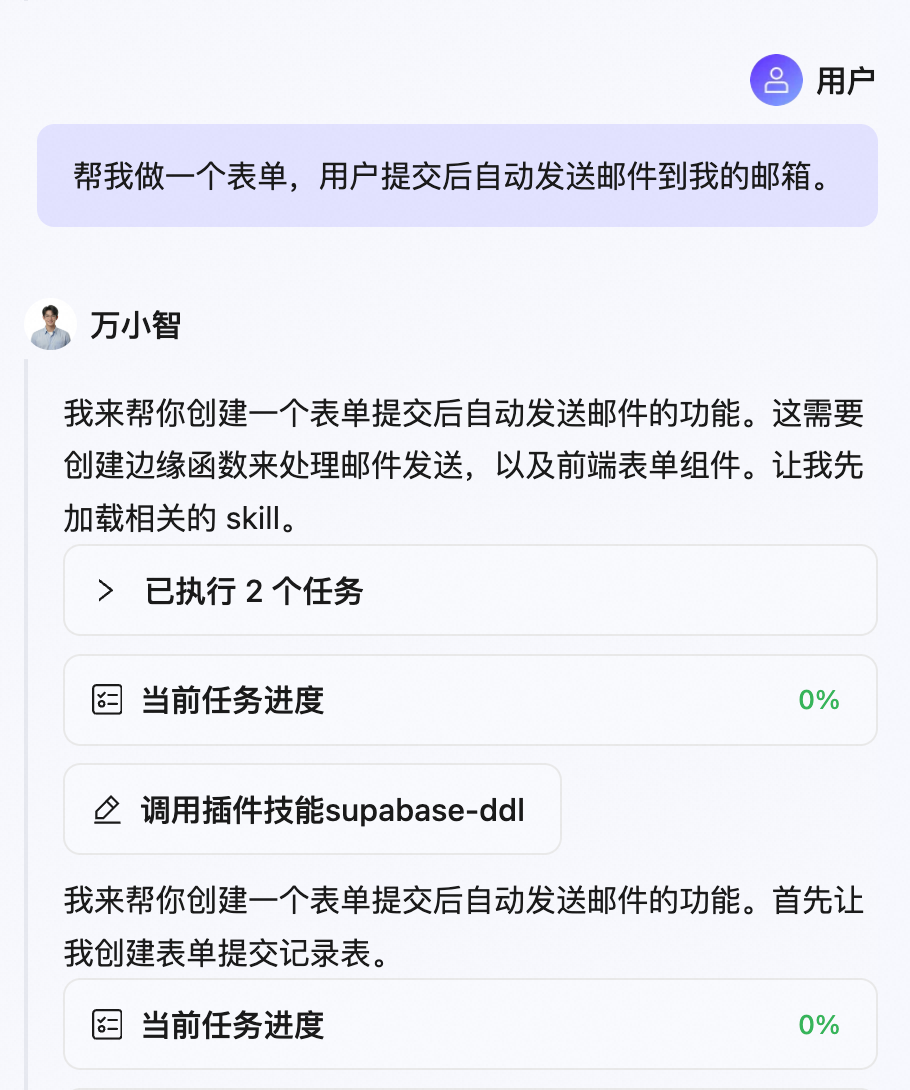
The pop-up window displays one or more sets of secret input fields based on your request. Each set contains three fields: Key, Name, and Value.
|
|
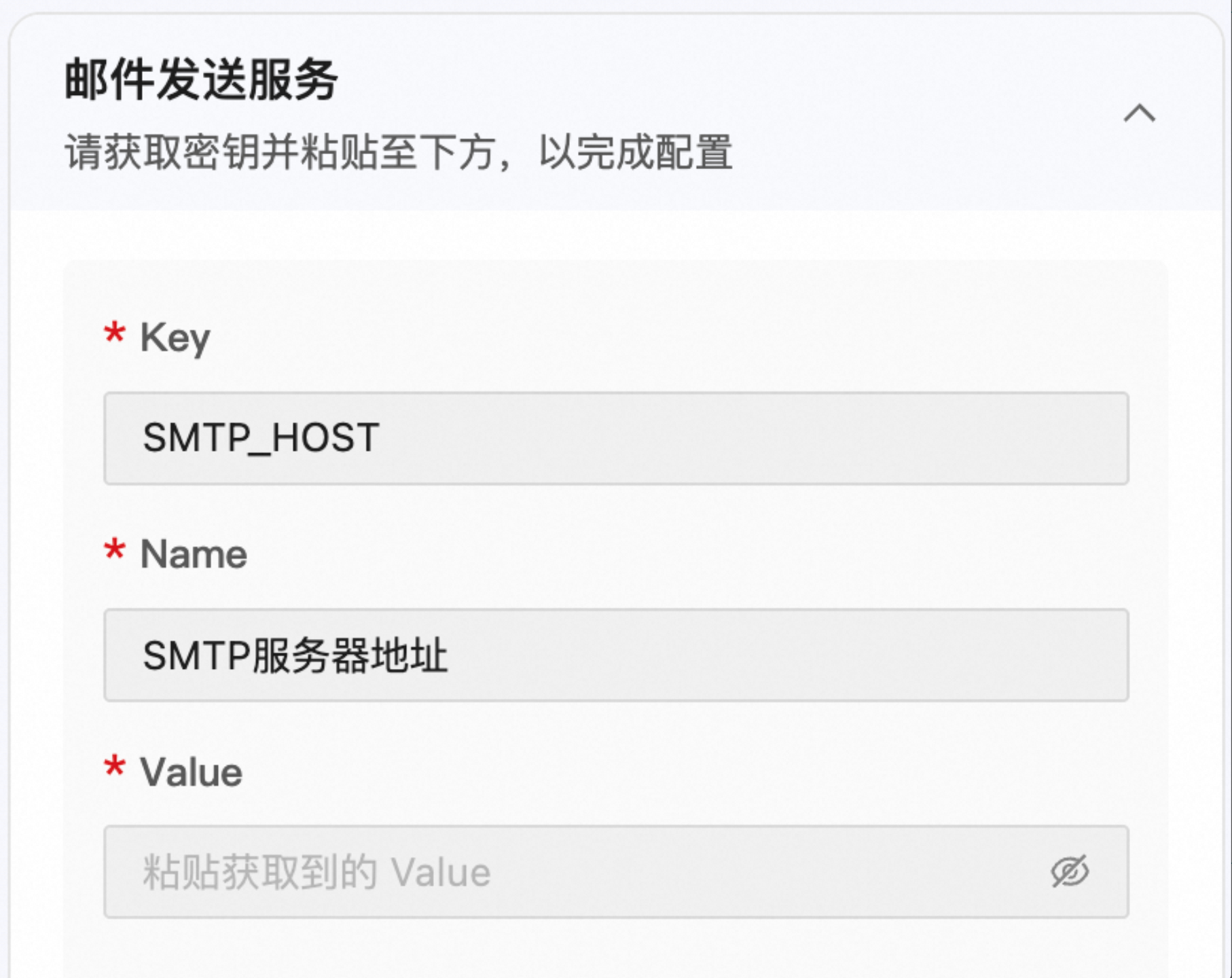
Notes:
If you continue the conversation without entering a Value, the pop-up card will become inactive (grayed out). You must enter the secret before you can proceed.
After configuring the secret, the system uses it to call the corresponding third-party API in subsequent conversations.
Manage secrets
You can centrally manage all configured secrets on the secret management page in the Wan Xiao Zhi console.
Accessing the secret management page:
At the top of the app page, click Manage to open the admin page.
In the left-side navigation pane, click Secret Management.
Features on the secret management page:
Search for secrets: Enter keywords in the search box to find secrets.
Add a secret: Click Add Secret and fill in the following fields in the pop-up window:
Key: Must contain only letters, numbers, and underscores, and start with a letter or an underscore.
Name: Enter a user-friendly name. This can be edited.
Value: Enter the secret value. The input is masked by default as
****. You can click the icon to view it in plaintext.
When you save, the system validates the format of the Key. If the Key's format is invalid, the system will not save the secret.
View secrets: The secrets list only displays the Key and Name, not the secret value (Value).
Delete a secret: Click Delete next to the secret that you want to remove. Confirm the action in the confirmation window.
ImportantBefore deleting a secret, ensure no applications are using it. This action is irreversible.
System-created secrets cannot be deleted.
Editing secrets: Existing secrets cannot be edited. If you need to make changes, delete the secret and add it again.
For security reasons, the plaintext value of a secret is not displayed after it has been saved. We recommend that you keep a secure backup of the original secret from your service provider if you need to replace or reconfigure it later.