This topic describes how to use the AI assistant and its features.
AI assistant
-
Work with text
Select a text control and click polish text. The AI assistant then generates and replaces the text. Alternatively, highlight the text you want to modify. In the Wan Xiaozhi AI assistant panel on the right, you can then select expand text, polish text, or translate to English.
-
Click undo to revert to the original text.
-
Click redo to have the AI assistant regenerate the text.
Select text within Article Details or Product Details and click expand text. The AI will generate new content and replace the selected text.
When the expansion is complete, the AI assistant panel displays the status Expansion completed at the bottom. You can then click undo or redo to manage the changes.
-
-
Work with images
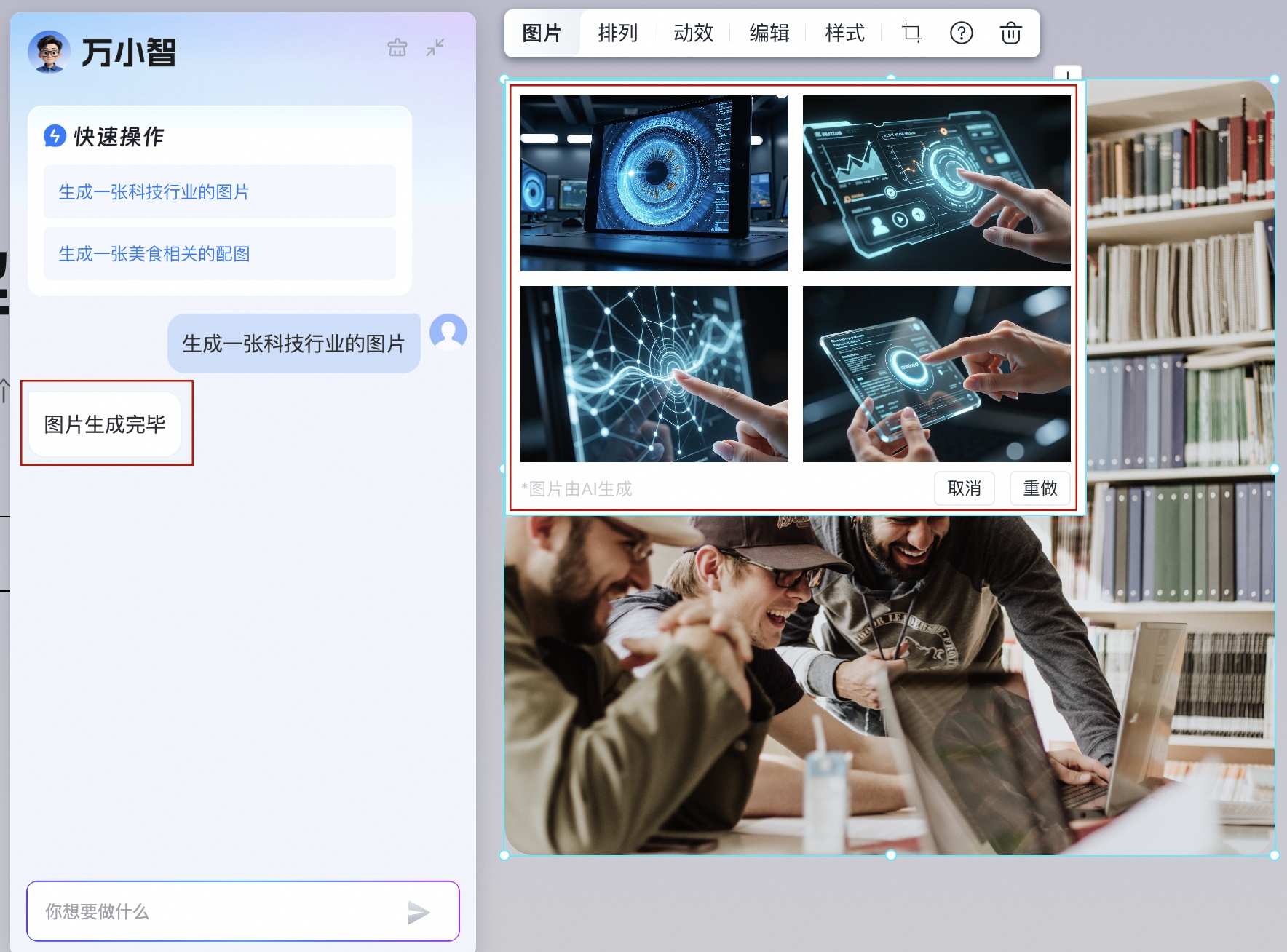
Click an image control to open the AI window. In the window, enter a description for the image and send your request, or select a quick action. The AI assistant generates four images at a time. To use one of the images, click use.
-
Click use to replace the image.
-
Click cancel to restore the original image.
-
Click redo to generate new images.
-
Click undo to revert to the previous image.
-
-
The AI window
The AI window can be collapsed and dragged around the page. The Wan Xiaozhi AI assistant window provides a quick action area with prompts such as Generate an image for the tech industry and Generate a food-related image. When you send a command from the chat input field, the AI assistant responds with a result, such as "Image generation complete." The window has Delete and Minimize icons in its top-right corner.
On the right side of the admin panel, the Wan Xiaozhi AI chat assistant panel displays a conversation area. You can enter prompts into the input field at the bottom, and the AI assistant responds by creating content based on your prompt.
-
Click the reset conversation button at the top of the interface to clear the current conversation history, or context, and start a new session. In the middle of the interface, the suggested questions section lists common questions. At the bottom, you can chat with the AI assistant by typing a question into the input field and clicking the send button.
-
-
Contextual guidance
Based on your progress, the AI assistant guides you through the necessary steps before you publish your website.
For example, if you enter "expand text" in the Wan Xiaozhi chat window, the AI assistant might reply, "Your company name has not been entered yet. Click here to add it." This prompts you to enter the required information before you can use the feature.