GCS SDK for H5
This topic describes how to use the H5 SDK's instant rendering feature.
Limits
Browser dependencies
Recommended browsers
Operating system | Browser | Minimum supported version |
Windows | Google Chrome | 63 |
Mac | Google Chrome | 63 |
Safari | 11 | |
Android | Google Chrome | 63 |
WeChat built-in browser | 7.0.9 (WeChat version) | |
DingTalk built-in browser | 11.2.5 (DingTalk version) | |
Huawei Browser | 12.0.4 | |
iOS | Google Chrome | 63 |
Safari | 11 | |
WeChat built-in browser | 7.0.9 (WeChat version) | |
DingTalk built-in browser | 11.2.5 (DingTalk version) |
Browser user behavior protection policies (iOS)
On iOS, follow these suggestions to comply with browser user behavior protection policies.
Enable sound only after a user interaction. Calling
setVolumewithout user interaction causes the video to pause.Safari 15.4 and later versions support autoplay only after a user interaction.
When Low Power Mode is enabled, autoplay often fails. A user interaction is required before you call the
replayAPI.
Application requirements
The application must be a DirectX 11-based .exe program for the Windows operating system.
Experimental feature: WebView engine compatibility
The SDK can run in the WebView browser engine of a native application. The environment must meet the following requirements:
iOS: 14.3 or later.
Android: Google Chrome major version 79 or later.
Developer notes
For local development and testing, note the following cross-domain restrictions:
Enable cross-domain mode in the Chrome browser.
Bind a host that ends with .aliyun.com, such as gcs.aliyun.com, to localhost. Then, access the bound domain name to develop and test.
To develop and test using an online domain name, contact your project representative to add the domain name to the whitelist.
Getting Started
Import the SDK
https://g.alicdn.com/aliyun-ecs/gcs-js-sdk/0.0.21/index.js
<script type="text/javascript" src="https://g.alicdn.com/aliyun-ecs/gcs-js-sdk/0.0.21/index.js"></script>API reference
API | Description |
init | Initializes the SDK and returns the initialization result. |
prepare | Starts resource scheduling. |
on | Listens for event messages, such as GCSEvent. |
start | Starts the application. |
stop | Stops the application. Notifies the service to shut down and stop streaming. |
udpOpen | Establishes a custom data tunnel. |
udpClose | Closes the custom data tunnel. |
udpSend | Sends a message through the custom data tunnel. |
setKeyBoard | Custom keyboard |
setSize | Sets the width and height of the display area. |
onStat | Gets video stream parameters. |
JoystickCreate | Creates a virtual joystick. |
JoystickOn | Adds a listener event to a virtual joystick button. |
replay | Restarts stream pulling. |
setFullscreen | Sets the full screen mode. |
setBitrate | Dynamically sets the bit rate. |
setVolume | Sets the volume. |
setMouse | Sets the mouse input. |
disconnect | Shuts down the Rgc service. |
The typical call sequence is shown in the following figure.
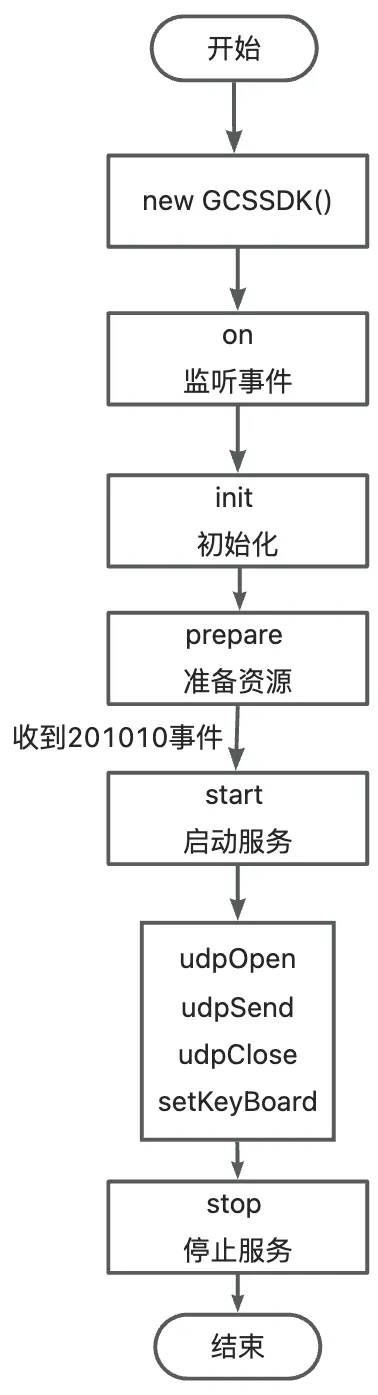
init
prepare
on
off
start
stop
udpOpen
udpSend
udpClose
setKeyBoard
setSize
setMouse
onStat
JoystickCreate
JoystickOn
replay
setFullscreen
setBitrate
setVolume
disconnect
Event Description
Event name
GCSEvent
Event mapping table
EventType | EventCode | EventMessage |
10 | 101030 | The correct accessKey cannot be found. |
10 | 101040 | The service request timed out. |
10 | 101050 | The user token failed verification. |
10 | 101099 | The service request is abnormal. |
10 | 102010 | Failed to attach the persistent connection service. |
10 | 109010 | The current browser is not supported. |
10 | 109011 | The browser version is too low. |
10 | 109012 | WebRTC is not supported. |
10 | 109013 | H.264 is not supported. |
10 | 109020 | The parameters are invalid. |
20 | 201010 | The application runtime environment is ready. |
50 | 501010 | Internal error. |
50 | 501020 | Scheduling failed. |
50 | 501030 | Insufficient CUs in the resource plan. |
50 | 501031 | Insufficient resources. |
50 | 501040 | The session does not exist. |
50 | 501041 | The request to start the session is throttled. |
50 | 501050 | The application does not exist. |
50 | 501051 | The application adaptation is not complete. |
50 | 501052 | The application version does not exist. |
50 | 501053 | The application is stopping. |
50 | 501061 | The service is suspended for the tenant due to overdue payments. |
50 | 501062 | The resources are released for the tenant due to overdue payments. |
50 | 501070 | The application does not exist in the project. |
50 | 502010 | Failed to create the container. |
50 | 502011 | Scheduling is abnormal (IP address or port is empty). |
50 | 502020 | Failed to start the application. |
50 | 502030 | Failed to stop the application. |
60 | 603010 | The application stopped successfully. |
90 | 901000 | Stream authentication failed. |
90 | 901010 | User authentication failed when connecting to the server. |
90 | 901011 | The connection was disconnected because user authentication timed out. |
90 | 901012 | The server-side did not receive the user token. |
90 | 901013 | A token is not allocated to the container. |
90 | 901014 | The service connection failed. |
90 | 901015 | The service is disconnected. |
90 | 901099 | The connection was interrupted. |
90 | 902011 | The service connection is successful. |
90 | 902012 | The screen is ready (startup is complete). |
90 | 902013 | The Tunnel Service is ready. |
90 | 902014 | The Tunnel Service is closed. |
90 | 903010 | The mouse has been idle for a long time. |
90 | 904010 | Network packet loss. |
90 | 904011 | Excessive network jitter. |
90 | 904012 | Excessive processing delay. |
90 | 904013 | Excessive network latency. |
90 | 904014 | Network packet retransmission. |
90 | 904015 | The connection is abnormal. |
90 | 904016 | Reconnecting. |
90 | 904017 | Reconnection successful. |
90 | 904018 | Reconnection failed. |
Code examples
Generate a token
Before you call the API, you must configure environment variables to retrieve access credentials. For more information, see Usage notes.
The environment variables for the Graphic Computing Service userId, tenantId, and secretKey are USER_ID, TENANT_ID, and SECRET_KEY, respectively.
Java example
import javax.crypto.Cipher;
import javax.crypto.NoSuchPaddingException;
import java.nio.charset.StandardCharsets;
import java.security.InvalidKeyException;
import java.security.Key;
import java.security.NoSuchAlgorithmException;
import java.util.HashMap;
import java.util.Map;

/**
 * String encryption and decryption utility class
 */
public class DesUtil {

    private static final Map<String, Cipher> ENCRYPT_MAP = new HashMap<>();

    public static void main(String[] args) {
        // An Alibaba Cloud account AccessKey has full permissions on all APIs. This poses a high security risk.
        // We recommend that you create and use a Resource Access Management (RAM) user to make API calls or perform O&M.
        // This example shows how to store the AccessKey ID and AccessKey secret in environment variables. You can also store them in a configuration file as needed.
        // We recommend that you do not hard-code the AccessKey ID and AccessKey secret in your code. This may lead to security risks.
        // userId: Your custom ID.
        String userId = System.getenv("USER_ID");
        // tenantId: Your Alibaba Cloud account ID.
        Long tenantId = Long.valueOf(System.getenv("TENANT_ID"));
        // secretKey: Provided by Alibaba Cloud.
        String secretKey = System.getenv("SECRET_KEY");
        System.out.println(token);
    }

    public static String encrypt(String userId, Long tenantId,  String secretKey) {
        String originStr = String.format("%s_%s_%s", userId, tenantId, System.currentTimeMillis());
        try {
            byte[] array = initEncryptCipher(secretKey).doFinal(originStr.getBytes(StandardCharsets.UTF_8));
            return byteArr2HexStr(array);
        } catch (Exception e) {
            throw new RuntimeException("failed to encrypt. originStr=" + originStr, e);
        }
    }

    /**
     * Converts a byte array to a hexadecimal string.
     *
     * @param arrB The byte array to convert.
     * @return The converted string.
     */
    public static String byteArr2HexStr(byte[] arrB) {
        int iLen = arrB.length;
        // Each byte is represented by two characters, so the string length is twice the array length.
        StringBuilder sb = new StringBuilder(iLen * 2);
        for (byte anArrB : arrB) {
            int intTmp = anArrB;
            // Convert negative numbers to positive numbers.
            while (intTmp < 0) {
                intTmp = intTmp + 256;
            }
            // Add a leading 0 for numbers less than 0F.
            if (intTmp < 16) {
                sb.append("0");
            }
            sb.append(Integer.toString(intTmp, 16));
        }
        return sb.toString();
    }

    /**
     * Generates a key from a specified string. The key requires an 8-byte array. If the array is less than 8 bytes, it is padded with 0s. If it is more than 8 bytes, only the first 8 bytes are used.
     *
     * @param tmp The byte array that forms the string.
     * @return The generated key.
     */
    private static Key getKey(byte[] tmp) {
        // Create an empty 8-byte array (default value is 0).
        byte[] arrB = new byte[8];

        // Convert the original byte array to 8 bytes.
        for (int i = 0; i < tmp.length && i < arrB.length; i++) {
            arrB[i] = tmp[i];
        }
        return new javax.crypto.spec.SecretKeySpec(arrB, "DES");
    }

    private static Cipher initEncryptCipher(String secretKey) throws NoSuchPaddingException, NoSuchAlgorithmException, InvalidKeyException {
        Cipher encryptCipher = ENCRYPT_MAP.get(secretKey);
        if (encryptCipher == null) {
            encryptCipher = Cipher.getInstance("DES");
            ENCRYPT_MAP.put(secretKey, encryptCipher);
        }
        Key key = getKey(secretKey.getBytes(StandardCharsets.UTF_8));
        encryptCipher.init(Cipher.ENCRYPT_MODE, key);
        return encryptCipher;
    }
}
Node.js example
var CryptoJS = require("crypto-js");

/**
 * Generates an authentication token using DES encryption.
 * @param {string} userId Your custom user ID.
 * @param {string} tenantId Your Alibaba Cloud account ID.
 * @param {string} secretKey Provided by Alibaba Cloud.
 * @returns token
 */
function encrypt(userId, tenantId, secretKey) {
  const message = `${userId}_${tenantId}_${new Date().getTime()}`;
  const key = CryptoJS.enc.Utf8.parse(secretKey);

  const encrypted = CryptoJS.DES.encrypt(message, key, {
    mode: CryptoJS.mode.ECB,
    padding: CryptoJS.pad.Pkcs7
  });
  return encrypted.ciphertext.toString();
}

const token = encrypt(userId, tenantId, secretKey);
console.log(token);
Start streaming
Before you call the API, you must configure environment variables to retrieve access credentials. For more information, see Identity verification configuration.
The environment variables for the Graphic Computing Service AccessKey ID and AccessKey secret are ALIBABA_CLOUD_ACCESS_KEY_ID and ALIBABA_CLOUD_ACCESS_KEY_SECRET, respectively.
Code example
// For more information about the parameters, see the API reference.
const initConfig = {
  accessKey: 'accessKey',
  token: 'token',
  userId: 'userId',
  sessionId: 'sessionId',
};

const prepareConfig = {
  appId: 'appId',
  appVersion: 'appVersion',
  container: document.querySelector('#renderDom'),
};

const gcssdk = new GCSSDK();

gcssdk.init(initConfig).then(ready => {
  gcssdk.prepare(prepareConfig)
}).catch(e => {
  console.log('GCS init failed.')
})

gcssdk.on('GCSEvent', res => {
  const { type, code, message } = res;
  console.log(`onGCSEvent: ${type} ${code} ${message}`);
  switch(code) {
    case '201010':
      gcssdk.start(); // Start the game.
      break;
    case '902011': // The service connection is successful.
      gcs.onStat((stat) => {
         console.log(stat)
      })
      break;
    default:
      break;
  }
})
FAQ
What are the roles of
sessionIdandCustomSessionId?The
CustomSessionIdis the same as thesessionIdparameter in theinitAPI.If a user can open only one session, you can set
sessionIdto the same value asuserId. If two consecutive pages have the samesessionId, the session for the first page is terminated.If a user can open multiple sessions, set
sessionIdto a random number.
What is the difference between
CustomSessionIdandPlatformSessionId?CustomSessionIdis provided by the user.PlatformSessionIdis generated by the GCS service for error tracking. If an error occurs, you can use this ID for troubleshooting.In the
preparemethod, does thecontainerparameter refer to the frontend JavaScript DOM container node?Yes, it does. It is the container for the
videoelement. The SDK creates thevideoelement required for application rendering within this container.When can I access the
videoelement?The
videoelement is successfully mounted after you receive the 902012 event.If a user does not actively exit a session, when are the session resources released?
If there is no activity for three minutes, the backend shuts down the application.