Demo experience
This document introduces the demo for our interactive live streaming solution and explains how to run it.
Download the demo
Scenario | Style | Platform | Role | Source code | Entry point |
interactive live streaming | portrait mode | Android |
|
| |
iOS |
| ||||
Web | Viewer client | - | |||
WeChat Mini Program | Viewer client | - | |||
landscape mode | Windows | Host client | Source code not available. | For the download link, see Windows Streaming Assistant. | |
macOS | Host client | Source code not available. | For the download link, see macOS Streaming Assistant. | ||
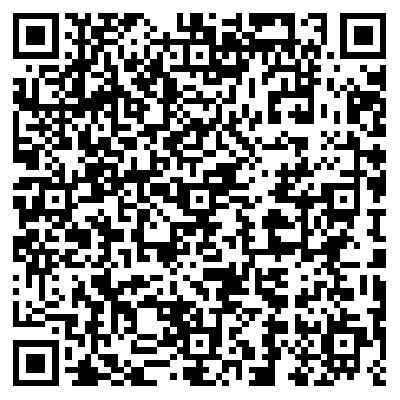
Android | Viewer client | The entry points are the same as those for the Android and iOS portrait mode demos. Scan the QR code above. | |||
iOS | Viewer client | ||||
Web | Viewer client | - |
Walkthrough
Portrait mode
Download and install the demo.
Open the demo app. On the login page, enter your phone number, agree to the User Agreement and Privacy Policy, tap Get SMS Verification Code, and enter the received verification code to log in.
After logging in, the home page appears, showing three sections: Live Streaming Scenarios, Entertainment & Call Scenarios, and VOD Scenarios. In the Live Streaming Scenarios section, select a live streaming type (for example, standard live streaming, E-commerce Live, Corporate Training, or Show Live with Co-anchoring) to open its configuration page. In this example, select standard live streaming and tap Create Standard Live Room.
On the creation page, enter a Live Room Title (for example,
Live Stream of 210426659) and an optional Live Room Announcement.Tap Beautify on the right to select beautification effects.
Tap Start Live.
Viewers can now join the room to watch the live stream.
Landscape mode
Download the Streaming Assistant.
To get a URL, create a room, and start your stream, follow the instructions in Get the streaming URL and create a live room.
In landscape mode, the main interface of the host client shows the camera feed on the left and a chat panel on the right.
The host can also share the screen and media files.
Hosts can go to Settings to adjust the beautification feature.
Viewers can now join the room to watch the live stream.
Run the demo
This section describes how to run the demo in your own environment. For details, see the server-side and client-side integration documentation.