Clean up disks
Use OOS to automate disk cleanup on multiple ECS instances. You can specify disk paths and cleanup rules, and run automated cleanups on a schedule.
Procedure
-
In the OOS console, navigate to Automated Task > Common O&M Tasks > Clean Up Disks and click Created.
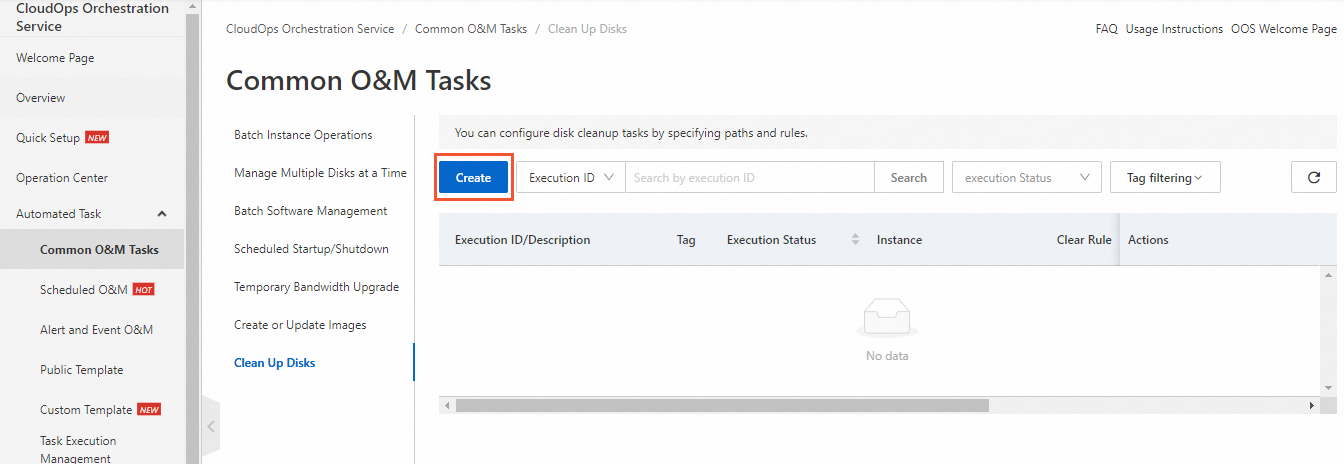
-
On the Create Disk Cleanup Task page, in the Set Rule section, configure the cleanup rules.
For example, set the File Retention Period, Unit, Path, and File. You can also click the add icon (
 ) to add another rule.
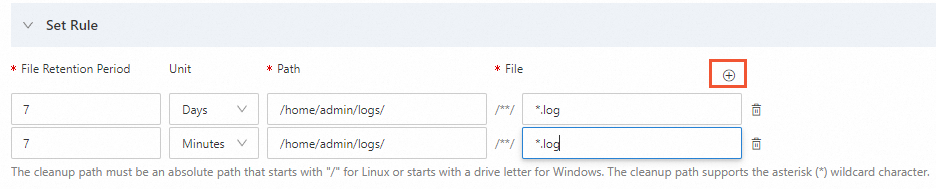
-
In the Cleanup Time section, select a Scheduled Task Type and specify the Permissions.
The Permissions parameter has two options: Use Existing Permissions of Current Account or Specify RAM Role and Use Permissions Granted to This Role. In this example, Specify RAM Role and Use Permissions Granted to This Role is selected, and OOS assumes the OOSServiceRole RAM role.
-
In the Select Instances section, select the ECS instances to clean up.
You can select instances using methods such as Select Instances Manually, Specify Instance Tags, or Specify Resource Group. This example uses Select Instances Manually.
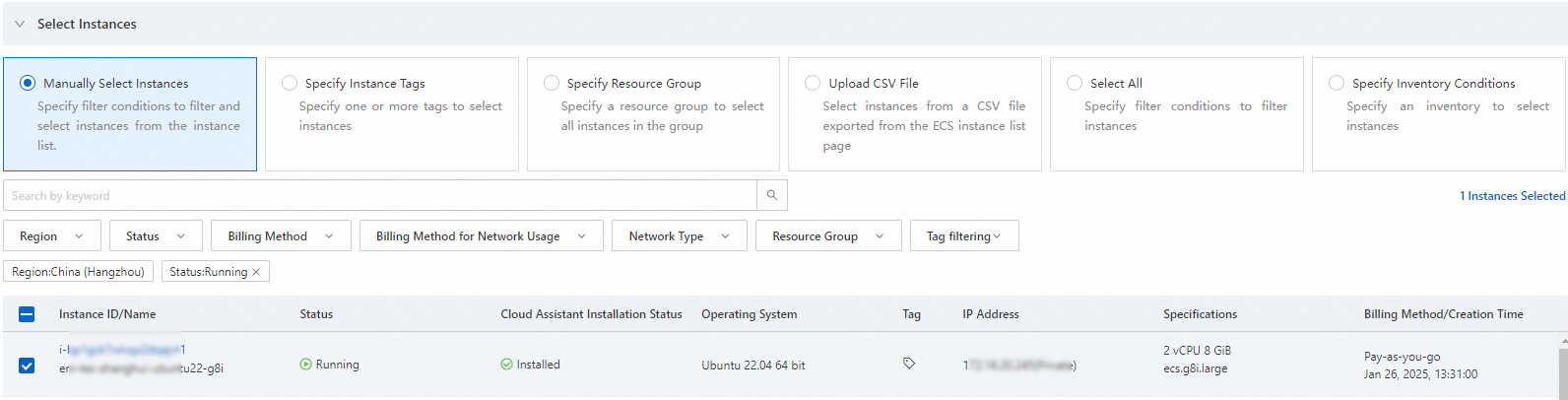
-
(Optional) Configure the parameters in the Advanced Options and Execution Settings sections.
-
In the Advanced Options section, configure settings such as Rate Control (Concurrency or Batch) and Error Threshold to control the task's execution.
-
In the Execution Settings section, you can add tags, specify a resource group, and save the task as a template for future use.
-
-
Click Created. In the Parameter Confirmation dialog box, review the parameters and then click OK.
After you create the task, it appears in the Clean Up Disks task list. Click the Execution ID of the task to view its details.