Create or update an image

更新时间:
复制 MD 格式

When you use ECS, you often need to perform tasks such as updating software, upgrading backend services, or applying security patches. The create or update image feature in the Common O&M Tasks of CloudOps Orchestration Service (OOS) automates these processes.

Procedure

You can create a new image from an existing ECS instance or update an existing image. Before you begin, make sure you have created an ECS instance. For more information, see Create an ECS instance.

  1. Navigate to the Automated task > Common O&M Tasks > Create or update images page and click Create.
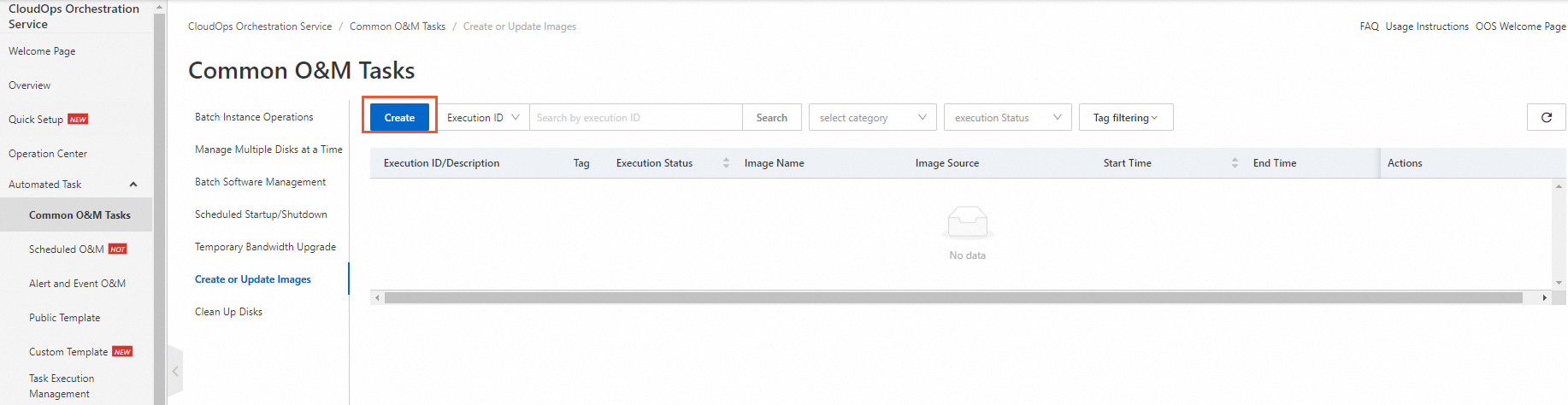
    创建镜像

  2. On the New create or update image task page, select Create image from existing instance or Update Image.

    In this example, Create image from existing instance is selected.

  3. In the General settings section, enter a New image name and specify the Permissions.

    For Permissions, you can select Use Existing Permissions of Current Account or Specify RAM Role and Use Permissions Granted to This Role. In this example, Specify RAM role and use permissions granted to this role is selected. OOS then assumes the RAM role named OOSServiceRole.

    Note

    If you do not have an available RAM role for OOS to assume, see Set and grant a RAM role for OOS. If you are familiar with setting RAM permissions for OOS, you can also click Manual Authorization to quickly configure the permissions. The following JSON templates provide the required permission policies.

    • Permission policy for creating an image from an existing instance

      {
        "Version": "1",
        "Statement": [
          {
            "Action": [
              "ecs:CreateImage",
              "ecs:DescribeImages",
              "ecs:ModifyImageSharePermission",
              "ecs:CopyImage",
              "ecs:RunCommand",
              "ecs:DescribeInvocationResults",
              "ecs:DescribeRegions",
              "ecs:DescribeInstances",
              "ecs:DescribeInvocations"
            ],
            "Resource": "*",
            "Effect": "Allow"
          },
          {
            "Action": [
              "ess:ModifyScalingConfiguration"
            ],
            "Resource": "*",
            "Effect": "Allow"
          },
          {
            "Action": "oos:*",
            "Resource": "*",
            "Effect": "Allow"
          },
          {
            "Action": "ram:PassRole",
            "Resource": "*",
            "Effect": "Allow",
            "Condition": {
              "StringEquals": {
                "acs:Service": "oos.aliyuncs.com"
              }
            }
          }
        ]
      }
      						
    • Permission policy for updating an image

      {
        "Version": "1",
        "Statement": [
          {
            "Action": "oos:*",
            "Resource": "*",
            "Effect": "Allow"
          },
          {
            "Action": "ram:PassRole",
            "Resource": "*",
            "Effect": "Allow",
            "Condition": {
              "StringEquals": {
                "acs:Service": "oos.aliyuncs.com"
              }
            }
          },
          {
            "Action": [
              "ecs:RunCommand",
              "ecs:RunInstances",
              "ecs:StopInstance",
              "ecs:DescribeRegions",
              "ecs:DeleteInstance",
              "ecs:CreateImage",
              "ecs:DescribeImages",
              "ecs:ModifyImageSharePermission",
              "ecs:CopyImage",
              "ecs:RebootInstance",
              "ecs:DescribeInvocationResults",
              "ecs:InstallCloudAssistant",
              "ecs:DescribeCloudAssistantStatus",
              "ecs:DescribeInstances",
              "ecs:DescribeInvocations"
            ],
            "Resource": "*",
            "Effect": "Allow"
          },
          {
            "Action": [
              "ess:ModifyScalingConfiguration"
            ],
            "Resource": "*",
            "Effect": "Allow"
          }
        ]
      }
      						
  4. In the Select Instances section, select the source ECS instance.
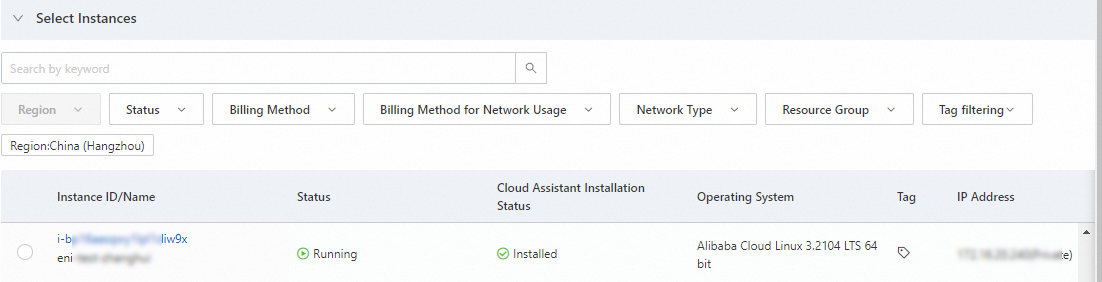
    实例-zh

    Note

    If you select Update Image, you must select the image to update and configure an intermediate instance. Follow the on-page prompts.

  5. In the Send Remote Commands section, select a command type that matches your instance's operating system and enter the command.

    In this example, Linux Shell is selected, as shown in the following figure.
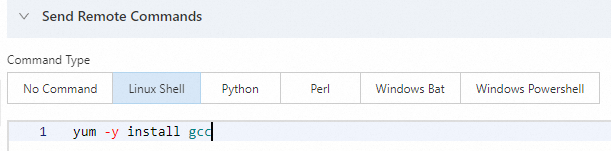
    命令

  6. In the Image distribution and Scaling group configuration sections, configure the Copy to other region, Shared account ID, and Scaling group configuration ID settings.
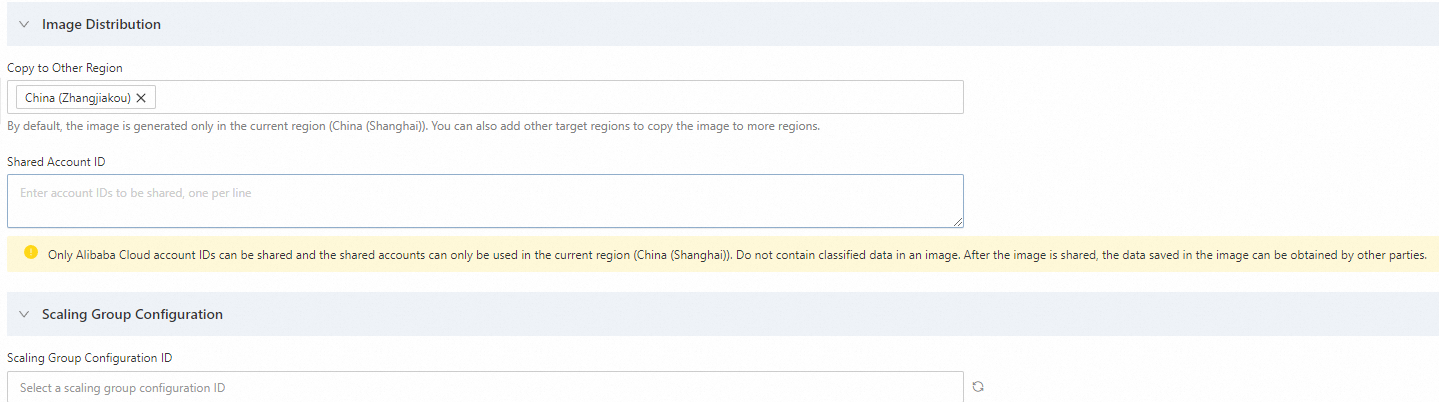
    fenfa

  7. (Optional) Configure the parameters in the Execution settings section.

    You can add a tag, specify a resource group, and choose to save the task as a template.

  8. Click Create. In the Parameter confirmation dialog box, review the settings and click OK.

    After the image is created or updated, the task appears in the Create or update images task list. Click the task's execution ID to view its details.