Apply patches on demand
To prevent security attacks, you should promptly fix system vulnerabilities. You can use the patch management feature of OOS to keep software packages up to date, fix vulnerabilities, and scan for and install patches. You can use OOS to perform these patch operations on demand.
Patch modes
OOS provides three patch management modes:
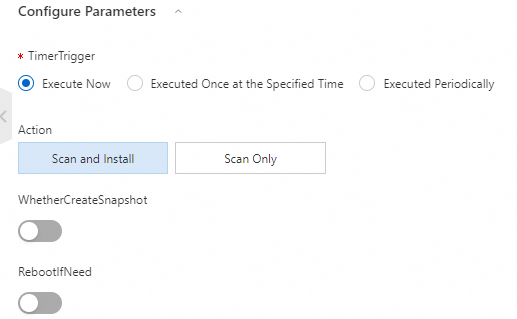
If you select RebootIfNeed when you install patches, the system automatically restarts the instance if a patch requires it.
-
Scan for patches: Scans your ECS instances for system vulnerabilities.
-
Install patches without a restart: Fixes system vulnerabilities on the ECS instance without a restart.
-
Install patches and restart: Fixes system vulnerabilities and restarts the ECS instance if a patch requires it.
Required permissions
To perform patch management operations, you need the following permissions:
{
    "Policy": {
        "Version": "1",
        "Statement": [
            {
                "Action": [
                    "ecs:RebootInstance",
                    "ecs:DescribeInvocationResults",
                    "ecs:DescribeCloudAssistantStatus",
                    "ecs:DescribeInstances",
                    "ecs:DescribeInvocations",
                    "ecs:RunCommand"
                 ],
                 "Resource": "*",
                 "Effect": "Allow"
             },
             {
                 "Action": [
                     "oos:ListInstancePatchStates"
                 ],
                 "Resource": "*",
                 "Effect": "Allow"
              }
      ]
   }
}
You can configure these permissions on the RAM console.
Procedure
-
Log in to the CloudOps Orchestration Service console. In the left-side navigation pane, choose Quick Setup.
-
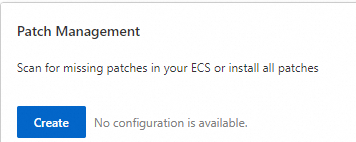
On the Quick Setup page, choose patch management, and then click Create .
-
Set Schedule Type to Execute Now. Select Scan and Install or Scan Only. If you select Scan and Install, you can also choose to restart the instance if needed and create a snapshot.
-
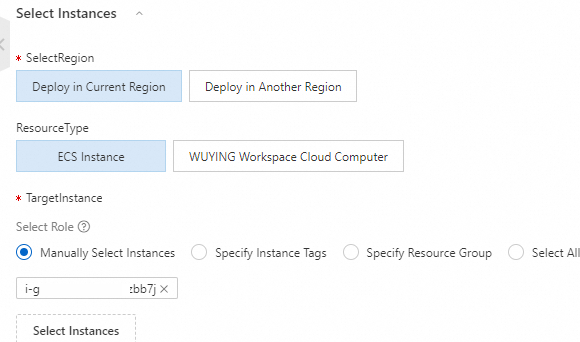
Select the instances to patch.
-
Click Create. In the dialog box that appears, click OK.
-
You can view the patching status under in the left-side navigation pane.
