This guide explains how to configure the Alibaba Cloud OOS AI Assistant for your DingTalk robot. After configuration, you can send text commands directly from a DingTalk group to perform O&M operations, which enables logon-free, cross-device, and near-instant responses.
1. Background: O&M challenges in the mobile era
In traditional O&M scenarios, engineers often rely on computers to log on to the console and manage resources. However, unexpected failures can happen anywhere. They can happen during a meeting, on your commute, or late at night at home. A slow response can lead to business interruptions, customer complaints, and financial loss.
Pain points:
Device limitations: You cannot log on to the console without your computer.
Response delays: You must wait for a colleague's help or find a temporary device. This can take several minutes to hours.
Complex operations: Logging on to the console from a mobile browser is difficult. The interface is limited and cumbersome to use.
Solution: Configure the Alibaba Cloud OOS AI Assistant for your DingTalk robot. This lets you send text commands directly in a DingTalk group to perform O&M operations with logon-free, cross-device, and near-instant responses.
2. Use case: A 10-minute recovery from a late-night failure
Time: 1:23 AM Location: The home of Zhang Wei, an O&M engineer
Zhang Wei's phone suddenly vibrated. An alert notification popped up in his DingTalk group:
[Alibaba Cloud Monitoring] Beijing ECS memory usage at 98% for 5 minutes
He got out of bed but realized his computer was at the office. In a hurry, he opened the DingTalk group, @mentioned the AI assistant, and sent a command:
"Restart the Beijing ECS instance i-******* "
The robot returned a confirmation pop-up:
"The ECS RestartInstance API will be called to restart instance i-*******. Confirm execution? (Y/N)"
Zhang Wei enters "Y", and the scale-out operation begins automatically. Five minutes later, monitoring shows that memory usage has fallen to 30% and the service has recovered. He breathes a sigh of relief and goes back to sleep.
The next morning at the meeting, his manager asked, "How did you recover so quickly last night?" Zhang Wei smiled and replied, "With the DingTalk robot, O&M is no longer tied to a computer."
3. Advantages of using the OOS AI Assistant with a DingTalk robot
Logon-free operations:
You can query, monitor, and manage resources directly from a DingTalk group without logging on to the console.
Comprehensive emergency response:
You can handle unexpected failures quickly from your phone, even if your computer is not available.
Granular permission control:
You can attach RAM roles to control the scope of commands that group members can execute. For example, you can allow only the "O&M group" to perform scale-out operations.
Automated alert integration:
You can automatically push CloudMonitor alerts to a DingTalk group and perform O&M operations on cloud resources based on the monitoring status.
4. Configuration steps
Solution overview
You can add an AI robot in DingTalk in just a few steps:
|
1. Create a DingTalk application
Next, create a DingTalk application in your organization to serve as an AI assistant that answers user questions.
To create a DingTalk application, your DingTalk account must have developer permissions. Contact your organization administrator to obtain developer permissions for the DingTalk Open Platform. For more information, see Obtain developer permissions.
1.1 Create an application
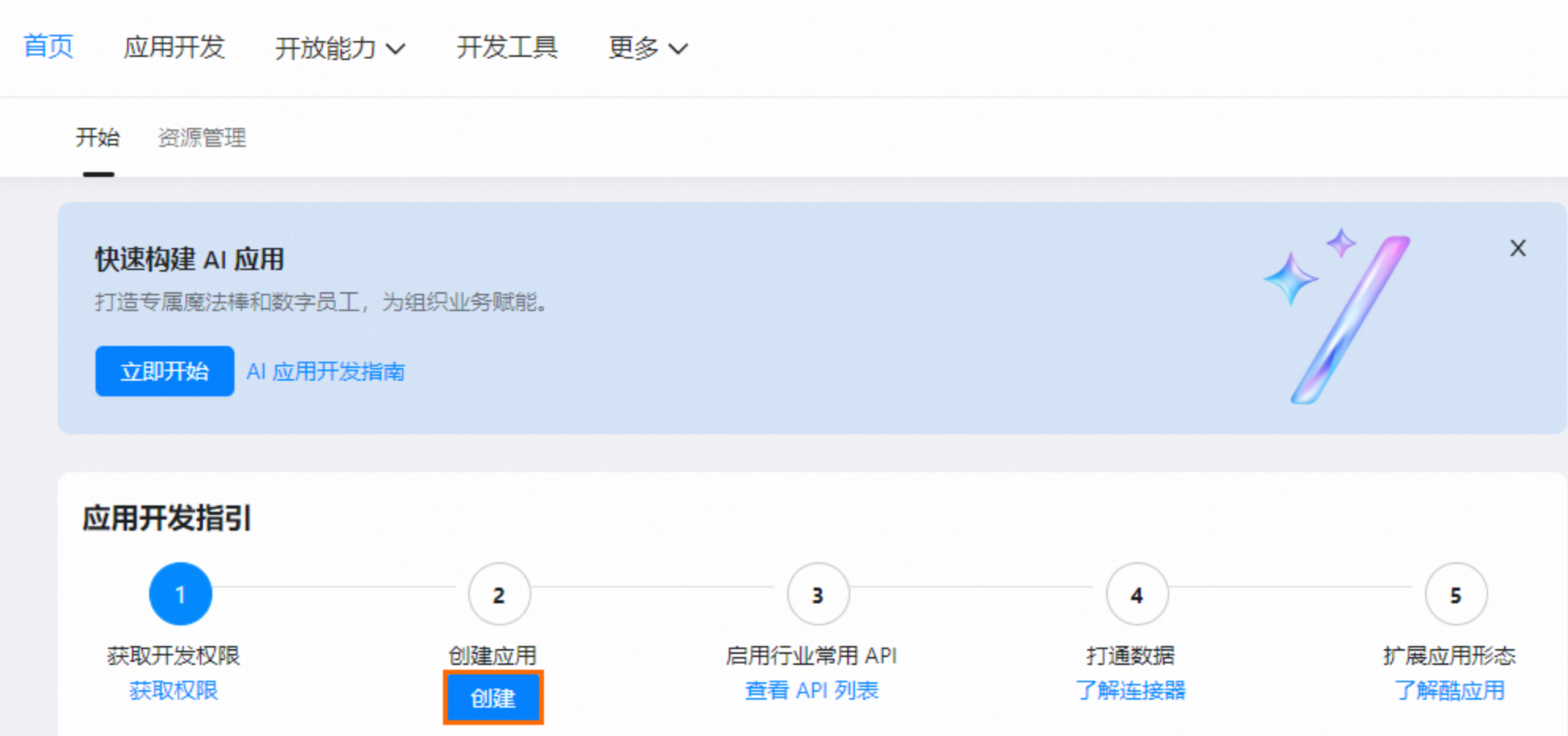
Go to the DingTalk Open Platform and click Create. If you have created an application before and the development guide is not displayed, click Get Started to go to the DingTalk application page.
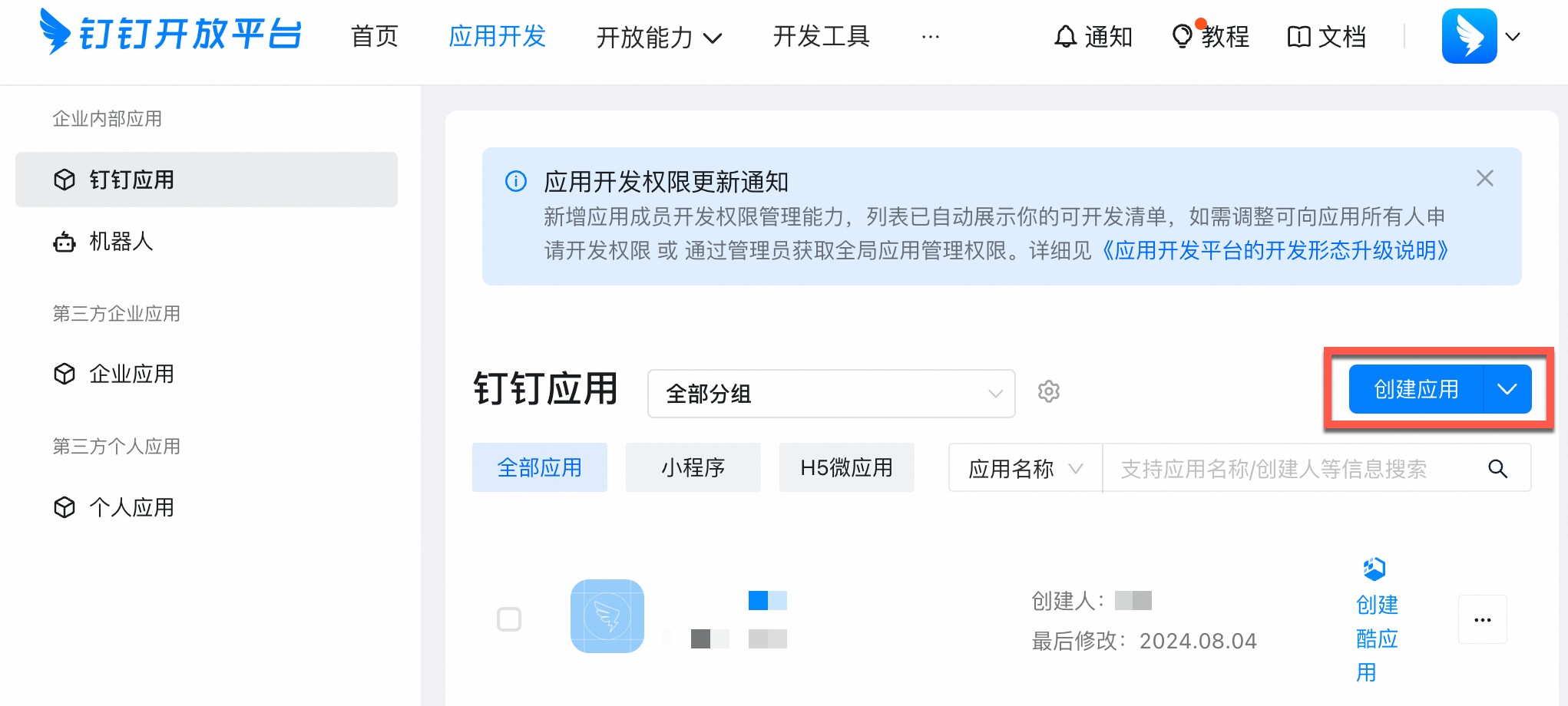
In the navigation pane on the left, click DingTalk Application. On the DingTalk Application page, click Create Application in the upper-right corner.
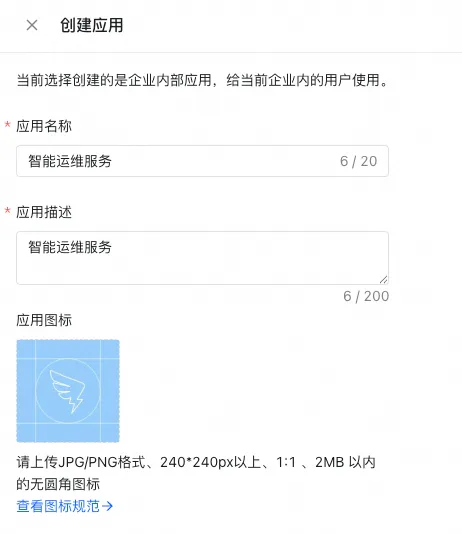
In the Create Application panel, enter an Application Name and Application Description. Upload an application icon, and then click Save.
1.2 View the application Client ID and Client Secret
In the left-side menu, choose Credentials and Basic Information. Copy the Client ID and Client Secret for use in the next step.

1.3 Create a message card
The DingTalk robot uses card messages to support streamed results. You must create a card template for sending messages.
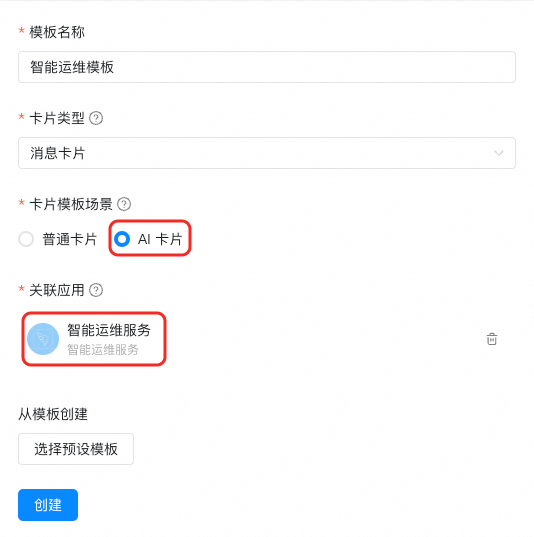
Go to the Card Platform and click Create Template.
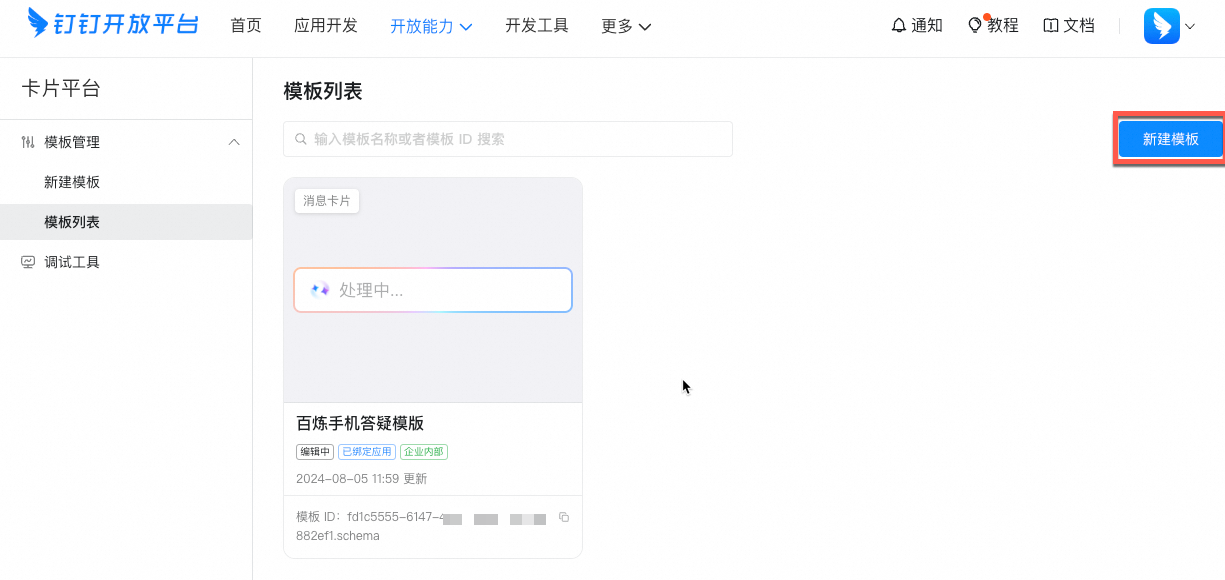
In the template creation text box, enter the template information.

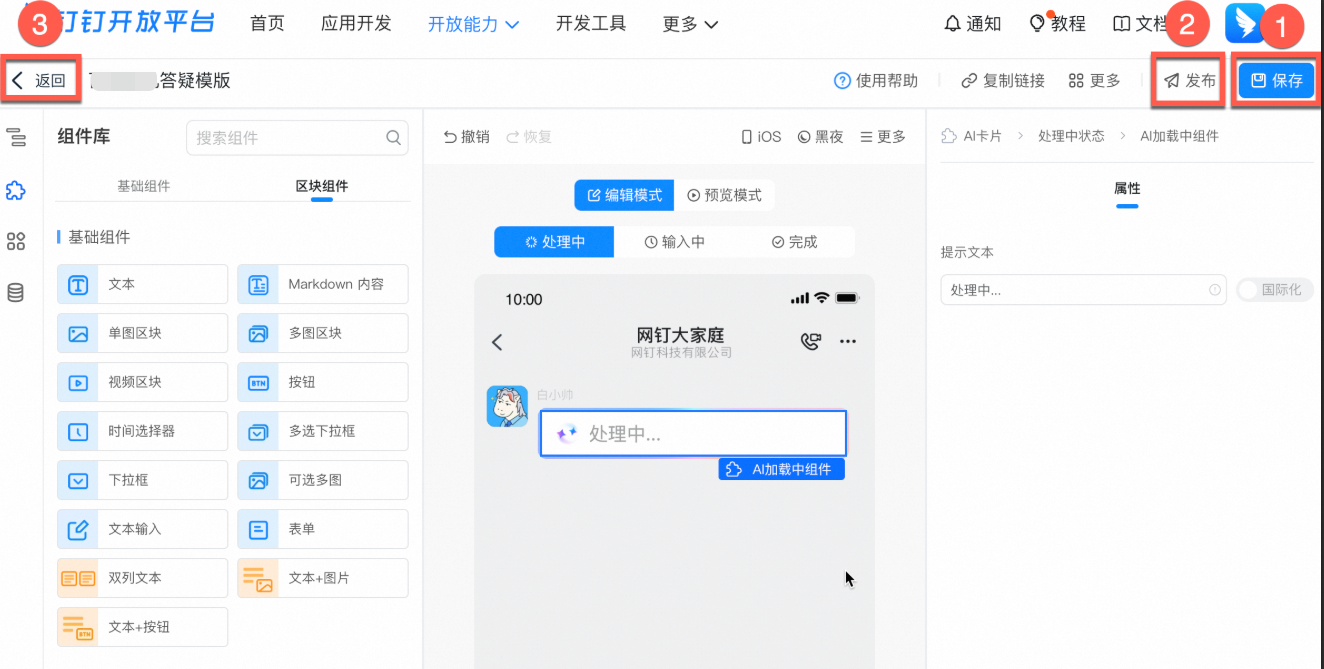
On the simulation editing page, Save and Publish the template. Then, click Back to return to the template list page.
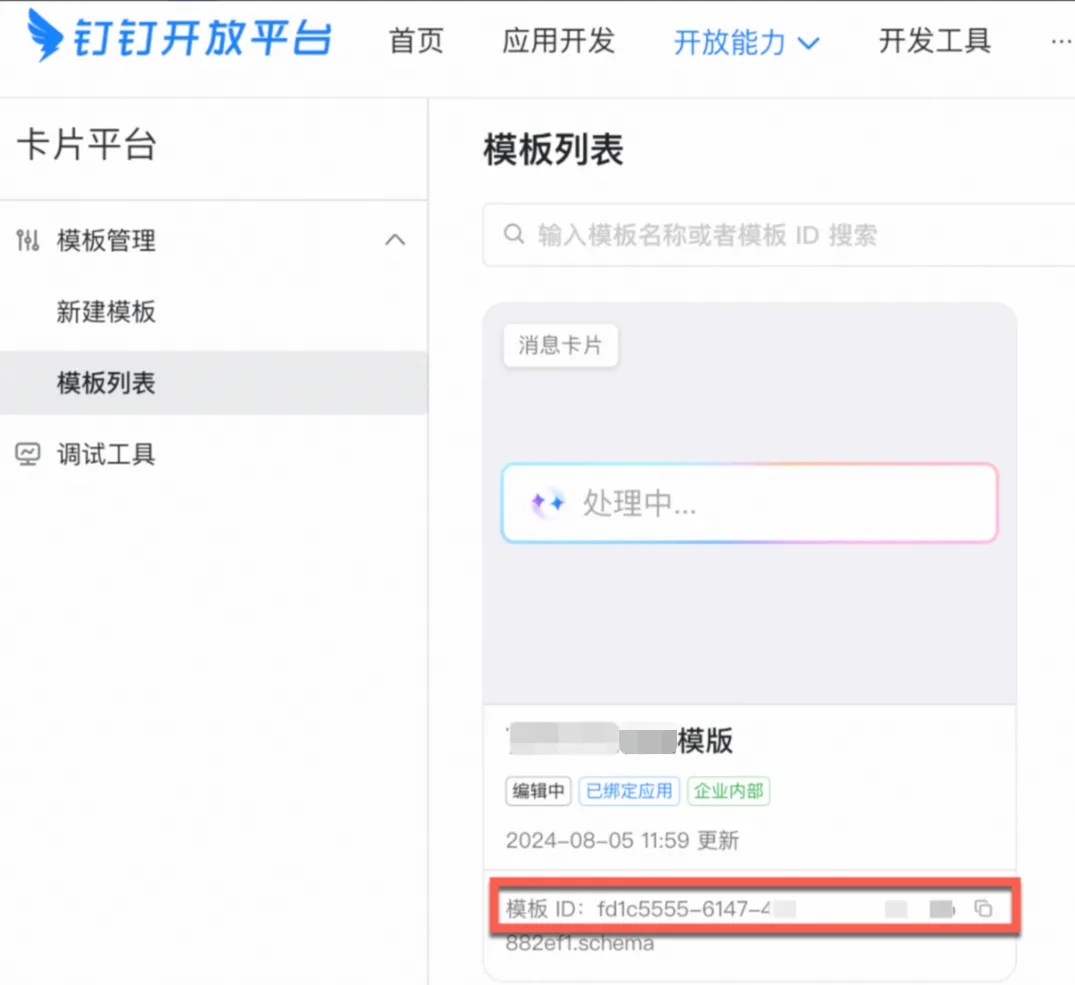
Copy the Template ID to use when creating the DingTalk connection stream.
1.4 Grant the application permission to send card messages
After you create the card, grant the application permission to send card messages.
Go to the DingTalk application list. Find the application you just created and click its name to go to the details page.
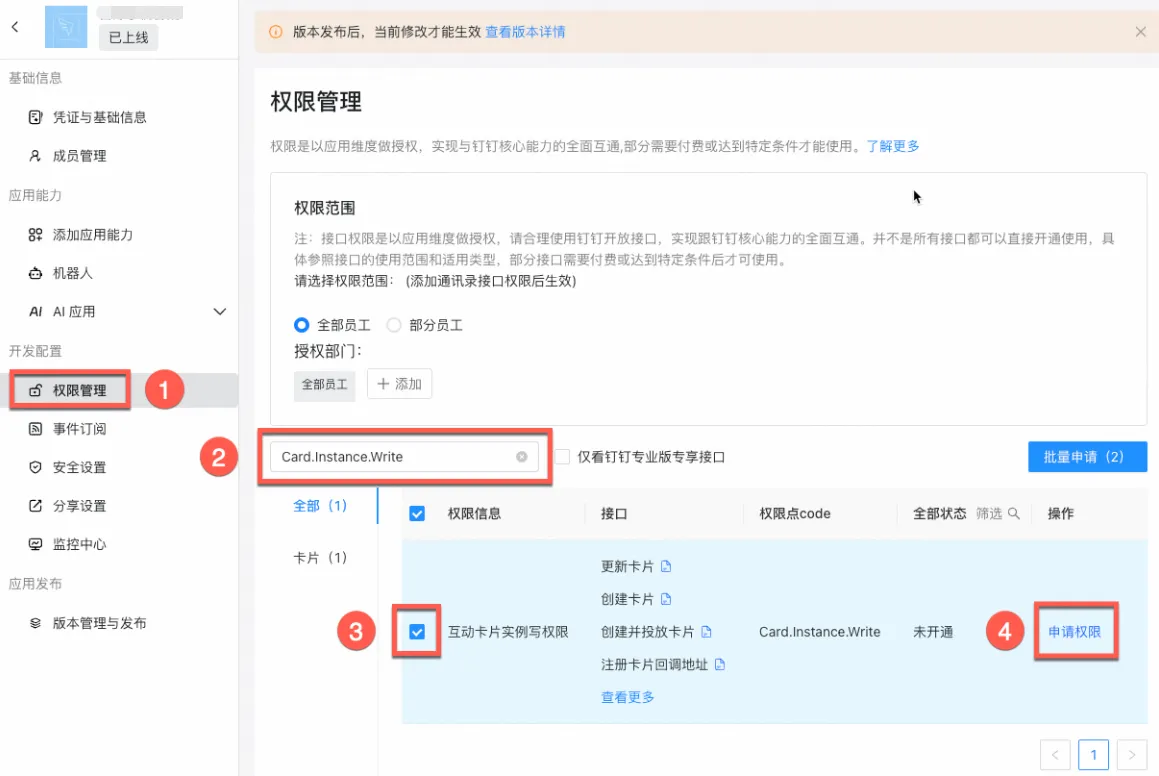
In the left-side menu, choose Development Configuration > Permission Management. In the search box on the left, enter
Card.Streaming.WriteandCard.Instance.Write. In the Actions column, click Request Permission for each permission.
2. Create a robot chat configuration in OOS
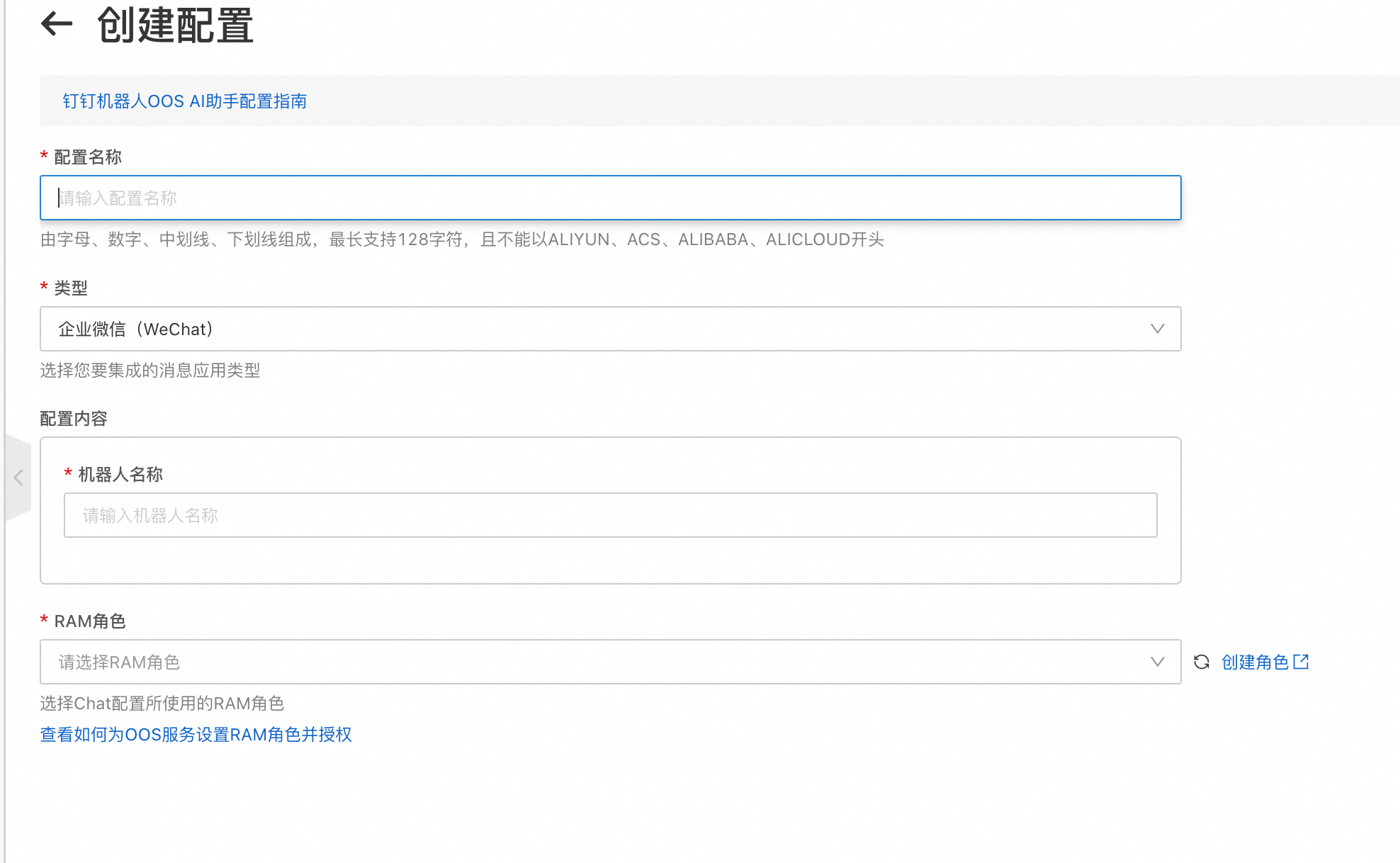
You can create an OOS ChatOps configuration on the CloudOps Orchestration Service console ChatOps configuration page using the DingTalk configuration information. OOS automatically creates a connection stream. The AppFlow connection stream connects the OOS AI Assistant to DingTalk.
On the CloudOps Orchestration Service console ChatOps configuration page, click Create Configuration. Enter a configuration name. For Type, select "DingTalk". Enter the Client ID, Client Secret, and Card Template ID that you obtained earlier. Select a service role to grant to OOS (for more information, see Set and authorize a RAM role for the OOS service), and then click Create.
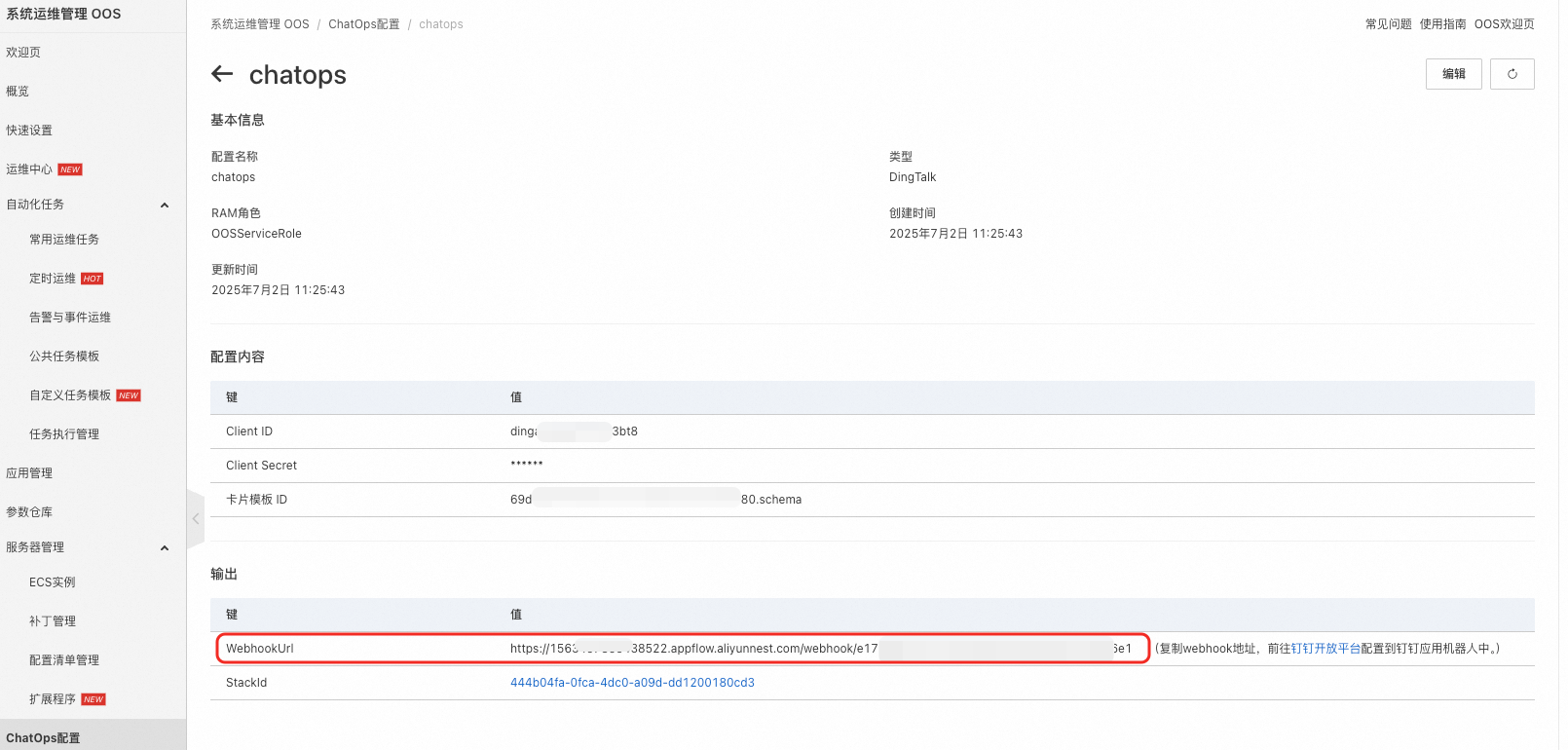
After the configuration is created, view the details. Find and copy the WebhookUrl.
3. Configure the DingTalk robot
After you obtain the webhook URL, you can configure the robot in your DingTalk application to access your cloud resources.
3.1 Configure the DingTalk robot
Go to the DingTalk application list. Find the application you just created and click its name to go to the details page.
On the Add Application Capability page, find the Robot card and click Add.
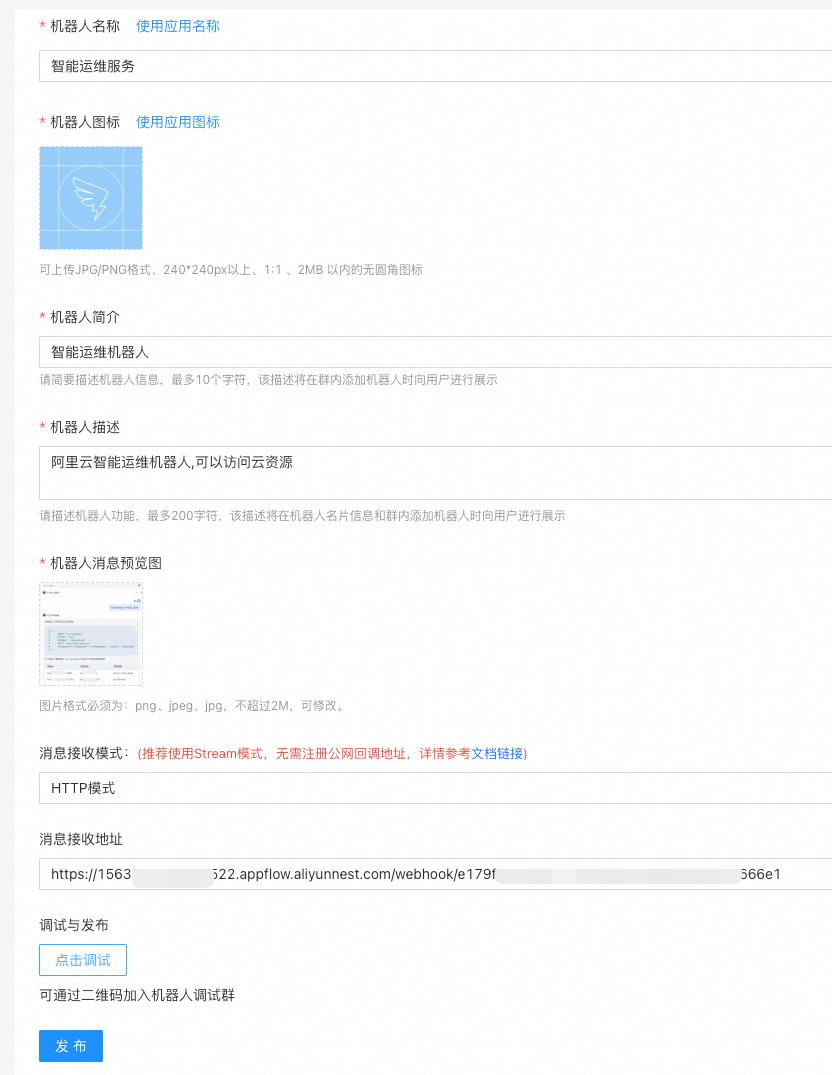
On the robot configuration page, turn on the Robot Configuration switch. Complete the configuration as shown in the following figure. For Message Reception Mode, select HTTP Mode. For Message Reception Address, enter the WebhookUrl you just copied. Then, click Publish.
For Message Reception Mode, select HTTP Mode. AppFlow currently supports only HTTP mode. If you select Stream mode, messages cannot be returned.
3.2 Publish the application version
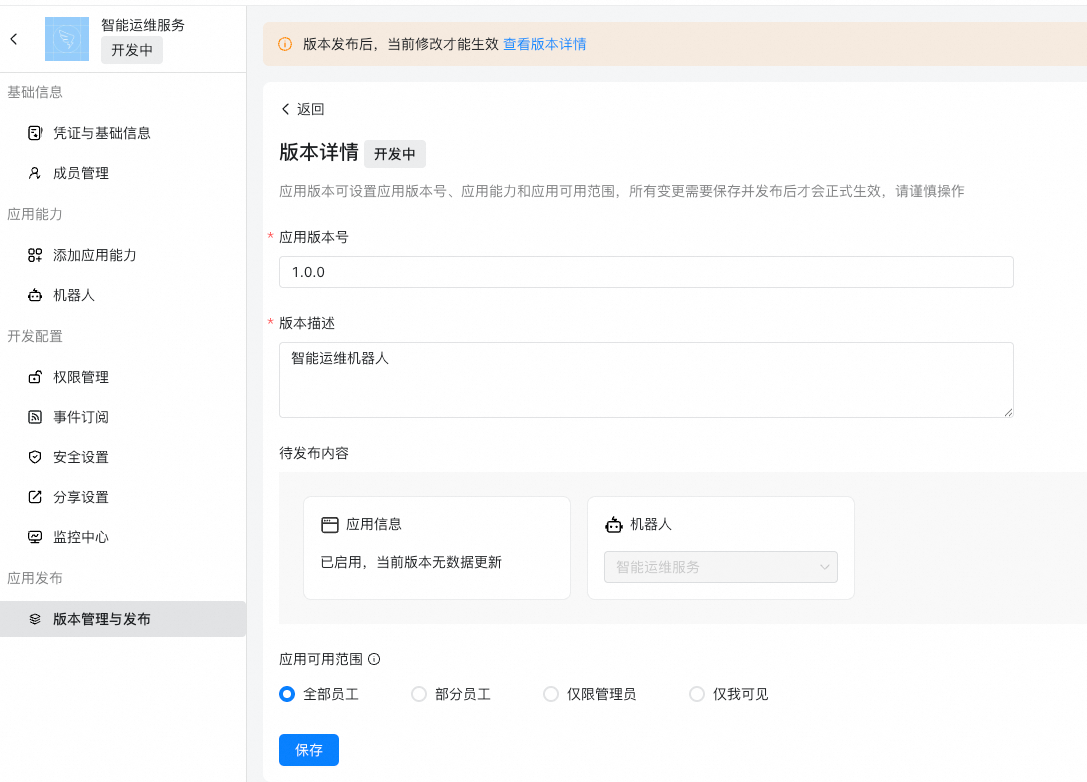
After the application is created, you must publish a version if you want other users in your enterprise to use it.
Click Application Development. On the DingTalk Application page, click the target application (Intelligent O&M Service).
In the navigation bar for the target application, click Version Management and Publishing. On the Version Management and Publishing page, click Create New Version. On the version details page, enter the Application Version Number and Version Description. Select the Application Visibility Scope, and then click Save. In the pop-up window, click Publish Directly.

3.3 Test the robot
You can create a new group chat or add the robot to an existing one. Then, you can chat with the robot to test it.
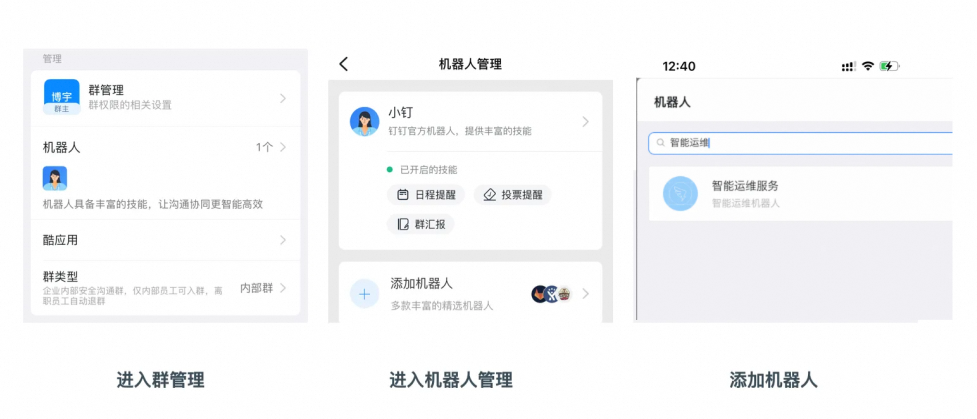
In DingTalk, add the robot to a group. Go to the group's Group Settings page and click the Robot card. On the Robot Management page, click Add Robot. In the Add Robot panel, enter the robot's name in the Search text box and select it. Click Add, and then click Finish Adding.
In a DingTalk group or a private chat, @mention the robot to start interacting.
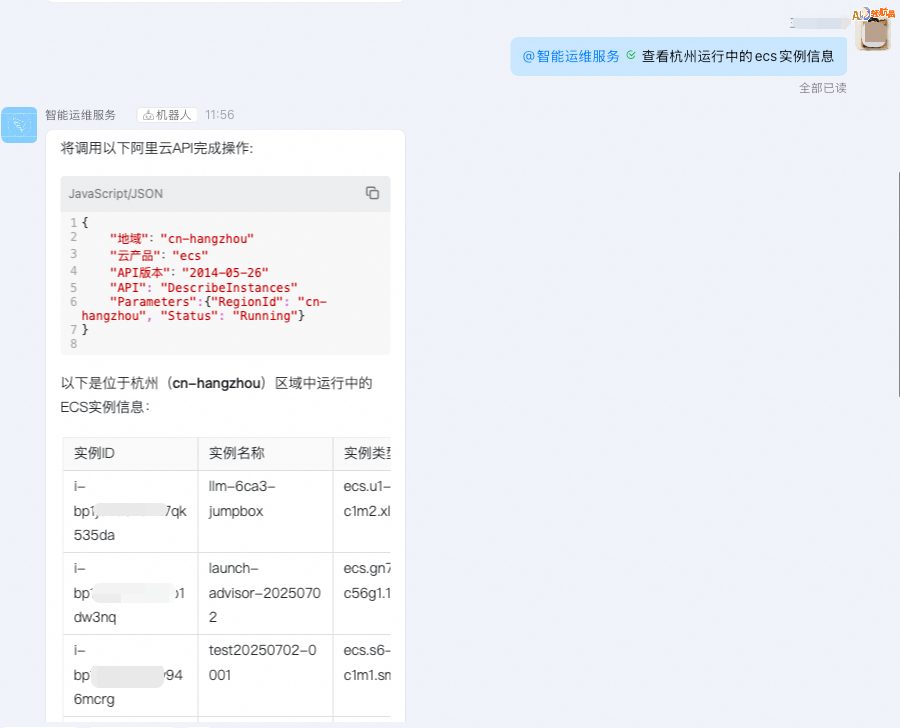
Send a command in the DingTalk group:
@AI Assistant information on running ecs instances in HangzhouRobot response: It automatically calls an Alibaba Cloud OpenAPI to query the instance information.
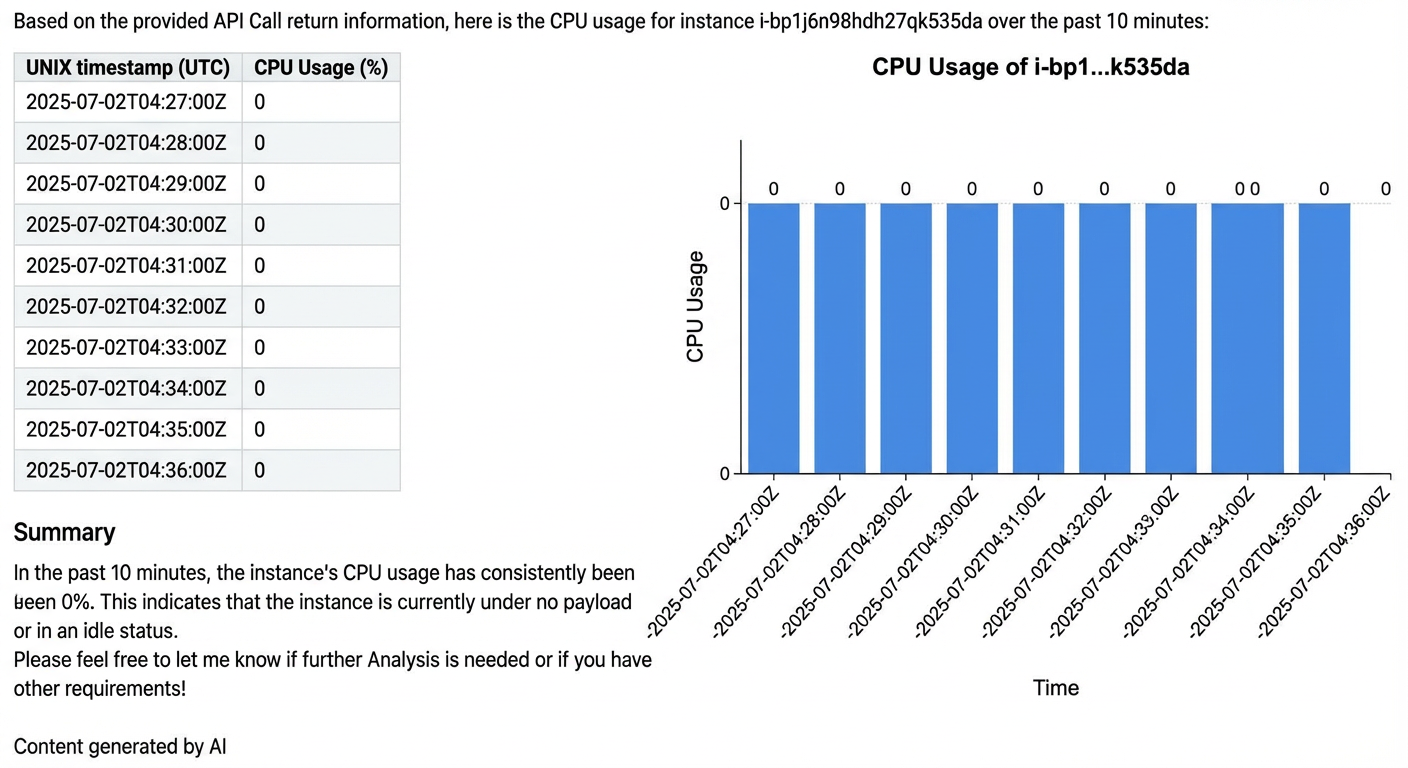
Ask a follow-up question based on the queried information. You do not need to enter the region and product information again. The AI assistant automatically fills in this information based on the previous conversation.
@AI Assistant check cpu usage for i-bp1j******5da in the last 10 minutesRobot response: It returns monitoring information with a line chart.

4. Configure CloudMonitor alerts (Optional)
This AI assistant can be integrated with CloudMonitor alerts, allowing you to use a single robot to handle both alerts and responses. This integration helps you promptly detect issues, notify personnel, and take action. Note: If you are configuring this for the first time and have no alerts configured in the Alert Center, follow these steps. If you are modifying an existing configuration, replace the current webhook with the DingTalk robot's webhook URL.
After adding the DingTalk robot to the DingTalk group in step 3.3, obtain the robot's webhook.
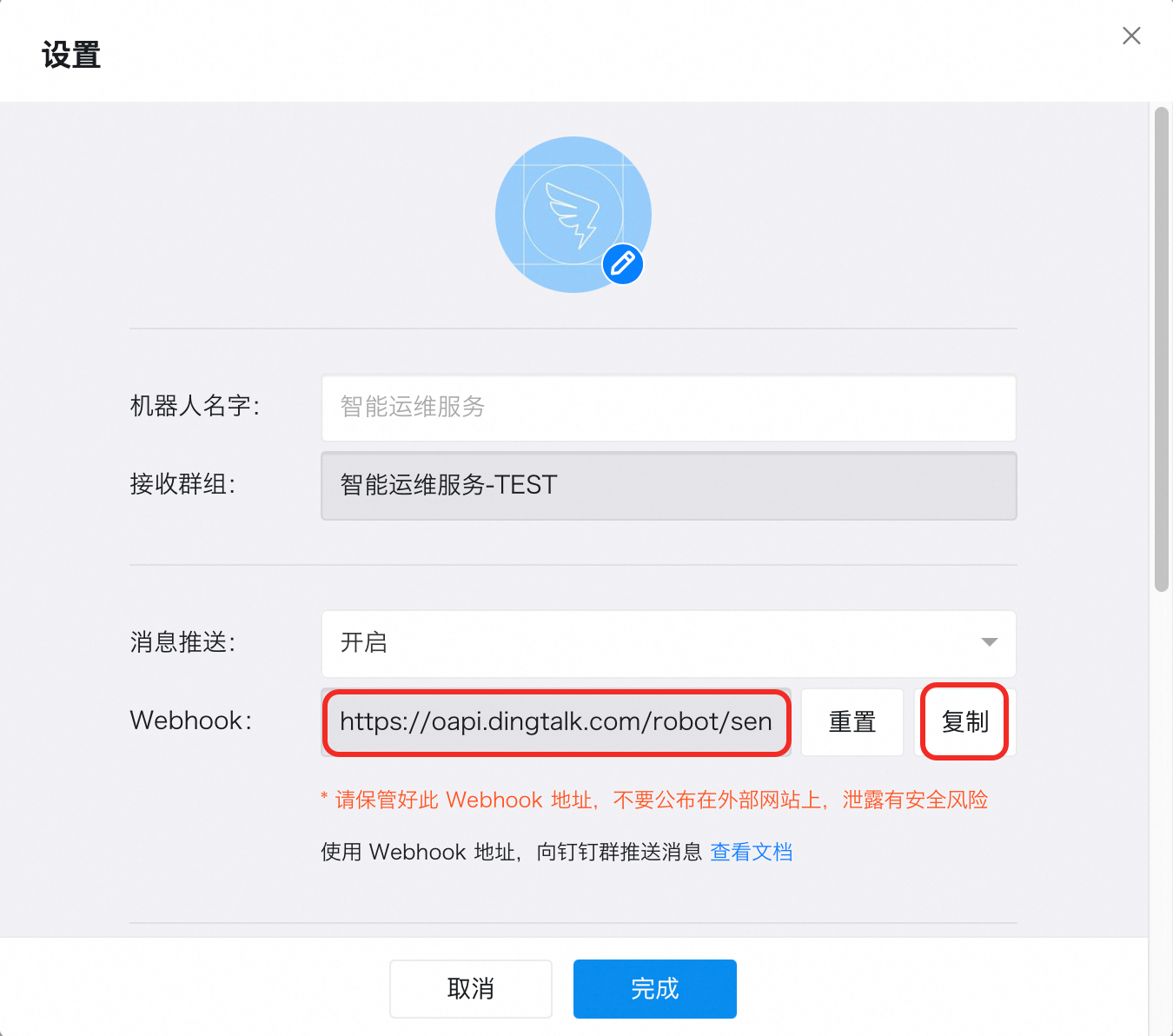
In the CloudMonitor console, create an alert contact. For Webhook, enter the webhook you just obtained.
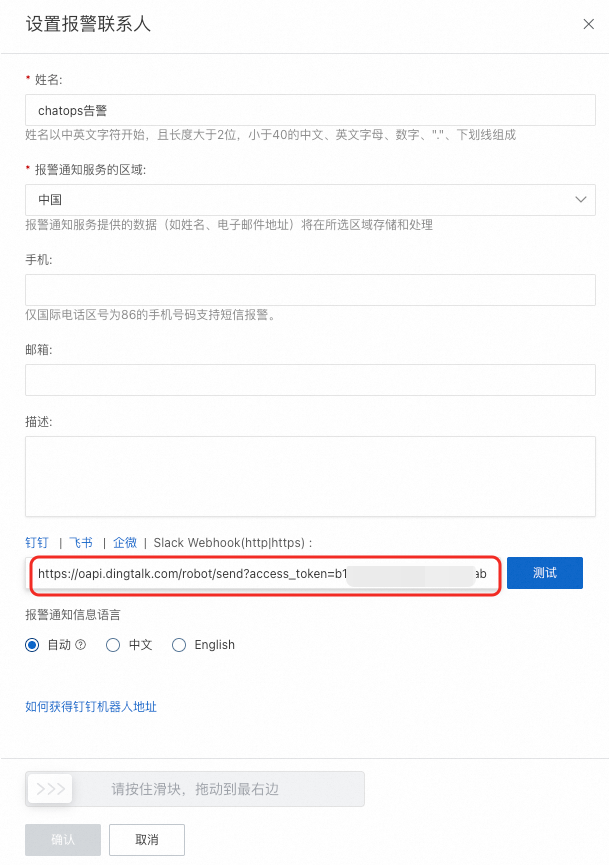
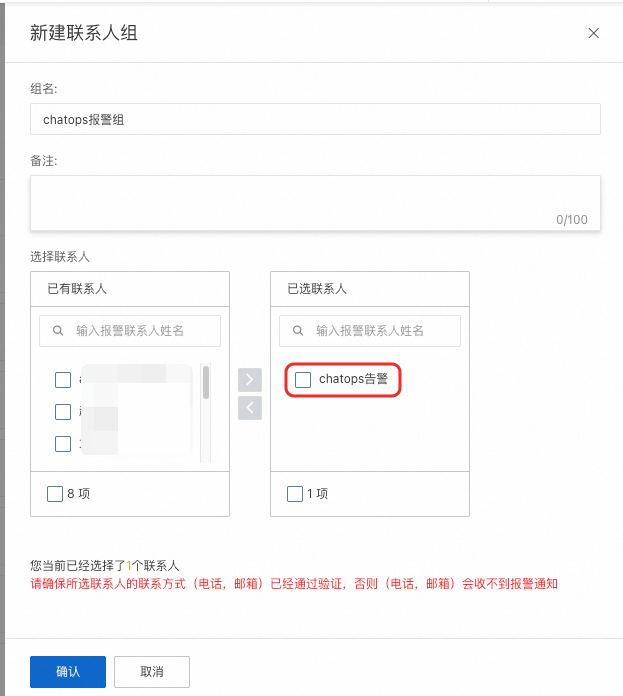
Create an alert contact group and add the alert contact to it.
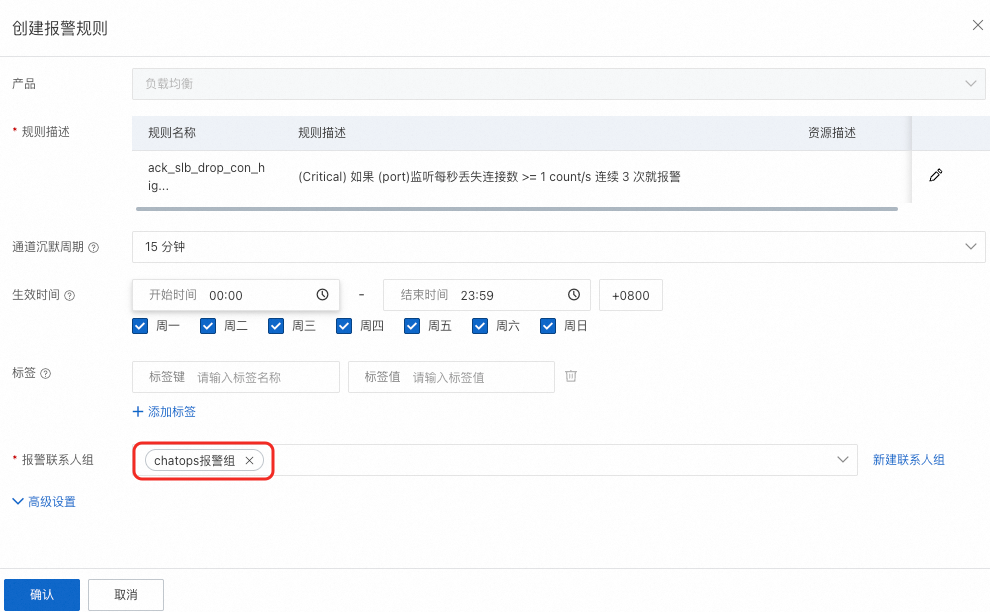
Create a CloudMonitor alert rule.
a. If you create a CloudMonitor alert rule directly, you can select the alert contact group you created.
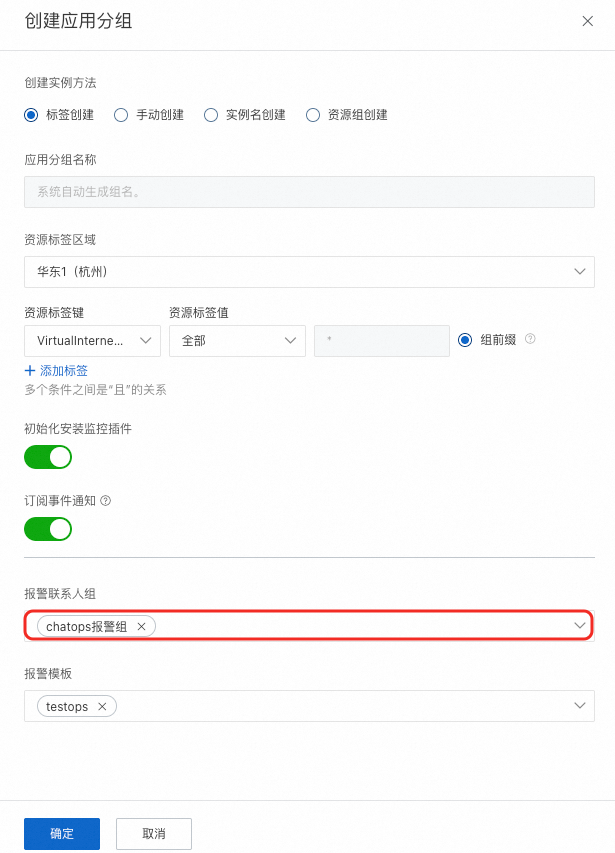
b. If you configure an alert rule using an alert template, you can configure the alert contact group in the application group.
Result
After you configure CloudMonitor alerts, you will receive alert notifications in the DingTalk group when alert conditions are met. You can then chat with this alert robot to further address the issue. For example, if you receive an alert that CPU usage is too high, you can reply directly to the alert robot to check the current CPU usage or restart the instance.

5. Scenarios and value
Scenario |
Traditional method |
DingTalk robot solution |
Value |
Emergency response to failures |
Wait 10 minutes to log on to a computer to handle the issue. |
Complete the operation on a mobile phone within 5 seconds, reducing the Mean Time To Repair (MTTR). |
Ensures business continuity. |
O&M during business travel |
Rely on a hotel computer or a borrowed device. |
Perform operations directly from a mobile phone without requiring extra devices. |
Improves mobile work flexibility. |
Cross-team collaboration |
Multiple people communicate and coordinate to log on to an account. |
Commands in the group are transparent. Granular permission control prevents incorrect operations. |
Reduces collaboration costs and enhances security. |
Daily resource inspection |
Manually check the status of each resource one by one. |
Send a command in the group to retrieve the health status of resources with one click. |
Saves a significant amount of inspection time. |
6. Notes
Principle of least privilege:
Assign the least privilege access to RAM roles. For example, allow an intern group to perform only queries.
Secondary confirmation for sensitive operations:
All write operations, such as deletions and scale-outs, trigger a secondary confirmation by default to prevent accidental actions.
By combining a DingTalk robot with the OOS AI Assistant, enterprises can achieve true "anytime, anywhere O&M". This ensures that failure response is no longer limited by devices or scenarios, safeguarding business stability.