Alibaba Cloud data source: PolarDB for PostgreSQL (Oracle-compatible)
Create a PolarDB for PostgreSQL (Oracle-compatible) cloud data source in Quick BI to connect to your database and analyze data.
Prerequisites
-
A PolarDB for PostgreSQL (Oracle-compatible) database is created.
-
You have the username and password for the PolarDB for PostgreSQL (Oracle-compatible) database.
Limitations
Versions 1.0 and 2.0 are supported.
Procedure
-
Add IP addresses to the whitelist.
Before you connect to a PolarDB for PostgreSQL (Oracle-compatible) database, you must add the IP addresses of Quick BI to the database whitelist. For more information, see Set Cluster Whitelist.
-
Test the connection and create the data source.
-
Log on to the Quick BI console.
-
To add the data source:
-
Navigate to the data source creation page. For details, see Create a data source.
-
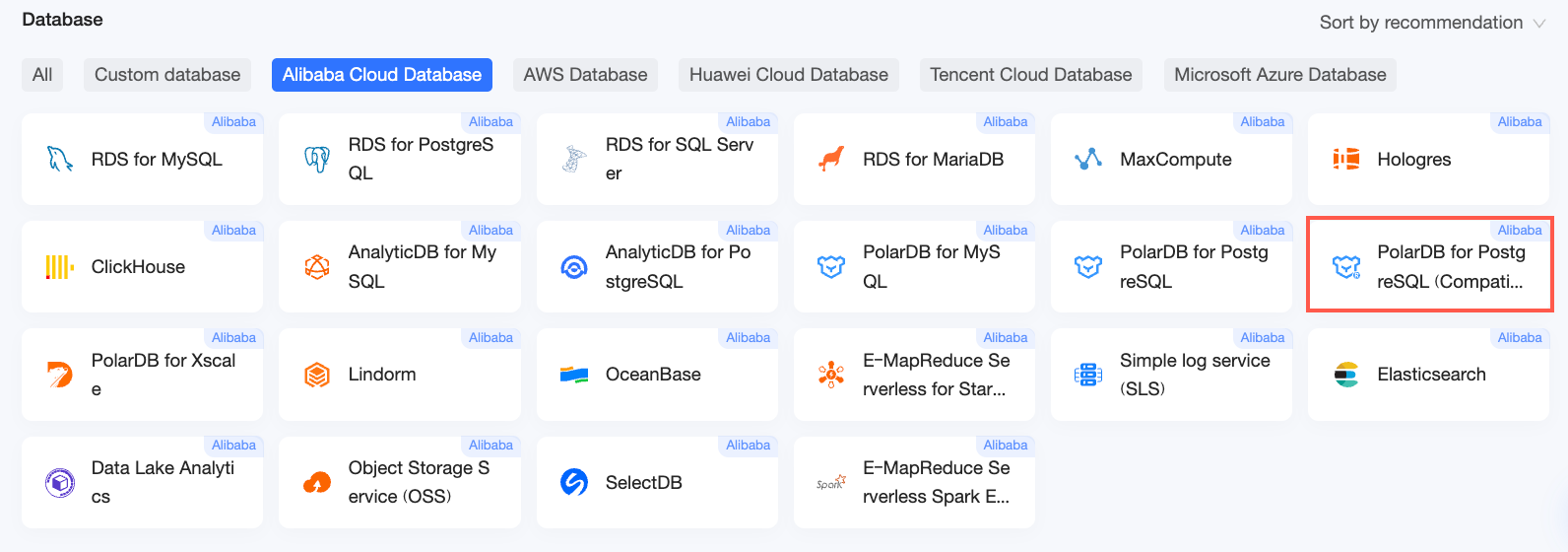
On the Alibaba Cloud Databases tab, select PolarDB for PostgreSQL (Oracle-compatible).
-
-
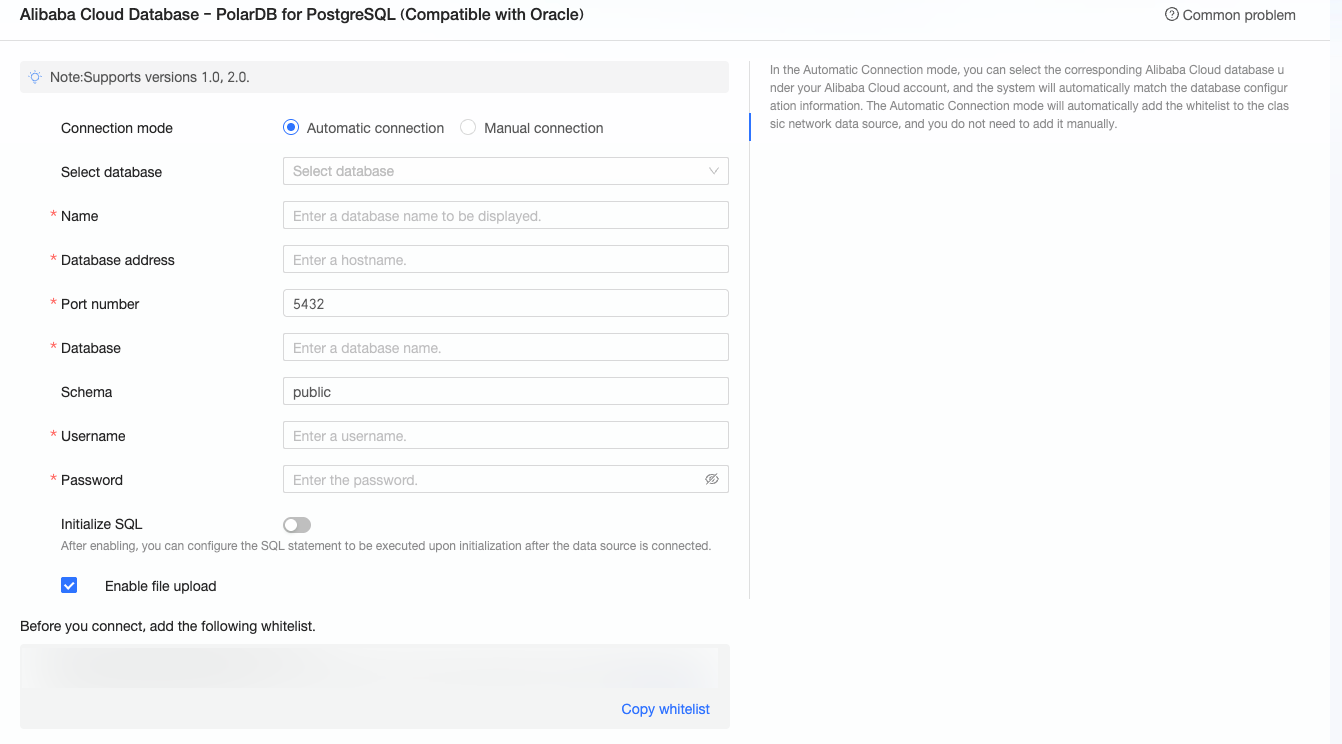
In the Configure Connection dialog box, configure the following parameters.
Parameter
Description
connection method
When you select automatic connection, the system populates the database configuration after you select a database from your account.
display name
The display name of the data source in the list.
The name must not contain special characters or leading or trailing spaces.
database address
The public endpoint of your PolarDB for PostgreSQL (Oracle-compatible) database. For a VPC data source, enter the internal address and port instead.
Log on to the PolarDB console and find the address under network information. Example:
xxxxxxxxxxxxxxxxxxxxxx.ppas.rds.aliyuncs.com.For more information, see View or apply for a connection string.
port
The port number of the database service.
database
The name of the database you want to connect to.
schema
The name of the schema you want to connect to.
username and password
The username and password for the database. The user must have CREATE, INSERT, UPDATE, and DELETE permissions on the tables.
VPC data source
If your database is in a Virtual Private Cloud (VPC), select VPC Data Source and configure the following parameters.
-
AccessKey ID and AccessKey Secret: The AccessKey pair of an account that can access the target database. The account must have read permissions on the instance. If the account also has write permissions, the system automatically adds the required IP addresses to the whitelist. Otherwise, add them manually. For more information, see Create a custom policy.
To obtain the AccessKey ID and AccessKey Secret, log on to the RAM console.
-
instance ID and region: The ID and region of the database instance.
To obtain this information, log on to the PolarDB console.
-
instance version: Select the version of your instance. Supported versions are 1.0 and 2.0.
NoteIf you select VPC Data Source, enter the database's internal address and port in the Database Address and Port fields.
initial SQL
SQL statements that run immediately after a connection is established.
Only SET statements are allowed. Separate multiple statements with semicolons (;).
Enable file upload entry
Enables file uploads for this data source.
-
-
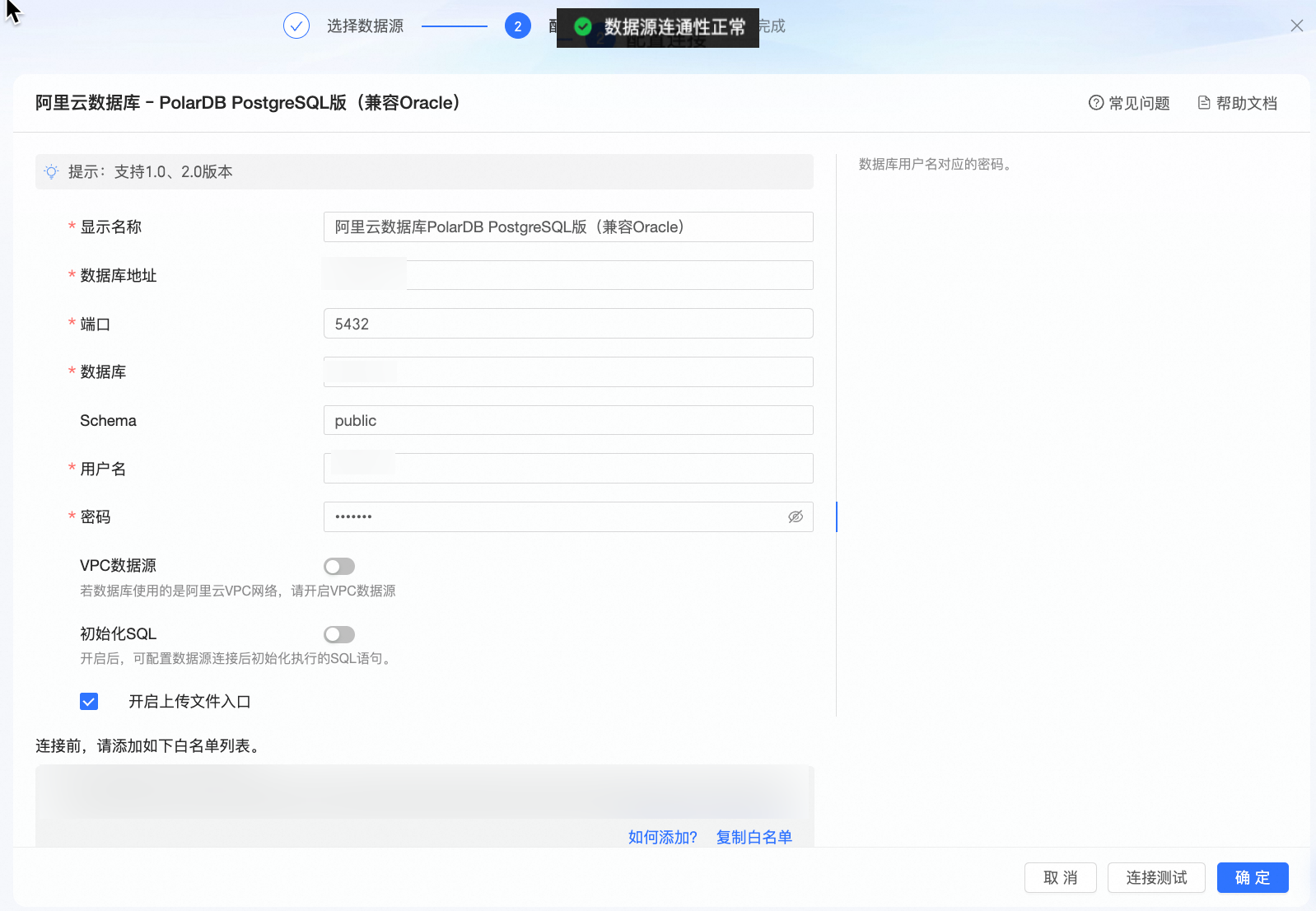
Click Test Connection to test the connection.
-
If the connection test is successful, click OK to add the data source.
-
Next steps
After you create the data source, you can create datasets and start analyzing data.
-
To add data tables or custom SQL queries from your PolarDB for PostgreSQL (Oracle-compatible) data source to Quick BI, see Create a dataset.
-
To add visual charts and analyze data, see Create a dashboard and Overview of visual charts.
-
To drill down into your data, see Step 3: Configure and display drill-down settings.