Drilling
Quick BI provides drilling, filter interaction, and hyperlink features to facilitate multi-dimensional data analysis. This topic describes the use cases and procedures for the drilling feature.
Use cases
When analyzing company-wide sales data, use drilling to change the analysis granularity. For example, you can drill down from a regional to a provincial level within a geographical dimension to view more detailed data.
Limitations
The following charts support the drilling feature.
Tables: cross tables, detail tables, multi-dimensional analysis tables, and heatmaps.
Line/area charts: line charts, area charts, stacked area charts, 100% stacked area charts, and combination charts.
Column/bar charts: column charts, stacked column charts, 100% stacked column charts, radial column charts, ranking boards, bar charts, stacked bar charts, 100% stacked bar charts, waterfall charts, bullet charts, and box plots.
Pie/doughnut charts: pie charts, rose charts, radar charts, and treemaps.
Bubble/scatter charts: bubble charts and scatter charts.
Geo: choropleth maps, bubble maps, and symbol maps.
Other: word clouds.
Step 1: Edit the dataset
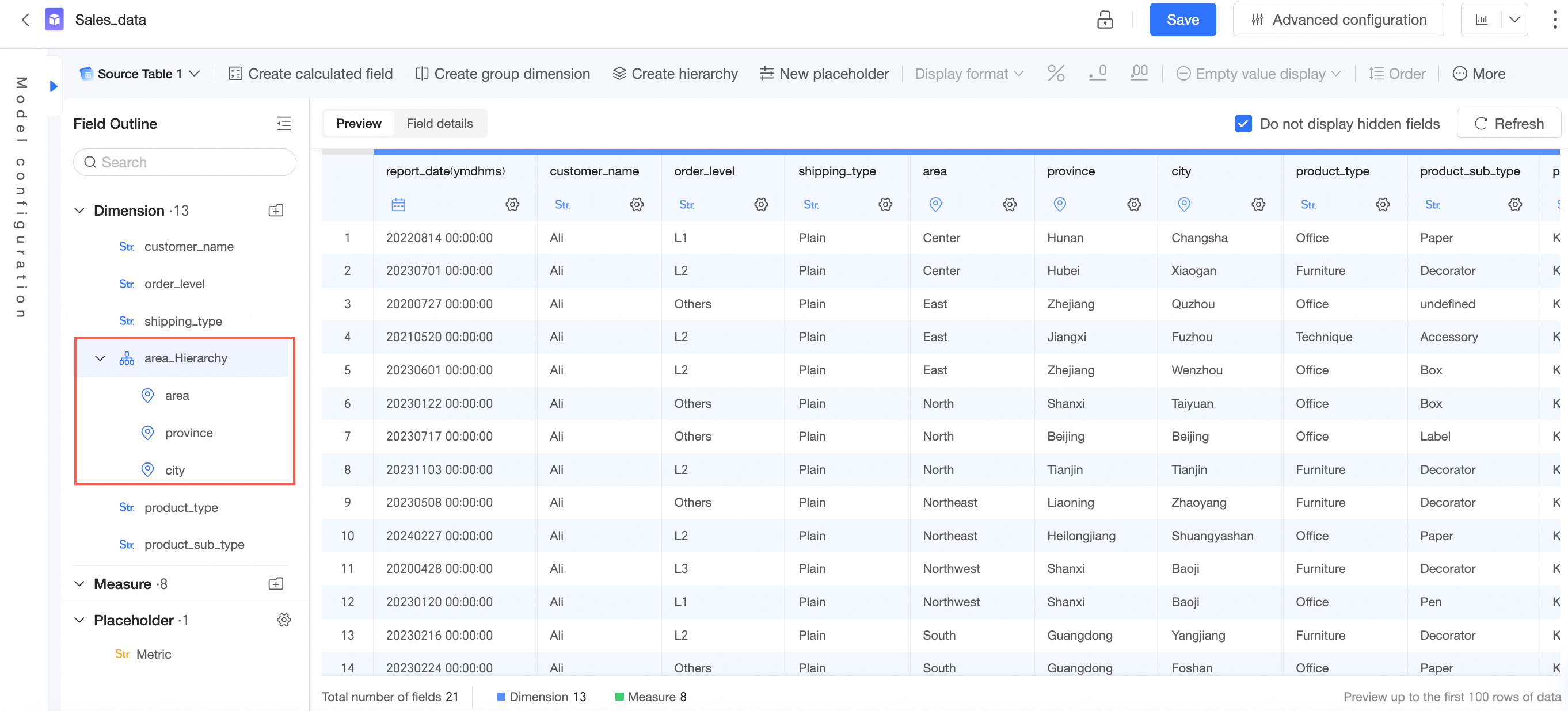
In this example, you will use Region, Province, and City. Ensure that these fields are converted to Geo information and added to the same hierarchy as follows.
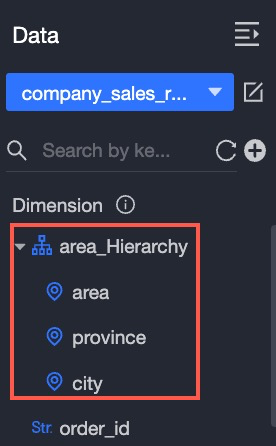
If the Region, Province, and City fields in the target dataset have been converted to geographic information, skip this step.
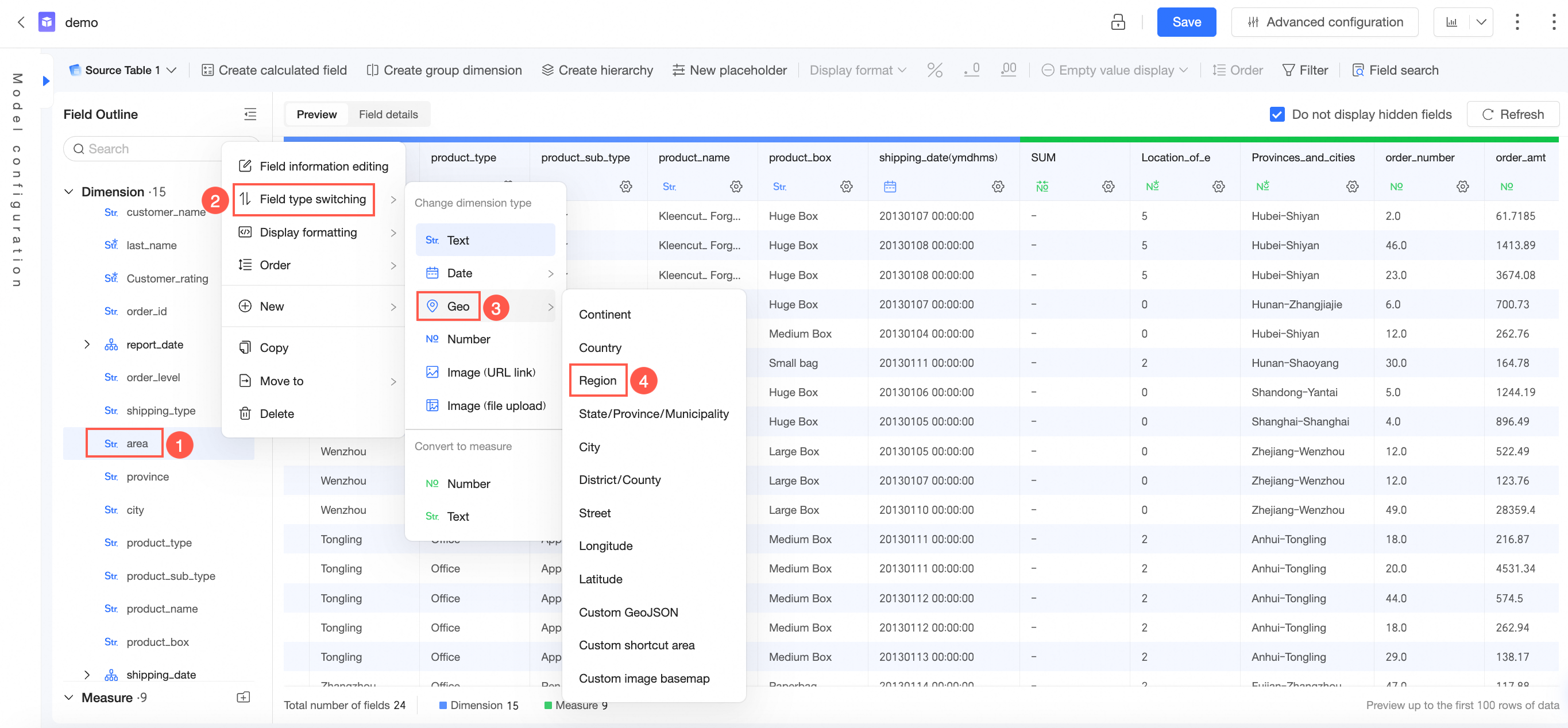
On the dataset edit page, in the field outline or data preview area, hover over the target field, click the
 icon, and select Change Field Type > Geo > Region.
Take the area field as an example.
(Optional)
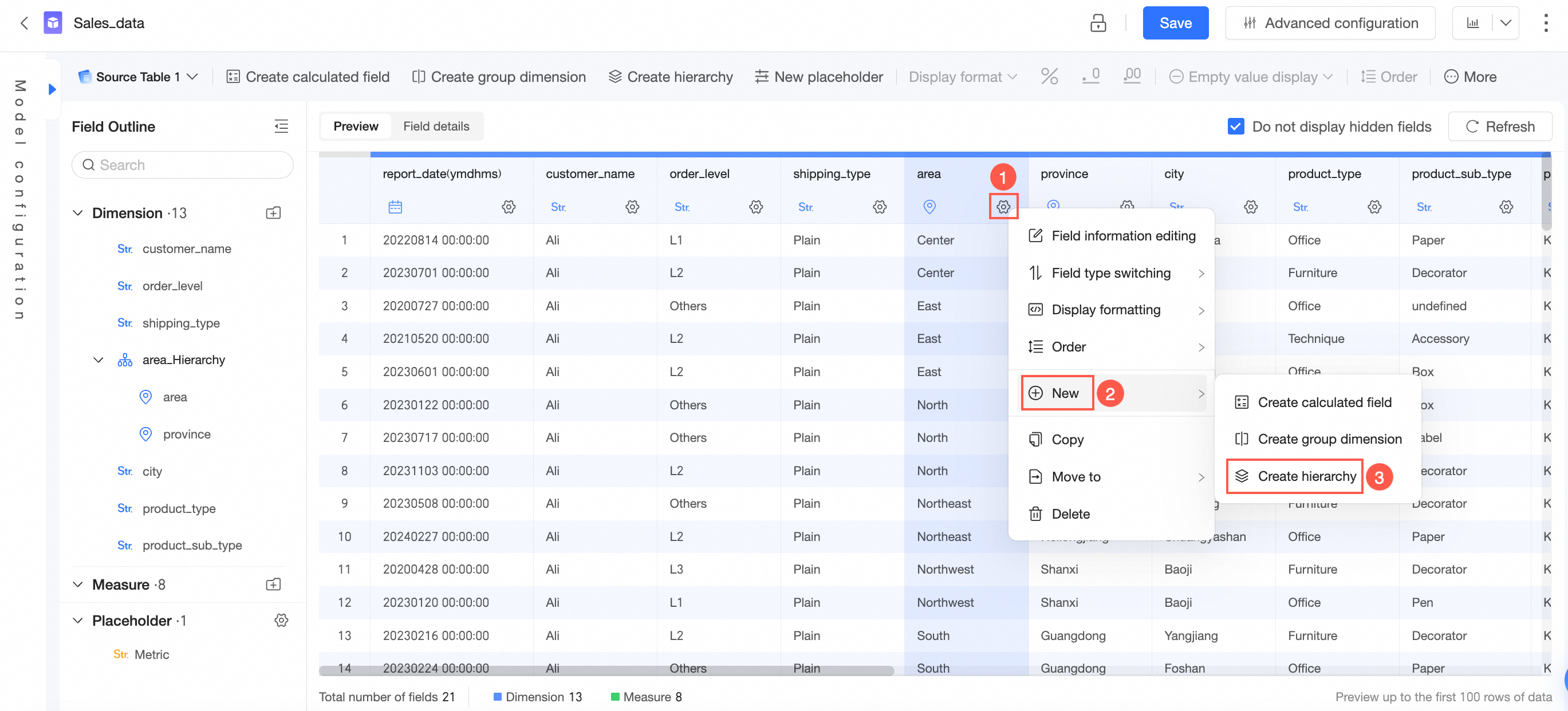
Create a hierarchy.
Find the target geographic information field in the dimension list and Create a New Hierarchy as shown in the following figure.
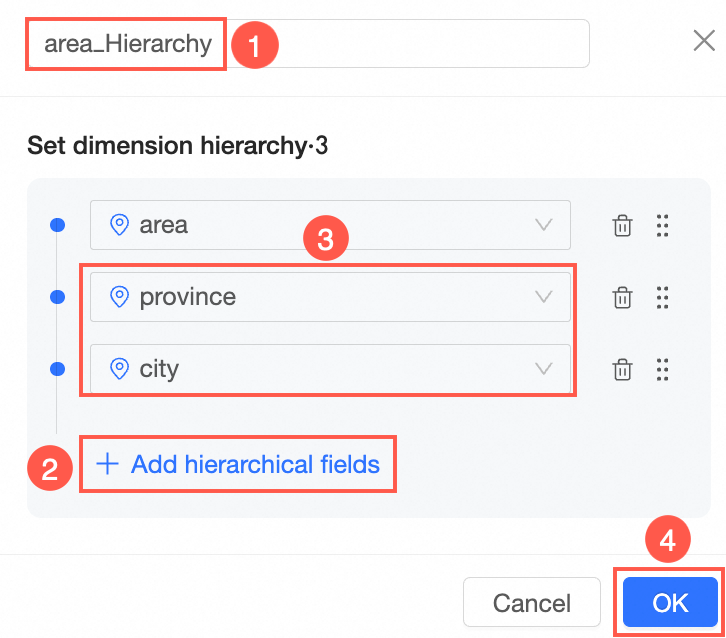
On the Create/Edit Hierarchy page, customize the hierarchy name, add hierarchy fields, and click OK.
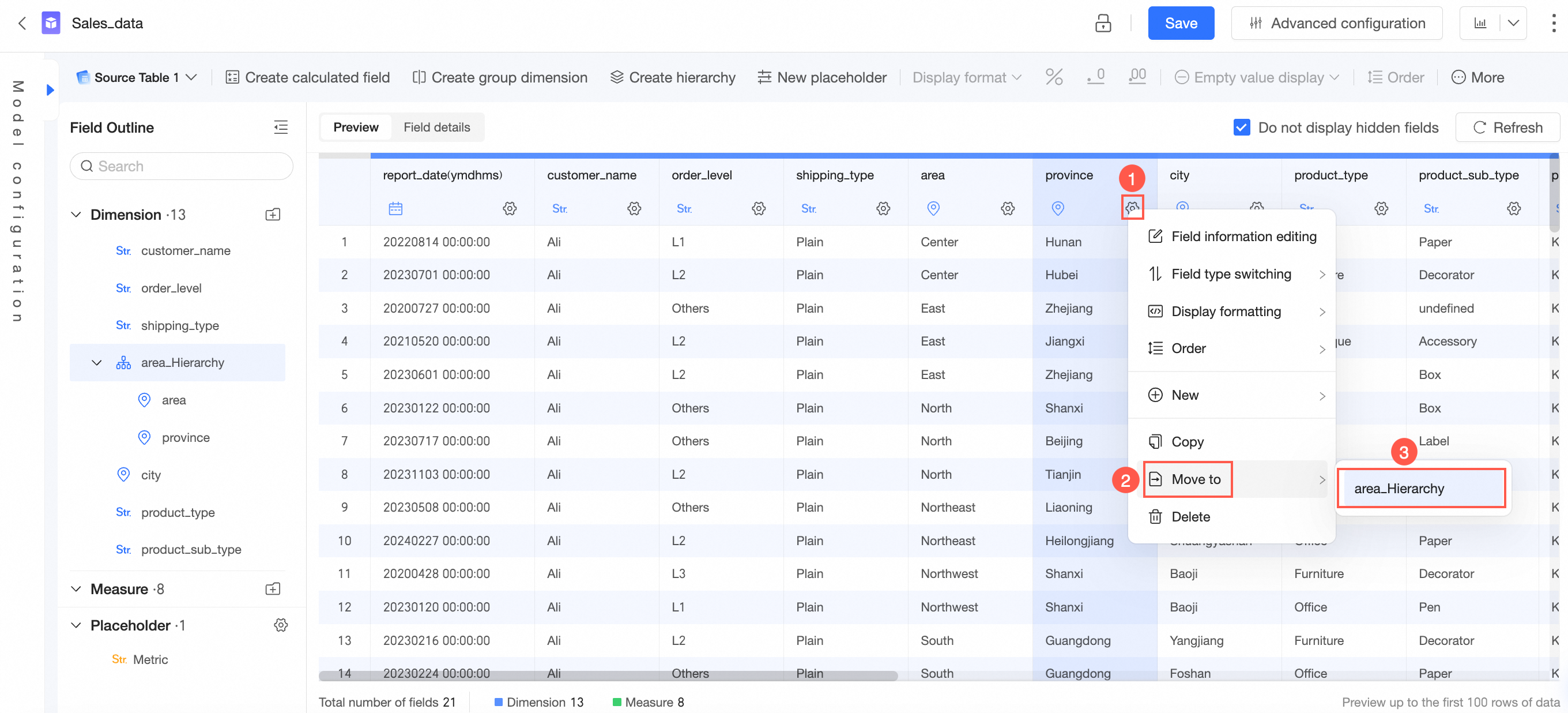
 You can also click the
  icon to the right of the target field, select Move to area_Hierarchy, and then sequentially move the other Geo dimension fields into this hierarchy.
The system automatically displays the data in the table.
After you finish editing the dataset, click Save.
Step 2: Create a dashboard
You need to create two dashboards. In this example, you will first create the Company Overview Data dashboard.
Log on to the Quick BI console.
Go to the dashboard page.
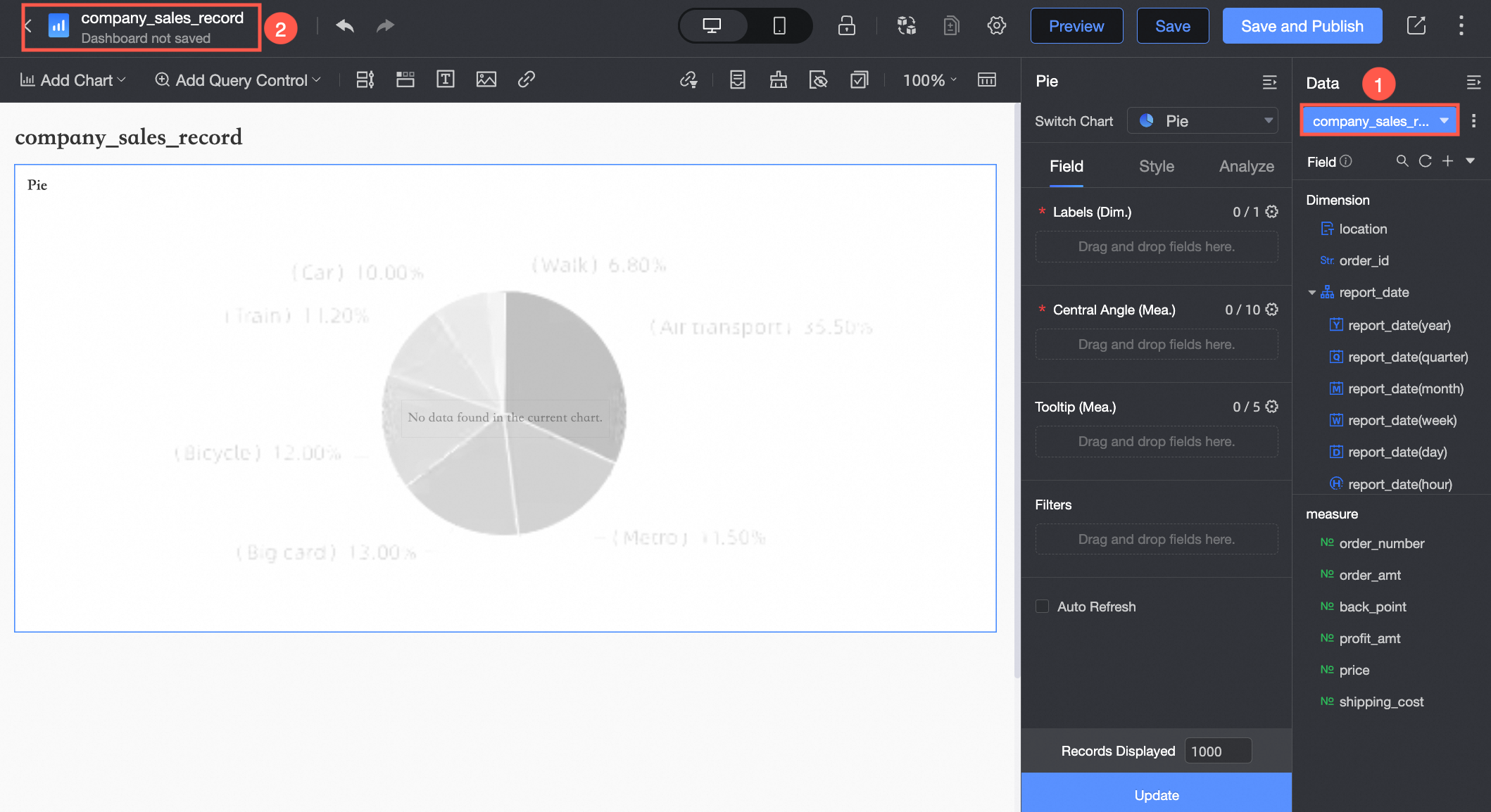
As shown in the figure below, select Sales Data as the dataset for the dashboard, and name it Company Overview Data.
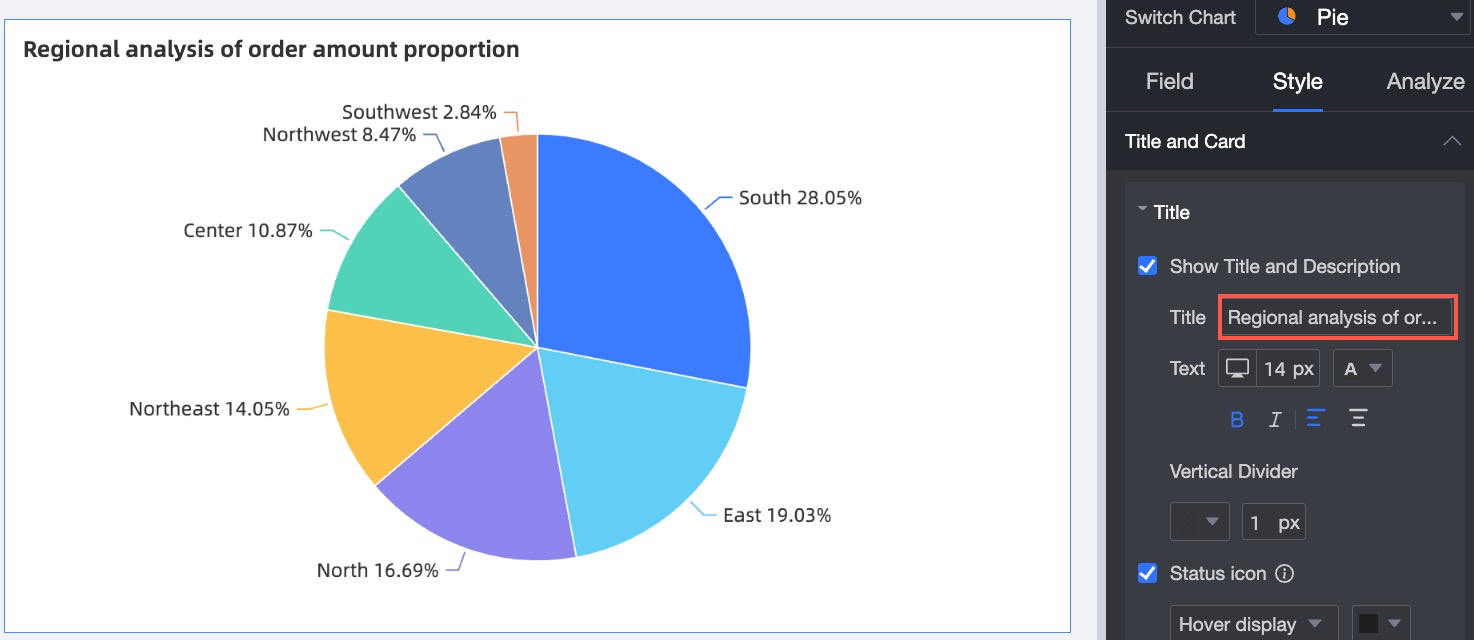
Add a pie chart to the dashboard and name it Regional Order Count Ratio Analysis.
Step 3: Configure drilling
Configuration steps
The drilling feature must be configured manually. This example uses a pie chart.
On the Data tab for the pie chart, click the
icon to the right of the target dimension Area.If the filter interaction feature is already enabled for this pie chart, a dialog box appears when you configure drilling, prompting you to choose how a click event is handled. For more information, see Method 2: Configure from the advanced settings entry.
Set the drill-down hierarchy.
In this example, the drill-down order is Region > Province > City.
You can also perform the following operations:
Add a drill-down dimension: Drag the required drill-down dimension to the Drill-down/Dimension area and adjust the order.
Modify the drill-down order: In the Drilling/Dimension area, select the target field and drag it to adjust the order.
Delete a drilling dimension: In the Drilling/Dimension area, select the target field and click the
icon.
NoteYou can set up to three drill-down items for a cross table and one for any other chart type. A maximum of six drill-down levels are supported.
Click Update.
If Status Icon is set to Always Show, a
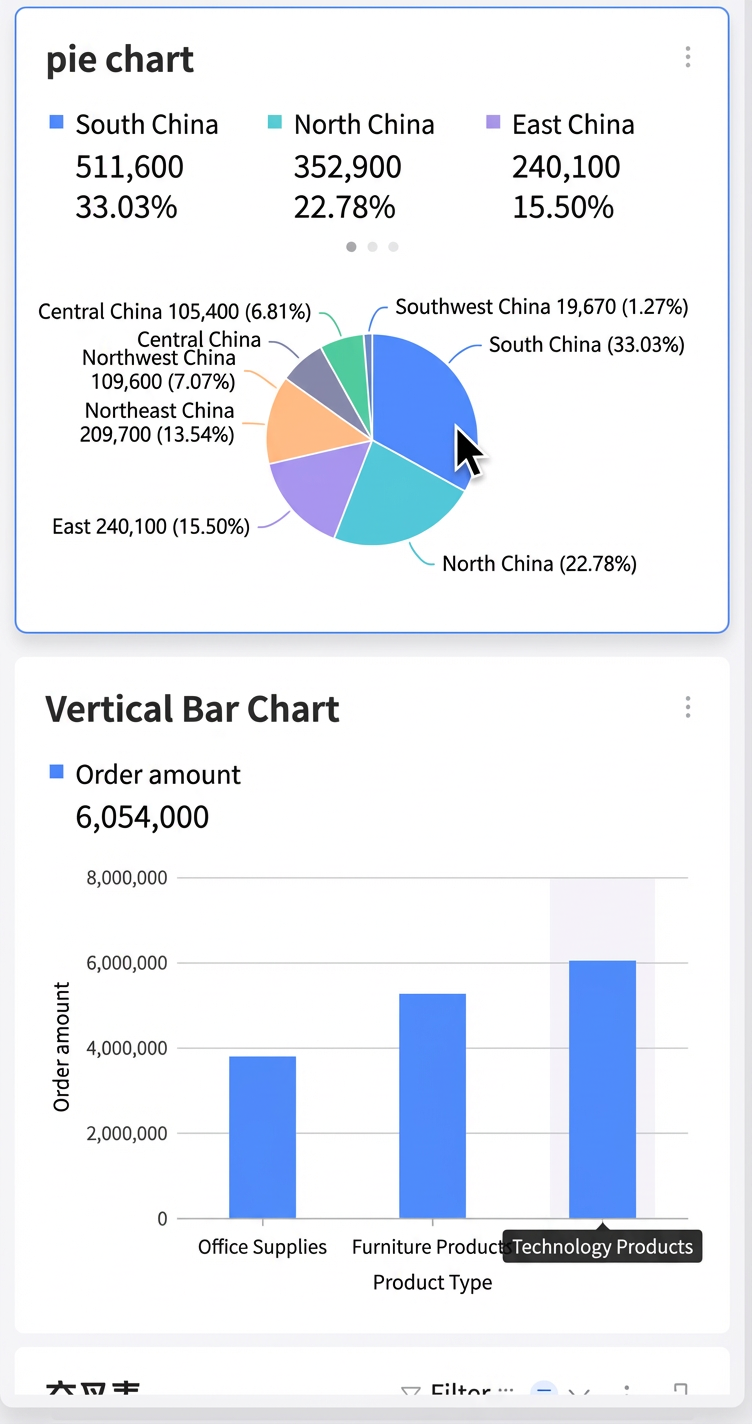
icon appears in the upper-right corner of the chart title, as shown in the following figure. For information about configuring the status icon, see Configure the title.
 icon to the right of the target dimension Area.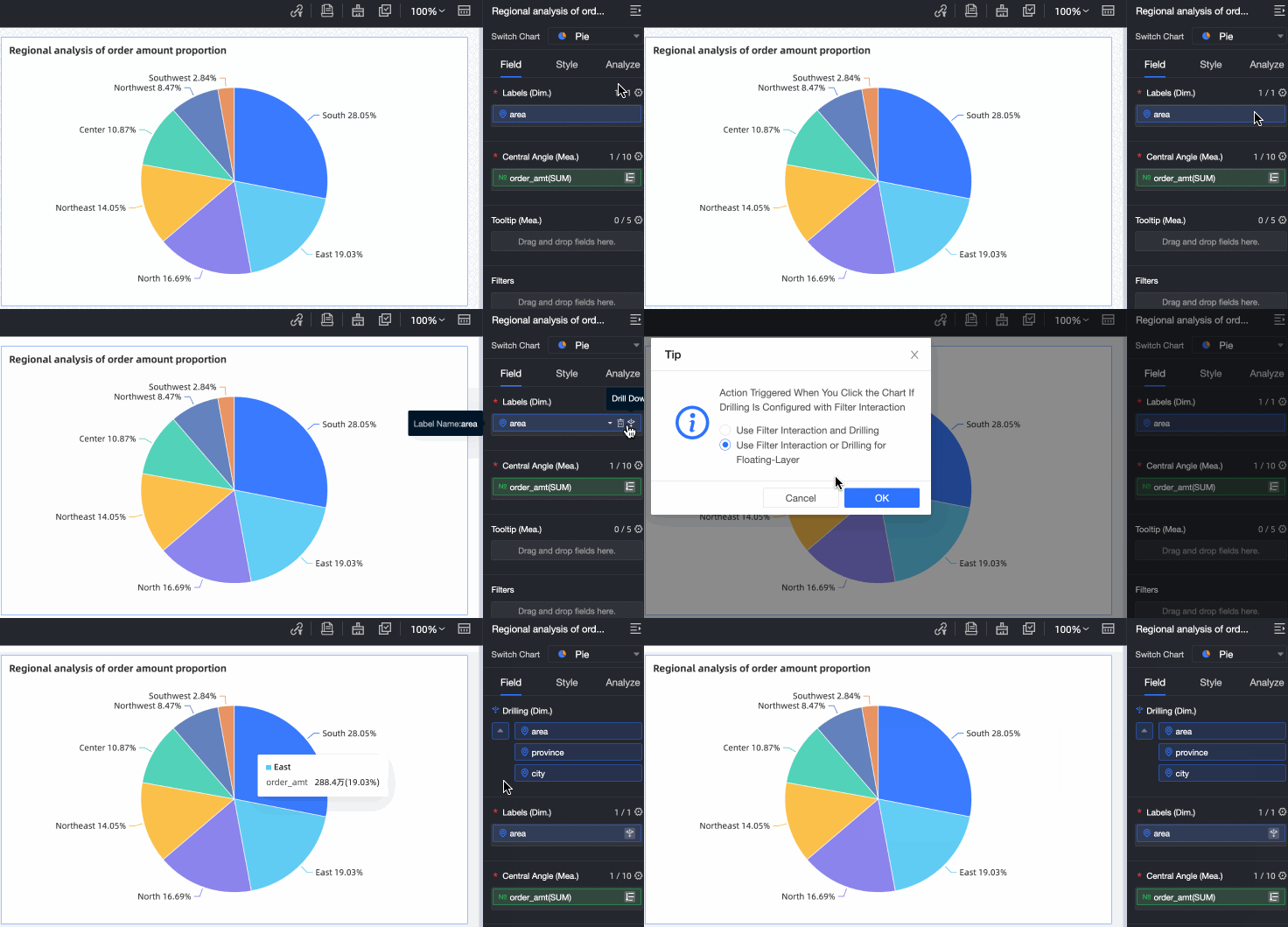
 icon.
icon. icon appears in the upper-right corner of the chart title, as shown in the following figure. For information about configuring the status icon, see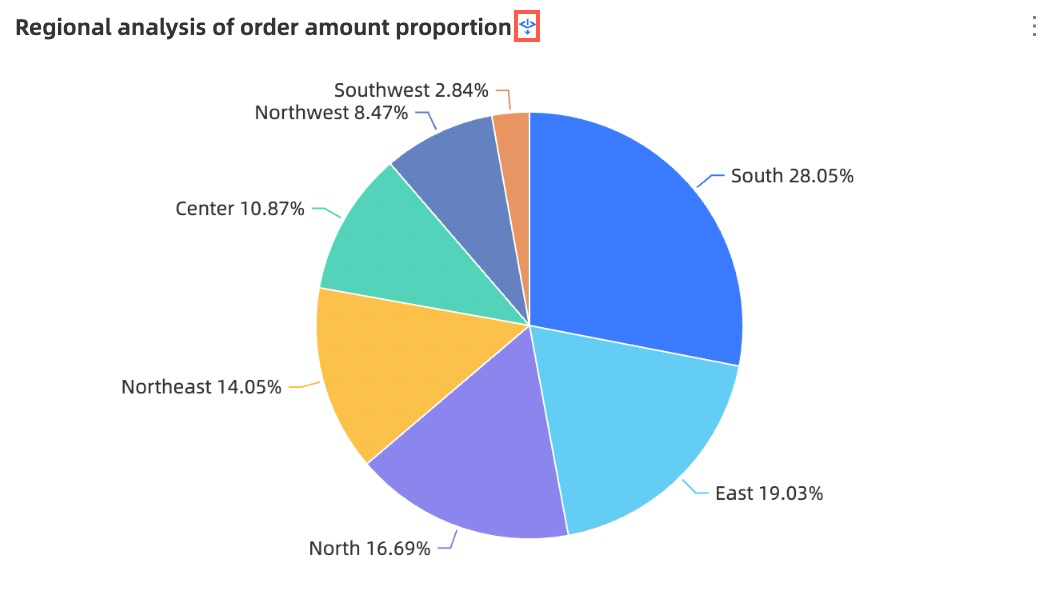
Results
PC client
Click the South China region to drill down to province-level data. Then, click the Guangdong province to drill down to city-level data.
To drill up from city-level data to province-level data, click the province label in the lower-left corner of the chart. You can also click the region label to drill up.Mobile client
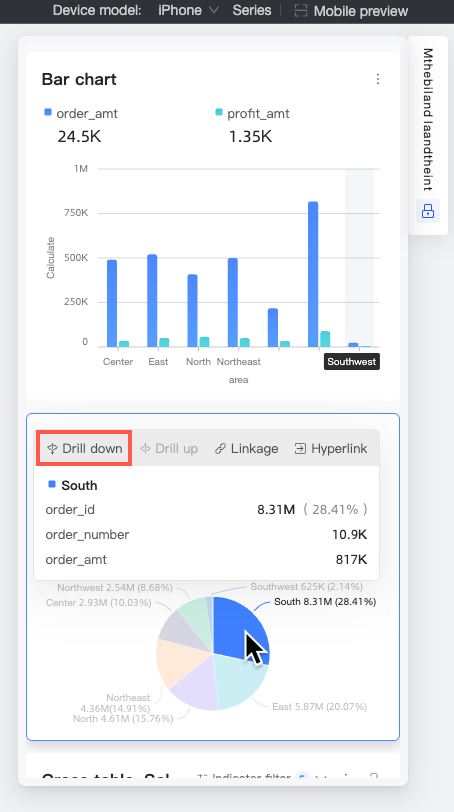
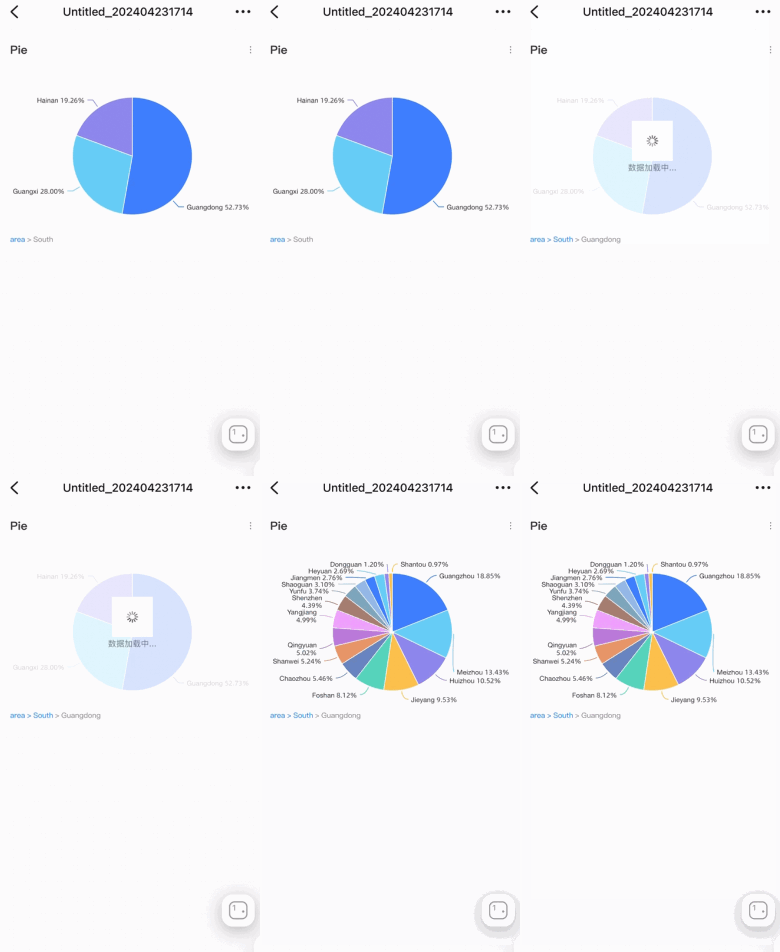
Select the South China region and tap Drill down in the interactive analysis action bar to view province-level data. Then, tap the Guangdong province and tap Drill down in the action bar to drill down to city-level data.
To drill up from the city level to the province level, you can tap the province label below the chart. Alternatively, select an item on the chart and tap the Drill up button in the interactive analysis action bar.
If tooltips are enabled for the chart, the drill-down option also appears in the tooltip.
You can also enable a long-press gesture for drilling down on the mobile client.
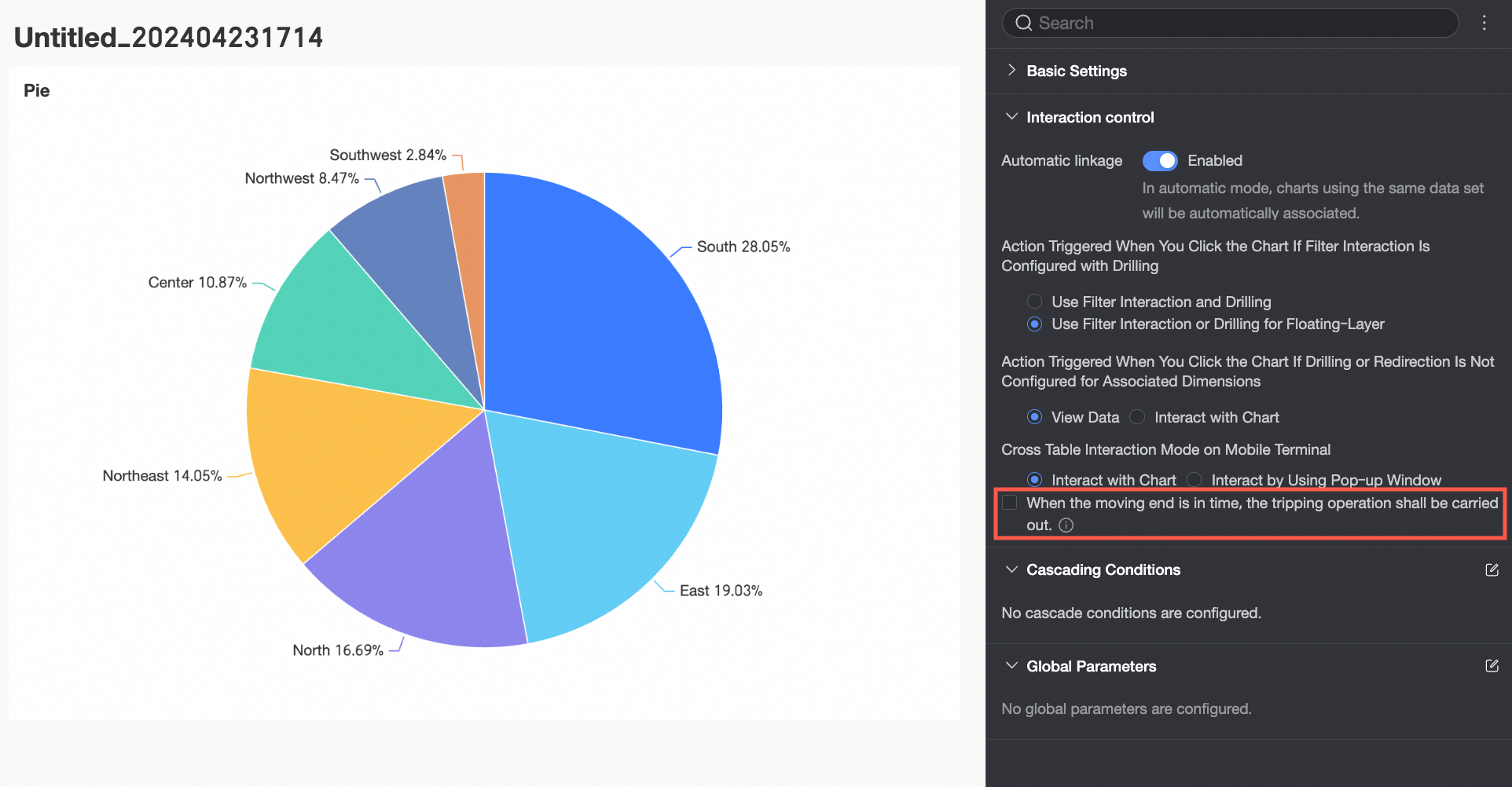
Go to Page Settings > Advanced > Interaction Control and select Drill down by long press on mobile.
You can now long-press to drill down on a mobile client.
You can long-press the chart area or the data label text area to drill down.
NoteOnly pie charts, doughnut charts, rose charts, and treemaps support long-press drill-down on the chart area.
Only pie charts, doughnut charts, and rose charts support long-press drill-down on the data label text area.
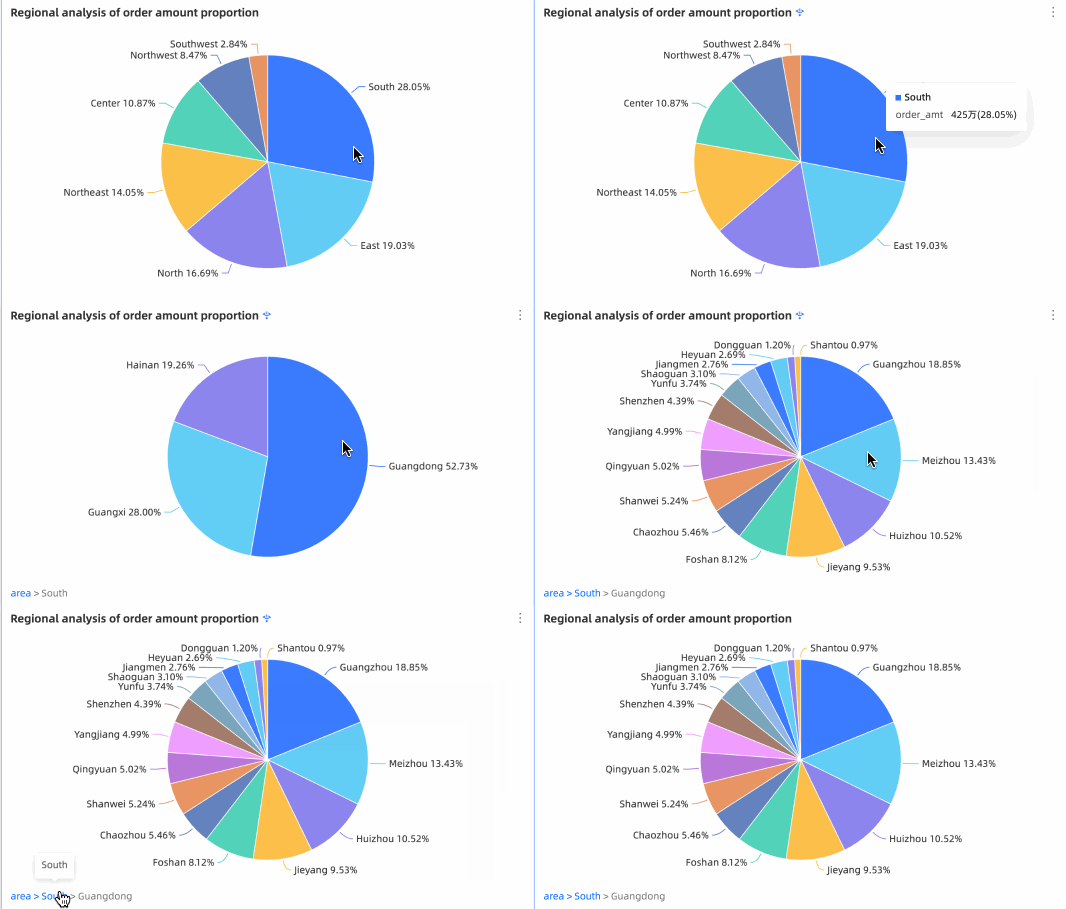 To drill up from city-level data to province-level data, click the province label in the lower-left corner of the chart. You can also click the region label to drill up.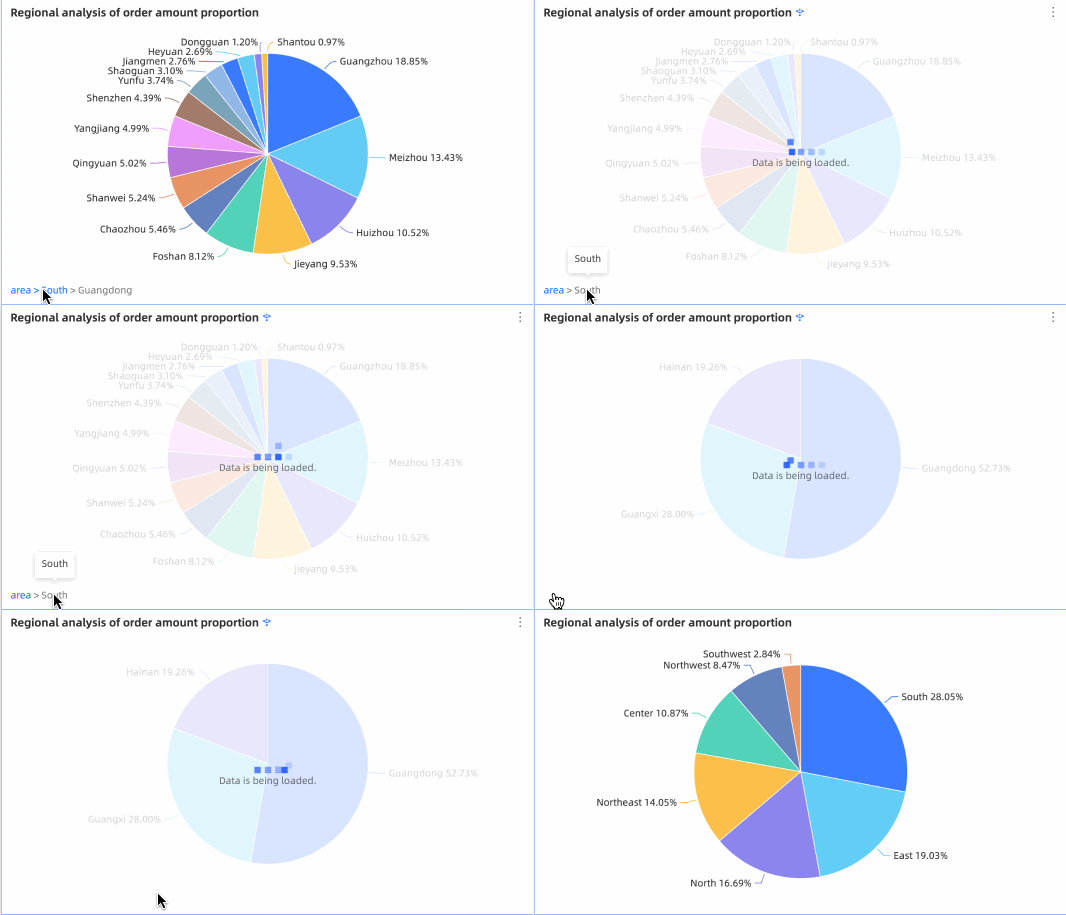
Drill path display settings
Access settings
As shown in the figure, go to the pie chart's (①) Analysis tab. In the Data Interaction section, click Drill-down to expand the (②) settings.
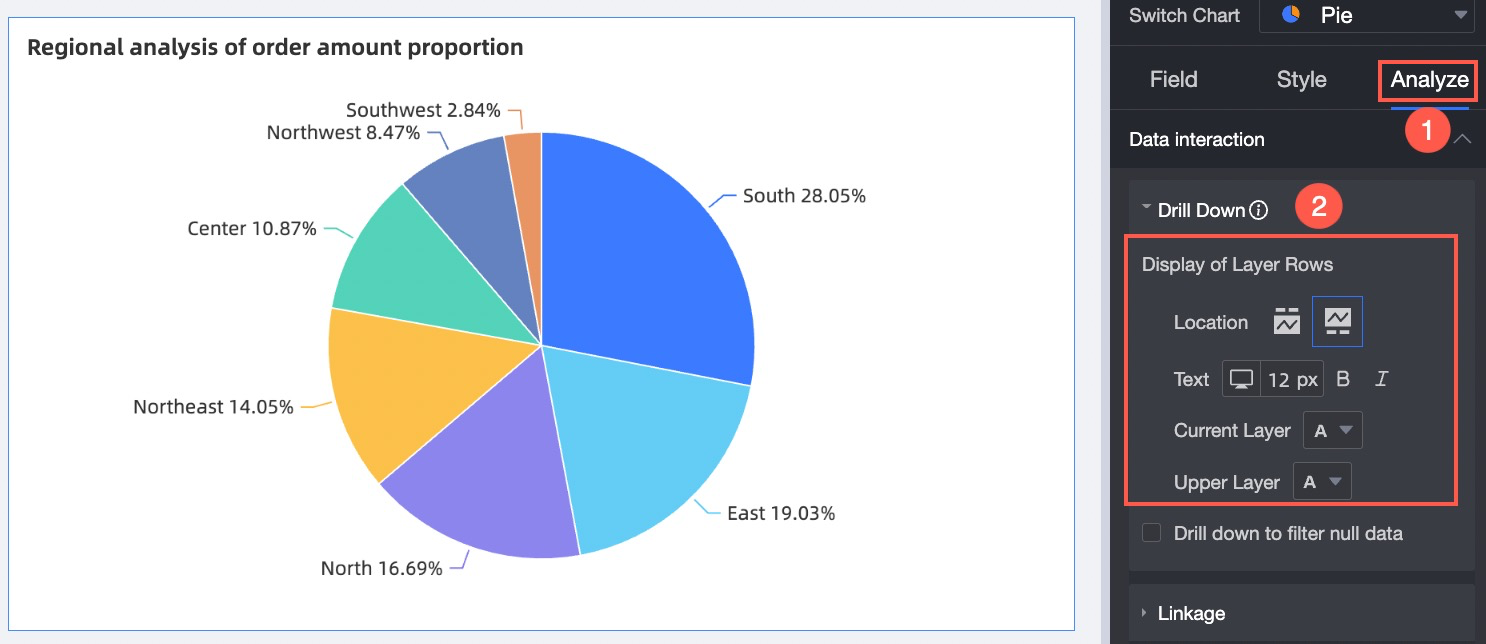
Parameters
Parameter | Description |
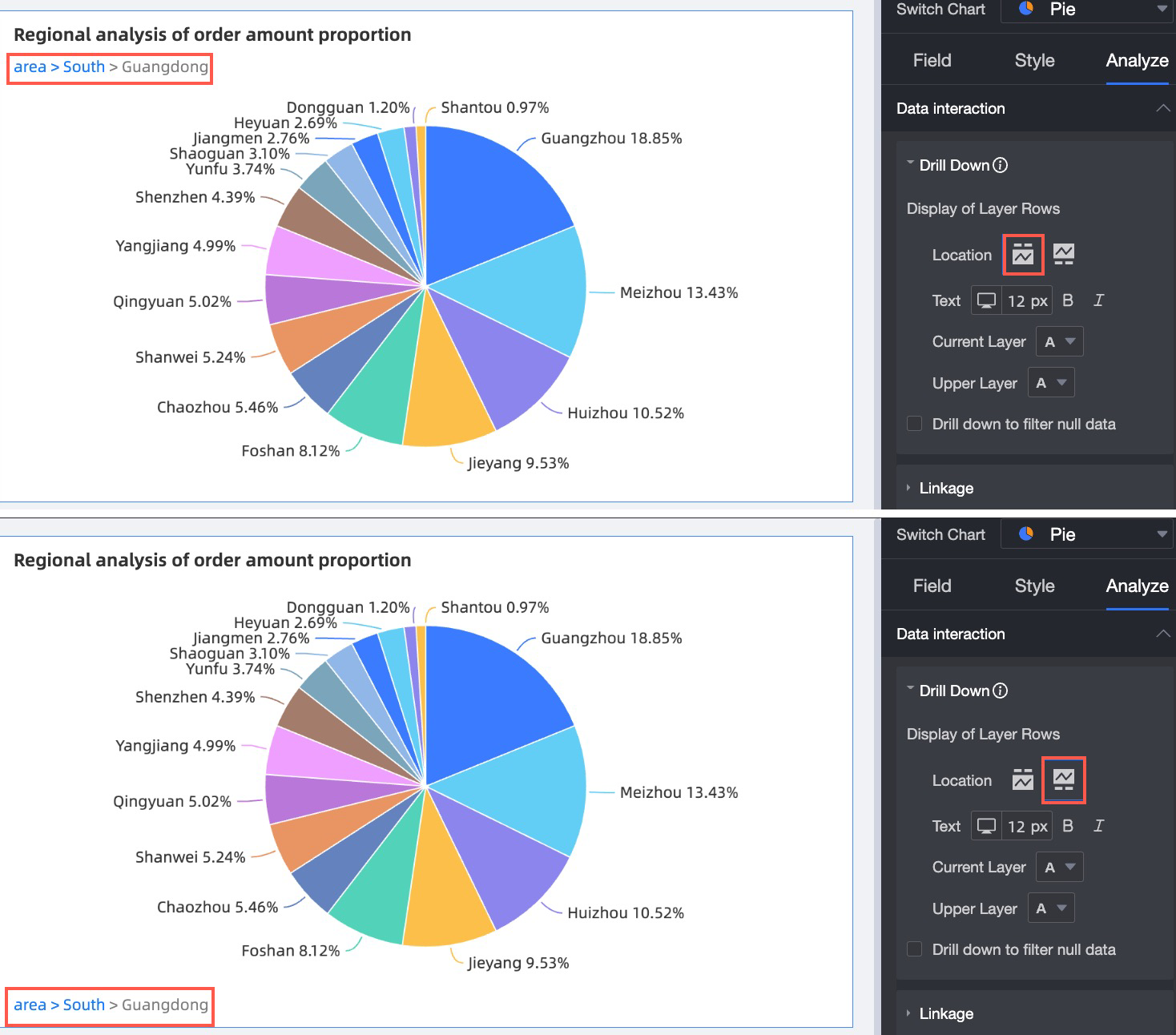
Position | Specifies the position of the drill path: above the chart or below the chart.
|
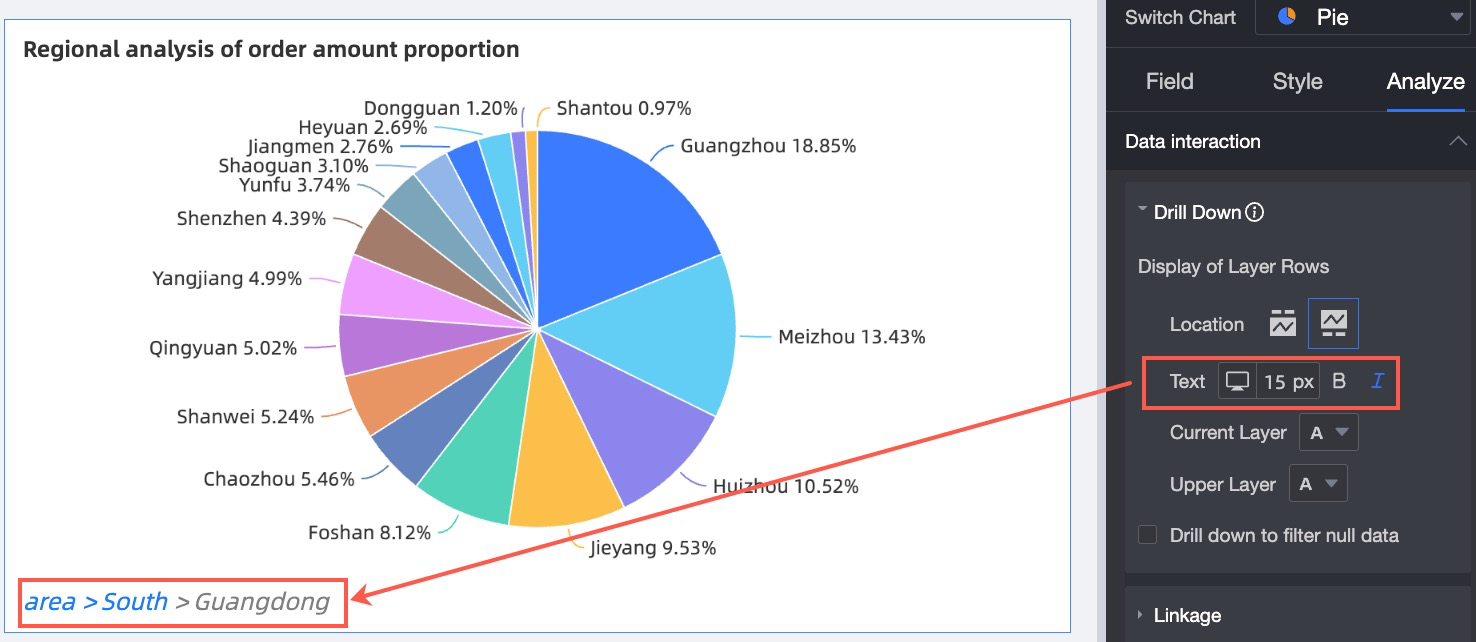
Text | Specifies the text style for the drill path, including font size, bold, and italics.
|
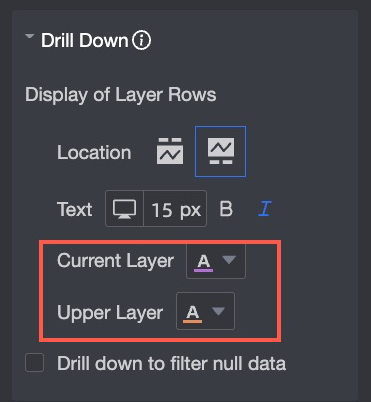
Current/Parent Level Color | Specifies the font color for the current and parent levels of the drill path.
|
Auxiliary field settings for drilling
An auxiliary field is dynamically added after the drill-down field to provide descriptive or supplemental information for the primary field.
Use cases
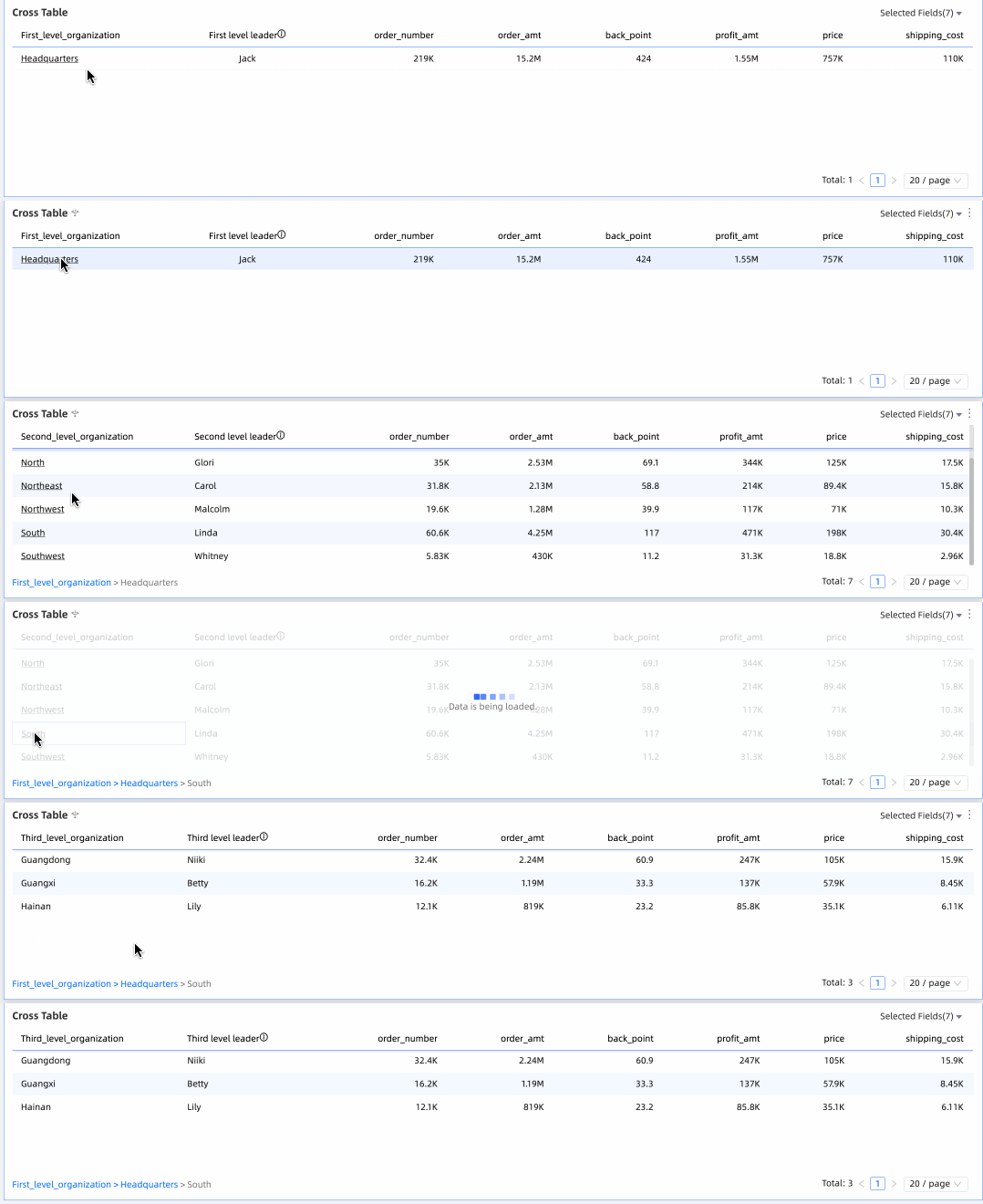
For example, consider data with an organizational structure, such as Headquarters (Level 1) > Region (Level 2) > Sub-region (Level 3). Before drilling down, you can see the manager for the Headquarters. After drilling down into Headquarters, you then see the manager for each Region. This dynamic display is enabled by configuring an auxiliary field for the drill-down dimension.
Only table charts support displaying auxiliary fields for drilling.
Procedure
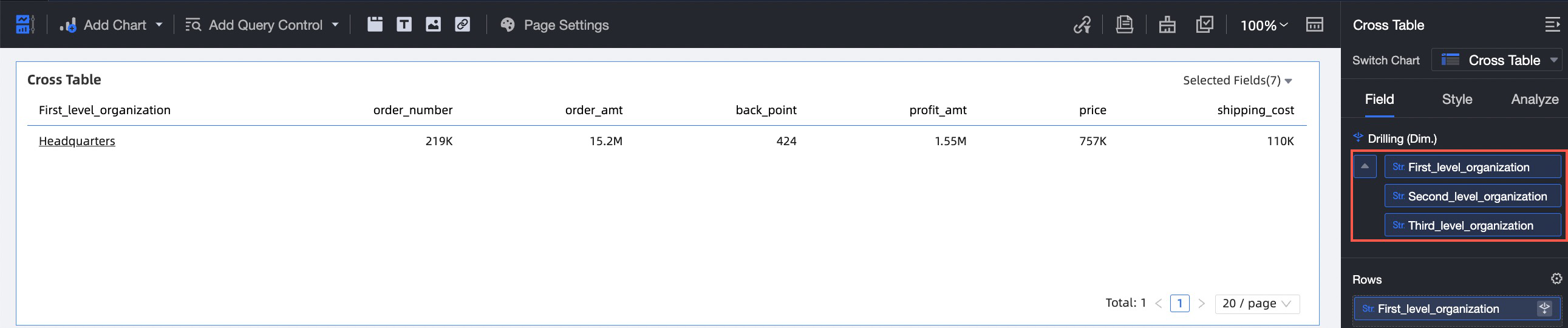
The cross table shown below is configured for drilling with the following drill-down order: Level 1 Org > Level 2 Org > Level 3 Org. For configuration steps, see Step 3: Configure and view drilling.
Hover over the desired dimension, click the drop-down arrow, and select Auxiliary Field from the menu to open the configuration pane.
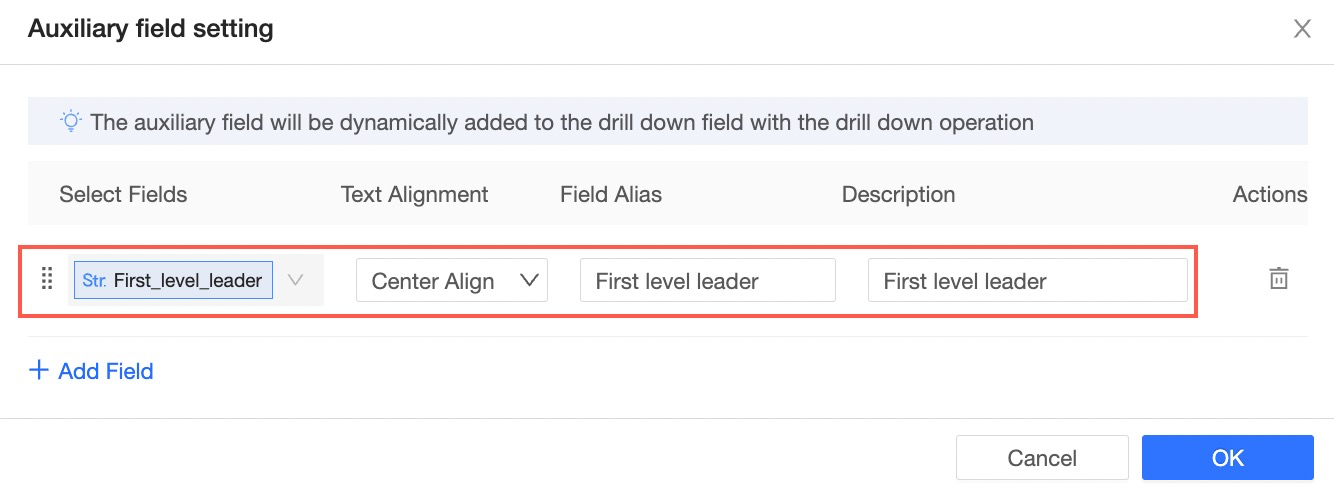
In the configuration pane, you can set the auxiliary field for the Level 1 Org field. Add the Level 1 Manager field, set the alignment to Center, and set the display name to Level 1 Manager.
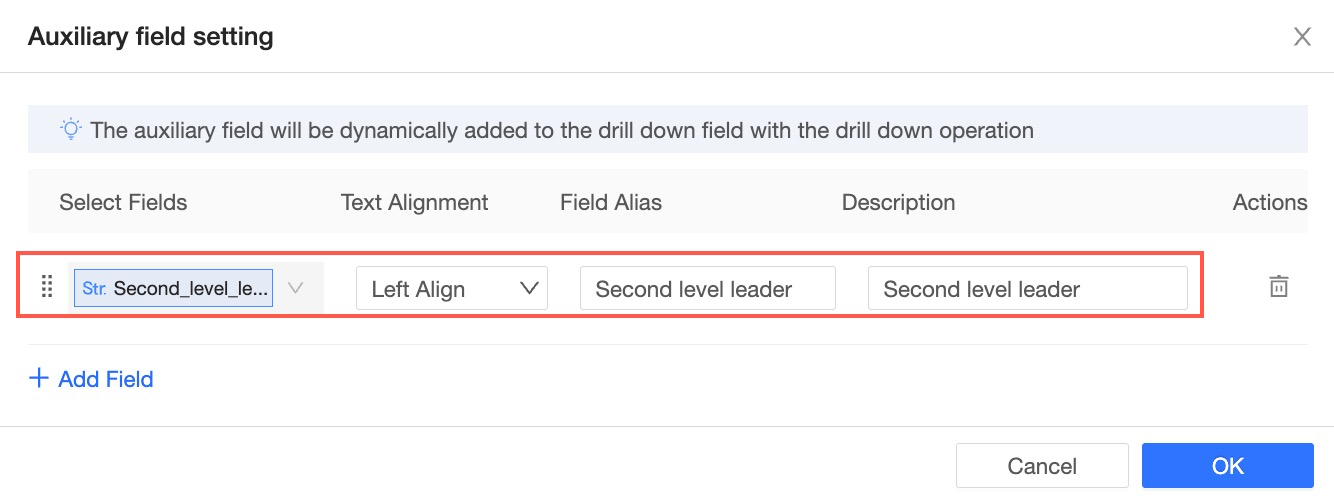
Next, configure the auxiliary field for the Level 2 Org field. Add the Level 2 Manager field, set the alignment to Left, and set the display name to Level 2 Manager.
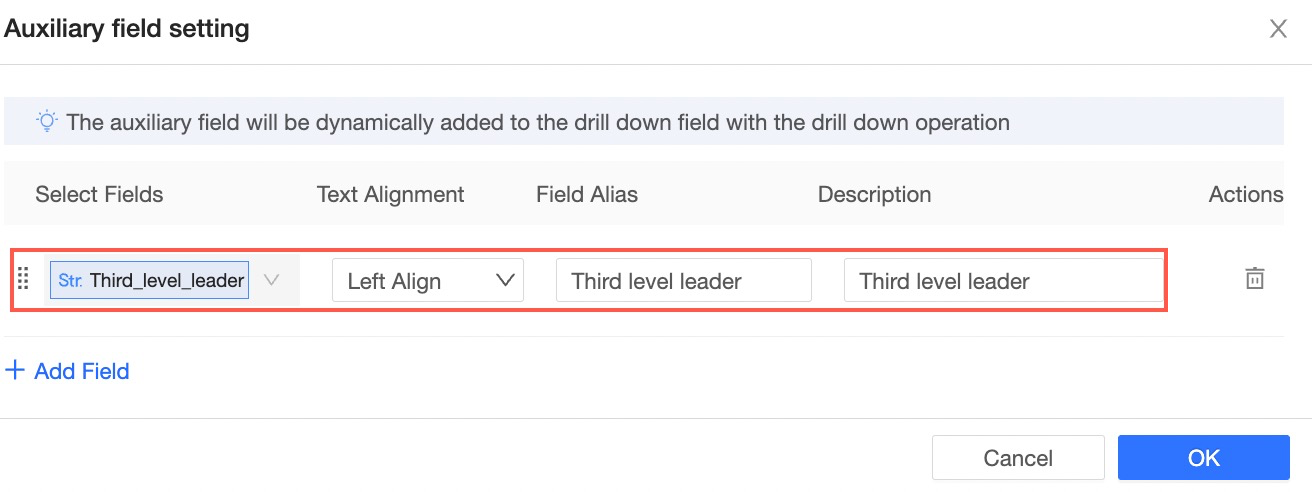
Next, configure the auxiliary field for the Level 3 Org field. Add the Level 3 Manager field, set the alignment to Left, and set the display name to Level 3 Manager.
Click OK to complete the configuration. The result is shown in the following figure. Initially, you can view the manager for the Headquarters (Level 1). Clicking Headquarters reveals the managers for the East China and South China regions (Level 2). Clicking the South China region then shows the managers for the Guangfo, Shenzhen, and Fujian sub-regions (Level 3).

Related operations
To automatically apply a drill-down action to all associated charts that use the same drill-down dimension, you can configure synchronized drilling. For more information, see Configure synchronized drilling.