Alibaba Cloud RDS MySQL Data Source
Add a MySQL data source to connect your Alibaba Cloud MySQL database with Quick BI. After a successful connection, you can analyze and visualize data in Quick BI. Quick BI supports connecting to Alibaba Cloud MySQL over the public Internet or through an Alibaba Cloud VPC. This topic describes how to add an Alibaba Cloud MySQL data source.
Prerequisites
You have created an Alibaba Cloud MySQL database. For more information, see Create an RDS MySQL instance.
Limits
MySQL versions 5.5, 5.6, 5.7, and 8.0 are supported.
Background information
If you use an Alibaba Cloud RDS MySQL database and want to perform data analytics in Quick BI, add a MySQL-type cloud data source. For details about RDS MySQL, see RDS MySQL.
When connecting a MySQL cloud data source to Quick BI, you can use either the public Internet or an Alibaba Cloud VPC. The required configuration steps differ based on the network type, as shown in the following figure.
To prevent connection failures caused by whitelist restrictions, add the IP address ranges used by Quick BI in different network environments to your data source whitelist. For more configuration details, see Step 2: Connect to an RDS MySQL instance.
Procedure
Add the whitelist.
Before connecting to Alibaba Cloud MySQL, add the Quick BI IP addresses to the Alibaba Cloud MySQL whitelist. For instructions on configuring the Alibaba Cloud MySQL whitelist, see Set an IP whitelist.
Validate the data source connection and create the data source.
Log on to the Quick BI console or the .
Add a data source as shown in the following figure.
Go to the data source creation interface from the data source creation entry.
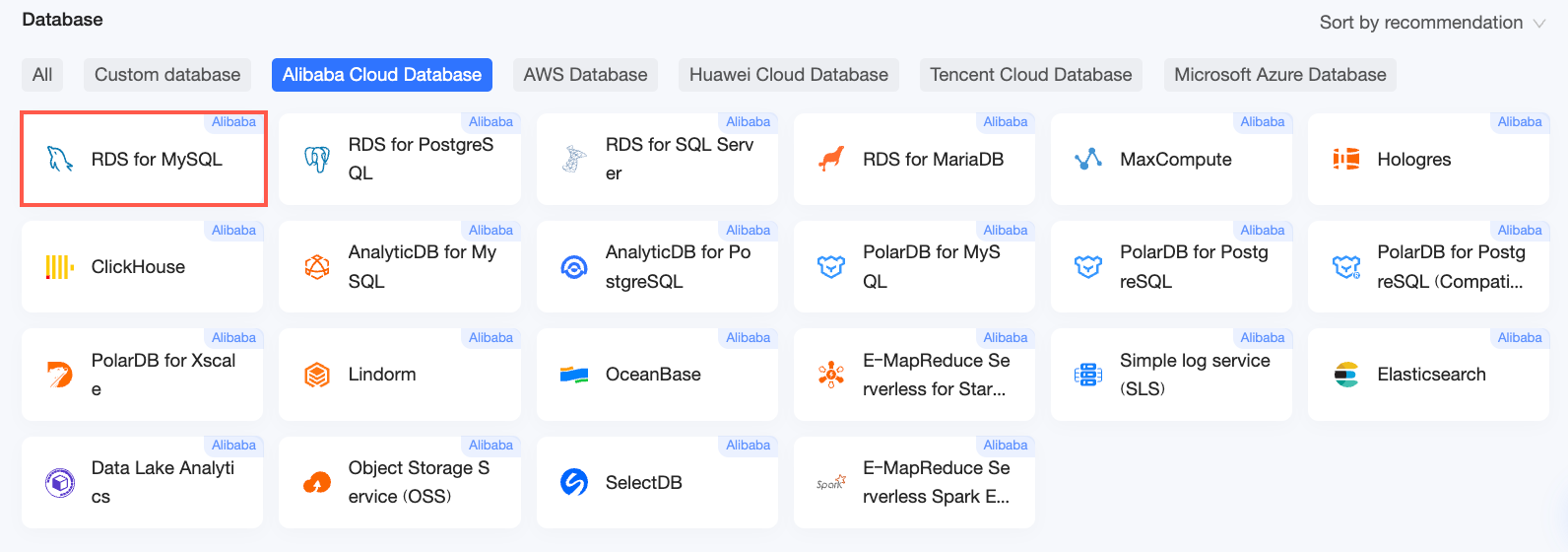
On the Alibaba Cloud Database tab, select the RDS MySQL data source.
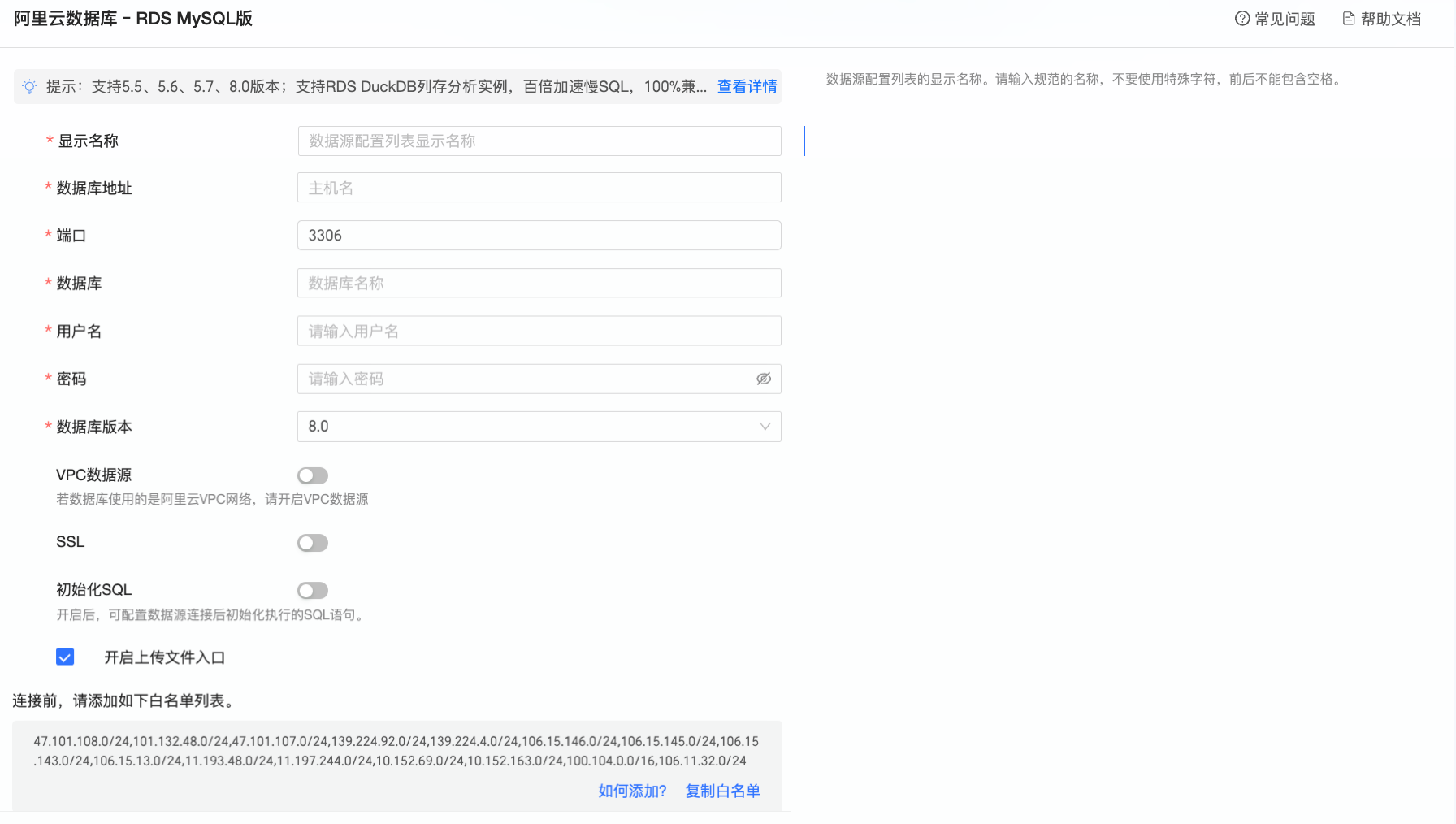
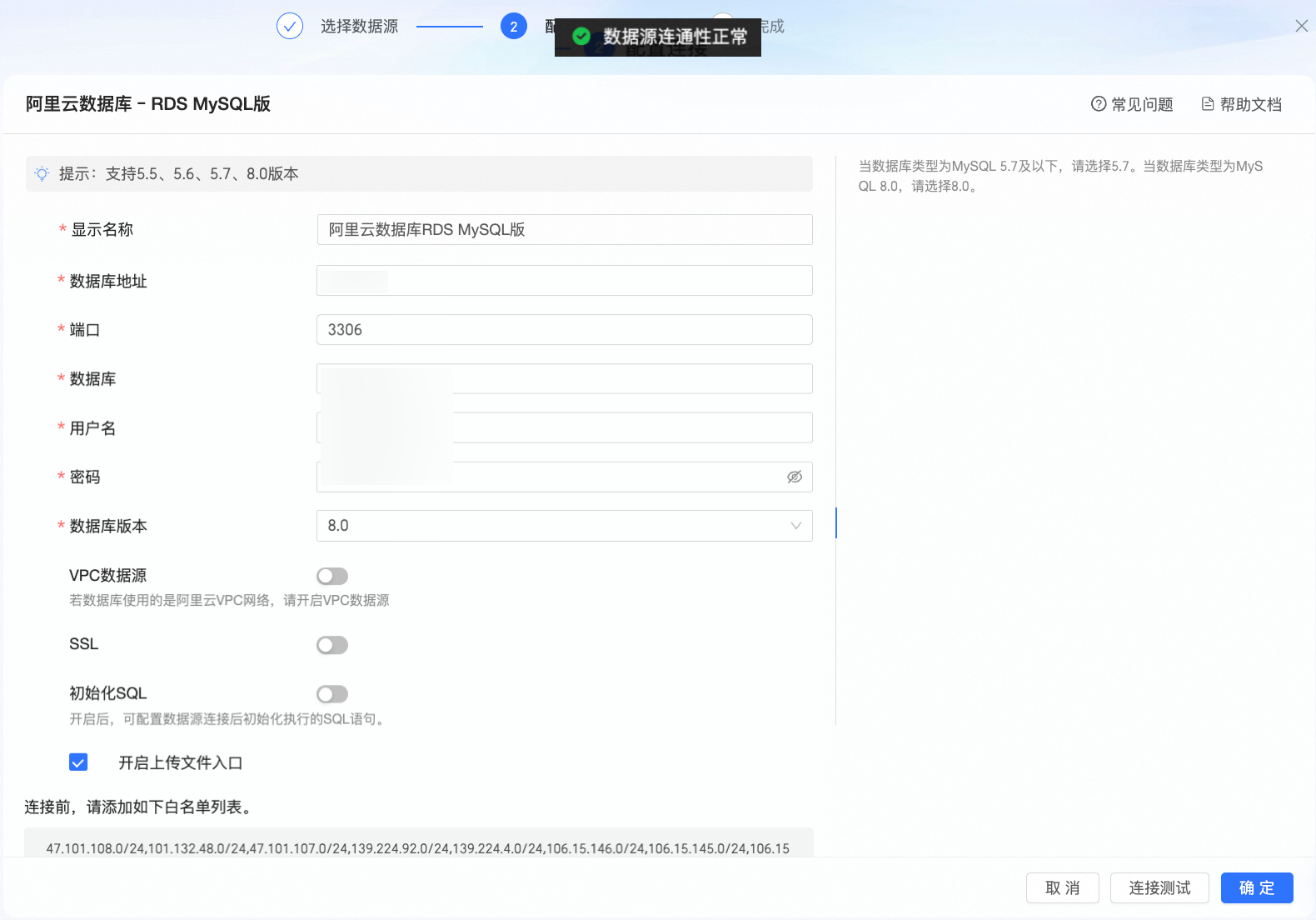
In the Configure Connection dialog box, complete the following settings based on your scenario.
Name
Description
Database source
MySQL database sources include Alibaba Cloud, Tencent Cloud, Huawei Cloud, Microsoft Azure, AWS, and self-managed databases.
This example uses Alibaba Cloud.
Connection method
MySQL cloud data sources support automatic and manual connections.
If you select automatic connection, choose the corresponding Alibaba Cloud database under your account. The system will automatically populate the database configuration.
Display name
The display name for the data source in the configuration list.
Enter a valid name. Do not use special characters. Do not include leading or trailing spaces.
Database address and Port
Enter the public endpoint and public port of your MySQL database (if using a VPC data source, enter the internal endpoint and internal port).
Log on to the RDS console. In the Basic Information section, click View Connection Details to get the database address. Example: rm-xxxxxxxxxxxxxxxxxx.mysql.rds.aliyuncs.com
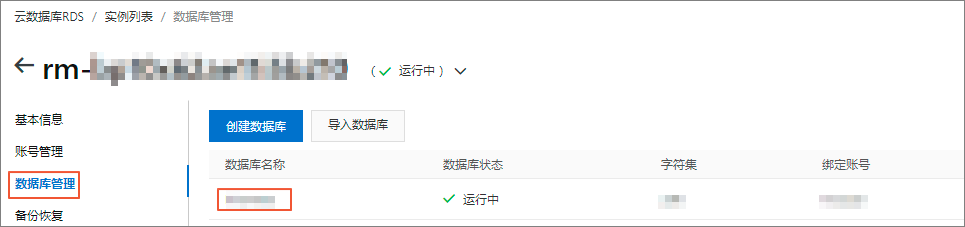
Database
The custom database name you specified when deploying the MySQL database.
Log on to the RDS console. In Databases, find the Database Name.
Username and Password
The username and password for logging on to the MySQL database.
NoteEnsure that the MySQL user has create, insert, update, and delete permissions on the tables in the database.
Database version
The version of your MySQL database.
Log on to the RDS console. In the Instances list, check the version number under Database Type.
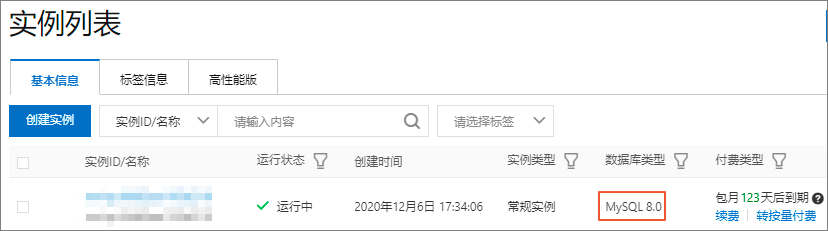
If the database type is MySQL 5.7 or earlier, select 5.7.
If the database type is MySQL 8.0, select 8.0.
VPC data source
If you use an Alibaba Cloud VPC network, select VPC data source and configure the following parameters:
Purchaser AccessKey ID and Purchaser AccessKey Secret: The AccessKey ID and AccessKey secret of an account with management permissions for the target MySQL database. Ensure this account has Read permission on the destination instance. If it also has Write permission, the system automatically adds the whitelist. Otherwise, you must add it manually. For more information, see Create a custom policy. Log on to the RAM console to get your AccessKey ID.

NoteThe AccessKey secret is shown only during creation. Store it securely.
Instance ID and Region: The instance ID and region of your MySQL database.
Log on to the RDS console and find the instance ID in the Basic Information section.
NoteIf you select VPC data source, enter the internal endpoint and internal port for the database address and port.
SSL
If SSL is configured for the destination data source, select SSL to protect data security.
Initialization SQL
When enabled, you can specify SQL statements to run after the data source connects.
Only SET statements are allowed. Separate multiple statements with semicolons.
Enable file upload
When enabled, file uploads are supported.
Click Test Connection to verify connectivity.
After a successful test, click OK to complete adding the data source.
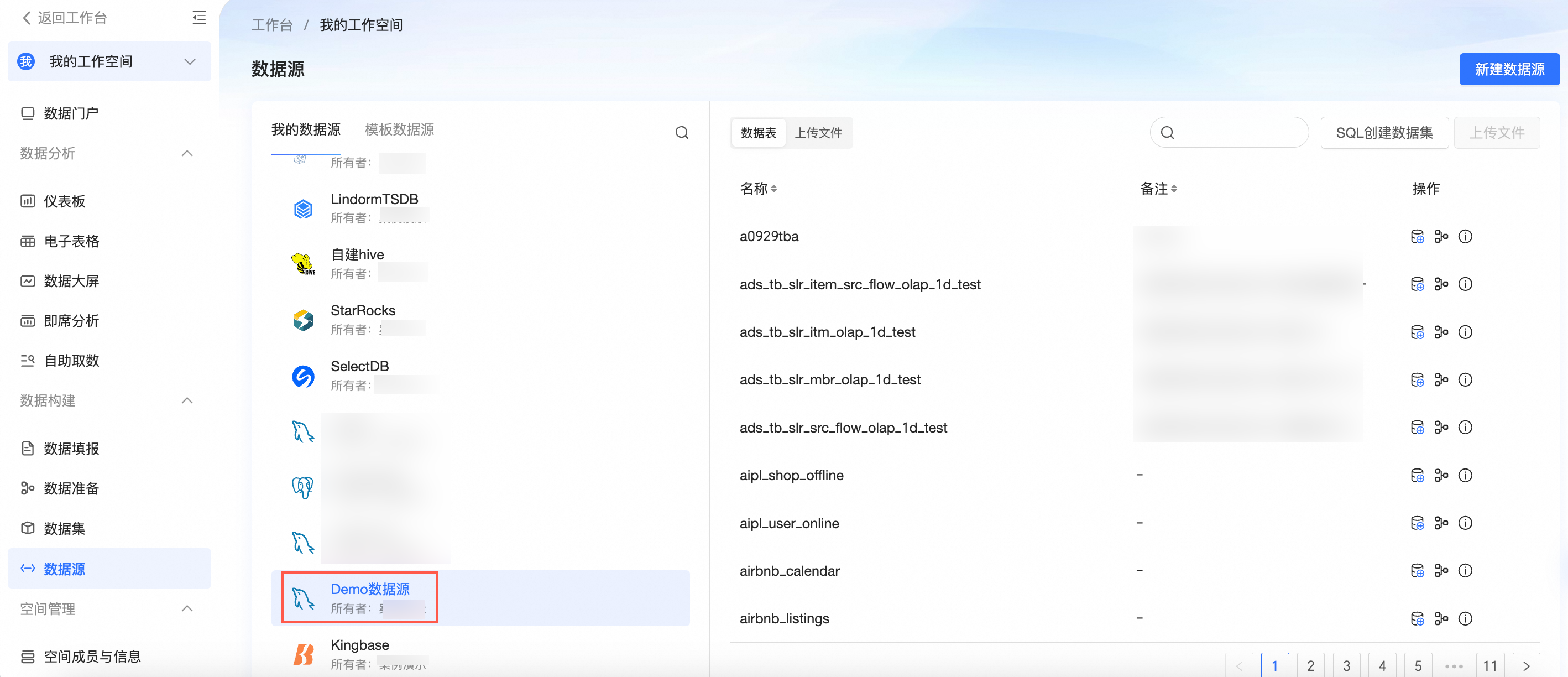
You can now see your new data source in the data source list.


What to do next
After creating a data source, you can create datasets and analyze data.
Add tables from your MySQL data source or custom SQL statements to Quick BI. For more information, see Create a dataset.
For more information about adding visualization charts and analyzing data, see Create a Dashboard and Visualization charts overview.
Drill down for deeper data analysis. For more information, see Step 3: Configure and display drilling.