Drop-down List
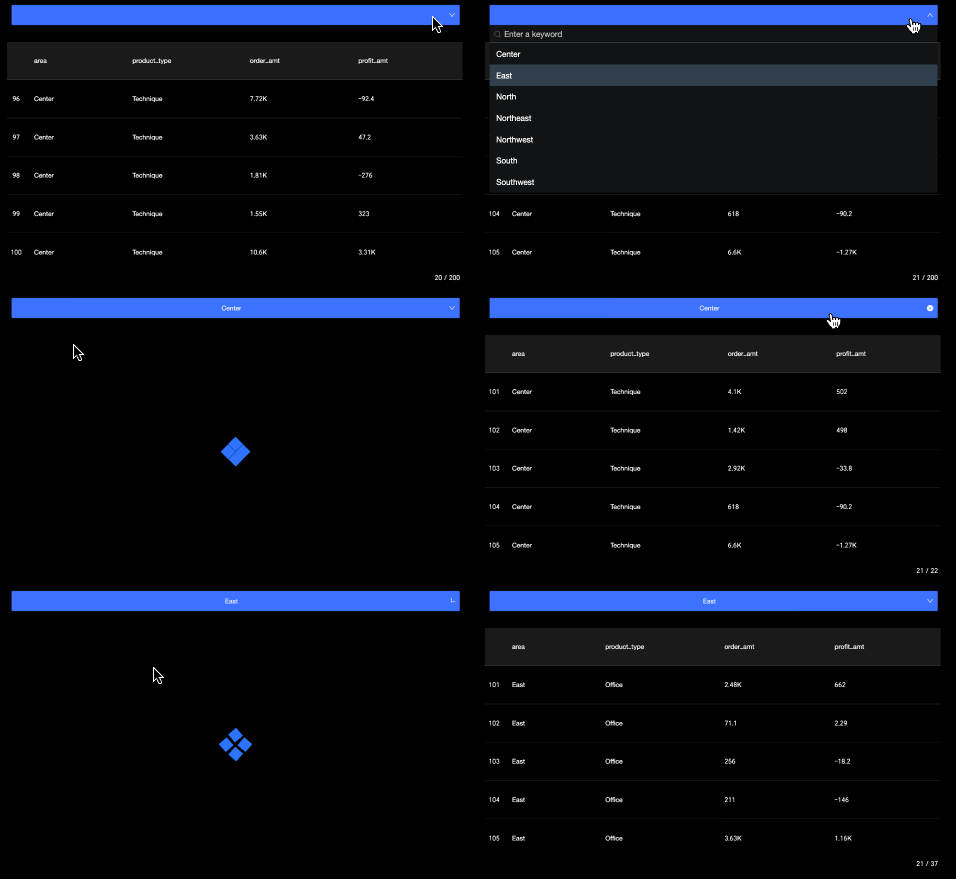
A drop-down list is an interactive control for Quick BI data visualization screens. Report viewers can select a value from predefined options to filter and retrieve specific data.
Prerequisites
-
You have created a data visualization screen. For more information, see Create a Data Visualization Screen.
-
You have added a ticker board widget. For more information, see Ticker board.
Example
Add a Drop-down List Control
-
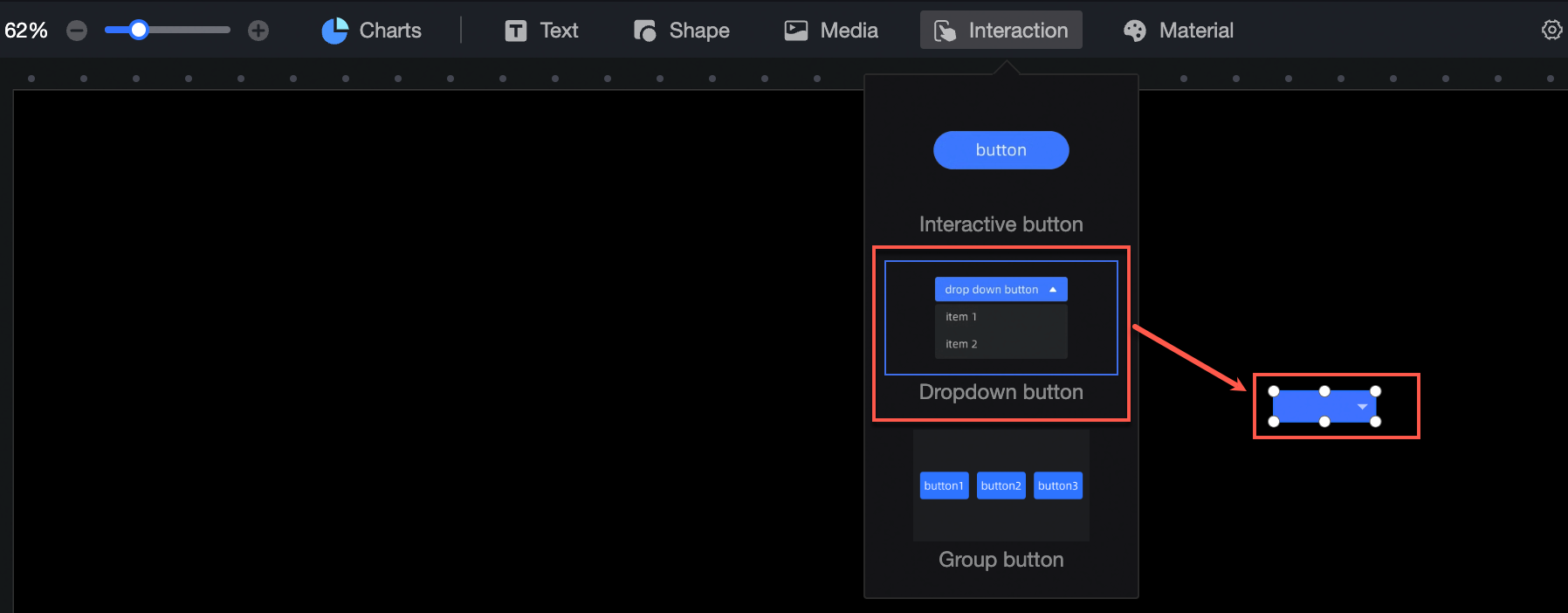
On the dashboard edit page, click Interaction on the top menu bar to add a drop-down list control.
-
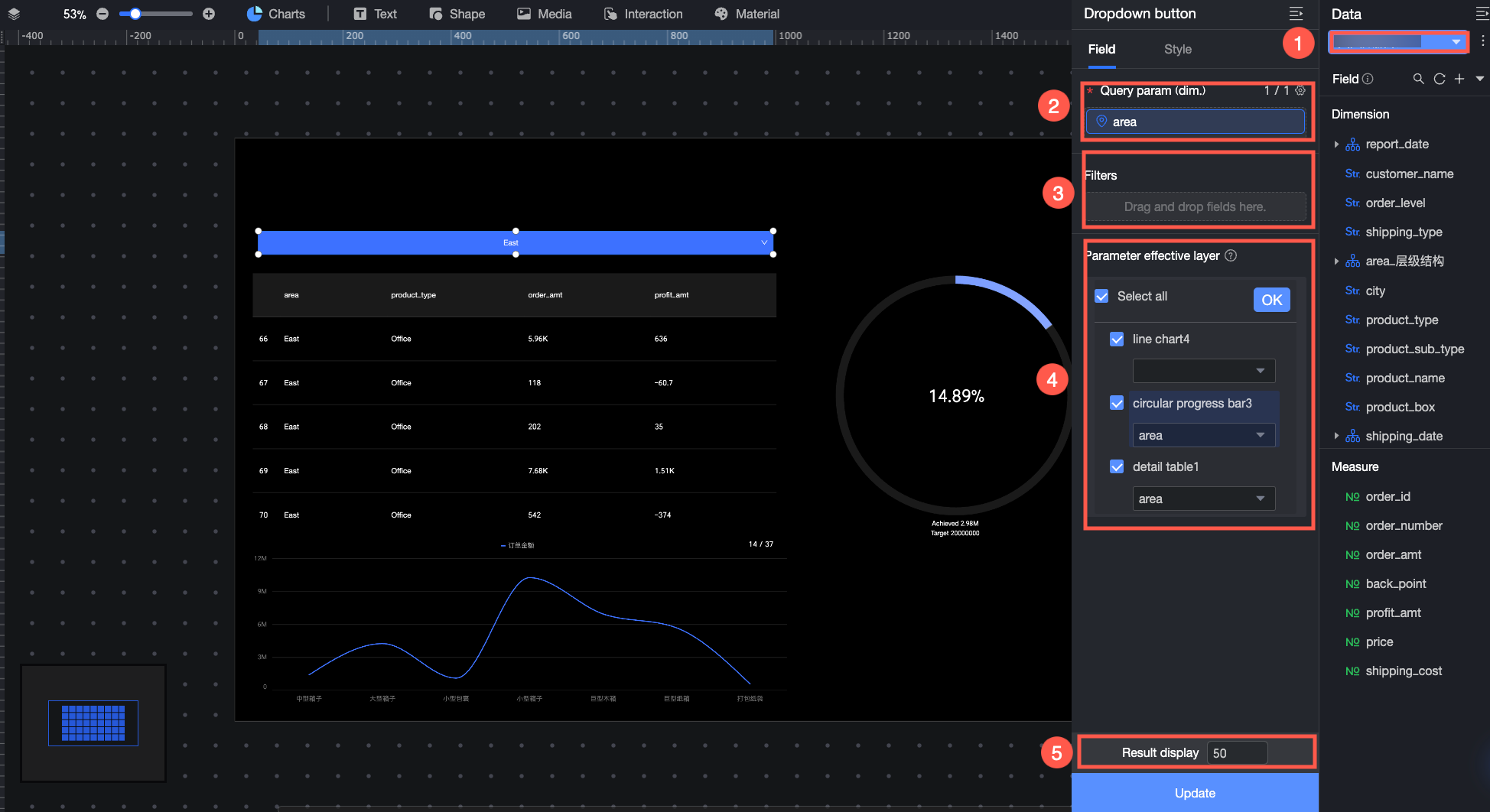
Configure the drop-down list as follows.
Configuration Item
Description
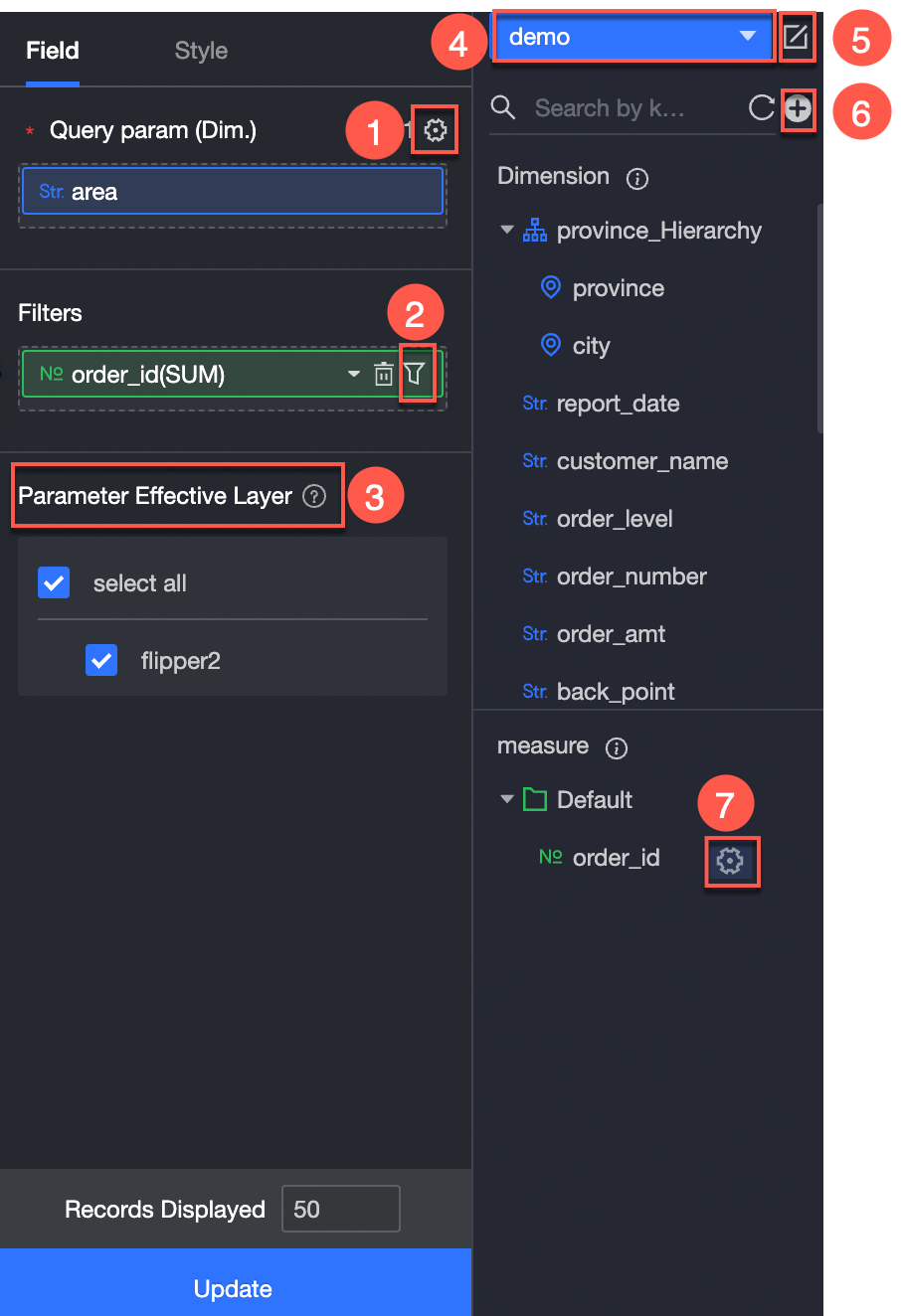
① Source dataset
On the Data panel, add a dataset as the source for query parameters.
② Query parameter
On the Fields panel, drag the field to use as the drop-down list options to the Query Parameter area.
When a report viewer performs a query, they select a value from this field to filter the data. For example, if the query parameter is Region, selecting Northeast displays data for the Northeast region.
③ Filter
To limit the report to specific data, drag the field you want to filter by to the Filter area on the Fields panel. Then, click the
 icon to configure filter conditions in the Set Filter dialog box. For example, you can show data only for the Northeast and East China regions.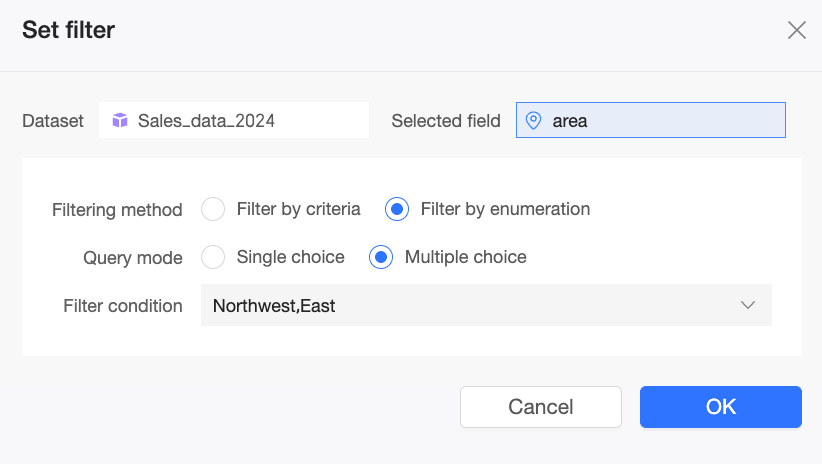
④ Affected Layers
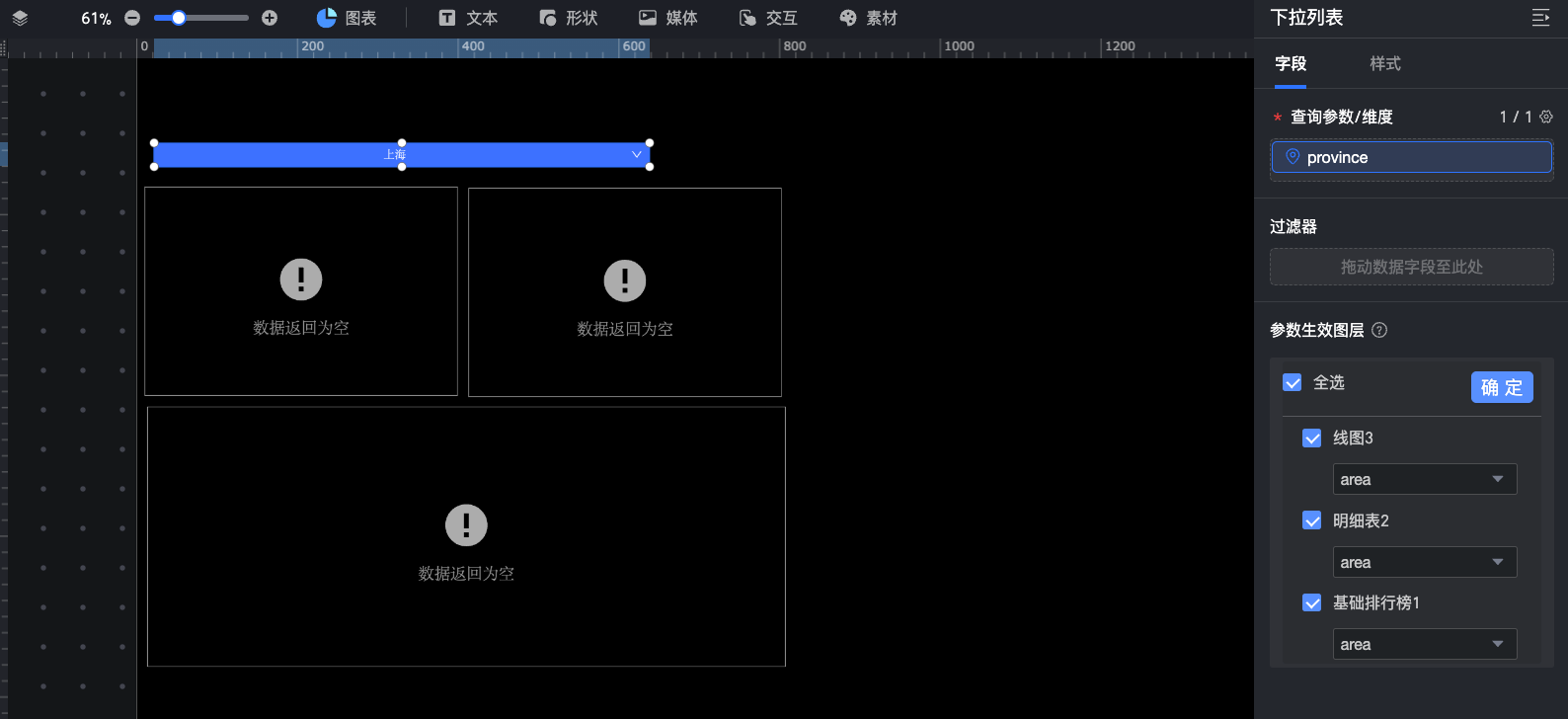
After you configure the items and click Update, go to the Affected Layers area on the Fields panel. Select the charts and their foreign key fields controlled by the query parameter. You can select charts from different datasets to enable cross-dataset queries. After you select a chart:
-
If the chart and the query parameter belong to the same dataset, the field that is the same as the query parameter is automatically selected. You can also manually switch to another field.
-
If the chart and the query parameter belong to different datasets, you must manually select a foreign key field.
The selected charts automatically update based on the option chosen in the drop-down list.
Note-
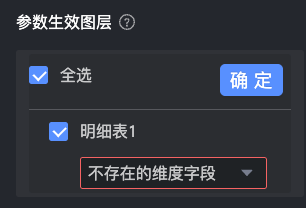
After you configure the affected charts, if you switch the dataset for a chart and the query parameter field does not exist in the new dataset, the drop-down list conditions will not apply to that chart. The field configuration for that chart in the Affected Layers area will display "Dimension field does not exist". You must update the affected chart configuration.

-
After you configure the affected charts, if you replace the original query parameter field with another field or change the dataset for the drop-down list, the query may return empty results. You must reconfigure a valid query parameter field or update the affected chart configuration.
⑤ Result Display
Set the maximum number of options to display in the drop-down list.
Note-
The default value is 50, and the maximum value is 1,000. You can enter any integer from 1 to 1,000 as needed.
-
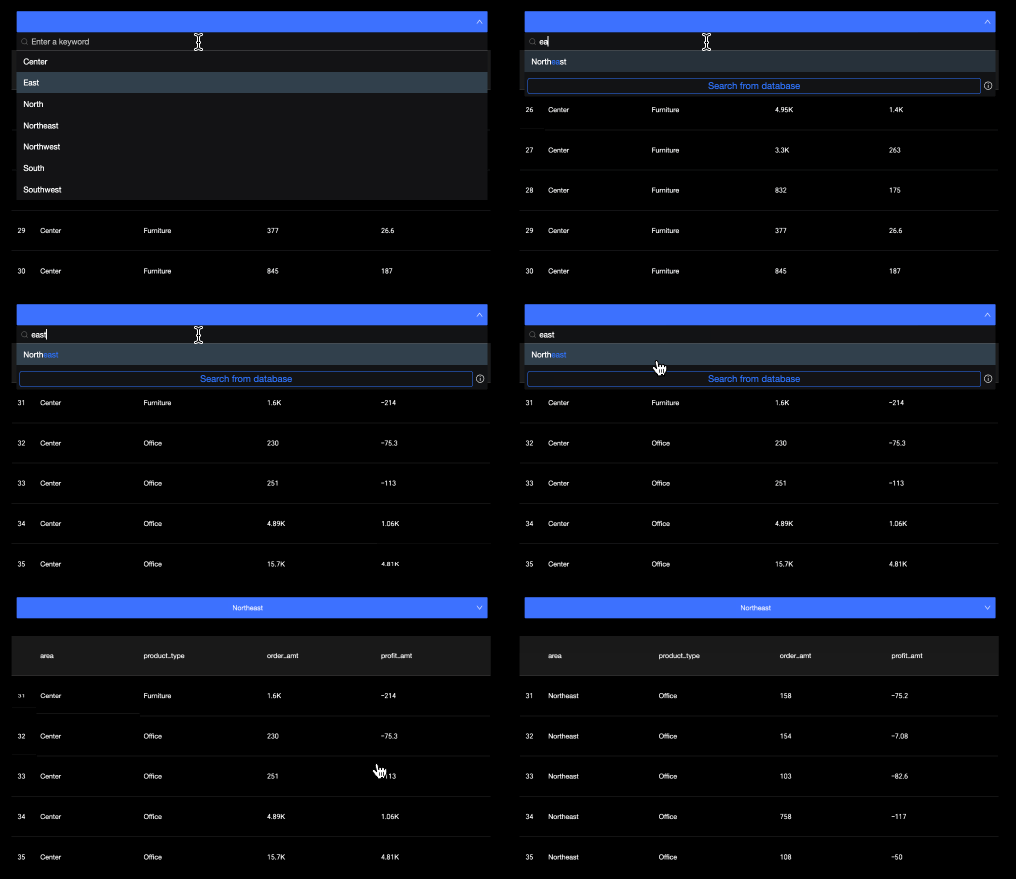
If the drop-down list contains many options, enter keywords in the search box to find the option you need.
-
If you cannot find the desired result in the drop-down list, try searching from the database.
-

-
(Optional) You can also perform the following data operations:
-
Batch configure field formats (①). For more information, see Batch Configure Field Styles.
-
Set field filters (②). For more information, see Filter data.
-
Add interactive components (③).
-
Switch datasets (④). For more information, see Switch datasets.
-
Edit the dataset (⑤). For more information, see Edit a dataset.
-
Process data, such as creating a calculated field or a new group dimension (⑥). For more information, see Create Calculated Field and Create a New Group Dimension.
-
Copy a field (⑦). For more information, see Copy and convert to a dimension.
-
Configure Drop-down List Styles
Position and Size
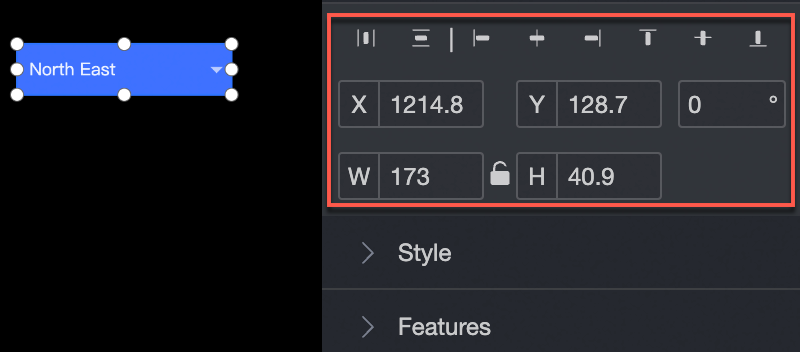
Configure the position and size of the drop-down list:
-
Set the alignment: left, center, or right.
-
Set the position by specifying X-axis and Y-axis values relative to the upper-left corner.
-
Set the rotation angle.
-
Set the width (W) and height (H).
-
Lock the drop-down list to prevent changes to its size or position.
Text Style
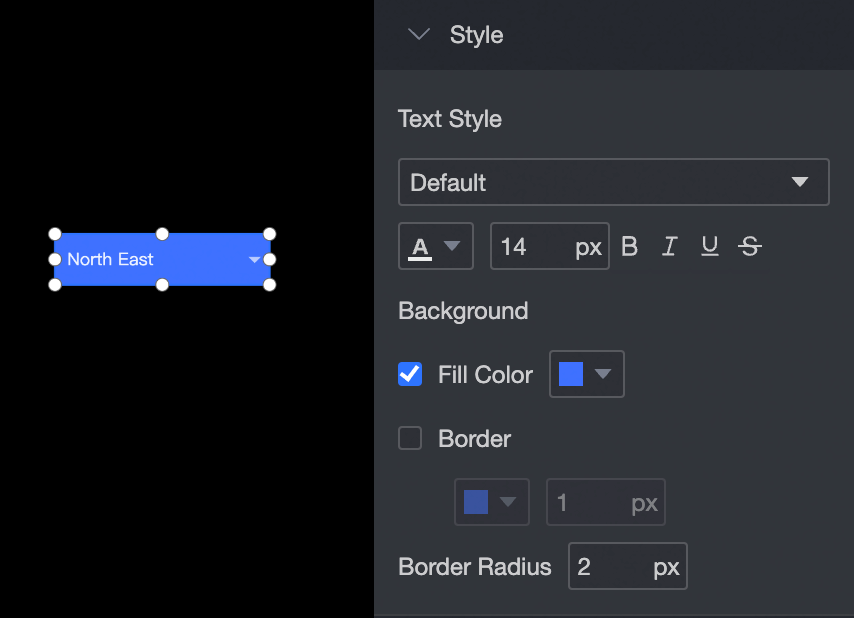
Configure the text style for the drop-down list:
-
Set the font, color, font size, and apply bold or italic formatting.
-
Set the background fill color.
-
Set the border style, color, and width.
-
Set the corner radius of the drop-down list.
Features
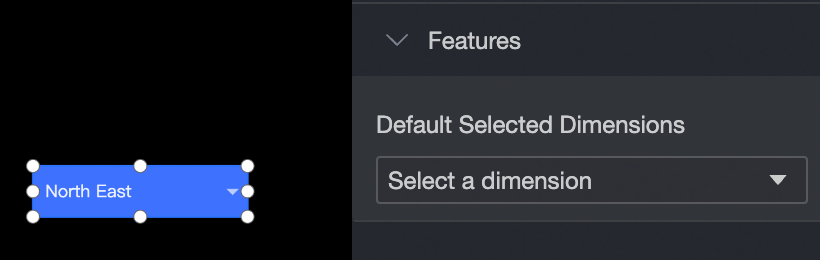
Set the dimension values for the drop-down list.