Tabular report
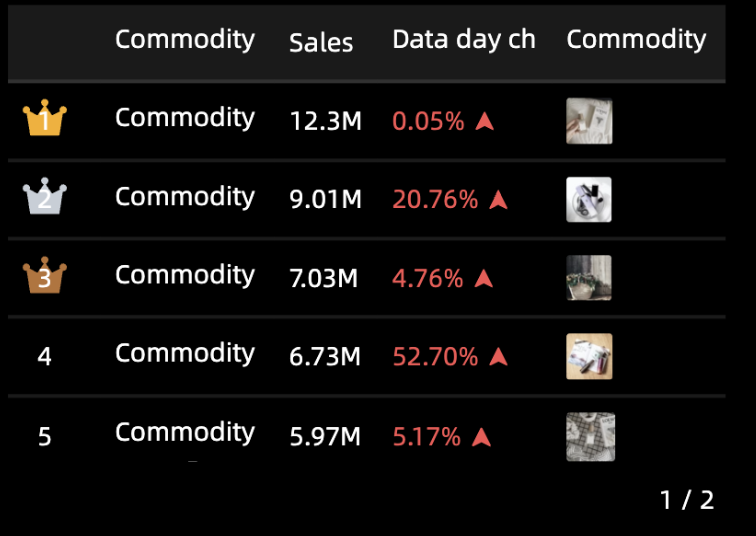
A tabular report shows the distribution and ranking of metrics across dimensions. You can add data to a tabular report and configure its styles.
Example
Configure data
-
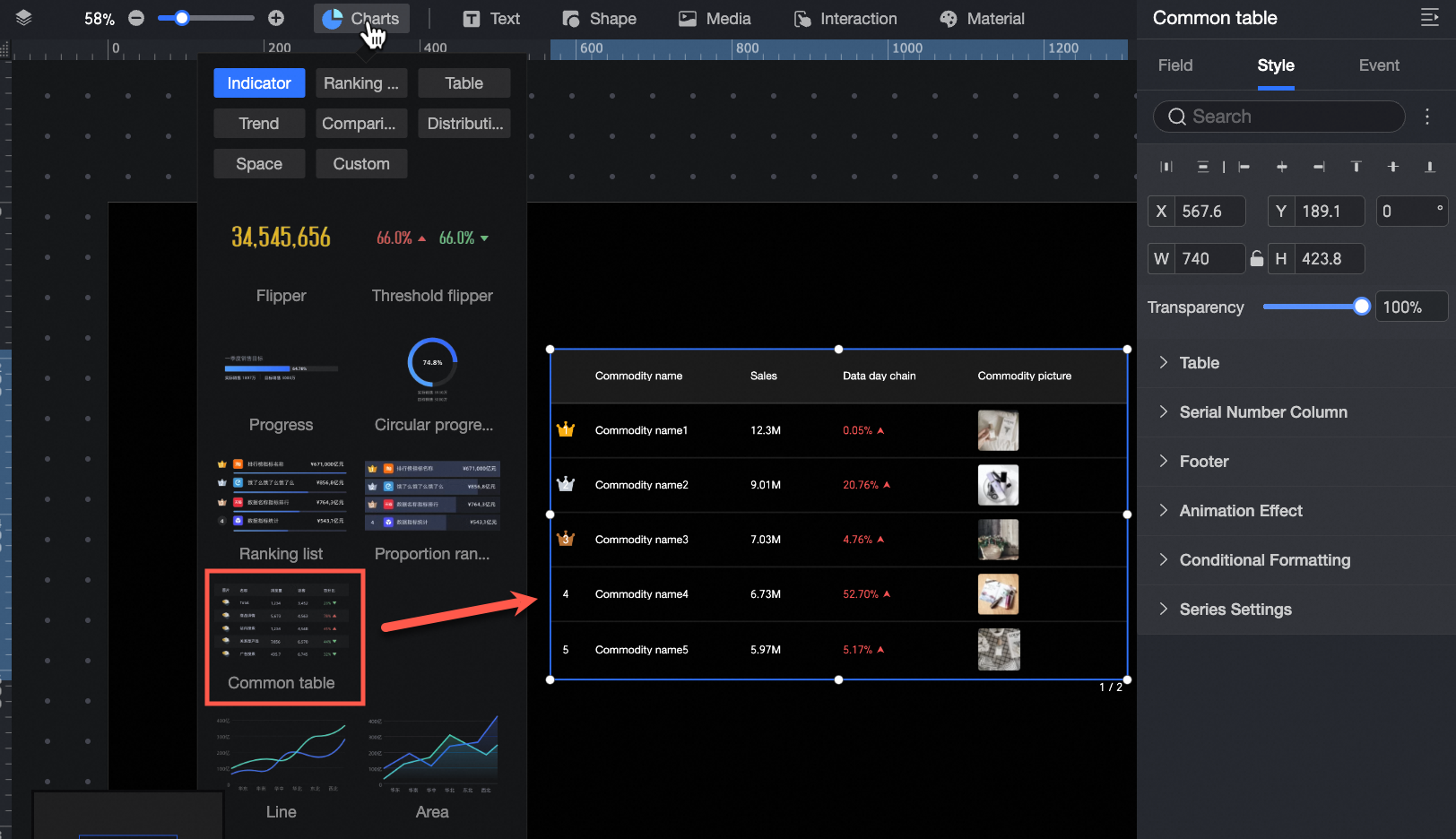
In the Charts section of the component library, find tabular report and drag it to the canvas.
-
Click Select a dataset to add data.
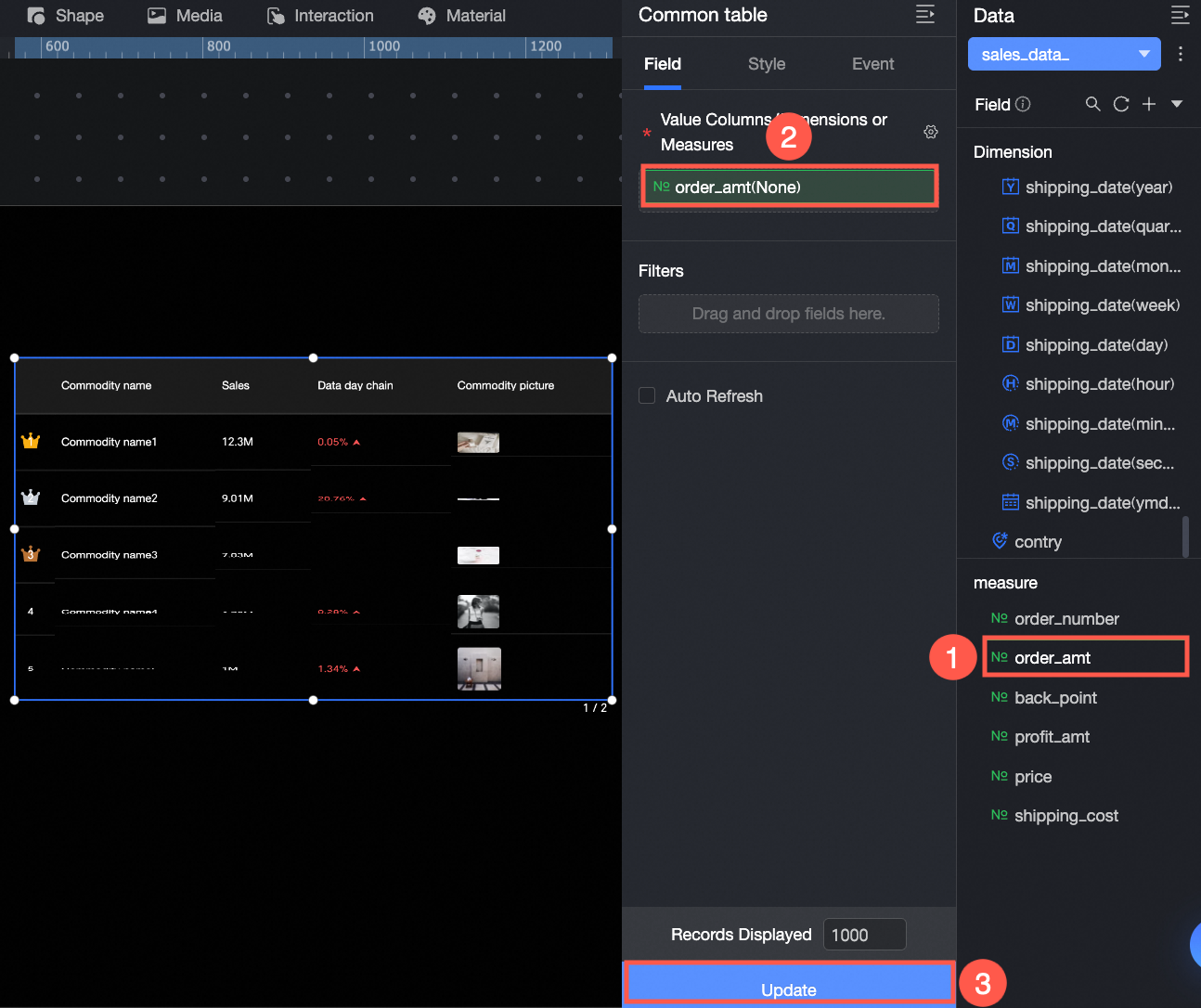
You can also perform the following operations: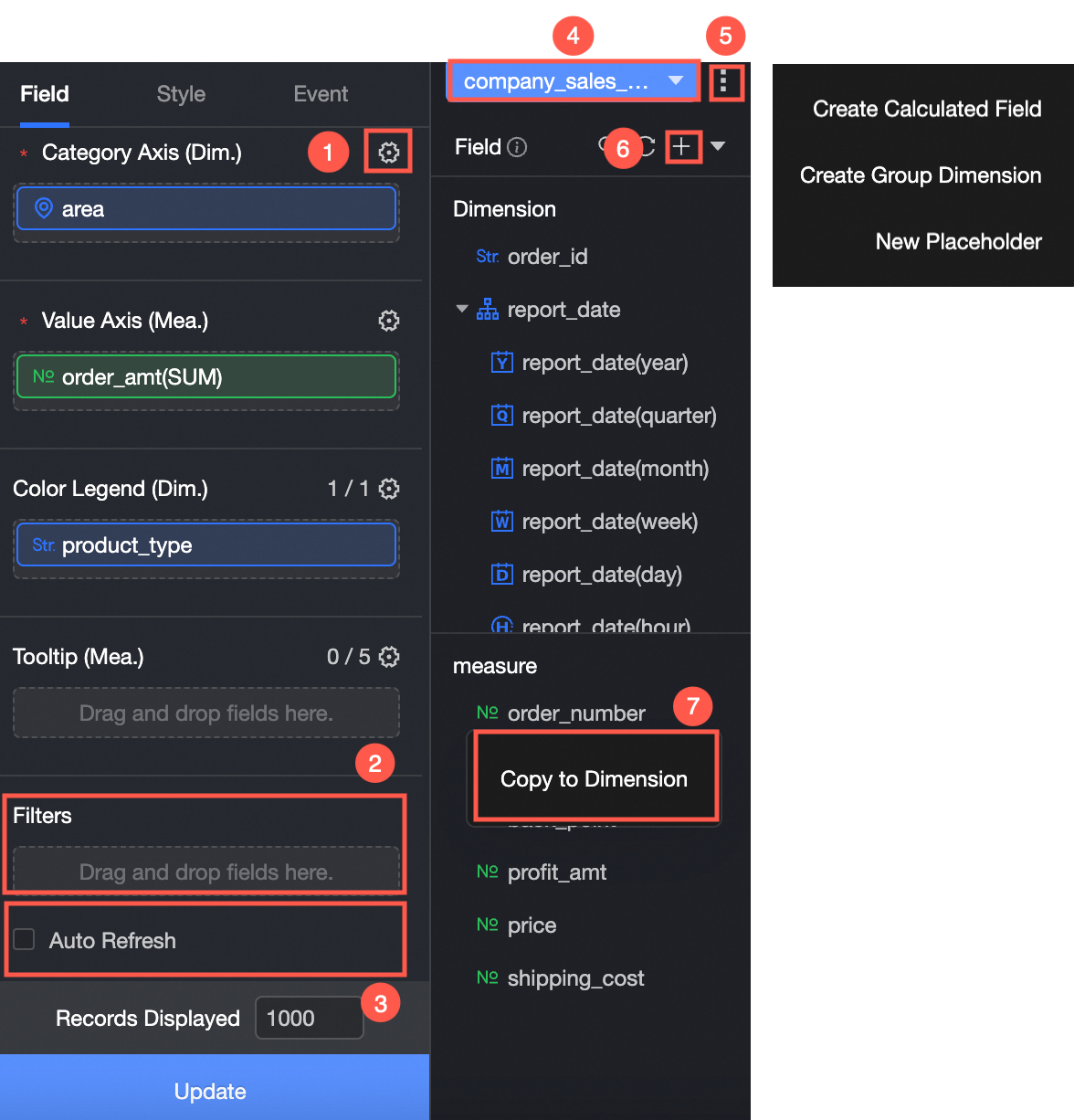
-
Bulk-configure field formats (①). For more information, see Configure field styles in bulk.
-
Set field filters (②). For more information, see Filter Data.
-
Set up automatic data refresh (③). For more information, see Refresh Data Periodically.
-
Switch the dataset (④). For more information, see Switch Dataset.
-
Edit the dataset (⑤). For more information, see Edit Dataset.
-
Process data (⑥). For more information, see Create a calculated field, Create a grouped dimension, and Create a placeholder.
-
Copy fields (⑦). For more information, see Copy and Convert to Dimension.
Configure styles
Position and size
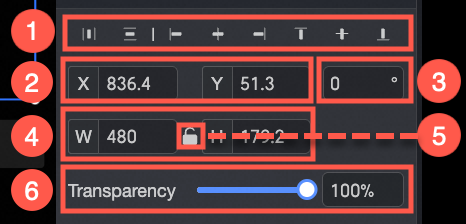
Configure the following component settings:
-
Adjust the component's alignment (①): Options include left, center, and right.
-
Adjust the component's Position (②): Set the X and Y axis values to adjust the position relative to the top-left corner.
-
Adjust the component's Rotation (③): Set the rotation angle.
-
Adjust the component's Size (④): Set the W (width) and H (height) values.
-
Lock the component (⑤): Once locked, the component's size cannot be adjusted.
-
Adjust the opacity (⑥): Set the component's opacity.
Table
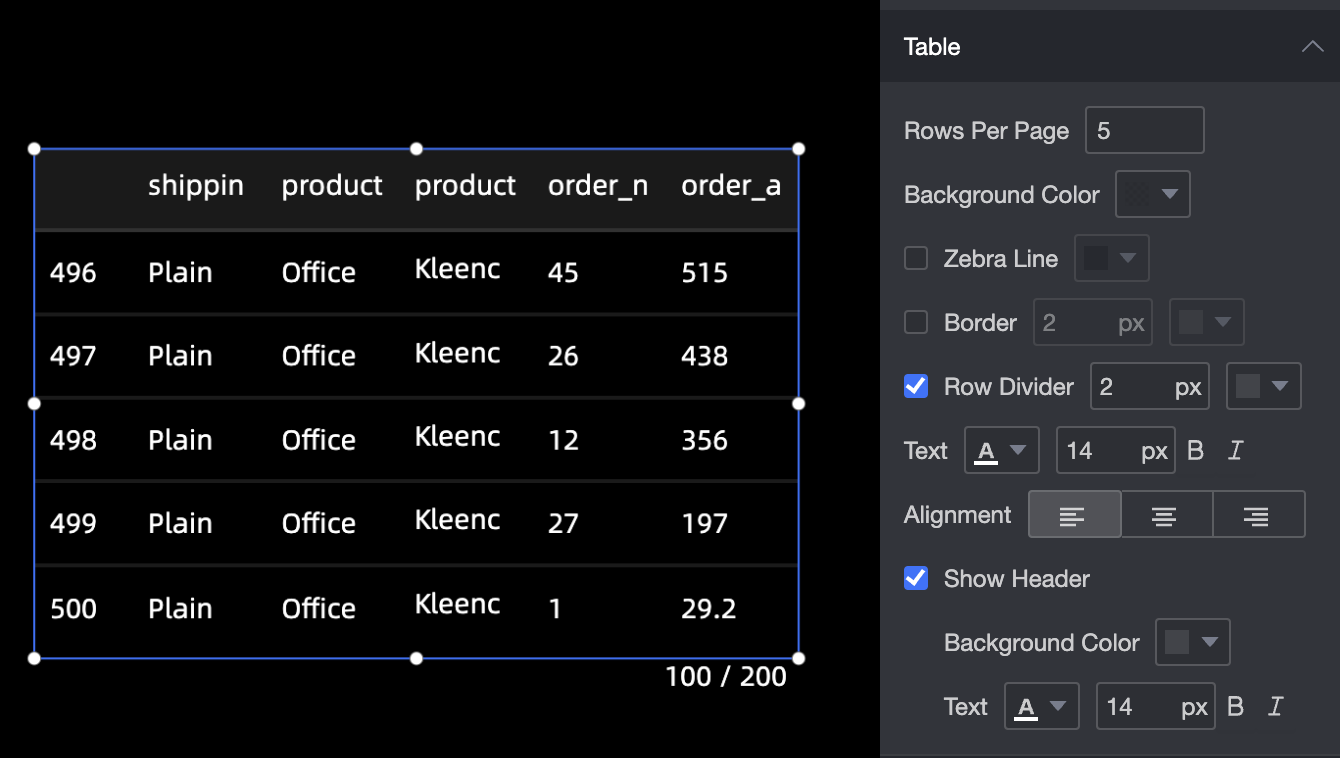
In the Table section, configure the following styles:
-
Rows per page: Set the number of rows to display per page (①).
-
Background color: Set the background color of the tabular report.
-
zebra stripes: Set the color for the zebra stripes (②).
-
Outer border: Set the thickness and color of the outer border (③).
-
row divider: Set the thickness and color of the row divider (④).
-
Text and alignment: Set the text style and alignment (left, center, or right).
-
Show header: Set the background color and text style for the table header (⑤).
Index column
In the Index column section, configure the text style, size, corner radius, background color, and a special style for the top 3 entries.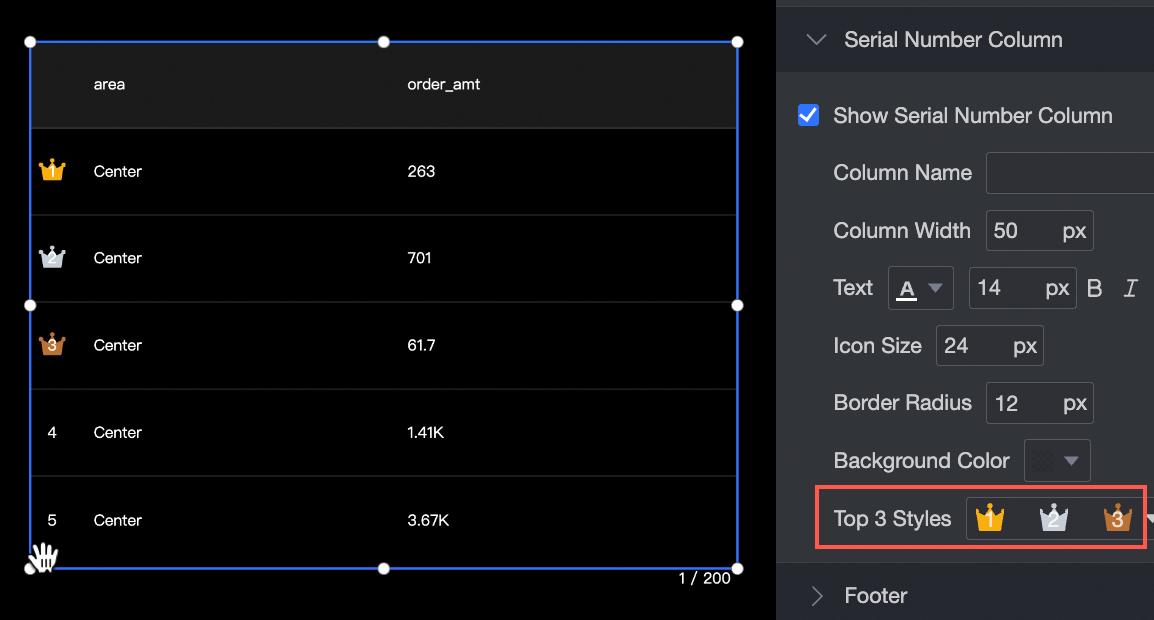
Footer
In the Footer section, configure the footer position (left, center, or right), margin, and text style.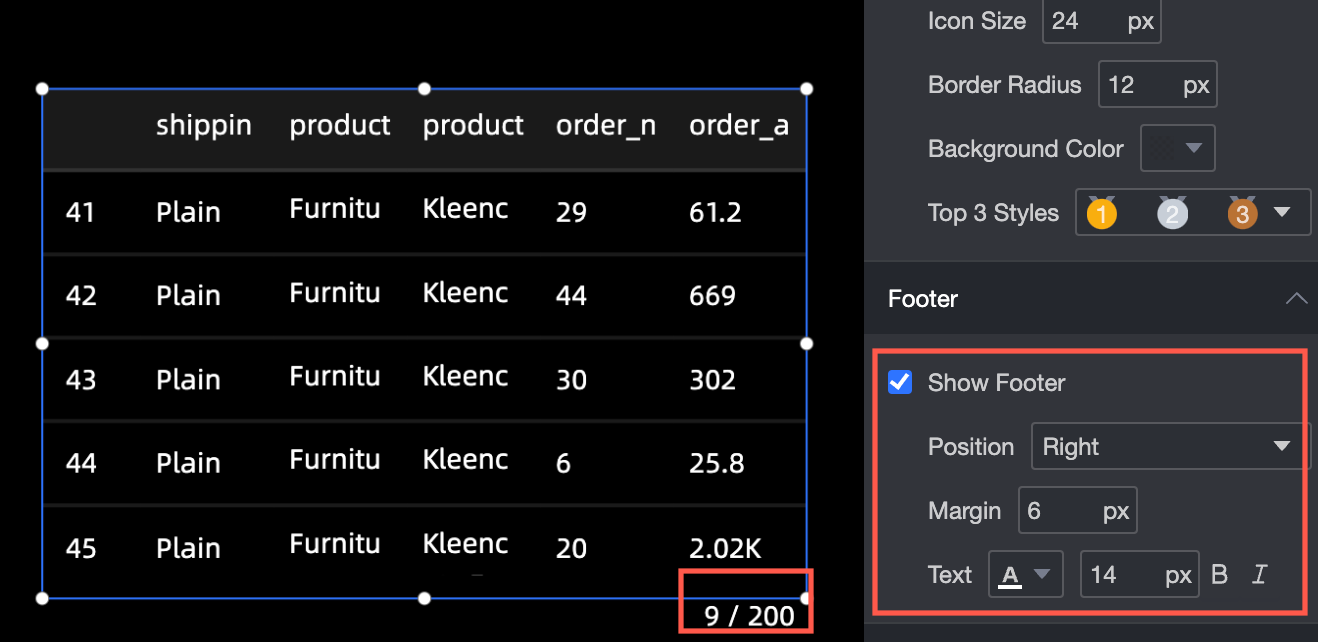
Animation
In the Animation section, set the page-flip interval.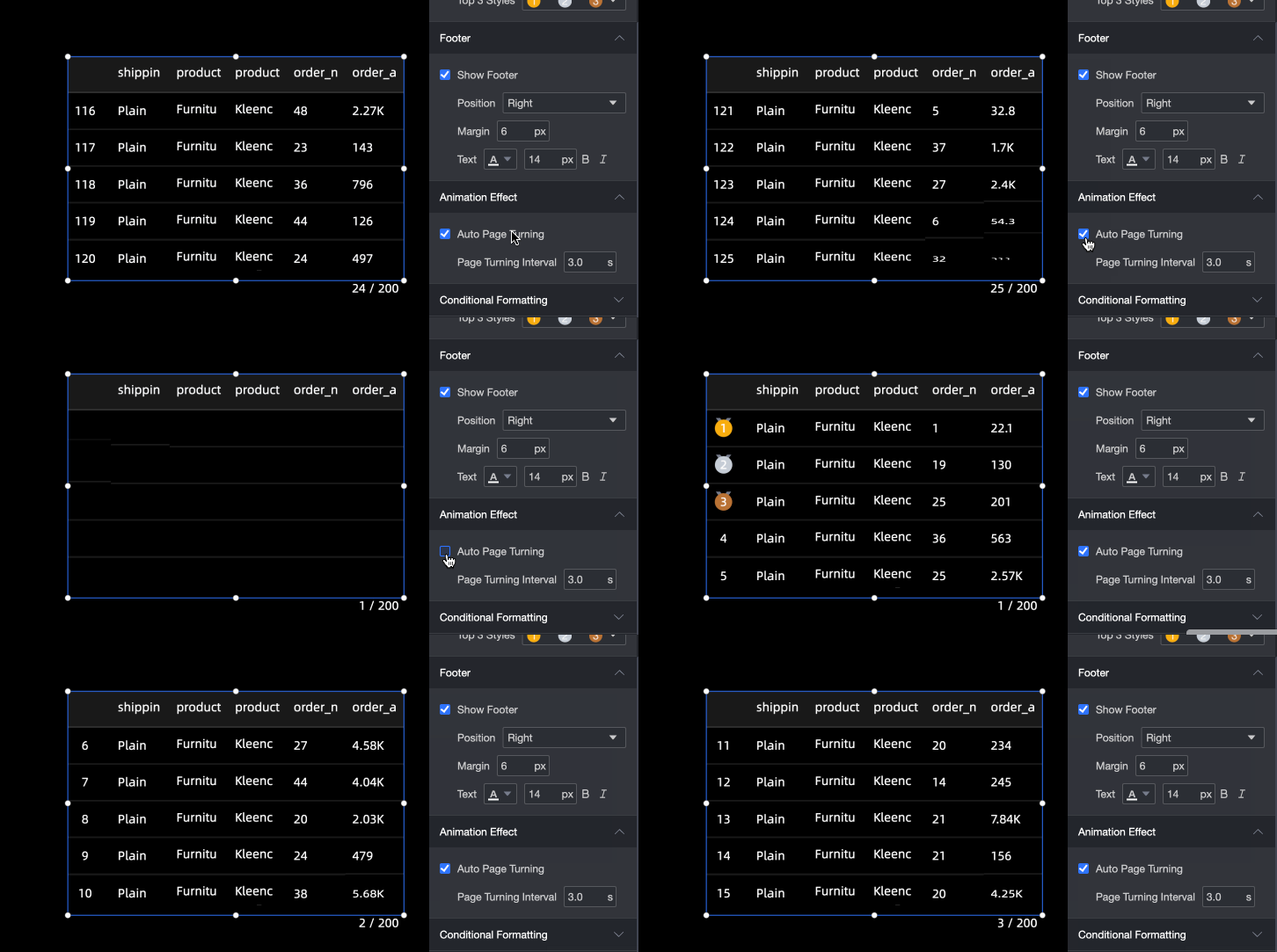
Conditional formatting
In the Conditional formatting section, configure conditional formatting for measures in the tabular report.
-
Select series: Select any measure added to the metrics/measures area.
-
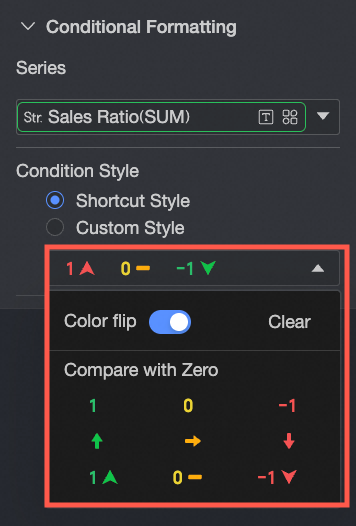
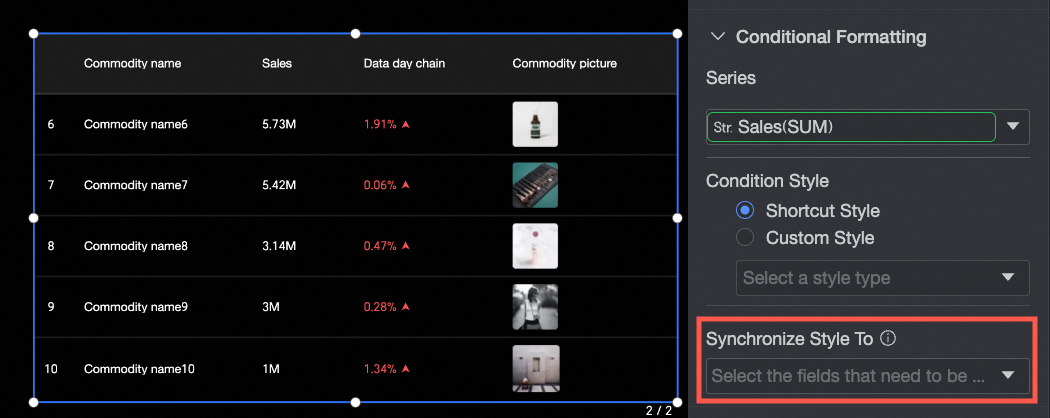
Quick styles: Choose from predefined styles to set marker icons and font colors.

-
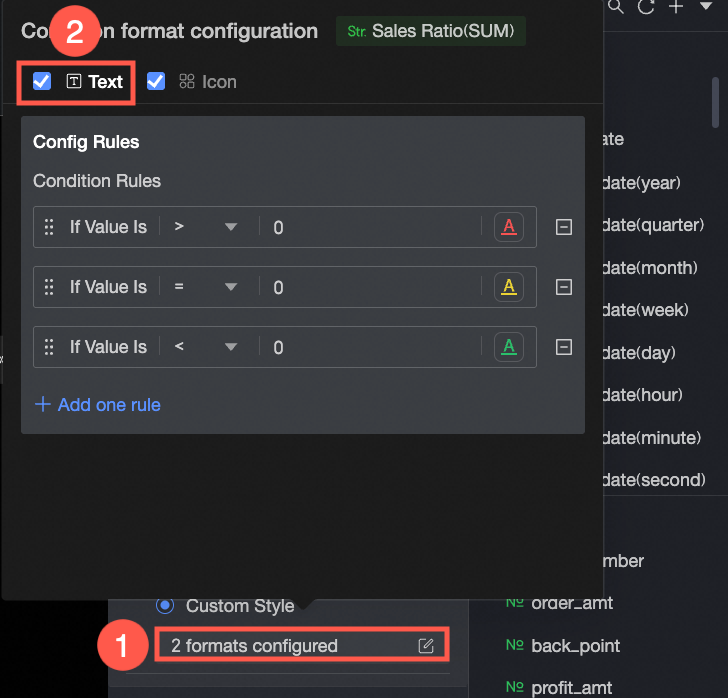
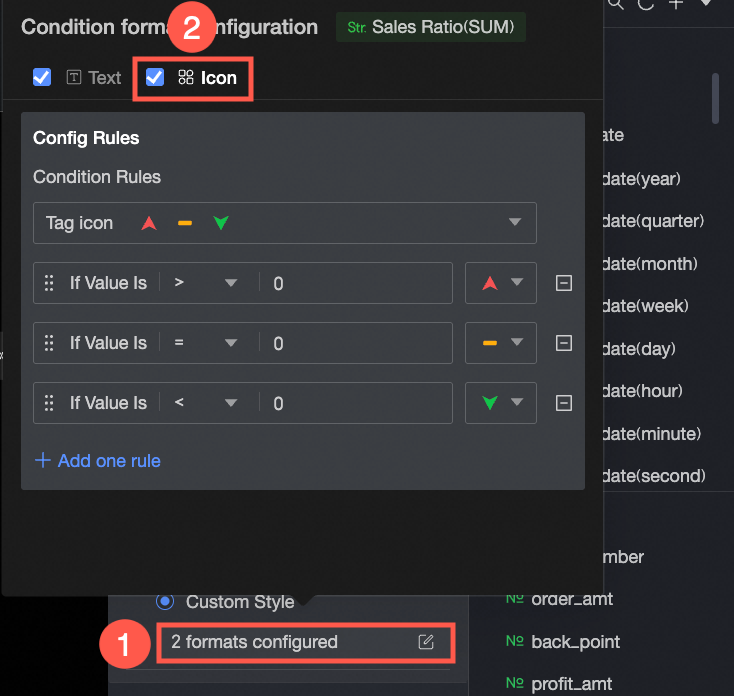
Custom style: Customize text and icon styles, and set conditions, marker icons, value ranges, and font colors.
-
Custom text: Set the Condition value and Foreground color.
-
Custom icons: Customize conditional values and combined styles.
-
-
Sync style to: Syncs the current conditional formatting to other metrics.
Series settings
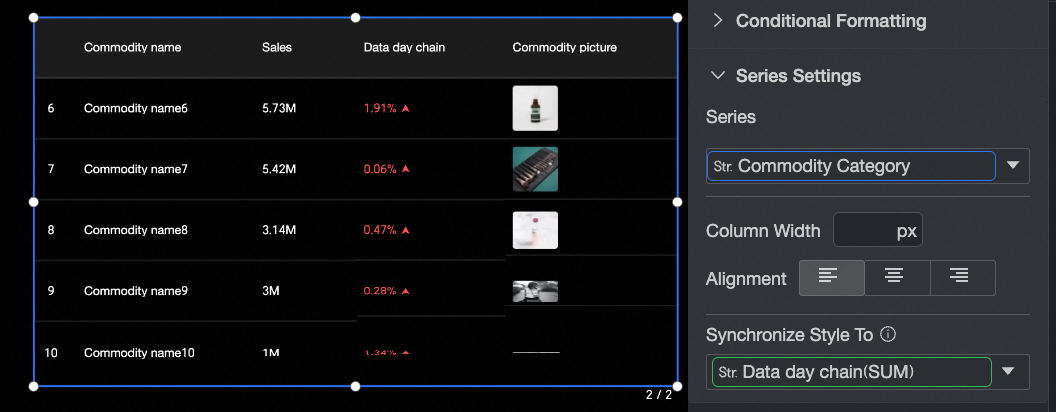
In the Series settings section, configure the series display for the tabular report.
-
Select series: Select a measure from the metrics/measures area.
-
column width: Set the column width for the selected series.
-
Alignment: Set the text alignment for the selected series (left, center, or right).
-
Apply style to: Apply the current series settings to other measures.