Line Chart
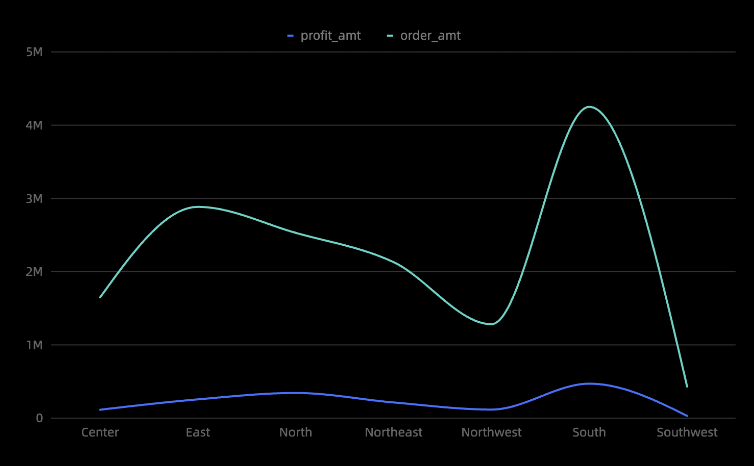
Line charts display data trends over time, such as tracking product sales to forecast future performance. You can add data to a line chart and configure its styles.
Example
Configure Data
-
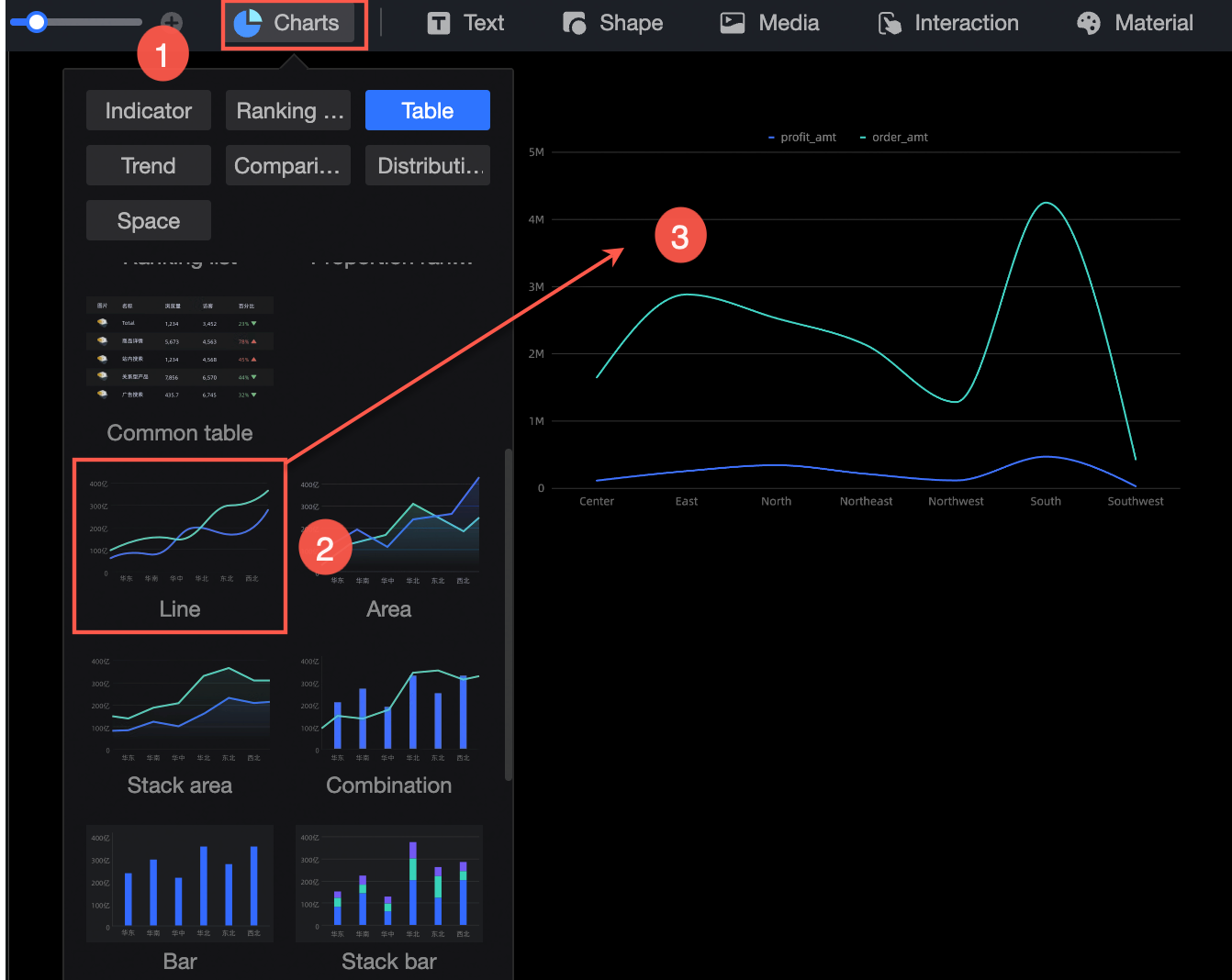
In the Charts section of the component library, find the Line Chart and drag it to the canvas.
-
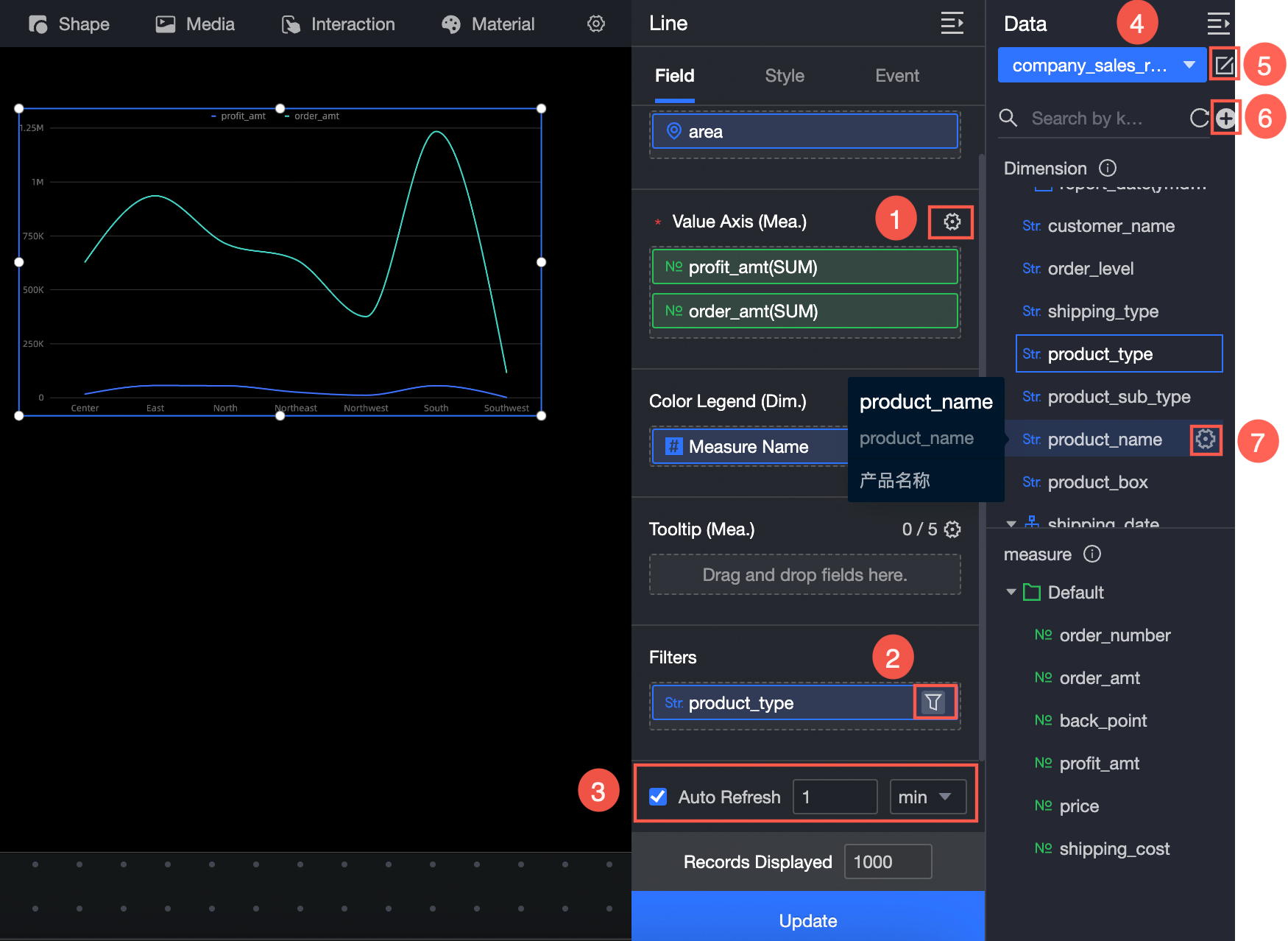
Click Select a dataset and add data as shown in the following figure.
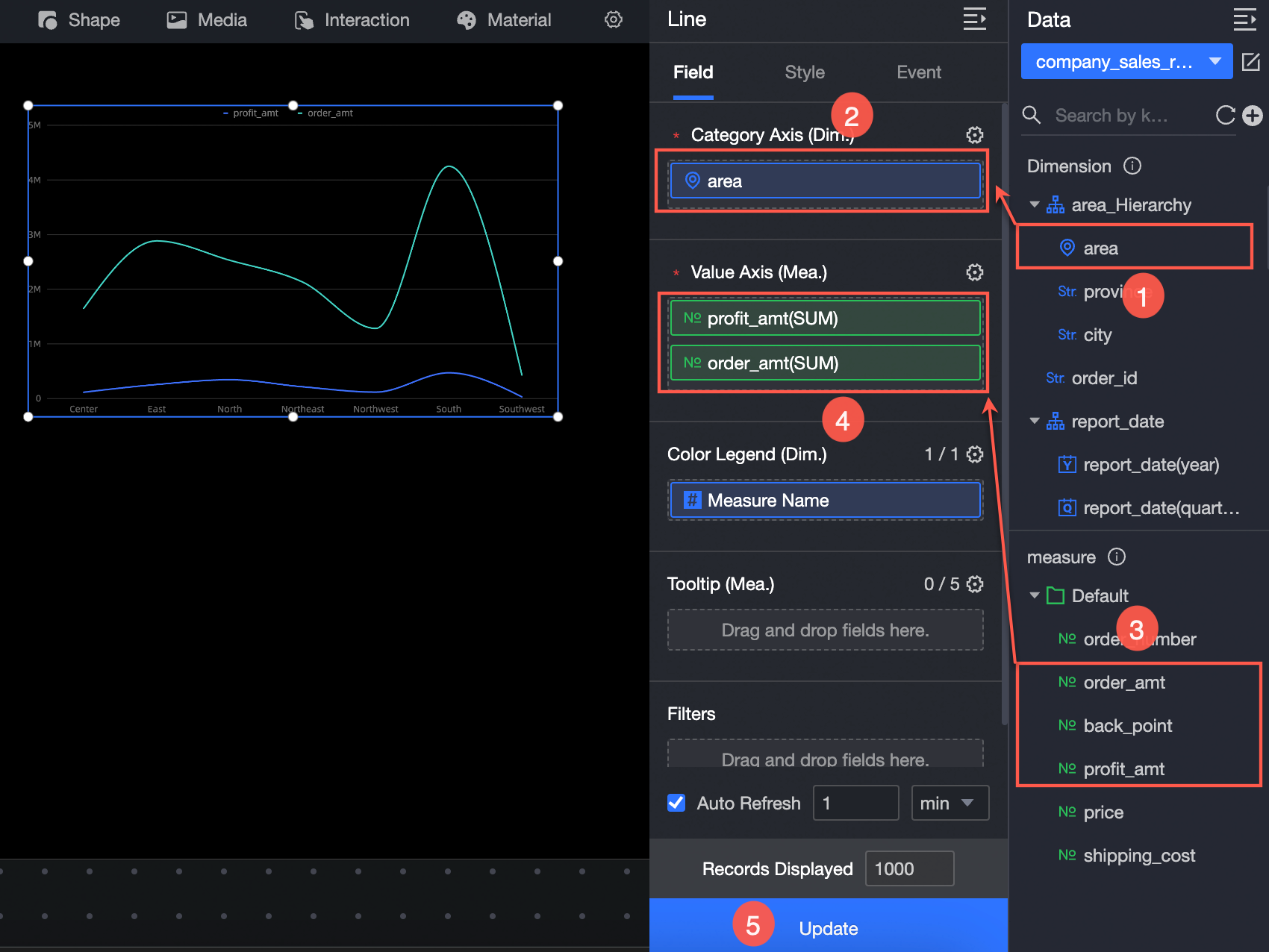
You can also:
-
Configure field styles in batches (①). For more information, see Configure field styles in batches.
-
Set a filter for a field (②). For more information, see Filter data.
-
Set up automatic data refresh (③). For more information, see Schedule data refresh.
-
Switch the dataset (④). For more information, see Switch datasets.
-
Edit the dataset (⑤). For more information, see Edit a dataset.
-
Process data (⑥). For more information, see Create a calculated field, Create a grouped dimension, and Create a placeholder.
-
Duplicate a field (⑦). For more information, see Duplicate and convert to dimension.
Configure Styles
Position and Size
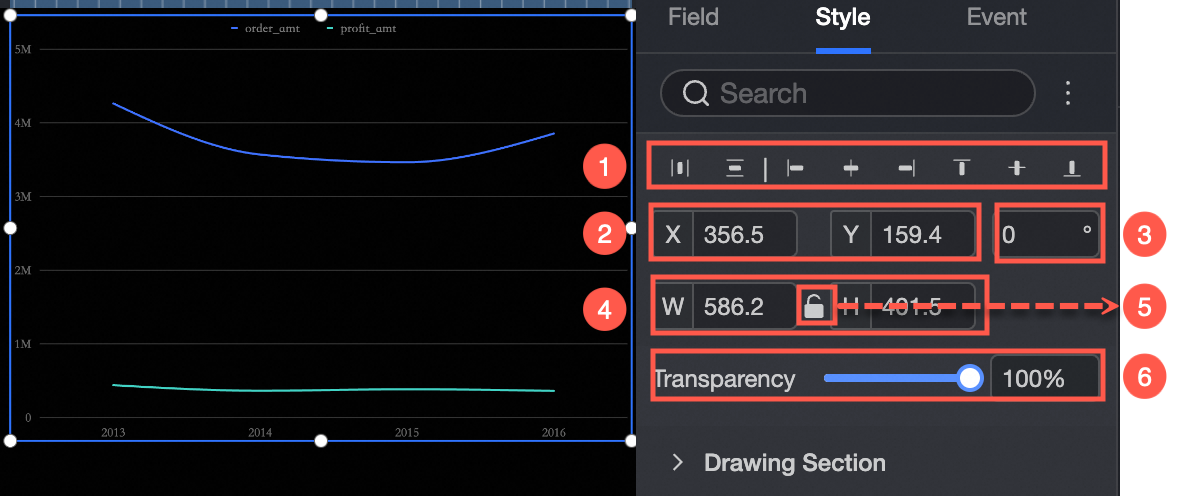
In the configuration pane, you can adjust the following settings for the component:
-
Adjust the component's alignment (①). Options include left, center, and right.
-
Adjust the component's position (②). Set its X and Y coordinates, relative to the top-left corner of the canvas.
-
Adjust the component's rotation (③). Set the rotation angle.
-
Adjust the component's size (④). Set its width (W) and height (H).
-
Lock the component (⑤). When locked, you cannot adjust its size or position.
-
Set the component's opacity (⑥).
Drawing Area
In the plotting area, configure the following line chart styles:
-
Color Scheme: Sets the line chart colors.
-
Line type: Sets the line type to Curve or Straight.
-
Null Value Handling: Specifies how null values are handled: skip them, set them to 0 (keeping the line continuous), or break the line.
-
Line weight: Sets the line type and weight.
-
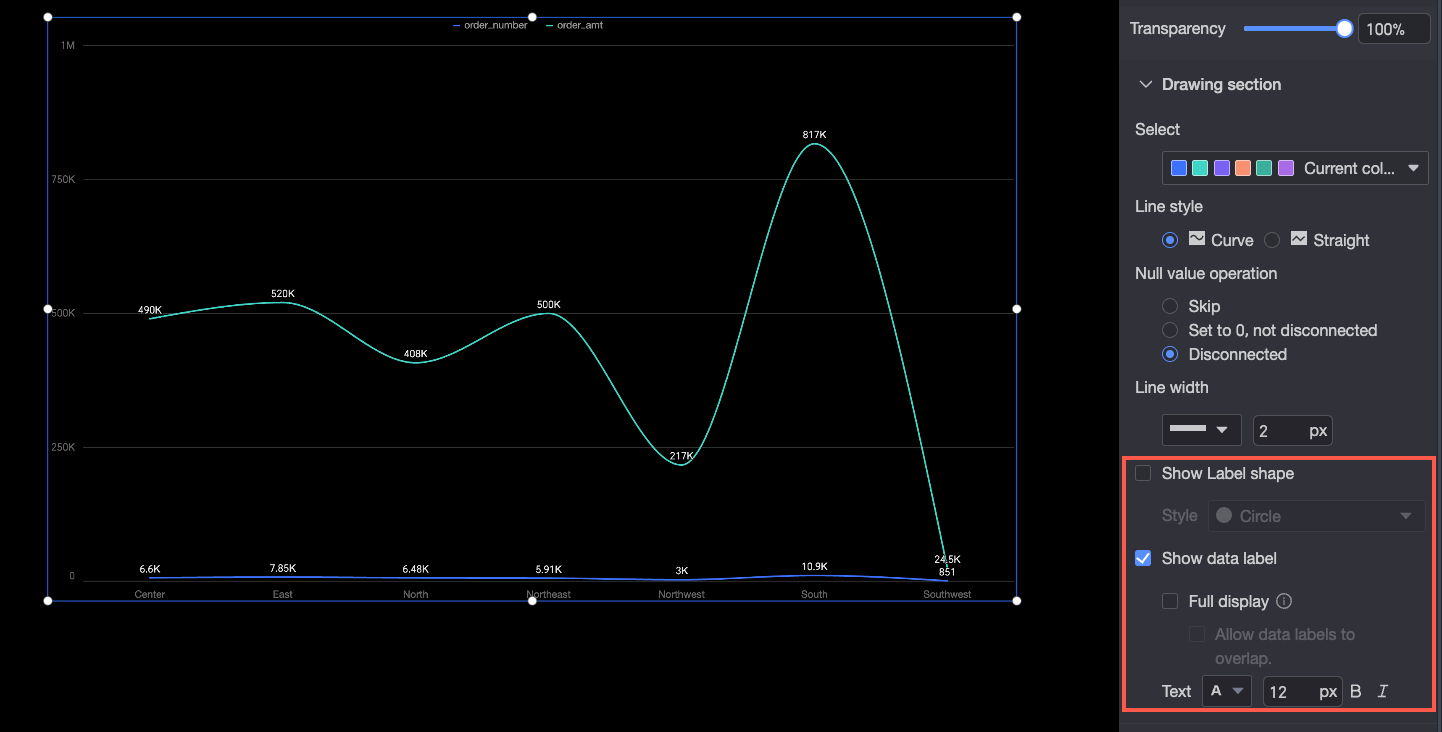
Show Markers: Sets the marker style to circle, hollow circle, diamond, or hollow diamond (①).
-
Show data labels: Toggles data label display. You can select how labels are shown (for example, whether to display all of them) and set their text style (②).
When all data labels are shown, the system arranges them automatically to prevent overlap. Labels that extend beyond the axis area may be hidden. Select Allow data labels to overlap to force all labels to display.
Legend
In the Legend area, set the legend position (top, bottom, left, or right) and text style.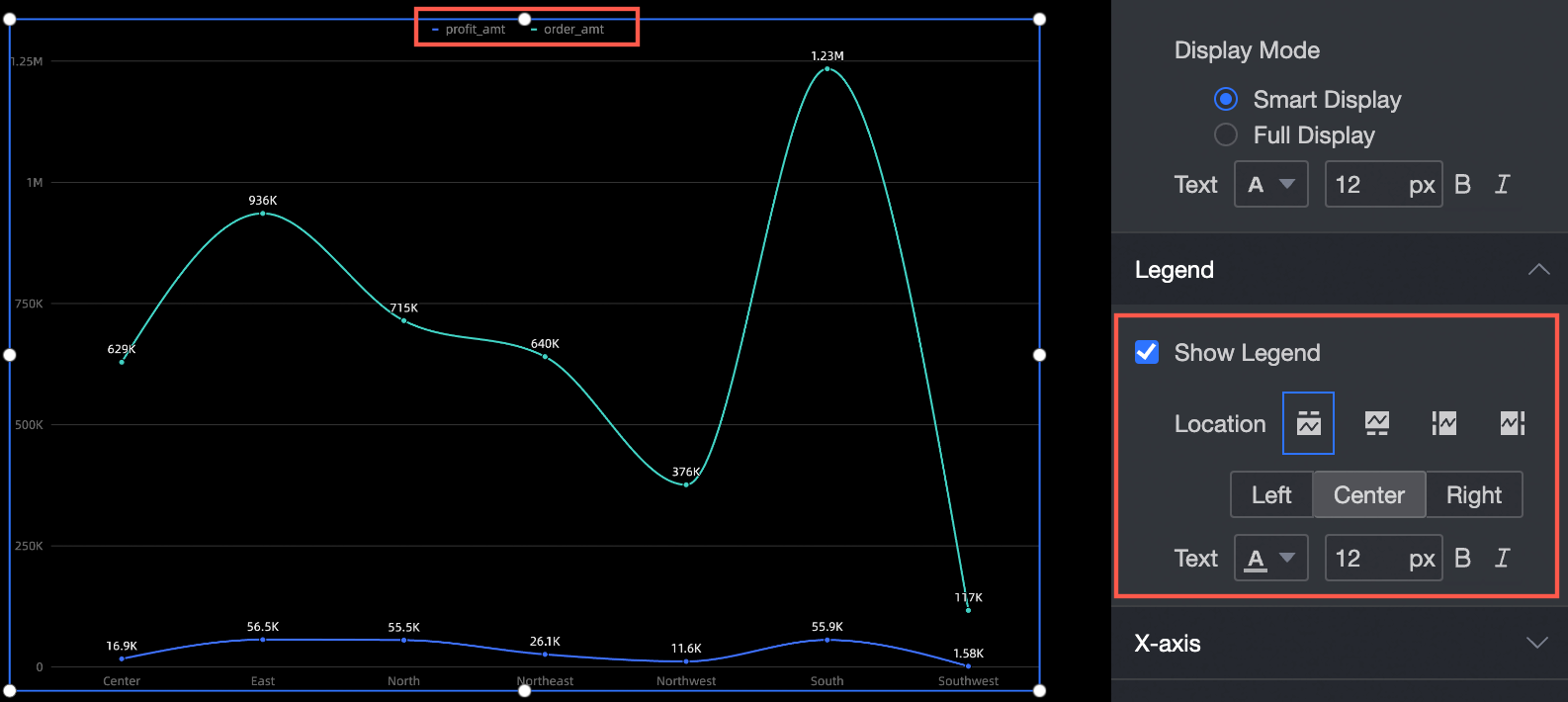
Axis
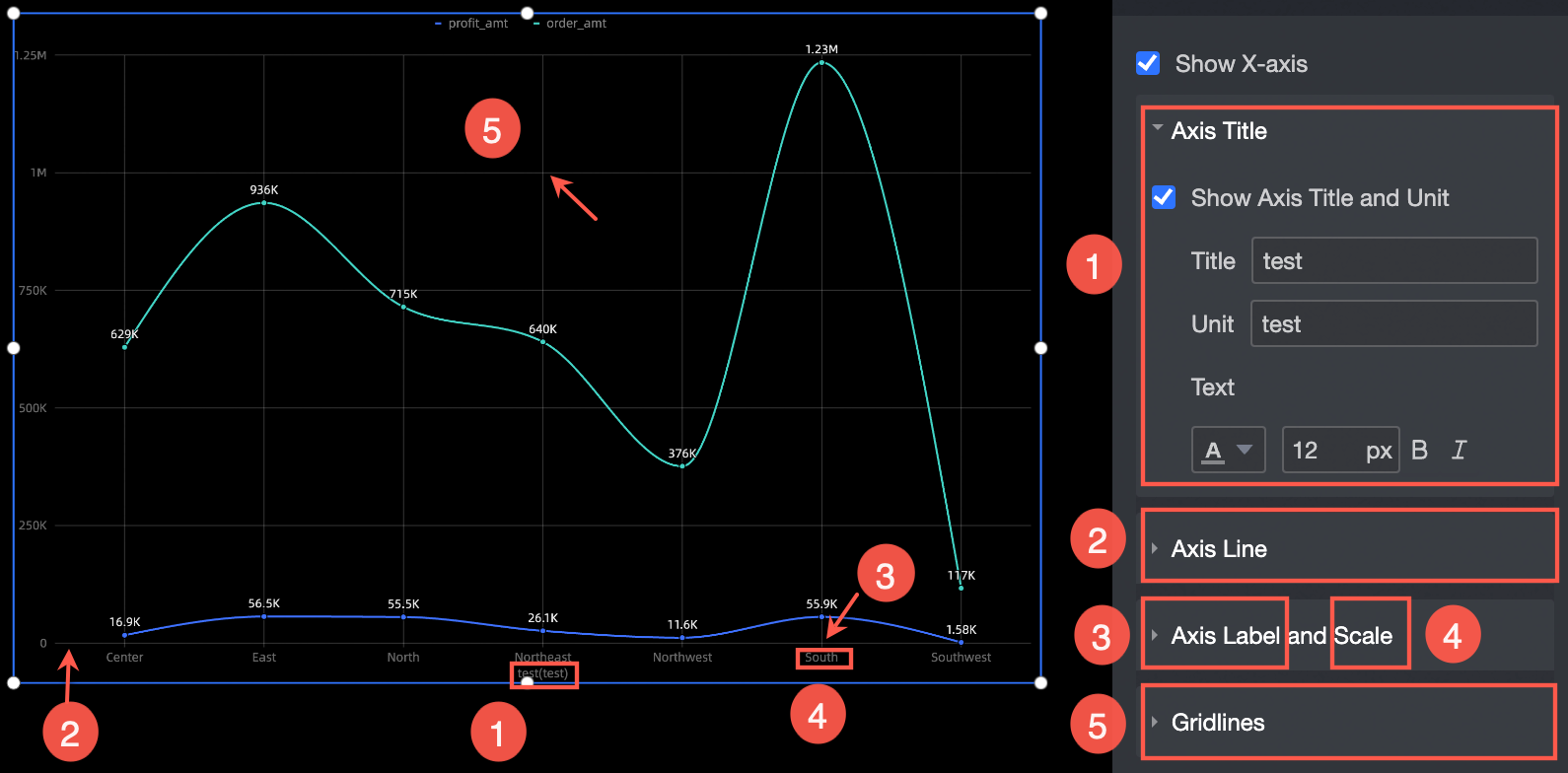
The X-axis section supports the following settings:
-
Show axis title and unit: Set the axis title, unit, and text style (①).
-
Axis line: Sets the type, thickness, and color of the axis line (②).
-
Axis Labels and Tick Marks: Sets the text style for the axis labels and the thickness and color for the tick marks (③ and ④).
-
Gridline: Sets the type, thickness, and color of the gridlines (⑤).
Tooltip
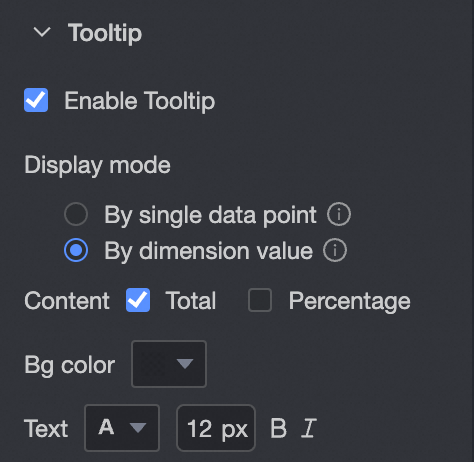
In the Tooltip section, configure the tooltip display mode.
|
Parameter |
Description |
|
Display mode |
Sets how tooltip information is displayed. Options: By Data Point and By Dimension Value. |
|
Content |
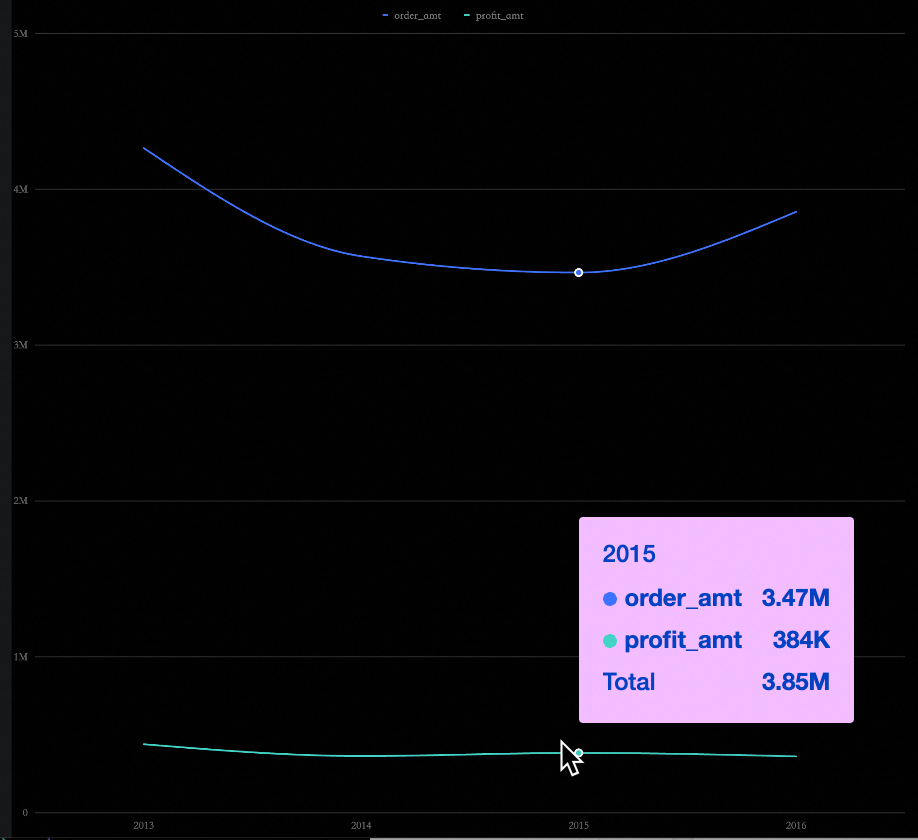
When Display mode is set to By Data Point, Percentage is supported. When Display mode is set to By Dimension Value, Total and Percentage are supported. |
|
Background color |
Sets the background color of the tooltip. |
|
Text |
Sets the style for the tooltip text. |
The following figure shows an example.
Series Settings
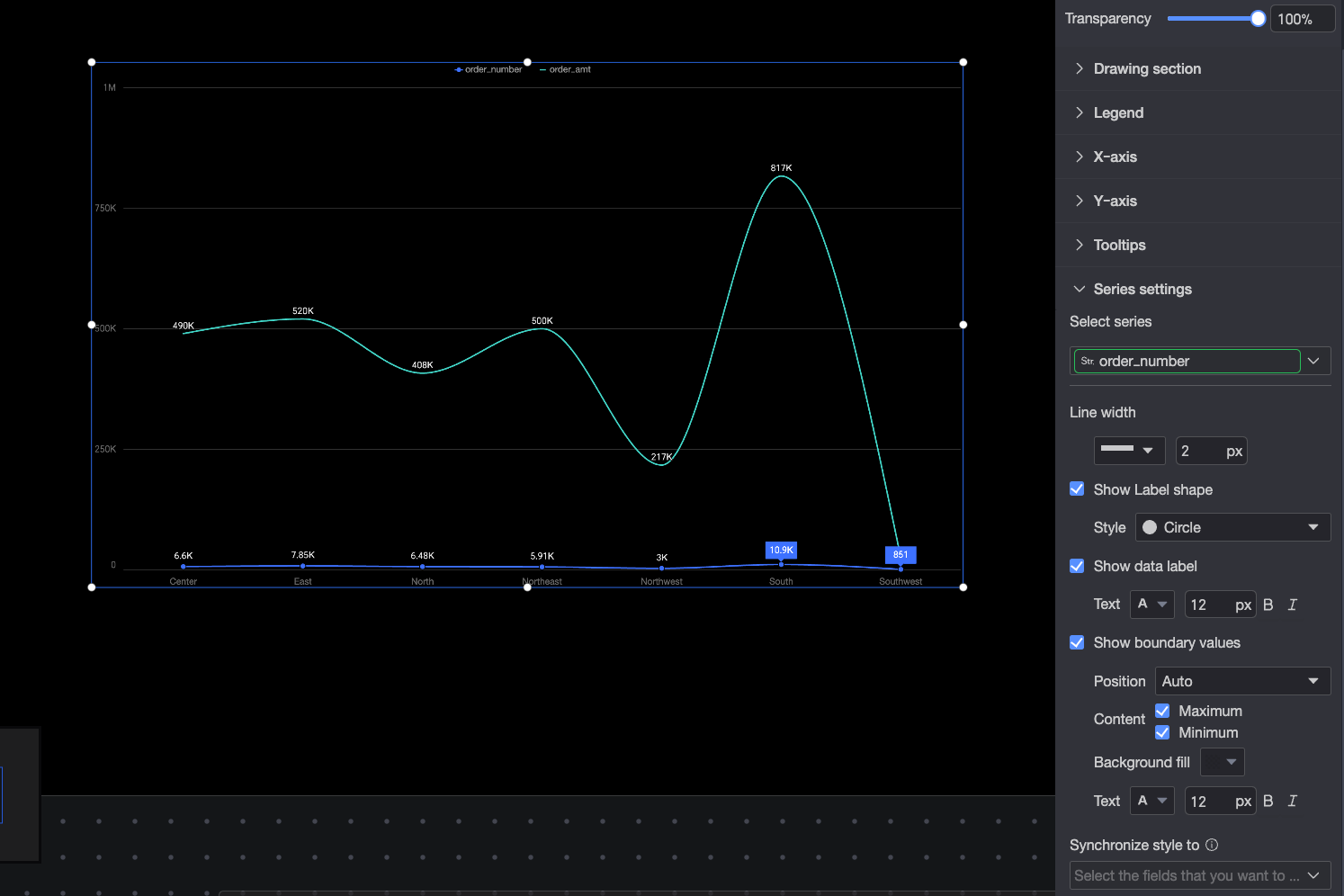
In the Series Settings area, configure series-level display options for the line chart.
You can set the Alias and Series value display format in the Series settings only if Color legend/dimension is enabled in the Field configuration panel.
-
Select Series: Select a measure from the Metric/Measure area.
-
Alias: Sets a display name that fits your business scenario.
-
Line Weight: Sets the style and weight of the data lines in the chart.
-
Display Markers: Sets the marker style for the selected measure. Options: circle, hollow circle, diamond, and hollow diamond.
-
Show data labels: Sets the number display format and text style for data labels. The number display format supports two modes: Automatic and Custom.
-
Auto: Default. Series values inherit the Data display format configuration of the corresponding measure field.
-
Custom: Click the
 icon to open the Data display format settings dialog box and configure the format. For details, see Data display format > Custom.
-
-
Show Extreme Values: Toggles extreme value display in the chart. You can configure the position, content, background fill color, and text style of the extreme value labels.
-
Sync style to: Applies the current series settings to other metrics.
 icon to open the Data display format settings dialog box and configure the format. For details, see