Bar Chart
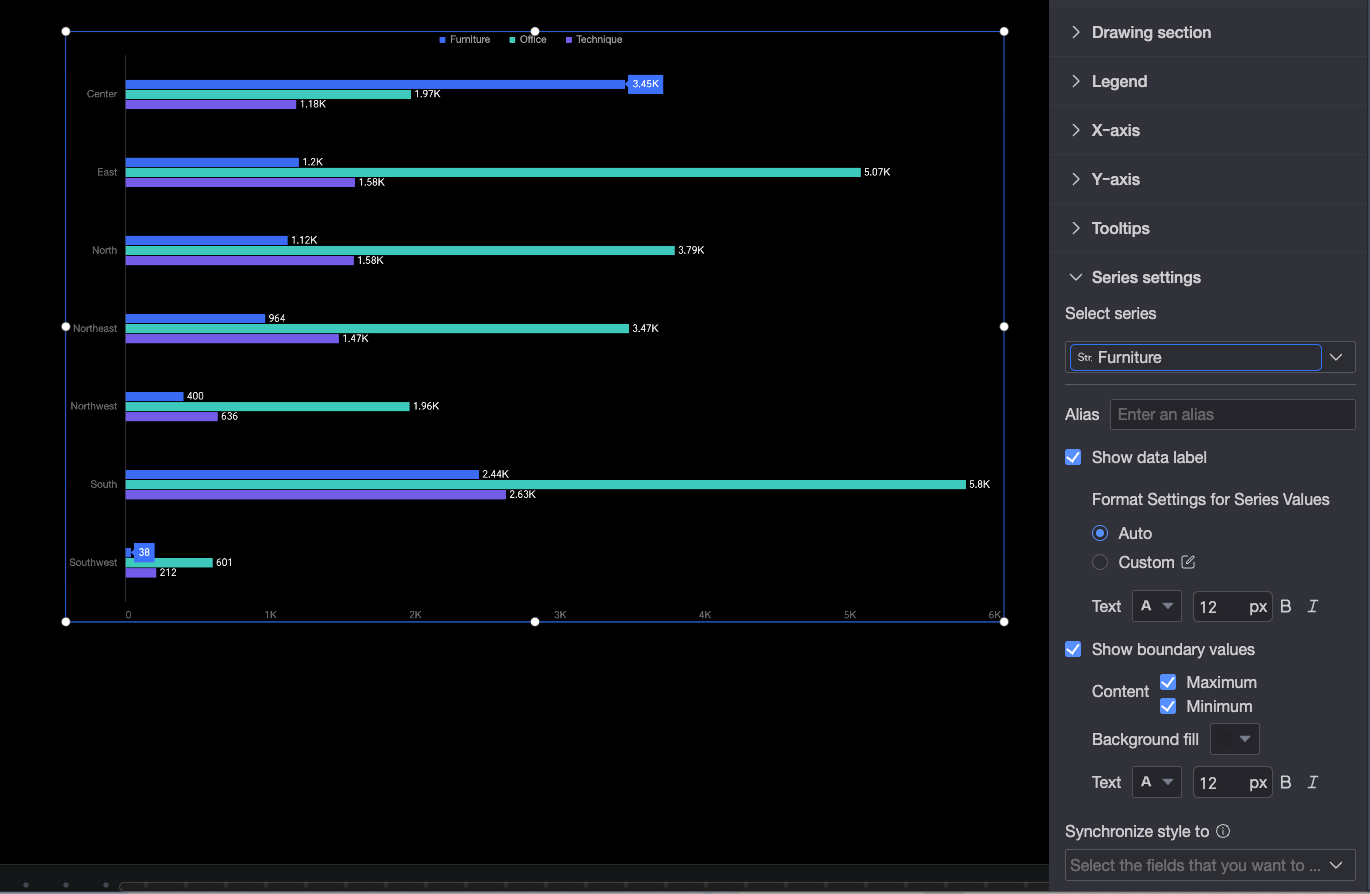
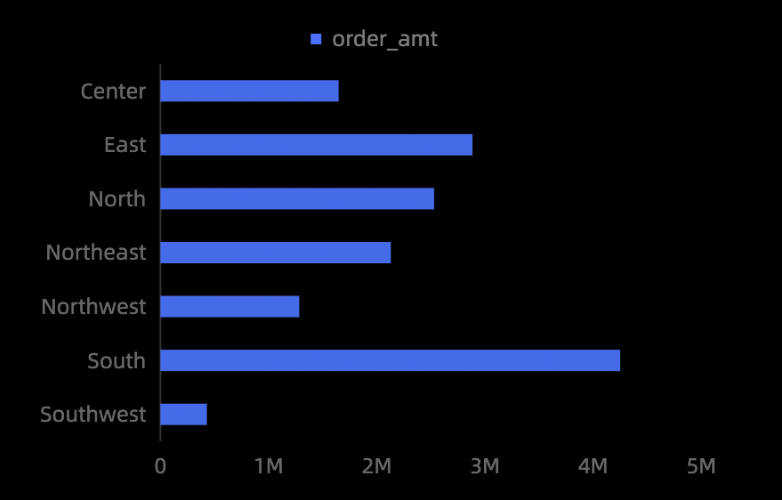
A bar chart visualizes two-dimensional datasets by comparing categories on one axis against their numerical values on the other. For example, you can display months on the horizontal axis and product sales on the vertical axis.
Prerequisites
A dashboard is created. For more information, see Create a dashboard.
Example
Add Data
-
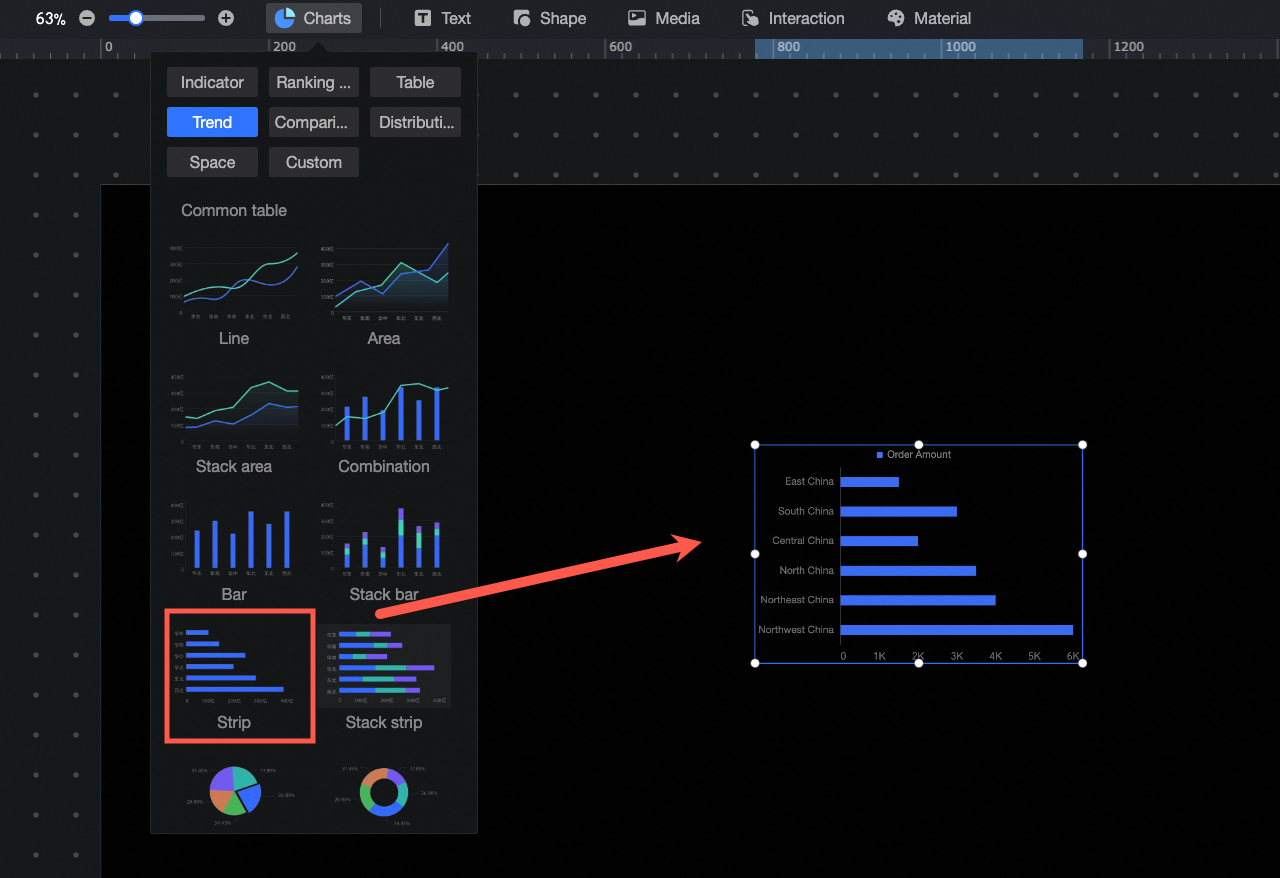
In the component library, under Charts, find the bar chart and drag it to the canvas.
-
Click Select Dataset and follow the instructions in the figure below to add data. The updated icon is as follows.
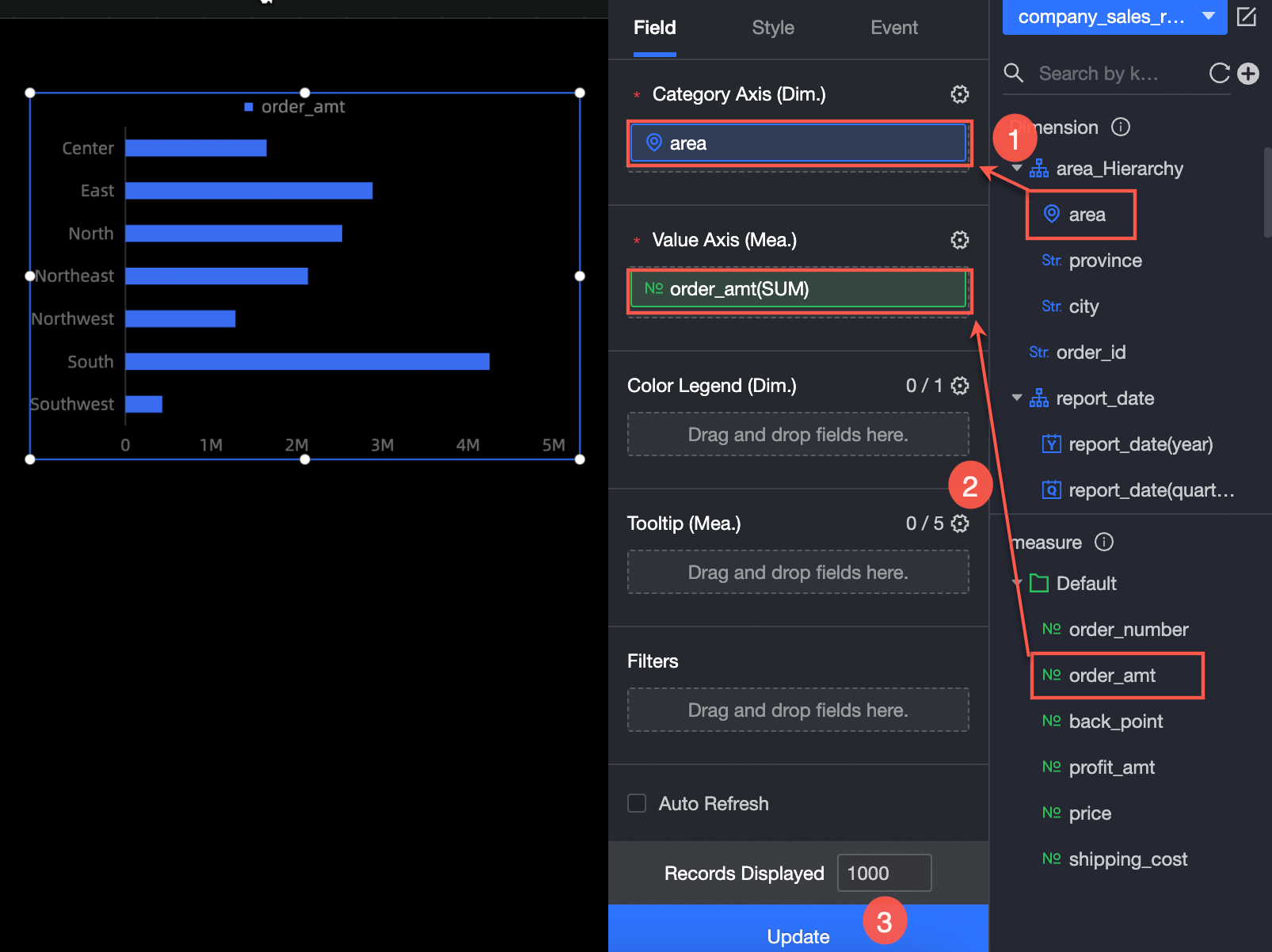
You can also do the following with the data: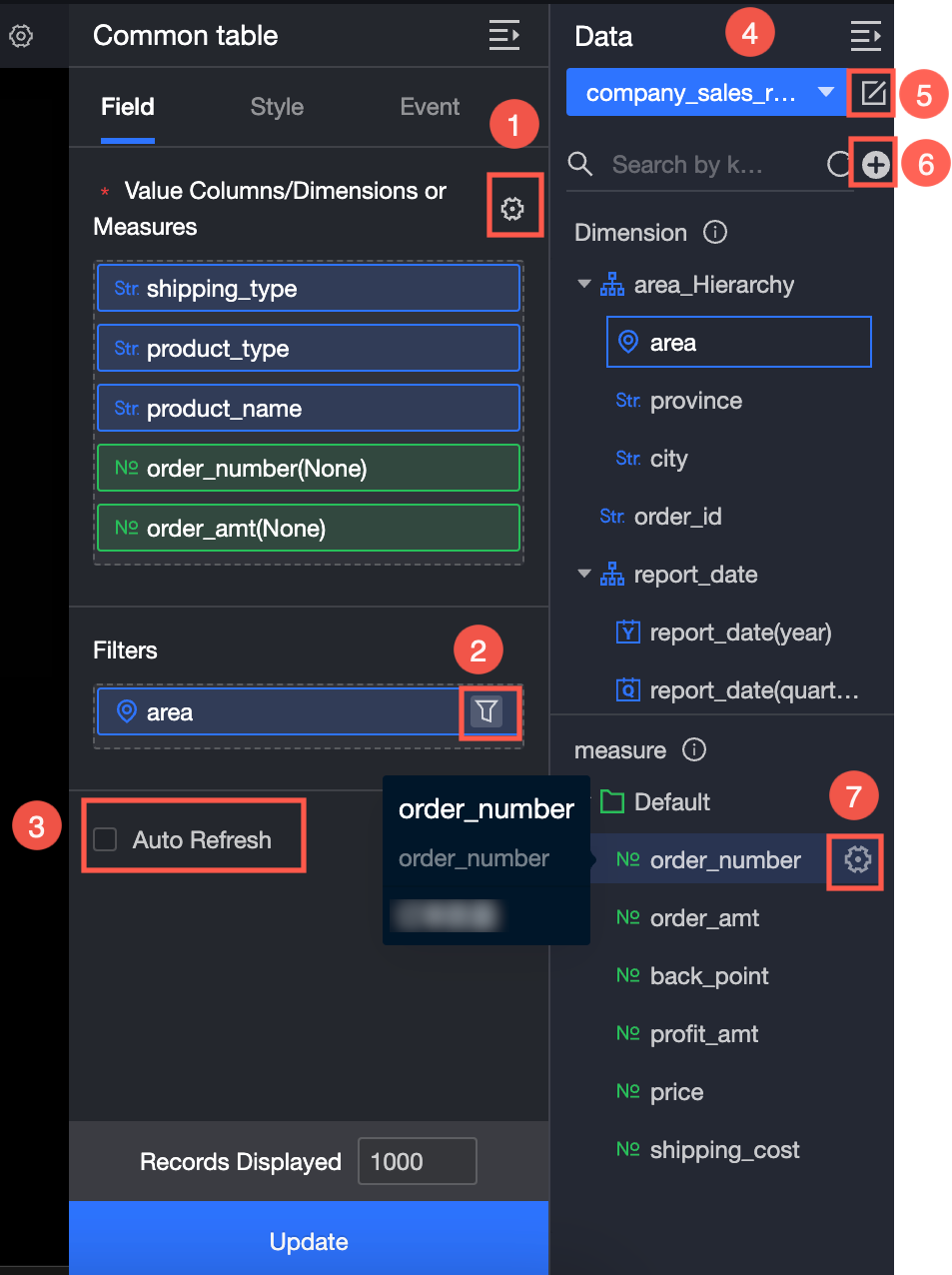
Set field formats in bulk (①). For details, see Configure field styles in batches.
Set a field filter (②). For details, see Filter data.
Set automatic data refresh (③). For details, see Refresh data on a schedule.
Switch datasets (④). For details, see Switch datasets.
Edit the dataset (⑤). For details, see Edit a dataset.
Transform data (⑥). For details, see Create a calculated field and Create a grouped dimension.
Duplicate a field (⑦). For details, see Duplicate a field as a dimension.
Chart Styles
Position and Size
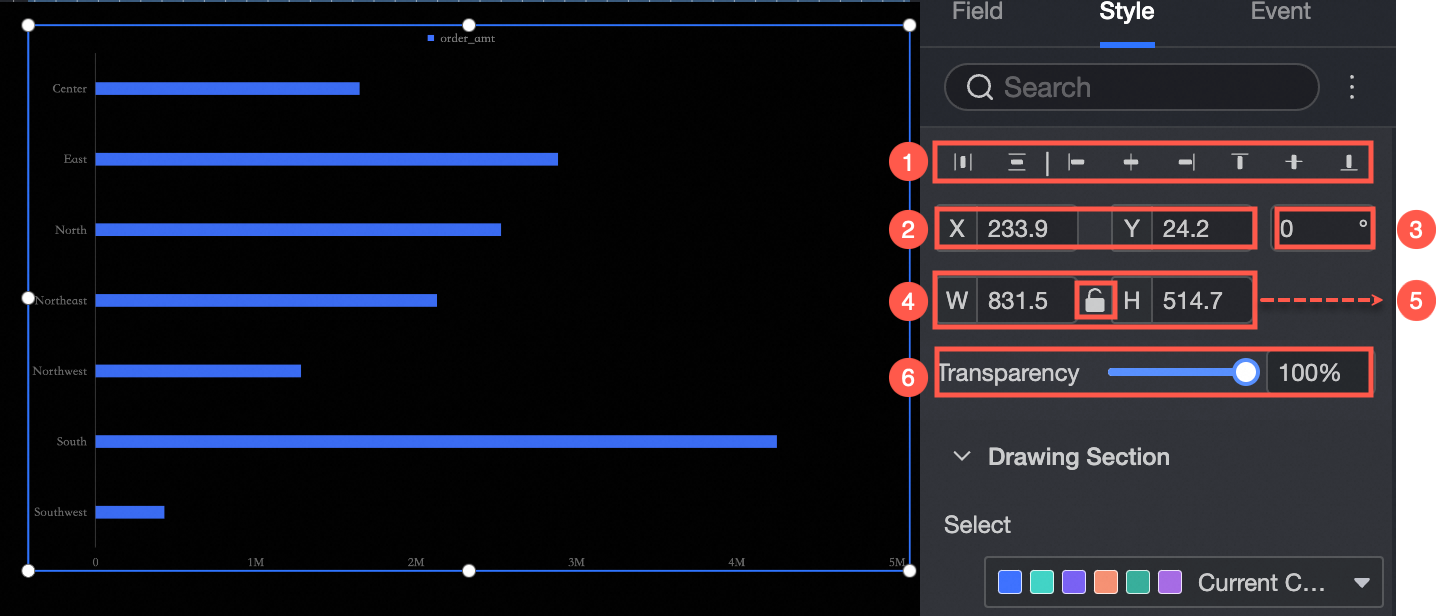
Set the component's position, size, and appearance:
-
Align the component (①). Supported options: left, center, and right.
-
Set the component's position (②). Specify X-axis and Y-axis values, using the top-left corner as the origin.
-
Rotate the component (③). Specify the rotation angle.
-
Resize the component (④). Set the W (width) and H (height) values.
-
Lock the component (⑤). Locked components cannot be resized.
-
Set the opacity (⑥). Adjust the transparency level of the component.
Plot Area
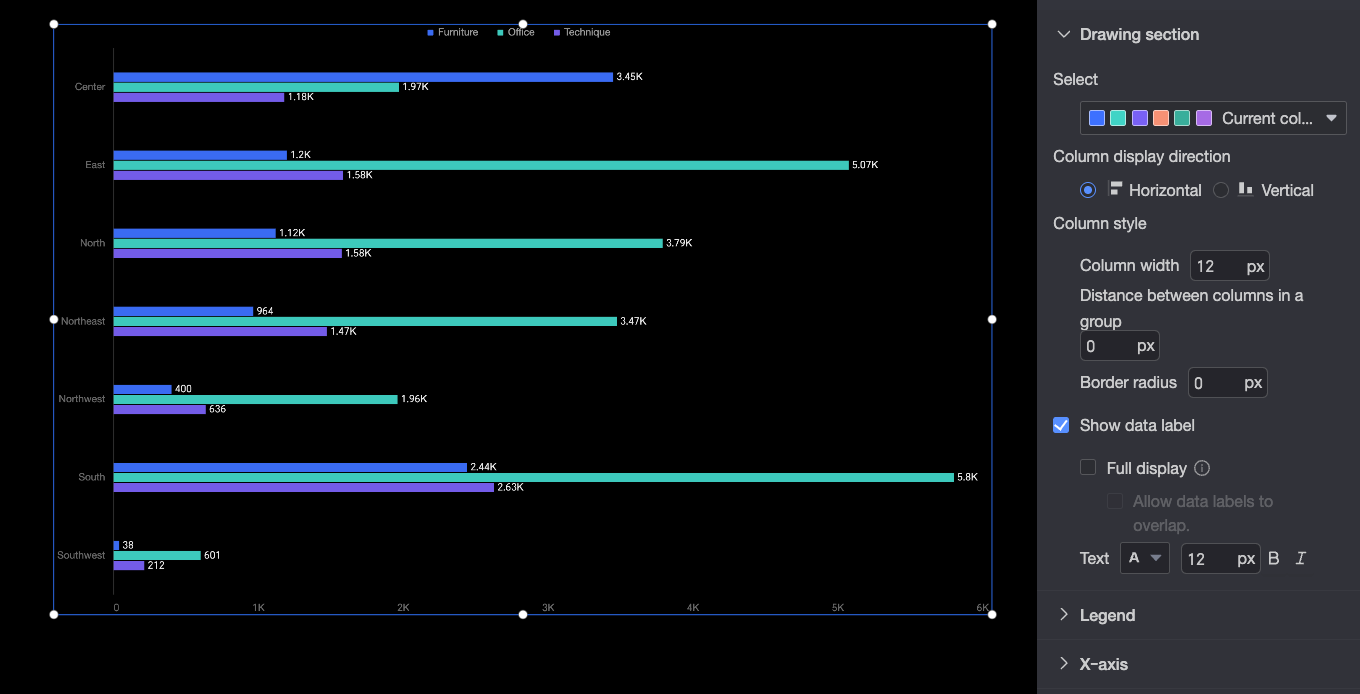
Set the following plot area properties:
-
Color palette: Select the colors for the bars.
-
Bar display direction: Set the orientation of the bars to horizontal or vertical.
-
Bar style: Set the bar width, spacing between bars of the same group, and corner radius.
-
Show data label: Show or hide data labels, and set their display mode and text style.
When all data labels are displayed, the system adjusts their positions to prevent overlap. Labels that extend beyond the axis area may not appear if there are too many. You can also enable Allow data labels to overlap.
Legend
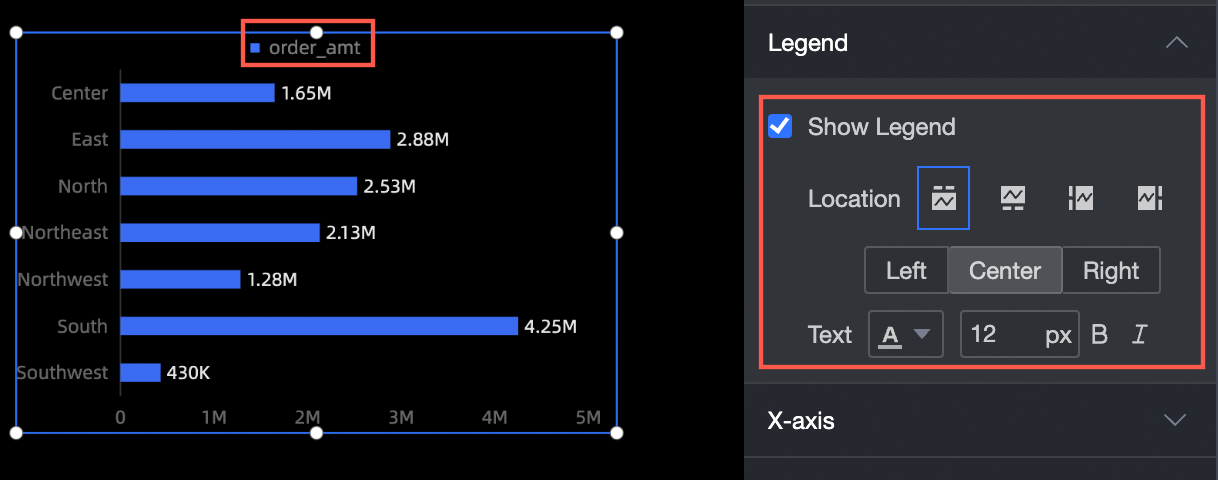
Set the following legend properties:
-
Show legend: Show or hide the legend.
-
Position: Set the legend position.
-
Text: Set the legend text style, including font size and color.
X-axis
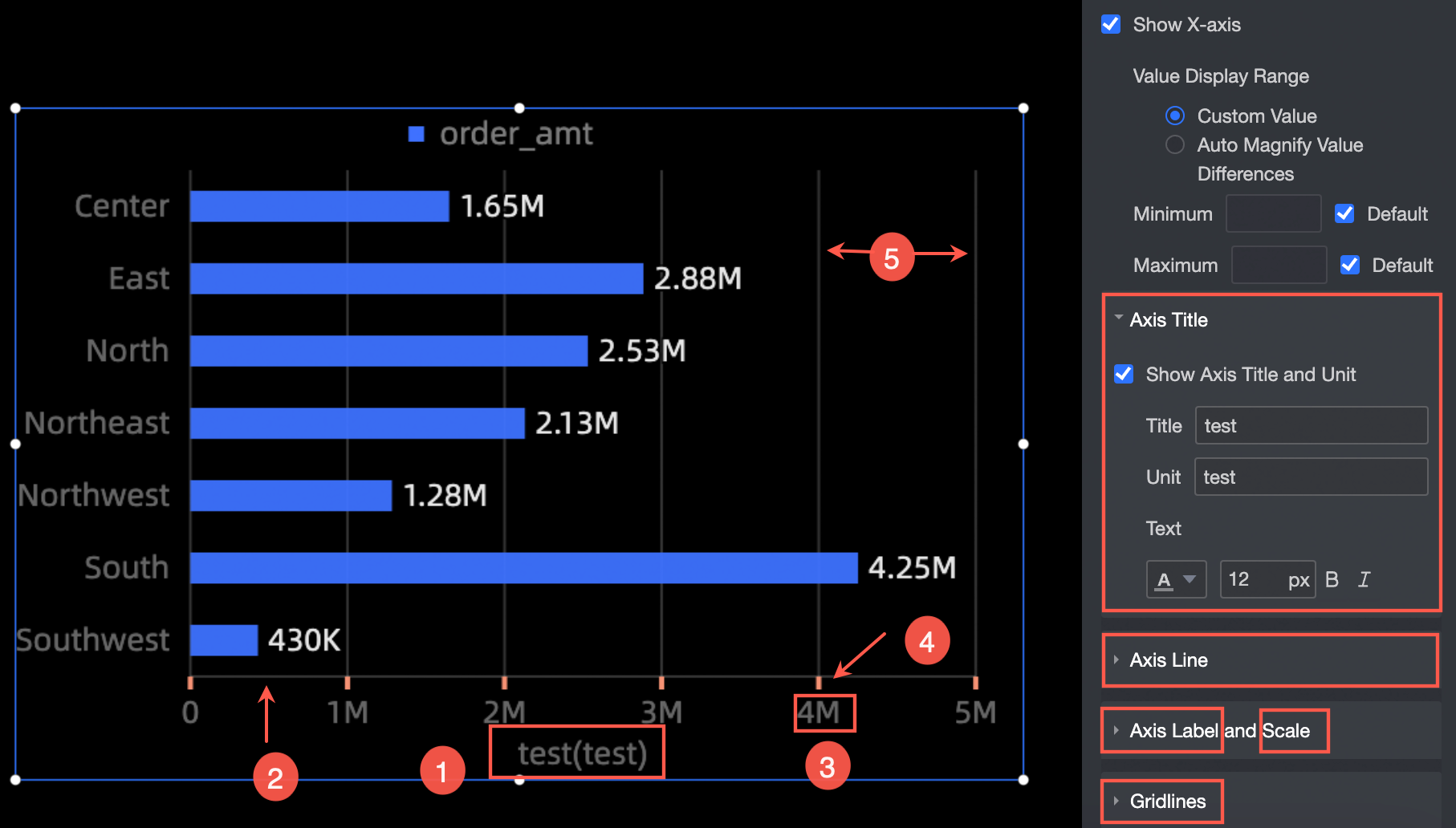
Set the following X-axis properties:
-
Show X-axis: Show or hide the X-axis. You can also set a value range by defining minimum and maximum values.
-
Axis title: Show or hide the axis title and unit, and configure the title text, unit text, font size, and color.
-
Axis line: Show or hide the axis line and configure its color.
-
Axis label and tick: Show or hide axis labels and ticks, and configure the text color of the labels and the style of the ticks.
-
Gridlines: Show or hide gridlines and configure their width and color.
Y-axis
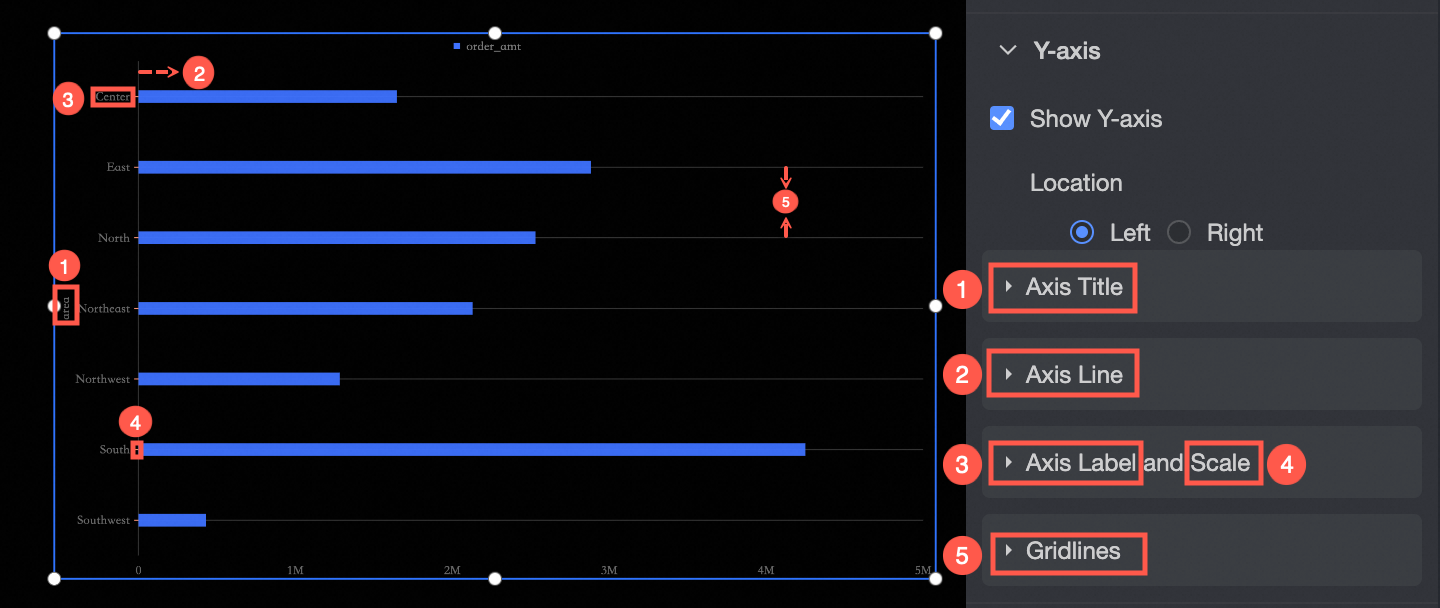
Set the following Y-axis properties:
-
Show Y-axis: Show or hide the Y-axis and set its position.
-
Axis title: Show or hide the axis title and unit, and configure the title text, unit text, font size, and color.
-
Axis line: Show or hide the axis line and configure its color.
-
Axis label and tick: Show or hide axis labels and ticks, and configure the text color of the labels and the style of the ticks.
-
Gridlines: Show or hide gridlines and configure their width and color.
Tooltip
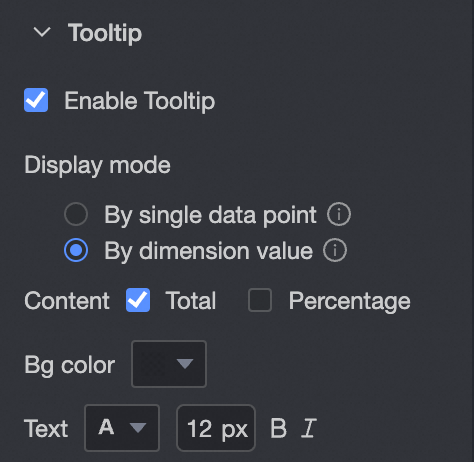
Set the tooltip display options.
|
Parameter |
Description |
|
Display mode |
Specifies how tooltip information appears. Supported modes: By single data point and By dimension value. |
|
Content |
The By single data point mode supports percentages. The By dimension value mode supports totals and percentages. |
|
Background color |
Sets the tooltip background color. |
|
Text |
Sets the tooltip text style. |
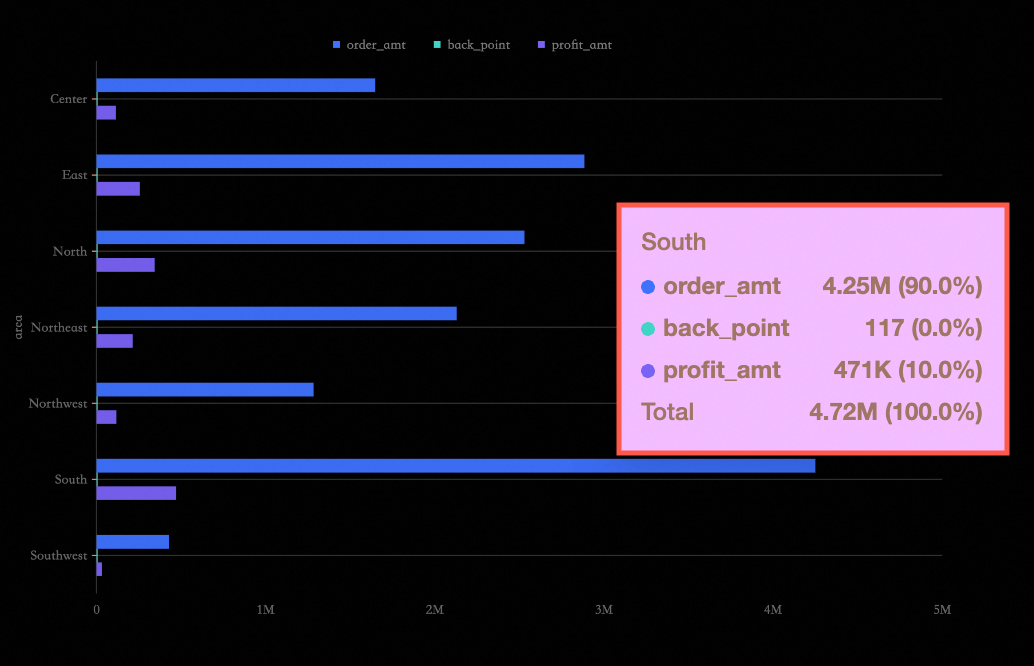
The following figure shows an example tooltip.
Series Settings
Set the following series properties:
You can set alias and series value display format in Series Settings only when Color Legend/Dimension is enabled in the Field configuration panel.
-
Select series: Select a dimension or measure field.
-
Alias: Set a custom name for the field.
-
Show data label: Configure the Value display format and Text style for data labels. The value display format supports Auto and Custom modes.
-
Auto: The default option. The series value inherits the Data display format settings of the corresponding measure field.
-
Custom: Click the
 icon to set the data format in the Data Display Format Settings dialog box. For details, see Data Display Format > Custom.
-
-
Show most value: Show or hide the maximum and minimum values in the chart. You can set the position, content, background color, and text style for the value labels.
-
Sync style to: Apply the current conditional format to other metrics.
 icon to set the data format in the Data Display Format Settings dialog box. For details, see