Rring Progress Bar
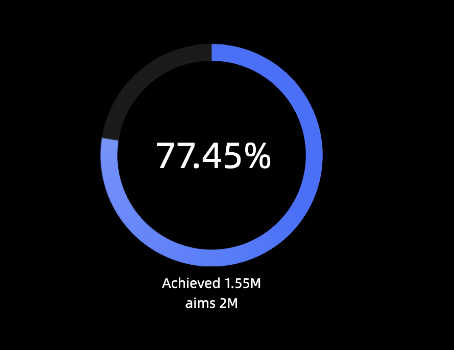
The ring progress bar visually displays the progress of a specific indicator. You can add data and configure the style of a ring progress bar.
TensorBoard
Configuration data
-
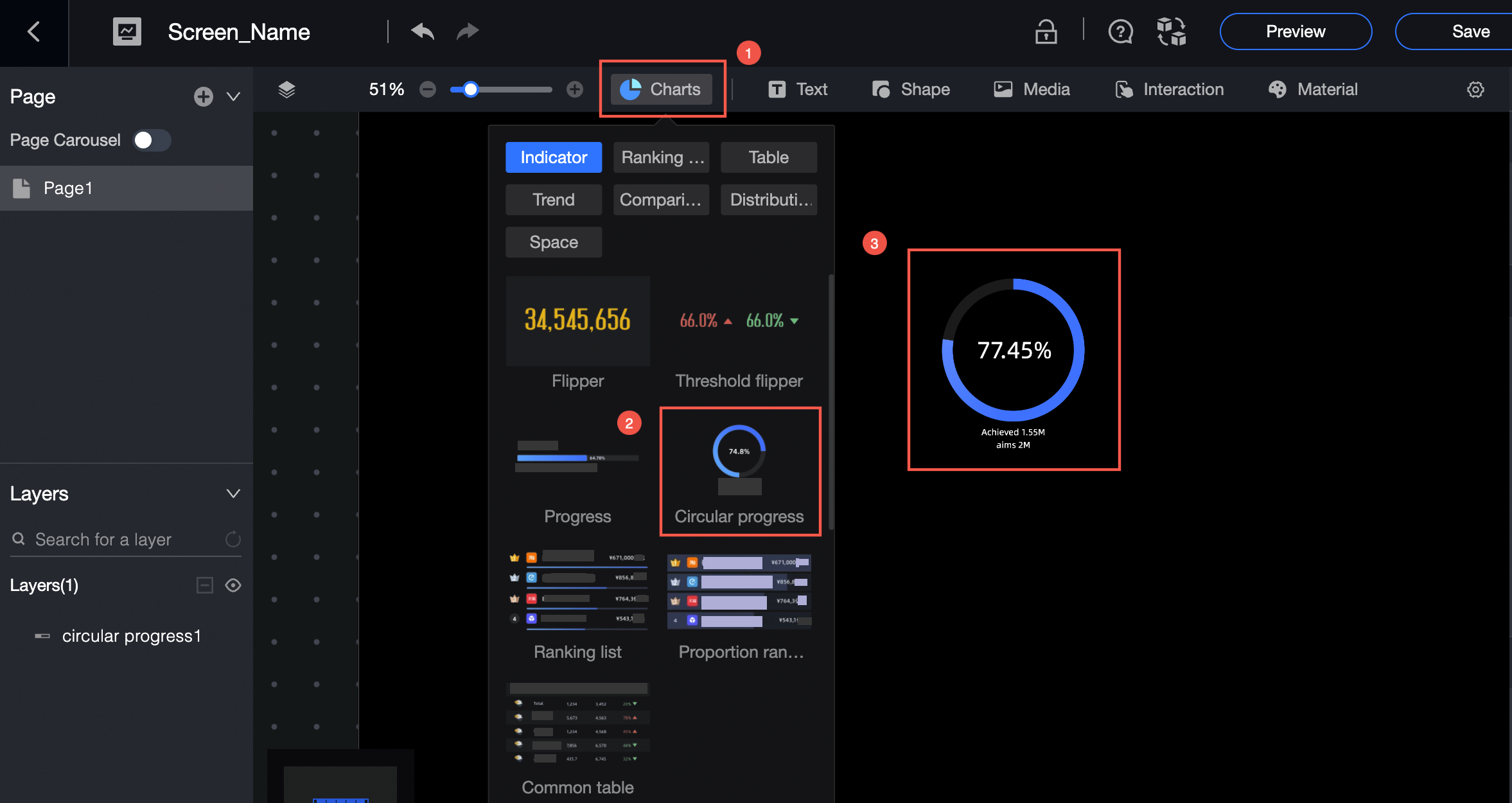
On the chart in the Component Library section, drag the ring progress bar to the canvas.
-
Click Select Dataset and follow the instructions in the following figure to add data.
The following figure shows Target Value /Measure. You can also select Dynamic Field.
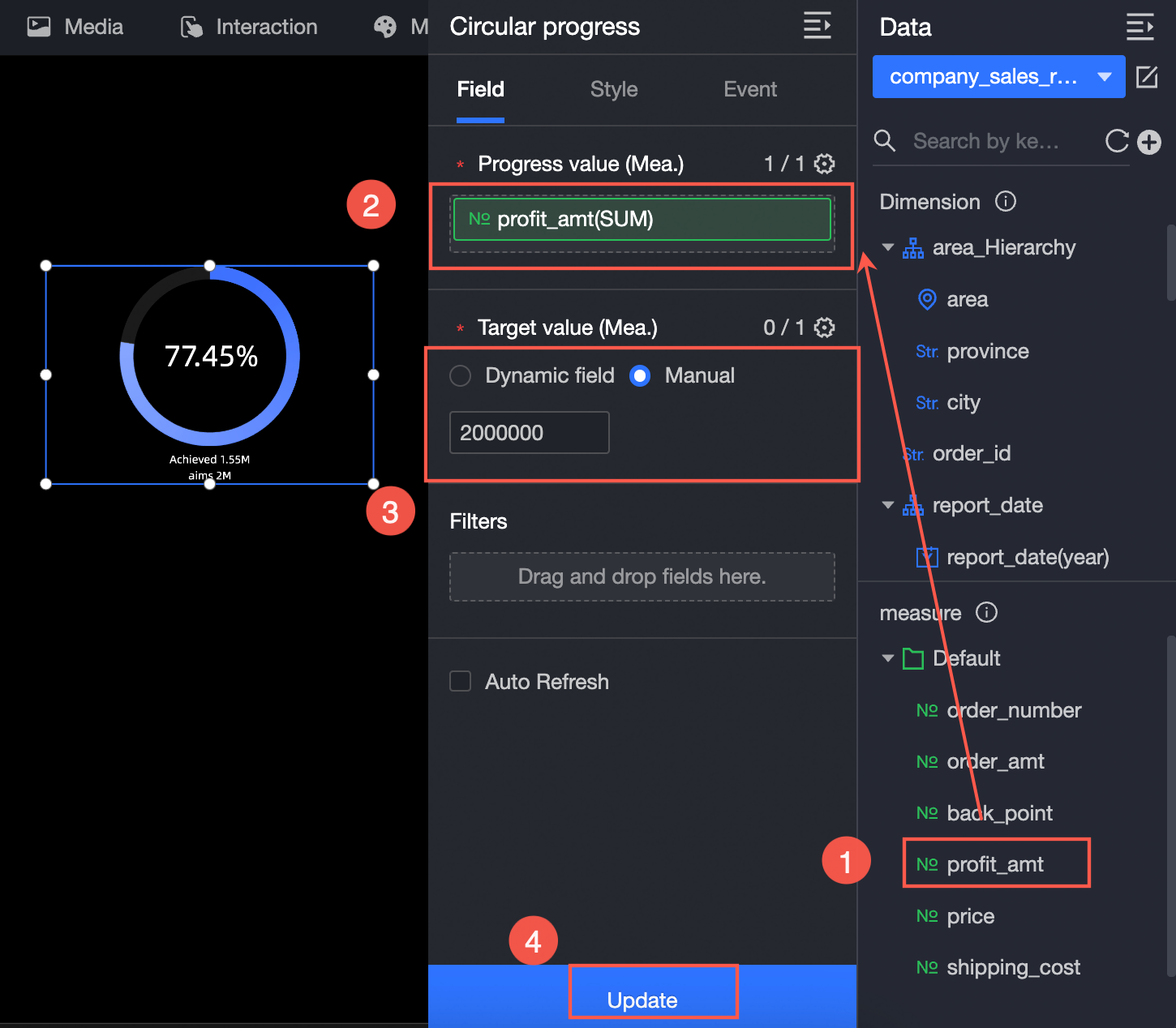
You can also perform the following operations on data: 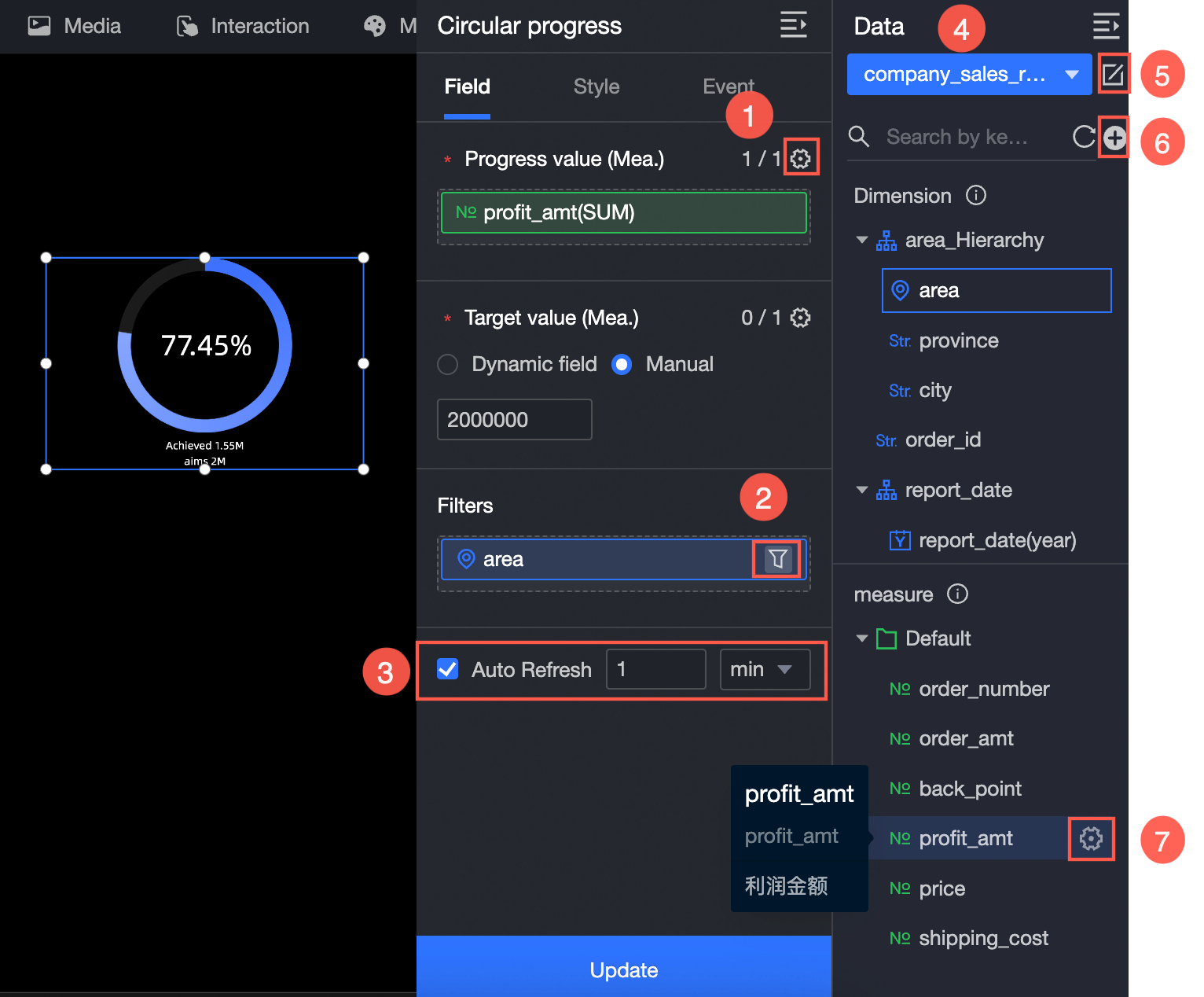
-
Configure multiple field formats. For more information, see Configure multiple field formats.
-
Configure field filtering. For more information, see Filter data.
-
Configure automatic data refresh (③). For more information, see Scheduled data refresh.
-
Switch a dataset. For more information, see Switch a dataset.
-
Edit a dataset. For more information, see Edit a dataset.
-
Data processing (⑥). For more information, see Create Calculated Field and Create Grouping Dimension.
-
Copy fields. For more information, see Copy to Dimension.
Configure Style
Location and size
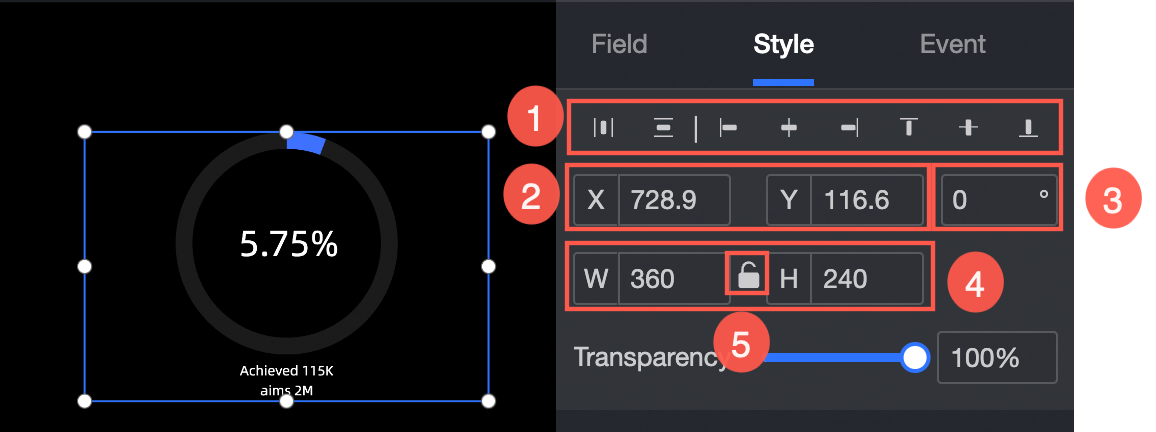
Configure the following component properties:
-
Adjust widget alignment (①): left, center, or right.
-
Adjust the widget position (②): Set the X and Y values relative to the upper-left corner.
-
Adjust the rotation angle (③) of the component.
-
Adjust the component size (④): Set W and H to change the width and height.
-
Lock component (⑤): Prevents resizing when locked.
Progress bar
In the progress bar section, set the bar color (①), background color (②), and width (③). 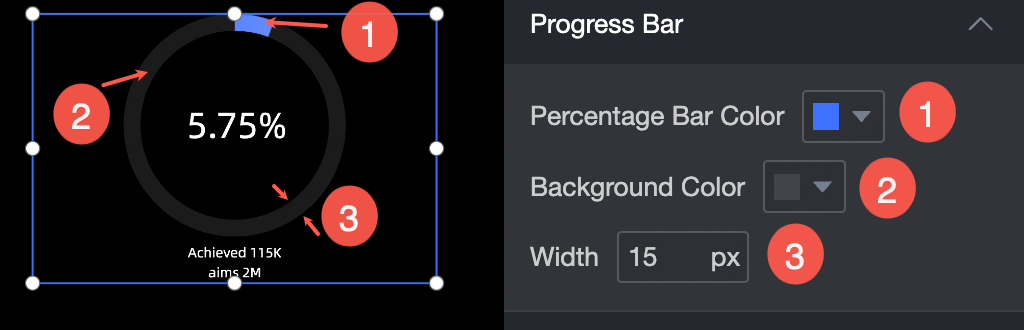
Tag
Configure the following settings in the label section.
-
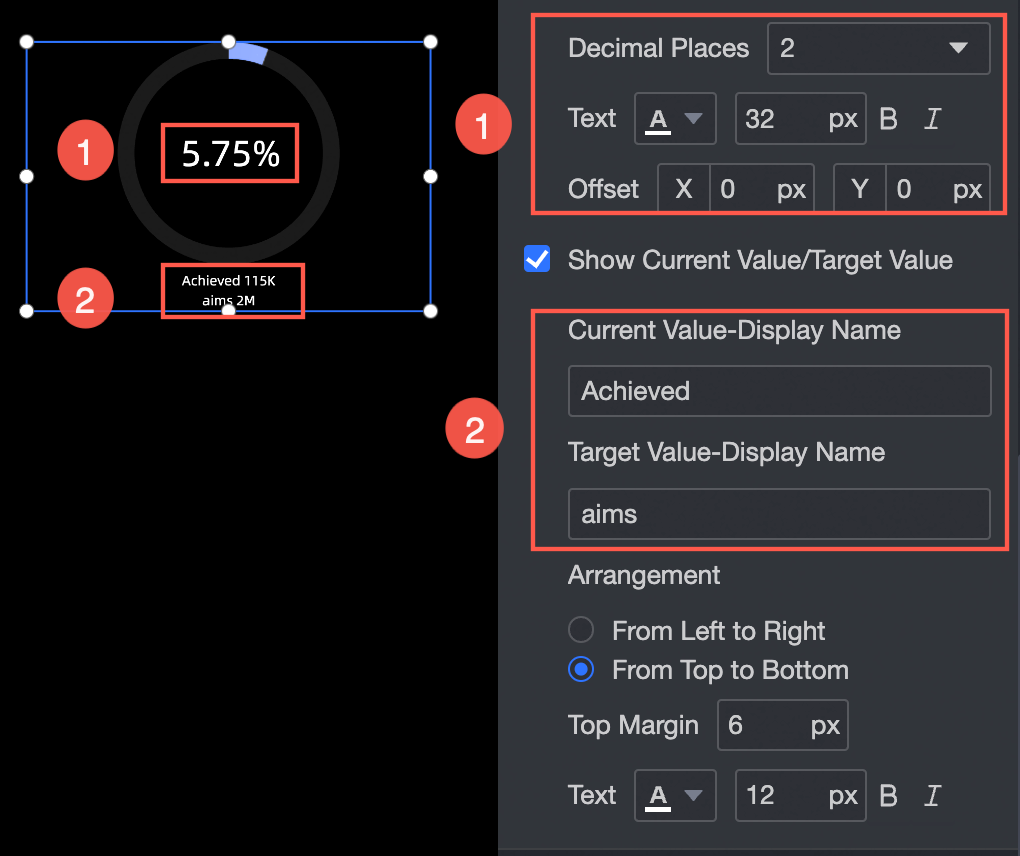
Show Progress Value Proportion: Set the decimal places (①), the X-axis and Y-axis offsets from the center, and the text style.
-
Display Current Value /Target Value: Set the display name (②), arrangement (horizontal or vertical), top margin (distance from the progress bar), and text style.
Dynamic effect
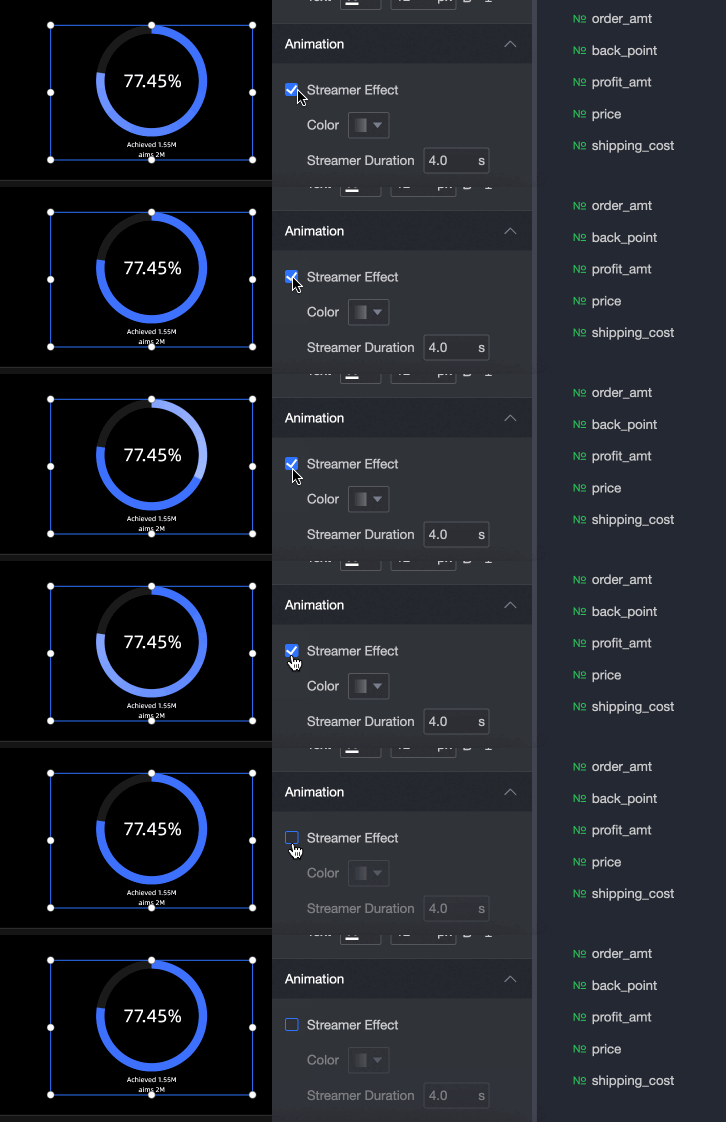
Configure animation effects in the Motion Effects section.
-
Color: the streamer color. Supports solid or gradient colors.
-
Streamed Duration: Specify the interval between streamers. Unit: seconds.