Trend analysis table
The trend analysis table in Quick BI is designed for business decision-making. It combines a table with a trend chart to visually represent the performance of your measures over various time granularities, such as year, quarter, or month. As a time-series visualization tool, it allows you to compare historical data and track progress toward your goals.
Limitations
Prerequisites
You have created a dataset that contains a date field with day-level granularity, such as report_date(day). For more information, see Create a dataset.
You have created a dashboard. For more information, see Create a dashboard.
When adding data to a trend analysis table, the dataset must contain a date field with day-level granularity, such as report_date(day). The following limitations also apply:
The number of columns in the trend analysis table is determined by the date field and the number of time periods. You can select only one dimension field with day-level granularity, and the number of time periods cannot exceed 1,000.
The number of rows depends on the number of measures. You must select between 1 and 300 measures.
Overview
Use cases
Trend analysis tables are used to analyze high-level metrics across various time granularities, such as year, quarter, month, week, and fiscal year, or for specific periods like the last seven days.
Example
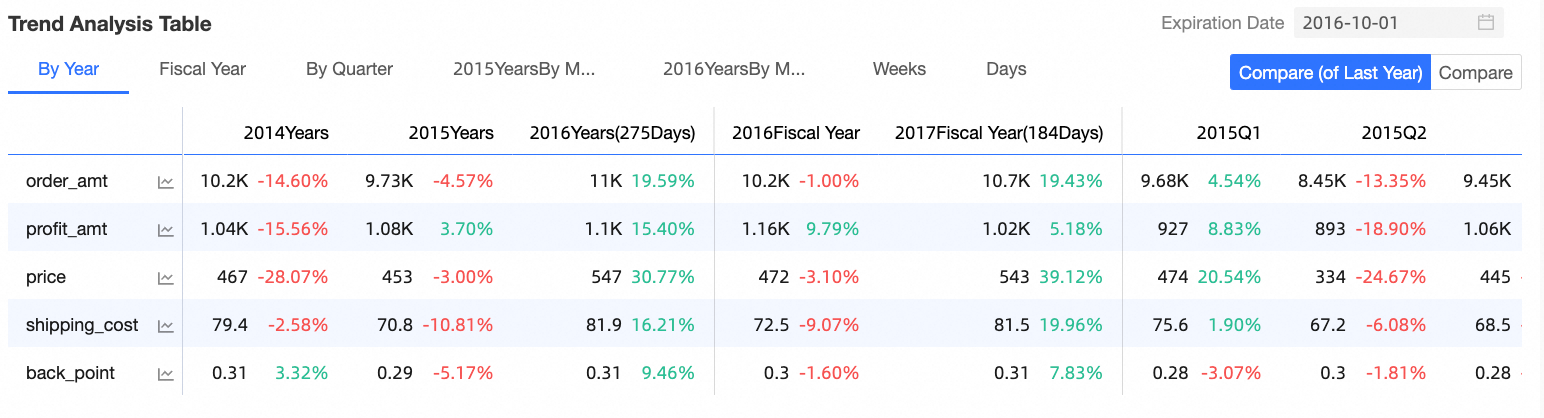
Core advantages
Multi-dimensional analysis: Supports comparisons across time granularities such as day, week, month, and year (year-on-year and month-on-month).
Goal management: Provides built-in features for entering goal values and analyzing completion rates.
Enhanced interaction: Click a measure to open a pop-up trend chart for in-depth analysis.
Procedure
Configure chart data
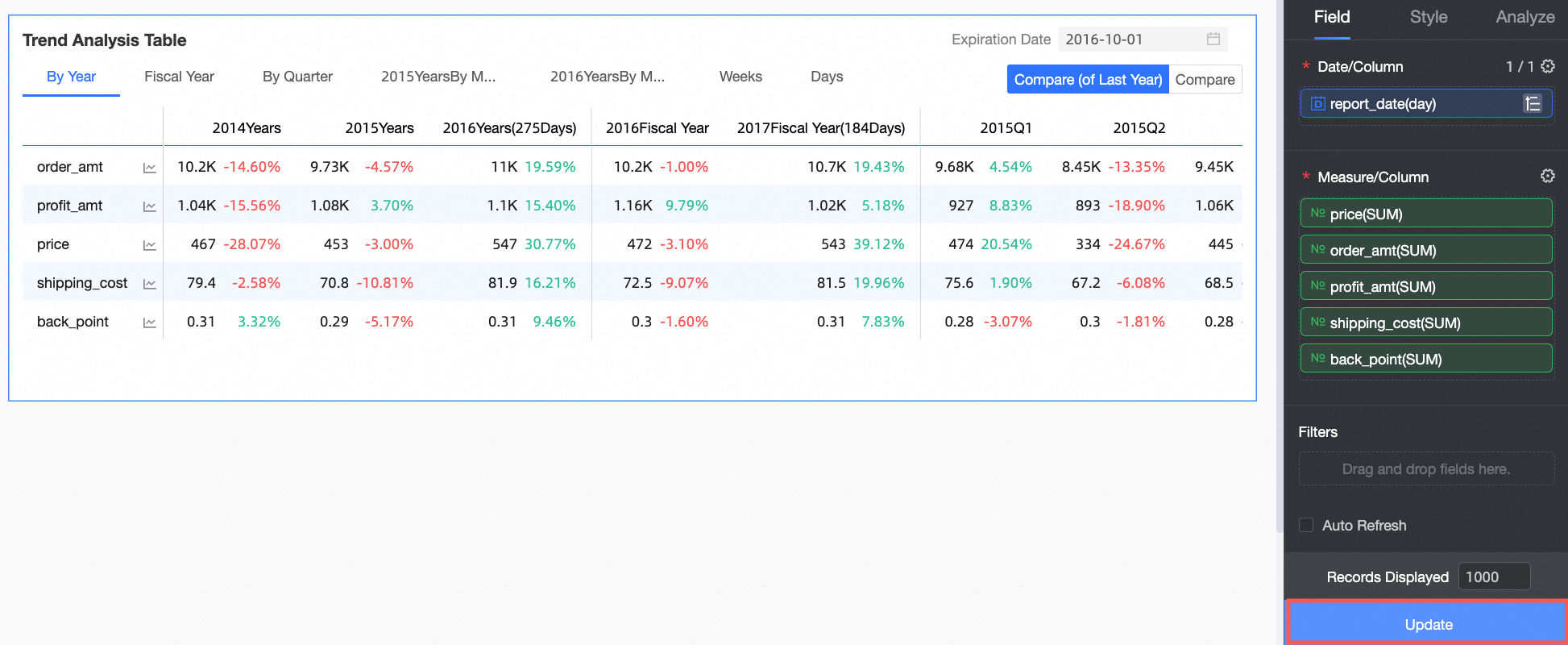
In the Chart Design pane, on the Data tab, select the required dimension and measure fields.
From the Measures list, find order_amt, profit_amt, shipping_cost, price, and discount_rate. Double-click or drag them to the Indicator (Measures) area.
From the Dimensions list, find report_date(day) and double-click or drag it to the Date (Dimensions) area.
NoteThe Date (Dimensions) field only accepts a single date-type field with day-level granularity.
Click Update. The system automatically updates the chart.
Configure chart style
On the Field tab, click the settings icon
 next to Measure/Column and configure the tree structure of the trend analysis table as shown in the following figure.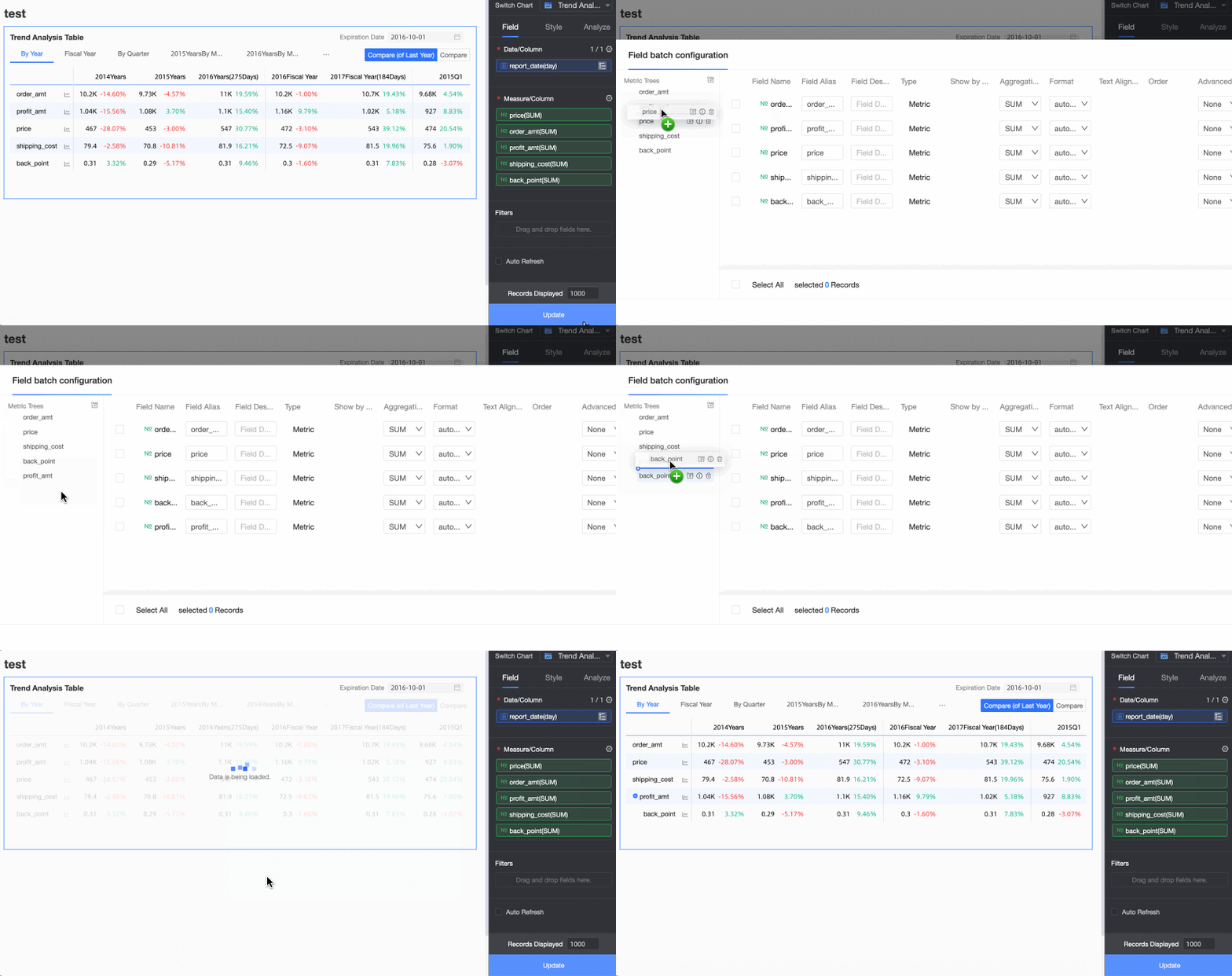
On the Style tab, configure the style of the trend analysis table. For details on common chart style settings, see Configure the title bar of a chart.
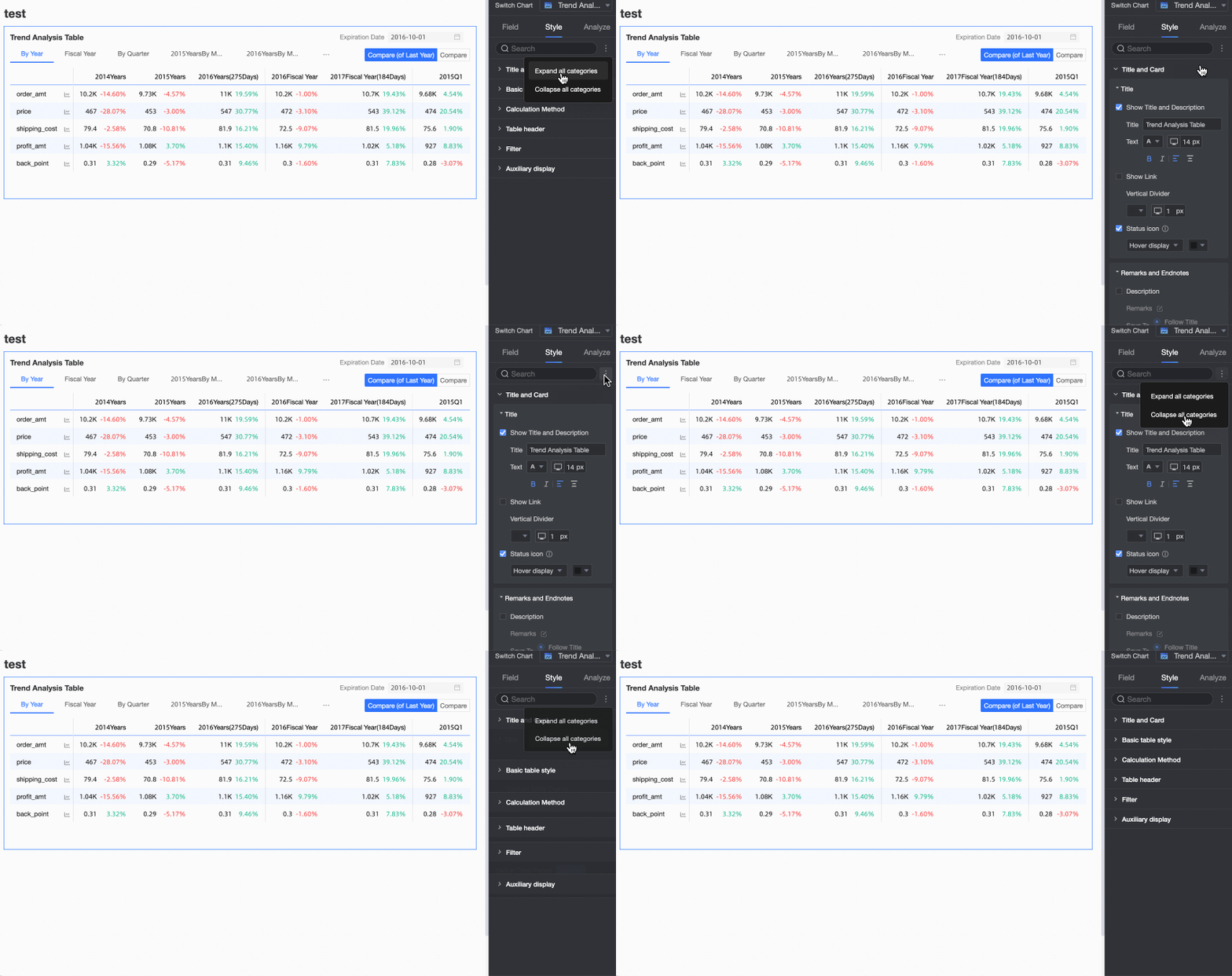
You can enter keywords in the search box at the top of the configuration pane to quickly find a setting. You can also click the
 icon on the right to Expand/Collapse All Categories.
In the Basic Table Style section, configure the basic styles of the table.
Parameter
Description
Custom table theme
Sets the visual appearance of the trend analysis table.
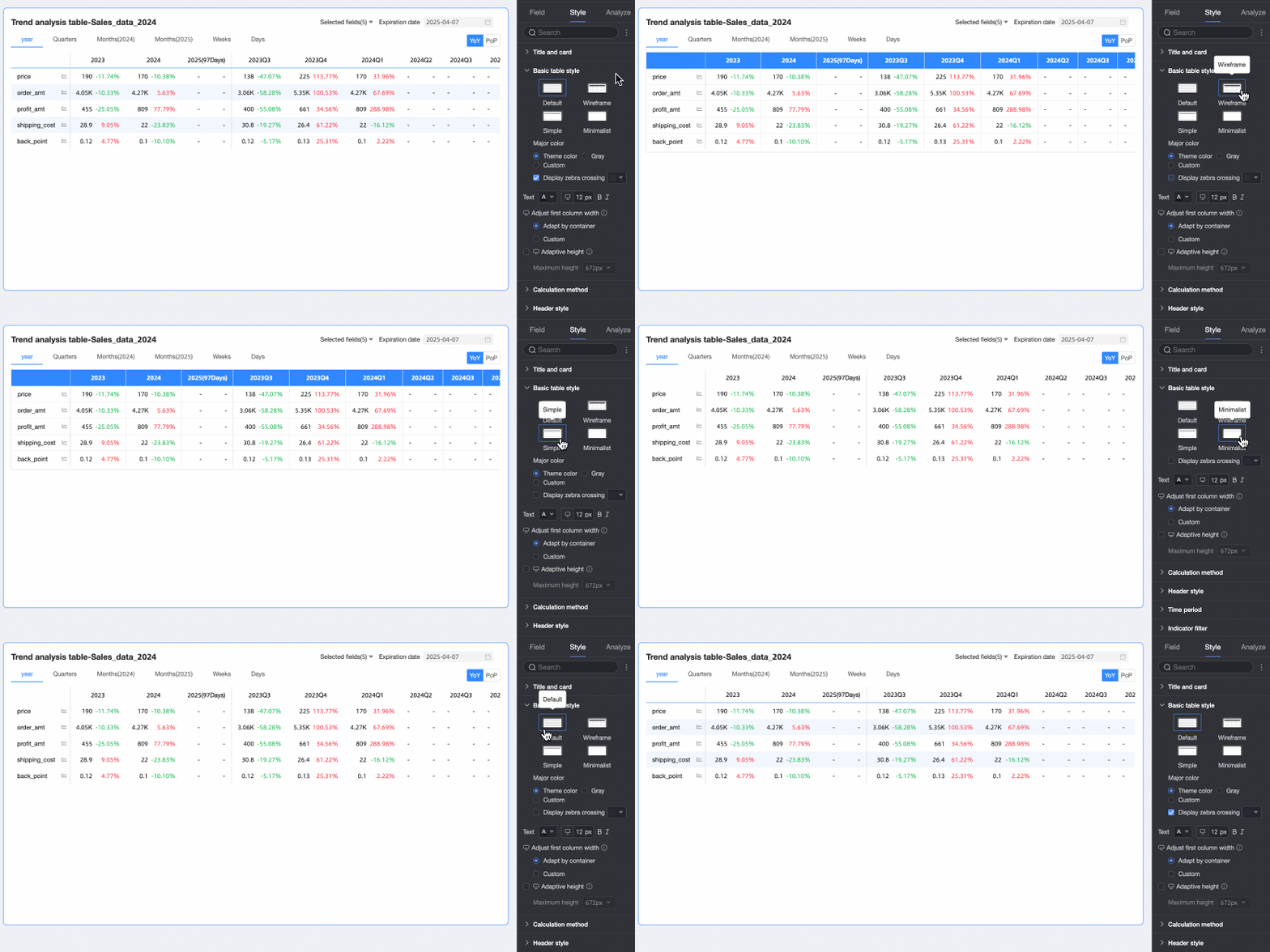
Theme Style: You can choose from four styles: Default, Wireframe, Simple, and Minimalist.
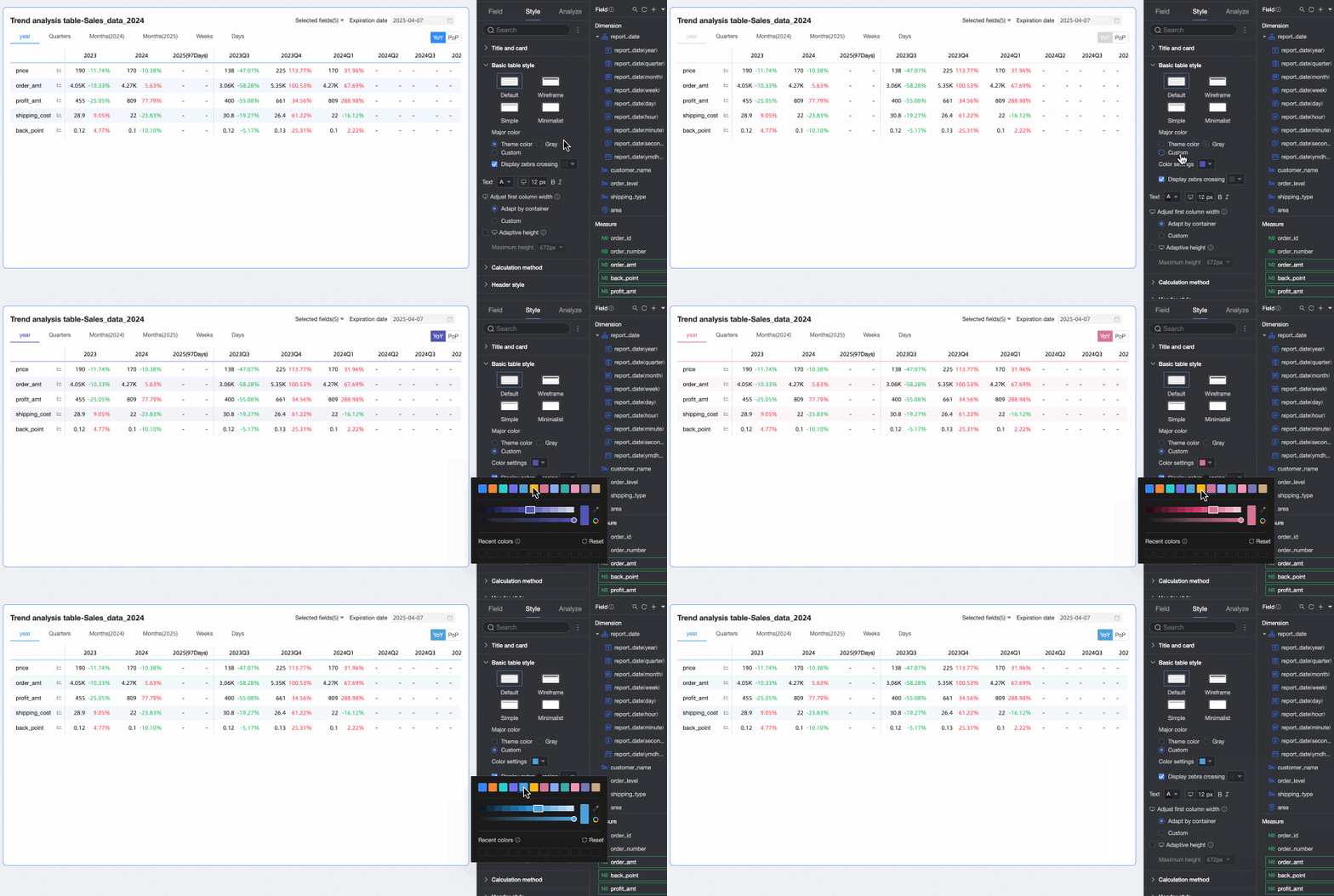
Primary Color: When the theme style is set to Default, Wireframe, or Simple, you can select a primary color for the table. Options include Theme Color, Gray, or Custom.
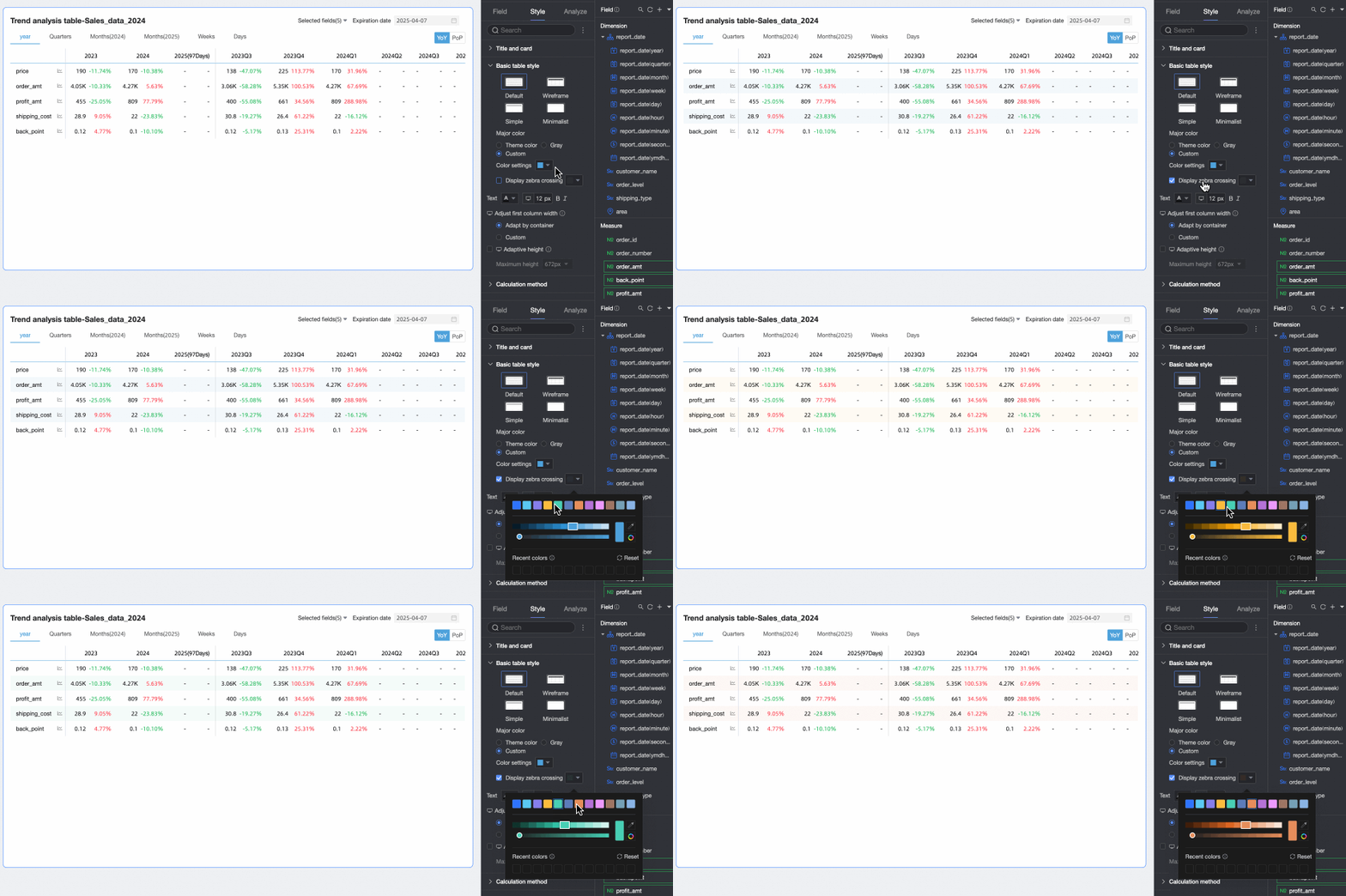
Toggles alternating row colors (zebra striping) and sets the stripe color.
Adjust first column width
Sets the width of the first column. You can switch the preview mode
at the top of the page to set the width for PC and mobile views separately. Options include:Adapt By Container: The system automatically adjusts the column width based on its content.
Custom: Set a fixed width for the column. The unit is pixels, and the default value is 160.
Auto-fit table height
Toggles automatic table height adjustment based on content.
You can switch the
icon at the top of the page to configure this setting for PC and mobile views separately. When enabled, the table's container height changes automatically, which can affect the report layout. Use this feature as needed.Maximum height
When Auto-fit Table Height is enabled, this setting imposes a maximum height limit. The table will adapt to its content's height up to this limit.
You can switch the
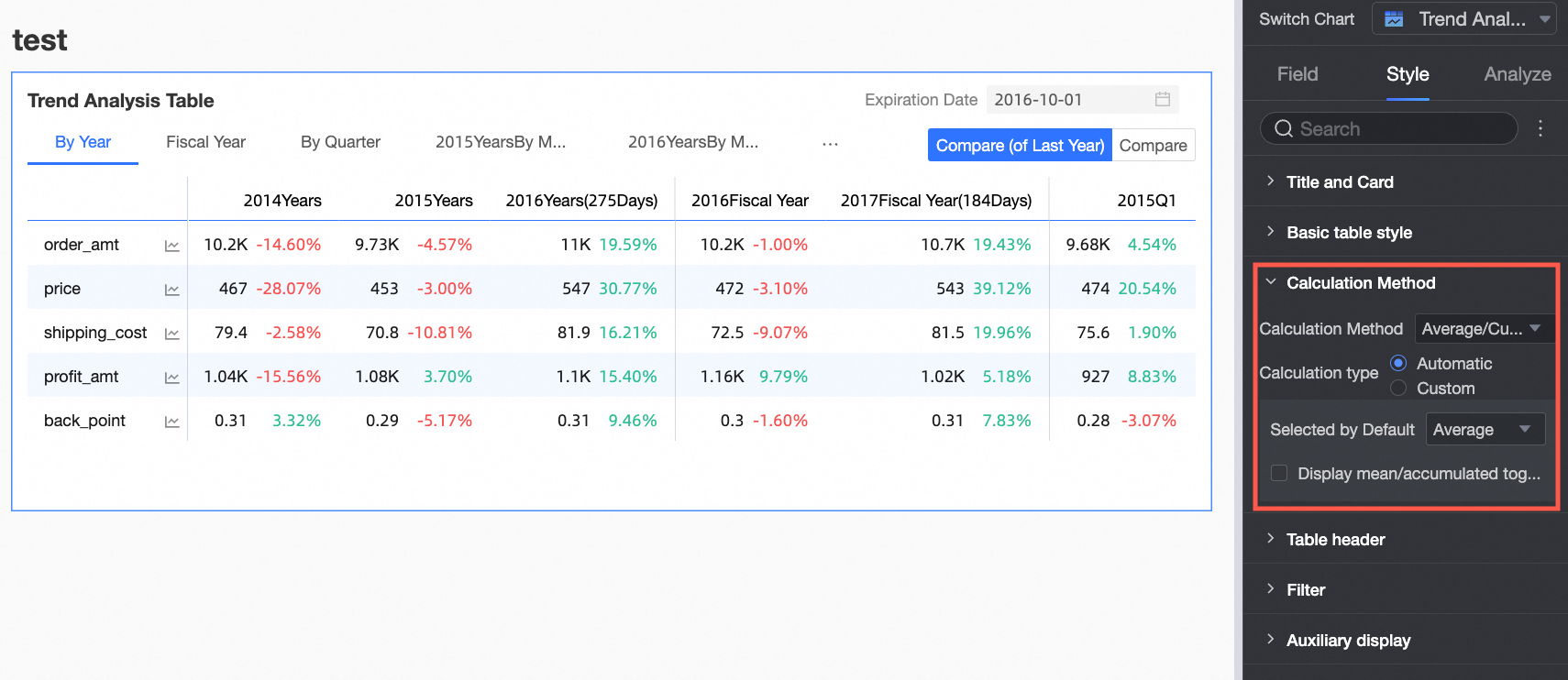
icon at the top of the page to configure this setting for PC and mobile views separately. Available options include 192px (approx. 5 rows), 352px (approx. 10 rows), 672px (approx. 20 rows), 1632px (approx. 50 rows), and Custom.In the Calculation Method section, configure how calculations are performed in the table.
Parameter
Description
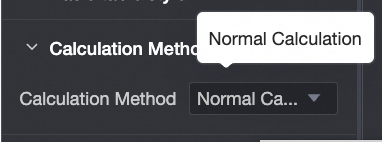
Calculation method
Sets the calculation method for the trend analysis table.
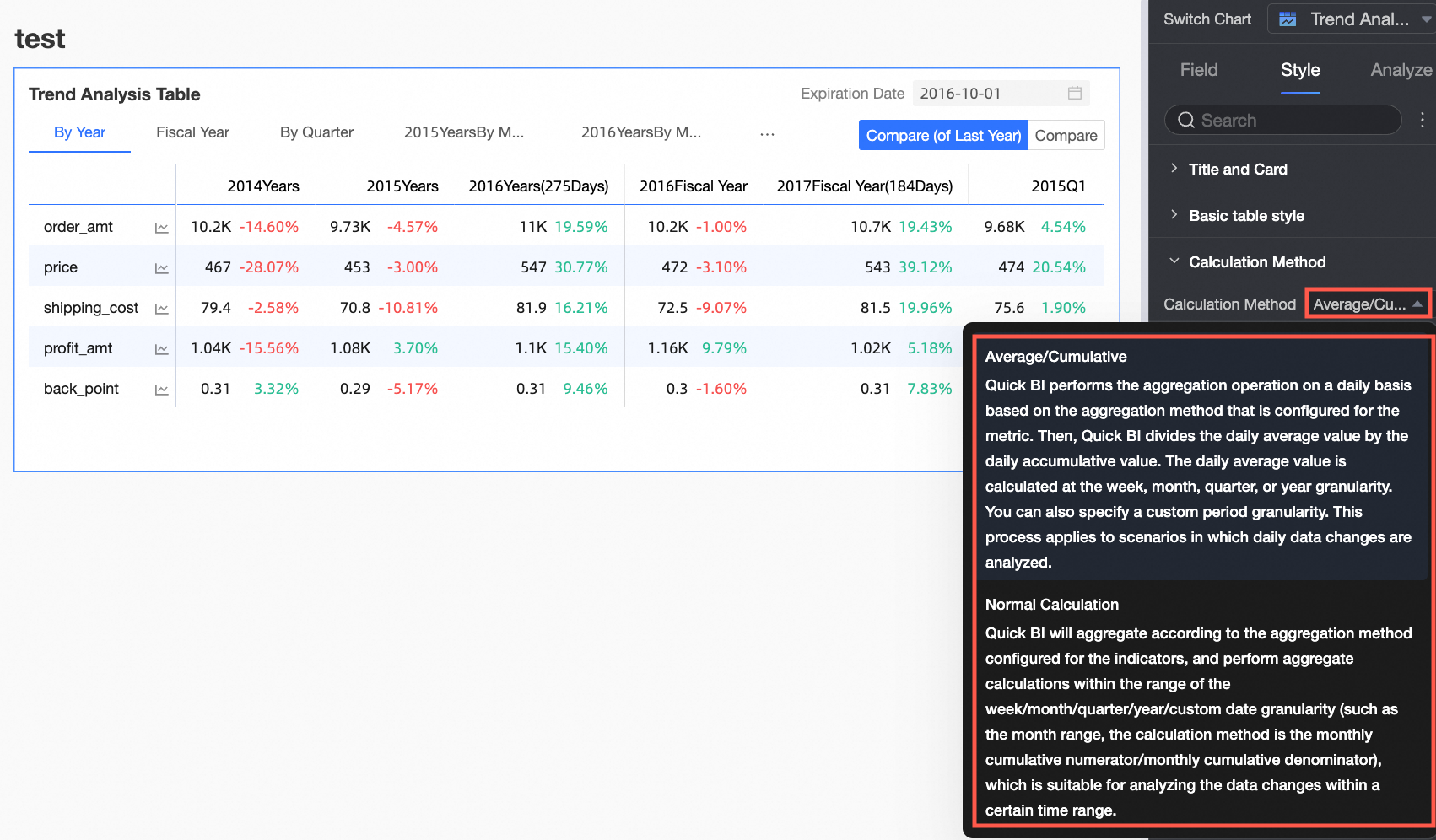
You can choose either Mean/Cumulative or Standard Calculation. The default method is Mean/Cumulative.
NoteFor a list of data sources that support standard calculation and mean/cumulative calculation, see Data source feature list.
If you select Mean/Cumulative, additional settings are available. No further configuration is needed for Standard Calculation.
NoteStandard Calculation: Aggregates the measure using its configured method within the selected time granularity (week, month, etc.). This is useful for analyzing changes over a specific period.
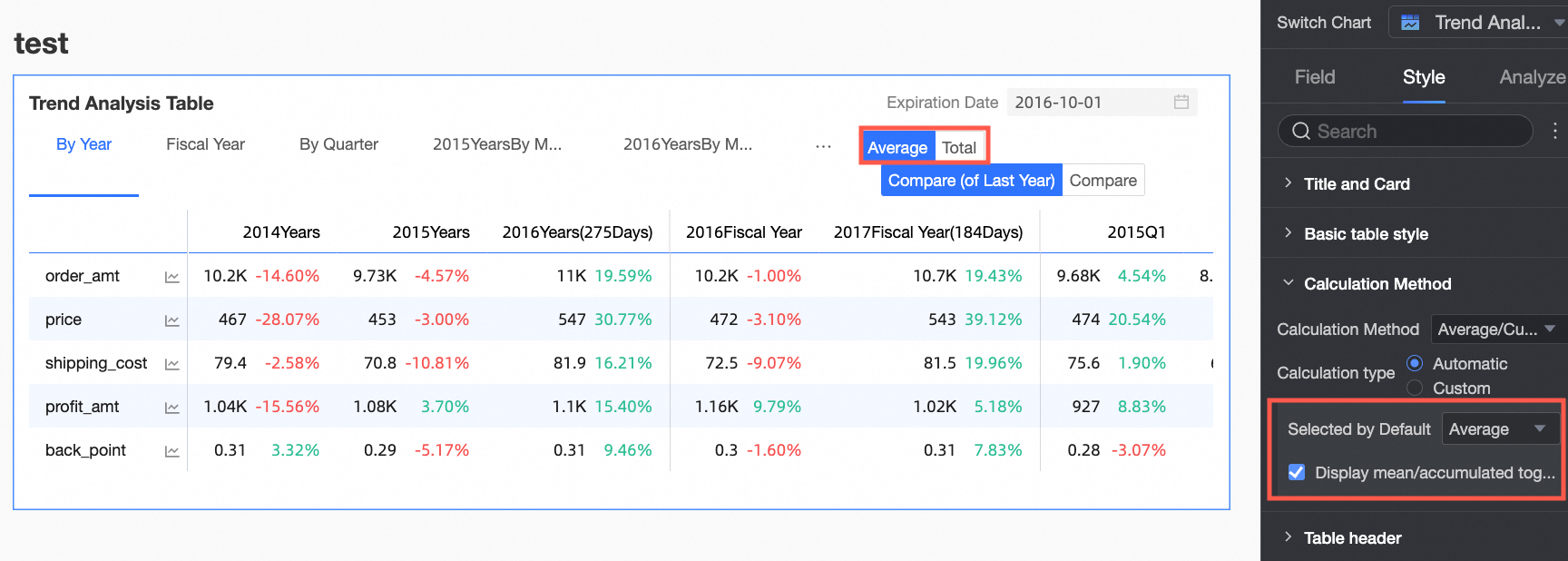
Select Turn on average/cumulative switch to display Mean and Grand total toggle buttons in the upper-right corner of the chart. The button color matches the table's Primary Color setting.
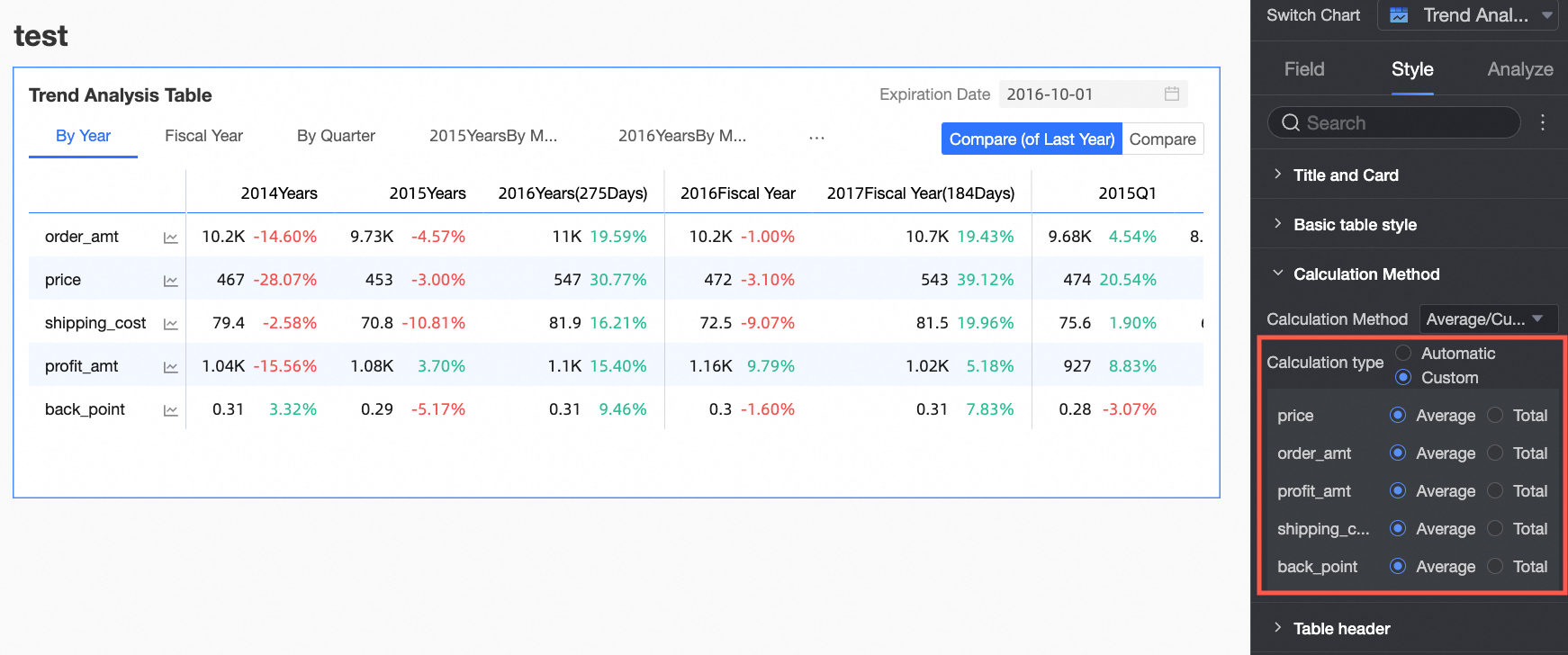
Select the Custom average/cumulative switch checkbox to manually set the Mean/Cumulative calculation method for each measure.
In the Header Style section, configure the styles for the row and column headers.
Parameter
Setting
Description
Column header
Background Fill
Sets the background color of the column header.
Text
Sets the text style for the column header.
Row header
Background Fill
Sets the background color of the row header.
Text
Sets the text style for the row header.
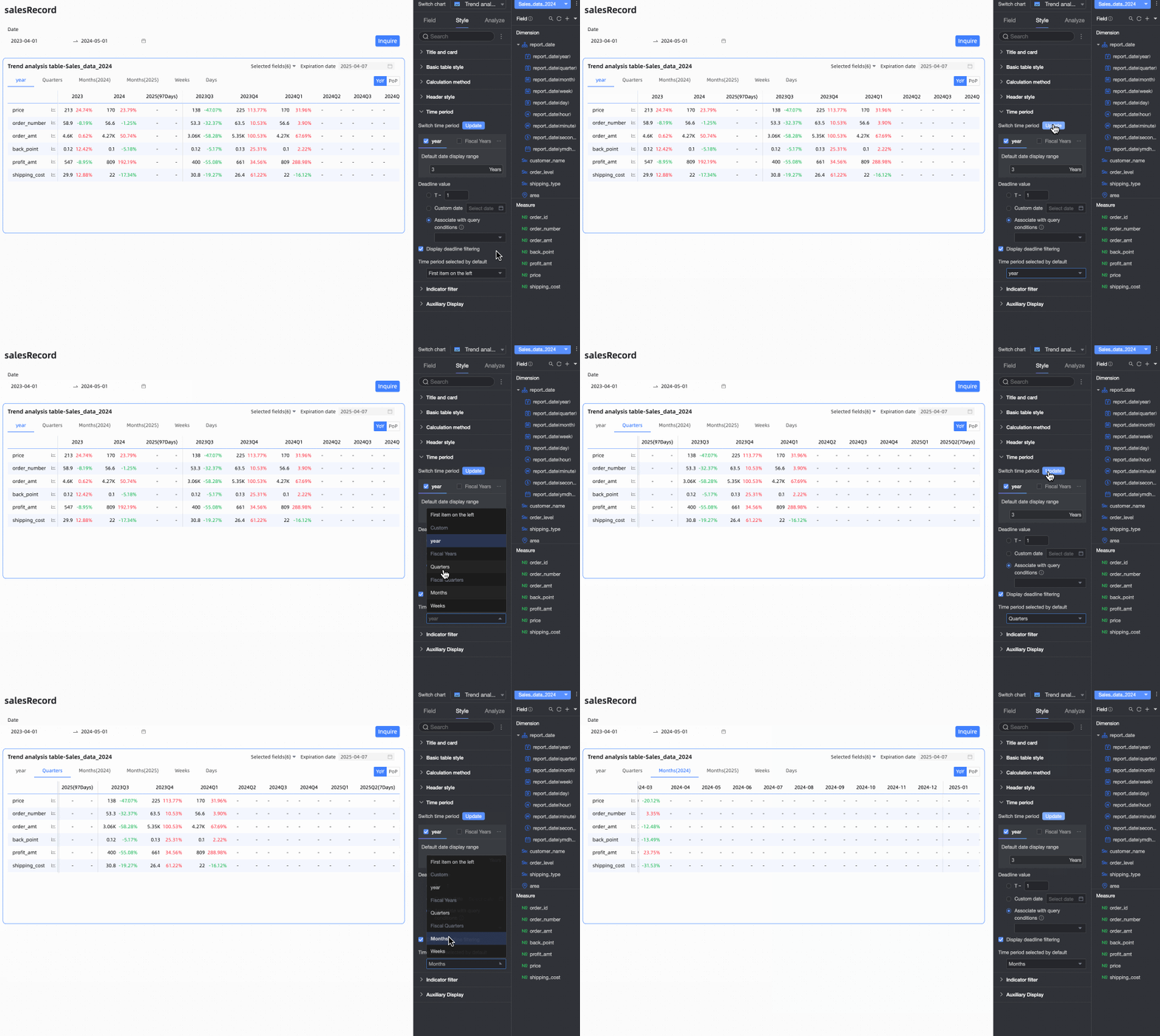
In the Time Period section, configure the time period switcher and the default end date.
Parameter
Description
Time period switcher
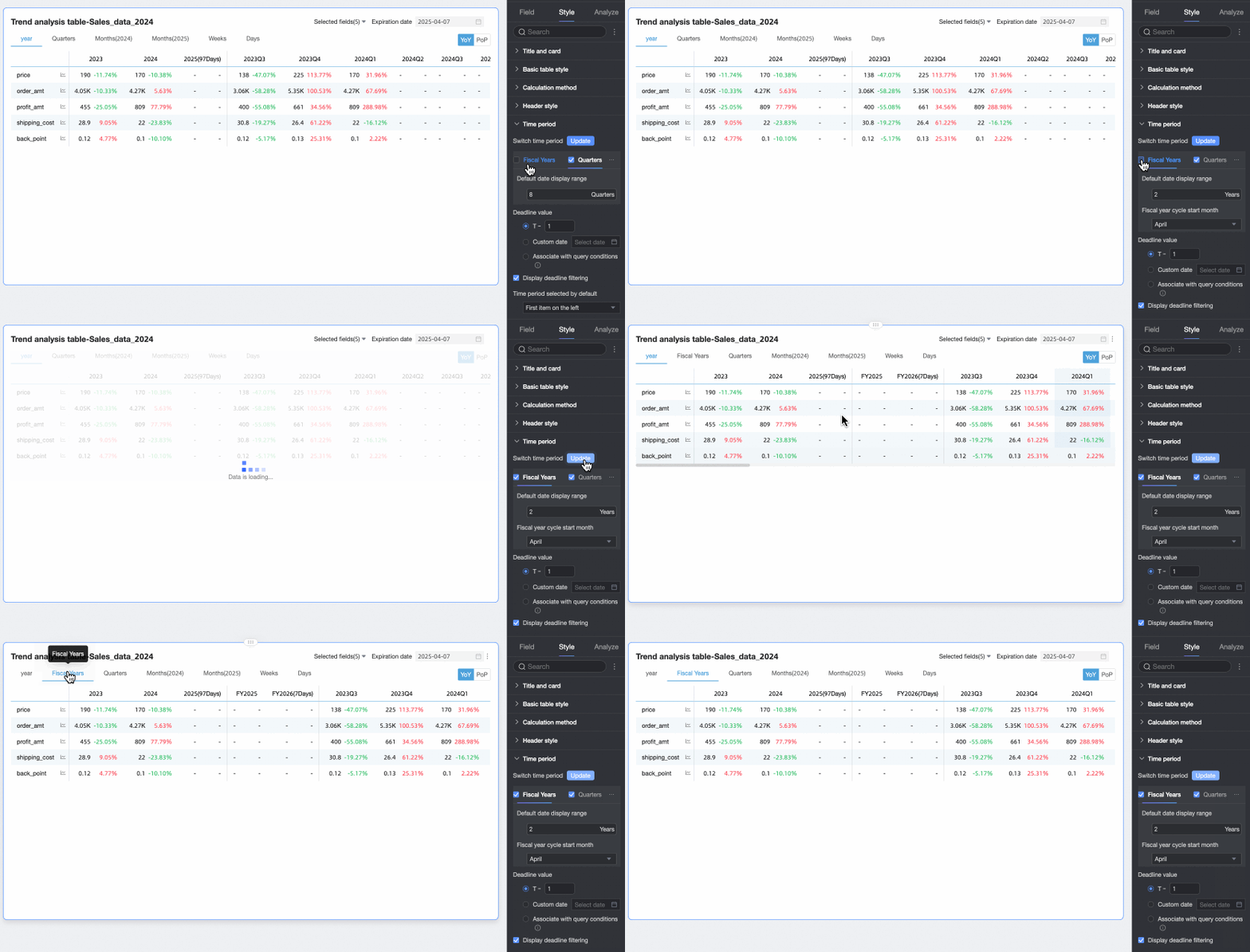
Lets you switch between Year, Fiscal Year, Quarter, Fiscal Quarter, Month, Week, and Day. You can also define a Custom Time period.
For all time periods except custom, you can set the Default Date Display Range.
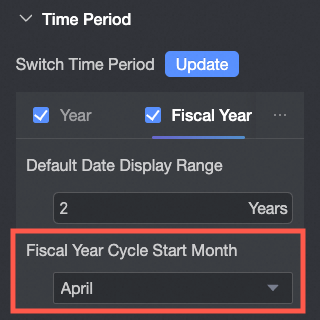
For Fiscal Year, you can configure the Start Month of Fiscal Year. You can select any month from 1 to 12, with April selected by default.
NoteThe start month of the fiscal year set in the trend analysis table is independent of the fiscal year settings in the dataset's date properties.
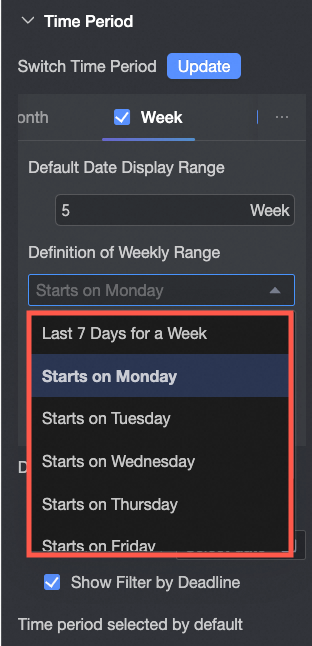
Week range definition: When the calculation method is Standard Calculation, you need to download and run a function script on the corresponding data source to customize the week range.
After running the script, you can select the week range.
NoteFor a list of data sources that support custom week start times, see Data source feature list.
The Start Month of Fiscal Year for Fiscal Quarter is inherited from the fiscal year configuration.
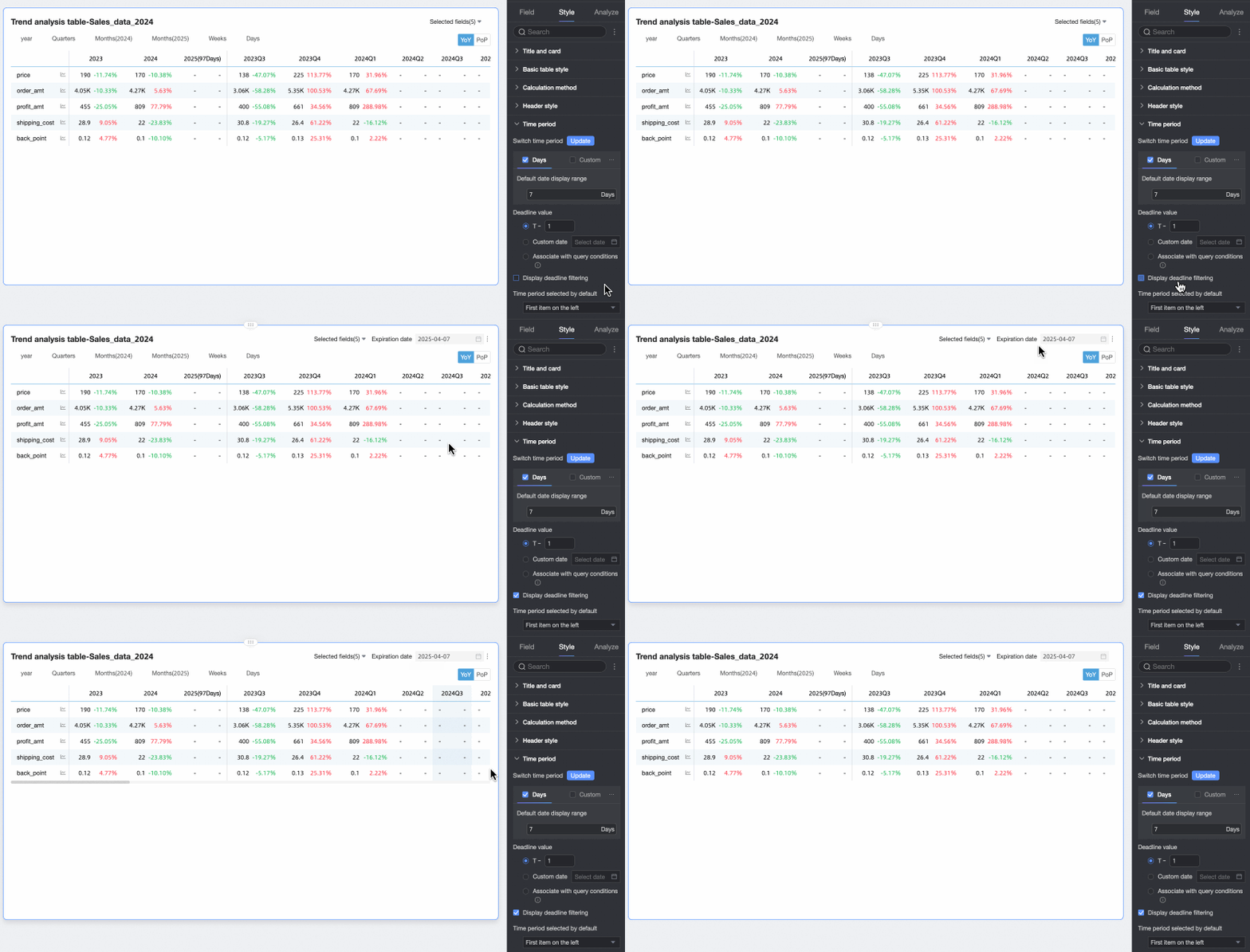
Default end date value
Set Show Date Filter and set a default value. Selecting the Show Date Filter checkbox adds the End Date label to the upper-right corner of the chart.
The End Date Value can be set to T-X, Custom date, or Associate with query condition.
T-X: The end date is set to X days before the current date (Today). X must be a positive integer. For example, if X is 1 and the current date is January 16, 2024, the end date is displayed as January 15, 2024.
Custom date: Set the end date to a specific date as needed.
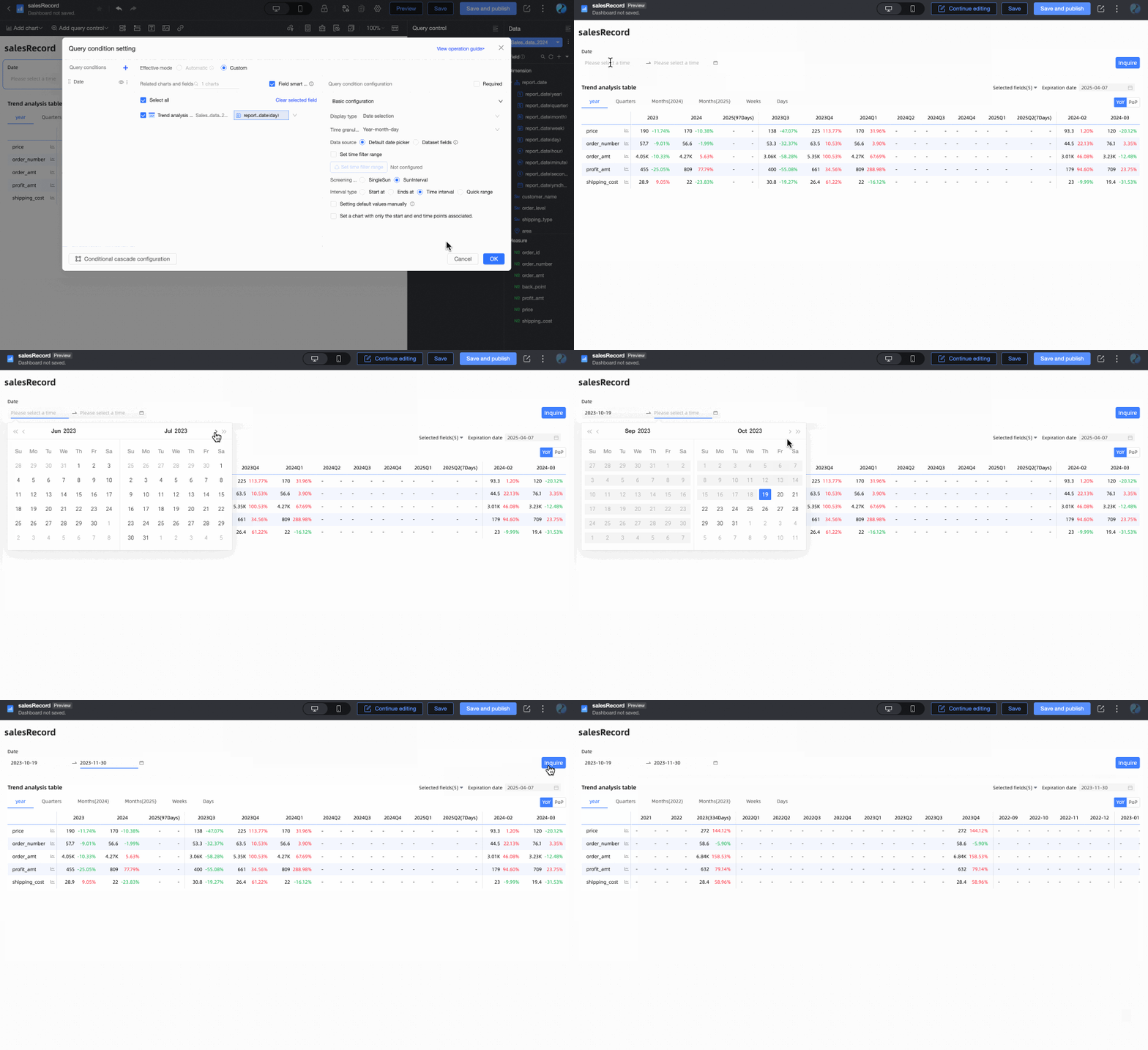
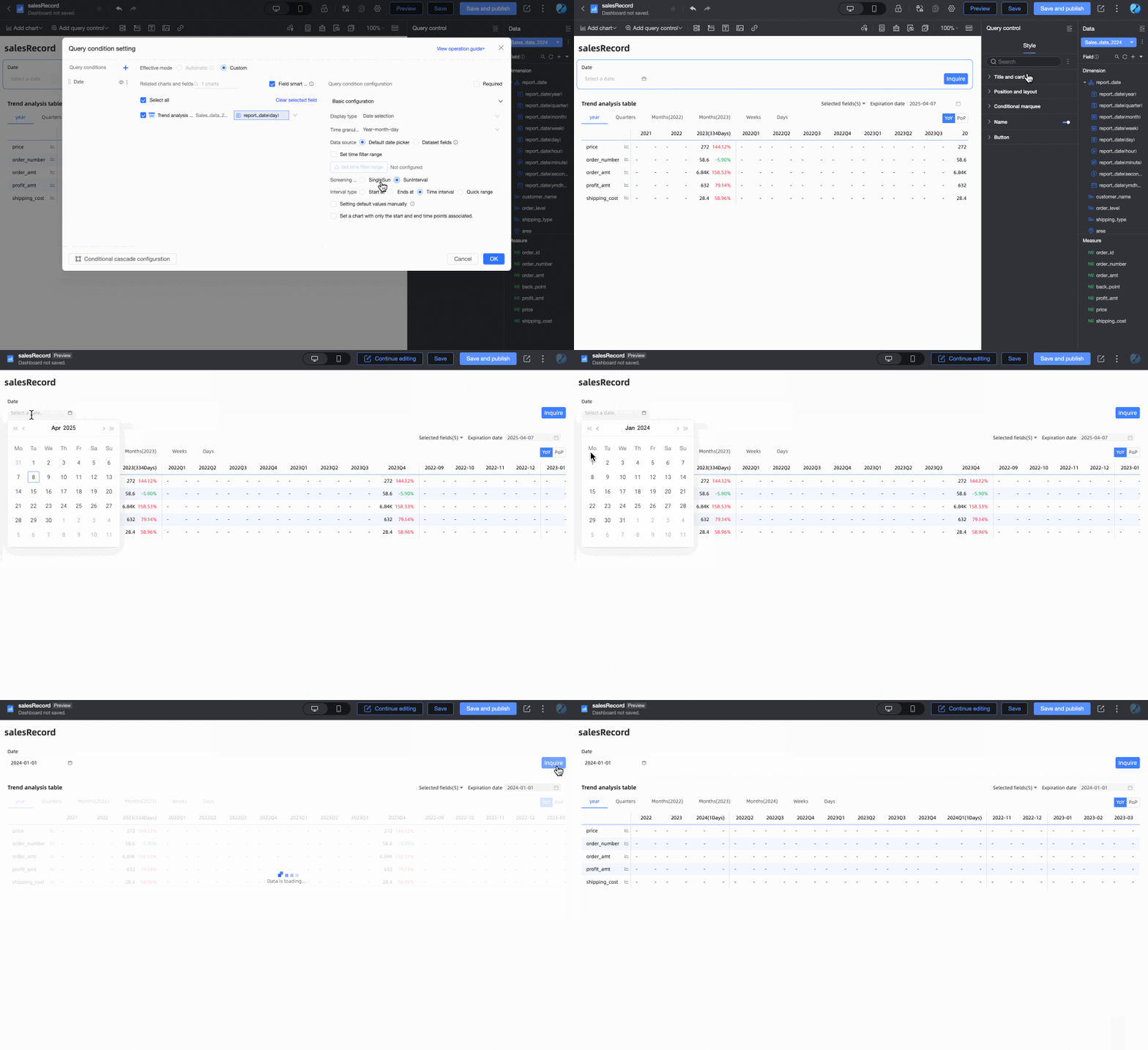
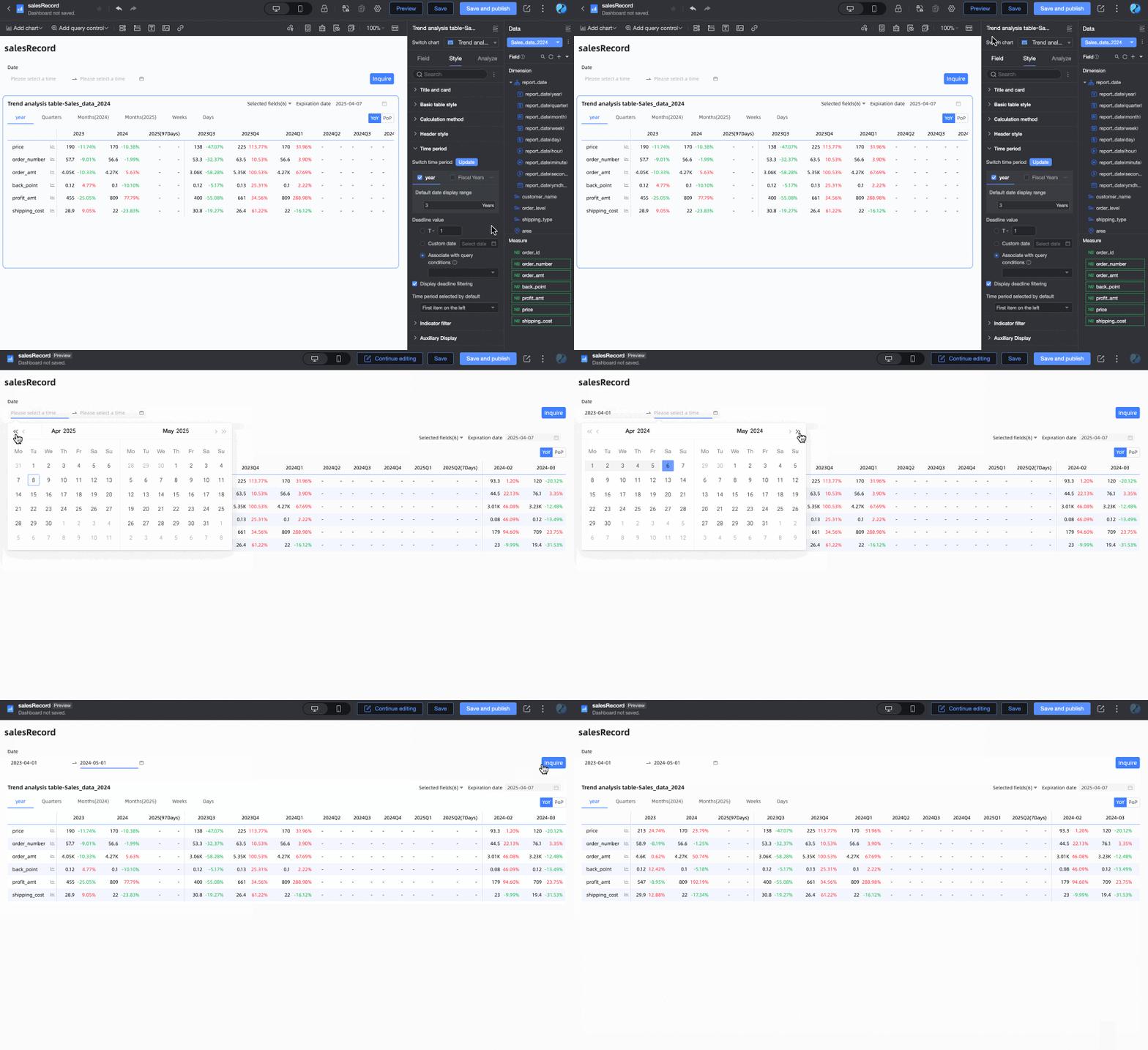
Associate with query condition: The end date is linked to a time-based query condition on the dashboard. During preview, the value from this query condition is used as the table's end date. This is useful for synchronizing the date range across multiple trend or multi-dimensional analysis tables using a single query control. The rules are as follows:
When adding a standard query control to a dashboard, you must select the associated chart and its date field under Associated Charts and Fields. The Display Type of the query control must be set to Date Selection.
When the Filter Method of the query condition is Range, the Range Type cannot be Starts At; all other range types are allowed because an end date must be defined. The end date of the range is used as the table's end date. For example, if the range is set to 2023-10-19 to 2023-11-30, the end date is 2023-11-30.
When the Filter Method is Single Day, the selected day becomes the end date. For example, if you filter for January 1, 2024, the end date is also January 1, 2024.
If you select Associate with query condition but do not select a specific query condition from the dropdown list, the end date defaults to T-1. For example, if the current date is December 17, 2024, the end date is December 16, 2024.
Default selected time period
Sets the Default time period, which defaults to the first option on the left.
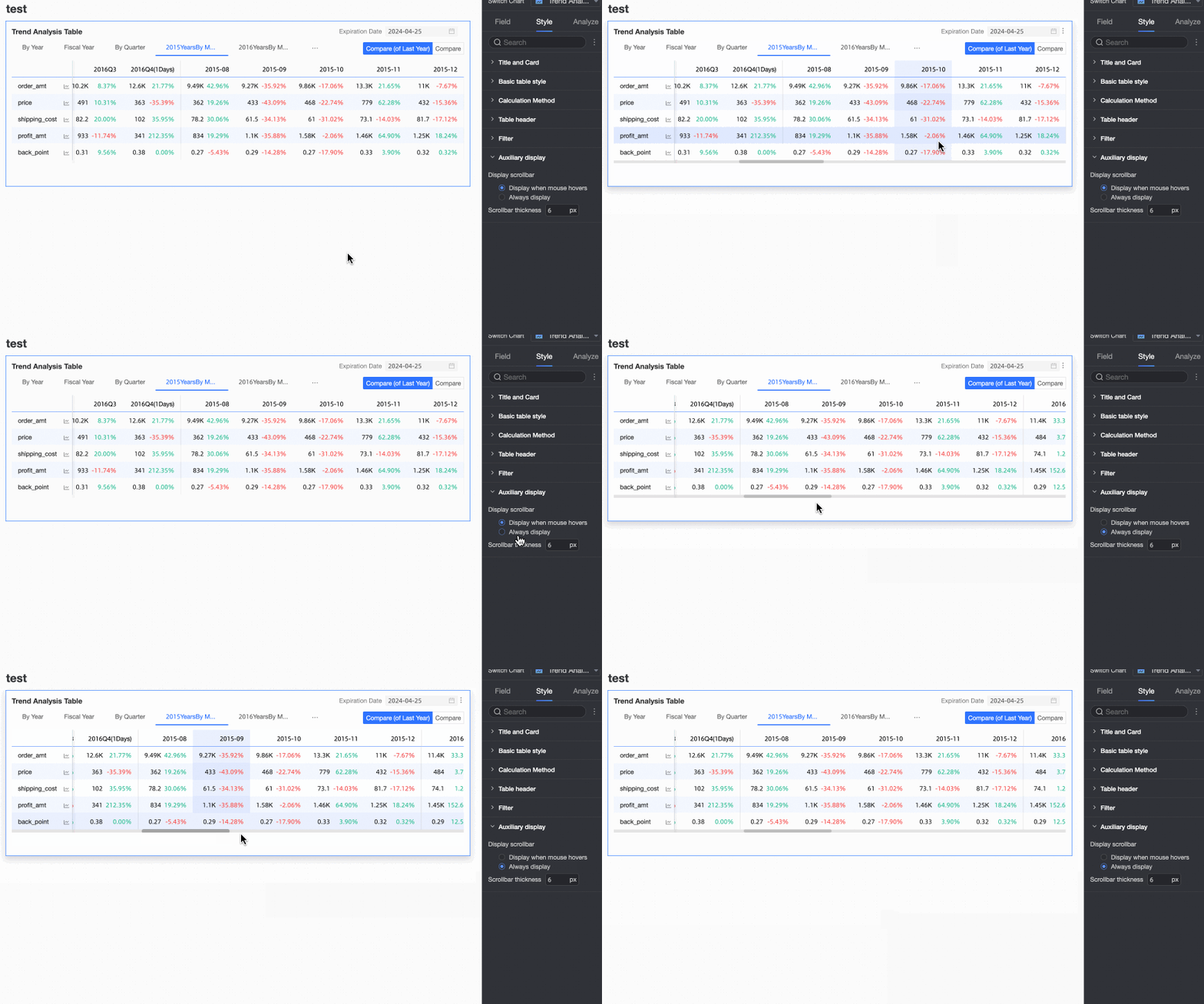
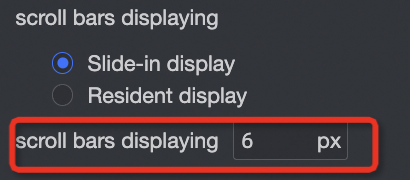
In the Auxiliary Display section, you can configure the Scroll Bar Display Mode and Scroll Bar Thickness.
If you set the display mode to Show on hover, the scroll bar appears only on hover.
To make the scroll bar always visible, select Always show.
To make the scroll bar more prominent, you can adjust its thickness.
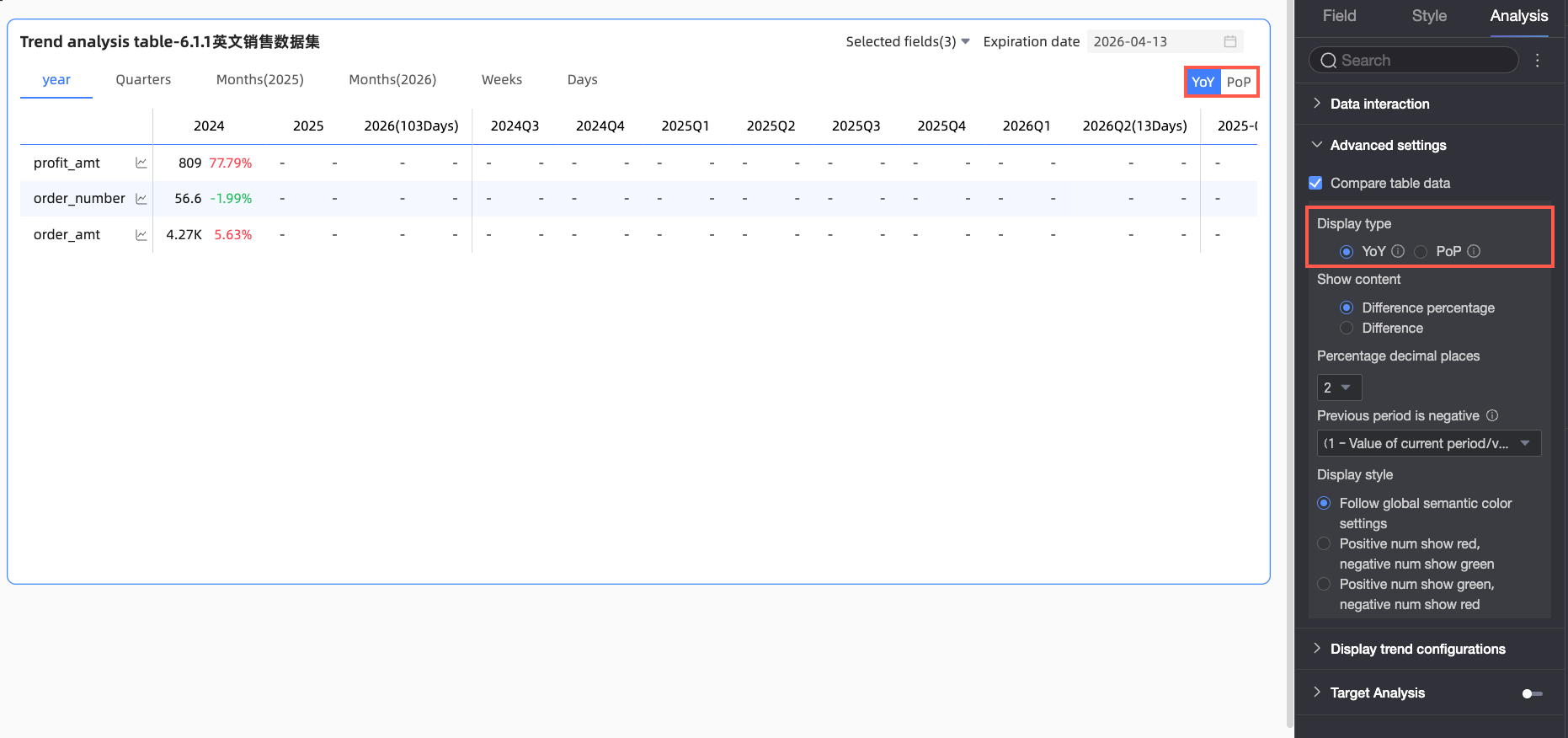
On the Advanced tab of the Chart Design pane, configure data comparison for trend analysis.
Select the Open table data comparison checkbox. The Year-on-year and Month-on-month buttons appear in the upper-right corner of the chart.
Display type: Supports comparison types for both year-on-year and month-on-month analysis.
NoteBecause the date field has day-level granularity, the chart supports year-on-year and month-on-month comparisons for daily, weekly, monthly, quarterly, yearly, and custom intervals. You can choose the comparison content based on your needs.
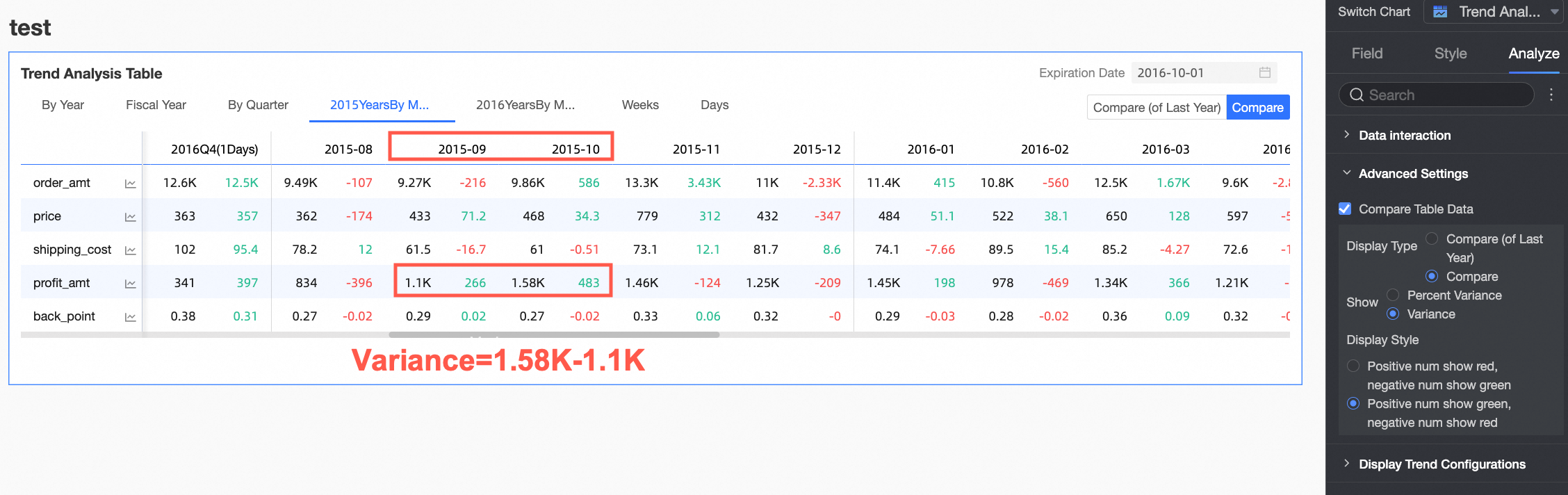
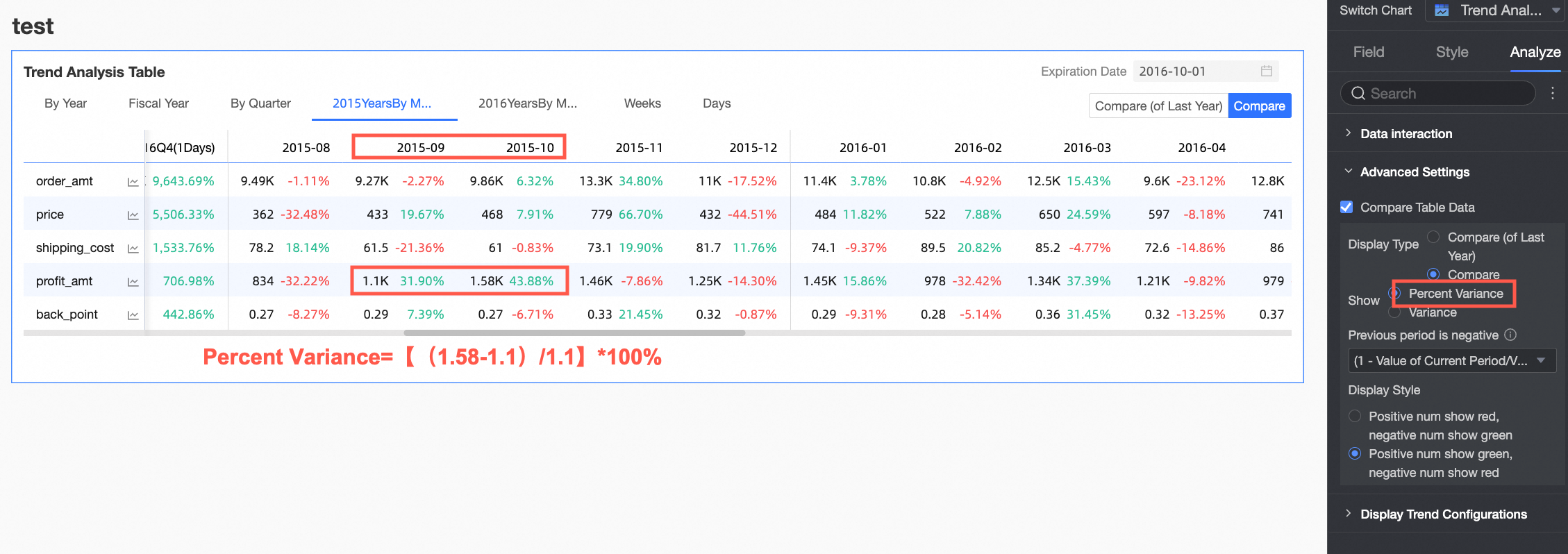
Show: Supports showing percent variance and variance.
Variance = Current Period Data - Previous Period Data.
Percent Variance = [(Current Period Data - Previous Period Data) / Previous Period Data] * 100%.
NoteWhen you select Percent Variance, or when you select Variance and check the Percentage Metric Variance Calculation (pt) option, you can configure the number of decimal places for the percentage to 0, 1, or 2.
The following example shows the variance and percent variance of orders for two weekly periods: the previous period (week 9 of 2015) and the current period (week 10 of 2015).
As shown in the figure below, the current period's data is 6,113, and the previous period's data is 6,577. The variance is -464 (
-464 = 6113 - 6577).As shown in the figure below, the current period's data is 6,113, and the previous period's data is 6,577. The percent variance is
-7.06%(-7.06% = [(6113 - 6577) / 6577] * 100%).
Display Style: Configure the display colors for positive and negative numbers. You can choose to Follow Global Semantic Color Settings, which applies the settings from Page Settings > Global Style > Semantic Colors.

 at the top of the page to set the width for PC and mobile views separately. Options include: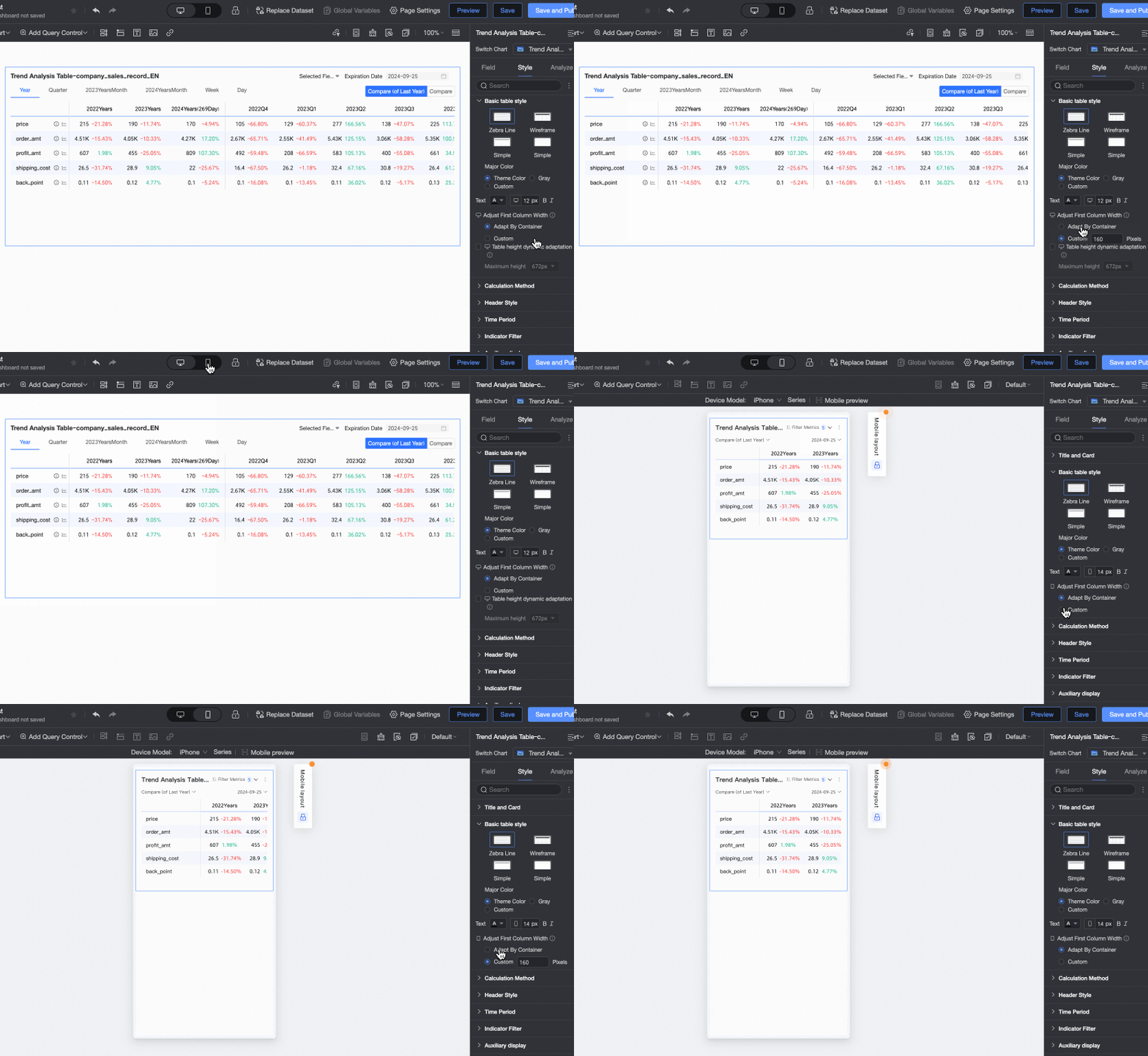
 icon at the top of the page to configure this setting for PC and mobile views separately. When enabled, the table's container height changes automatically, which can affect the report layout. Use this feature as needed.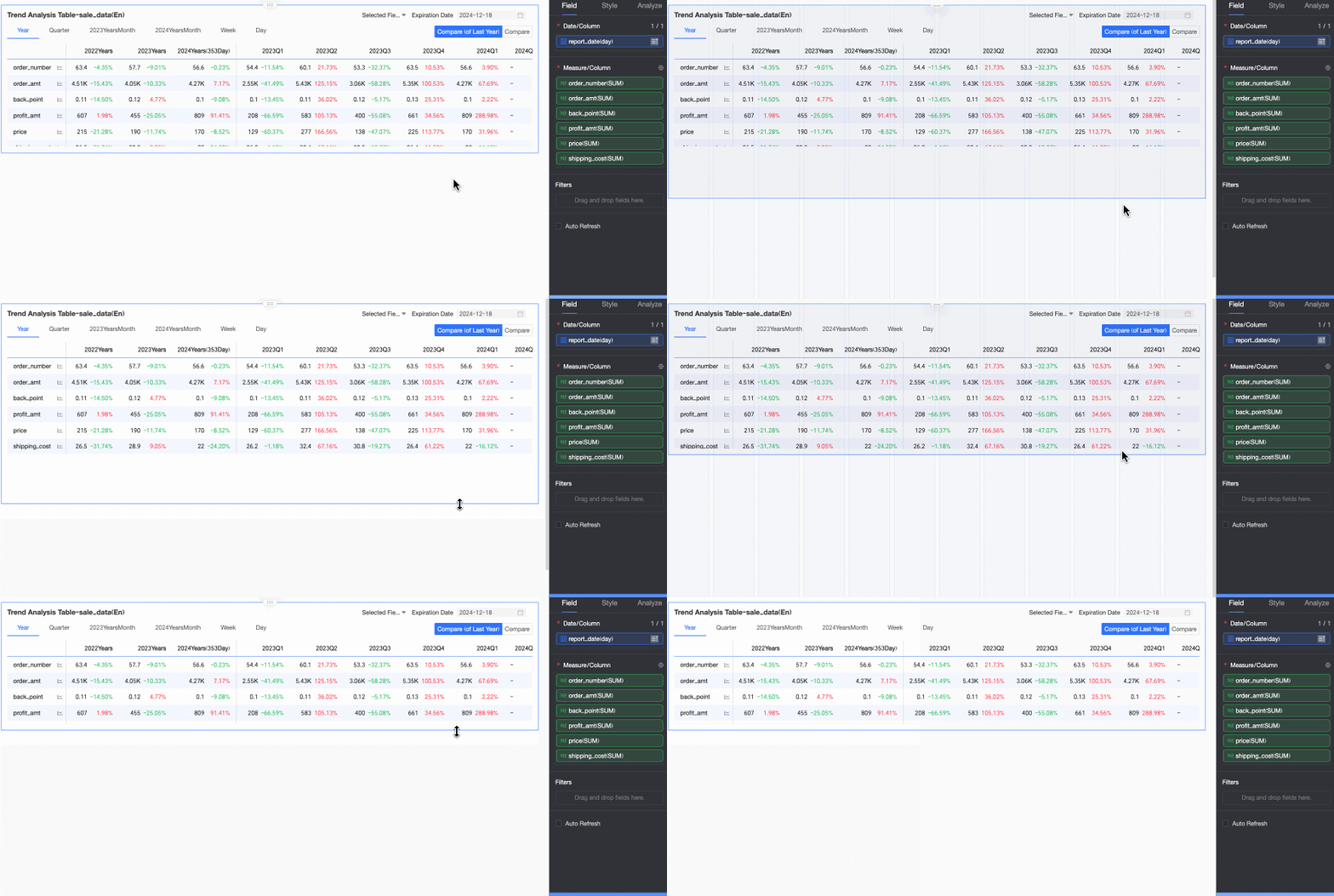
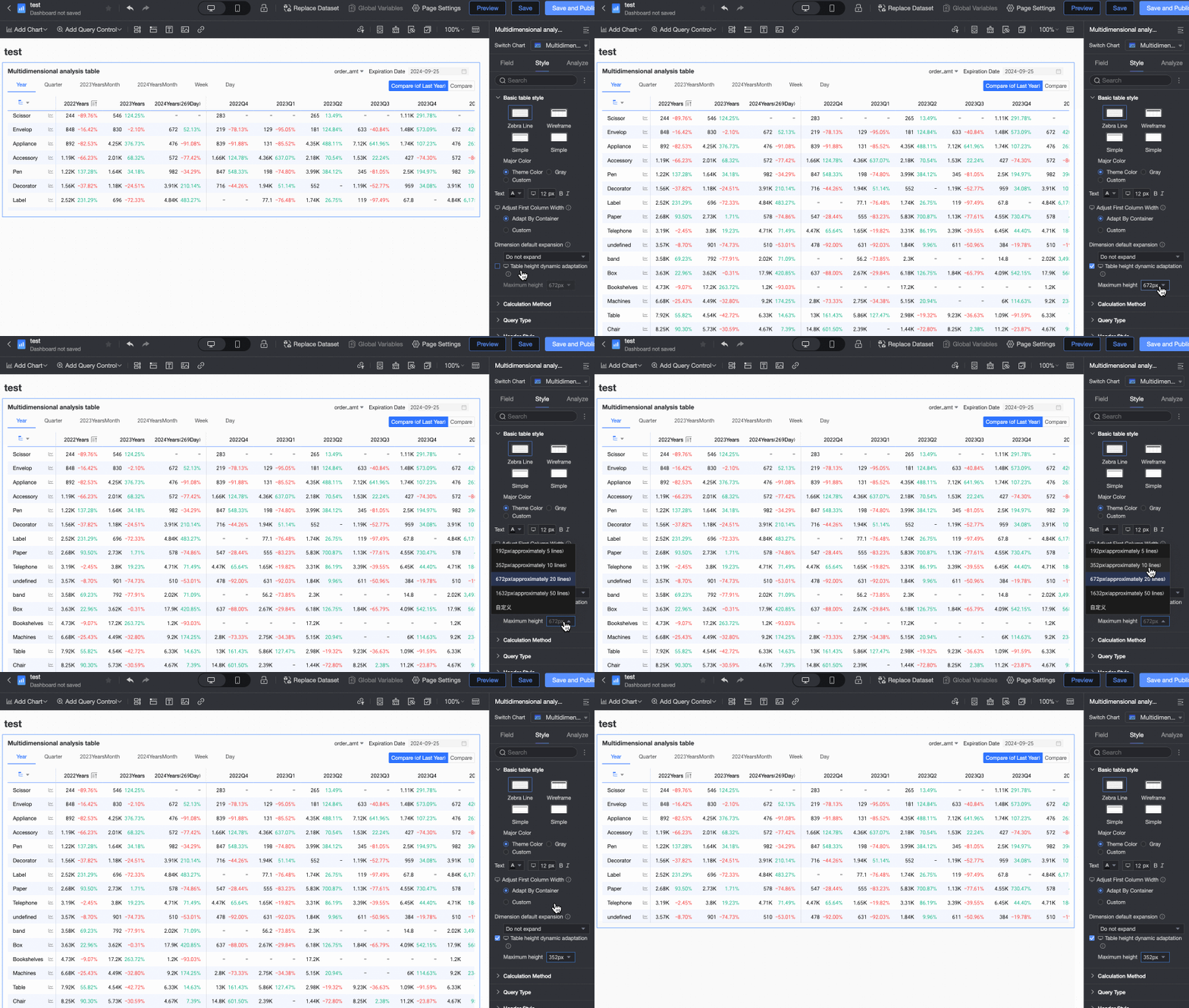




Configure goal analysis
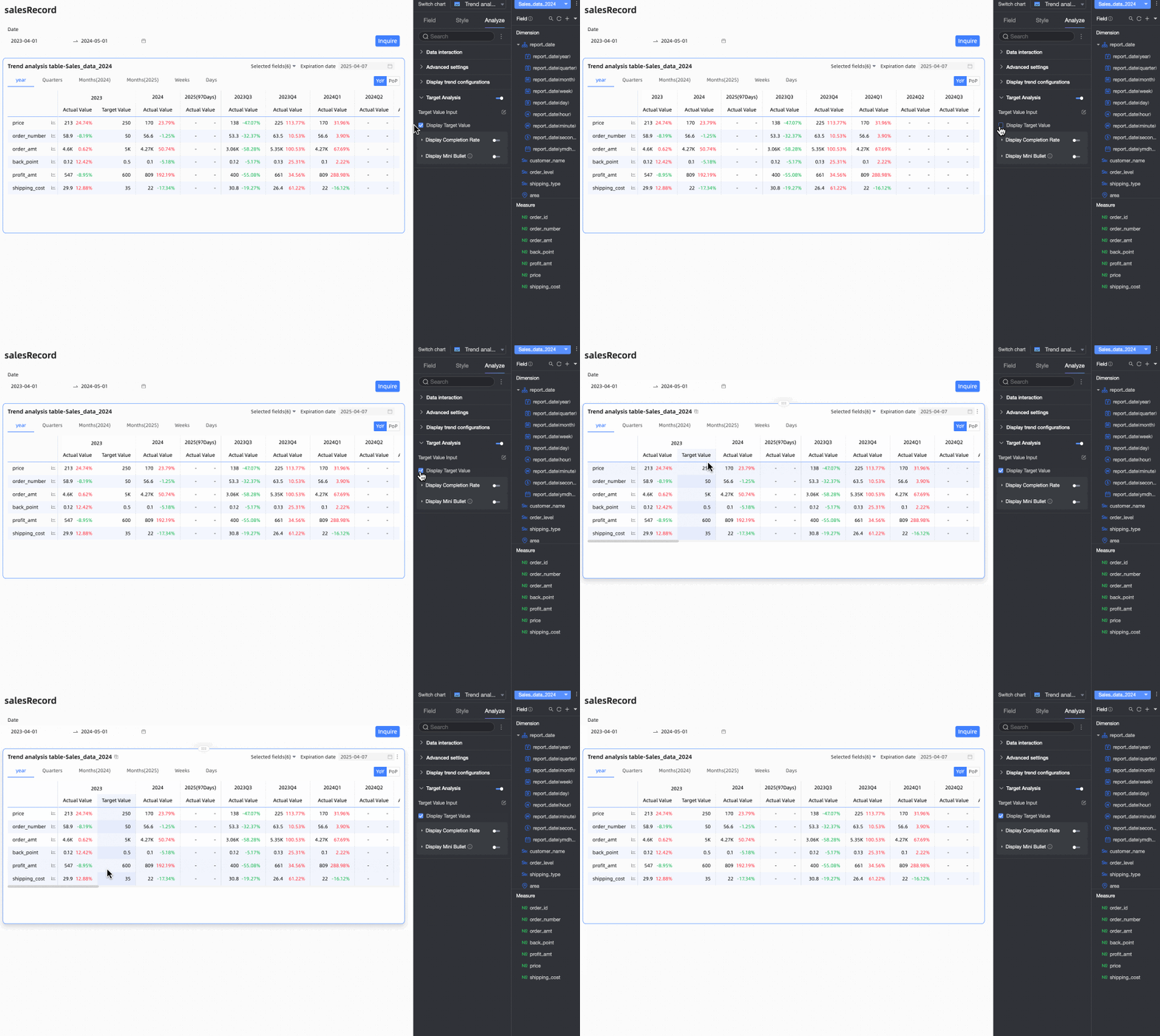
In real-world business scenarios, teams often set targets for key performance indicators over specific time periods, such as quarterly sales goals or annual profit targets. The goal analysis feature allows you to display actual values alongside target values in the same chart. This provides a clear visual comparison, helping teams analyze target completion and adjust business strategies in a timely manner.
After configuring the fields in the trend analysis table, you can enable and configure the Goal Analysis feature in the Advanced pane.

Parameter | Option | Description |
Enter goal value Click the | Fill in goal values | In the Goal Value Entry Form, enter the target values for each measure and time period. Click OK when finished. Note
|
Export Entry Form | Click Export Entry Form to download the current entry form as an Excel file. You can send this file to relevant team members to collect goal value data. | |
Import Goal Value | Click Import Goal Value to upload a file containing goal values. The system automatically recognizes the file content and populates the entry form. Note
| |
Update | The entry form's structure is not automatically updated after its initial creation, which preserves existing goal values. If you change the table's fields or time periods, click Update to synchronize the row and column structure of the goal value entry form with the current trend table structure. | |
Clear | To clear all entered goal values at once, click Clear. This will remove all existing data from the form. | |
Show goal value | Choose whether to Show Goal Value in the trend analysis table. This option is enabled by default when Goal Analysis is turned on. | |
Show completion rate Turn on the | Configure Completion Rate Calculation Method | Click the
|
Custom Header Name | Select this option to customize the header name for the completion rate column in the input box. | |
Custom Completion Rate Font Color | Select this option to set font colors for different completion rate ranges, which visually highlights progress. | |
Completion Rate Decimal Places | Sets the number of decimal places for the completion rate (0, 1, or 2). | |
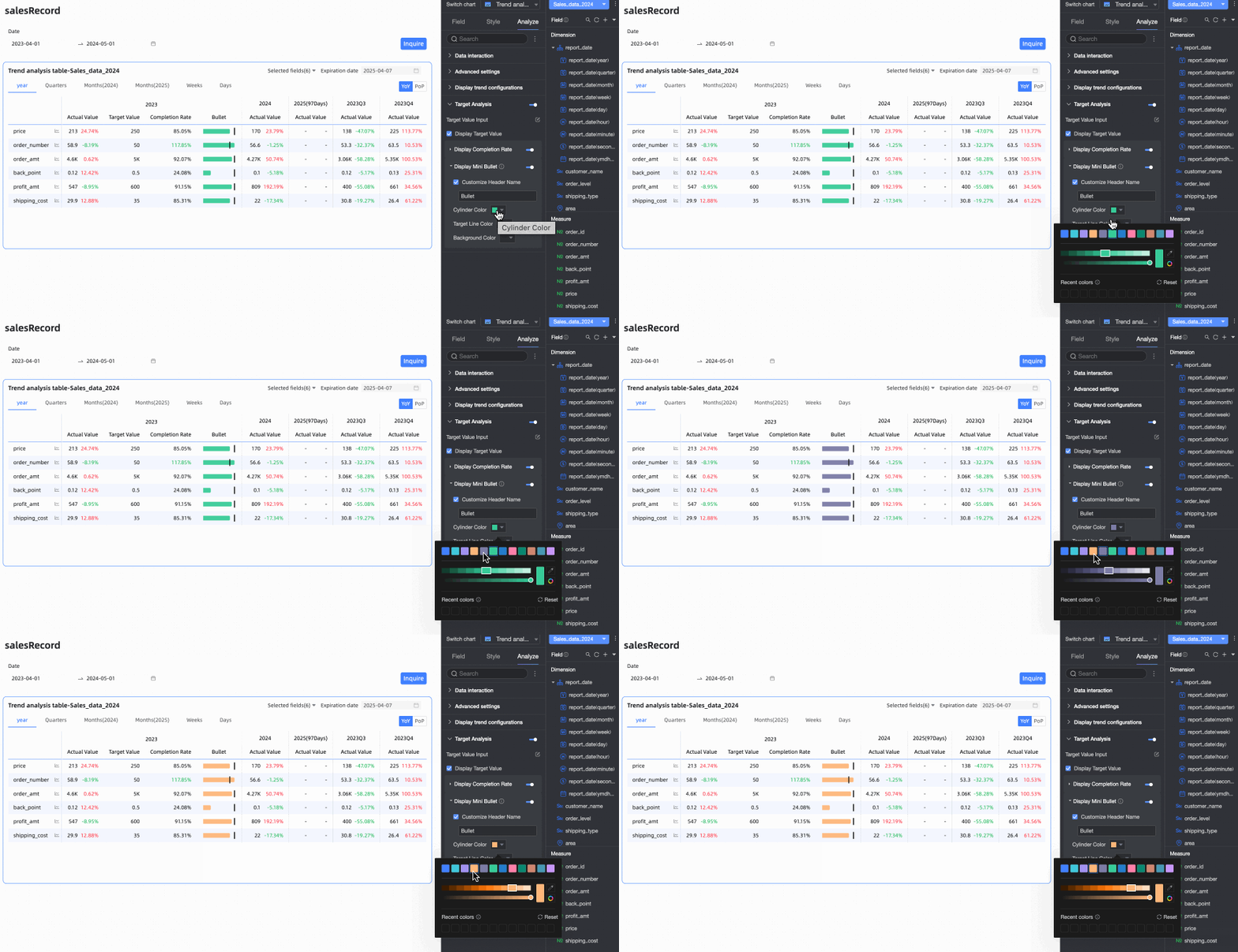
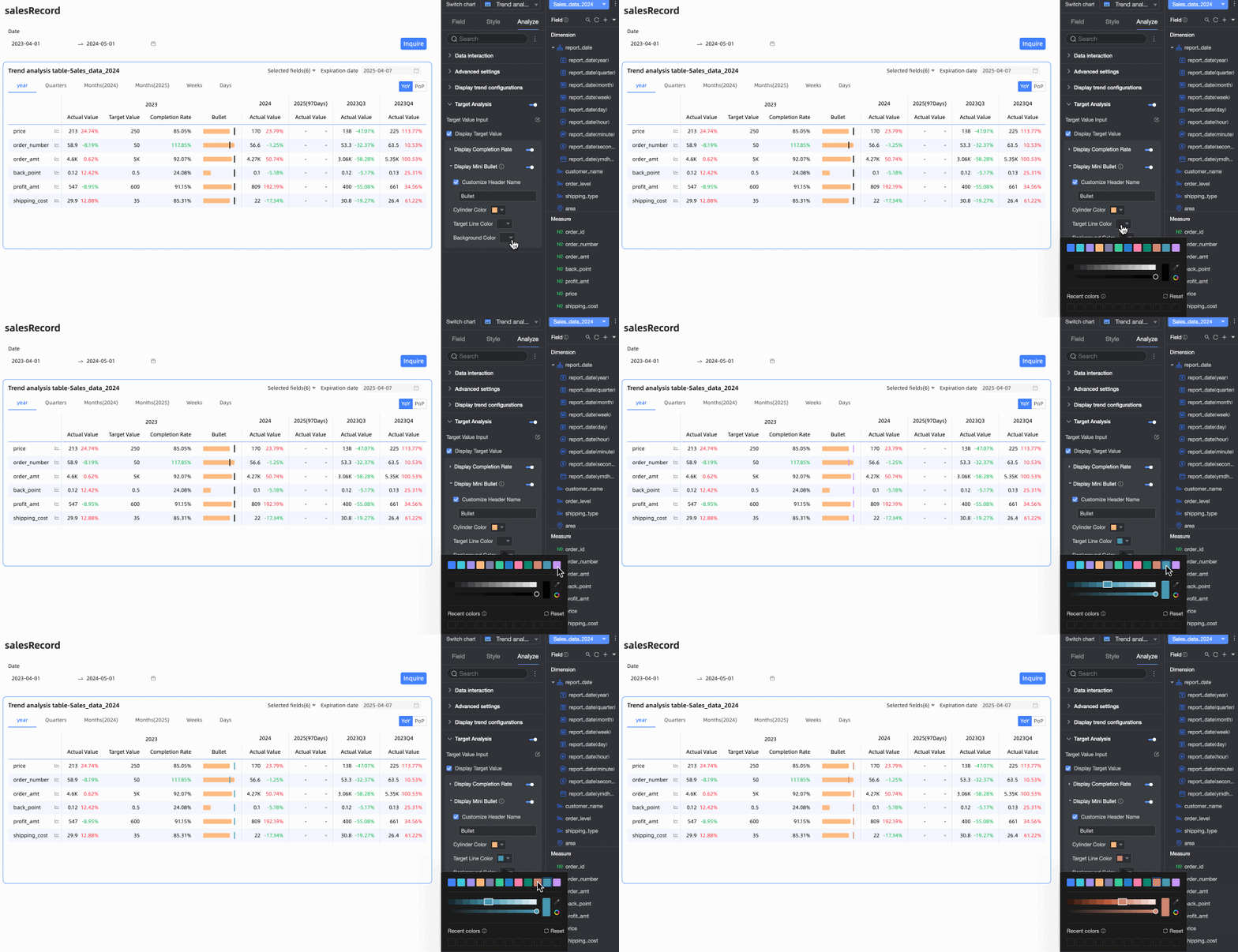
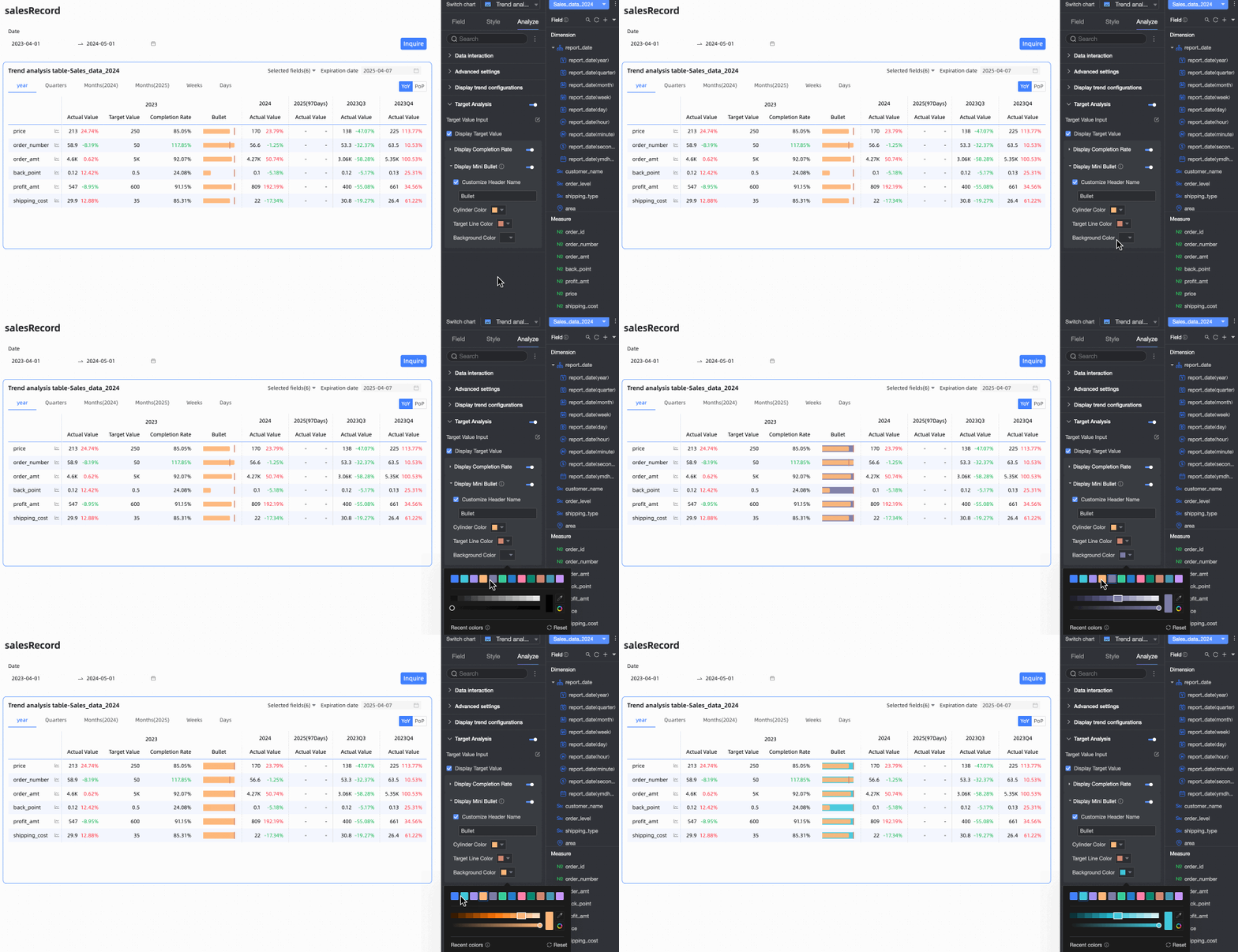
Show mini bullet chart Turn on the | Custom Header Name | Select this option to customize the header name for the bullet chart column in the input box. |
Bar Color | Customize the color of the bullet chart bar. | |
Target Line Color | Set the color of the target line in the bullet chart. | |
Background Color | Set the background color of the bullet chart bar.
| |
 icon to open the entry window.

 switch to show the completion rate.
 icon to open the Configure Completion Rate Calculation Method dialog box. Configure the calculation method for each measure. The following three calculation methods are supported:


Configure chart preview
In the preview, you can adjust the table display for a better viewing experience.
Configure pop-up trend chart
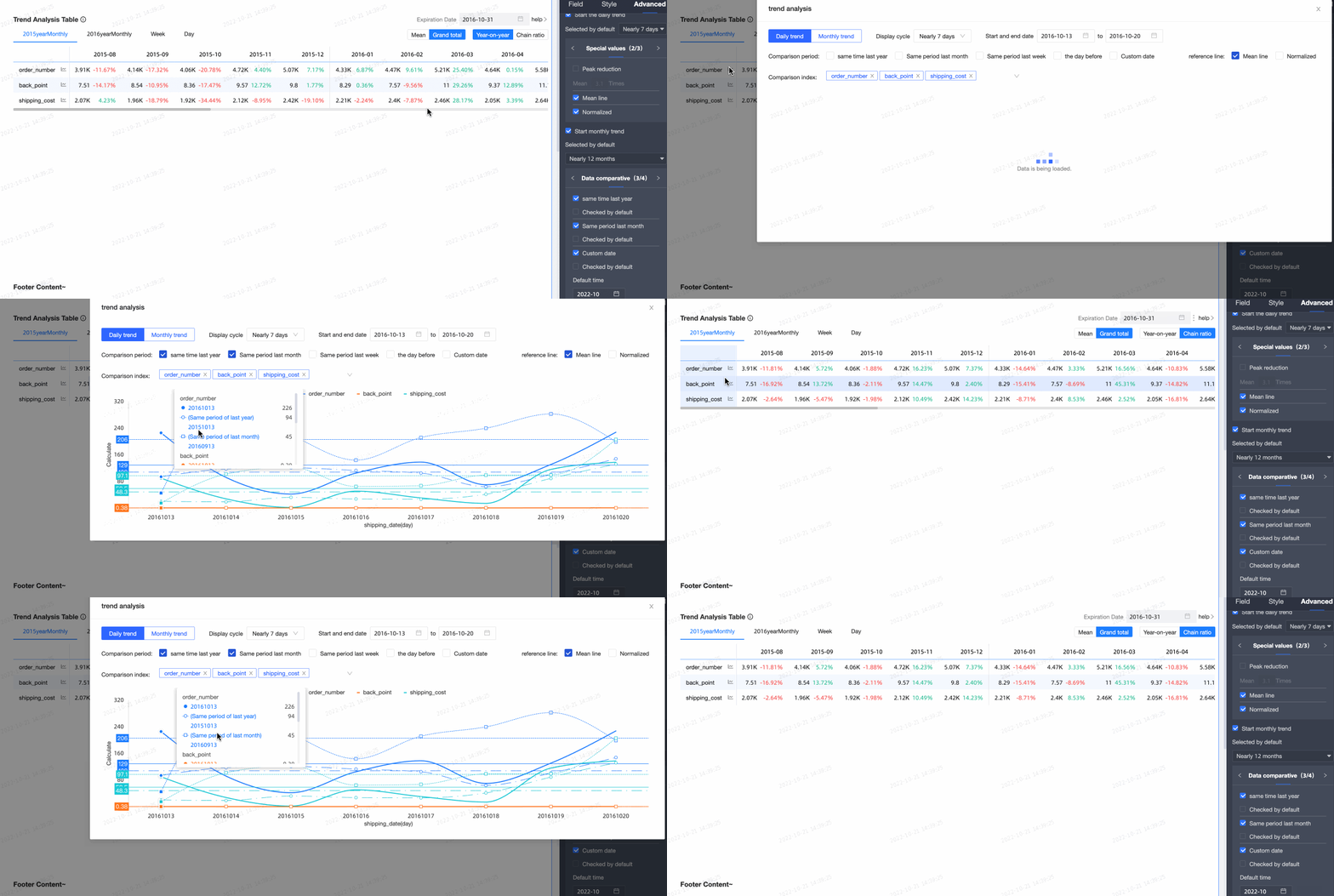
Click the trend icon on the chart (as shown in the figure below) to view the trend analysis chart for that measure.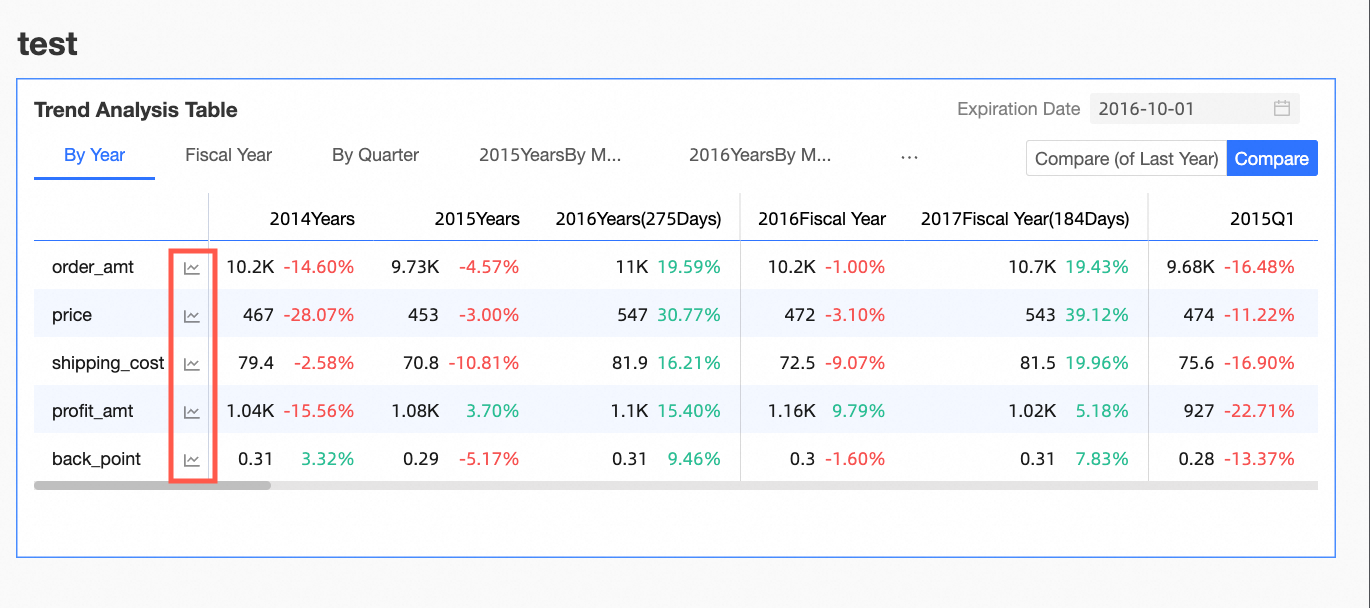
Configure the pop-up trend chart in the Advanced section, located on the Advanced tab of the Chart Design pane.
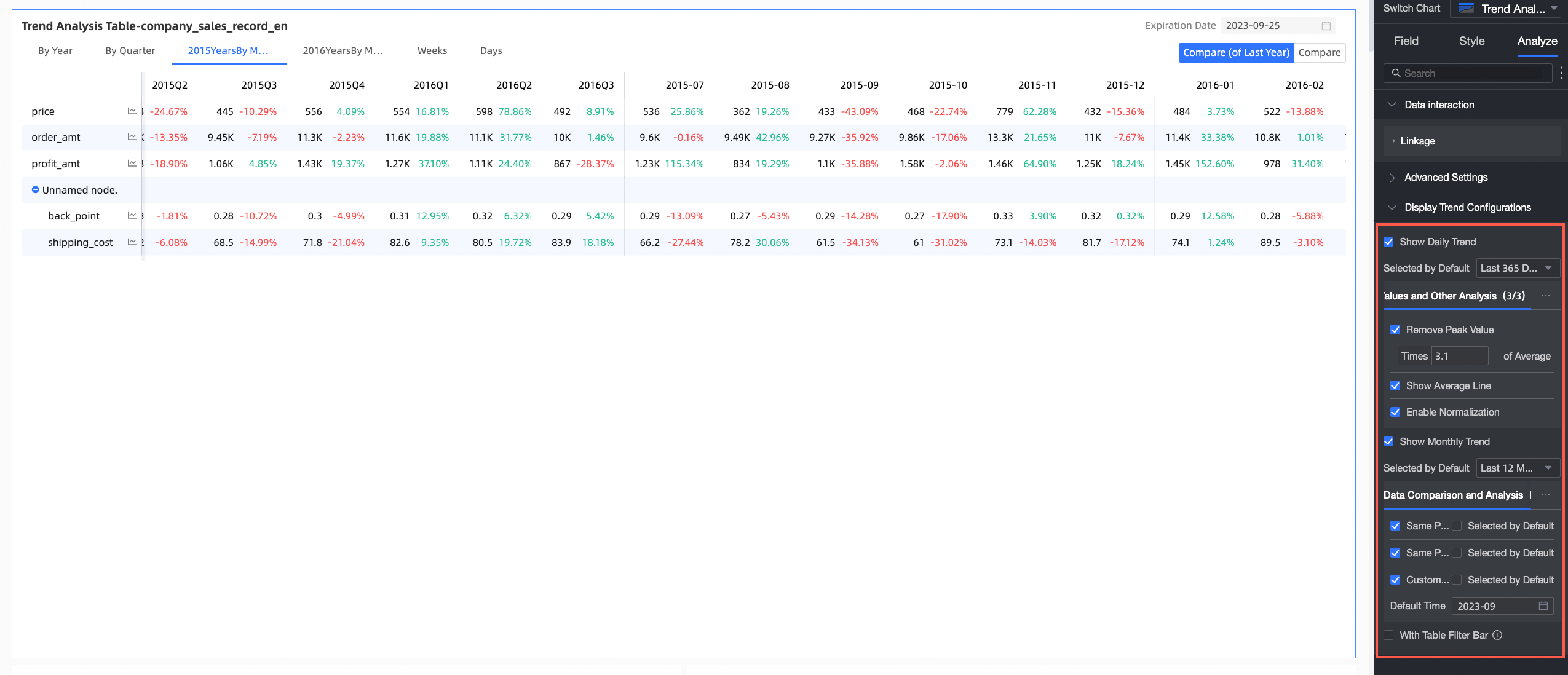
Parameter | Description |
Enable daily trend and Enable monthly trend | When enabled, you can view the daily and monthly trends of the measure in the trend analysis chart. |
Data comparison | Includes same period last year, Same period last month, Same period last week, the previous day, and Custom date.
|
Special values | Includes Peak reduction, Mean line, and Normalized. Analyzing special values helps you make decisions. |
Comparison measures | You can select multiple measures simultaneously for data analysis. |
Hide empty columns
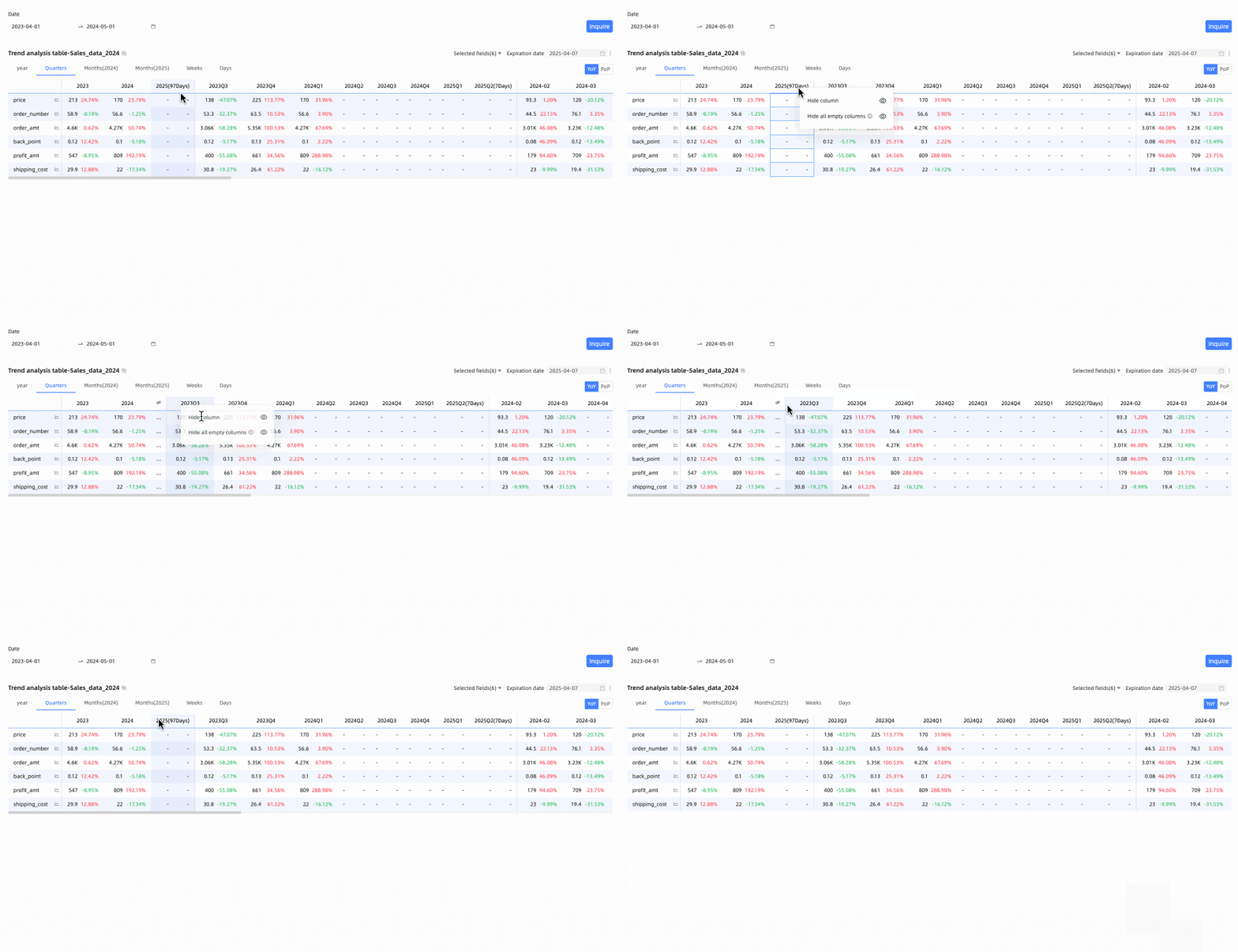
Time filtering can result in empty columns. To improve readability, you can hide these columns. Options include hiding a single column or hiding all empty columns.
Hide All Empty Columns: Click any column header, and select Hide All Empty Columns from the dropdown list. This will hide all columns where all visible cells are empty (displayed as '-').
You can click the
icon to unhide specific columns, or click a column header again and select Show All Hidden Columns from the dropdown list to unhide all empty columns.Hide Column: To temporarily hide a specific time column during editing or preview, click its header and select Hide Column.
Click the
icon to unhide the column.
 icon to unhide specific columns, or click a column header again and select Show All Hidden Columns from the dropdown list to unhide all empty columns.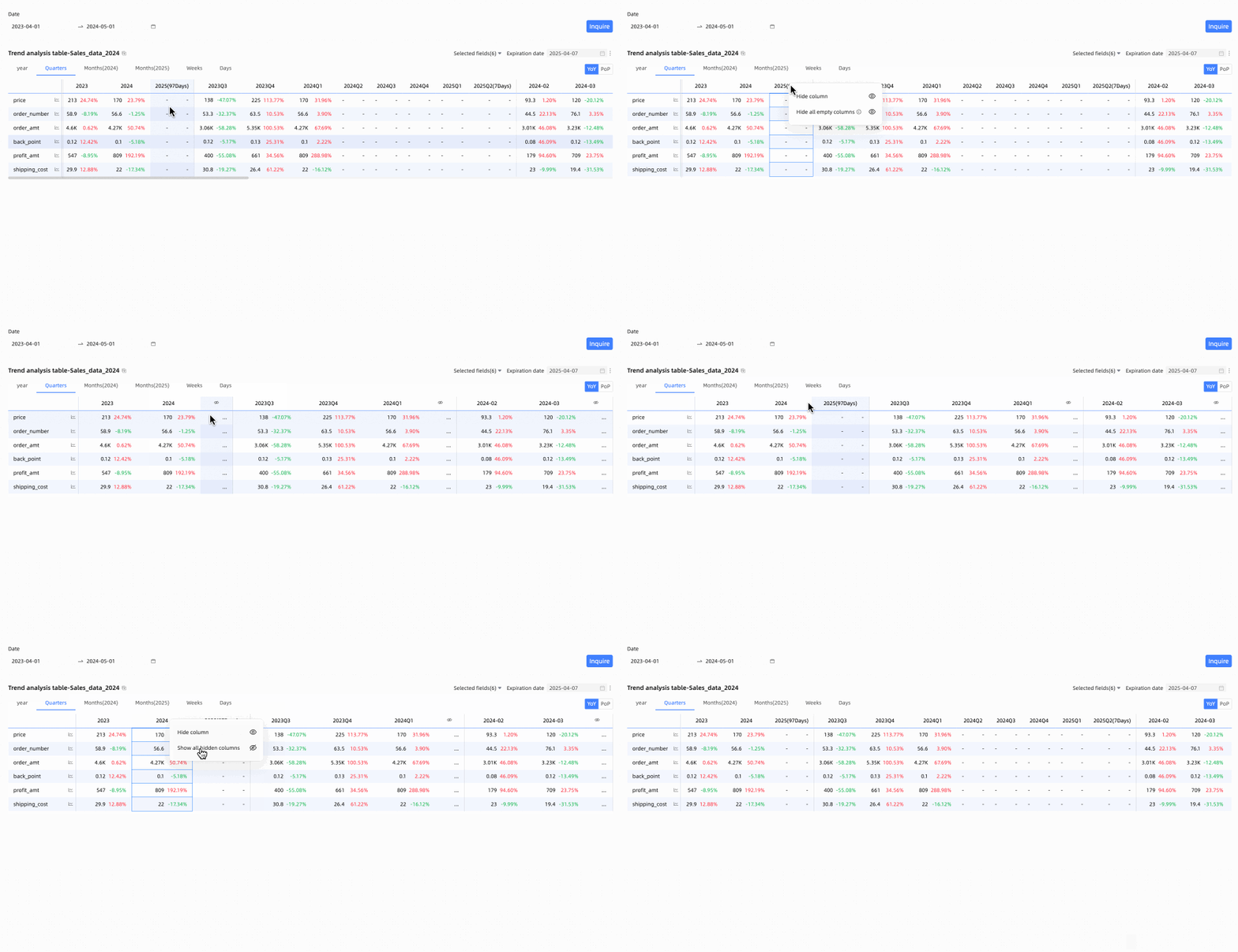
Restore default fields
You can use the field filter panel to choose which measures to display. To revert to the original selection, click the  icon in the table's upper-right corner, or click Restore Default in the panel's upper-right corner.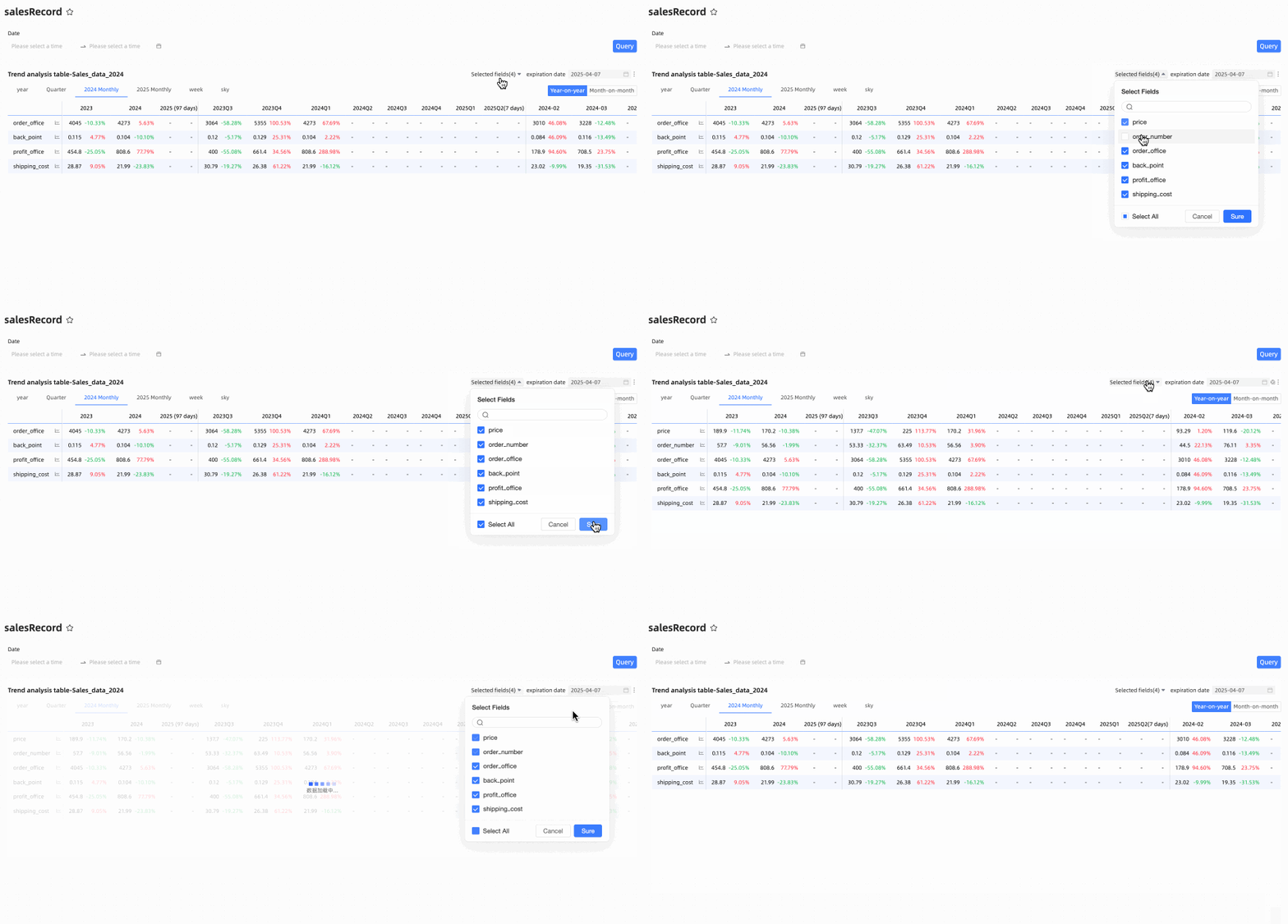
FAQ
1. Trend vs. multi-dimensional analysis tables
A: The main difference lies in the column configuration. A trend analysis table can only have a single, day-level time dimension in its columns, focusing specifically on how metrics change over time. In contrast, a multi-dimensional analysis table can include not only a time dimension but also multiple business dimensions (such as region or product category) in its rows or columns, allowing for more complex multi-dimensional cross-analysis.
2. View YoY and MoM growth rates
A: In chart edit mode, go to the Advanced tab, find the Advanced settings, and select Open table data comparison. Then, under Show, select Percent Variance. Choose the Display type as Year-on-year or month-on-month as needed. After saving, toggle buttons for year-on-year/month-on-month comparison will appear in the top-right corner of the chart, and the table will display the corresponding percentage data.
3. Date field errors
A: The field in the Date/Column area of a trend analysis table must be a date-type field with day-level granularity. Please check that your selected date field meets this requirement. For example, the field name might be similar to Order Date (day). Date fields with other granularities, such as year, month, or week, cannot be used in this area.
4. Hide empty columns
A: In preview mode, click any column header and select Hide All Empty Columns from the menu. This hides all columns in which every cell is empty, making the table more compact.