Configure mobile mini program navigation
By default, the bottom navigation bar in the mobile mini program includes Home, Q&A, Card, Common, Data, and My. To personalize the display of mobile reports, Quick BI lets you customize the bottom navigation bar for your enterprise's mini program. An organization administrator can pin frequently viewed reports to the custom navigation bar or push important data content. For example, in organizations with strong IT governance, when the IT department releases a new core metric or report and wants to quickly notify all BI users, they can add a promoted report group, an image banner group, and a scrolling message. This topic describes how to create custom navigation and configure its content.
Prerequisites
You have enabled the mini program for DingTalk, WeChat Work, or Feishu. For more information, see (public cloud) Enable a DingTalk mini program, (public cloud) Enable a WeChat Work mini program, and (public cloud) Enable a Feishu mini program.
Access the feature
An organization administrator can log in to the Quick BI console to configure the bottom navigation bar and personalized banners for the mobile mini program.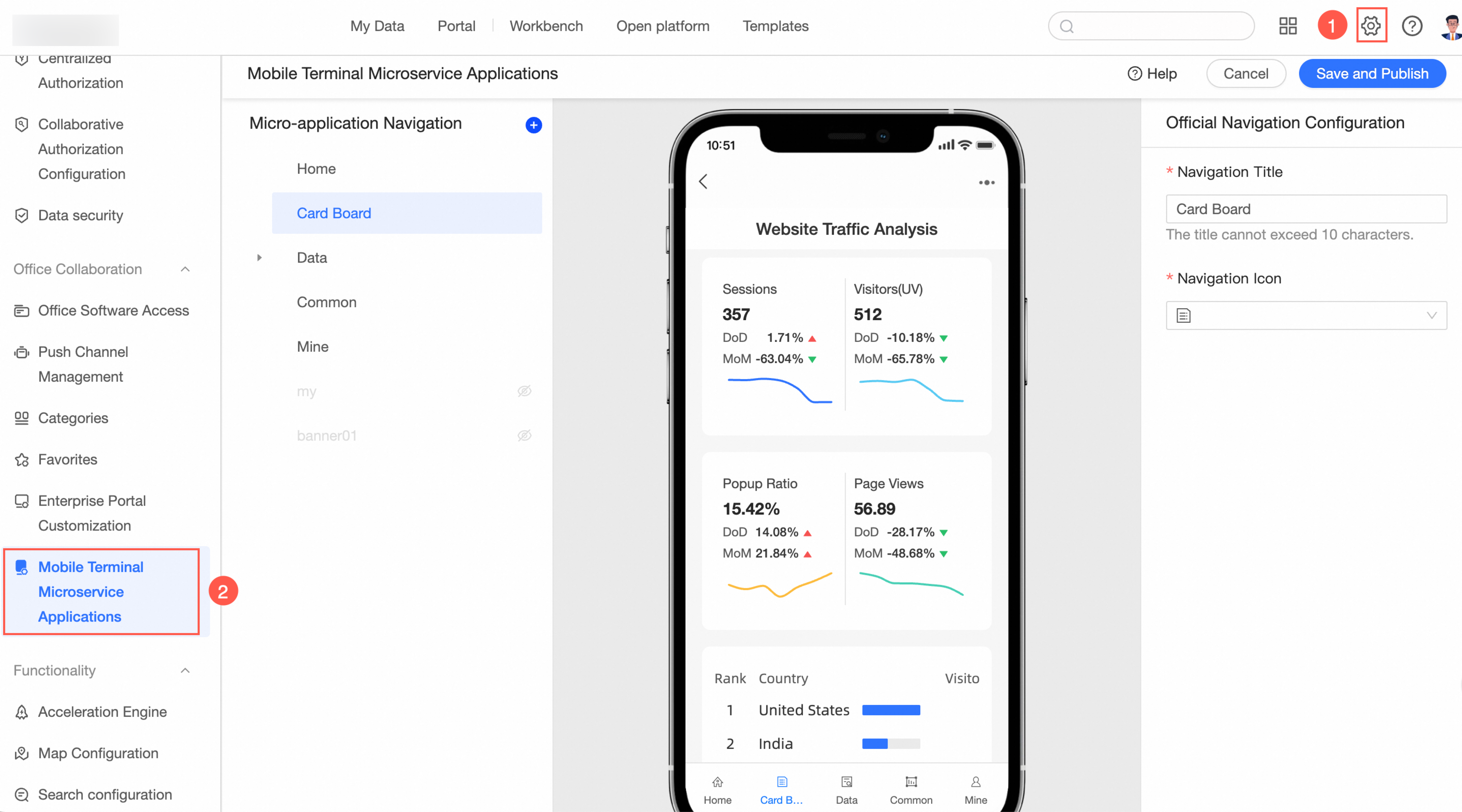
Create custom navigation content
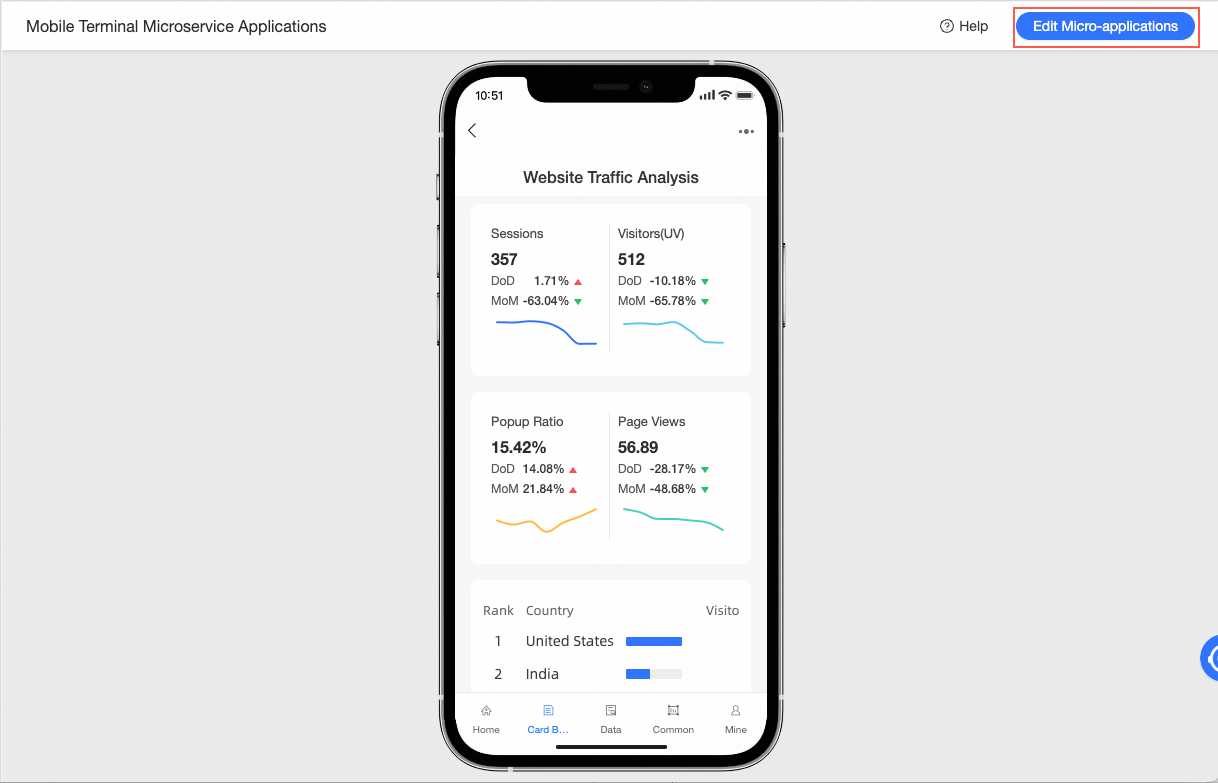
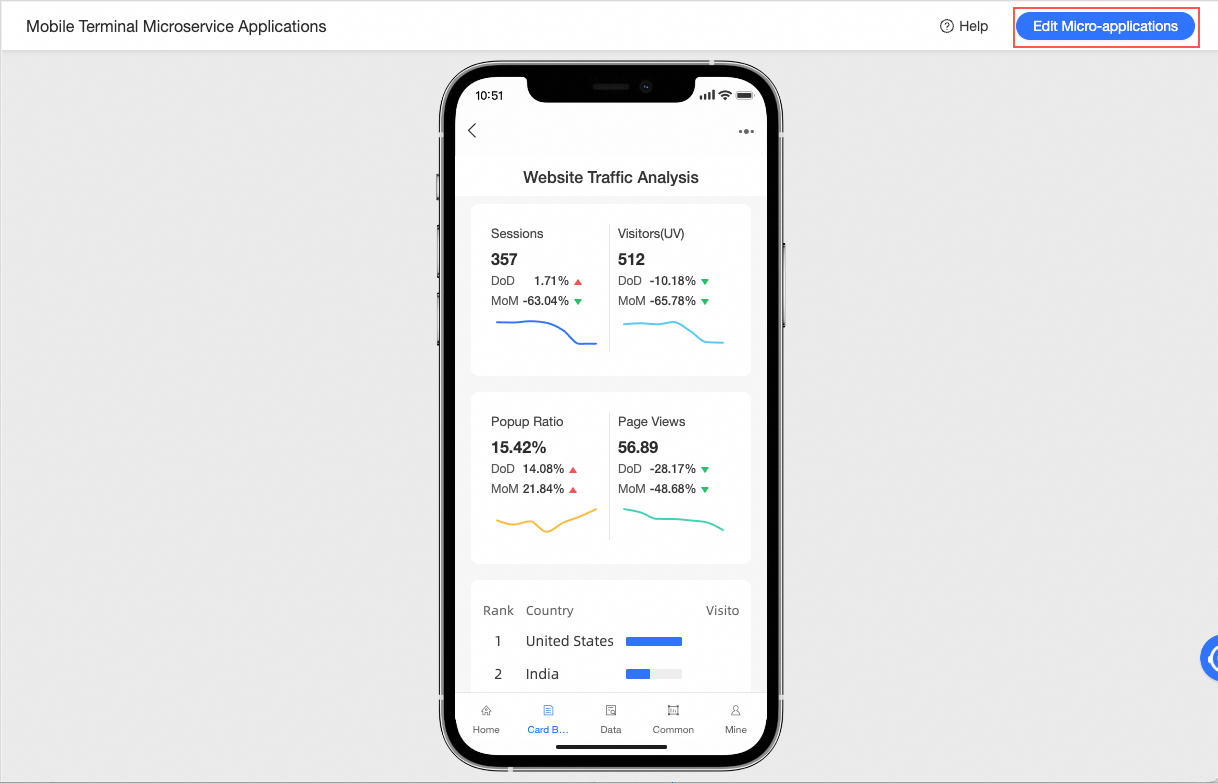
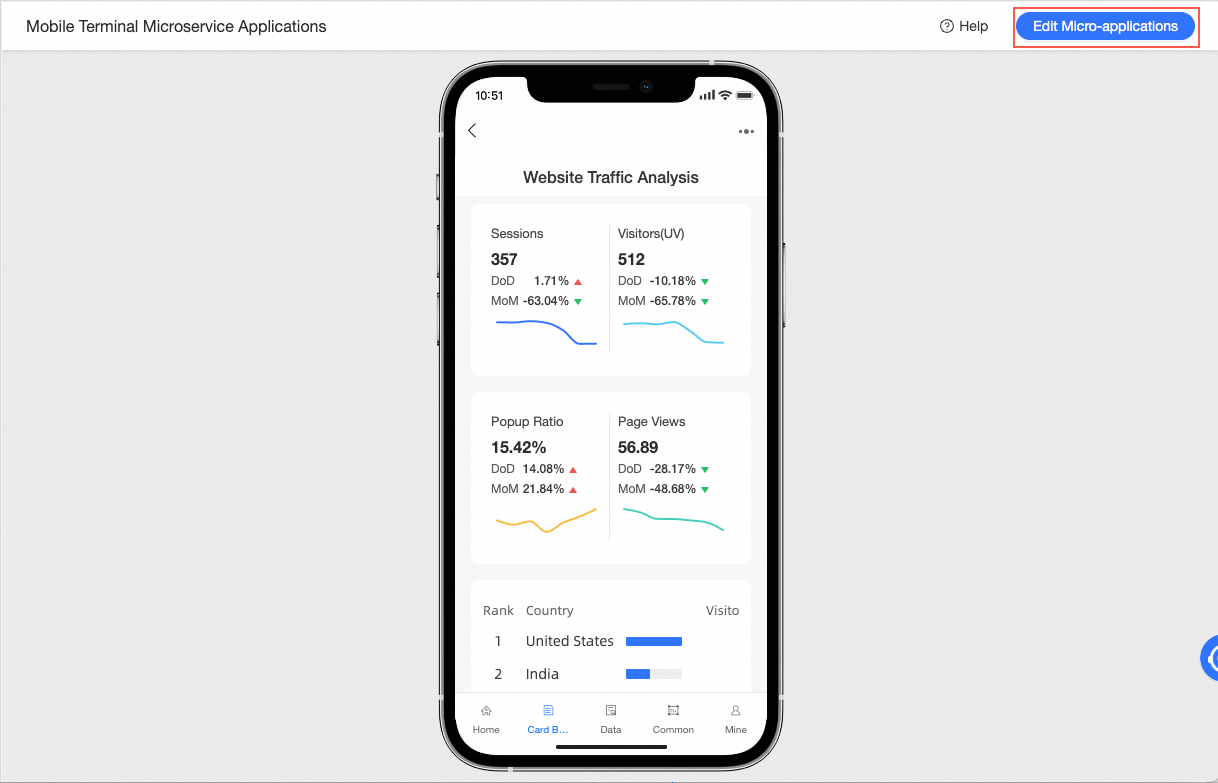
On the Mobile mini program page, click Edit mini program in the upper-right corner.
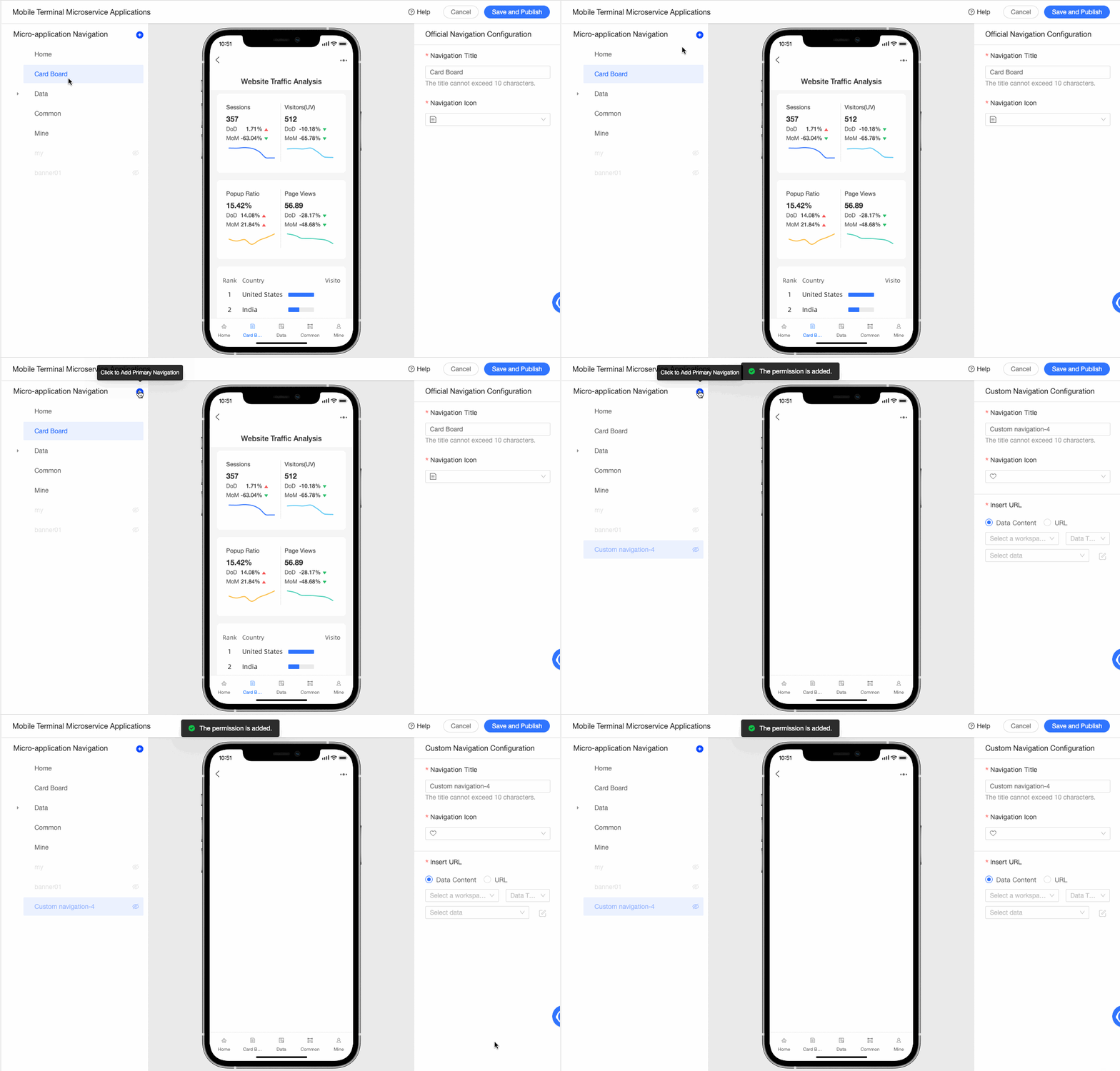
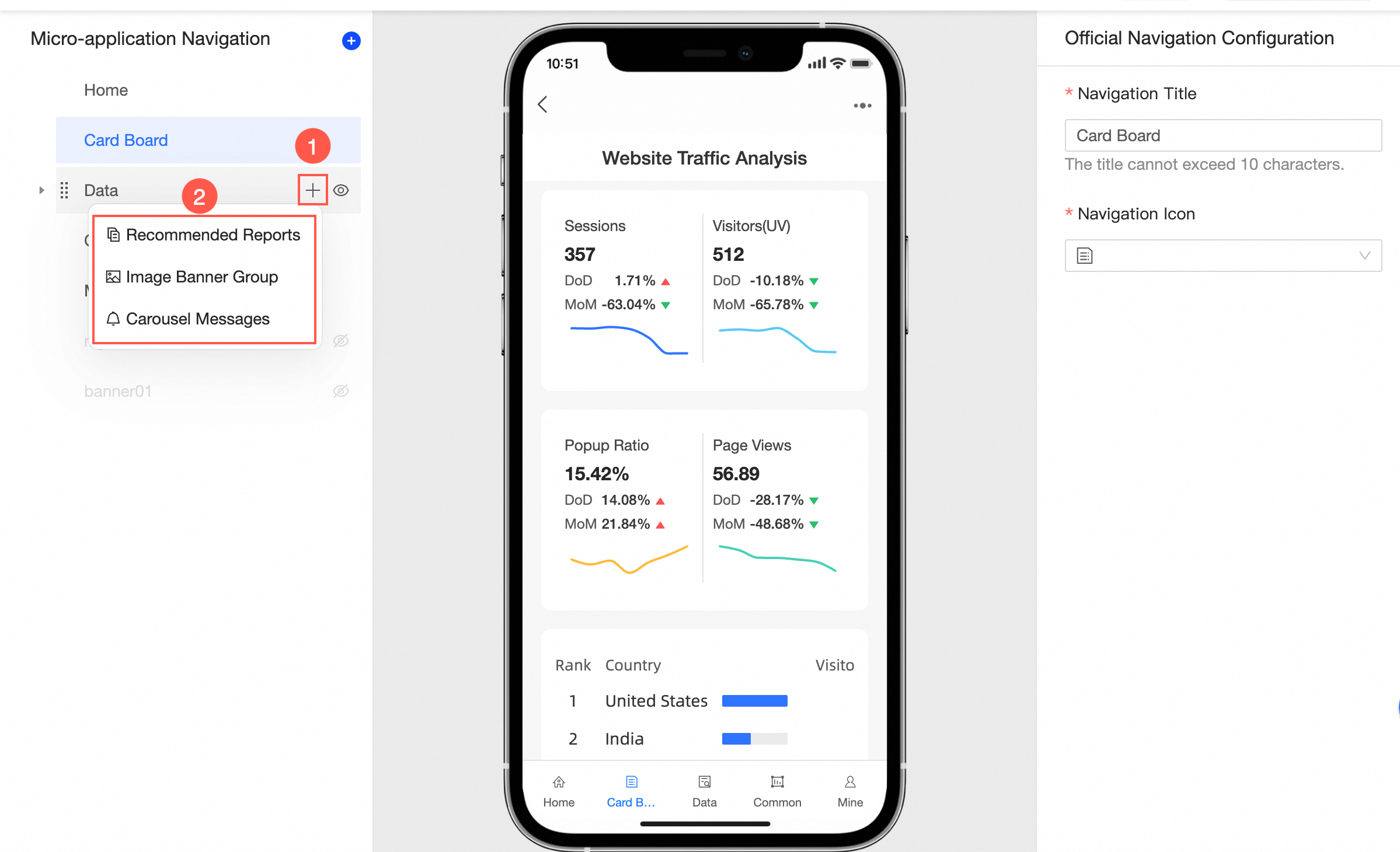
On the mini program navigation editor page, click the
 icon to add a custom navigation item.
You can add a custom navigation item to pin frequently viewed reports to the navigation bar.
 Note
The mobile mini program supports a maximum of five navigation items.
If you add more than five items, the sixth and subsequent items are hidden by default. To display a hidden item, you must hide another one. For more information, see Hide a navigation item.
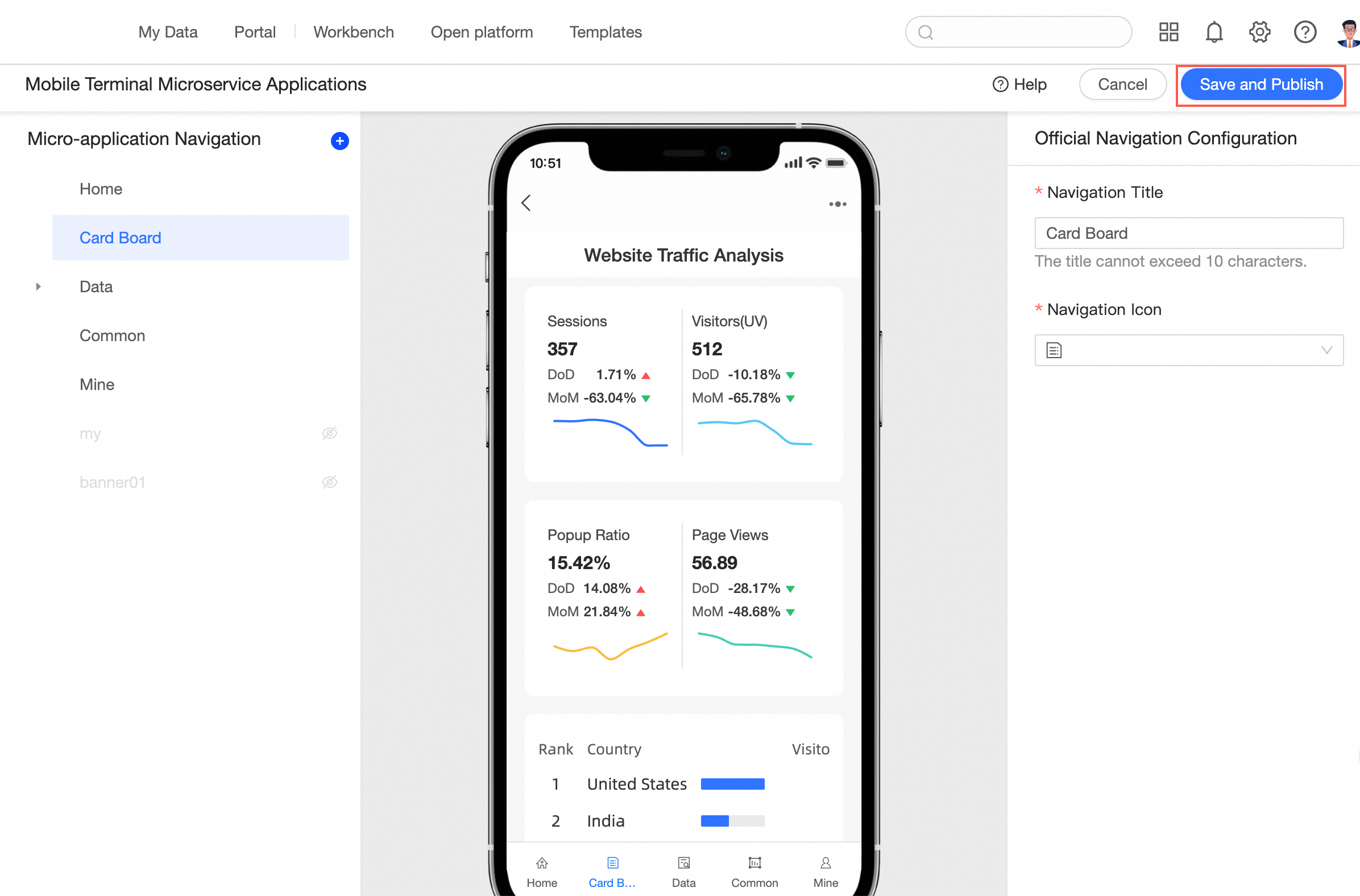
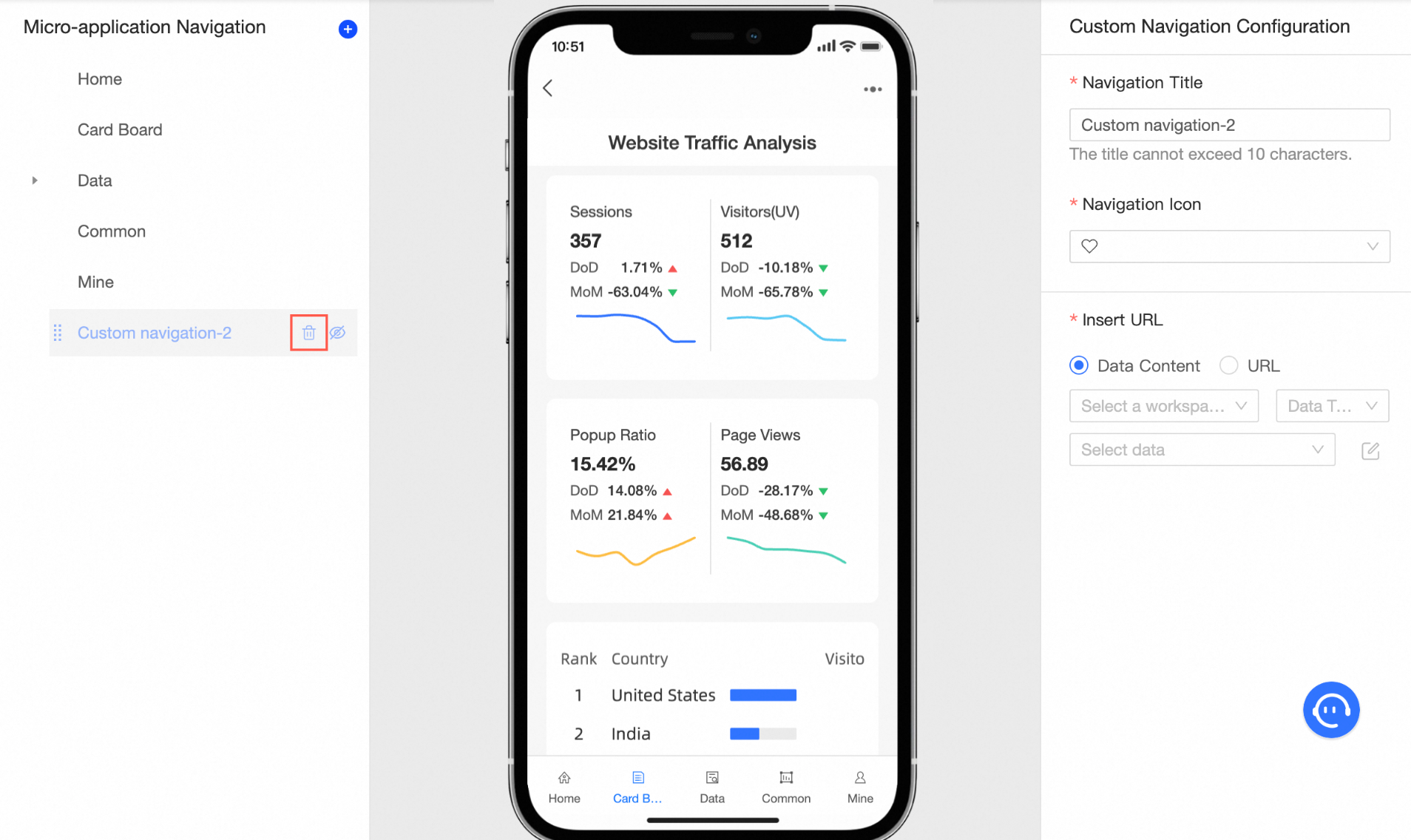
In the Custom Navigation Configuration panel on the right, configure the following parameters.
Parameter
Description
Custom navigation configuration
The name of the custom navigation item.
The name must meet the following requirements:
Can contain only Chinese characters, letters, digits, underscores (_), and hyphens (-).
Must be globally unique.
The name can be up to 10 characters long.
Navigation icon
The icon for the custom navigation item.
Embed URL
The content to embed in the navigation item.
You can embed Data Content or a URL.
Data Content: Embeds a dashboard or data portal from any workspace within your organization.
Only dashboards and data portals are supported.
URL: Embeds content from a specified URL.
Click Save and Publish to create the custom navigation item.
Manage navigation
On the Mobile mini program page, click Edit mini program in the upper-right corner.

On the mini program navigation editor page, perform the following actions:
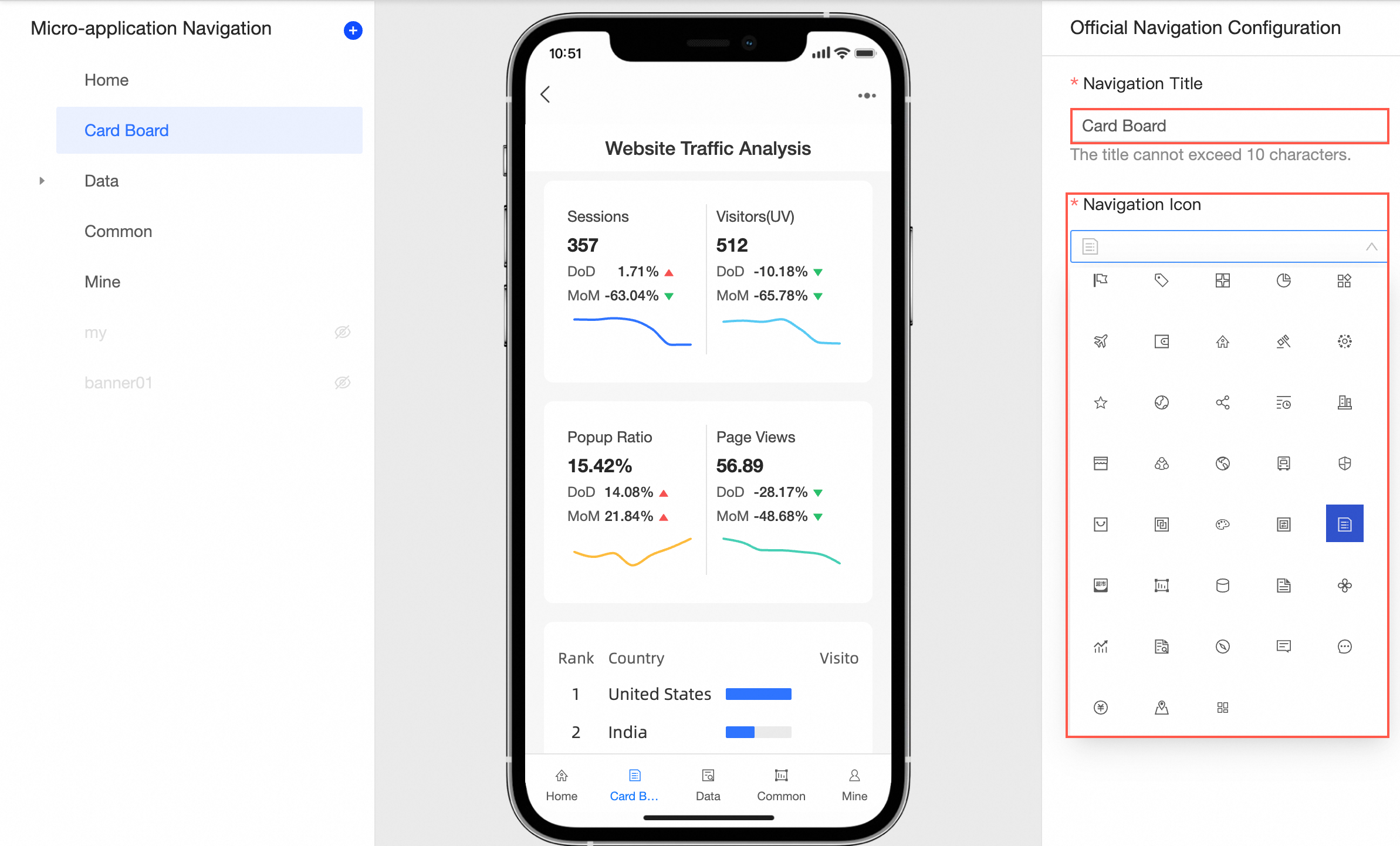
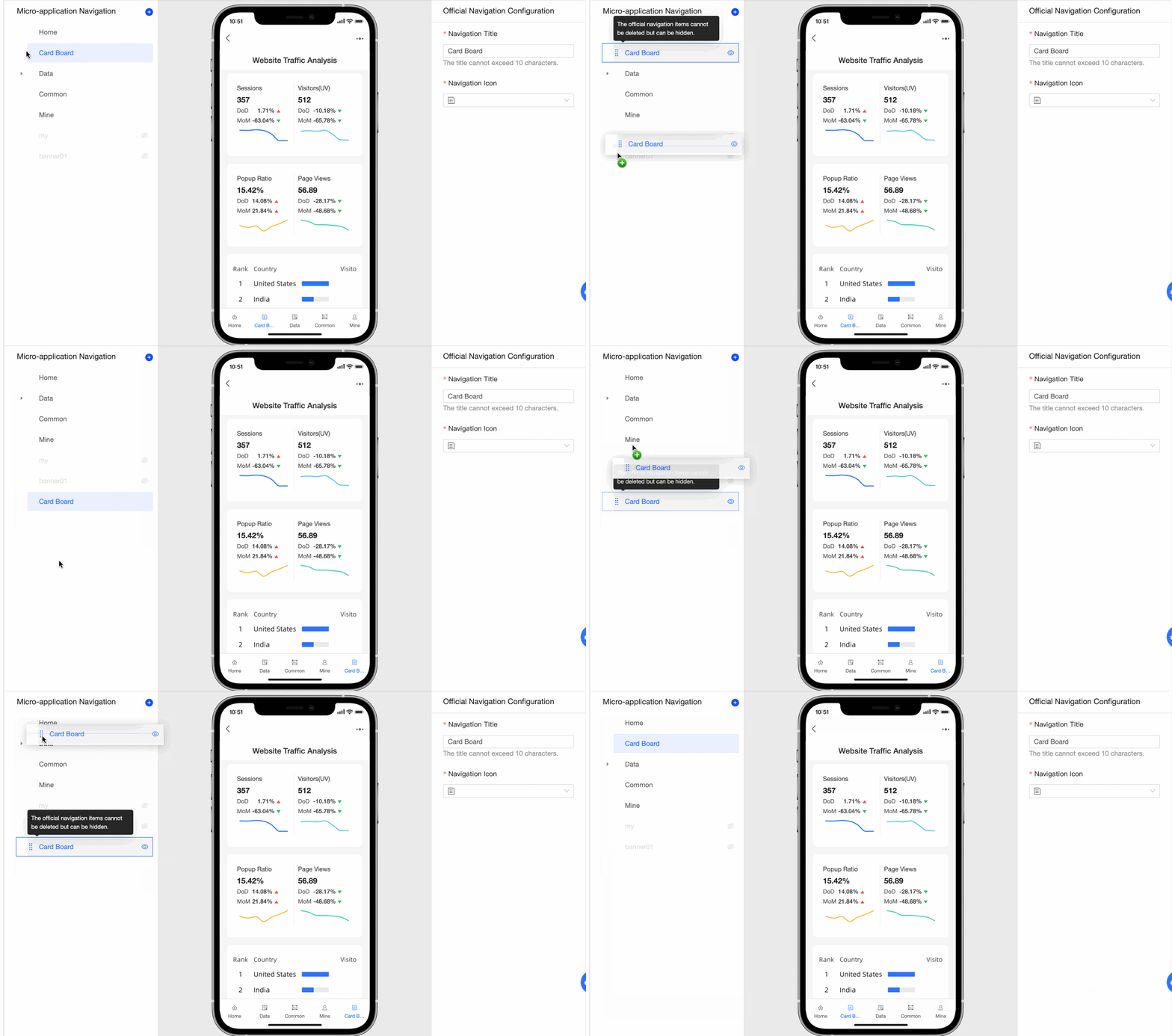
Modify a navigation item's name and icon
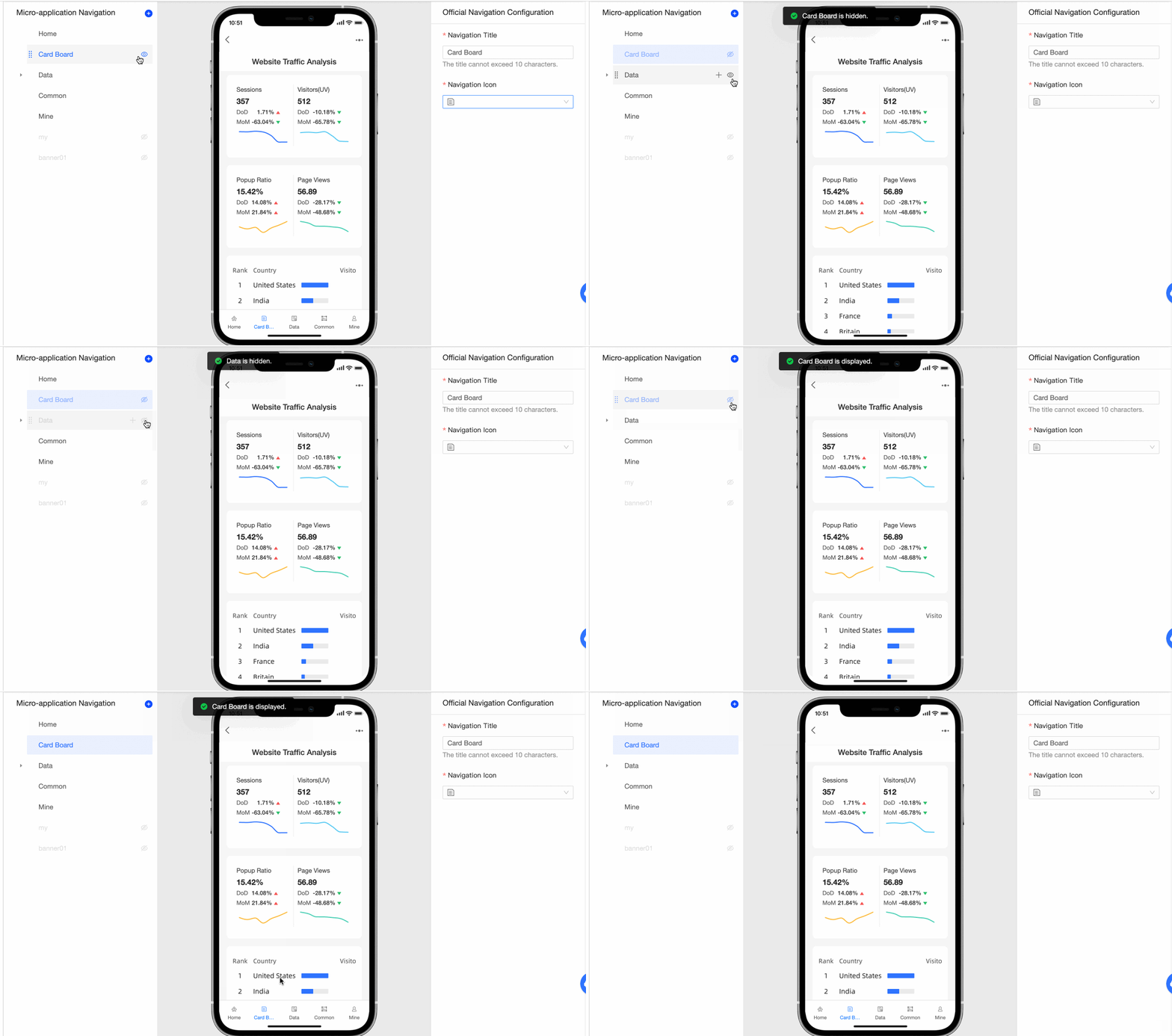
Show or hide a navigation item
Delete a navigation item
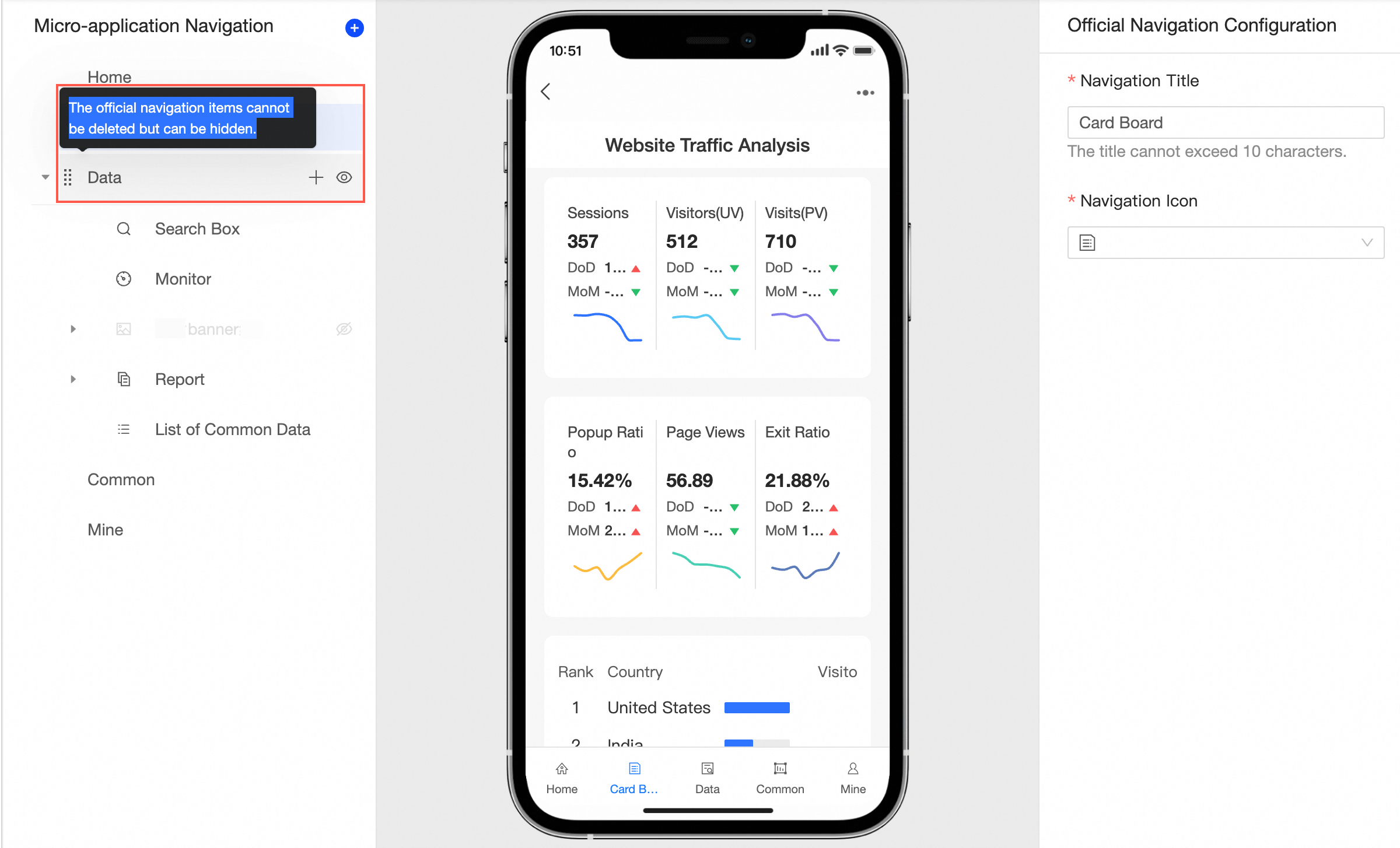
You can delete only the custom navigation items that you added.
Drag and drop to reorder the navigation items
In the upper-right corner, click Save and Publish to apply your changes.
Configure Common navigation content
In an environment with strong IT controls, when the IT department releases a new key metric or key report, it is important to quickly notify all BI users. In this case, the Common navigation of the mini program serves as the central hub for users to find data content, acting as a portal for them to access data.
On the Mobile mini program page, click Edit mini program in the upper-right corner.
Follow the instructions in the figure to add content to the Common tab.
You can add a promoted report group, an image banner group, and a scrolling message.
Configure the content format.
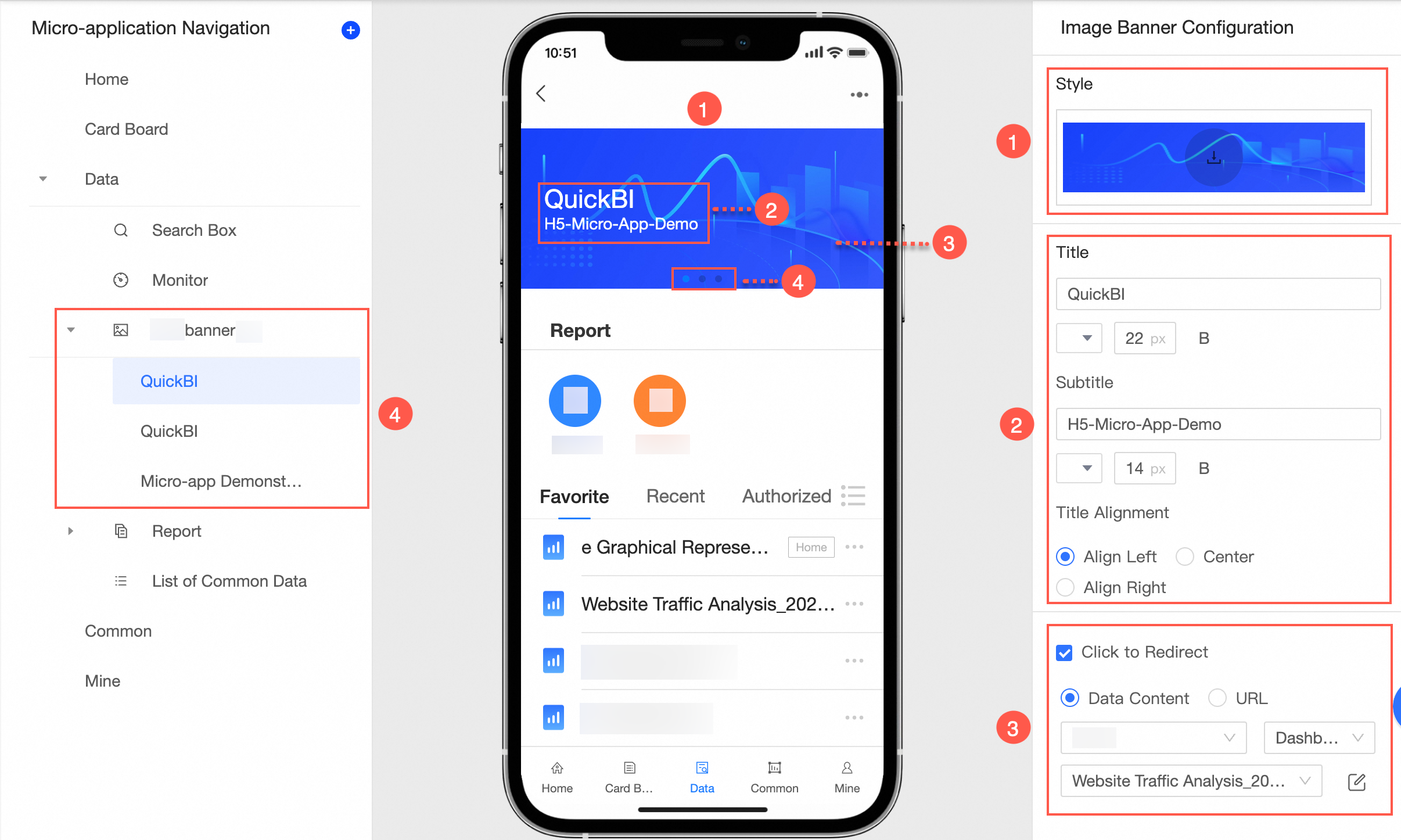
Image banner group: Displays important data content, typically as promotional banners.
You can configure multiple image banners within a group, as shown in the following figure.
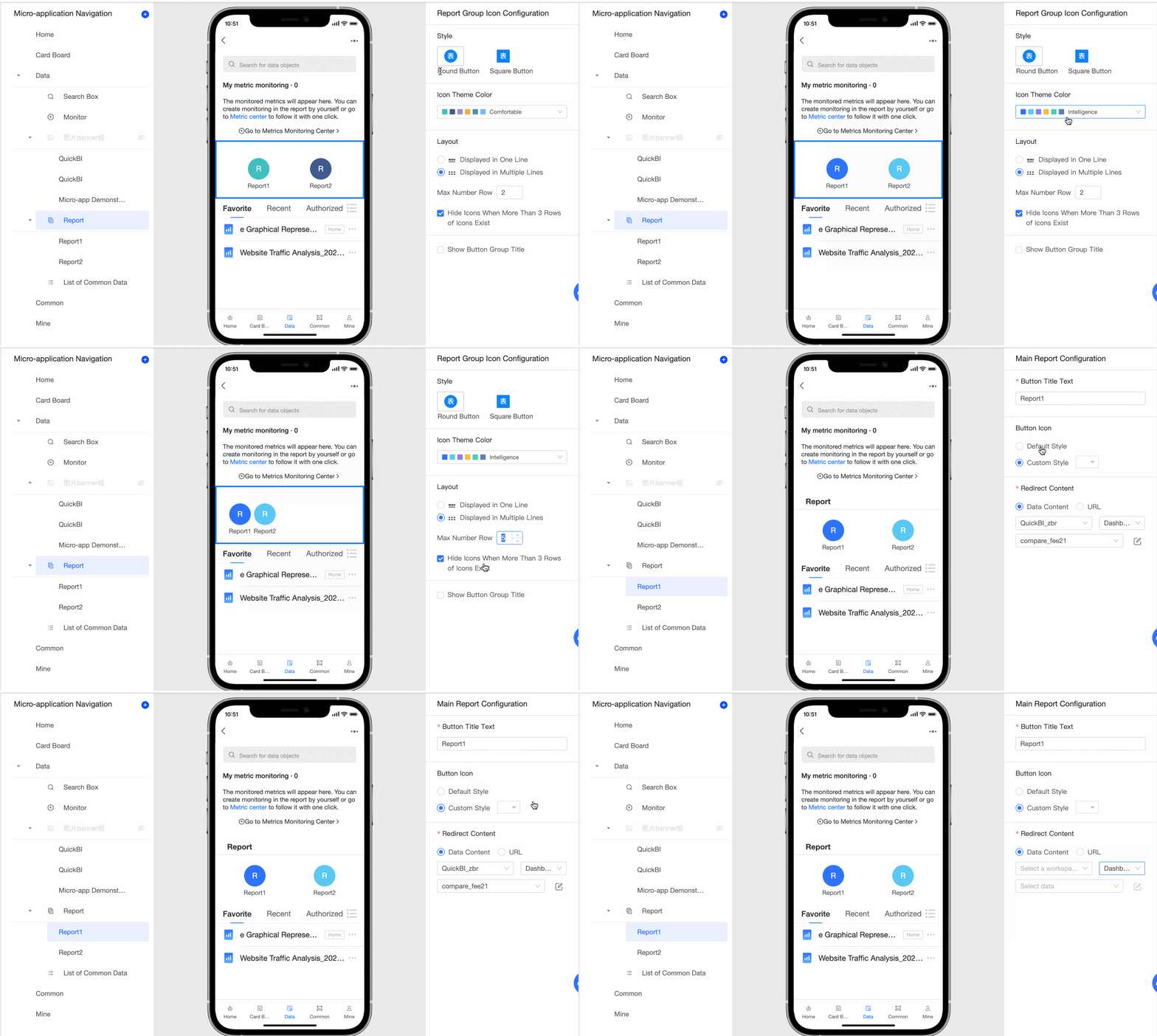
Promoted report group: Displays recommended reports. Use this group to feature key reports that organization administrators want users to focus on, such as company-wide performance dashboards.
NoteThere is no limit to the number of reports you can add to a promoted report group. However, for the best user experience, we recommend limiting the number of reports based on your needs.
The data content can be a dashboard, data portal, or data entry form.
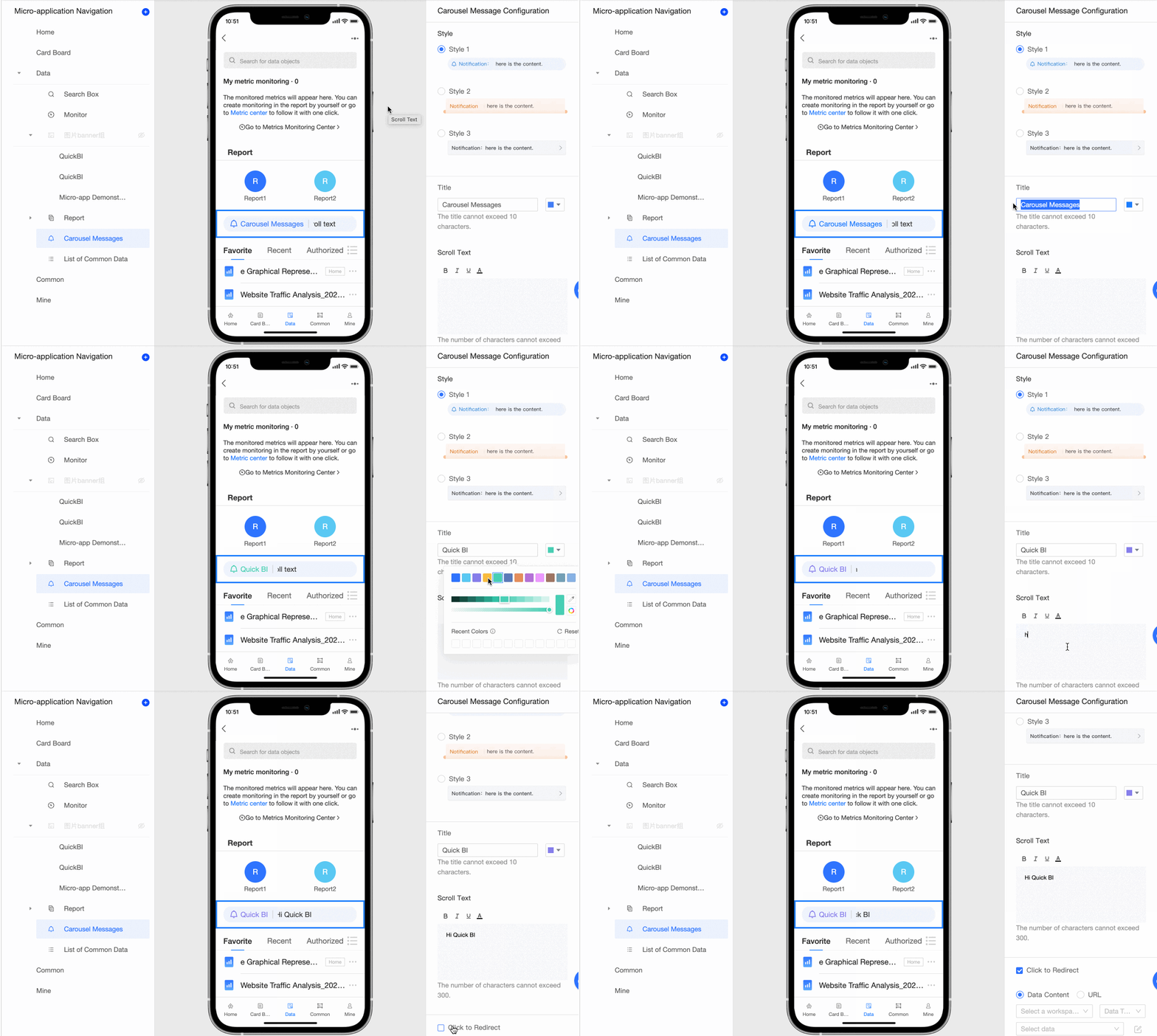
Scrolling message: Displays important notifications, such as new feature announcements, to capture user attention.
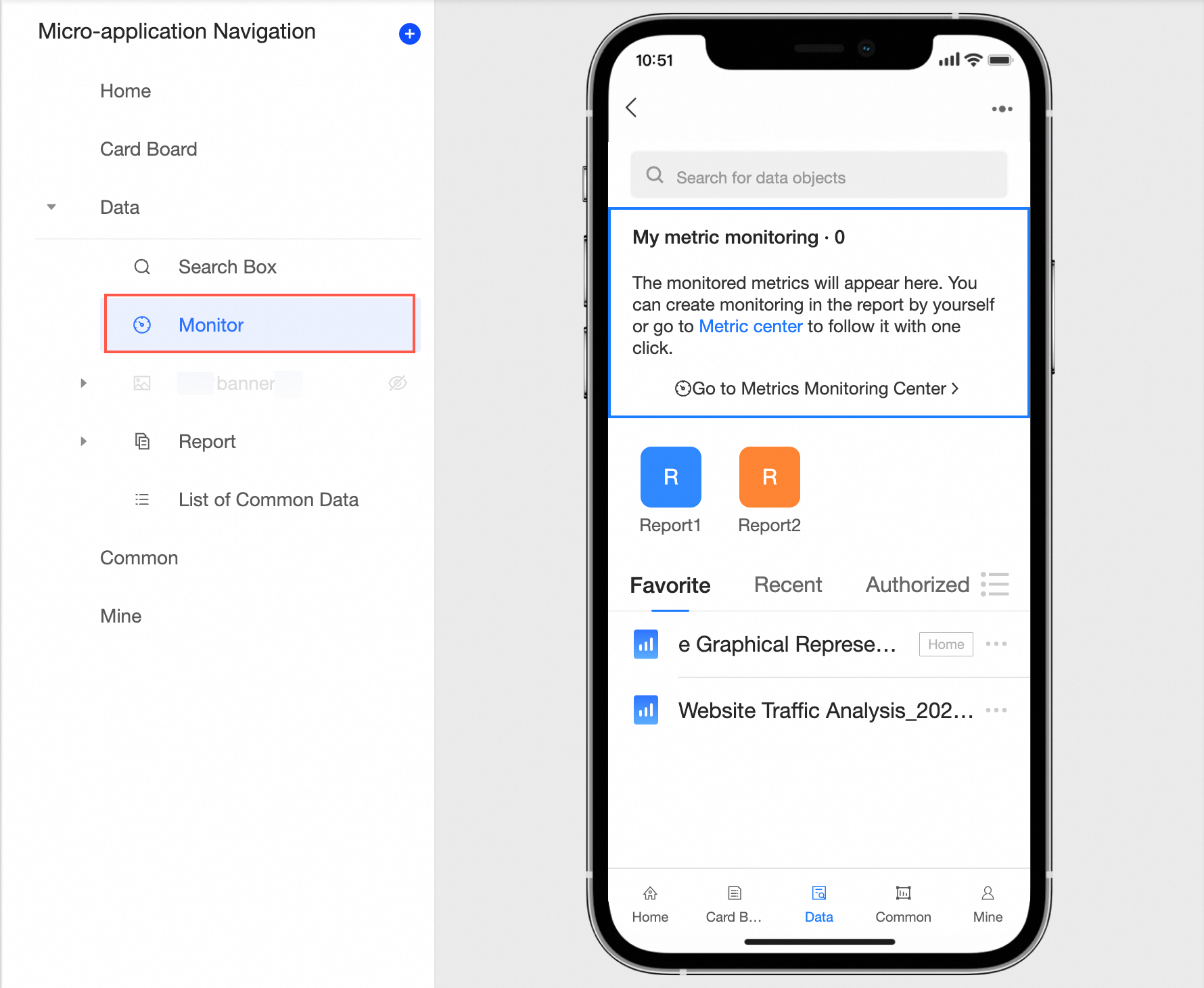
Metric monitoring: Displays configured monitoring and alerts to help you promptly identify metric anomalies.
For more information, see Configure monitoring and alerts
In the upper-right corner, click Save and Publish to finish configuring the content for the Common tab.
Usage limits
Only Advanced Edition and Professional Edition support the mobile mini program feature.
Only an organization administrator can configure the mobile mini program.
Notes
Default navigation items such as Home, Q&A, Card, Common, Data, and My cannot be deleted. You can only hide them.
The mobile mini program supports a maximum of five navigation items.
If you add more than five items, the sixth and subsequent items are hidden by default. To display a hidden item, you must hide another one. For more information, see Hide a navigation item.