DingTalk configuration
Overview
This document describes how to create a DingTalk internal application bot, enable app permissions, obtain app credentials, and configure the DingTalk channel in the Quick BI AIPro management center. For the overall procedure for channel integration, see Channel management.
Prerequisites
You must have a DingTalk account with administrator permissions for your organization. This account is required to create an app, enable permissions, and publish versions on the DingTalk Open Platform.
Create a DingTalk app
Follow these steps to create an internal application on the DingTalk Open Platform and add bot capabilities to it.
Sign in to the developer console
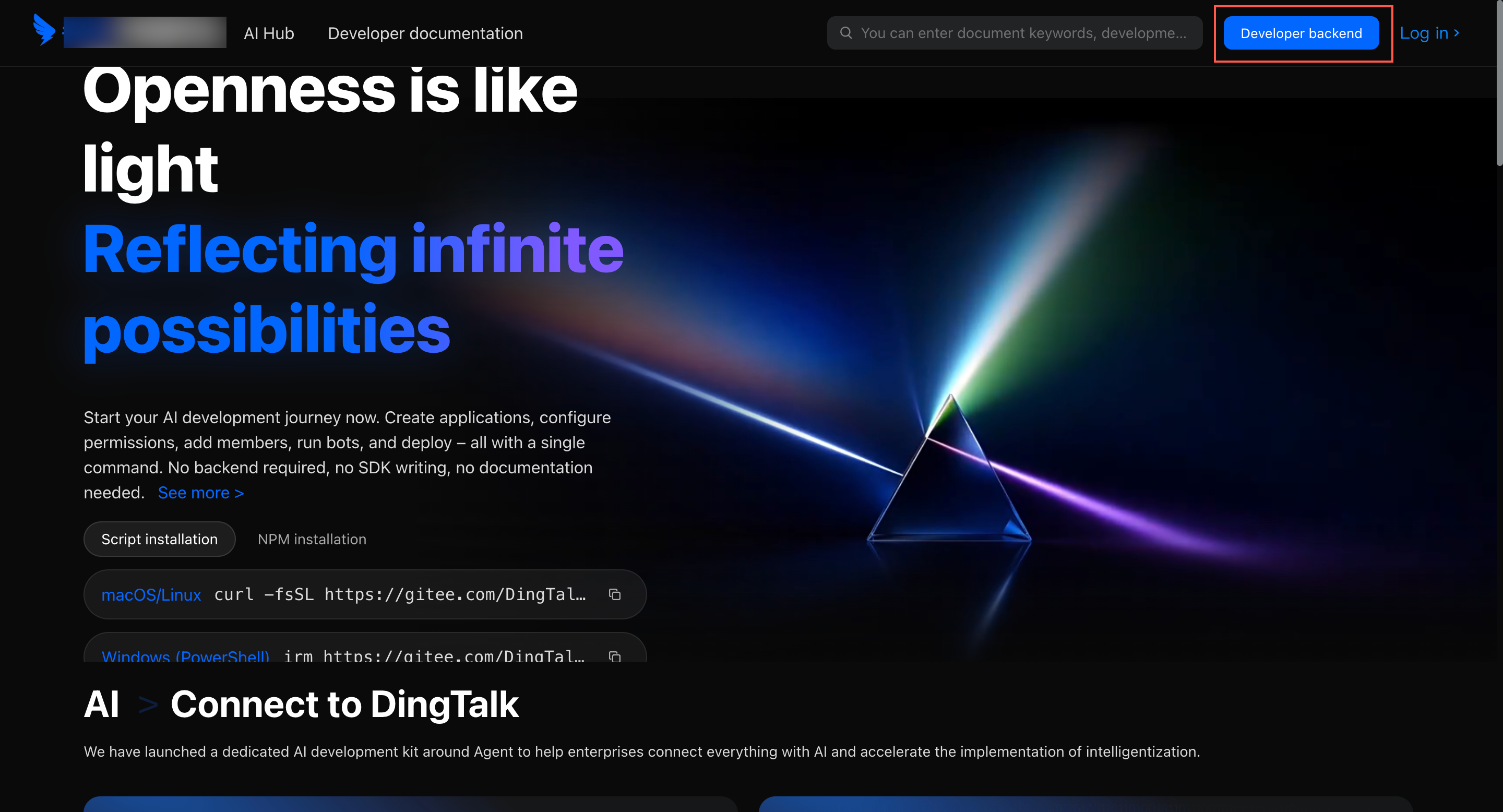
Go to the DingTalk developer console at https://open.dingtalk.com/ and sign in with an organization administrator account.
Create the app
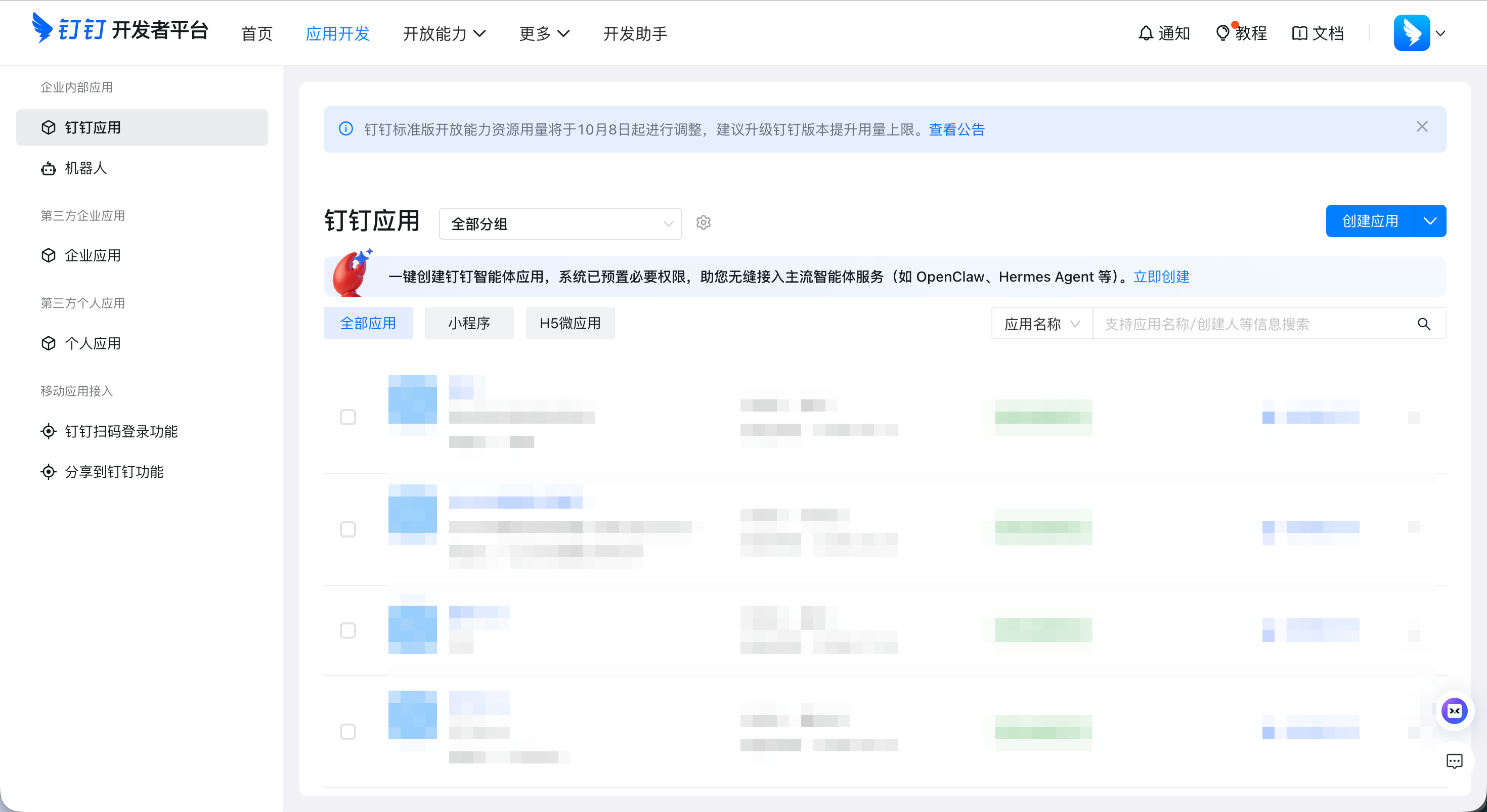
In the top navigation bar, click App development and go to the DingTalk Apps page.
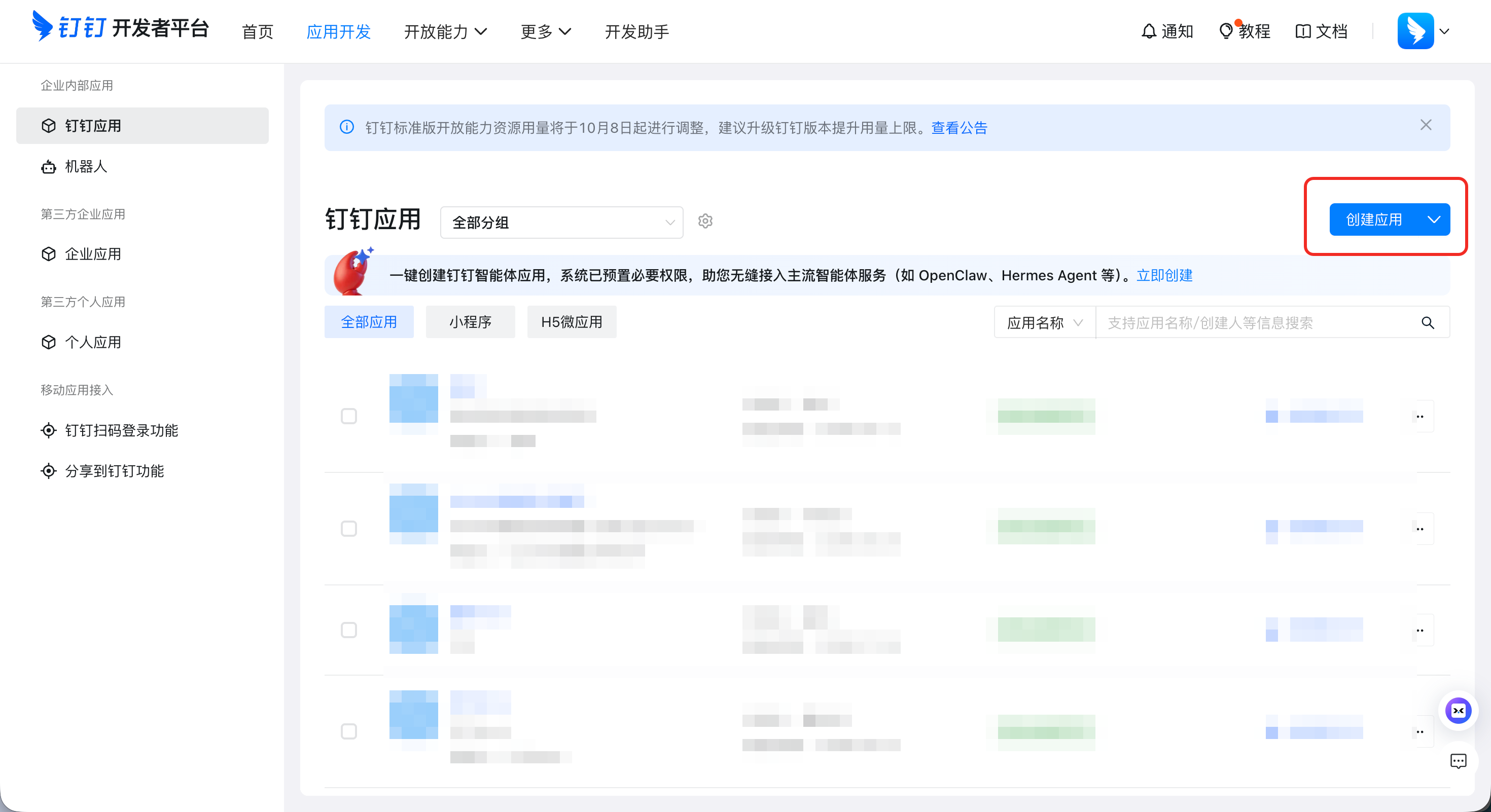
Click Create App.
In the dialog box, provide the following information.
Parameter
Value
Description
App name
A custom name
You can modify this after creation.
App description
A brief description of the app's purpose
You can modify this after creation.
App icon
Upload an icon as needed
You can modify this after creation.
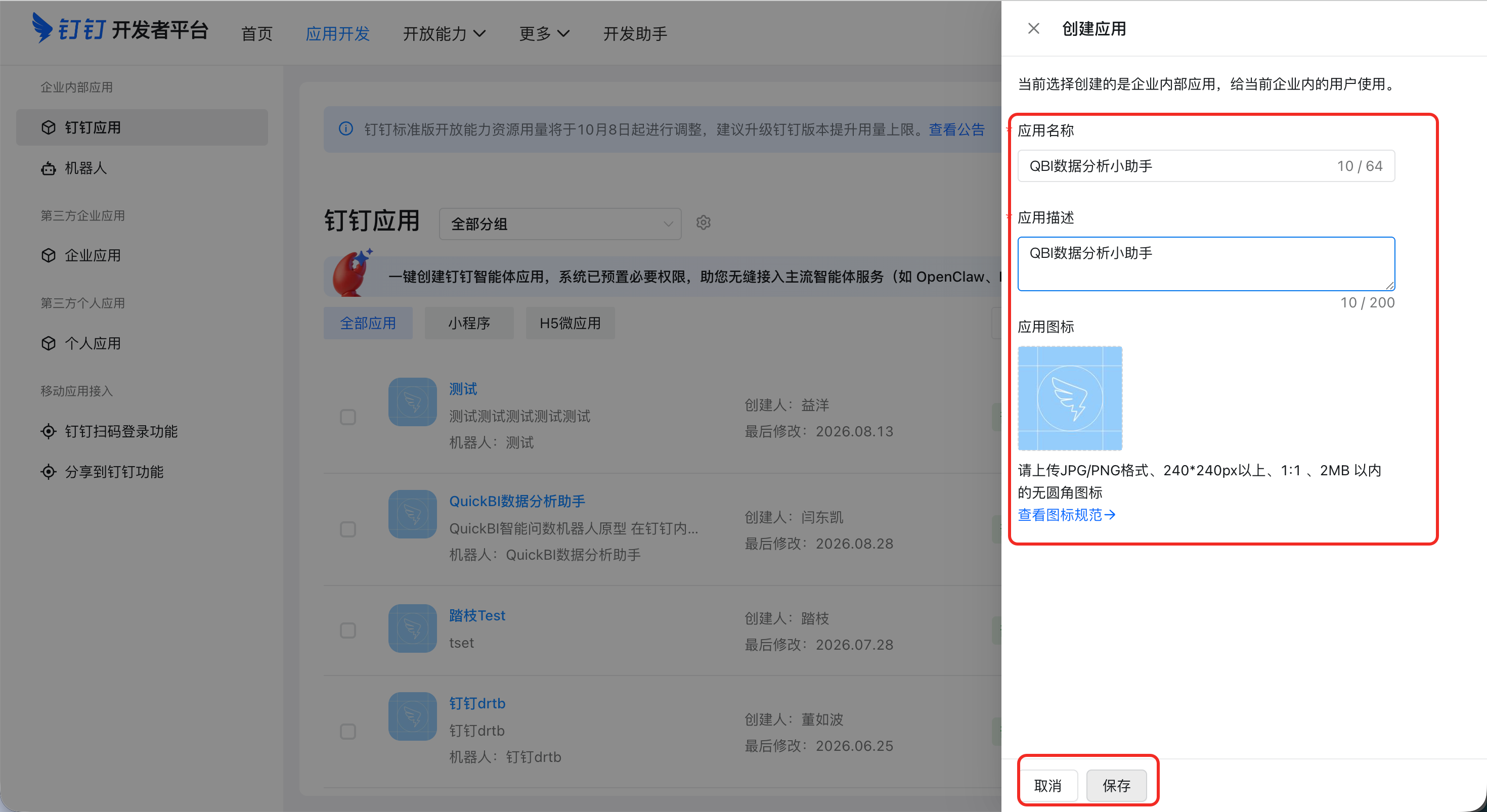
When finished, click Save.
Add bot capabilities
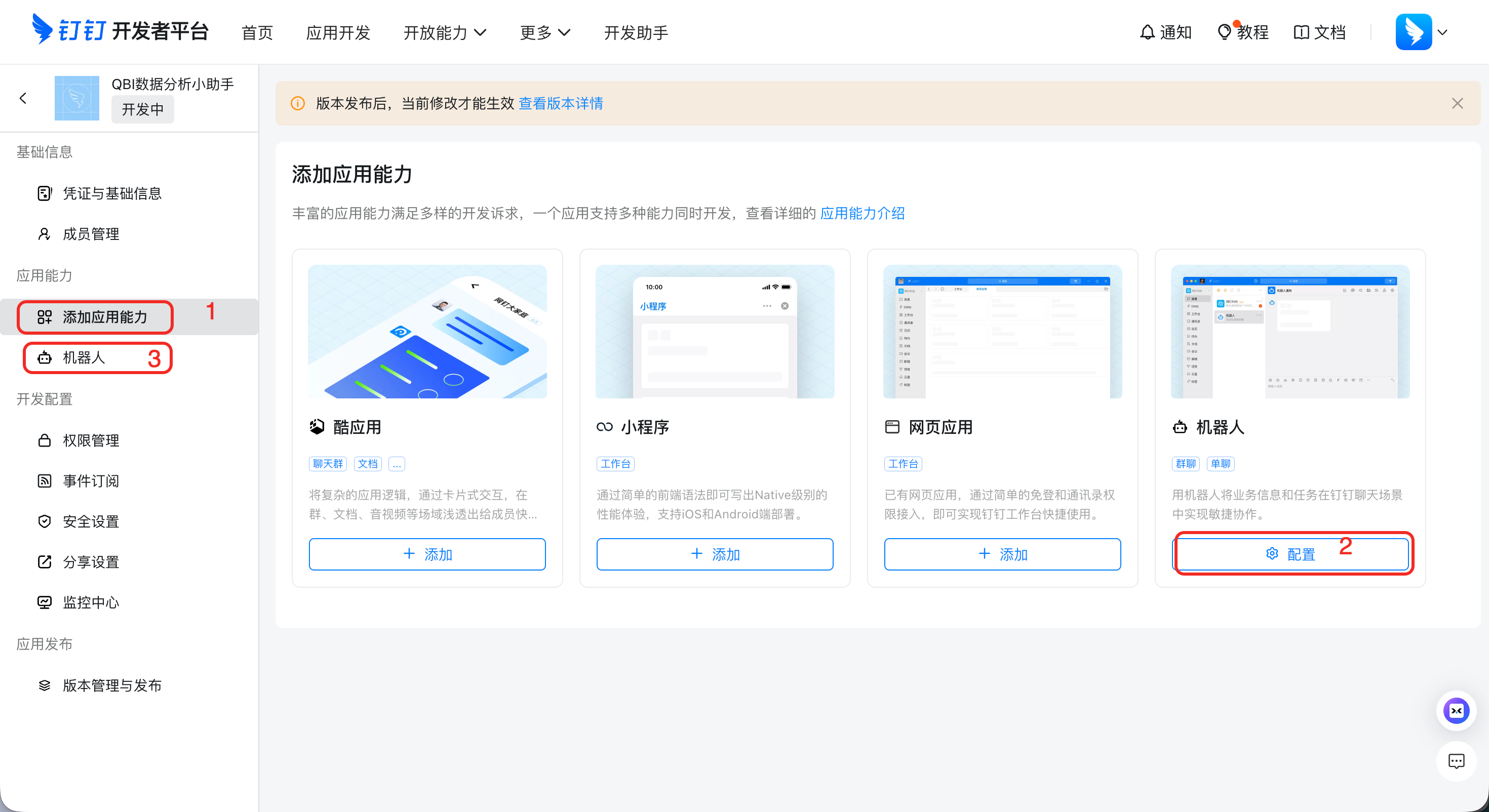
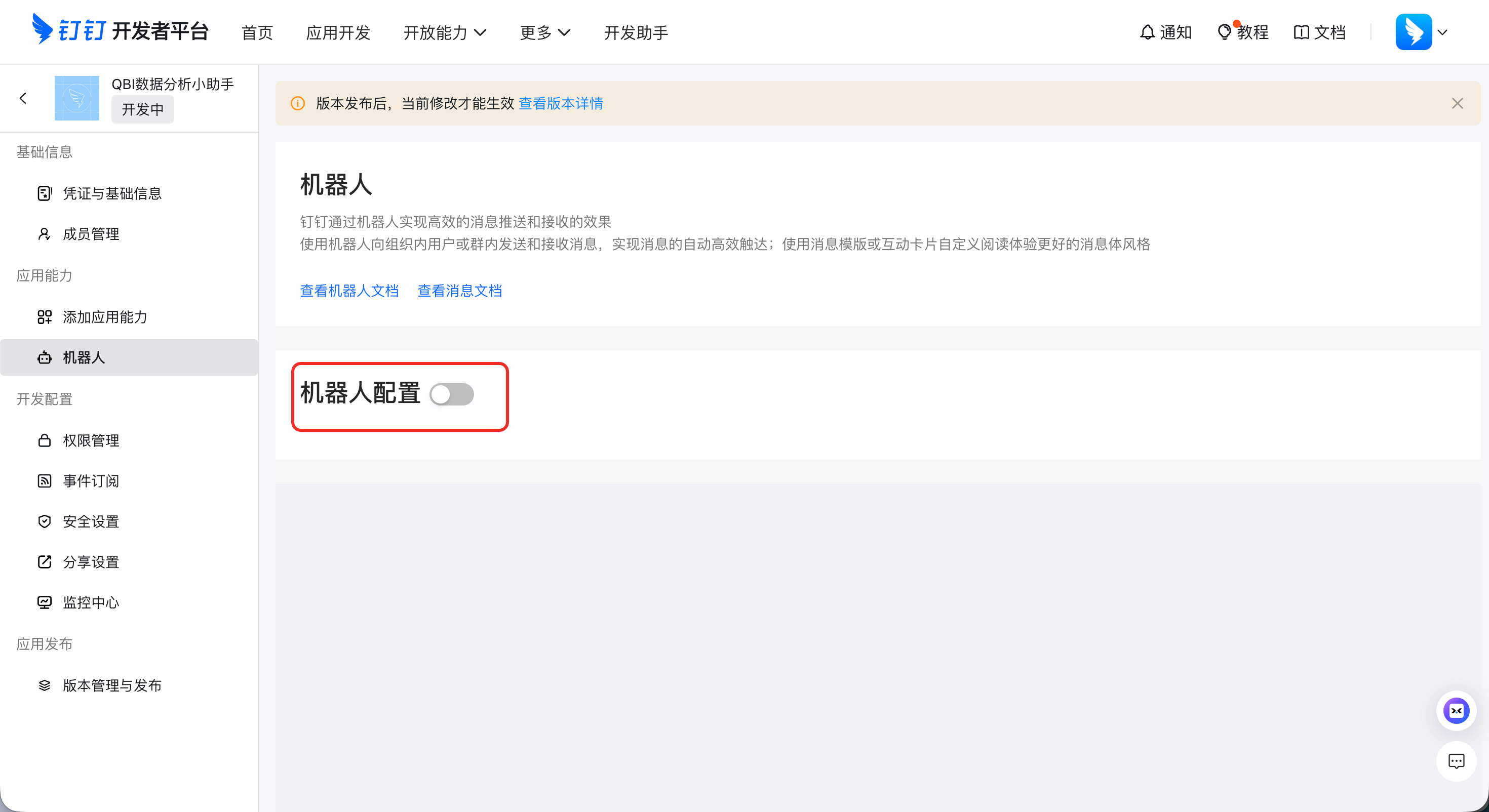
On the app details page, click Add app capabilities in the left-side navigation pane. On the bot card, click Configure.
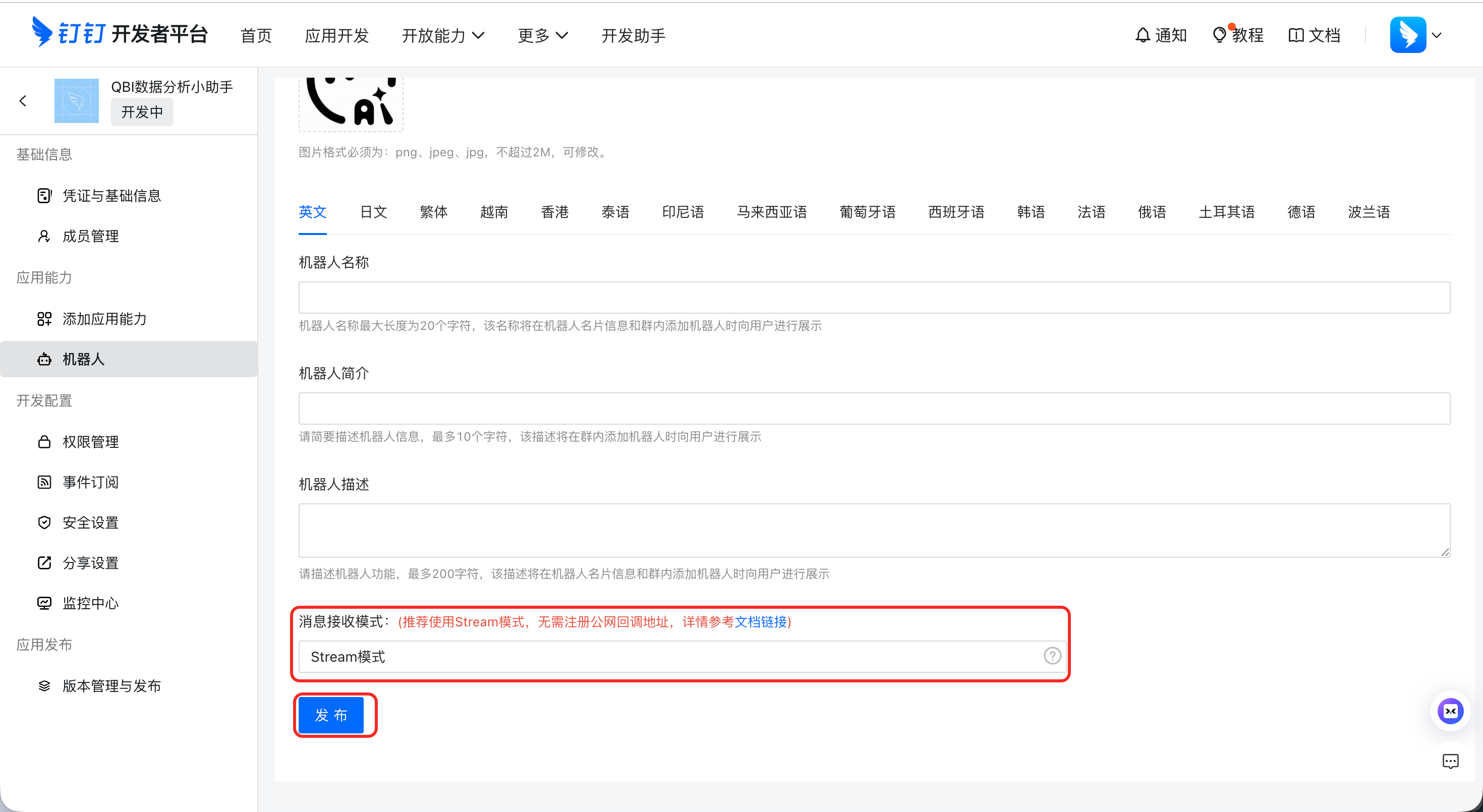
Enter the bot's basic information: Bot name, Bot introduction, Bot description, and Preview image.

For Message receiving mode, select Stream mode. This is the only supported mode and does not require a public callback URL.
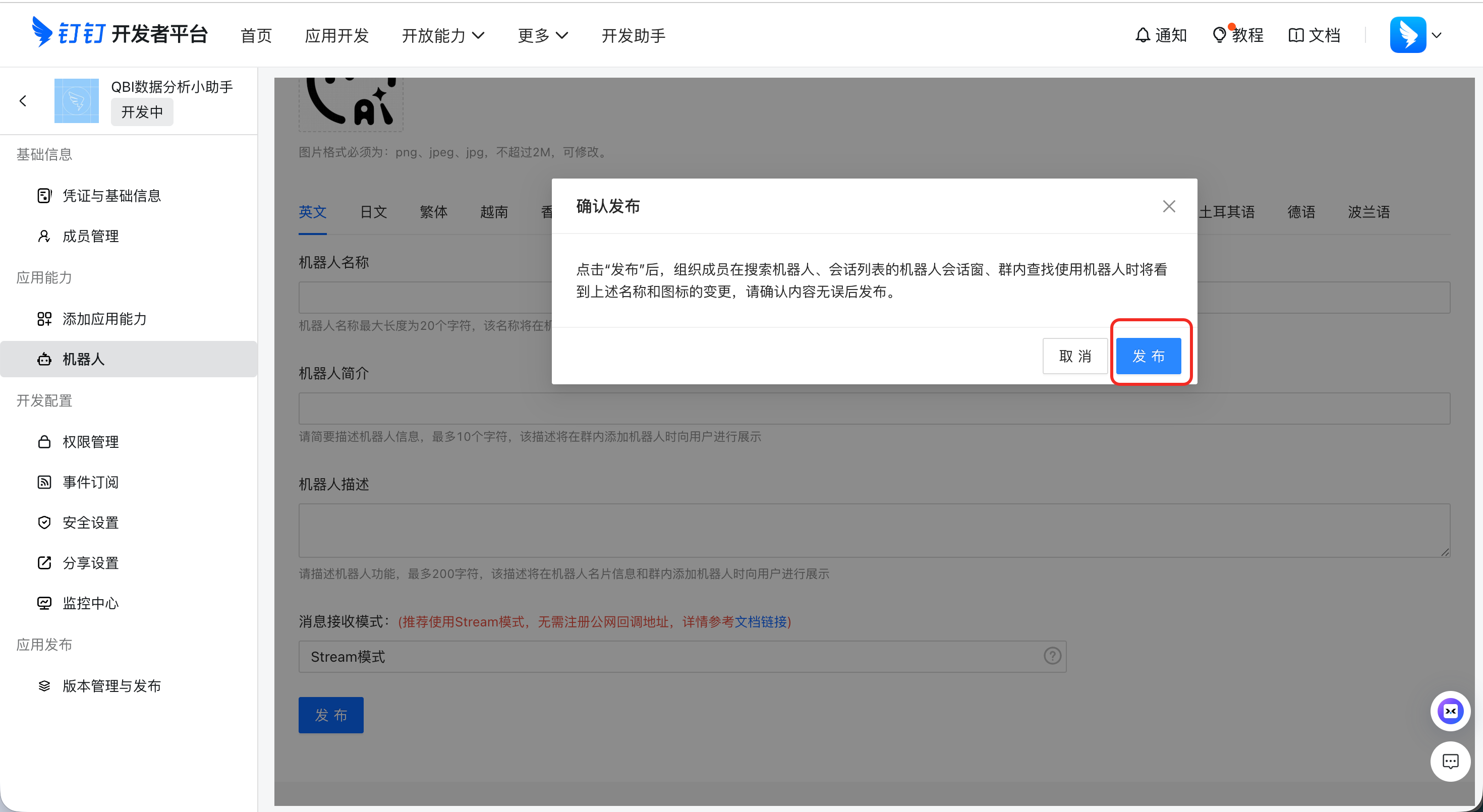
After entering the information, click Publish and confirm the action.
Configure app permissions
To allow the bot to send and receive messages, you must enable the following permissions.
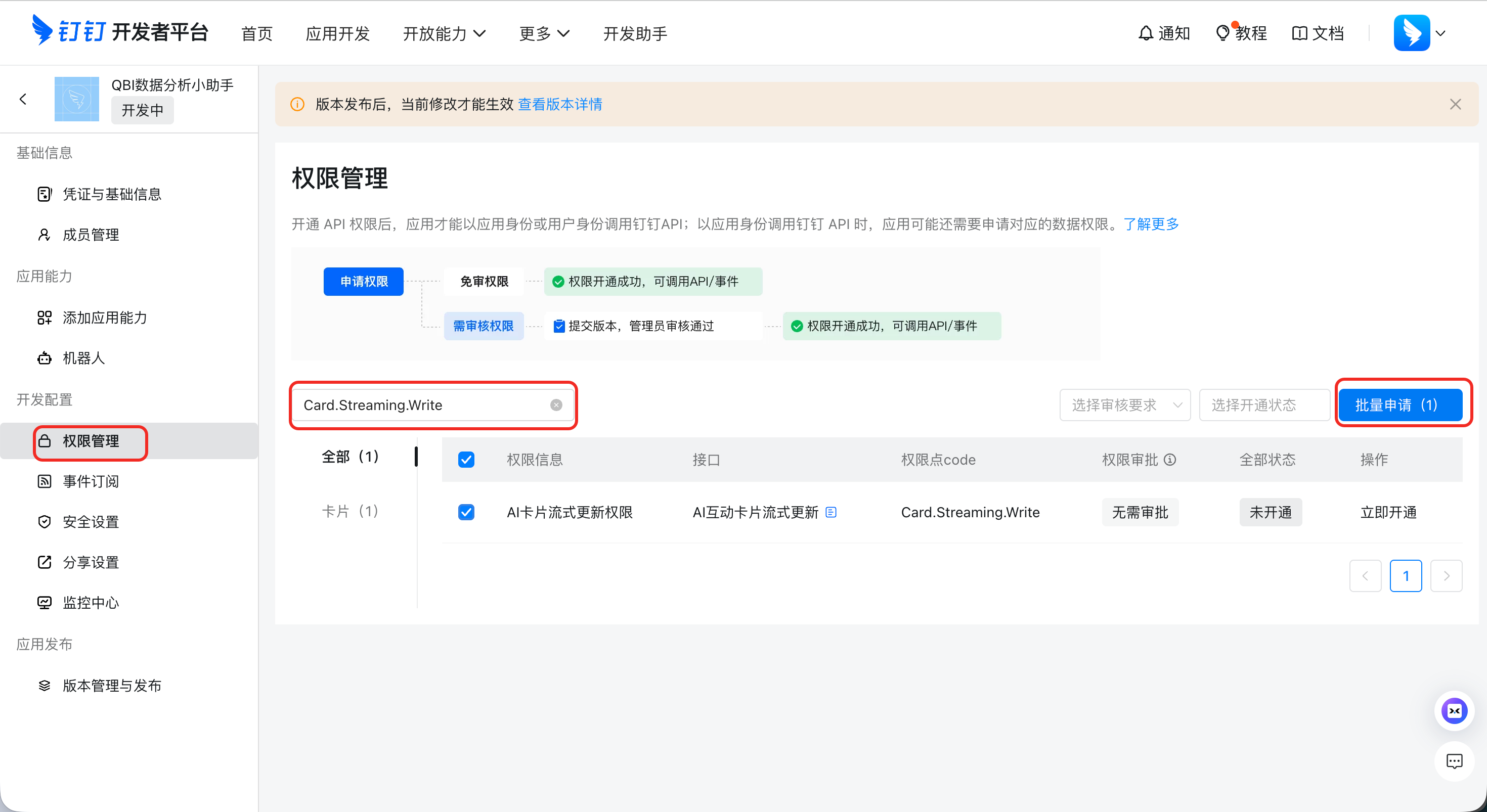
In the left-side navigation pane of the app details page, click Permission management.
In the search box, search for each permission below and click Enable Now.
Permission
Purpose
Card.Streaming.WriteEnables streaming cards to display responses progressively.
Card.Instance.WriteEnables sending and updating message cards.
qyapi_robot_sendmsgAllows the bot to send messages.
qyapi_get_microapp_listAllows retrieval of the bot's name.
Create and publish a version
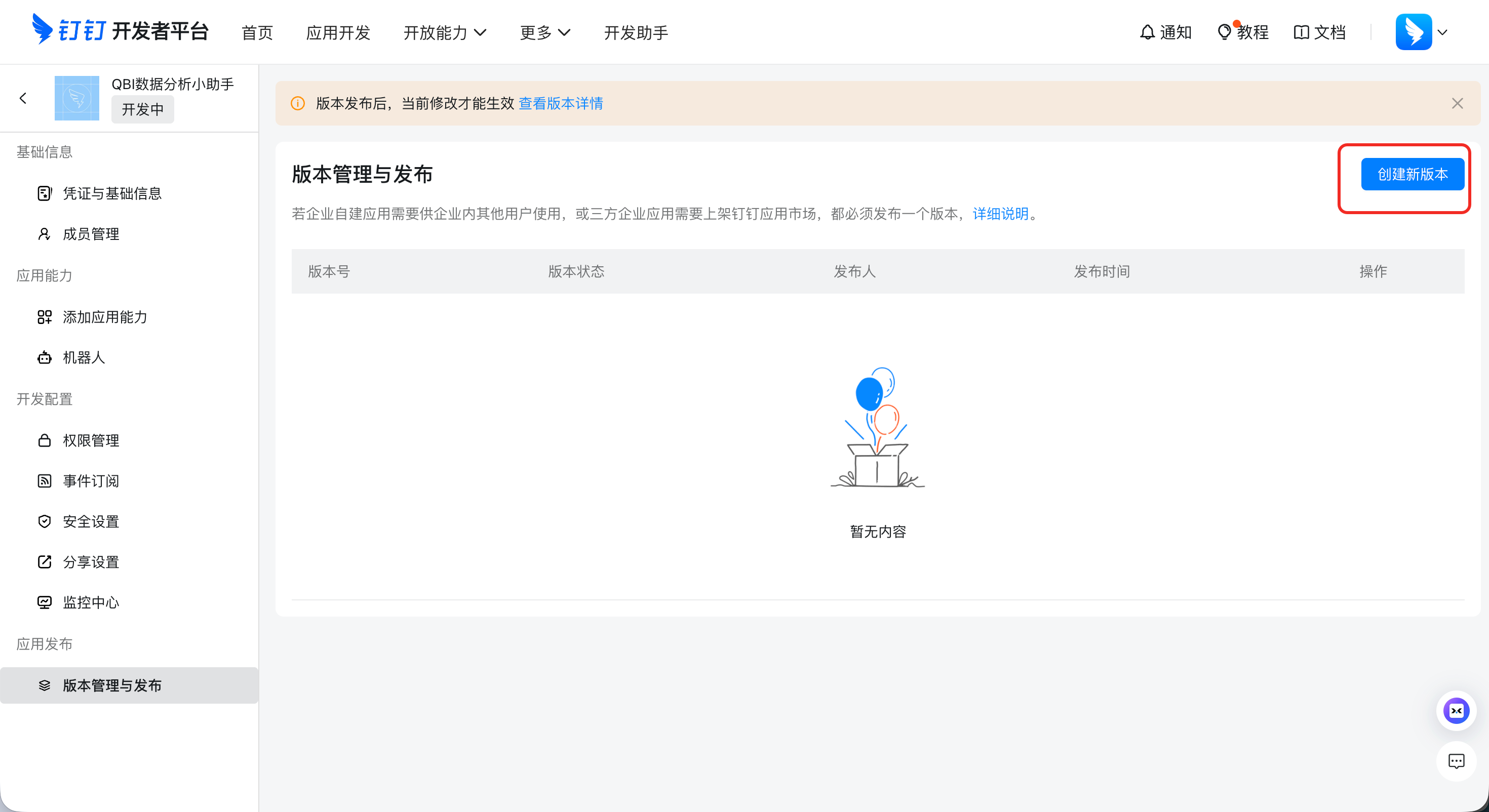
Changes to bot configurations and permissions take effect only after you publish a version.
In the left-side navigation pane of the app details page, click Version management and release, and then click Create new version.
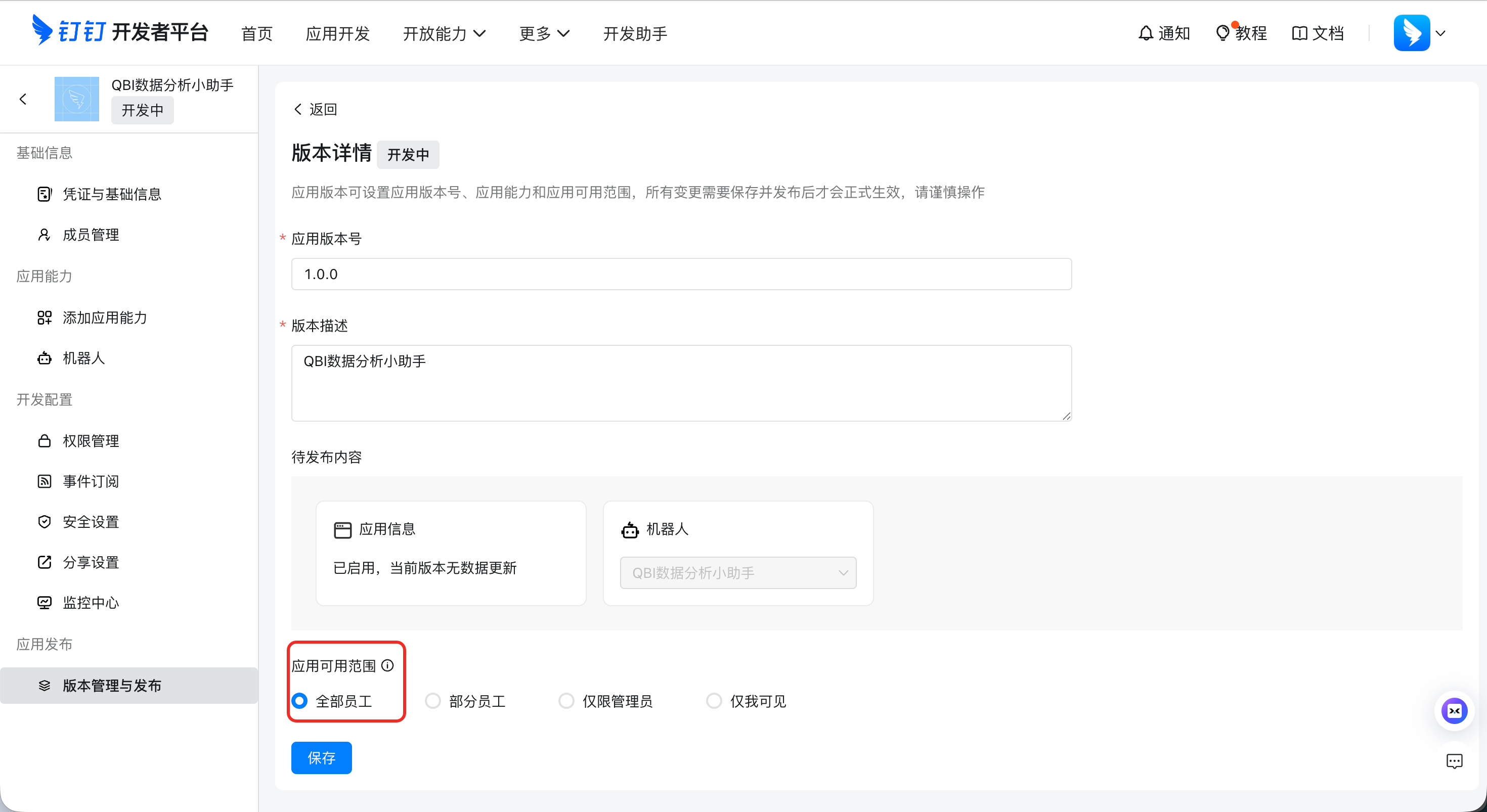
Enter the version information.
App version: You can use the default version number.
Version description: Enter any description.
Availability scope: We recommend selecting All Employees. By default, the app is visible only to its creator. If you do not change this setting, other members of the organization cannot find the bot.
Click Save. After you publish this version, organization members can search for and use the bot in DingTalk.
Get app credentials
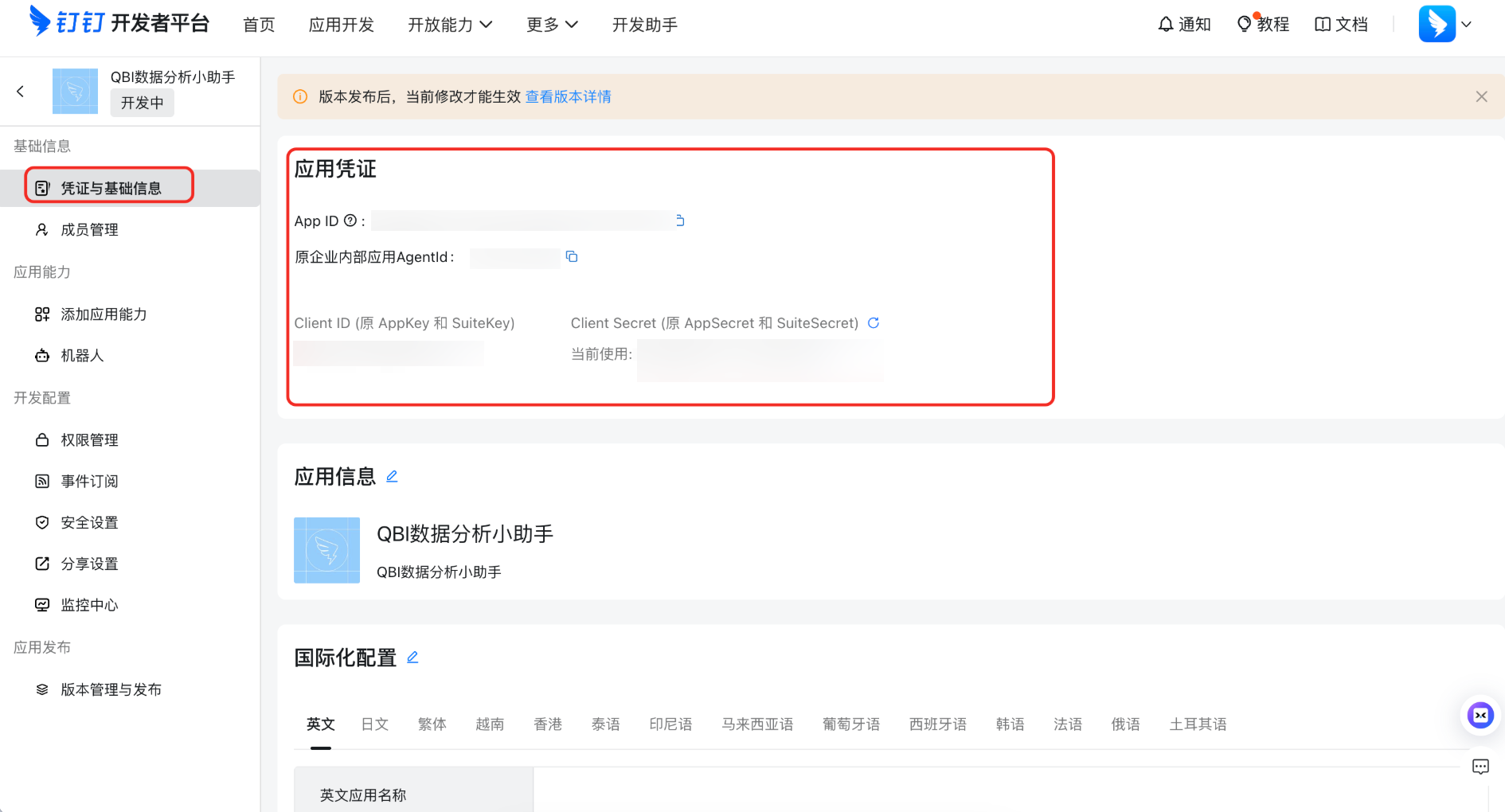
In the left-side navigation pane of the app details page, click Credentials and basic information.
Find the following credentials on the page:
Parameter
Description
Client ID (formerly AppKey)
Required. The credential ID of the DingTalk app.
Client Secret (formerly AppSecret)
Required. The secret key paired with the Client ID.
Configure the DingTalk channel
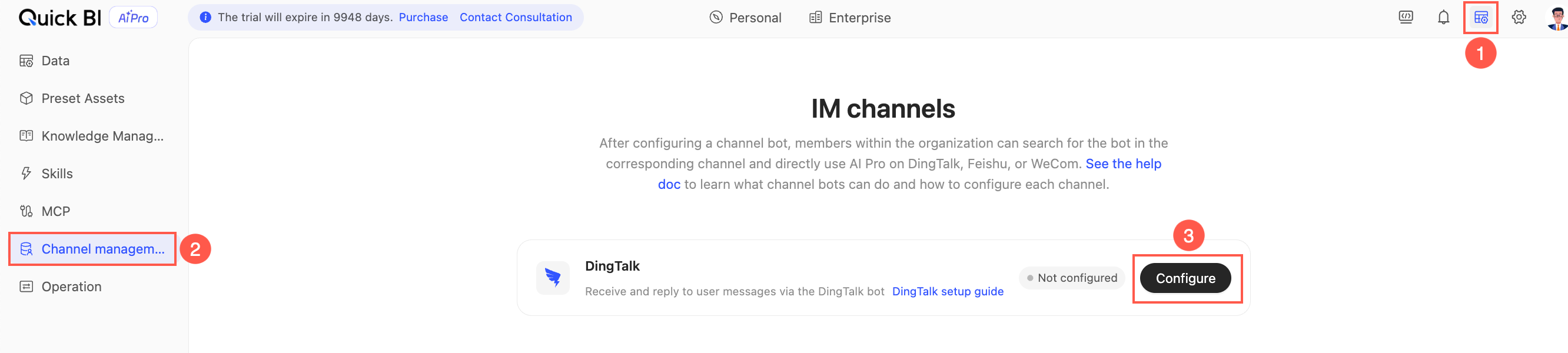
In the Quick BI AIPro management center, click Channel management in the left-side navigation pane. Find the DingTalk channel and click Configure (or Edit configuration if it is already configured) to open the Configure DingTalk channel panel.
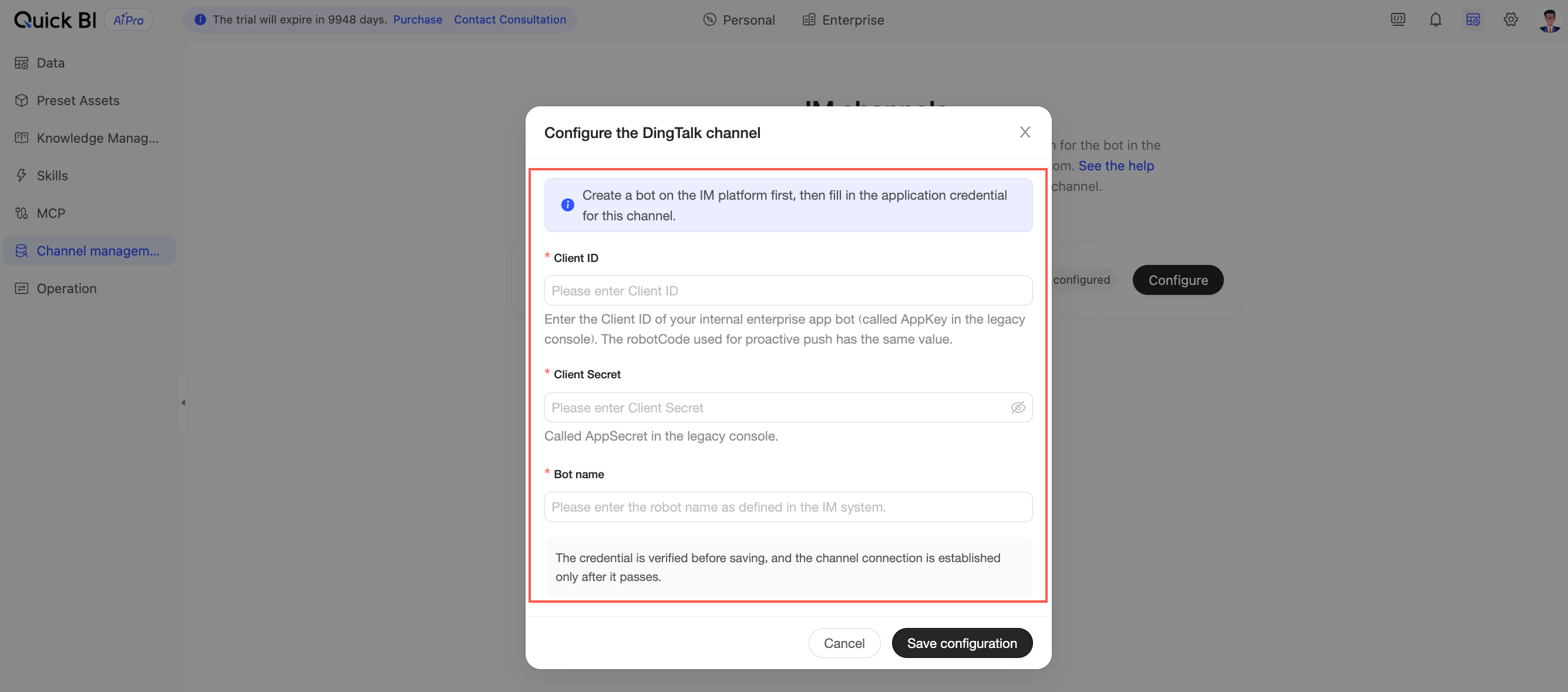
In the panel, enter the following information.
DingTalk App Key: The app's Client ID (formerly AppKey).
DingTalk App Secret: The app's Client Secret (formerly AppSecret).
Bot name: The name you entered when creating the bot.
Click Save Configuration. The system tests the connection to the bot. If the connection is successful, the channel status changes to Configured. If it fails, verify the credentials and bot permissions, then try again.
The saved secret is not displayed again. You must re-enter it when editing the configuration.
Credentials are sensitive information. Do not share them in chats or public channels.
For business users
After the bot is configured, organization members can find and use it in DingTalk. Before using the bot for the first time, each user must bind their IM account in Quick BI AIPro. On the Channel page, click Start Binding to get a one-time pairing code. Then, find the bot in DingTalk and send the pairing code to it. The binding is complete after verification. For detailed instructions on the binding method, see Channel.
If you cannot find the bot in your DingTalk organization, its availability scope may not include your account. Contact your administrator to update the scope.