Channel management
After you connect Quick BI AIPro to your organization's instant messaging (IM) platforms, organization members can interact with AIPro directly in their IM clients to perform data analysis. On the channel management page, an administrator can configure IM bot connections and manage connected channels. This topic describes the process.
Prerequisites
-
Subscription: Your organization has an active Quick BI AIPro subscription.
-
Permission requirements: Only an administrator (a user with AIPro centralized management permissions) can access the management center to configure channels. For bot creation and permission requirements, see the DingTalk Configuration Guide and the Feishu Configuration Guide. For more information about how to configure permissions, see User Permissions.
Entry point
Go to the Quick BI AIPro management center and click channel management in the left-side navigation pane.
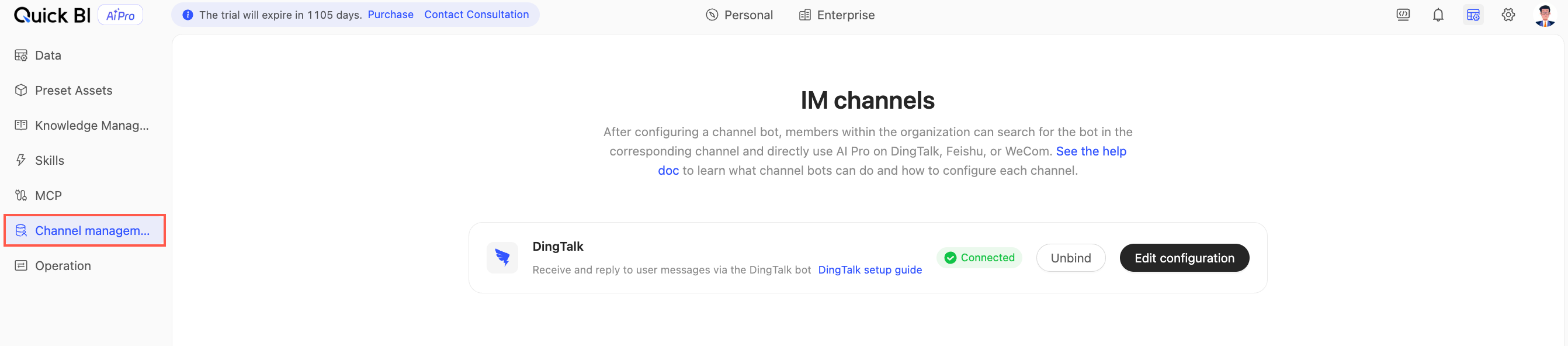
The page displays the supported IM channels and their connection statuses.
-
Configured : The channel is connected, and organization members can use AIPro in this channel.
-
Not configured : The channel is not connected. Click Configure to start the configuration.
Configure a DingTalk bot
-
Find the DingTalk channel and click Edit Configurations.
-
In the Configure DingTalk Channel panel, enter the robot credentials. For details on obtaining the credentials and configuring parameters, see the DingTalk Configuration Guide.
-
Click Save Configuration. The system then tests the connection to the bot. If the connection is successful, the channel status changes to Configured. If the connection fails, verify the credentials and the bot's permissions, and then try again.
Configure a Feishu bot
-
Find the Feishu channel and click Edit Configurations.
-
In the Configure Feishu Channel panel, enter the robot credentials (App ID and App Secret). For details on obtaining the credentials and configuring parameters, see the Feishu Configuration Guide.
-
Click Save Configuration. The system then tests the connection to the bot. If the connection is successful, the channel status changes to Configured. If the connection fails, verify the credentials and the application's permissions, and then try again.
Manage configured channels
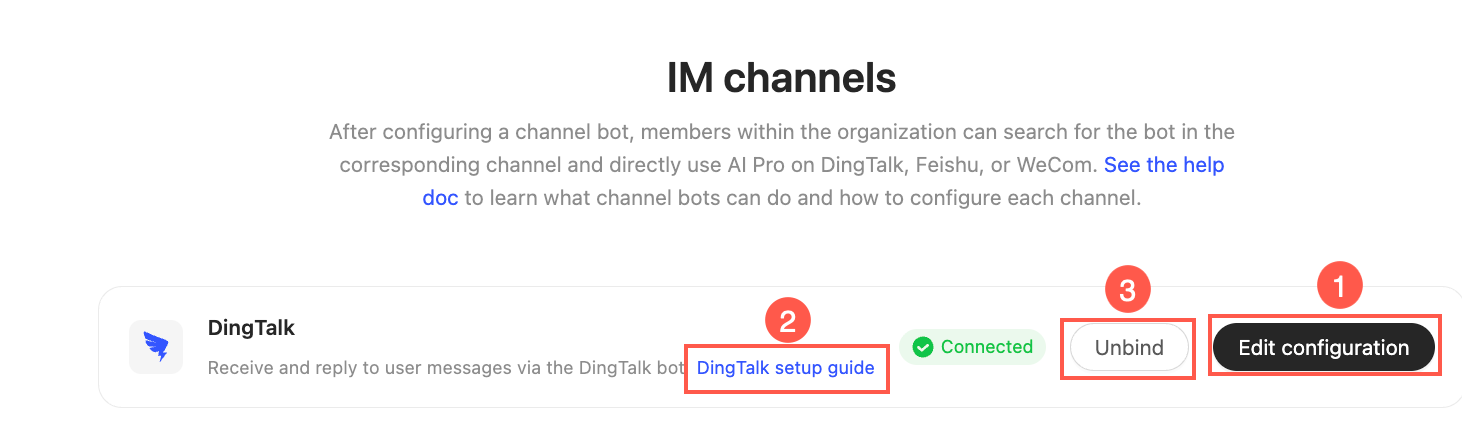
The following operations are available for configured channels.
|
Actions |
Description |
|
① Edit Configurations |
Update the robot credentials for the channel. Because saved secrets are not displayed, you must re-enter the secret (Client Secret for DingTalk, App Secret for Feishu) when making changes. After you save the configuration, the system retests the connection. |
|
② Configuration Guide |
View instructions for creating and configuring a bot on the corresponding IM platform. |
|
③ Unbind |
Click unbind and confirm the action in the dialog box to disconnect the channel. This operation is unavailable for unconfigured channels. |
After you unbind a channel, its configuration details, such as Client ID, Client Secret, App ID, and App Secret, are permanently deleted and cannot be recovered. Organization members can no longer use AIPro in that channel. Ensure that no members rely on this channel before you unbind it.
Related operations
-
channels: Organization members bind their IM accounts to use AIPro in their IM clients.
-
user permissions: Configure centralized management permissions for administrators.