Channels
This topic describes how to bind your IM account to use Quick BI AIPro from your IM platform.
Prerequisites
-
Subscription: Your organization has purchased the Quick BI AIPro edition.
-
Permissions: You have at least basic feature permissions for Quick BI AIPro.
-
Channel integration: An administrator has configured a bot for the IM channel in the admin center. For more information, see Channel management.
Feature access
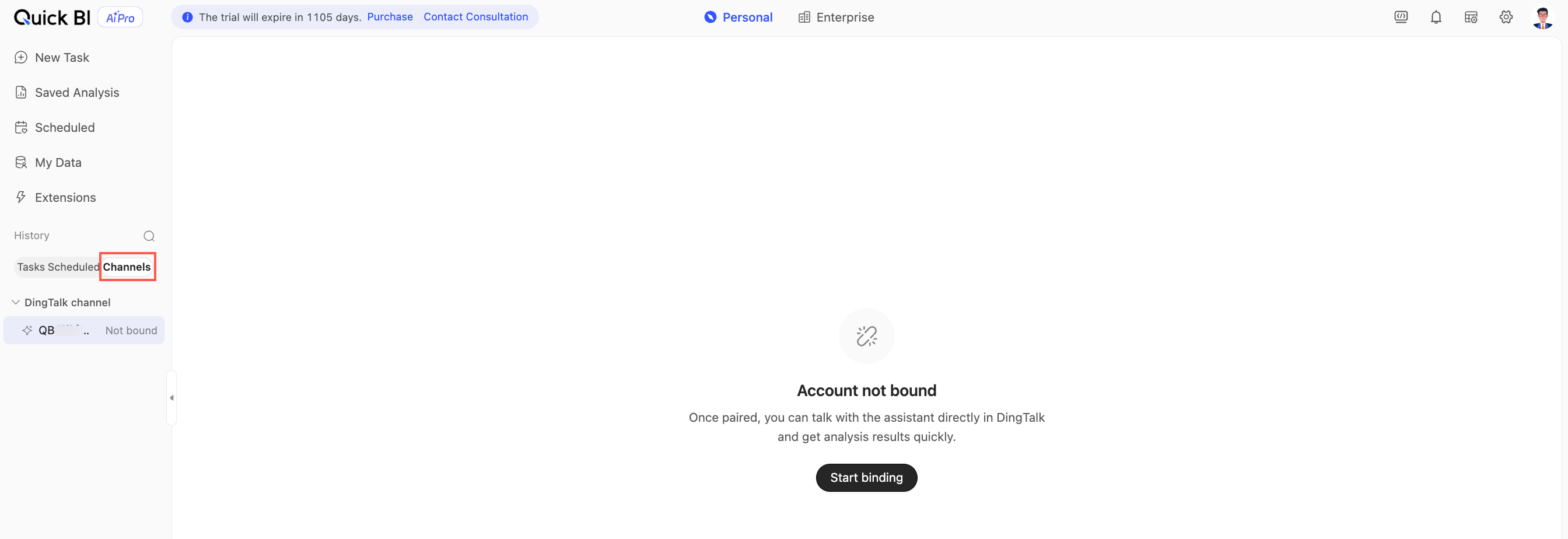
Navigate to the Channels tab in the history panel on the left of Quick BI AIPro. This tab lists the bots that an administrator has configured, grouped by channel.
Bind your IM account
Your Quick BI AIPro account and your IM account are separate. You must bind them so that the bot can recognize your identity and access your Quick BI AIPro permissions, memory, and data assets.
-
On the Channels tab, click the bot name under the target channel.
-
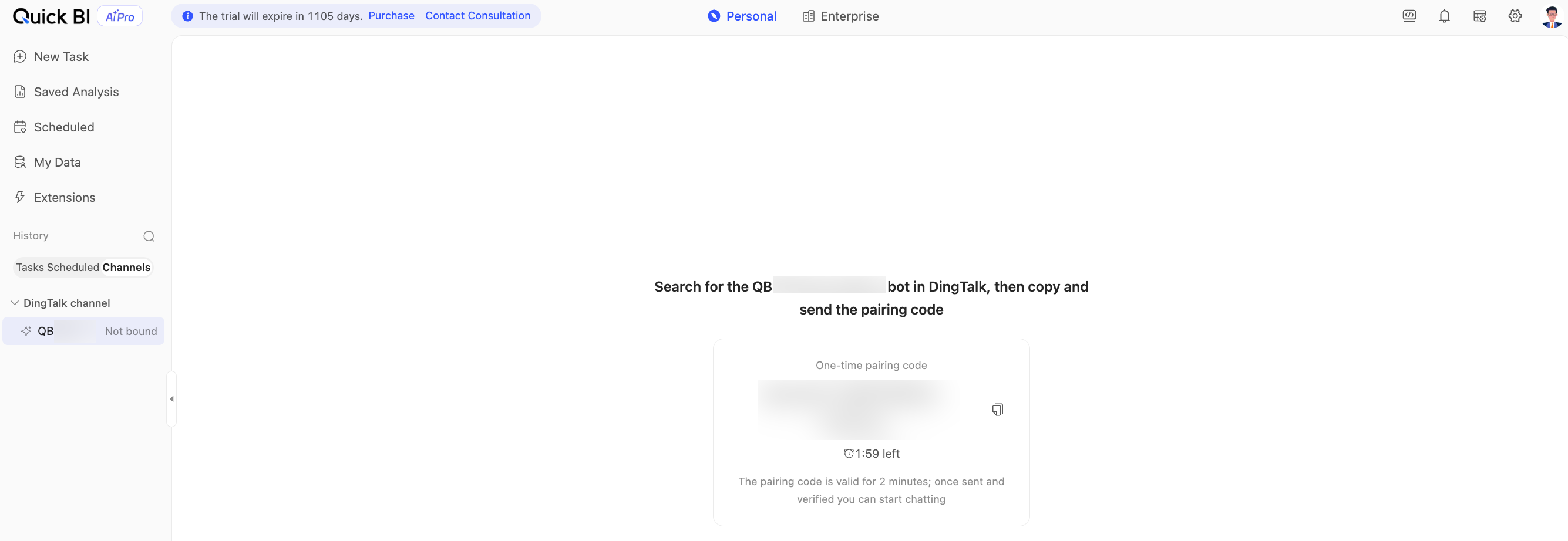
Click Start Binding. The page displays a pairing code.
-
In the corresponding IM platform, search for the bot by name, start a conversation, and send the pairing code to the bot.
The pairing code is for one-time use and is valid for 2 minutes. If it expires before you send it, repeat the previous step to get a new one.
-
After the code is verified, the binding is complete. The bot sends a welcome message, allowing you to ask questions to Quick BI AIPro directly from your IM platform.
If you send a message to the bot in an IM platform before binding your account, the bot prompts you to log in to the Quick BI AIPro web client and complete the binding on the Channels tab.
Conversations and memory
-
Each channel has a separate list of conversations. If you bind multiple channels, the conversation context for each channel is independent.
-
The IM platform and the web client share the long-term memory associated with your Quick BI AIPro account. This includes your usage preferences, saved analysis patterns, and authorized data assets. Your long-term memory is not deleted if you unbind your account or are no longer authorized to use the bot.
Two-way synchronization
The IM platform and the Channels tab in the web client access the same conversation data:
-
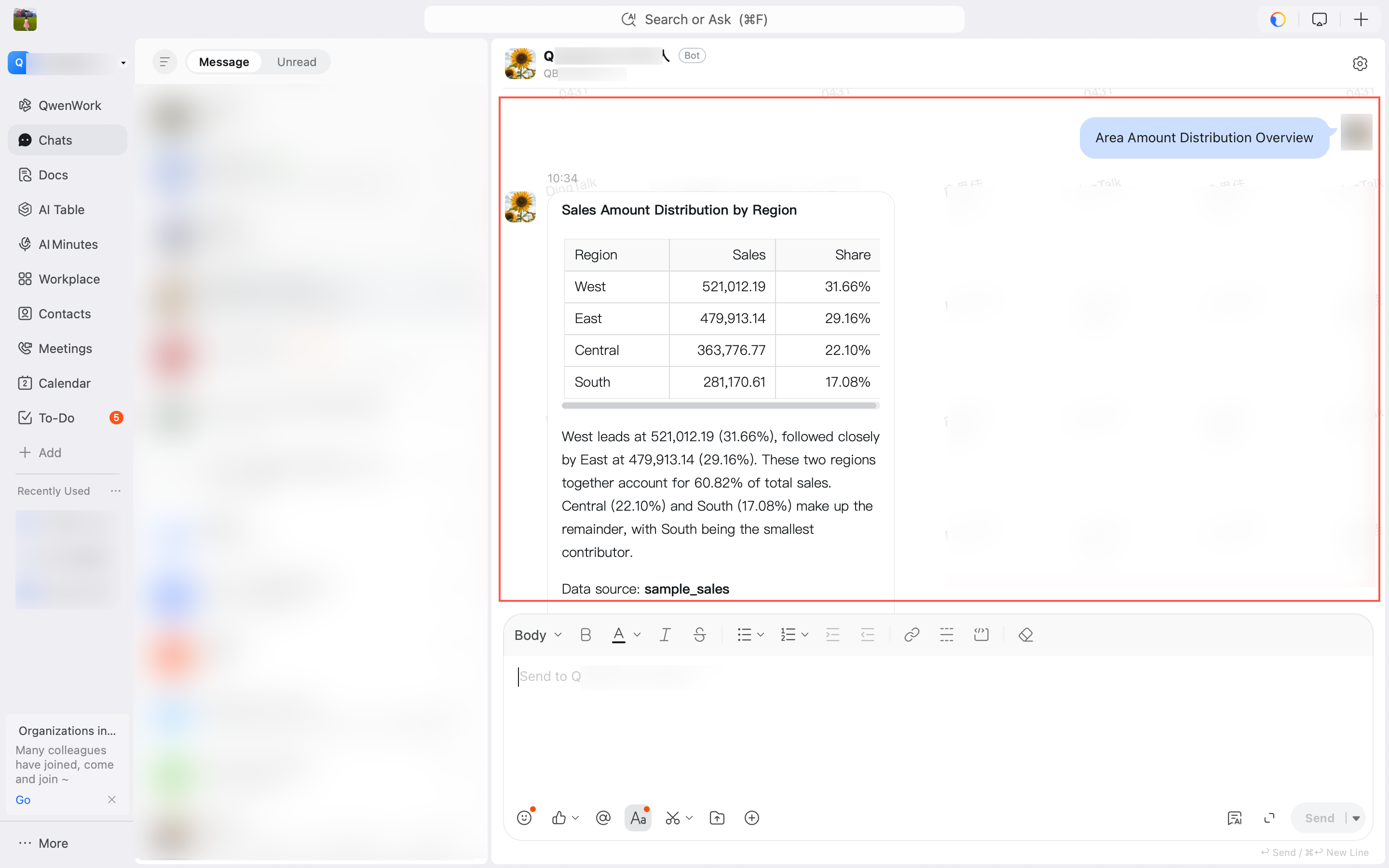
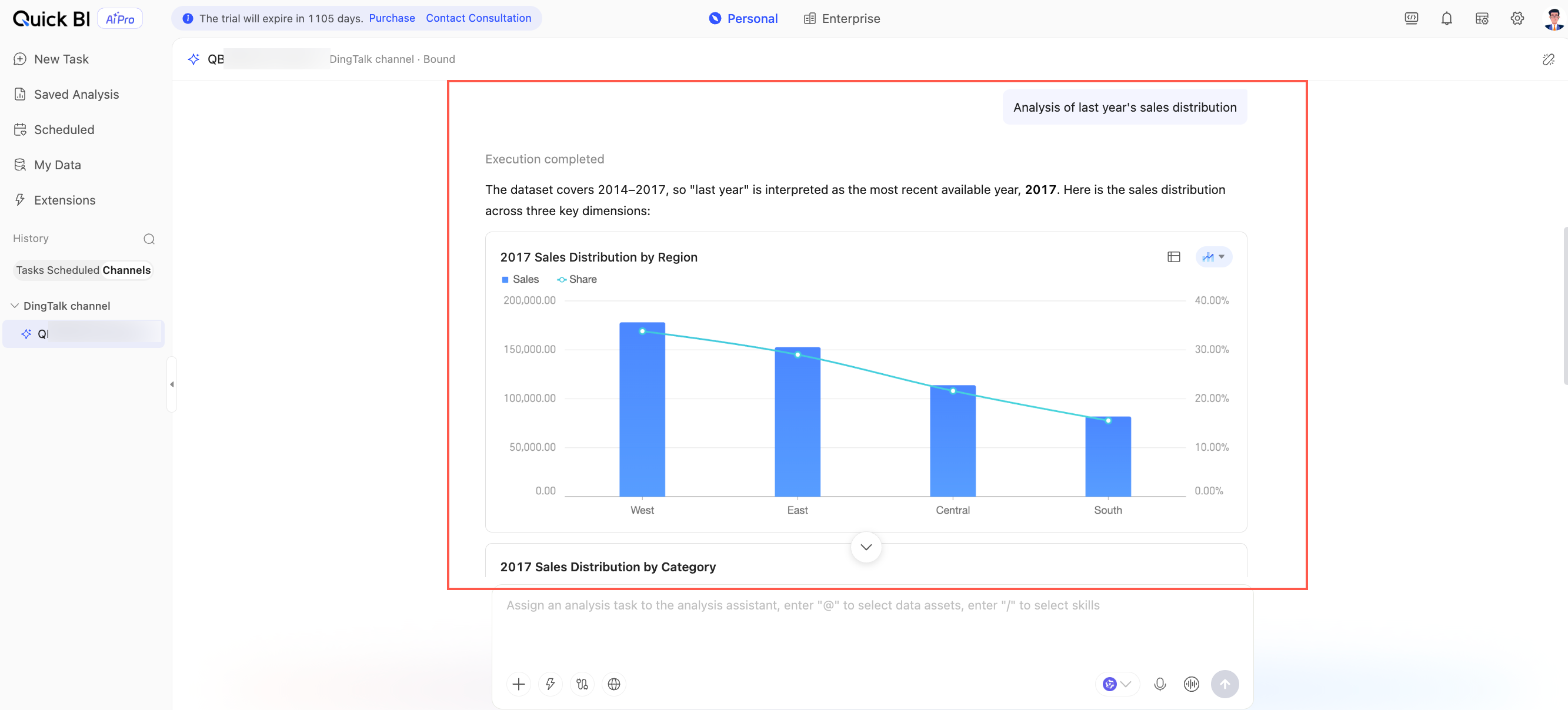
When you send a message in the IM platform, both your message and the bot's response appear in the conversation on the Channels tab of the web client. Both clients display the synchronized task status.
-
IM client:
-
Web client:
-
-
When you send a message from the Channels tab in the web client, the bot sends a system message to your IM platform to notify you that the conversation has continued on the web client. This message comes from the bot, not from you.
-
The following content remains consistent across both clients: the conversation order, the content of your questions, the semantic meaning of the bot's responses, the task status, error and stop states, and analysis artifacts that point to the same result. Display styles might differ across clients due to the varying messaging capabilities of IM platforms. For example, IM platforms do not render interactive charts.
Related operations
-
Channel management: Configure bots for IM channels.
-
Conversation mode: Perform analysis by using the conversational interface in the web client.