Manage form data
This topic describes how to add and manage data in Forms.
Prerequisites
You have created a form. For more information, see Create a form.
Limitations
The form developer and workspace administrators can manage all data. Users who submit entries can only manage their own submissions.
Users without access permissions, or those with only a public link, cannot manage the form's data.
Procedure
Log on to the Quick BI console.
On the Quick BI homepage, go to the Forms management page.
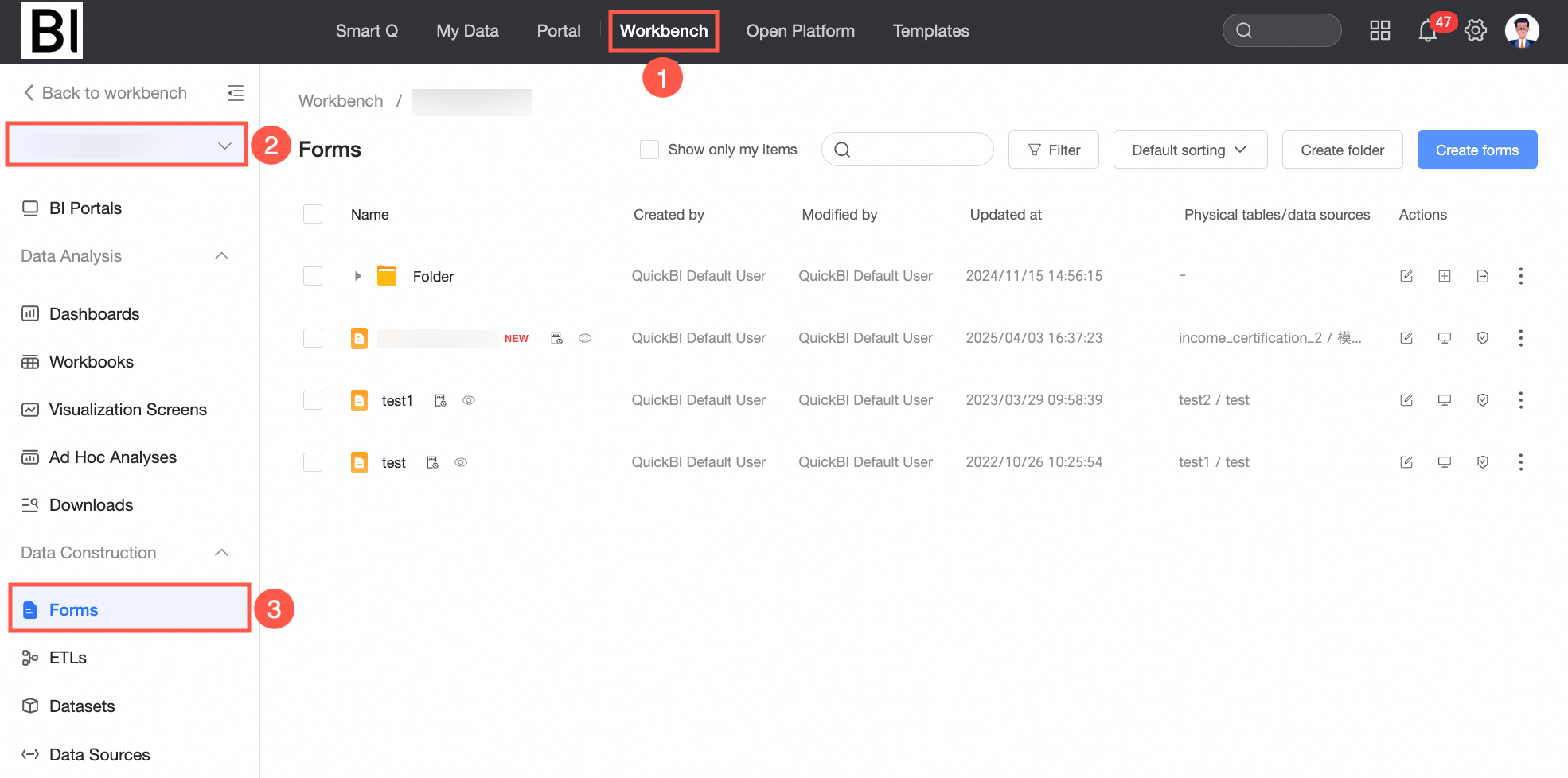
On the Forms management page, find the form to which you want to add data and click the
 icon.
icon.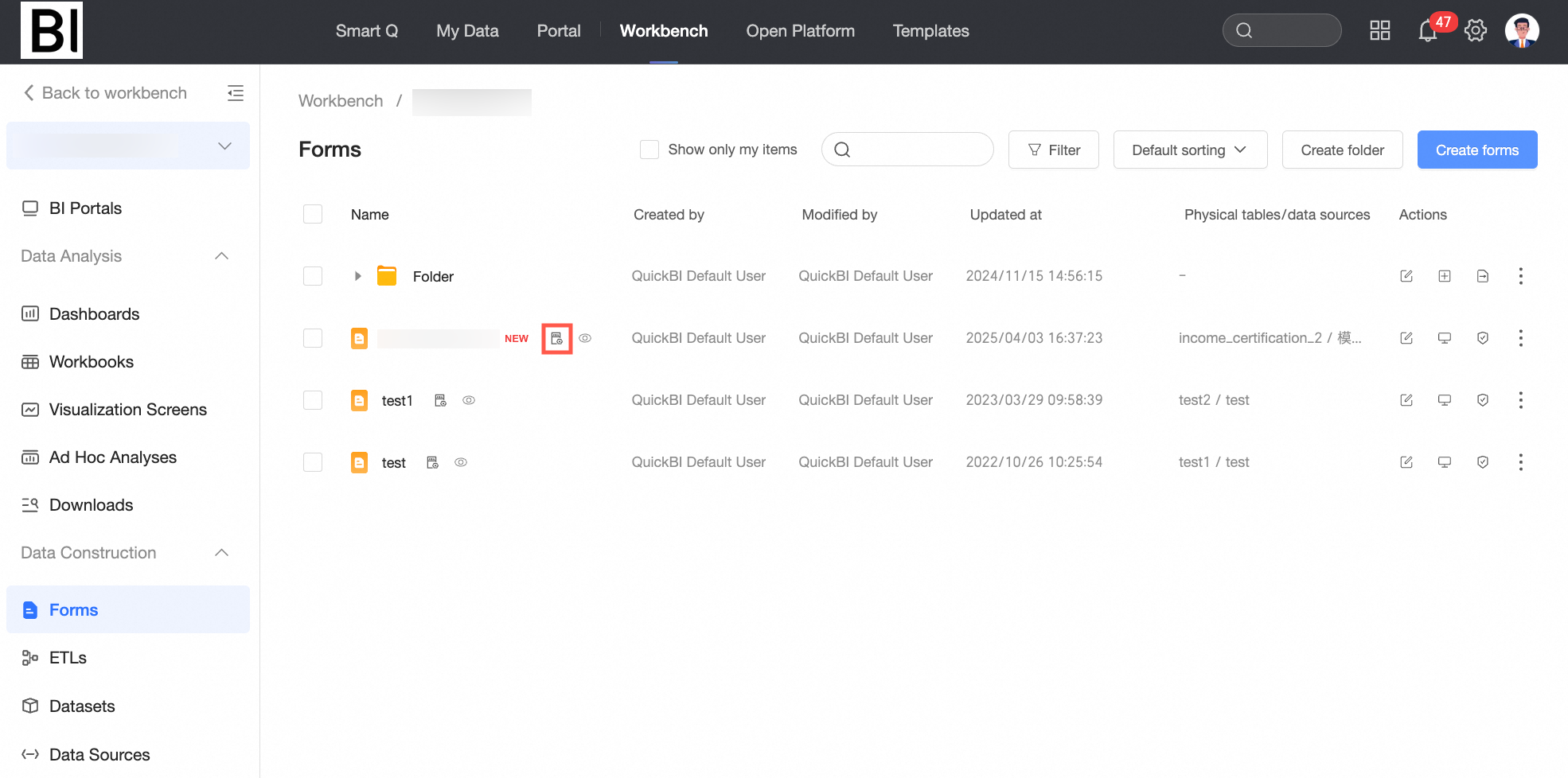
Add a single record
You can add single records from the data management page.
After you add data, you can view the audit log. For more information, see View the audit log.
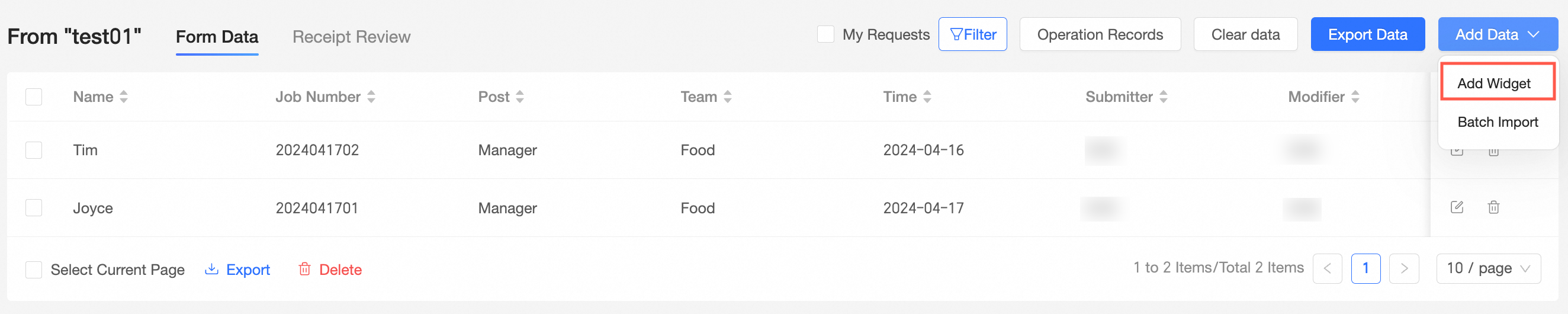
On the Data Management page, click Add data and select Add single record.
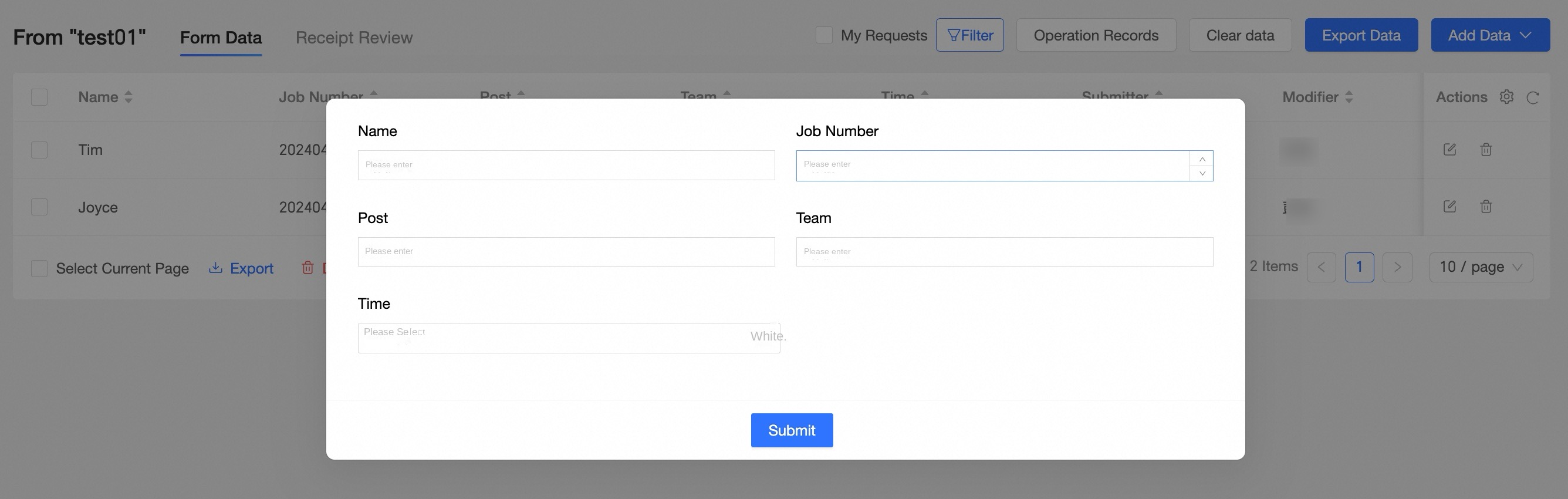
On the data entry page, enter the data and click Submit.
Batch import data
In addition to adding single records, you can also batch import large volumes of data.
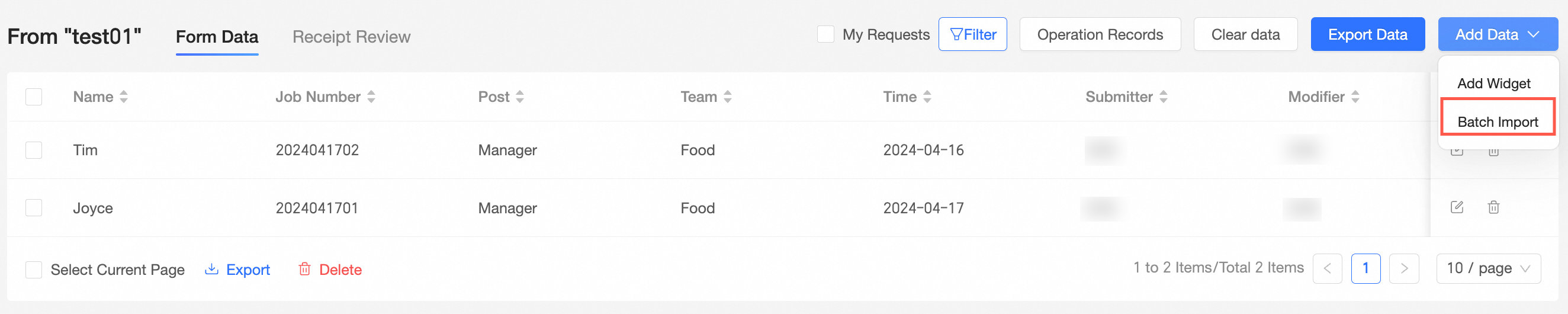
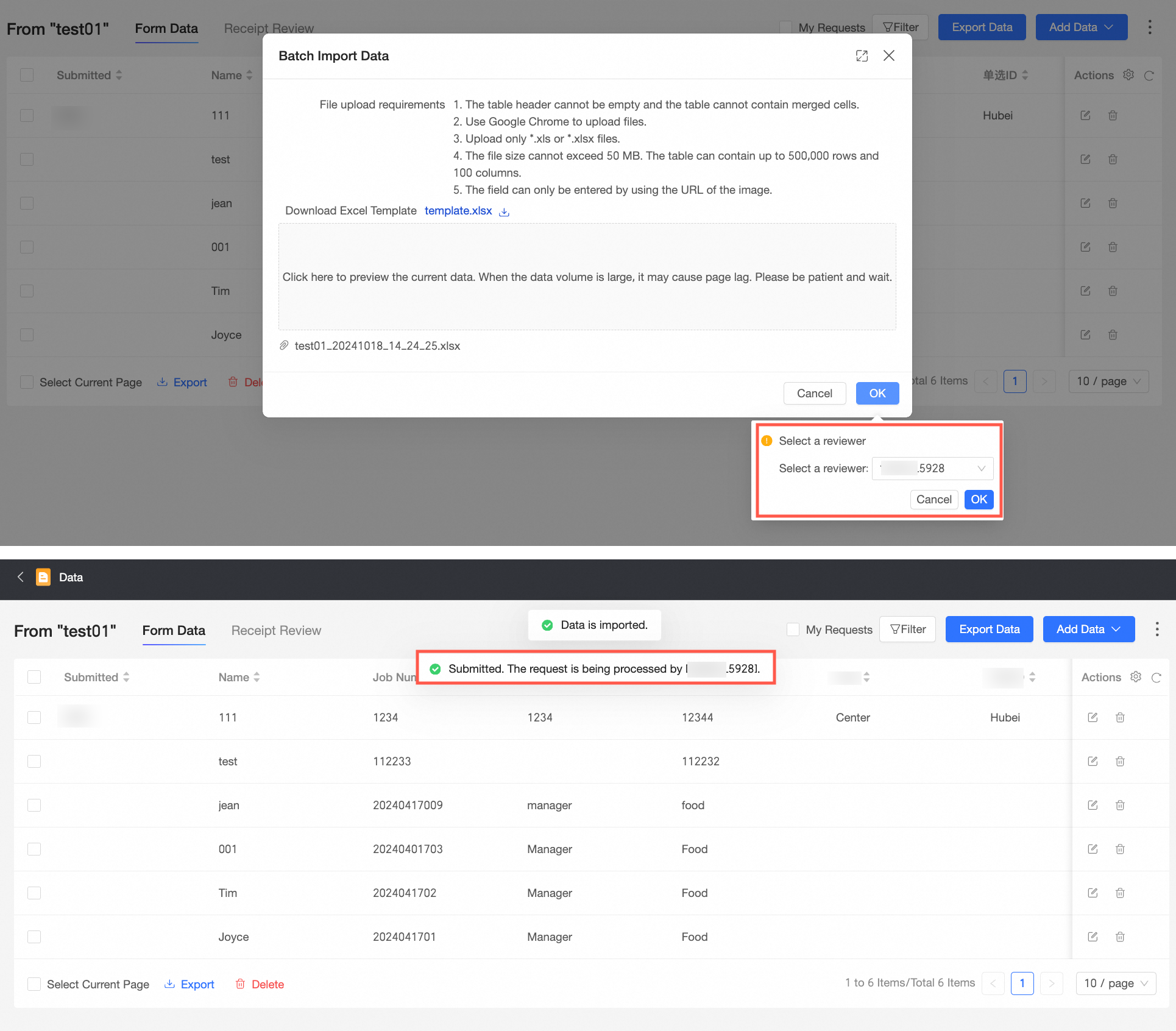
On the Data Management page, click Add data and select Batch import.

In the Batch import data dialog box, review the File upload requirements, click the
icon to download the Excel template, and fill it out according to the requirements.Select or drag the file to the target area. You can click the preview pane to review the uploaded content. After you verify the content, click OK to submit the data.
If you have edit permissions for the form, you can click the
icon to preview and edit the uploaded content. For more information, see Authorization settings.NoteWhen you perform a batch import, the uploaded files must meet the following requirements:
The table header and content cannot be empty. The file cannot contain merged cells.
Use the Chrome browser to upload the file.
Only XLS and XLSX files are supported.
The file size cannot exceed 50 MB. The file can contain a maximum of 500,000 rows and 100 columns.
For image fields, you can only import data by providing image URLs.
If the file contains numeric values, you must manually set the cell format to Number in Excel.
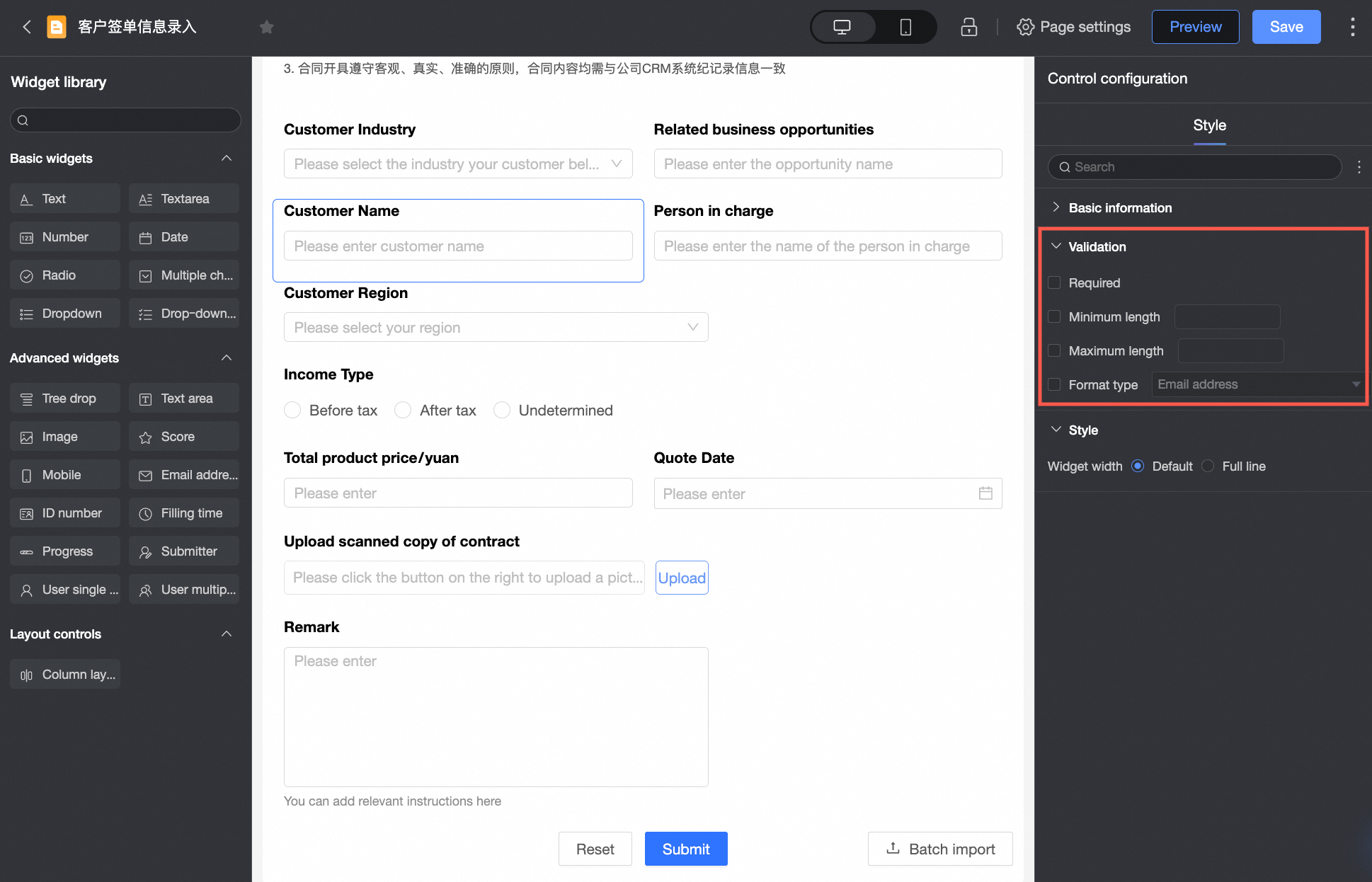
If you enable the Enable rule validation for batch import option in the advanced settings of the form, the system validates the imported data against the controls' validation rules.
Ensure that the file content complies with the validation settings for each control. Otherwise, the data import fails. For example, if a text control for email addresses is configured with an email format validation rule, all corresponding entries in the uploaded file must be valid email addresses. For more information about batch import validation rules, see Batch import validation rules.
If storage approval is enabled and only one approver is configured, the submission is sent directly for approval after you upload the file and click OK. If multiple approvers are configured, you must select one before the process can start.
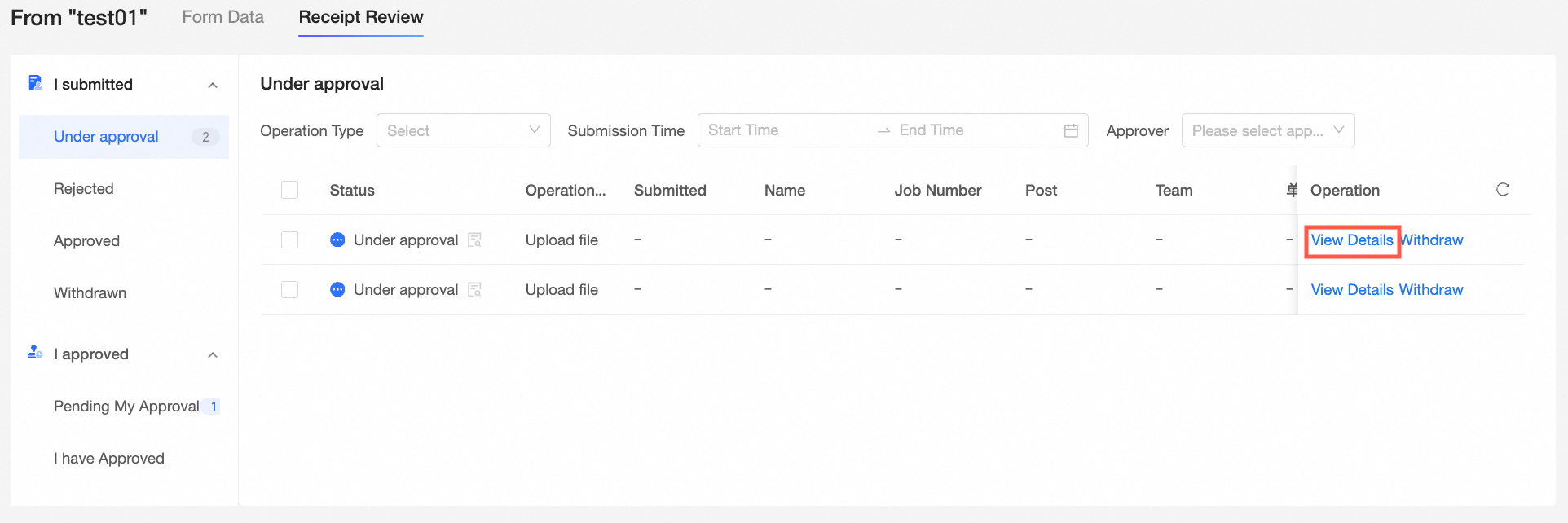
After you submit the data, the approval screen appears, where you can view the approval information. For more information, see Storage Approval.
 icon to download the Excel template, and fill it out according to the requirements.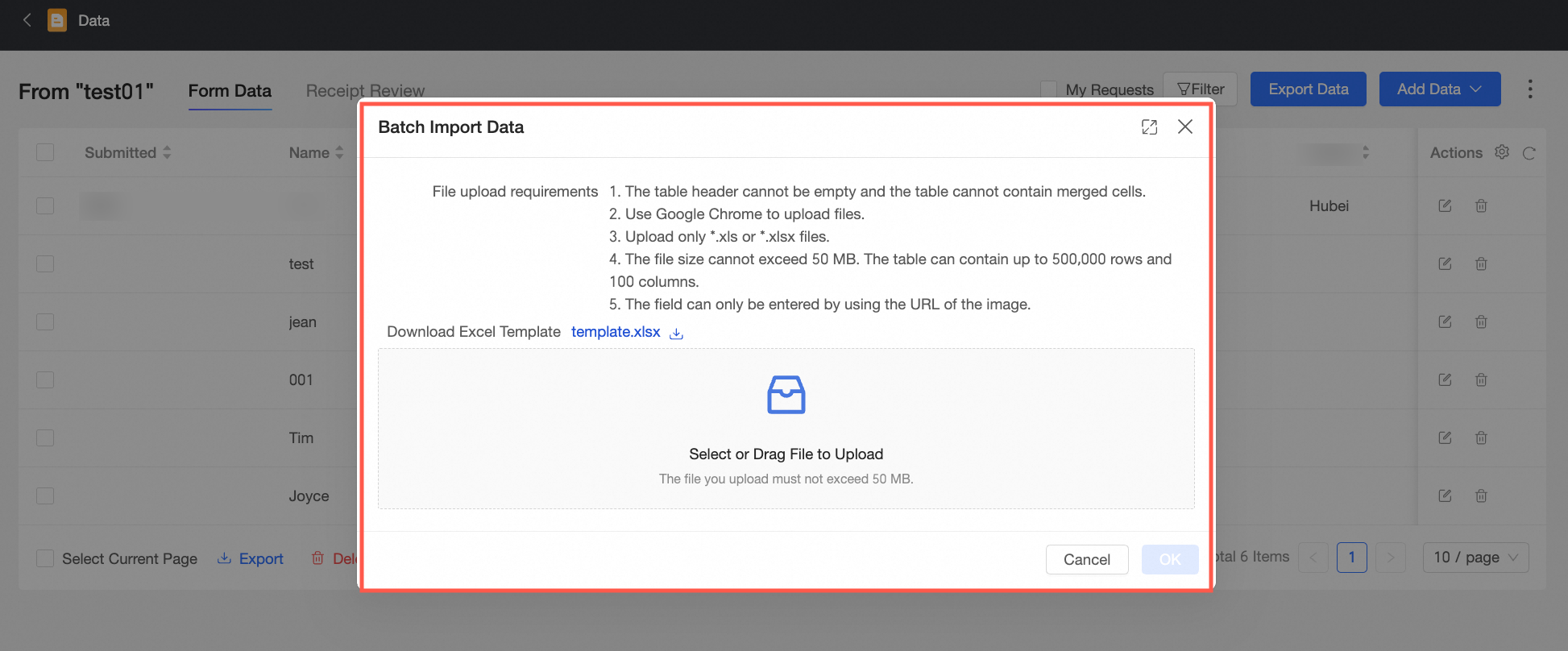
 icon to preview and edit the uploaded content. For more information, see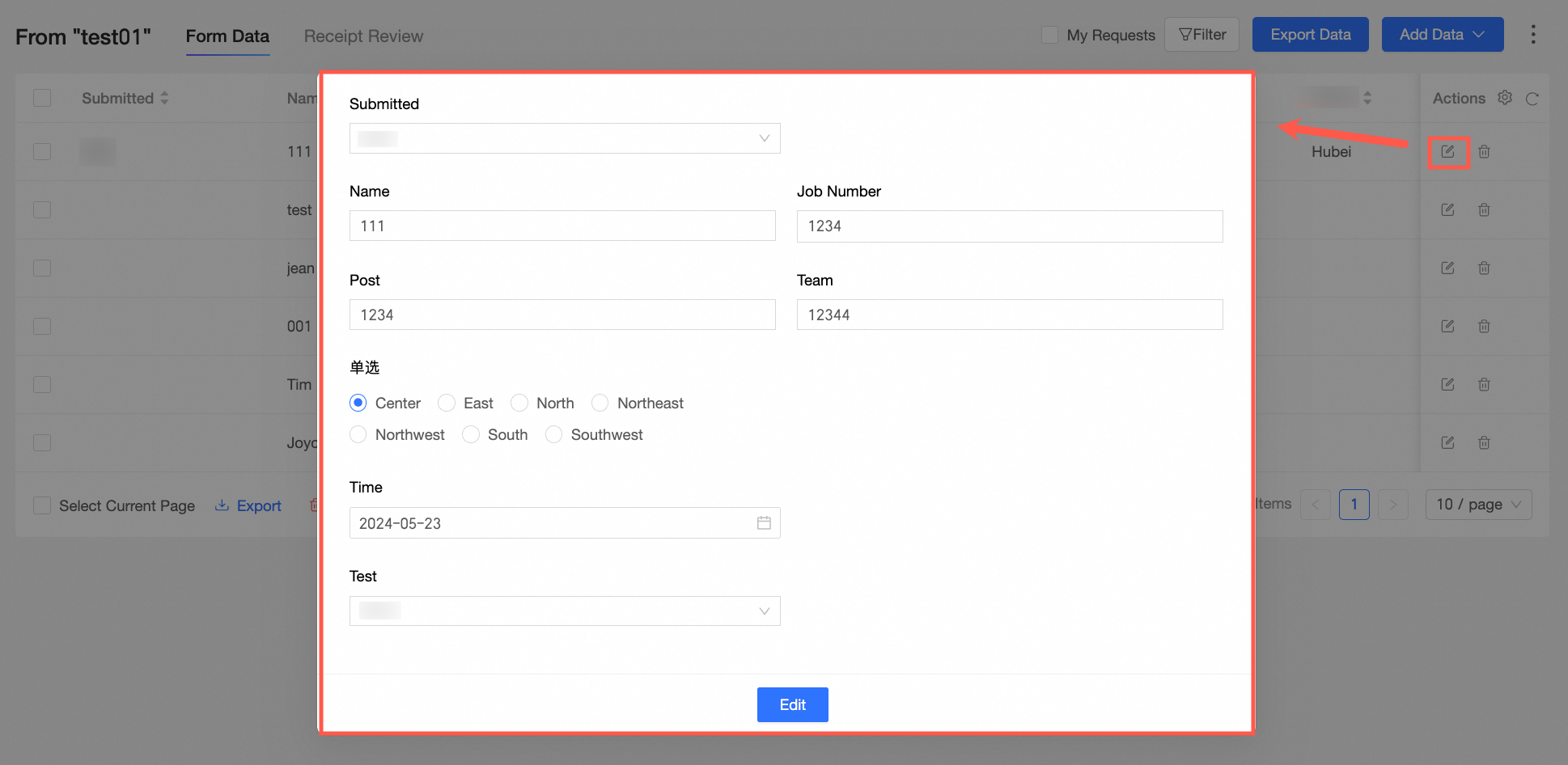
Clear data
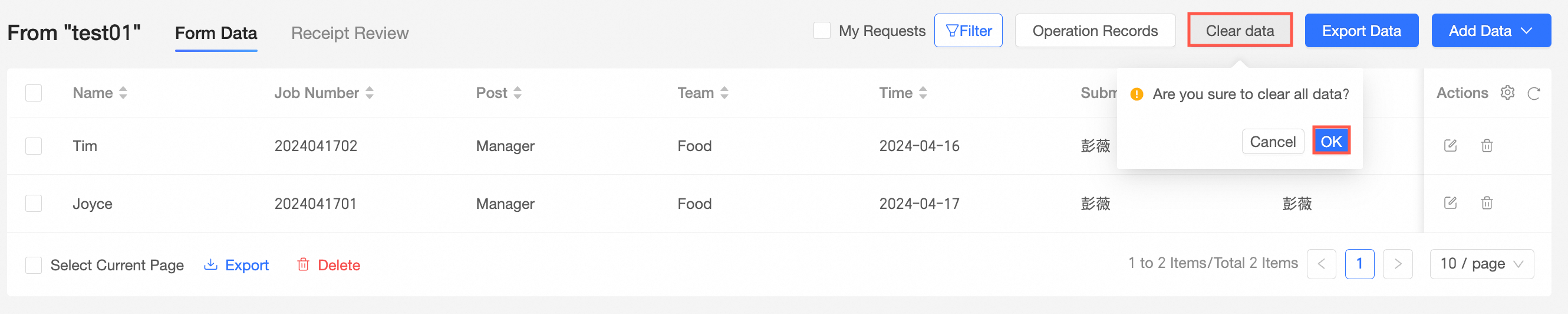
On the Data Management page, click Clear data.
In the confirmation dialog box, click Confirm to clear all data.
Export data
On the Data Management page, click Export data.
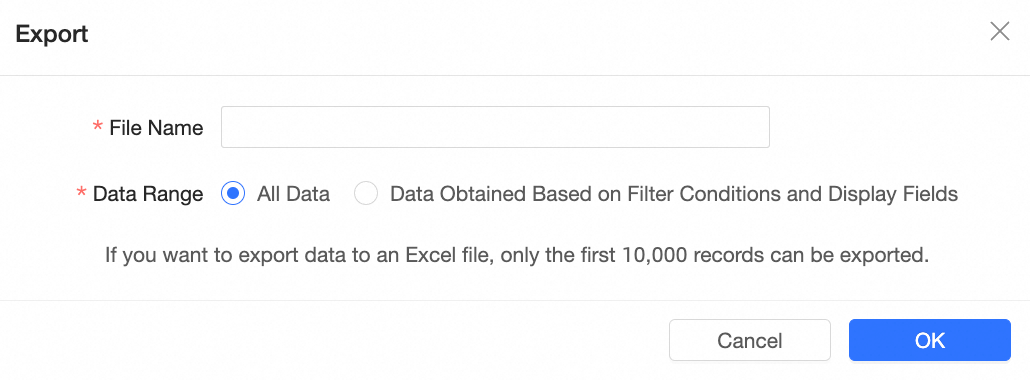
In the Export dialog box, configure the following parameters.
File name: Specify a custom name for the exported Excel file.
Data range: Choose one of the following options:
All data: Exports all data records. If there are more than 10,000 records, only the first 10,000 are exported.
Data filtered by query and display fields: Exports only records that match the current filter and display field settings.
Click OK.
Query data entries
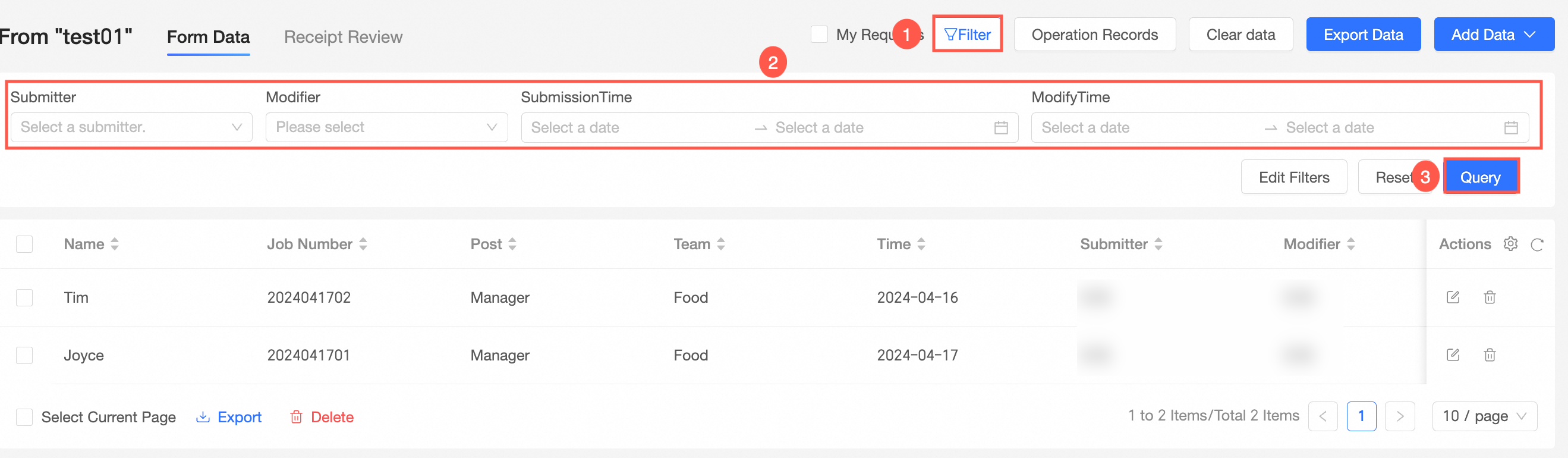
On the Data Management page, on the Form data tab, click Filter and then specify values for the Submitted by, Modified by, Submitted at, and Modified at fields.
NoteYou can filter by time (hour, minute, and second) for the Submitted at and Modified at fields.
Click Query.
Reset filter conditions
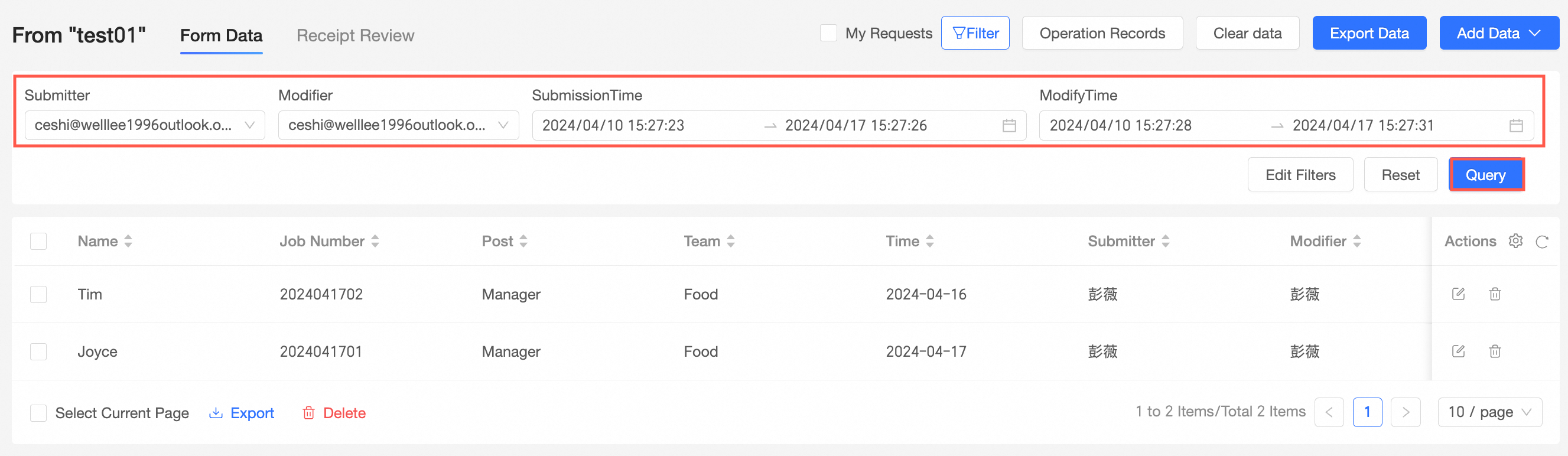
If you have set filter conditions, you can clear them all at once.
On the Data Management page, go to the Form data tab.
Click Reset to clear all active filter conditions.
Edit filter conditions
You can edit the filter conditions to select which filters to display.
On the Data Management page, on the Form data tab, click the
icon.In the Edit filter conditions list, you can perform the following actions:
Click Select all to display all available filters.
Select the checkboxes of the filters you want to display.
NoteBy default, Submitted by, Modified by, Submitted at, and Modified at are selected.
 icon.
icon.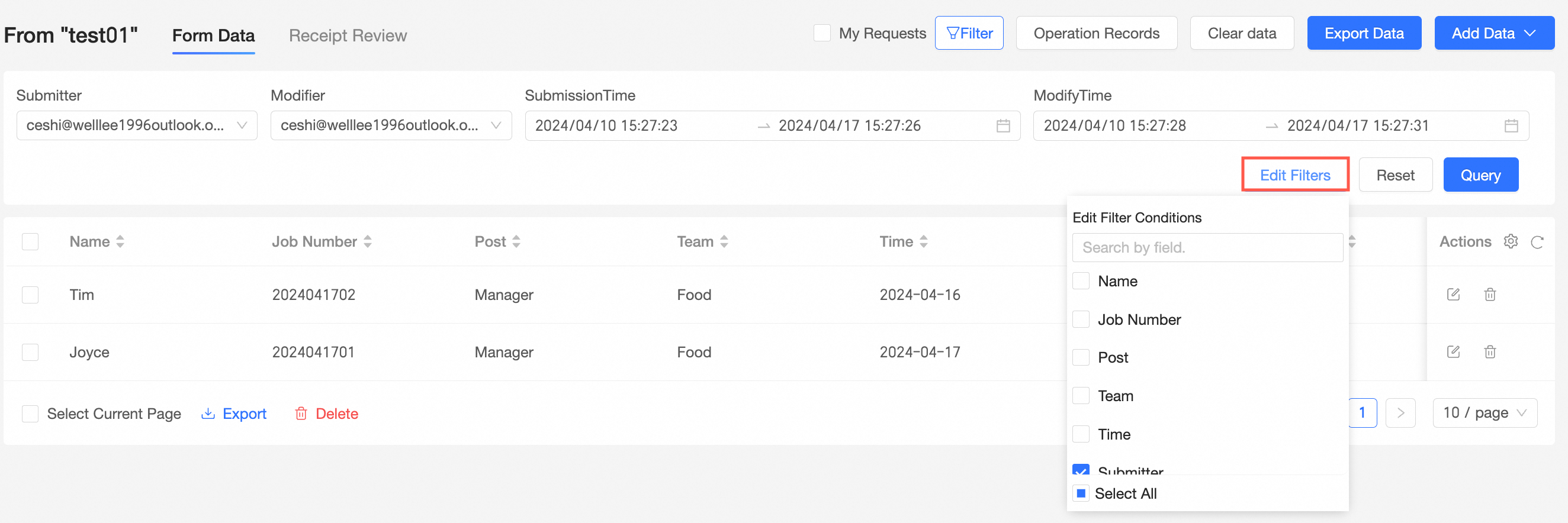
Set display fields
You can configure the display fields to control which columns appear in the data table.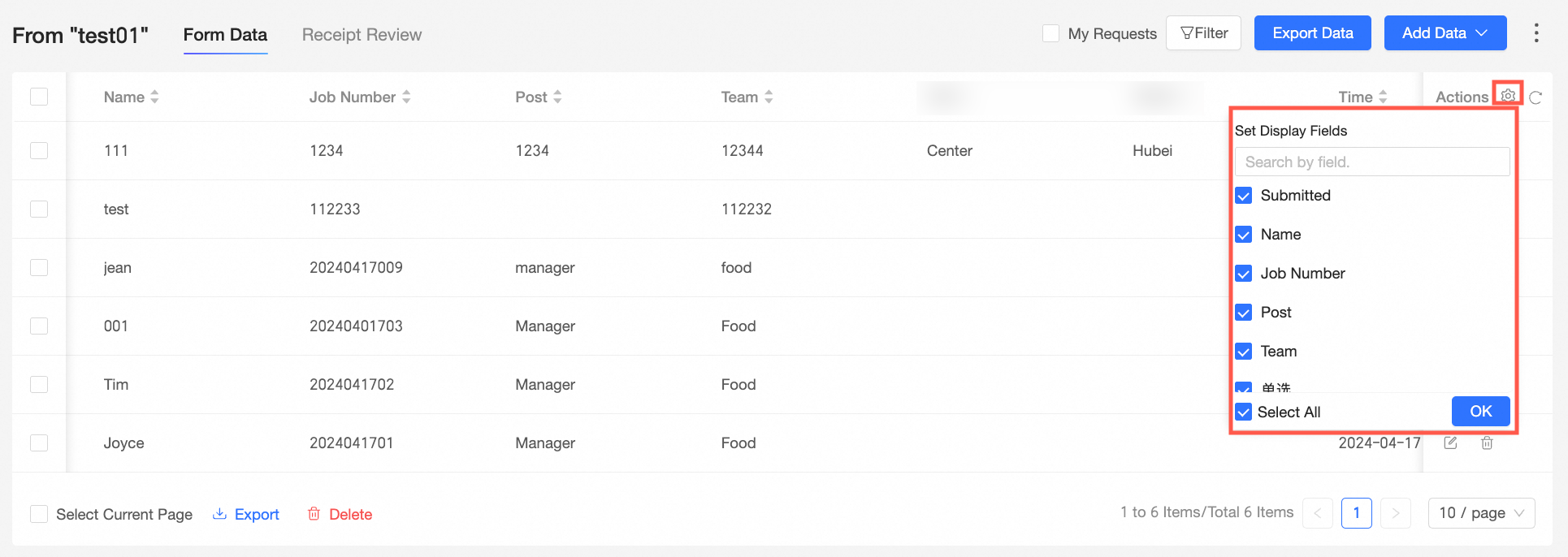
On the Data Management page, on the Form data tab, click the
icon.In the Set display fields list, you can perform the following actions:
Click Select all to show all fields.
NoteBy default, all fields are displayed.
Clear the checkbox for a field to hide it from the data table.
 icon.
icon.Edit a data entry
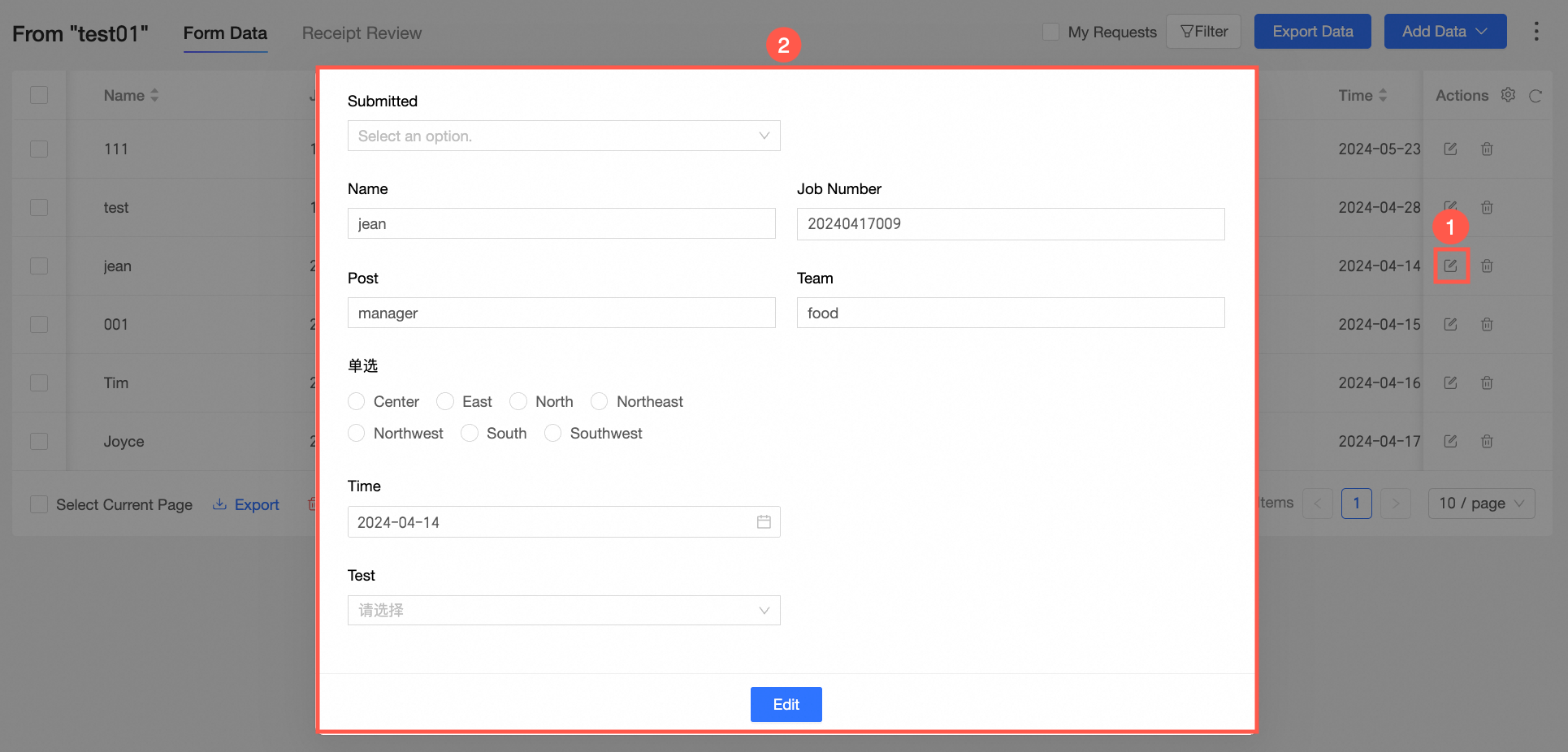
On the Data Management page, on the Form data tab, find the entry you want to edit and click the
icon in the Actions column.On the edit data form page, modify the data and click Modify.
(Optional) After you edit the data, you can view the audit log. For more information, see View the audit log.
 icon in the Actions column.
Export selected entries
You can select the entries that you want to export.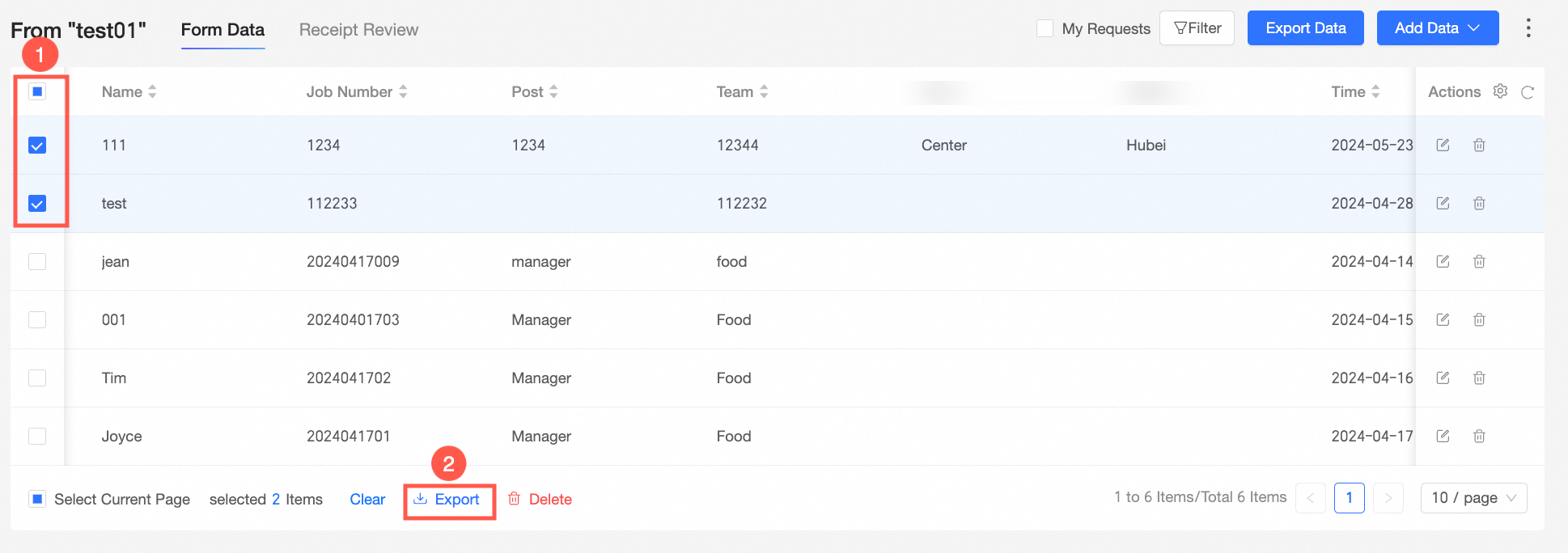
On the Data Management page, on the Form data tab, find and select the checkboxes for the entries you want to export.
Click the
icon to export the selected entries.You can also select all entries and then click the
icon to export all data.
 icon to export the selected entries.
Delete selected entries
You can select the entries that you want to delete.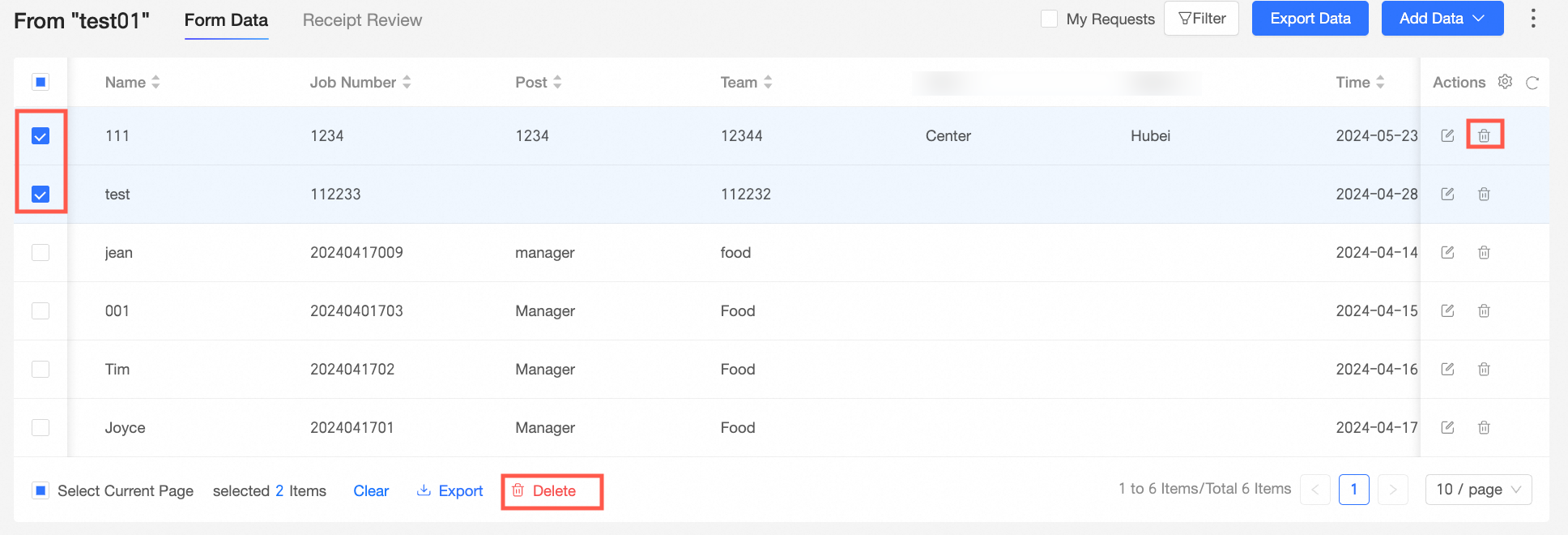
On the Data Management page, on the Form data tab, find and select the checkboxes for the entries you want to delete.
Click the
icon to delete the selected entries.You can also select all entries and then click the
icon to delete all data.
 icon to delete the selected entries.
 icon to delete all data.
View batch import records
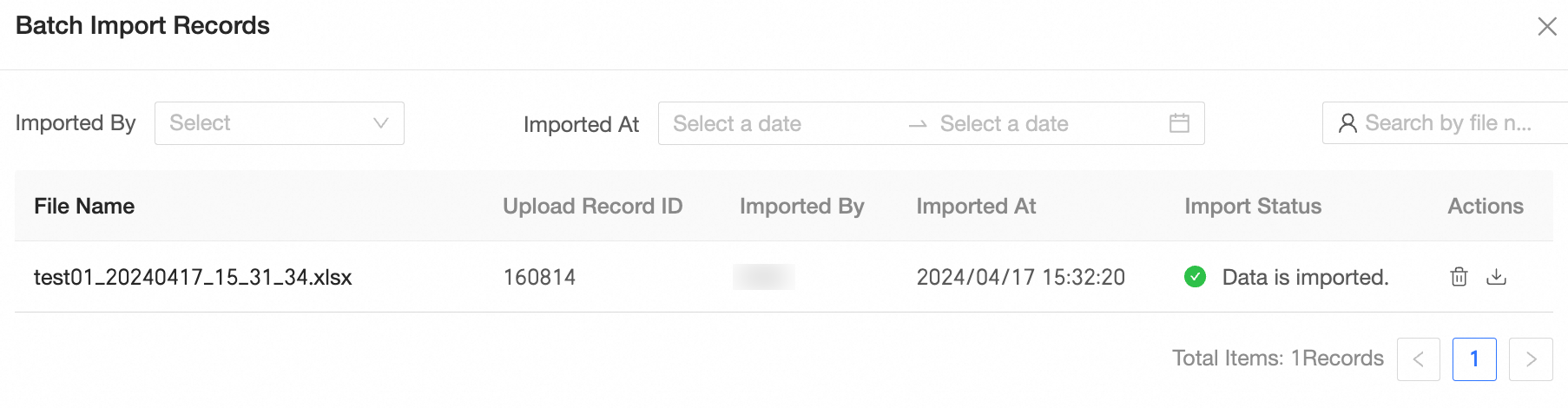
On the Import Records page, you can view import records and manage the Excel files used for batch import.
On the Data Management page, click Operation records > Import Records.
You can filter records by Imported by and Imported at, or search by file name.
File name: The name of the uploaded Excel file.
Upload record ID: A system-generated ID for the Excel file upload.
Imported by: The nickname of the user who imported the file.
Imported at: The time when the Excel file was imported. You can filter by time (hour, minute, and second).
Import status: The status of the Excel file import. The status can be Imported or Import Failed.
Actions: Click the
icon to delete the current record.
 icon to delete the current record.
View audit log
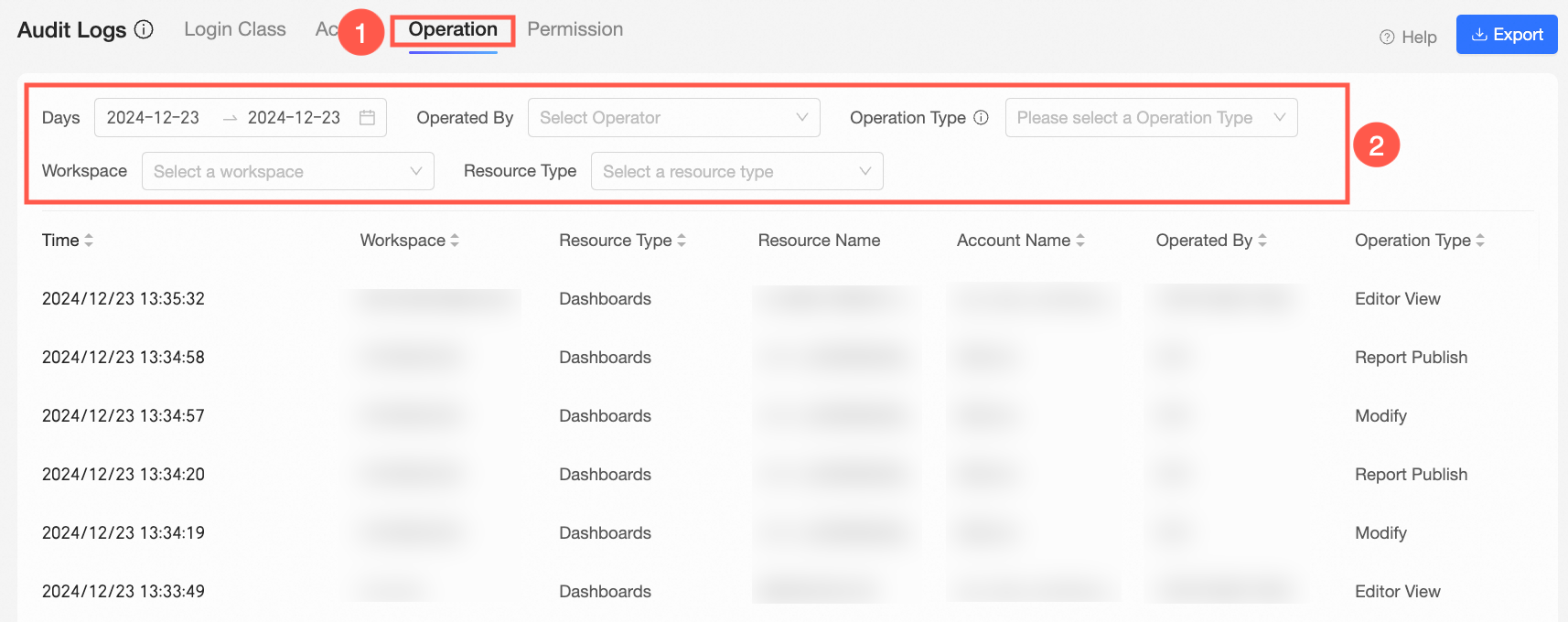
After you add a single record, batch import data, or edit data in a form on the Data Management page, you can view the audit log for these operations in the Organization Management > audit log section.
On the Organization Management page, in the left-side navigation pane, choose Intelligent O&M > audit log.
Switch to the Operations tab. Specify filters such as Date range, Resource type, and workspace as needed, and then click Query.
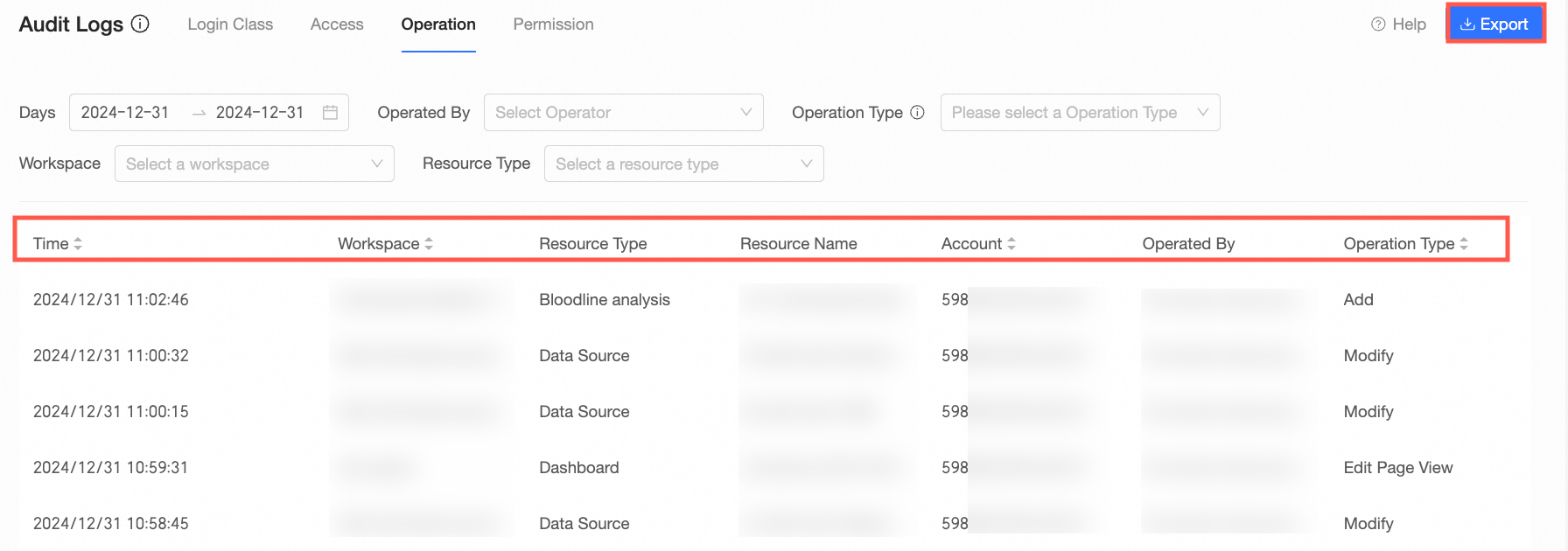
The log list displays information such as the Time, Operator, and Operation type for each action. You can also click Export in the upper-right corner to export all logs on the current page.