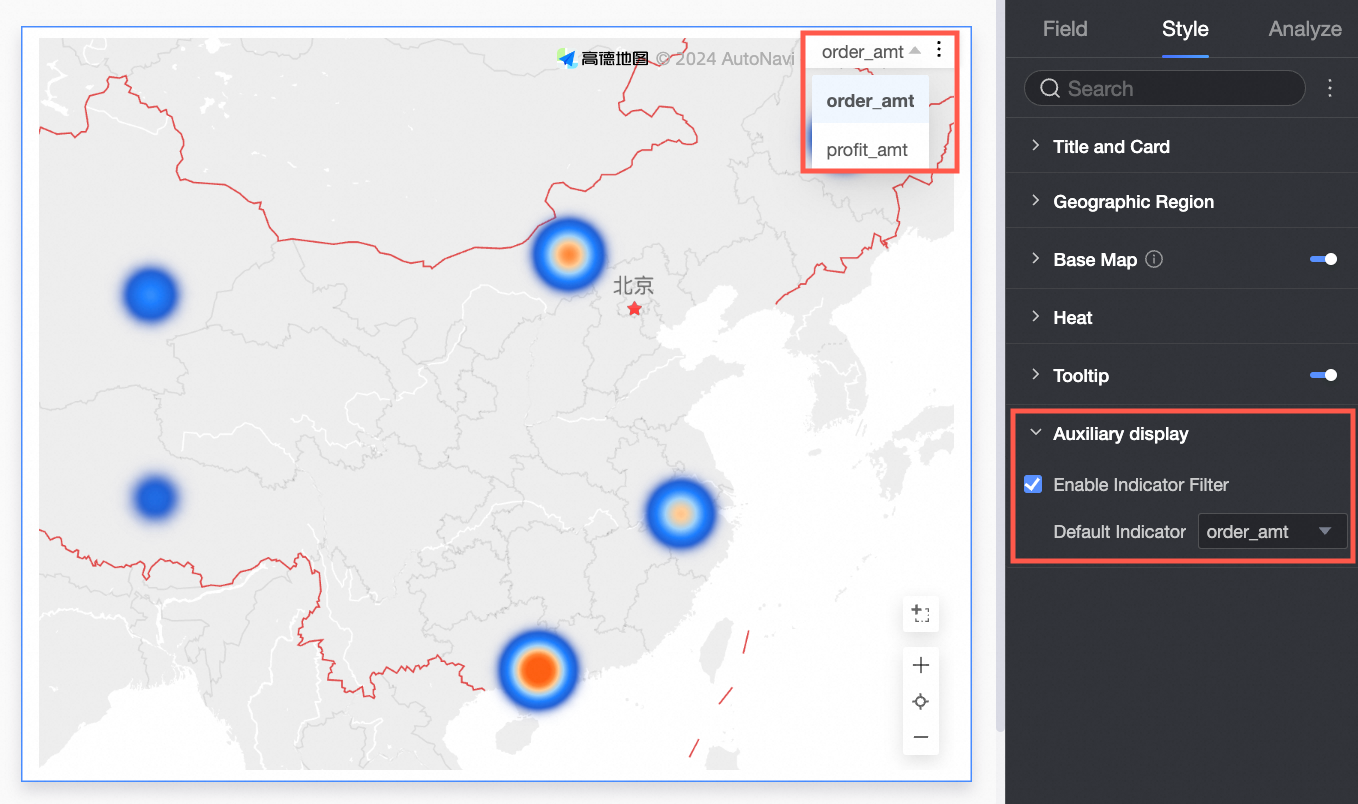
LBS heat map
An LBS heat map uses color intensity to show the magnitude and distribution of data. This topic describes how to add data to an LBS heat map and configure its style. You can create LBS heat maps only in workspaces of the Pro Edition and Enterprise Edition.
Prerequisites
You have created a dashboard. For more information, see Create a dashboard.
Ensure that the geographical area field you want to add has been converted to geographical information. For more information, see Configure fields.
NoteFor example, if the geographical area field you want to add is named area, you must first convert it to geographical information. A converted field displays the
 icon. For a reference table of detailed area information, see public-area-info.xlsx. This table is for geographical matching reference only and does not represent the political stance of Quick BI.
Overview
Use cases
LBS heat maps are ideal for visualizing spatially distributed data, such as data related to administrative regions, prefecture-level cities, streets, or longitude and latitude coordinates.
Benefits
Visualization: Displays data distribution as a heat map.
Interactivity: Lets you zoom in on map areas, switch between measures, and filter data within the component.
Example
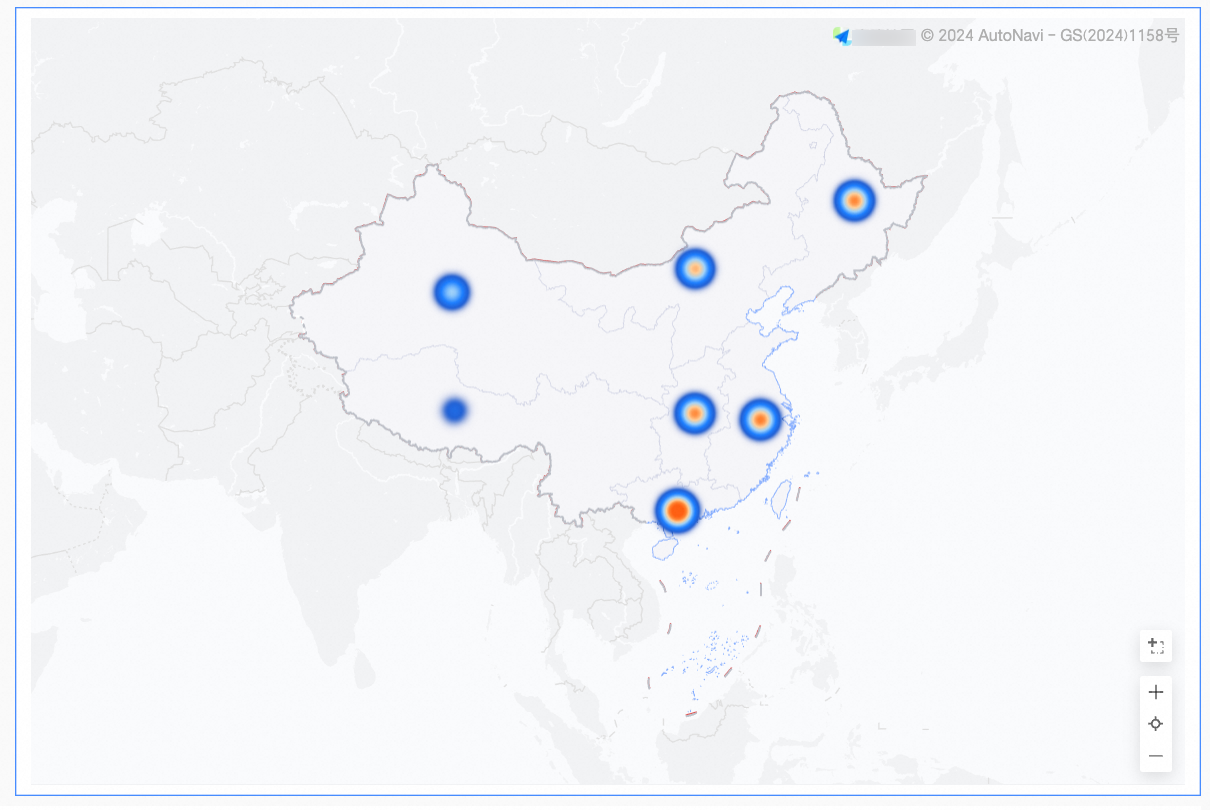
Configure chart fields
On the Fields tab, select the required dimension and measure fields.
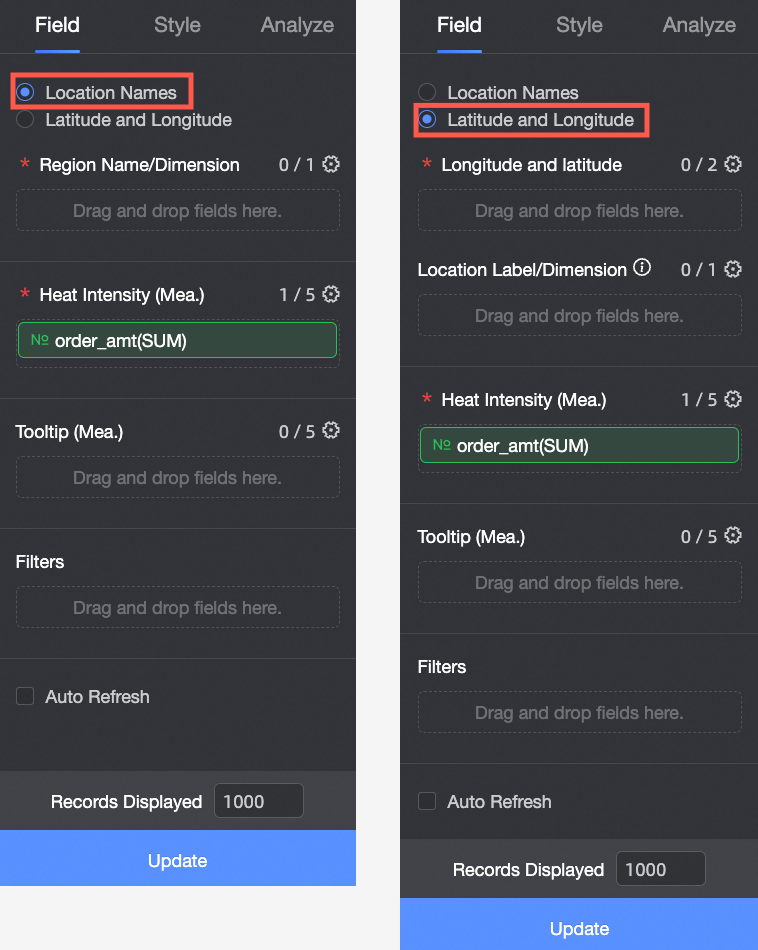
Geographical information supports two creation methods: area name and longitude and latitude.
 Note
NoteIn Area Name mode, the map consists of Area Name (Dim.) and Heat Intensity (Mea.):
Area Name (Dim.): The dimension that defines the geographical area. Add one geographical dimension. For example, you can use a province field.
Heat Intensity (Mea.): The measures that define the heat intensity. Add one to five measures. For example, you can use order_amt and profit_amt.
In Longitude and Latitude mode, the map consists of Longitude and Latitude (Dim.), Location Label (Dim.), and Heat Intensity (Mea.):
Longitude and Latitude (Dim.): The dimensions that determine the coordinates. You can add a maximum of one longitude field and one latitude field.
Location Label (Dim.): An optional dimension for location labels. It accepts String or Geographical data types.
Heat Intensity (Mea.): The measures that define the heat intensity. Add one to five measures. For example, you can use order_amt and profit_amt.
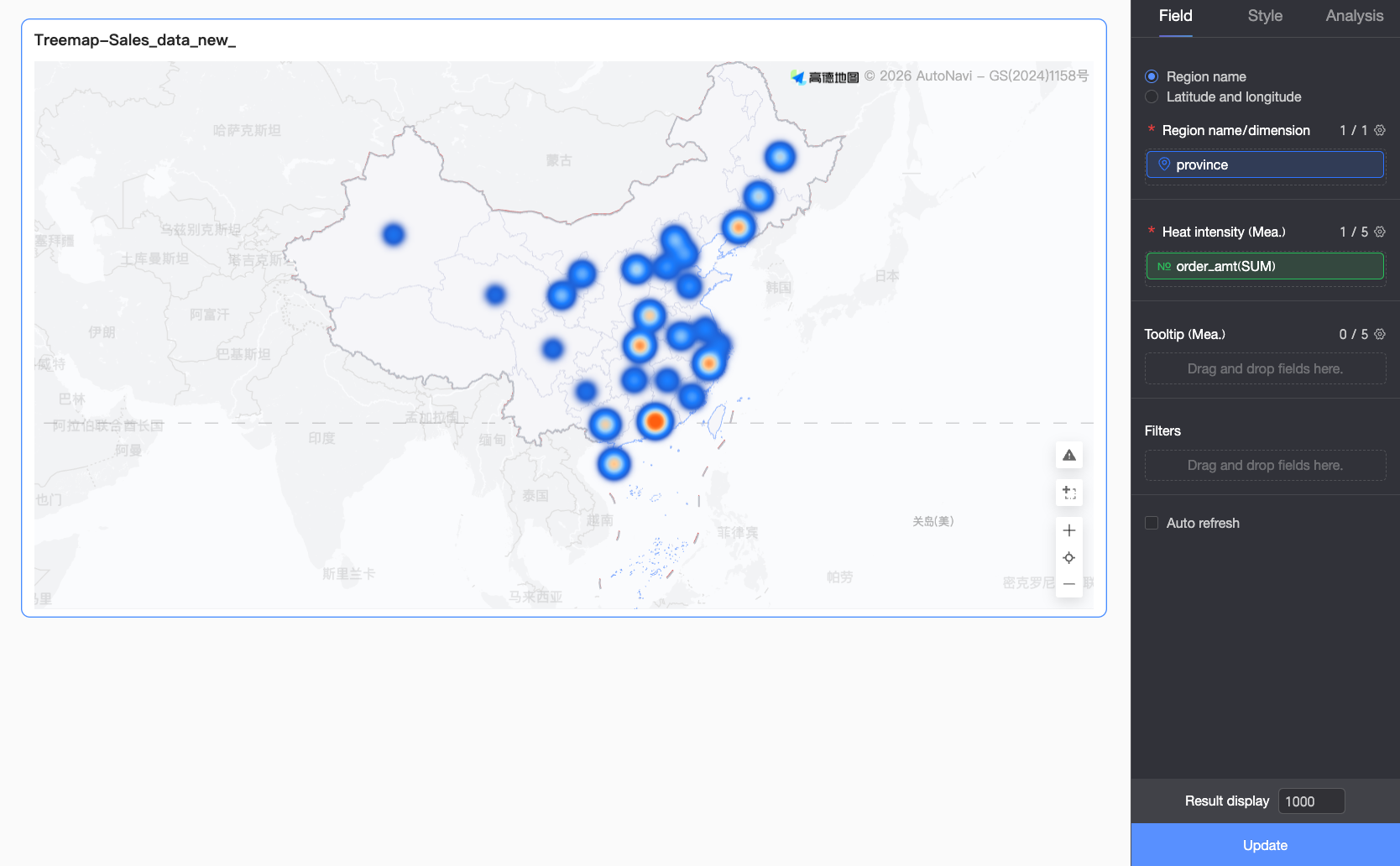
If you select Area Name, double-click or drag the province field to the Area Name (Dim.) field well.
If you select Longitude and Latitude, double-click or drag the longitude and latitude fields to the Longitude and Latitude (Dim.) field well. The Location Label (Dim.) field is optional.
In the Measures list, find order_amt, and double-click or drag it to the Heat Intensity (Mea.) field well.
Click Update. The system automatically updates the chart.
 Note
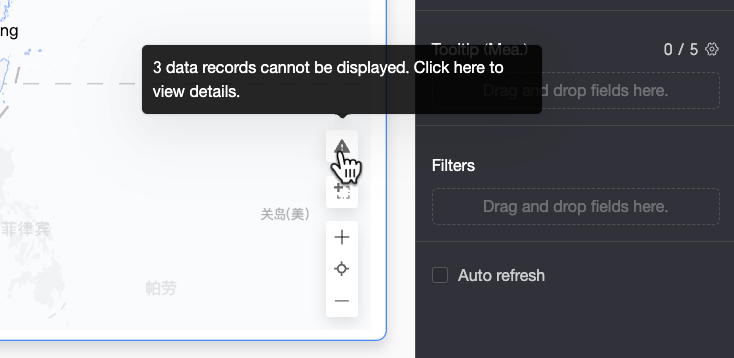
NoteIf some area values in your data do not match the system's standard geographical names, a notification icon appears in the lower-right corner of the chart. You can click the icon to view details about the unplotted data to help you troubleshoot and correct issues.
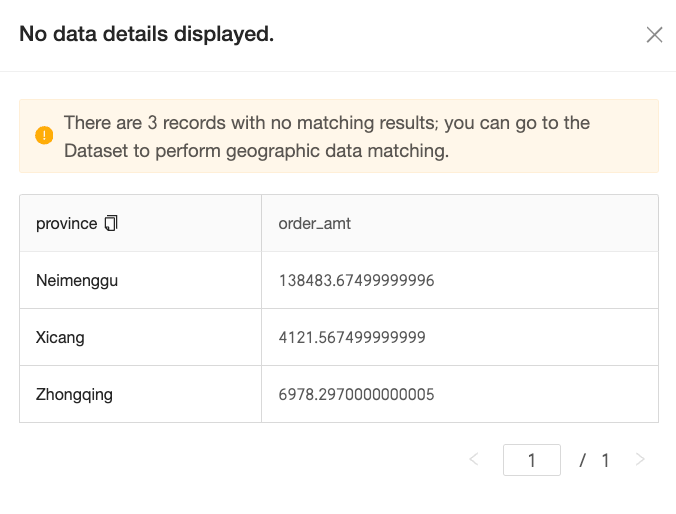
In the Details of Unplotted Data dialog box, you can view the unmatched data and copy it with a single click. Then, paste the copied content in the Geographic Data Matching configuration of the dataset to batch-process the mappings, improving data correction efficiency.

After configuration, the map data displays correctly.
Configure chart styles
This section describes the style settings for the LBS heat map. For information about general chart style settings, see Configure the chart title area.
Map configuration
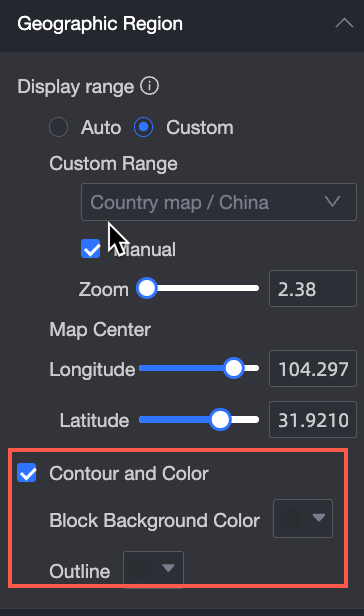
In the Map Configuration section, configure Display Range and Outline and Fill.
Display Range: You can select Auto or Custom. In this example, China is selected.
NoteAutomatic display automatically adjusts based on the data range, while custom display allows you to manually set the range. In interactive analysis scenarios, the display is always automatically adjusted based on the data range.
The custom display range currently supports continents and countries globally, as well as regions, provinces, and cities within China.
If you enable Manual Adjustment, the system automatically generates the current Center Point and Zoom Level, which you can then modify.
In the Outline and Fill section, you can configure the colors for the Area Background and Border Line.
NoteOutlines are not supported for some regions.


Basemap
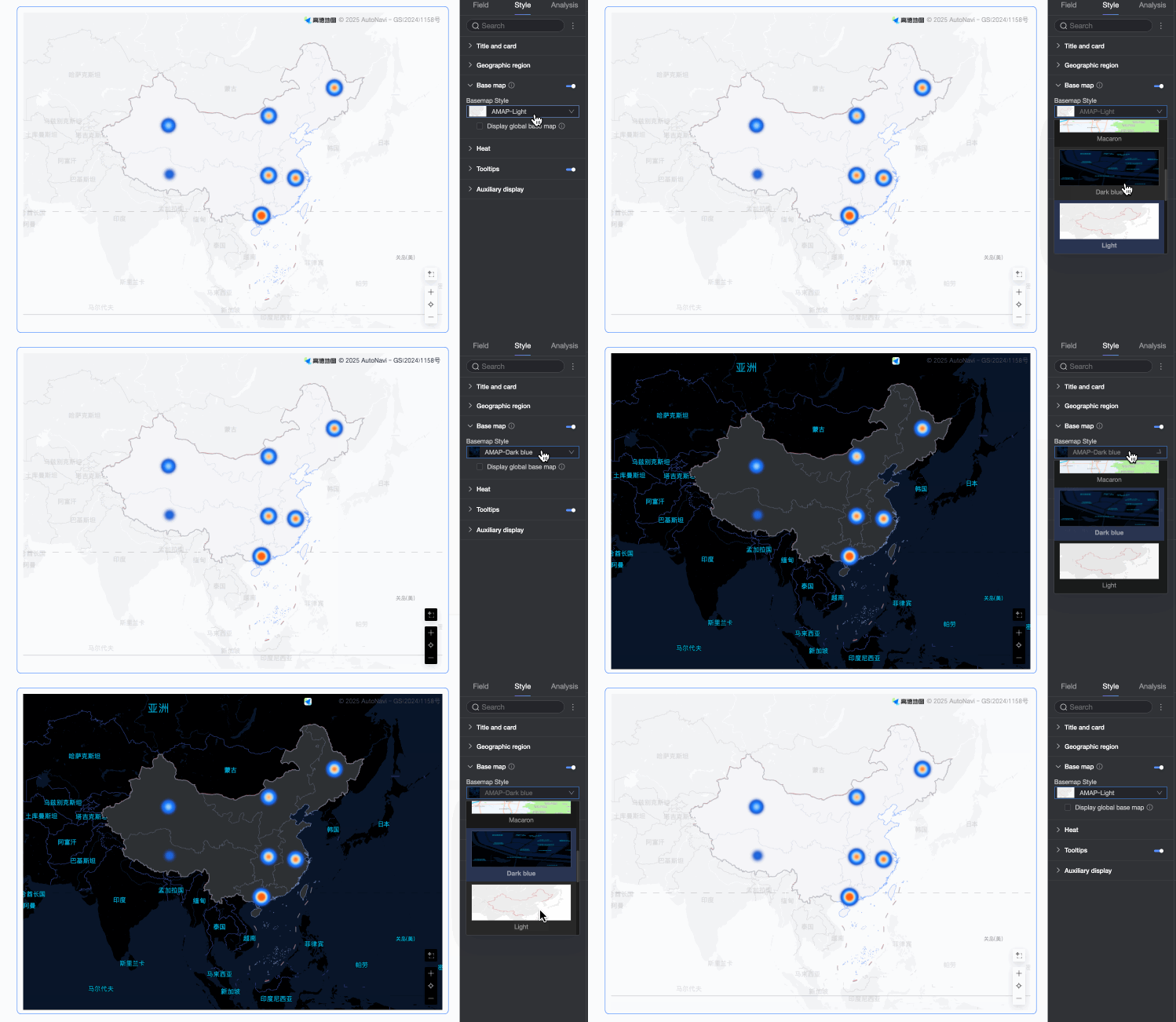
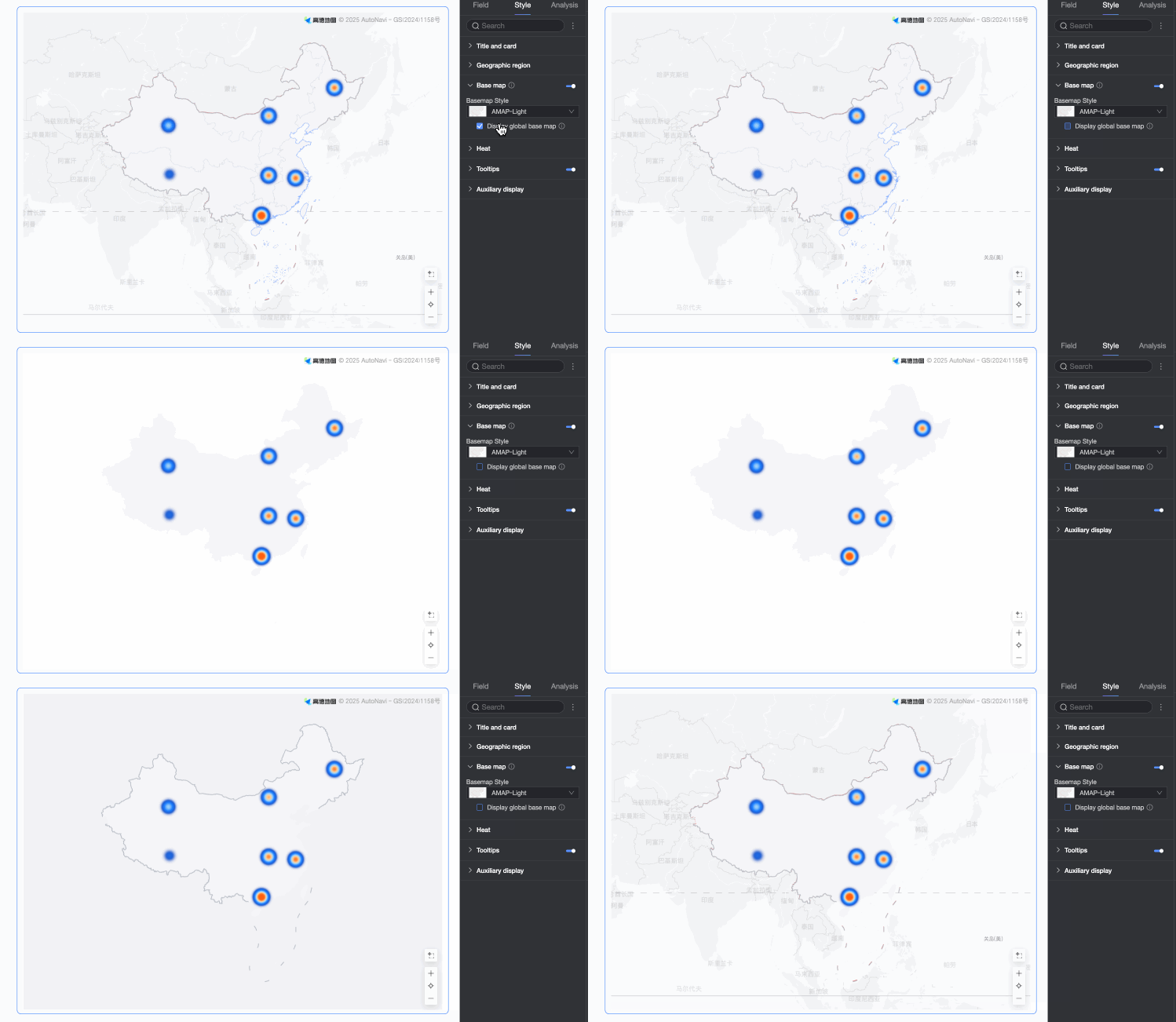
In the Basemap section, configure settings such as Show Basemap, the Basemap Style, and Show Global Basemap.
Show Basemap: Click the switch
to toggle the visibility of the basemap.Basemap Style: Supports various styles for the Amap basemap.
Show Global Basemap: Select this option to display global information, such as cities, on the basemap.
NoteUsage limits for the global basemap: Each Quick BI organization can preview map charts with overseas basemap information 1,000 times per month. The count is based on the number of times the basemap is initialized. If the limit is exceeded, map charts will only display basemap information for the Chinese mainland.
 to toggle the visibility of the basemap.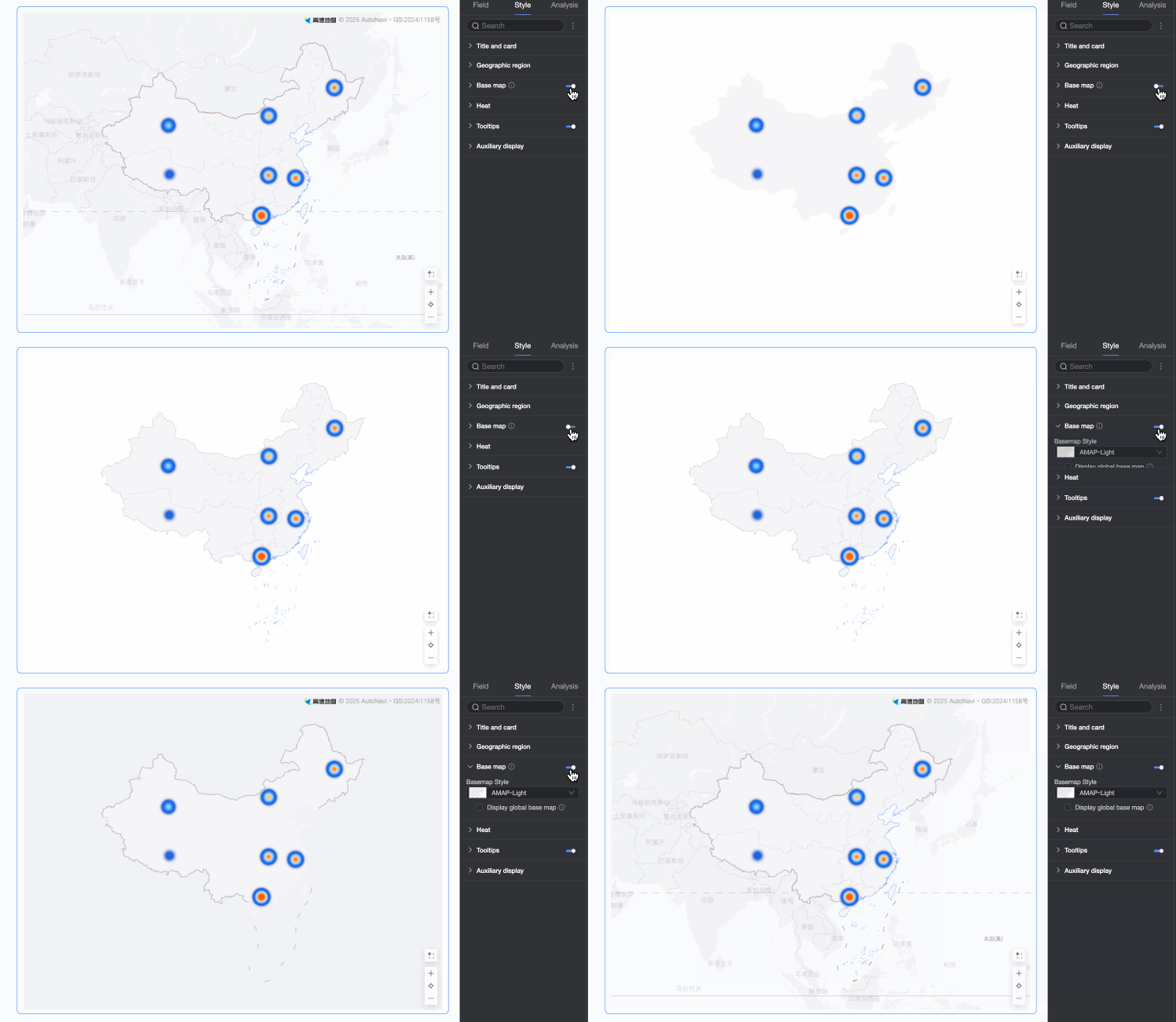
Heat
In the Heat section, configure the Style, Color Scheme, and Radius of the heat layer.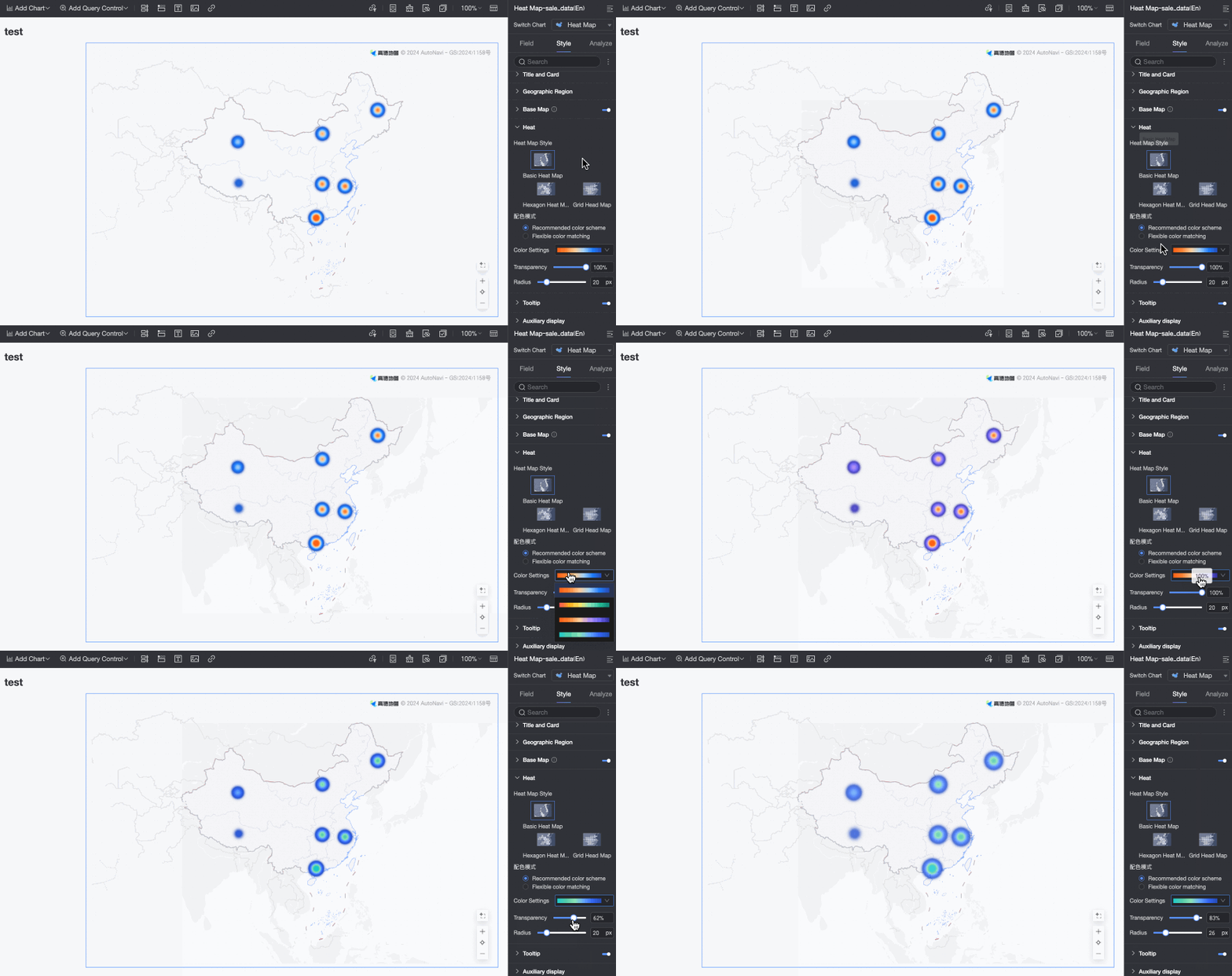
Tooltip
In the Tooltip section, click the  icon to enable tooltips and configure their style.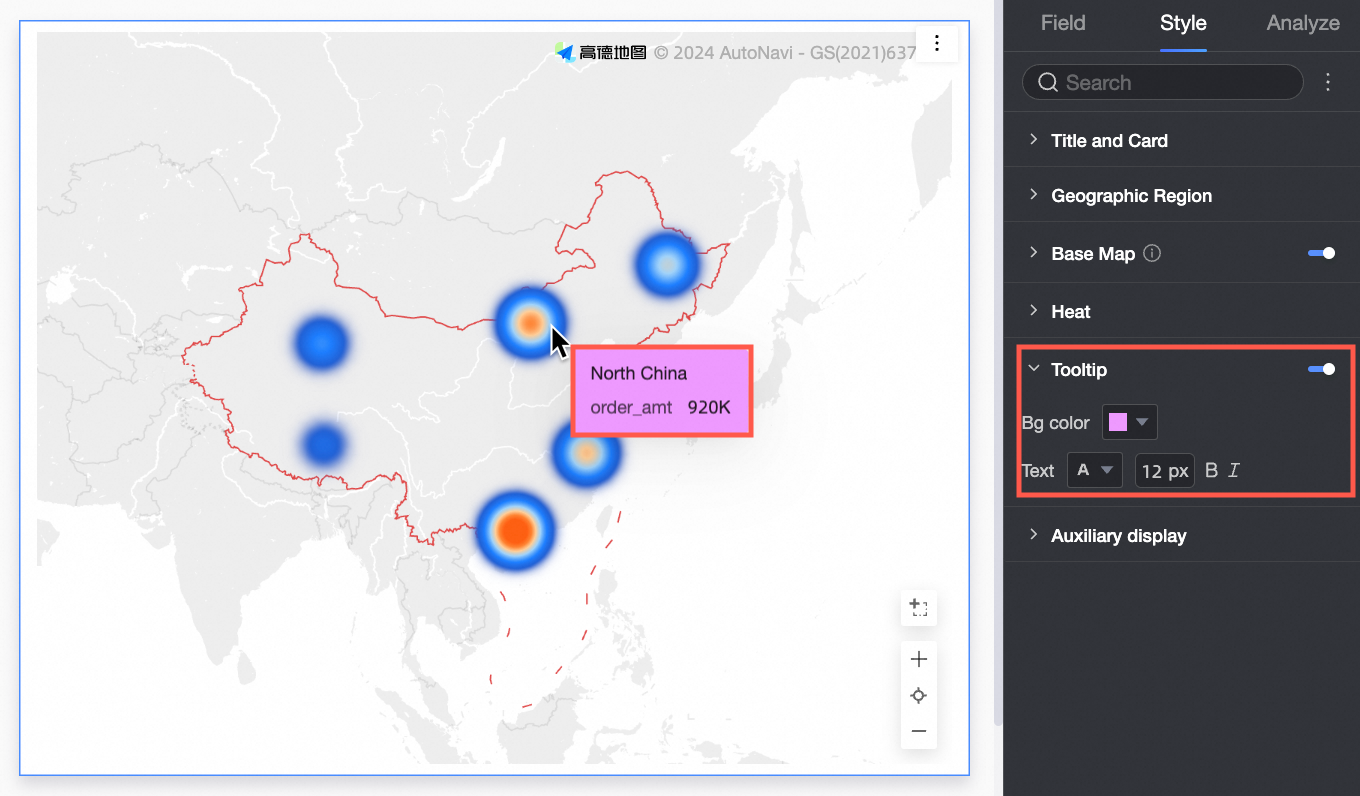
Parameter | Description |
Background color | Sets the background fill color of the tooltip. |
Text | Configures the text style within the tooltip, including font color, size, weight, and italics. |
Mobile client tooltip | PC and mobile client tooltip settings are independent. To edit the mobile client tooltip, switch to the mobile view by clicking the PC/Mobile toggle button ( |
 ) at the top of the dashboard editing page. Font size can be set independently for each view; other style settings are shared.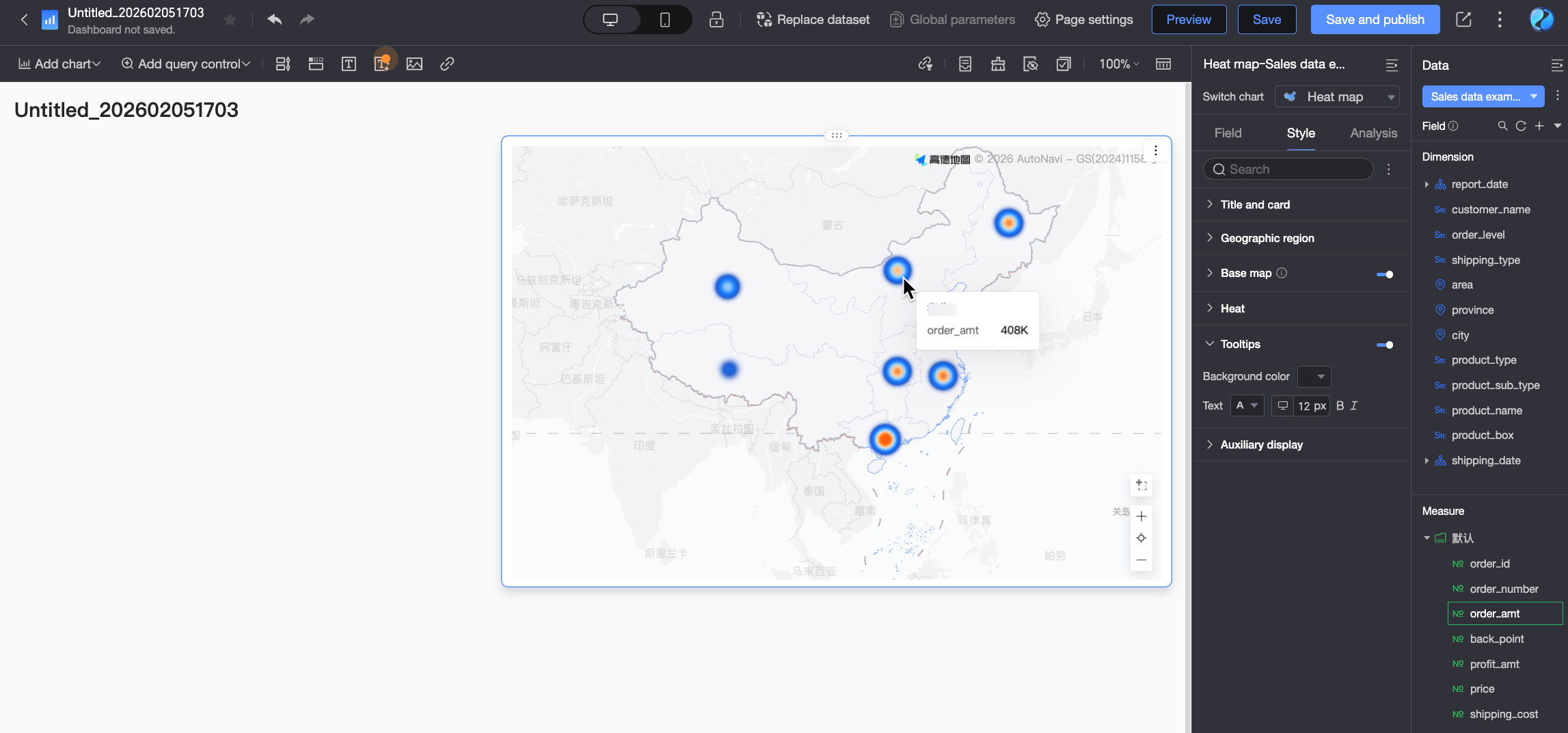
Functionality settings
In the Functionality Settings section, enable the Indicator Filter. This lets you configure which measures to display.