Authorization settings
In Quick BI Enterprise Standard and Advanced Edition, you can use organization-level settings to make data works public and enable collaborative authorization. As a permission administrator, you can enable or disable authorization entry points for all workspaces with a single click and configure default permissions for data works.
Scenarios
Scenario | Expected result |
These settings control whether the Make Public and Authorize options are available for data works across your organization, which determines if they can be made public, shared, or managed via collaborative authorization.
Note Data works include BI portals, dashboards, workbooks, self-service queries, ad hoc queries, data entry forms, exploratory analyses, and Q-Reports. When you select Make Public and Authorize, the options to make data works public and grant authorizations become available in the functional permissions settings.
| |
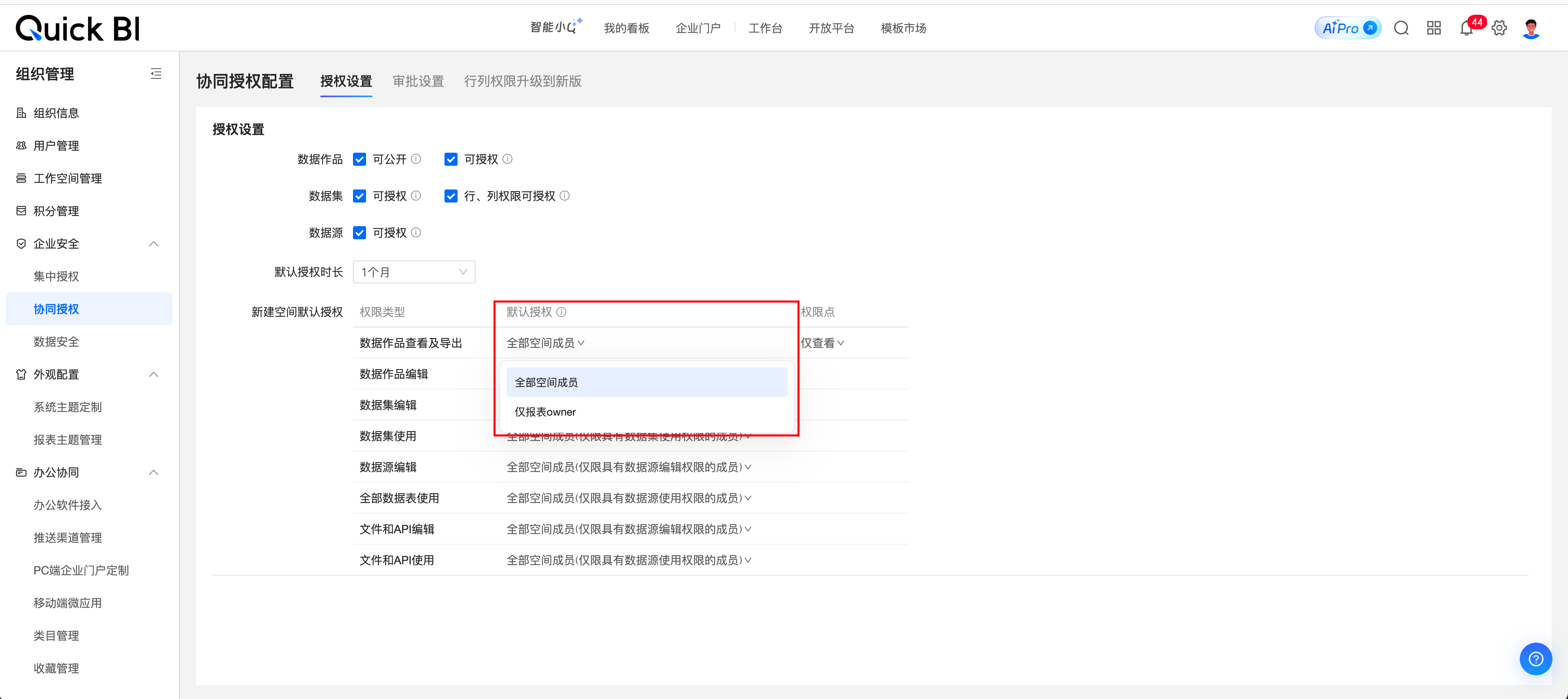
You can set the default permissions for data works within a workspace when you create it. You can set default permissions for data works (BI portals, dashboards, workbooks, self-service queries, ad hoc queries, and data entry forms), datasets, and data sources. Note Changes to Default Permissions for Workspace Resources only affect resources in workspaces created after the changes are saved.
|

Entry point
As a permission administrator, log on to the Quick BI console and navigate to the organization-level Collaborative Authorization Configuration page as shown in the following figure.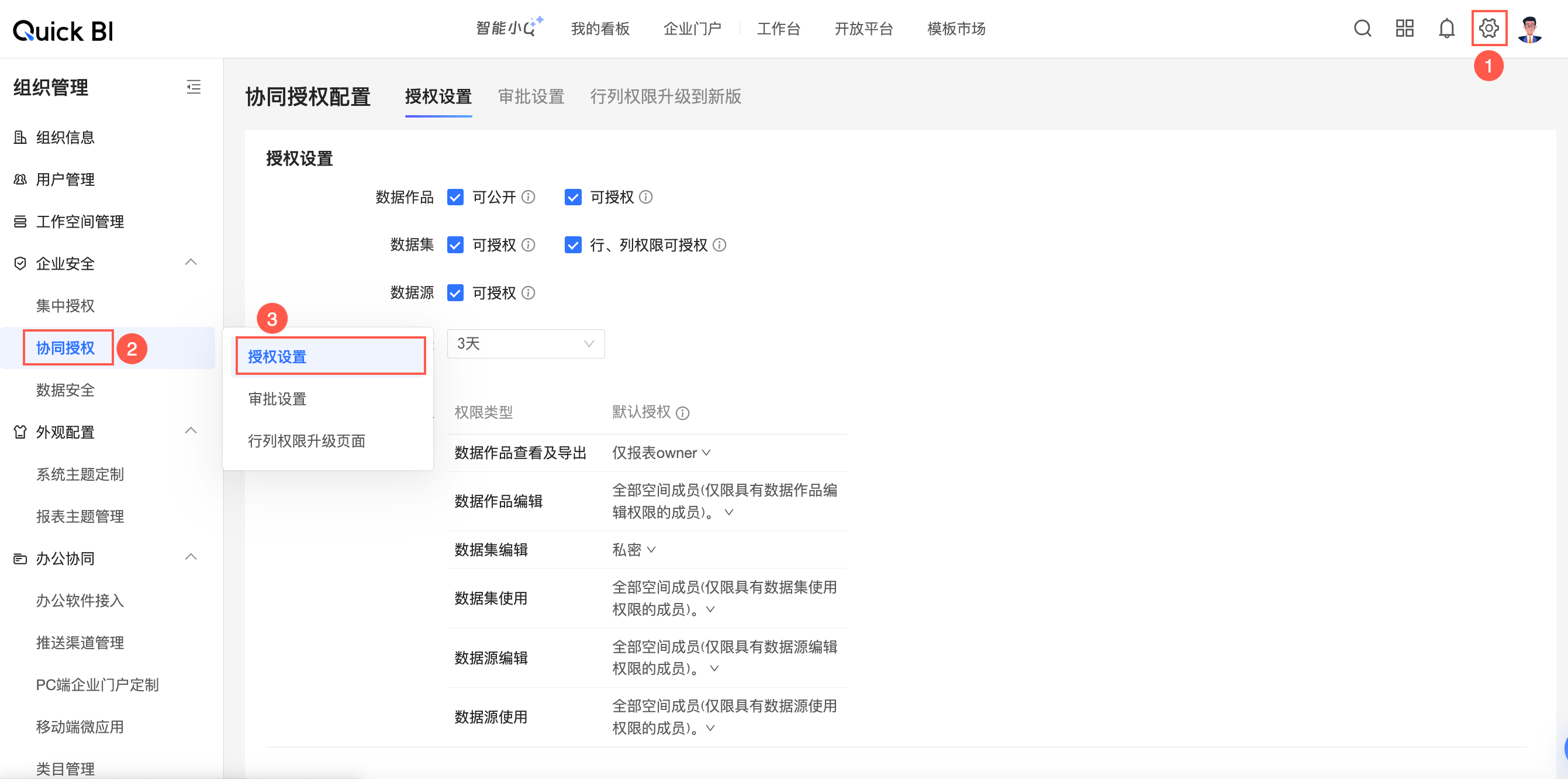
Configure permissions for data works
These settings control whether options for making items public, sharing, and collaborative authorization are available for all workspaces in your organization.
Data works
Data works include BI portals, dashboards, workbooks, self-service queries, ad hoc queries, data entry forms, exploratory analyses, and Q-Reports.
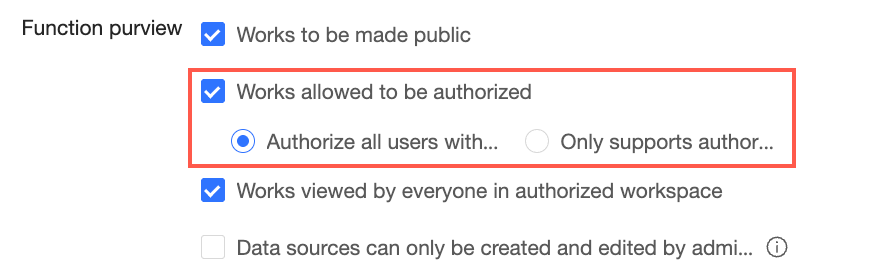
If you select Make Public and Authorize, the Works to Be Made Public and Works Allowed to Be Authorized options become available in the Functional Permissions settings for a workspace.
You can then choose whether to select Allow works to be made public or Allow works to be authorized within that workspace. For more information, see Create and manage a workspace.
If you clear Make Public and Authorize, the Works to Be Made Public and Works Allowed to Be Authorized options do not appear in the Functional Permissions settings for the workspace.

In this case, resources in all workspaces within your organization cannot be made public, shared, or have permissions granted through collaborative authorization.
Datasets
Authorize: Enables collaborative authorization for datasets in all workspaces.
Authorize row and column-level permissions: Enables you to set row and column-level permissions for datasets across all workspaces.
Data sources
Authorize: Enables collaborative authorization for data sources in all workspaces.

Default authorization duration
You can set the duration to 1 day, 3 days, 1 week, 1 month, or a custom duration.
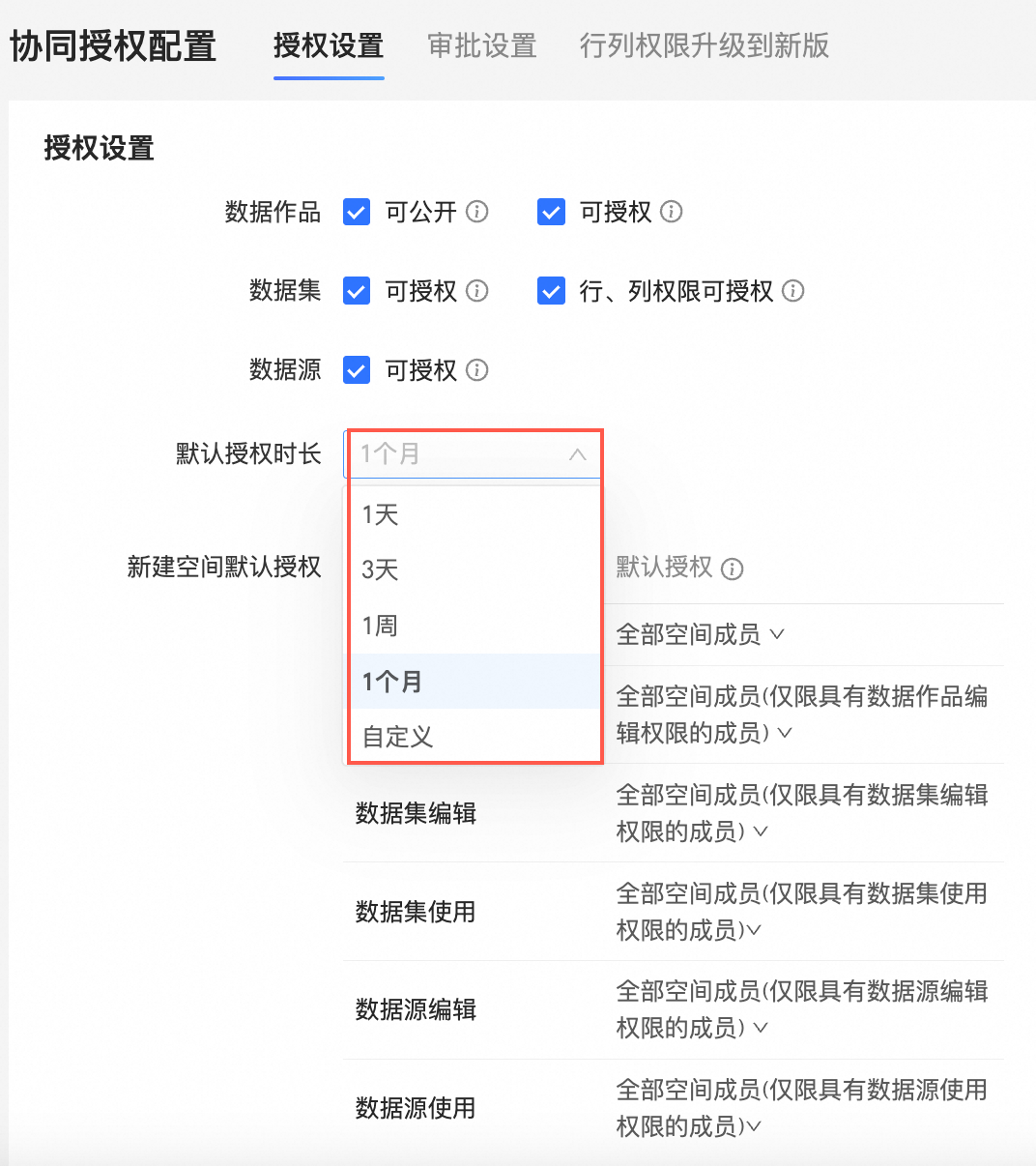
Set default permissions for workspace resources
Use these settings to configure the default permissions for data works, datasets, and data sources in newly created workspaces.
Data works include BI portals, dashboards, workbooks, self-service queries, ad hoc queries, and data entry forms.
The following table shows the relationship between resource types and permission types.
Resource type | Permission type | |
Data work | Data work view and export | Data work edit |
Dataset | Dataset edit | Dataset use |
Data source | Data source edit | Data source use |
You can set default values for different permission types.
These settings only affect resources in newly created workspaces. Permissions for data works in existing workspaces are not affected.
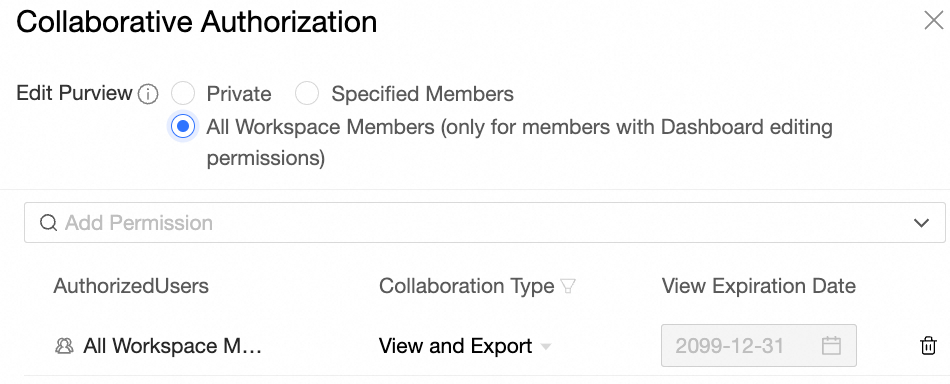
Data work view and export: You can select an Authorization Scope and a Permission Level.
For Authorization Scope, you can select All workspace members or Report Owner only.
For Permission Level, you can select View only or View and export. This is configurable only when the Authorization Scope is All workspace members. If the scope is Report Owner only, you do not need to configure a permission level.
If the authorization scope is All workspace members and the permission level is View only, all members can view data works in that workspace.
If the authorization scope is All workspace members and the permission level is View and export, all members can view and export data works in that workspace.
If the authorization scope is Report Owner only, only the data work owner can view data works in that workspace.
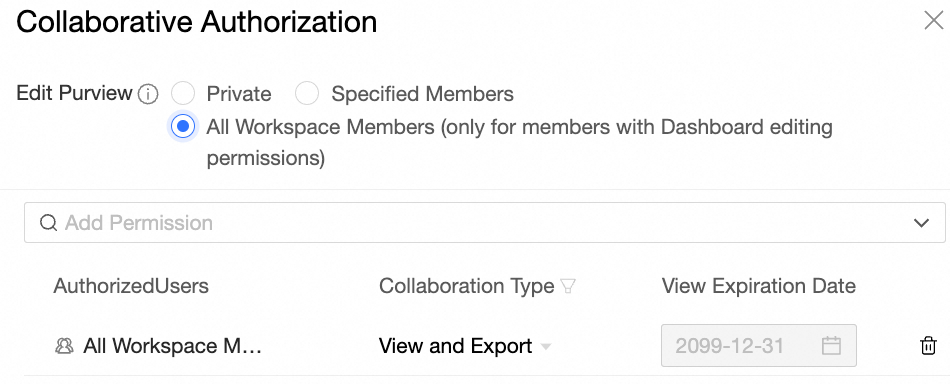
Data work edit: You can set the default value to All workspace members (only members with data work edit permissions) or Private.
This setting determines the default value for the edit permission in the collaborative authorization settings for new data works created in the workspace.
If you select All workspace members (only members with data work edit permissions), data works in the workspace can be edited by default by members who have data work edit permissions.
If you select Private, data works in the workspace cannot be edited by unauthorized members by default.
To grant edit permissions for a data work, see Grant permissions for a data work.
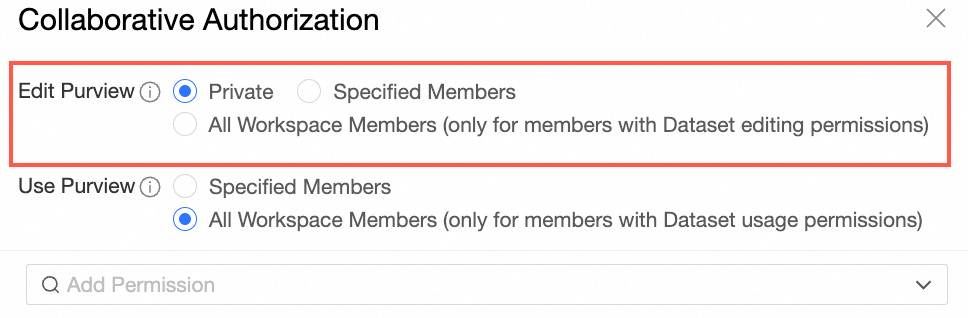
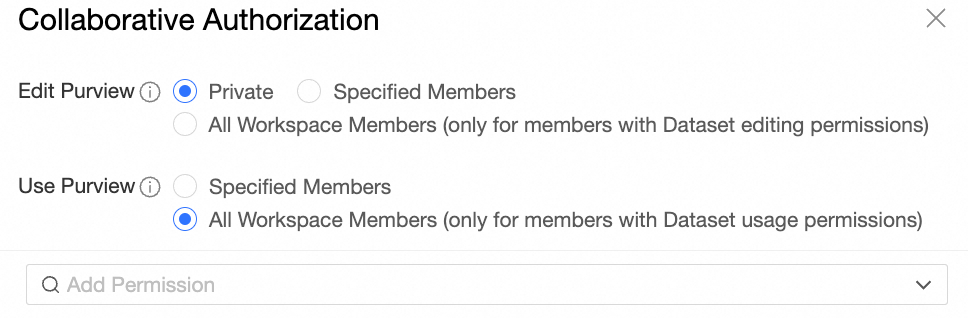
Dataset edit: You can set the default value to All workspace members (only members with dataset edit permissions) or Private.
This setting determines the default value for the Edit permission in the collaborative authorization settings for new datasets created in the workspace.
If the default value is Private, the edit permission defaults to Private, meaning unauthorized users cannot edit.
If the default value is All workspace members (only members with dataset edit permissions), the edit permission defaults to All workspace members (only members with dataset edit permissions), which allows all members in the workspace with dataset edit permissions to edit datasets.
If you select All workspace members (only members with dataset edit permissions), datasets in the workspace can be edited by default by all members who have dataset edit permissions.
If you select Private, datasets in the workspace cannot be edited by unauthorized members by default.
To grant edit permissions for a dataset, modify the edit permission attribute and grant authorization. For more information, see Grant edit permissions for a dataset.
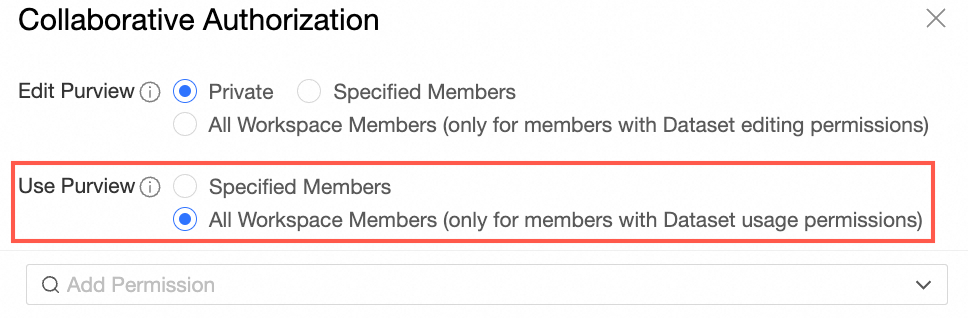
Dataset use: You can set the default value to All workspace members (only members with dataset use permissions) or Specified members.
This setting determines the default value for the use permission in the collaborative authorization settings for new datasets created in the workspace.
If the default value is Specified members, the use permission defaults to Specified members, meaning only specified users can use the dataset.
If the default value is All workspace members (only members with dataset use permissions), the use permission defaults to All workspace members, which allows members in this workspace with dataset use permissions to use the dataset.
If you select All workspace members (only members with dataset use permissions), datasets in the workspace can be used by default by all members who have dataset use permissions.
Using a dataset allows you to create data works such as ad hoc queries, dashboards, and workbooks.
If you select Specified members, unauthorized users cannot use datasets in the workspace by default.
To grant use permissions for a dataset, see Grant use permissions for a dataset.
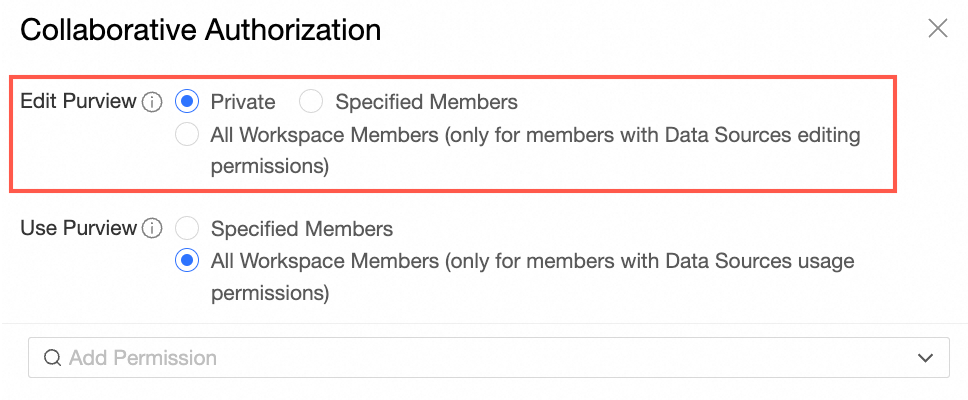
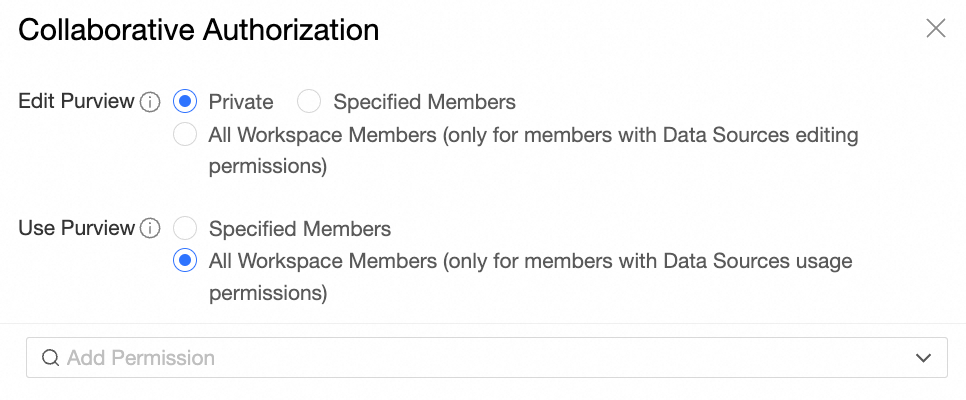
Data source edit: You can set the default value to All workspace members (only members with data source edit permissions) or Private.
This setting determines the default value for the Edit permission in the collaborative authorization settings for new data sources created in the workspace.
If the default value is Private, the edit permission defaults to Private, meaning unauthorized users cannot edit.
If the default value is All workspace members (only members with data source edit permissions), the edit permission defaults to All workspace members (only members with data source edit permissions), which allows members with data source edit permissions to edit the data source.
If you select All workspace members (only members with data source edit permissions), data sources in the workspace can be edited by default by members who have data source edit permissions.
This includes being able to replace or modify the data source.
If you select Private, unauthorized users cannot edit data sources in the workspace by default.
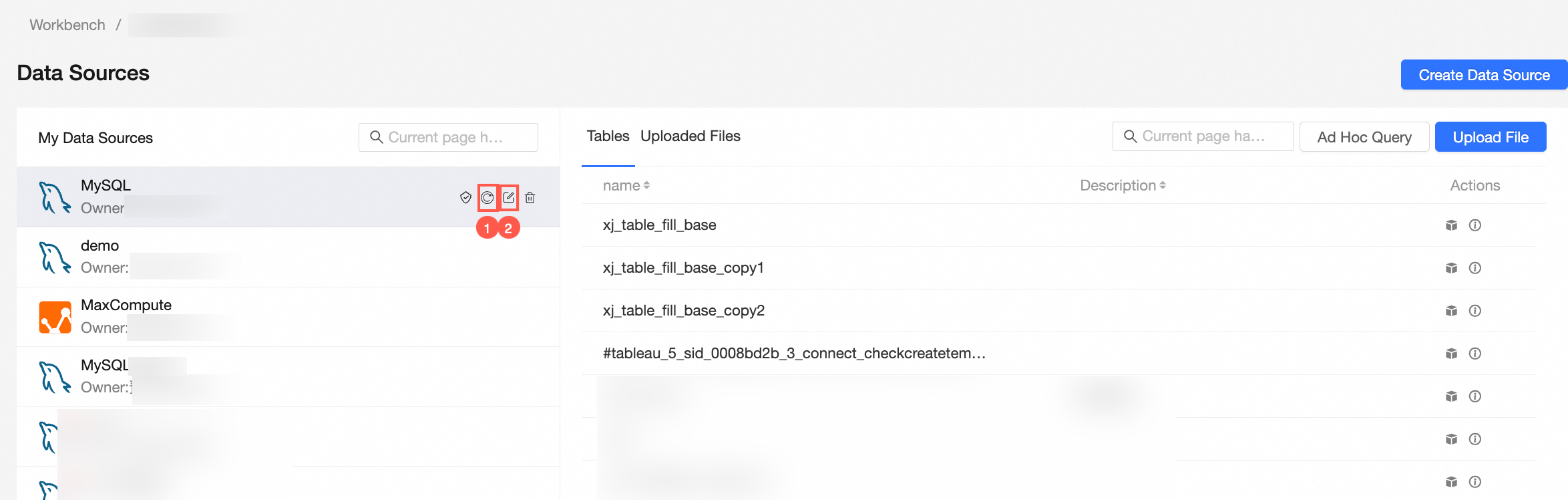
To grant edit permissions for a data source, see Grant permissions for a data source.
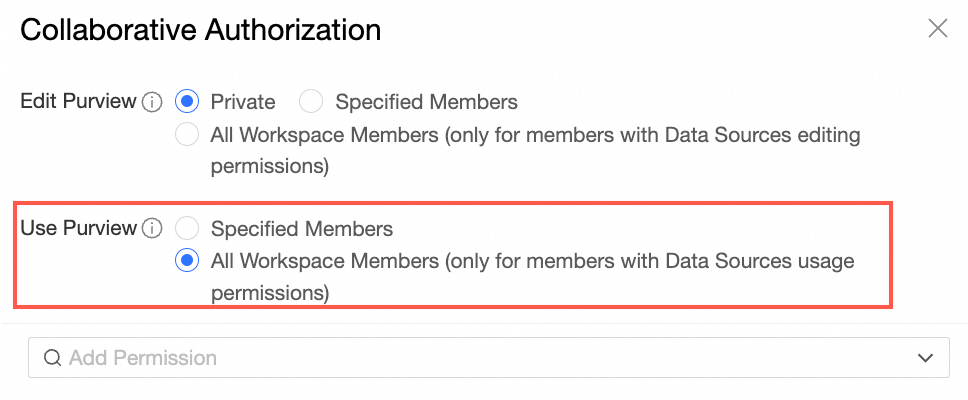
Data source use: You can set the default value to All workspace members (only members with data source use permissions) or Specified members.
This setting determines the default value for the use permission in the collaborative authorization settings for new data sources created in the workspace.
If the default value is Specified members, the use permission defaults to Specified members, meaning only specified members can use the data source.
If the default value is All workspace members (only members with data source use permissions), the use permission defaults to All workspace members (only members with data source use permissions), which allows members in this workspace with data source use permissions to use the data source.
If you select All workspace members (only members with data source use permissions), data sources in the workspace can be used by default by members who have data source use permissions.
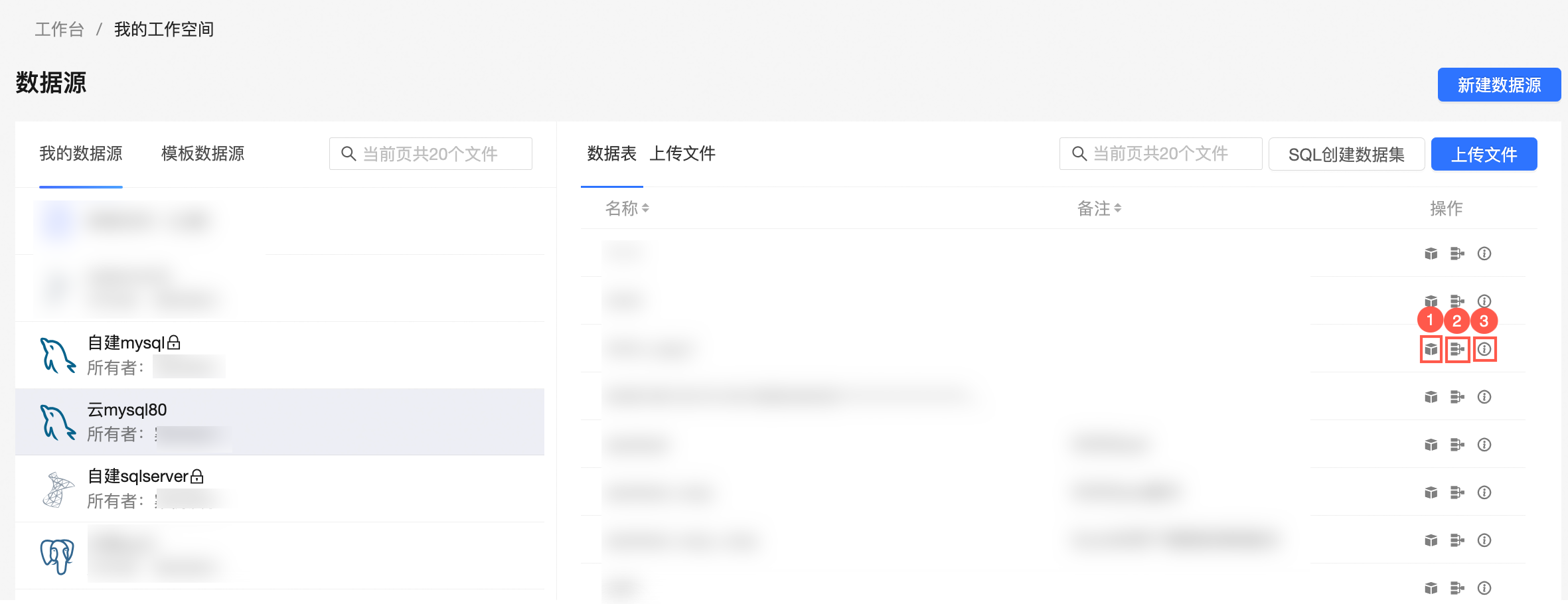
Using a data source allows you to create datasets, create data preparations, and view table details.
If you select Specified members, unauthorized users cannot use data sources in the workspace by default.
To grant use permissions for a data source, see Grant permissions for a data source.