You can save, copy, share, and grant collaboration authorization for an exploratory analysis.
Rename
On the exploratory analysis page, click the exploratory analysis name to rename it.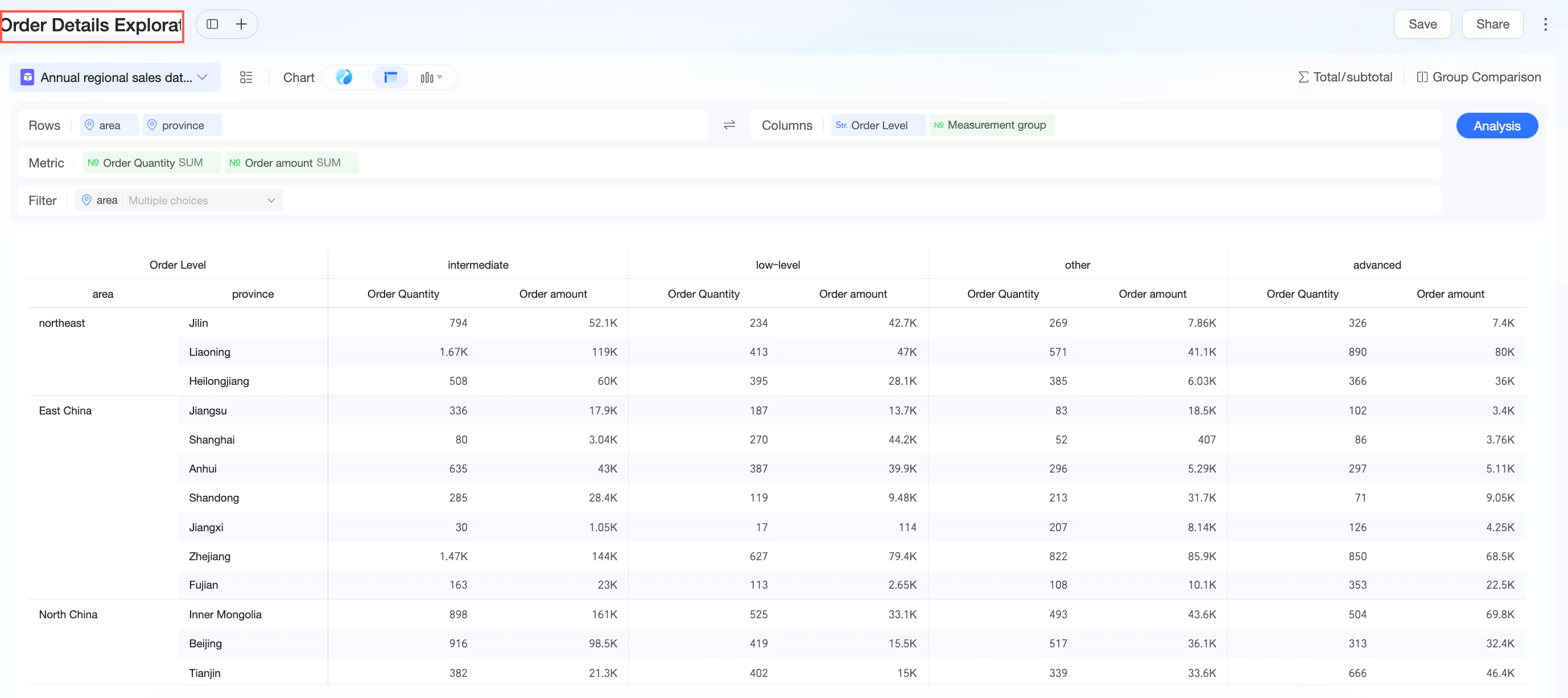
Alternatively, go to the Workspace and click Properties. On the properties page, you can change the Name of the exploratory analysis.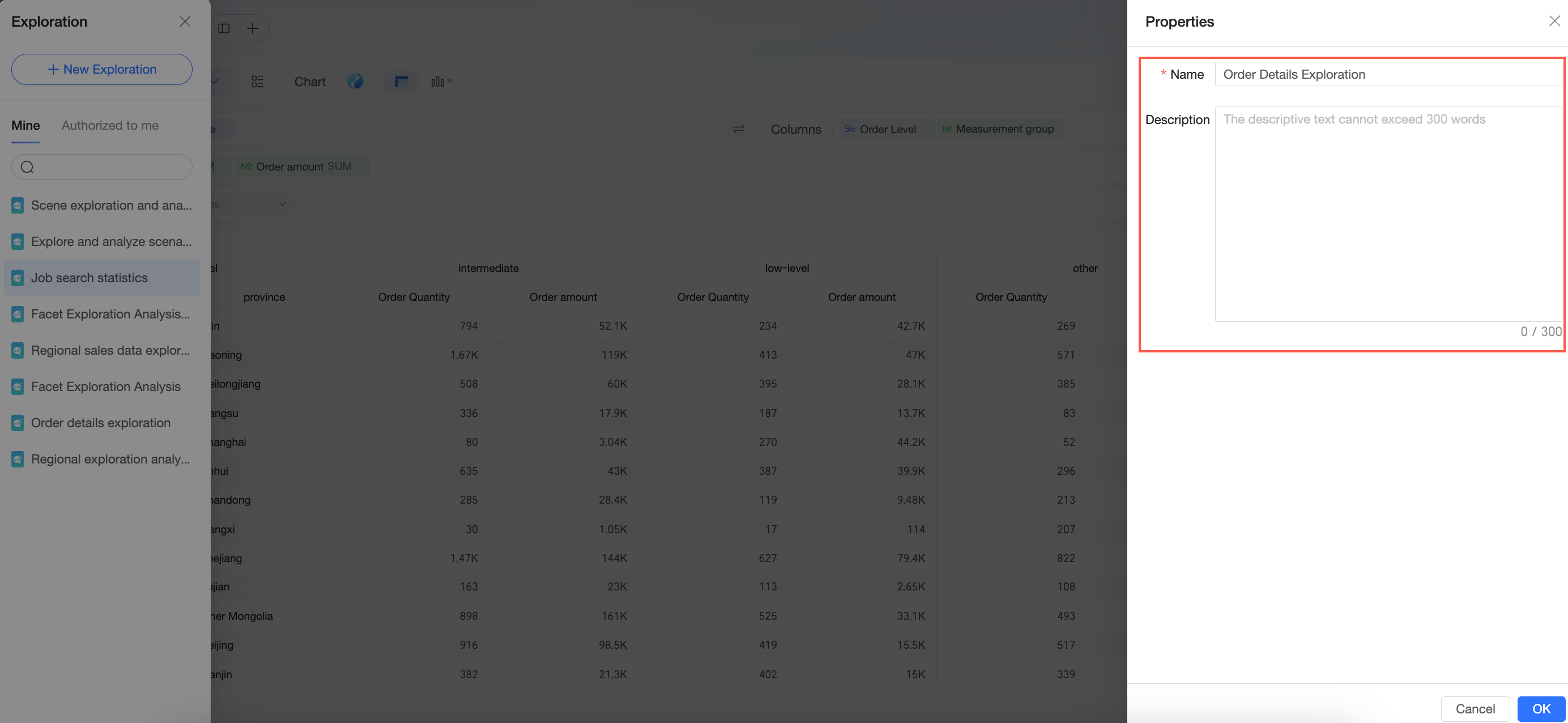
Save
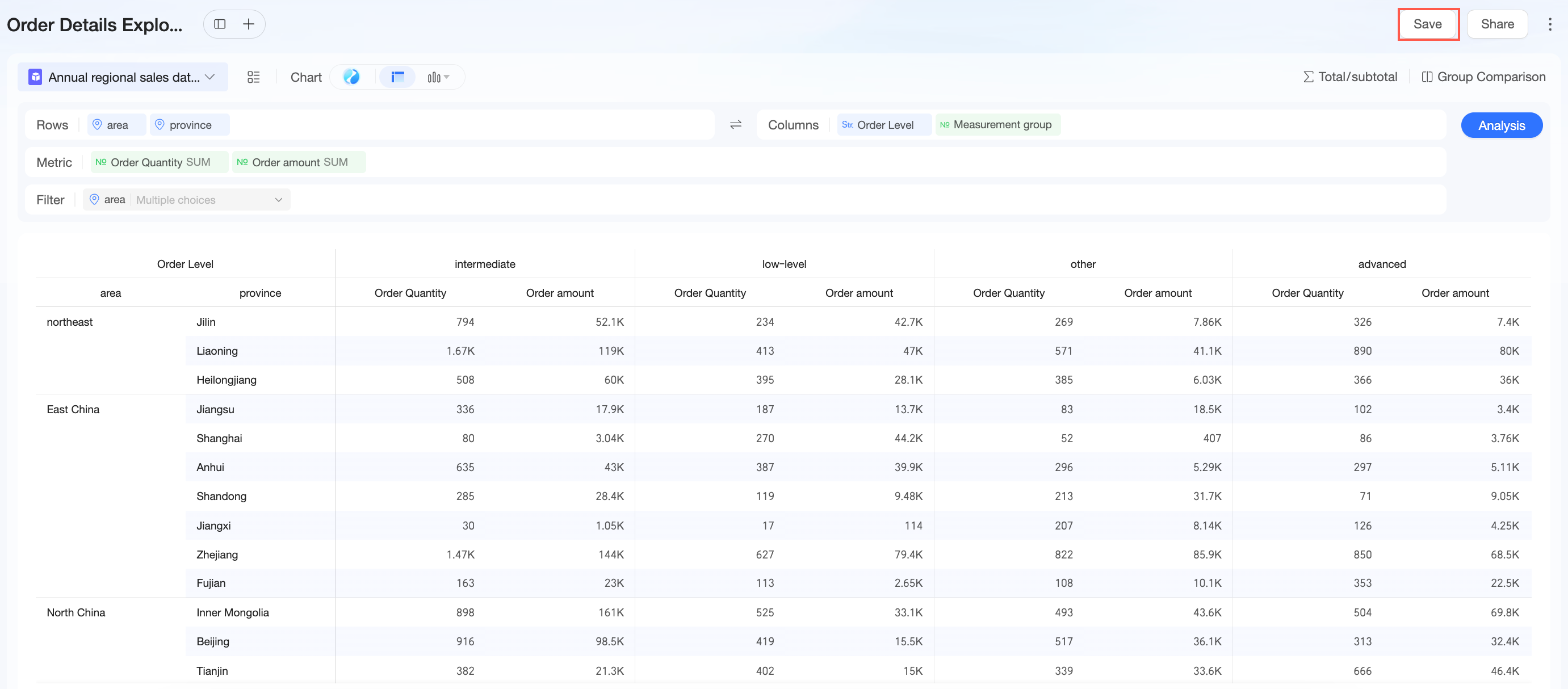
Click Save in the upper-right corner to save the current exploratory analysis.
Save as
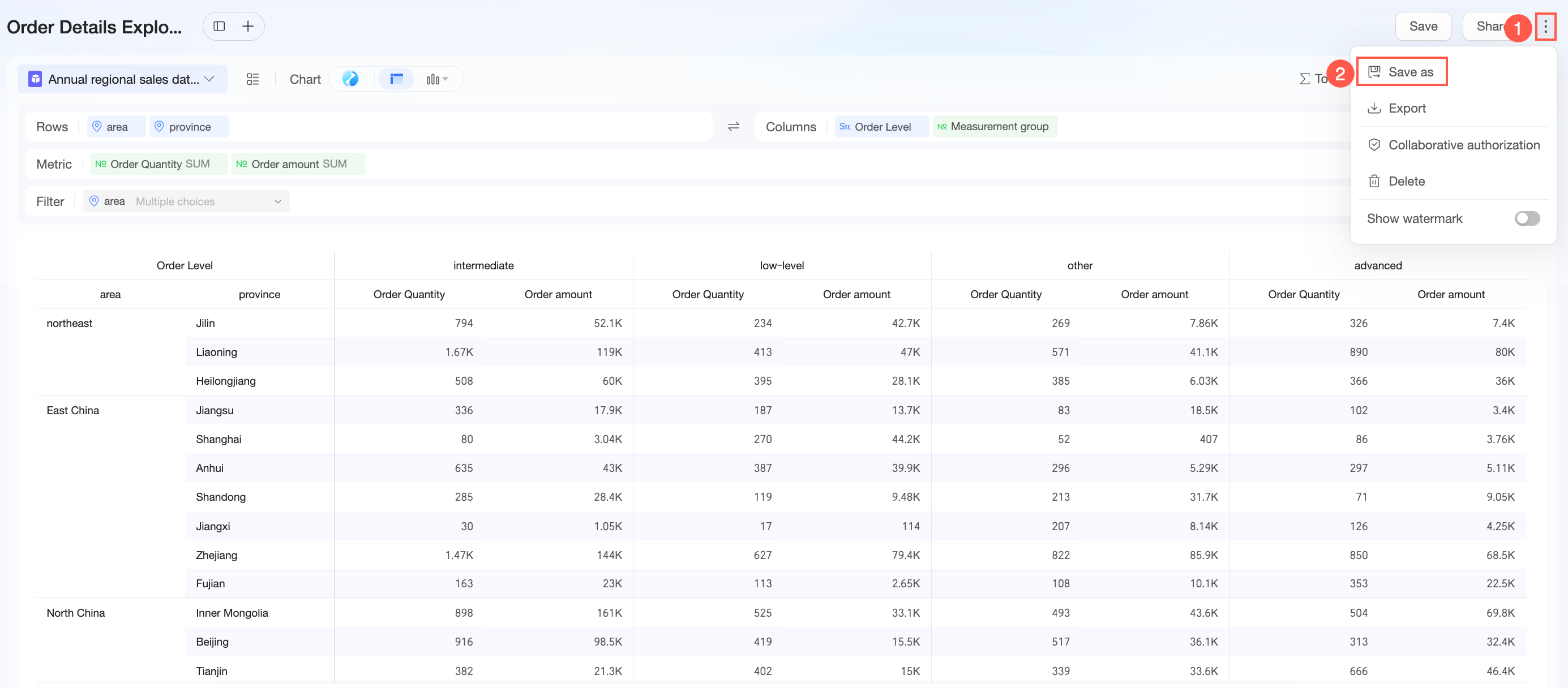
Click the  icon in the upper-right corner and select save as to create a copy of the current exploratory analysis.
Export
You can export an exploratory analysis only if Allow Export is enabled in your organization's export controls and you have the export (including view) permission.
-
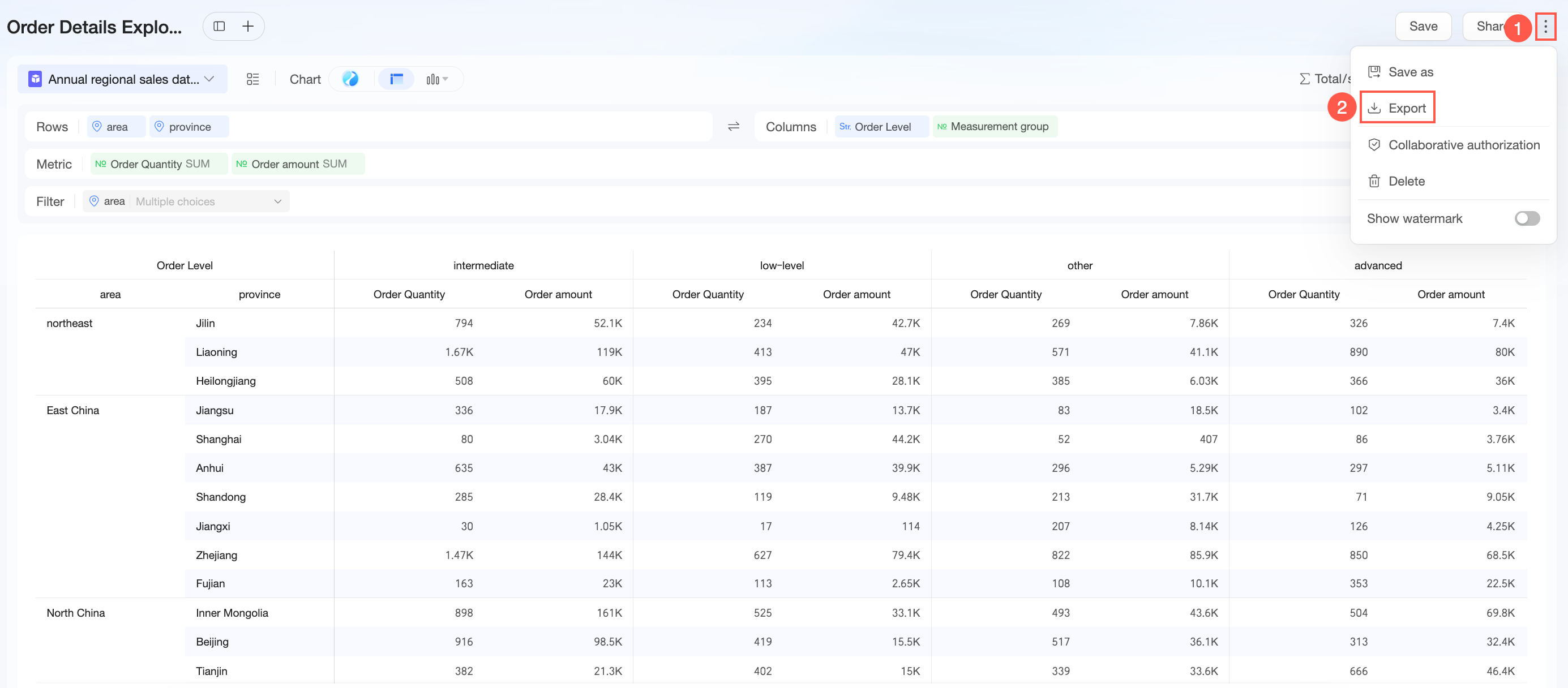
Click the
 icon in the upper-right corner and select Export.
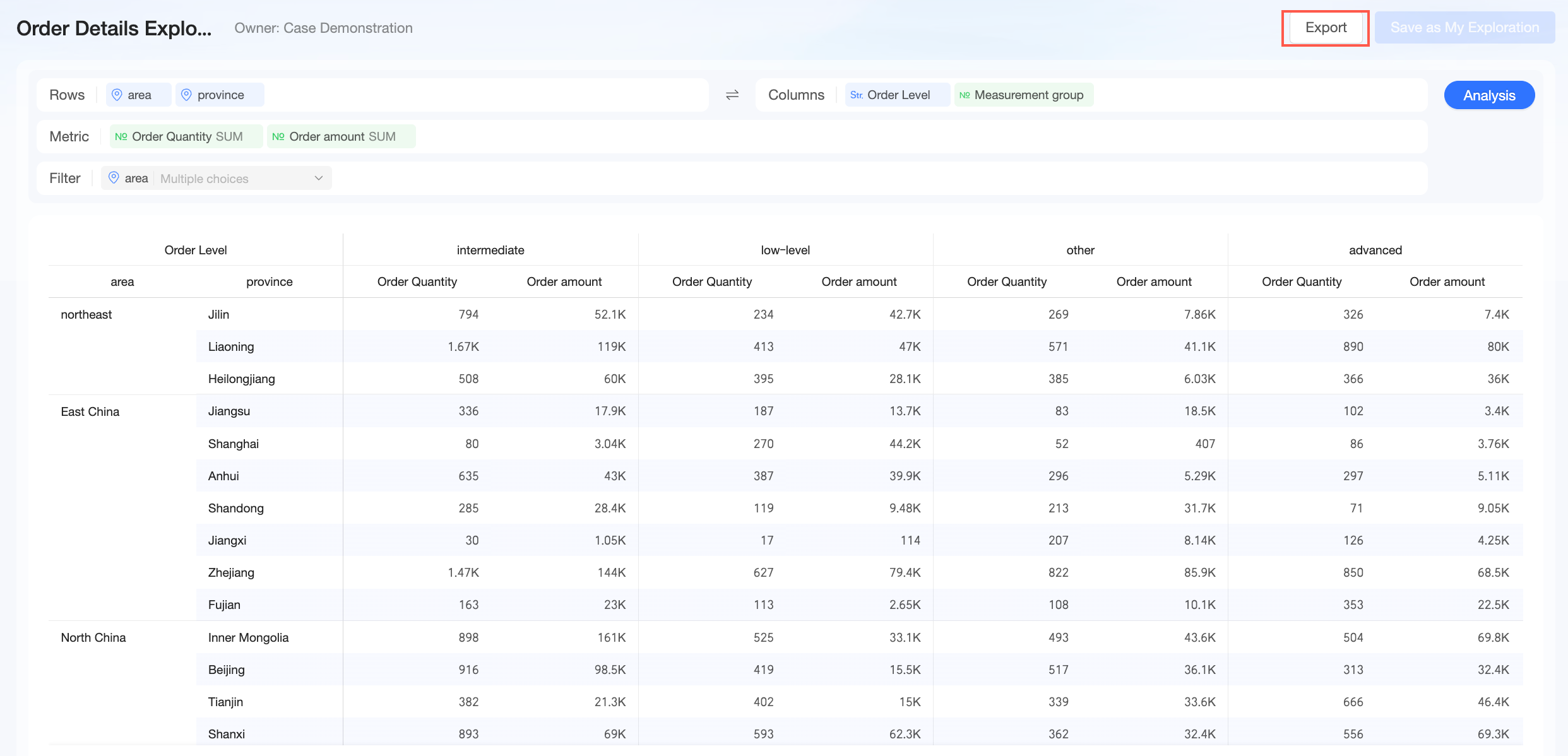
You can also Export from the preview page.
-
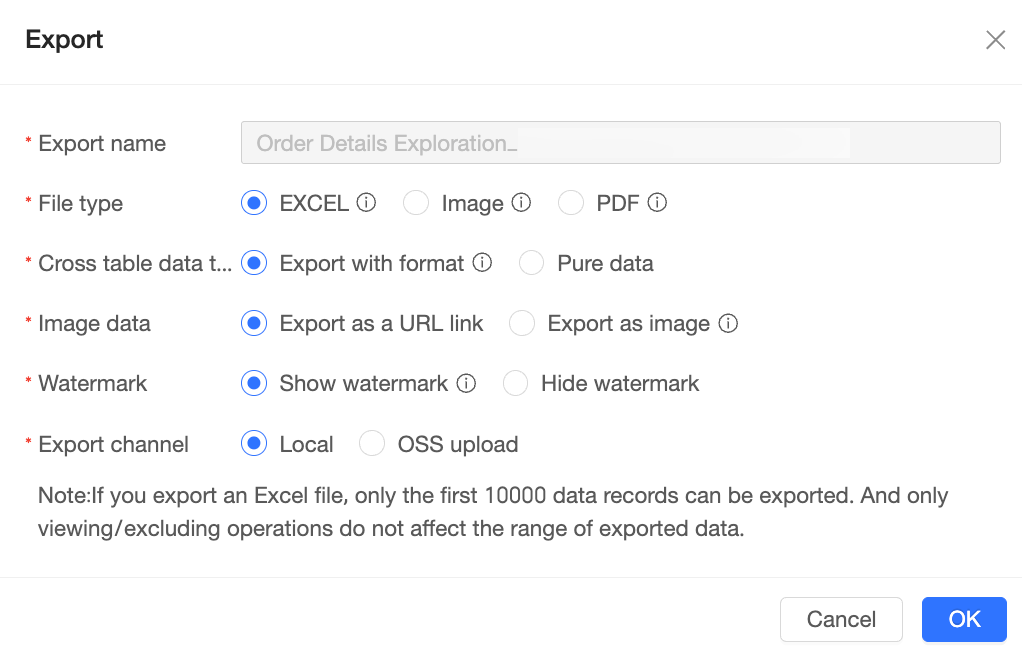
On the export page, configure the following settings.
Parameter
Description
Export name
The name of the exported chart data.
File format
You can export chart data to Excel, Image, and PDF files.
Note-
An organization administrator can configure the supported export formats in Data Security. For more information, see Export Control.
-
The Excel format only supports exporting data from a chart component. For best compatibility, we recommend opening the exported file with Excel.
Crosstab data type
The format of the exported table data.
Two formats are available: formatted and raw data.
-
When the number of cells exceeds 50,000, we recommend that you select the raw data type.
-
An exported Excel file supports only the first 10,000 records.
NoteConfigure this option only when the chart type is a table and the file format is set to Excel.
Image data
When crosstab data type is set to formatted, you can select Export as URL Link or Export as Image.
NoteExporting a large number of images or a high volume of image data can significantly impact performance. Use this option with caution.
Watermark
Select Show watermark or Hide watermark.
NoteThis option is required only when the file format is set to Excel.
Export channel
You can export to Local or an OSS server.
NoteIf your organization has configured an export server, you can export to an OSS address.
-
-
Click OK to complete the export.
Share
On the exploratory analysis page, click Share to make it available to other users.
Only private link sharing is supported.
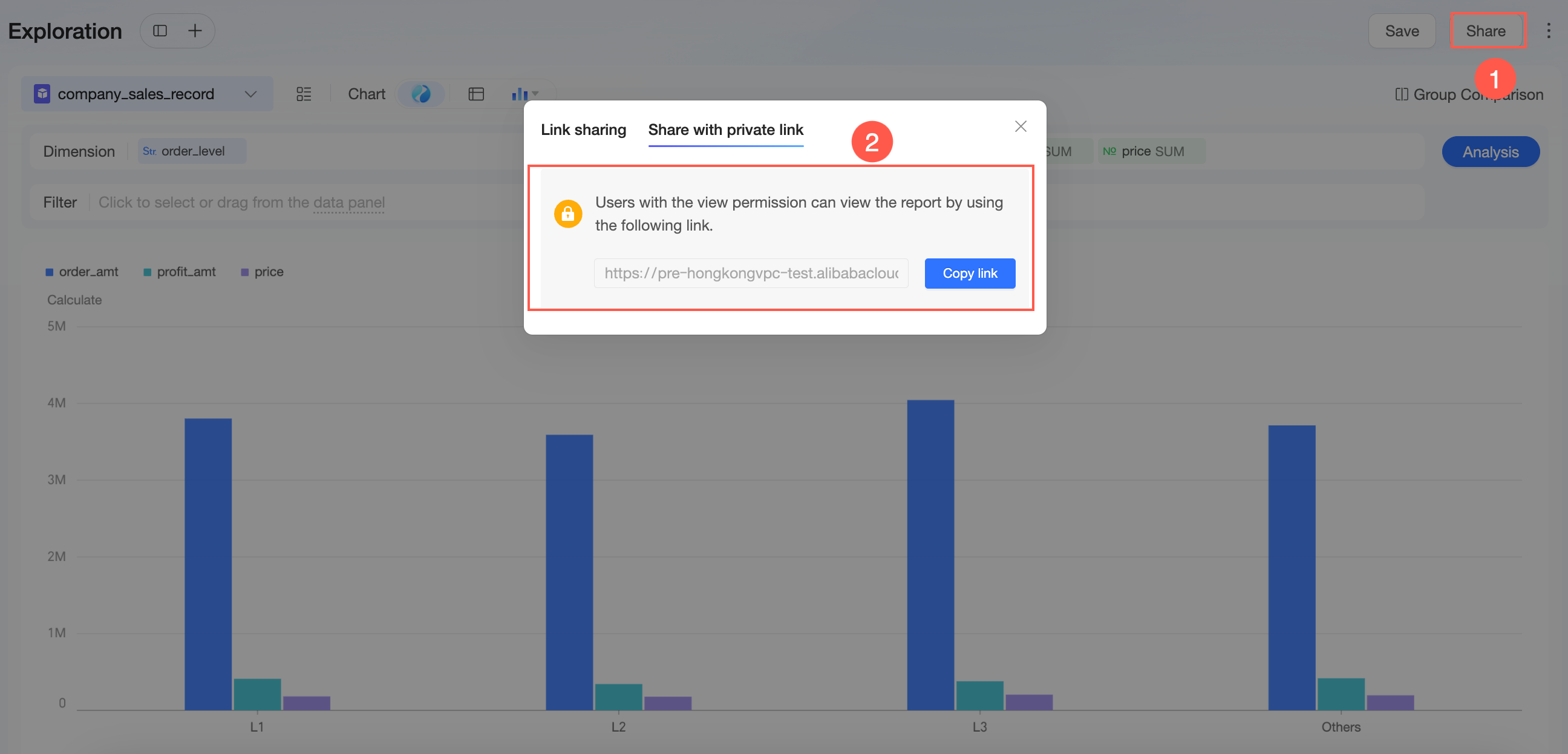
Click Copy Link to send the link to other users. Users with view permissions can access the analysis through the link.
You can also go to Workspace, click the  icon on the right, and select Share.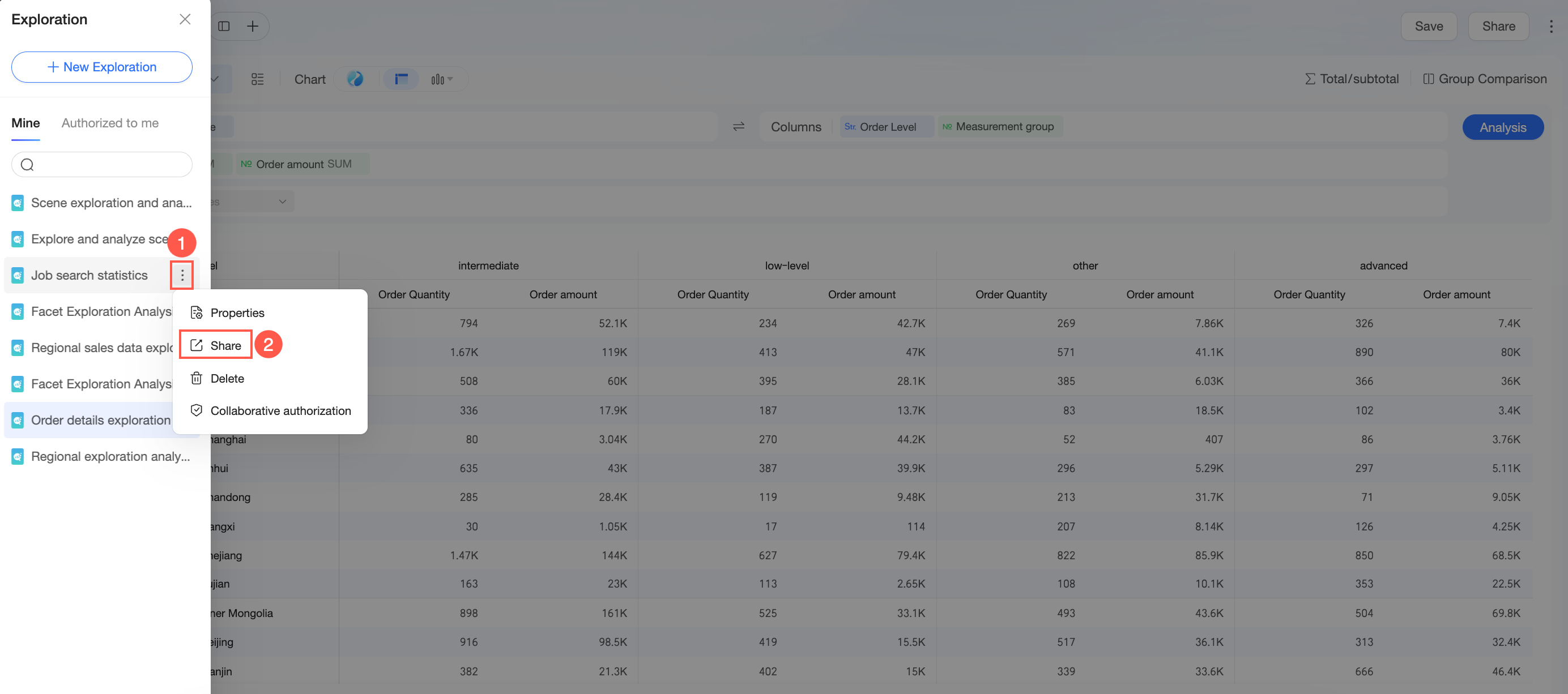
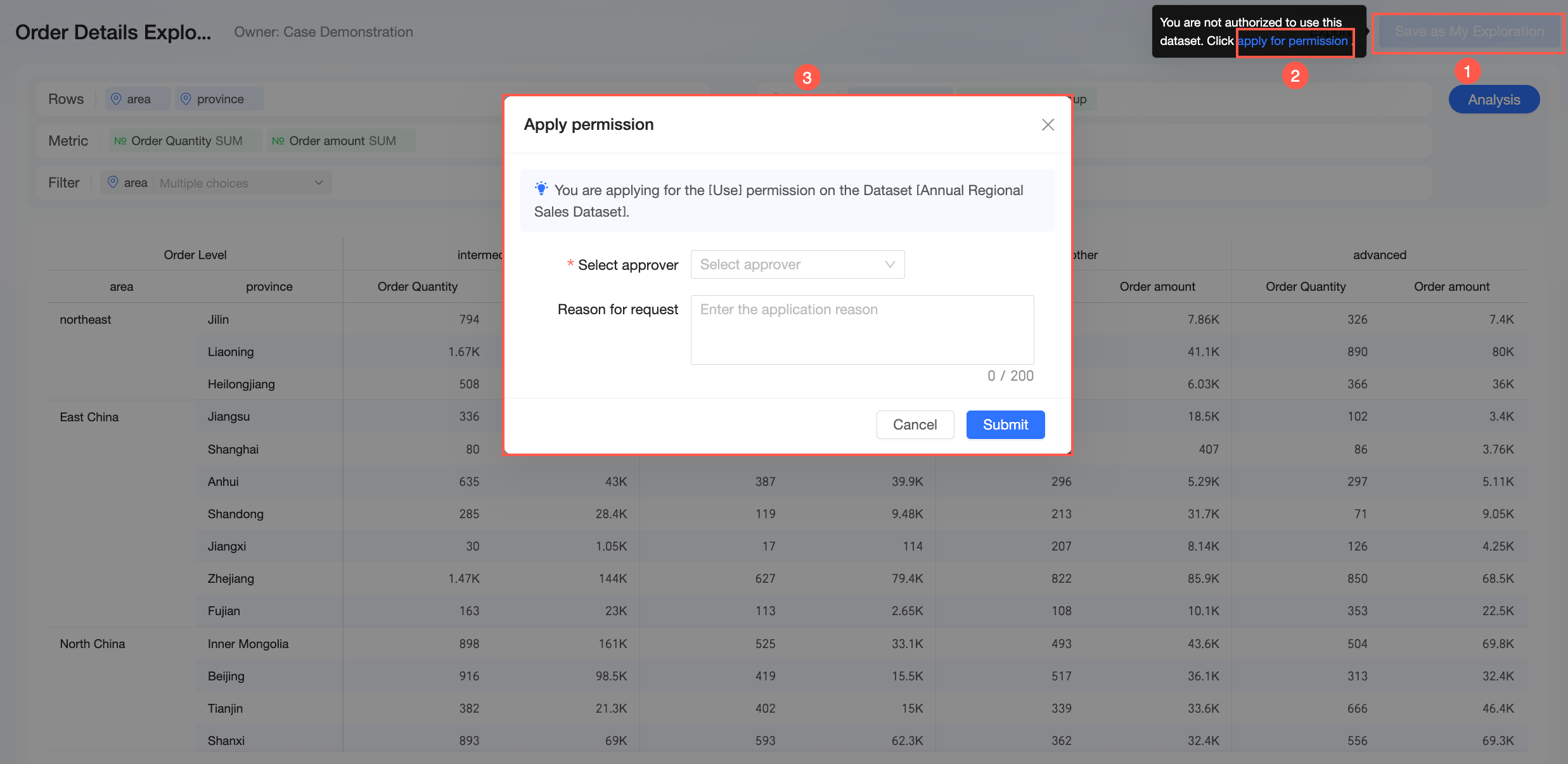
If a user opens the shared exploratory analysis but lacks permissions for the required dataset, they can request access in the following ways:
-
If an approval workflow is enabled in Approval Settings, hover over Save as My Analysis and click request permissions to request access to the dataset:
-
If an approval workflow is not enabled, contact the dataset owner to request authorization.
Request permissions
-
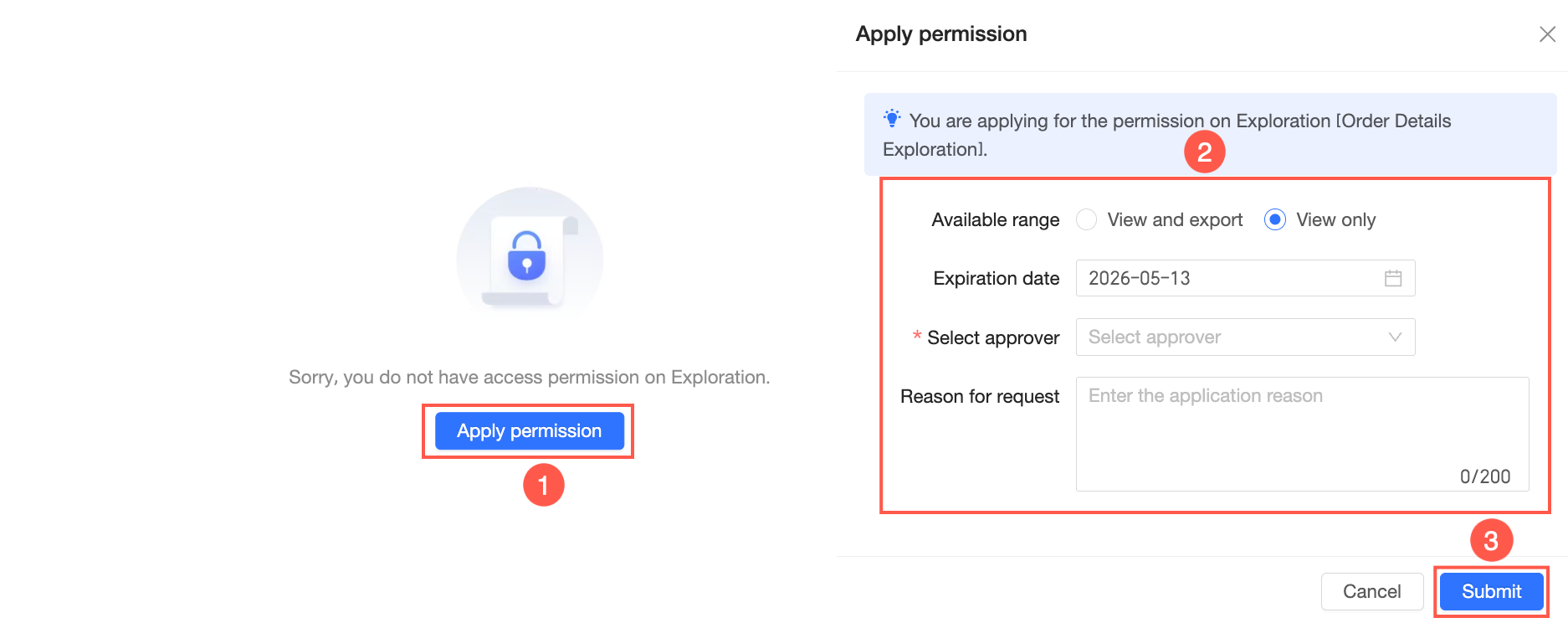
If you do not have permission to access the current exploratory analysis, click request permissions. Select the Scope, Expiration Date, and Approver, enter a Reason for Application, and then click Submit Application.
-
After you submit the application, check the approval details in Message Center > My Requests.
-
After the approver receives the notification, they can process it in Message Center > My Tasks.
-
After the request is approved, the applicant is granted either view or export (including view) permissions for the exploratory analysis.


Collaboration authorization
-
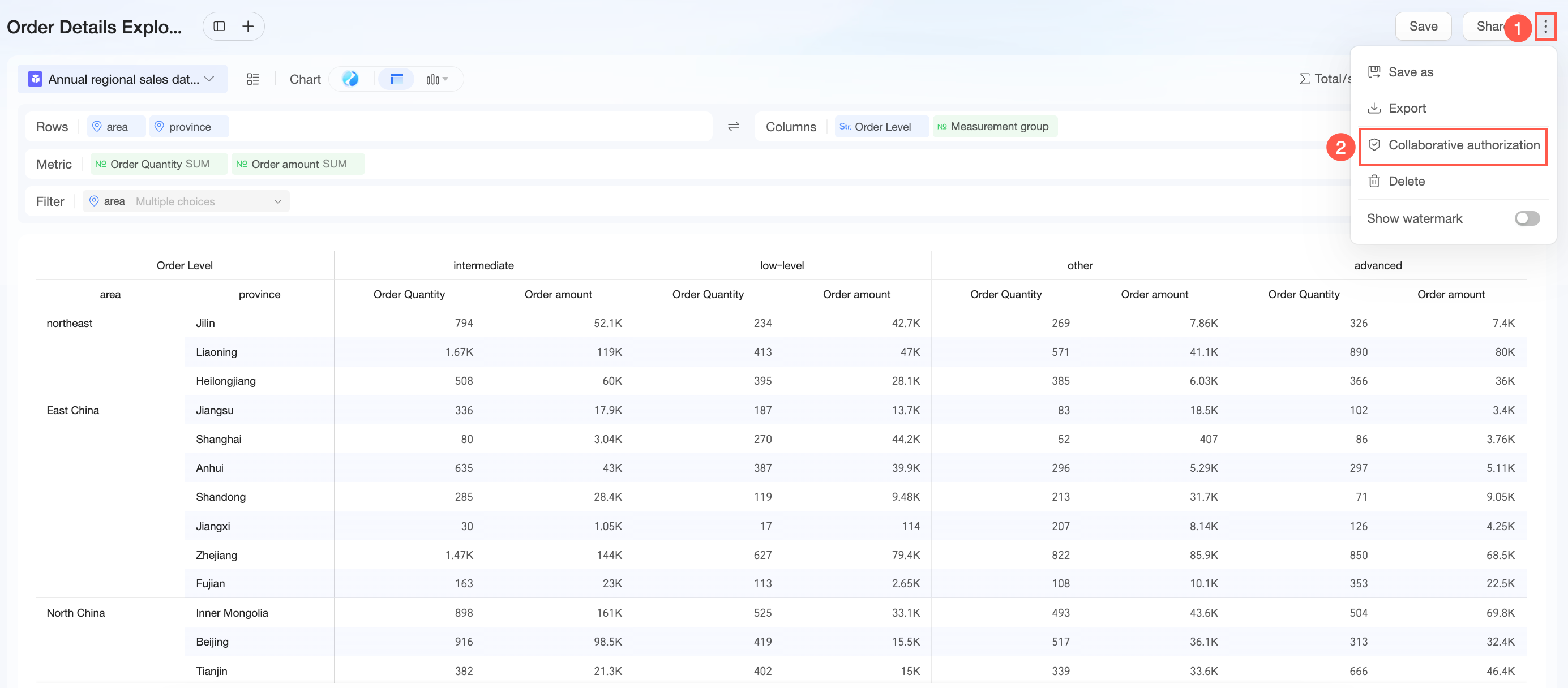
On the exploratory analysis page, click the
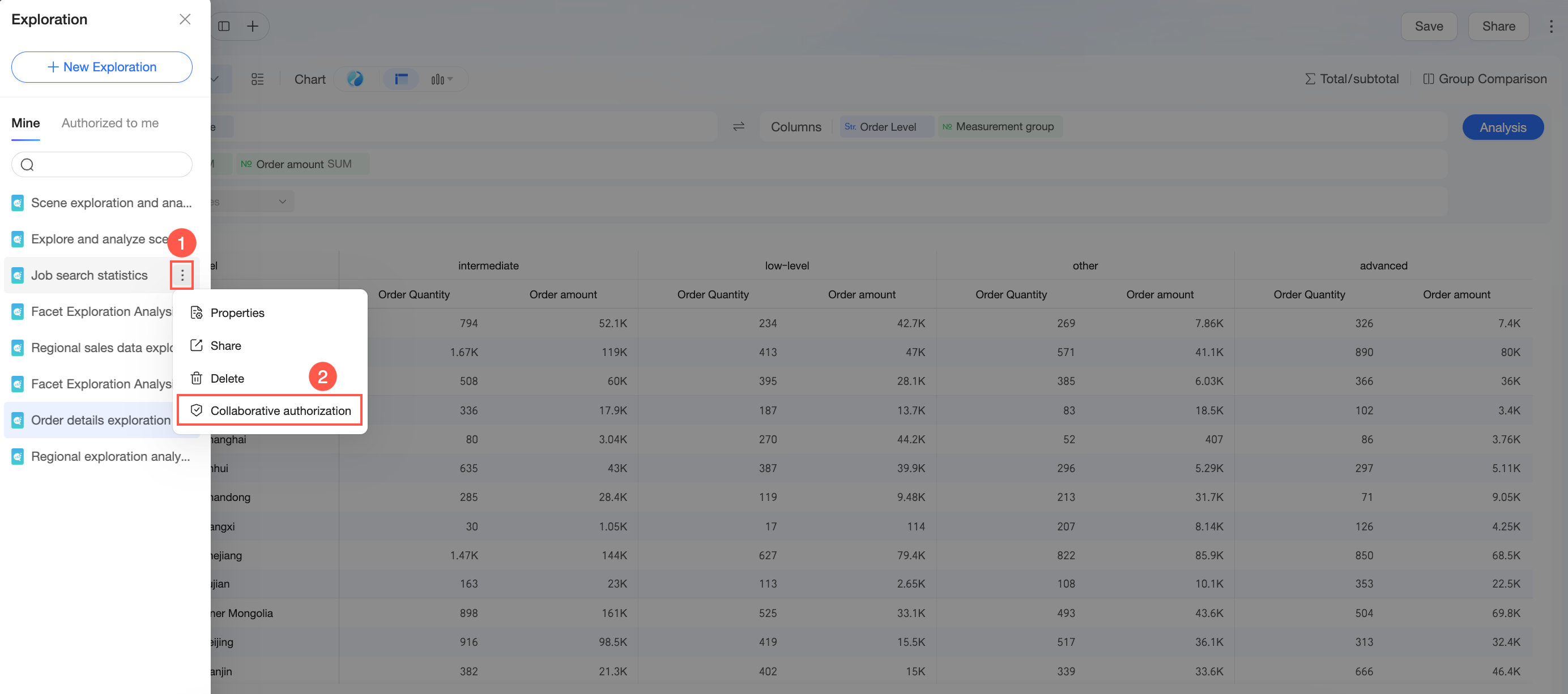
icon in the upper-right corner and select collaboration authorization.You can also go to the Workspace, click the
icon on the right, and select collaboration authorization. -
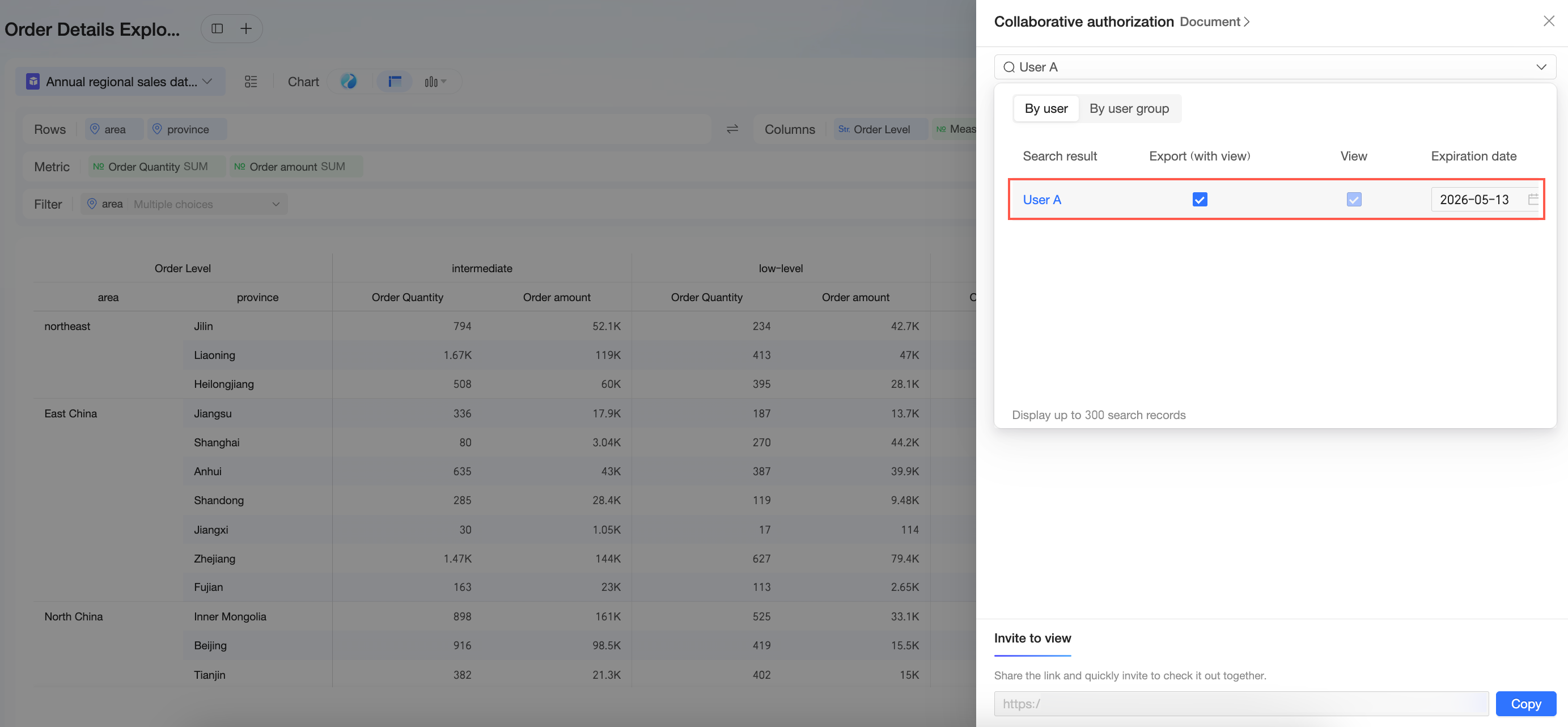
On the collaboration authorization page, grant permissions for the exploratory analysis to the appropriate users.
NoteThe following permissions are supported: export (including view) and View.
-
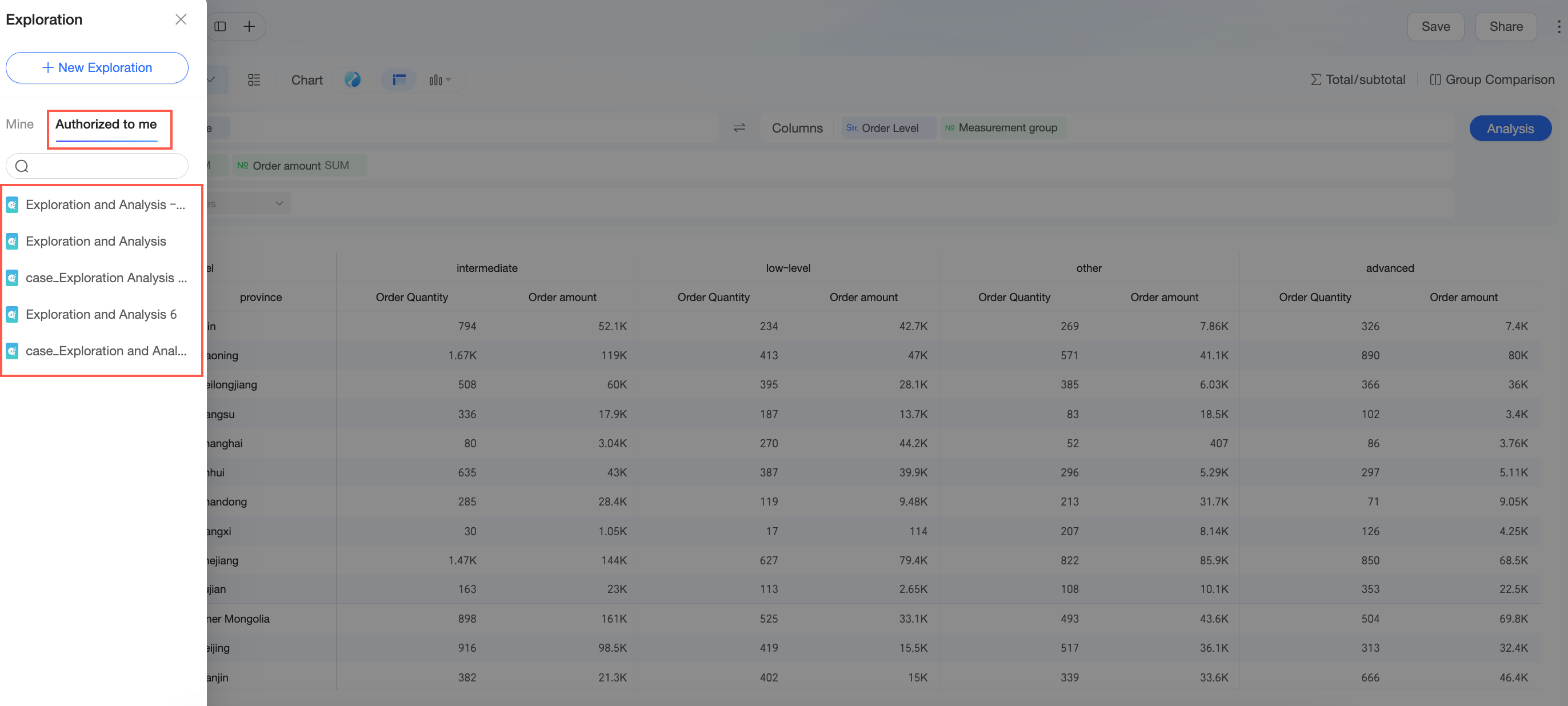
After authorization, users can view the exploratory analyses shared with them on the List Page under Shared with Me.
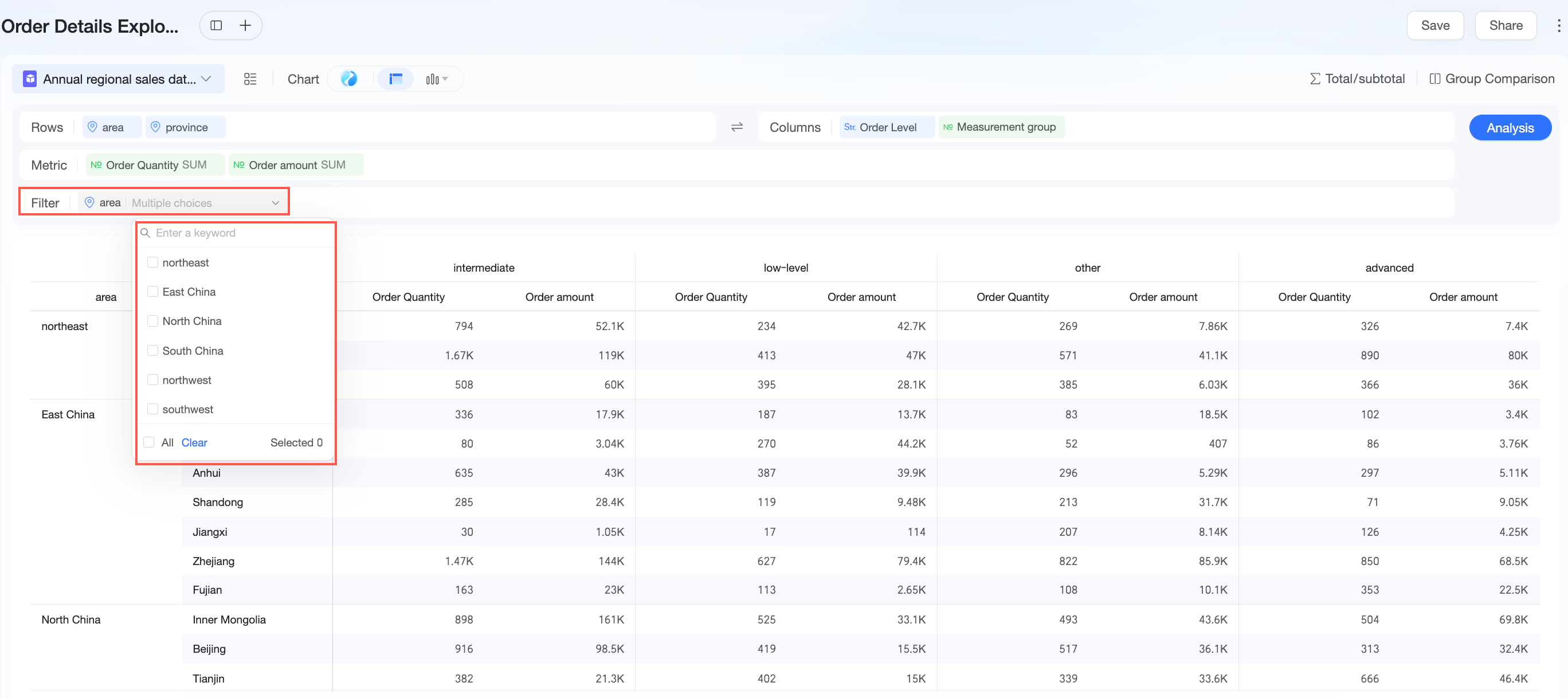
Use the Filter function to view different data.
-
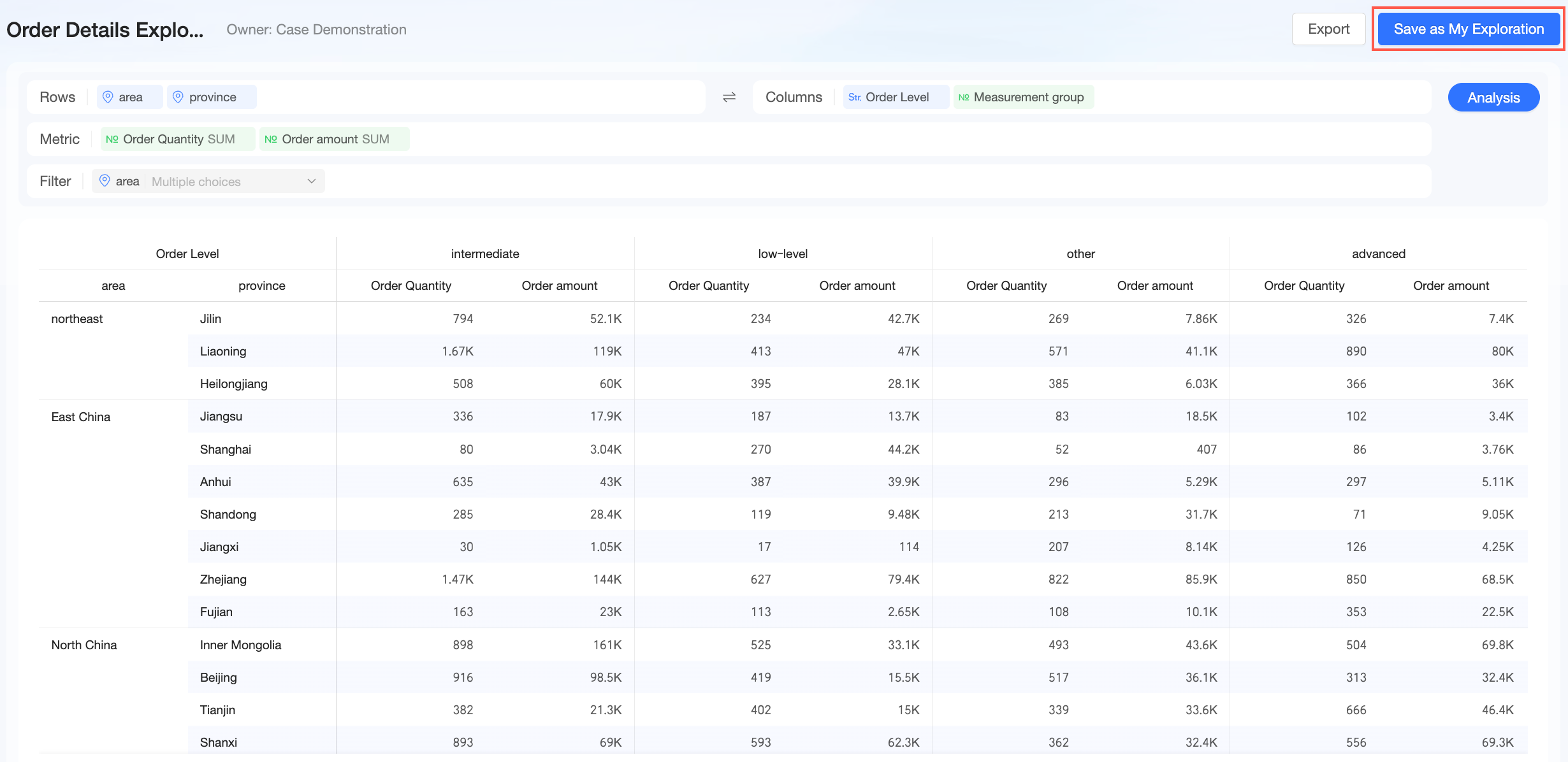
If a user has permissions for the required dataset, they can select Save as My Analysis.
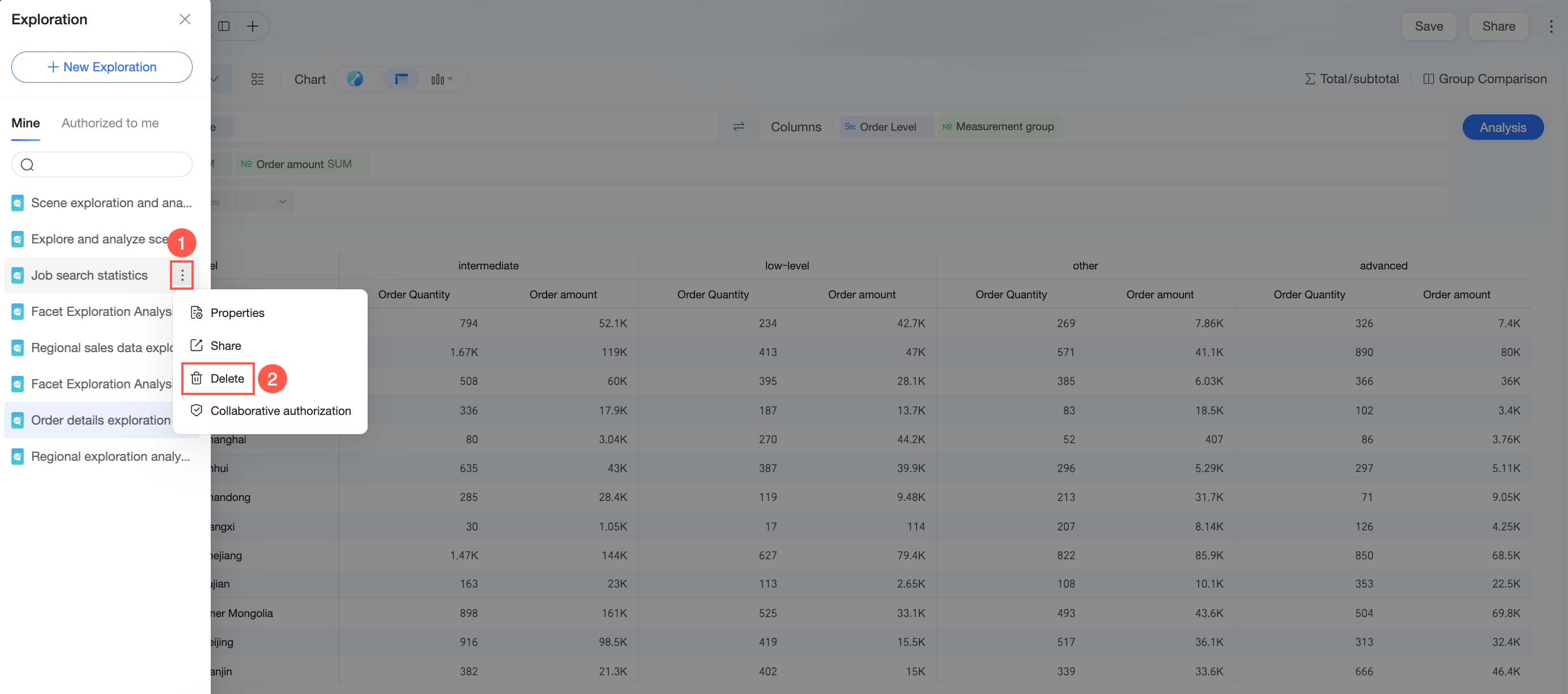
Delete
-
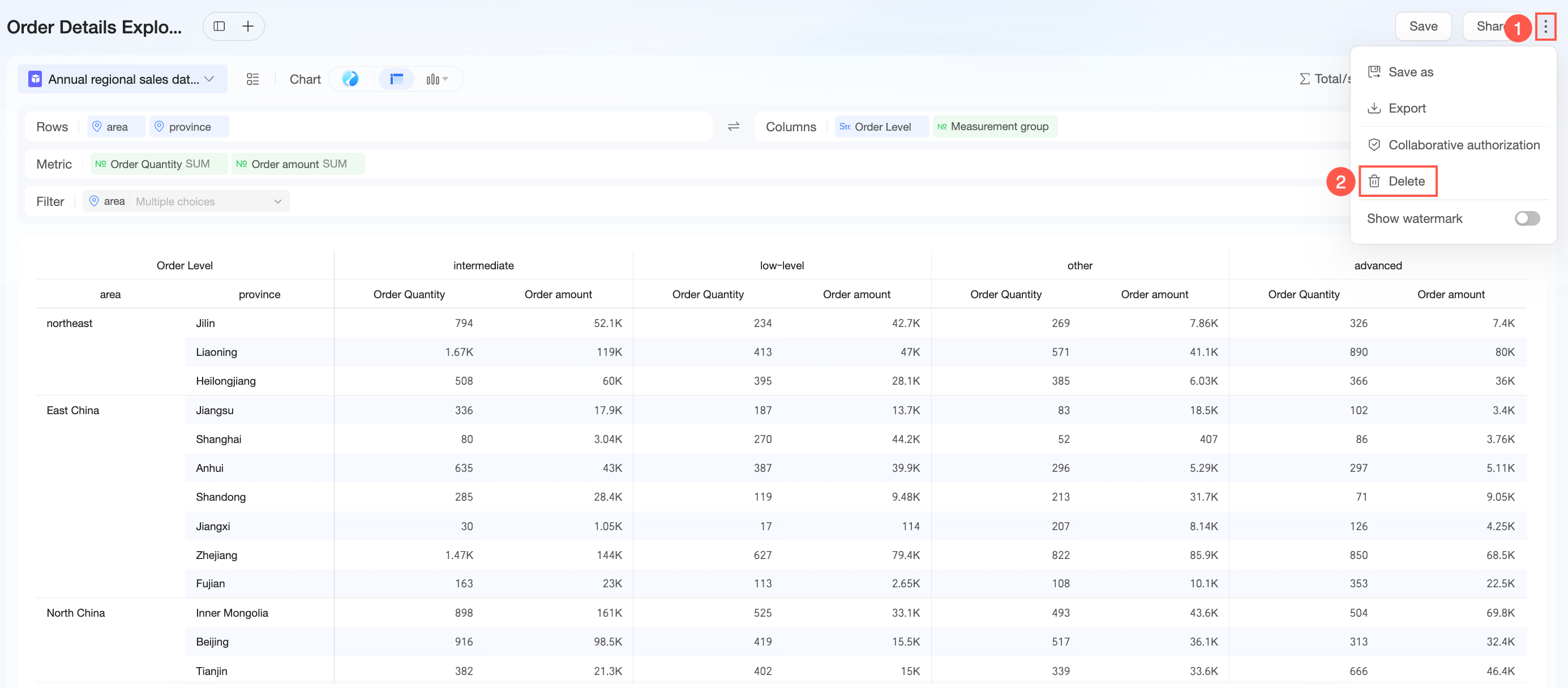
Click the
icon in the upper-right corner and select Delete. -
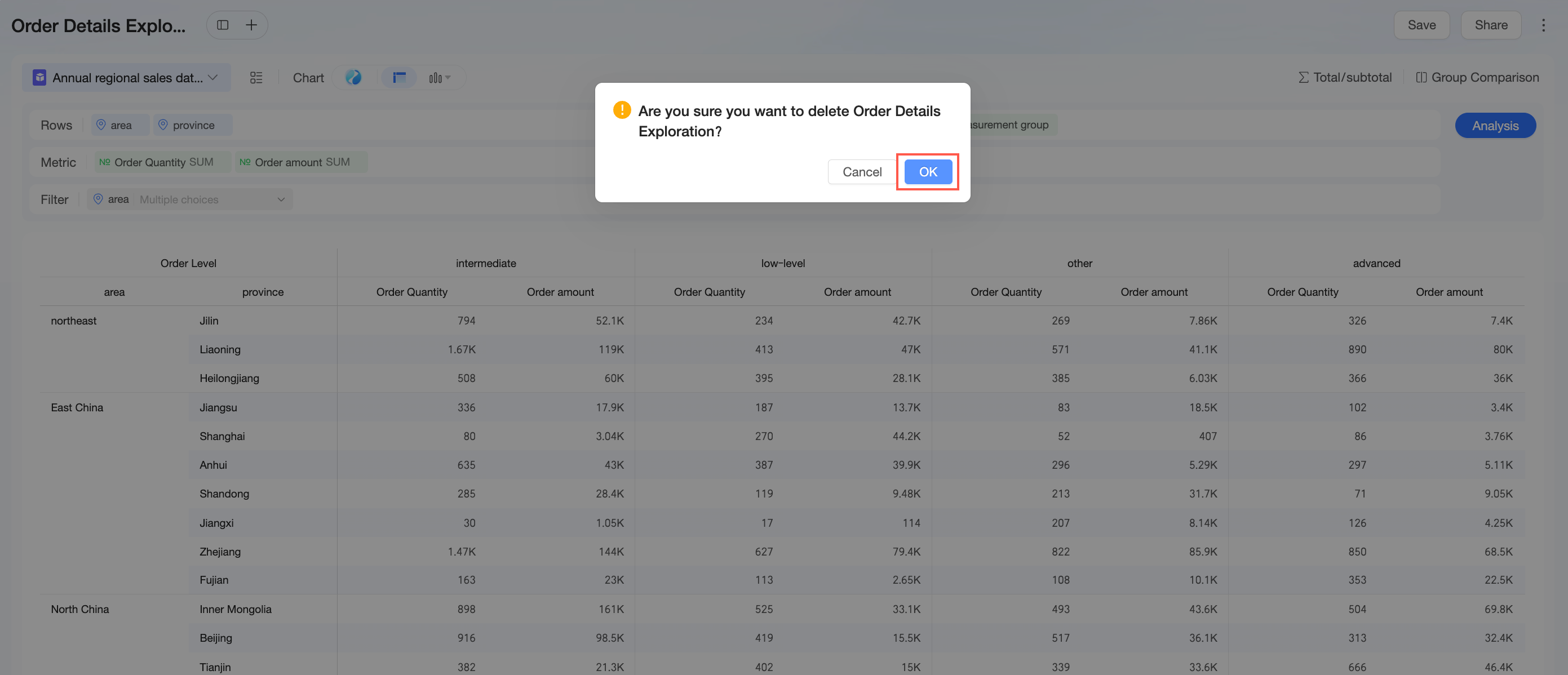
In the confirmation dialog box, click OK.
-
You can also go to the Workspace, click the
icon on the right, and select Delete.
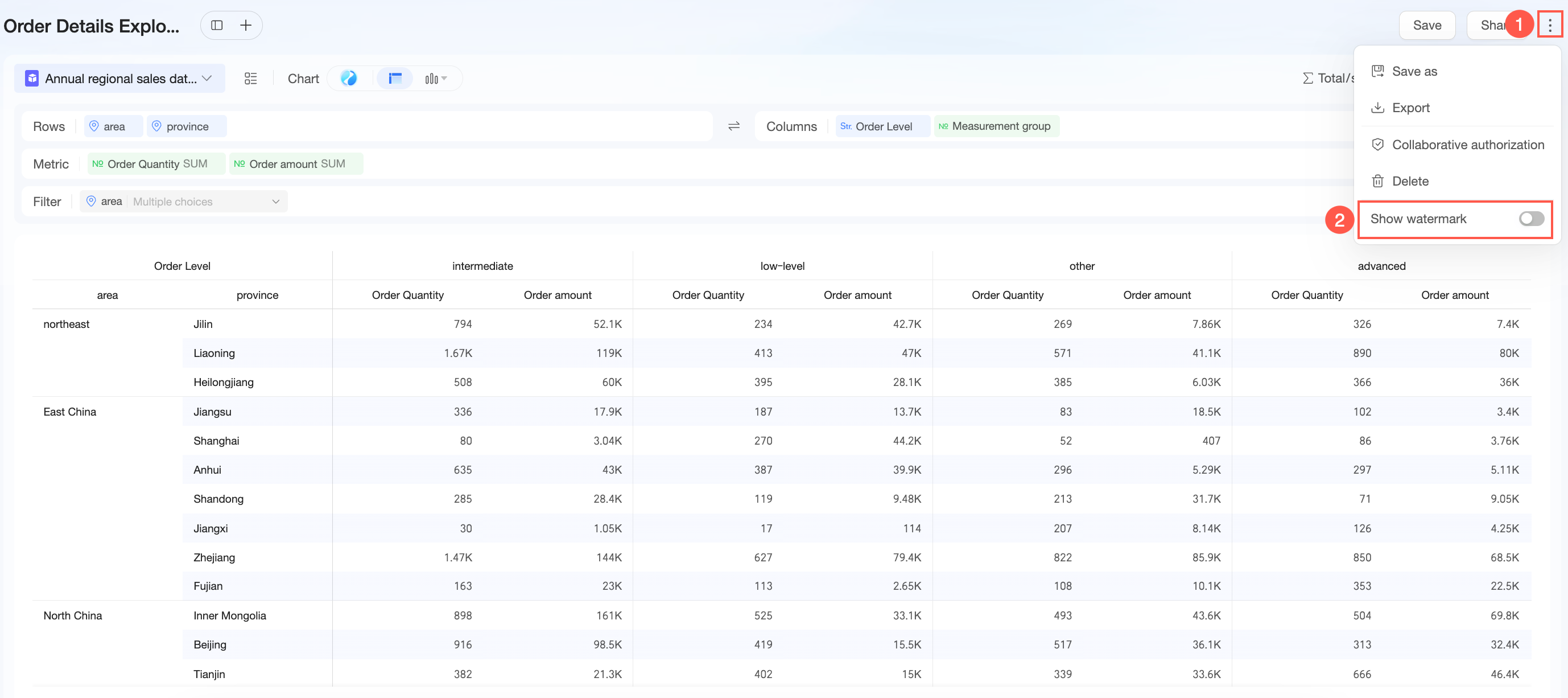
Watermark settings
Click the icon in the upper-right corner and select whether to enable or disable the watermark.
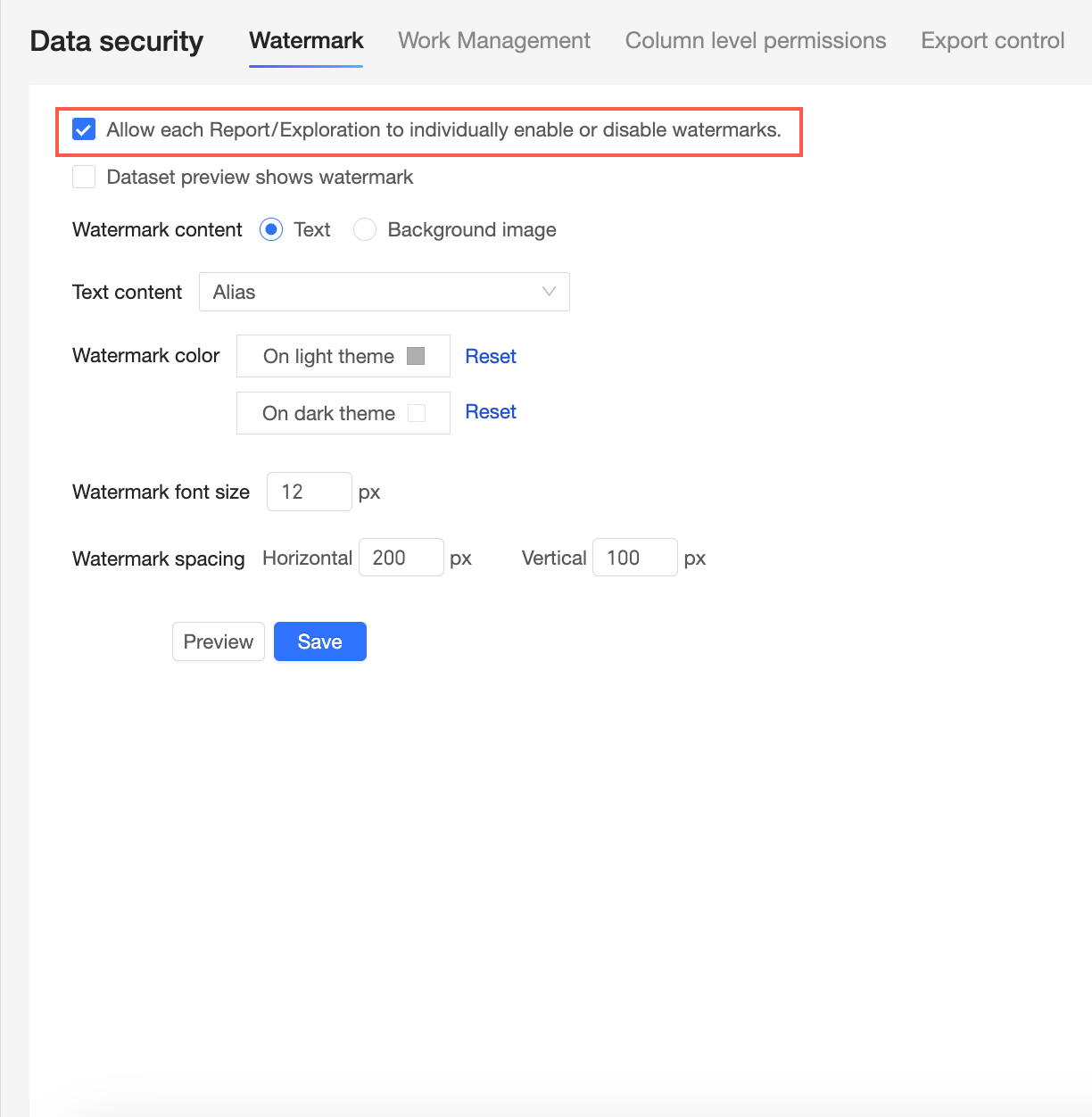
This option is available only if Allow individual reports/explorations to enable or disable watermarks is selected in the watermark settings under Organization Management.
Workspace
-
Click the
icon to expand the list. -
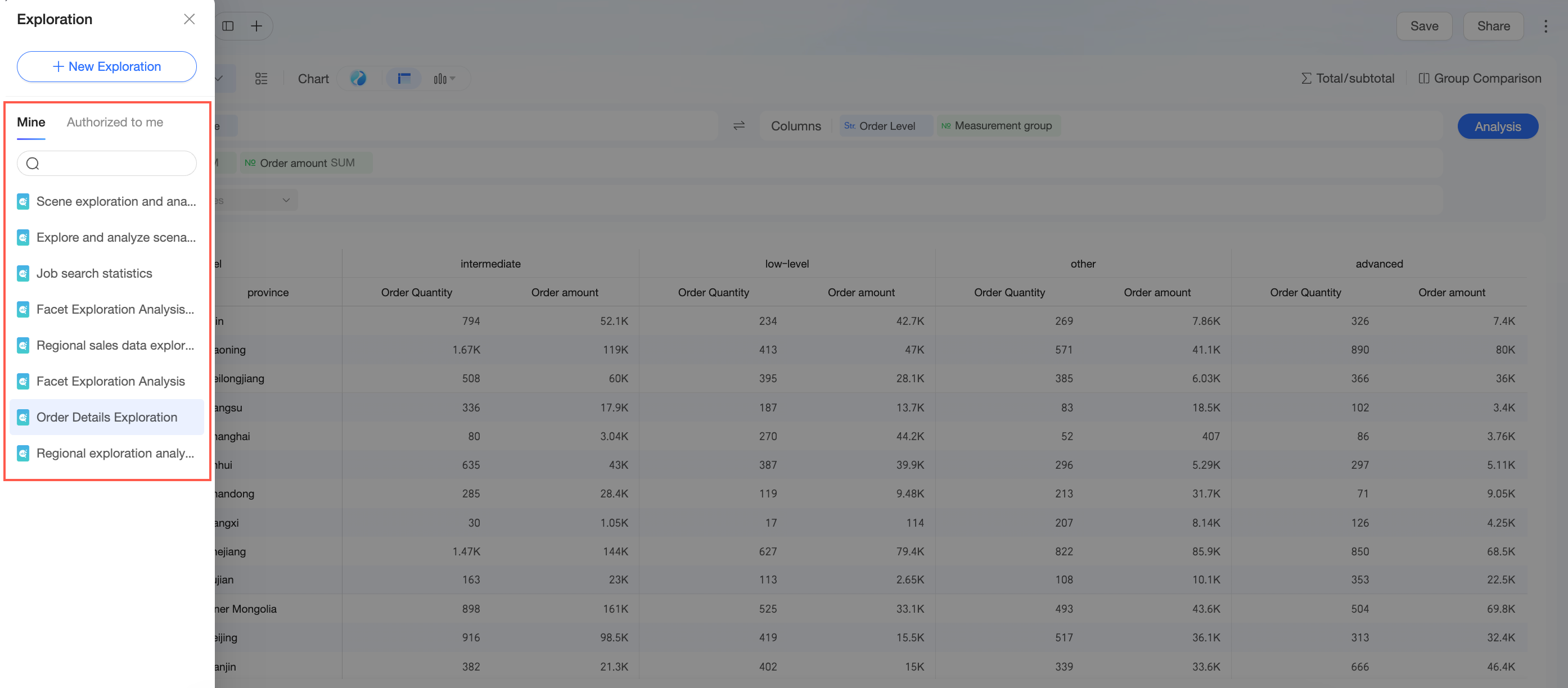
The list page shows your exploratory analyses under My Works and Shared with Me.
Hover over an exploratory analysis name and click the icon on the right to set Properties, Share, Delete, or grant collaboration authorization. -
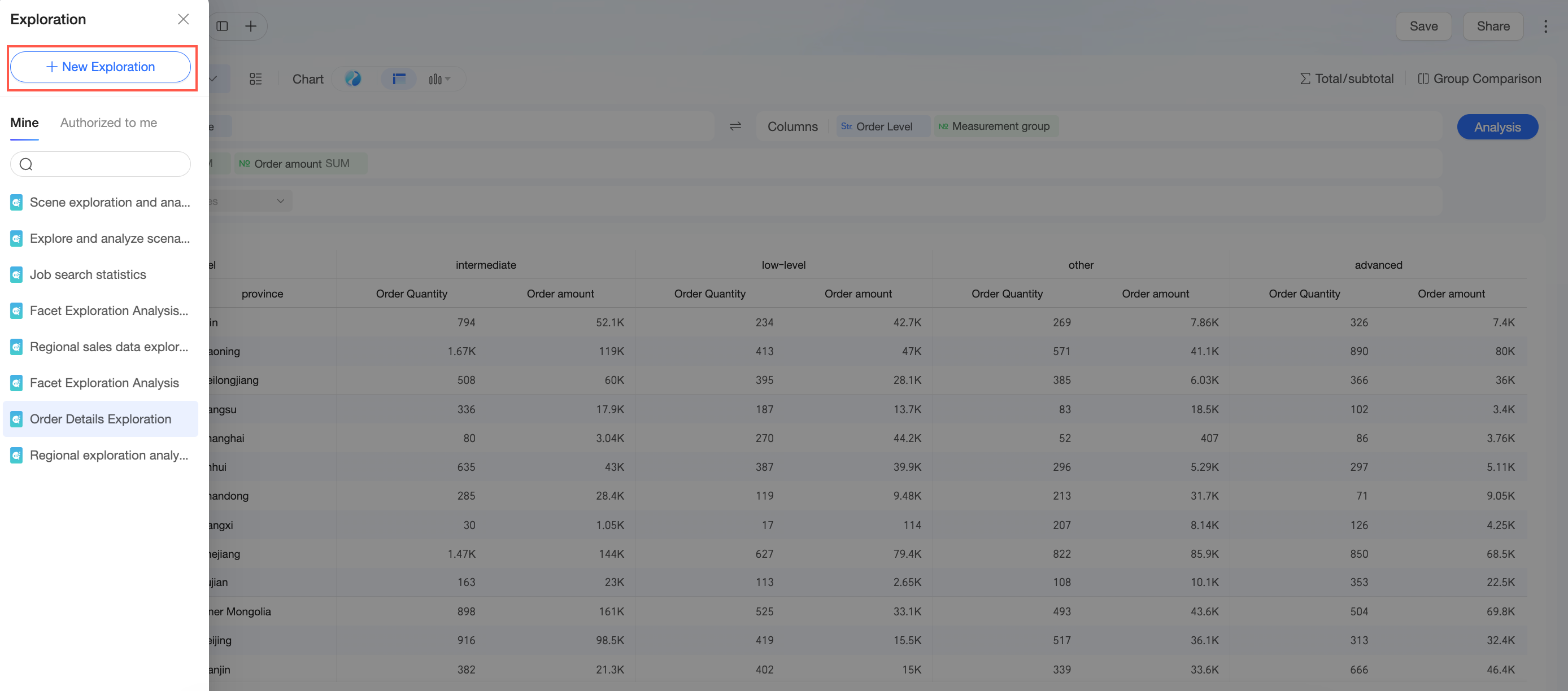
Click New Analysis to create an exploratory analysis.
-
Click the
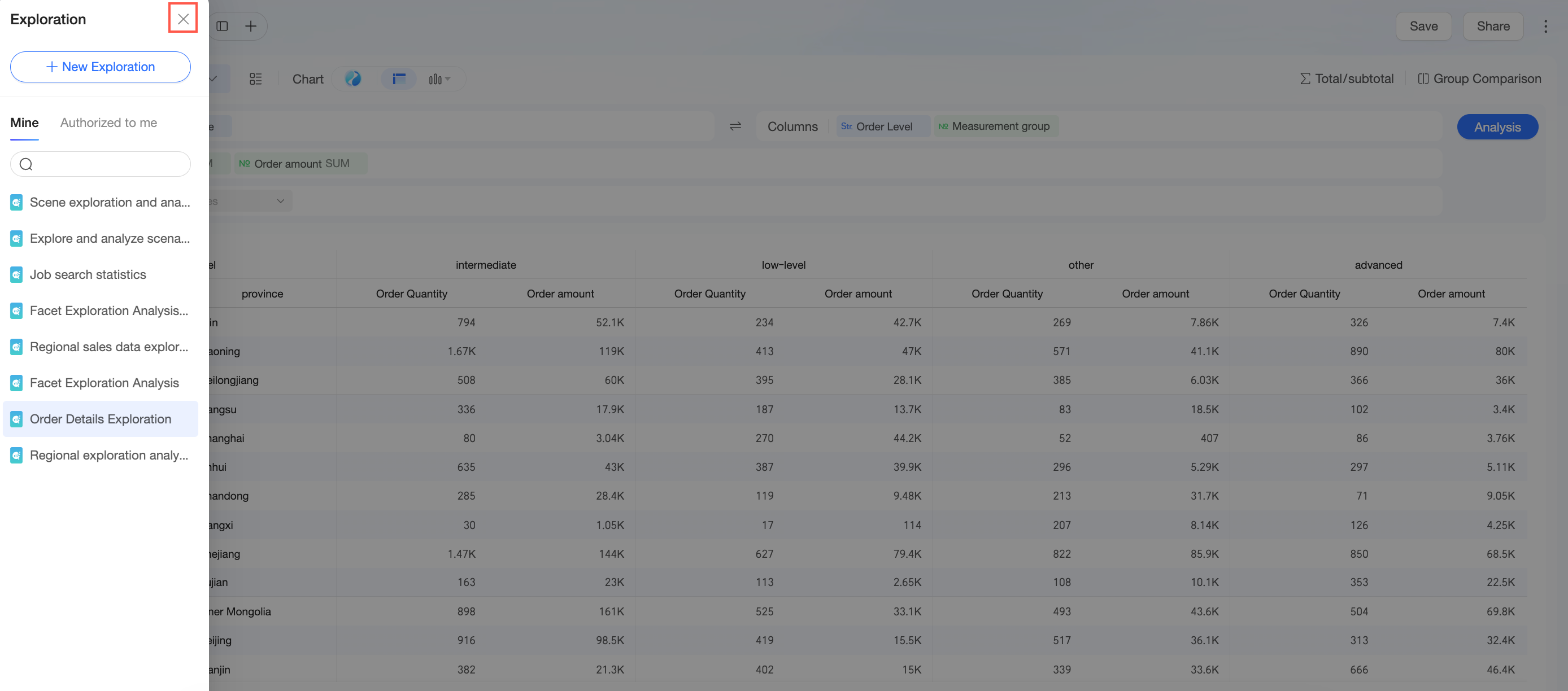
icon in the upper-right corner to exit the list page.
 icon to expand the list.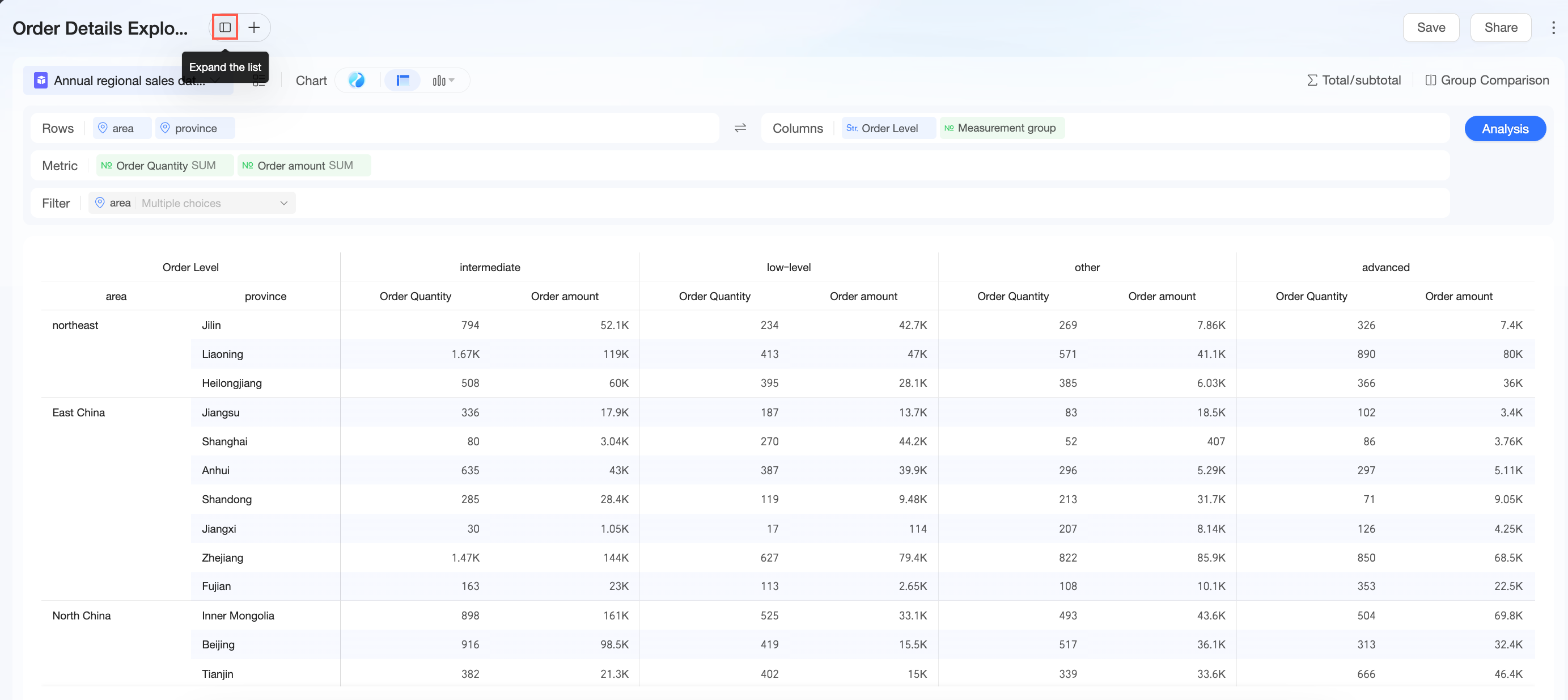
 Hover over an exploratory analysis name and click the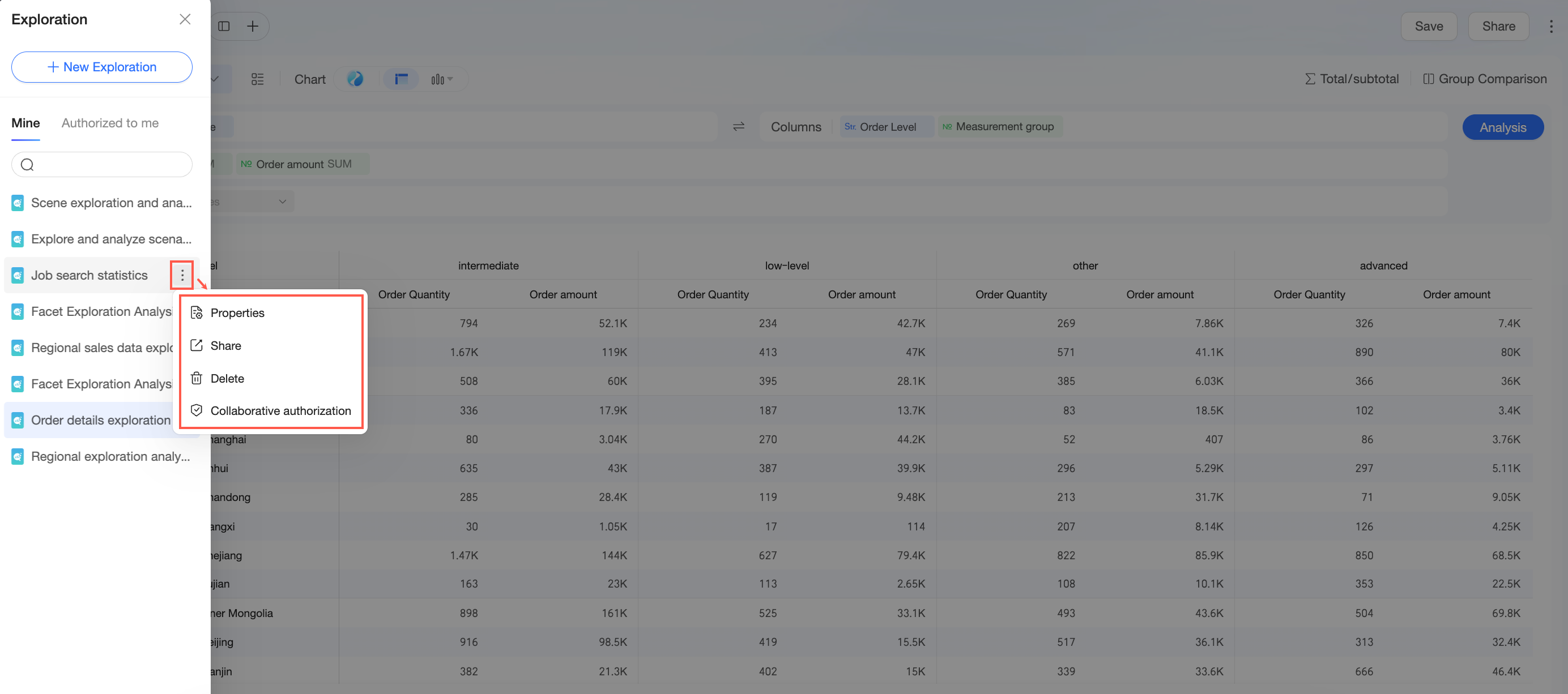
 icon in the upper-right corner to exit the list page.