Call a text generation large model
1. Introduction
Prerequisites: None
This component lets you call text generation large models, such as those from OpenAI, to perform single-turn conversation tasks.
2. Inputs
See the help text for each input in the component panel of the visual editor.
3. Outputs
See the help text for each output in the component panel of the visual editor.
4. Usage example
4.1. Configuration
For
api_key, enter the model invocation key. You can get this key from the model's platform. We recommend storing it as a variable.For
base_url, enter the model service endpoint. For example, the endpoint for the Qwen series of large models ishttps://dashscope.aliyuncs.com/compatible-mode/v1.For
model, enter the name of the model to use. For example, to use qwen-plus, enterqwen-plus.For
System Prompt, define the model's overall behavior by assigning it a role, a task, or a required output format. For example: "You are a math expert. Provide the solution steps and the result in the correct format."For
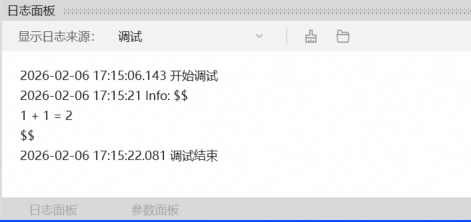
User Prompt, enter the specific question or instruction for the model, such as "Calculate 1+1."For
Input Content Format, select the format of your input content.For
Streaming Output, this component does not currently support streaming output.Keep the default values for
Advanced Options.
4.2. Execution result
5. Flow example
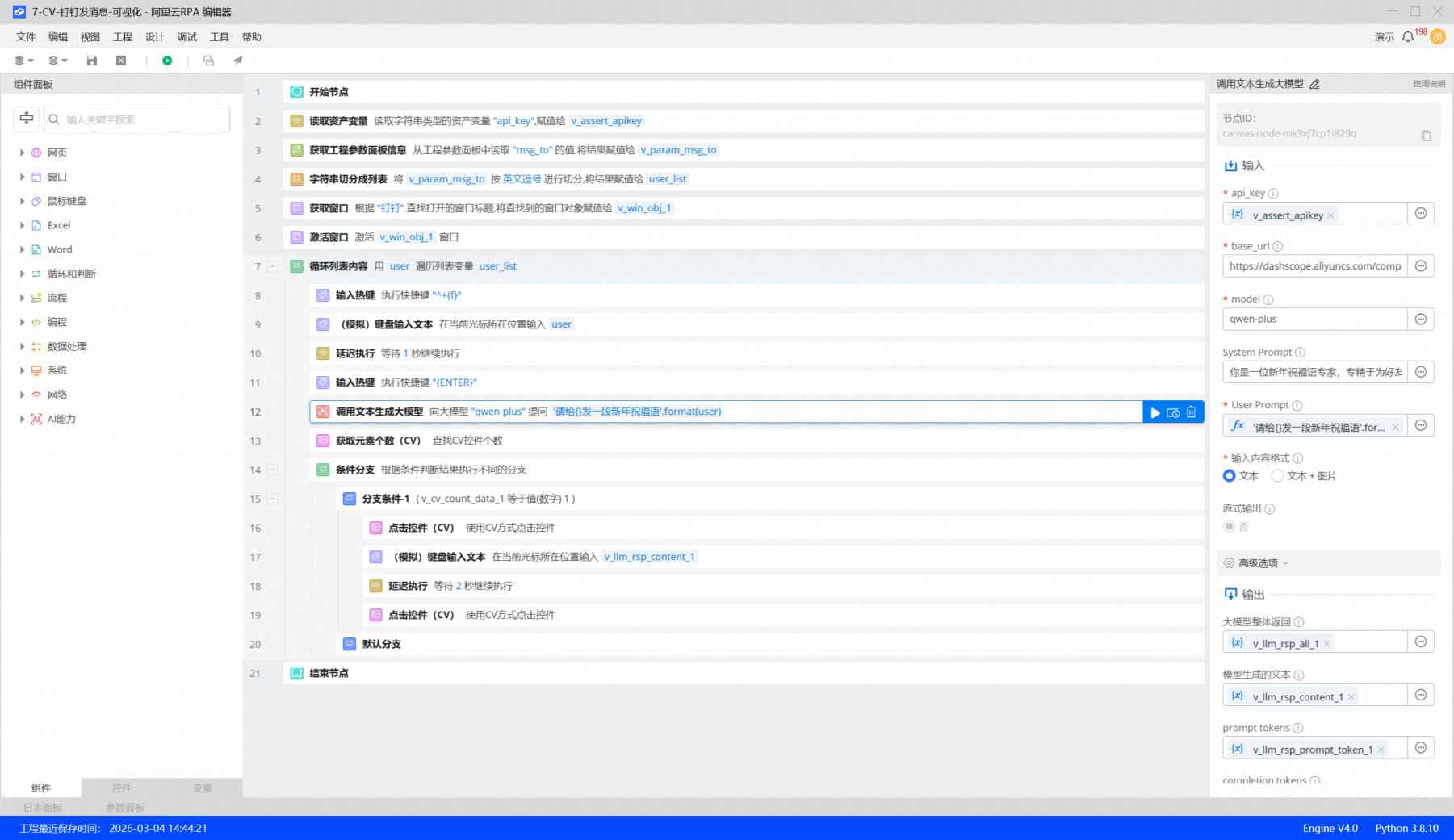
5.1. Build the flow
Use the Read Asset Variable component to read the value of the
api_keyvariable set in Asset Management in the RPA Console.Use the Get Project Parameter Panel Information component to get the value of the
msg_toparameter. This flow uses the parameter to send an AI-generated New Year's greeting to specified contacts on DingTalk.
Use the Split String to List component to split the parameter value into a list of recipients, using a comma as the delimiter.
Use the Get Window component to get the DingTalk window object.
Use the Activate Window component to activate the DingTalk window.
Use the Loop List Content component to iterate through the recipient list.
Use the Input Hotkey component to press
Ctrl+Shift+Fto open the search box in DingTalk.Use the (Simulate) Type Text component to enter the recipient's name.
Use the Delay component to add a 1-second delay.
Use the Input Hotkey component to press
Enter.Use the Call Text Generation Large Model component to generate a greeting for the recipient.
Use the Get Element Count (CV) component to get the number of UI elements captured by Computer Vision (CV).
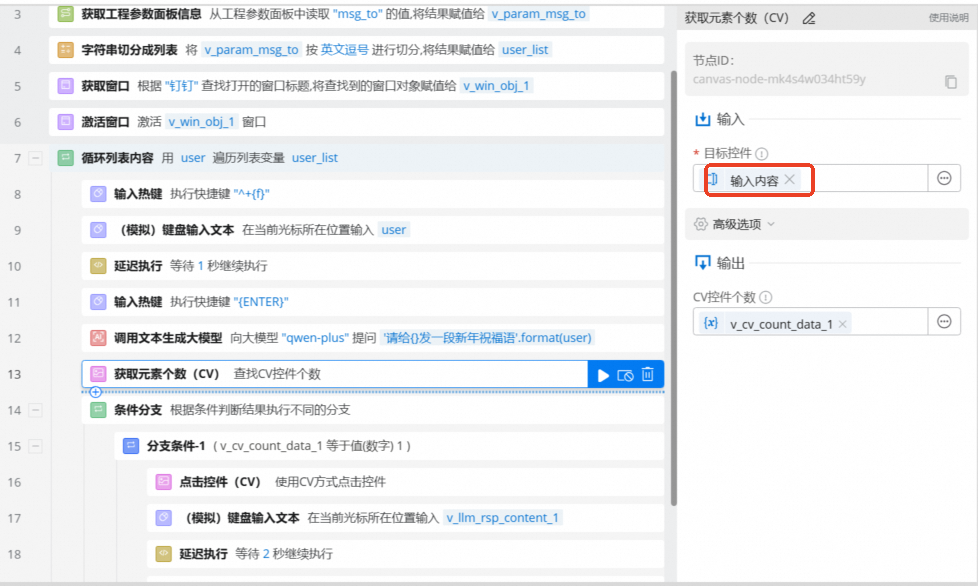
Use the Conditional Branch component to check if the output of the Get Element Count (CV) component is 1. If so, the flow sends the message; otherwise, it skips to the next recipient in the list.
Use the Click Element (CV) component to click the message input box in the contact's chat window.
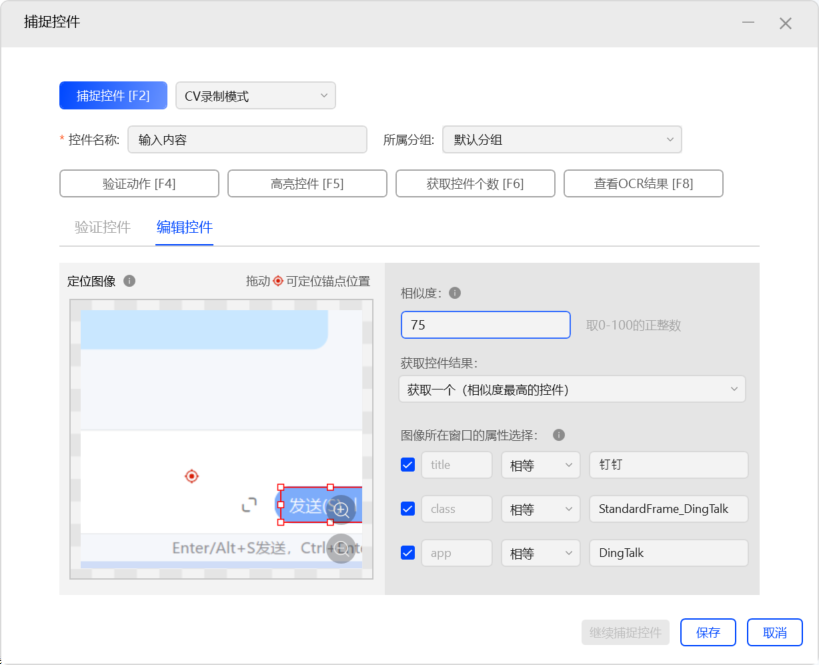
Use the (Simulate) Type Text component to type the content generated by the large model.
Use the Delay component to add a 2-second delay.
Use the Click Element (CV) component to click the Send button.
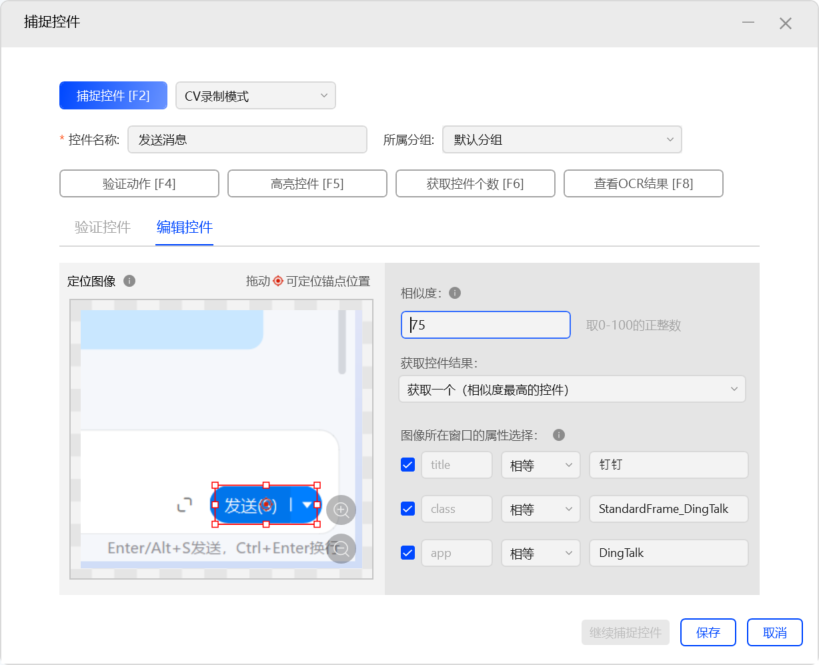
5.2. Execution result
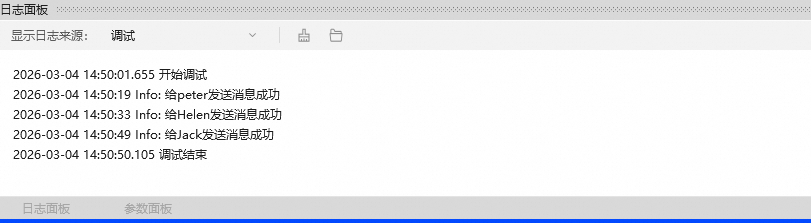
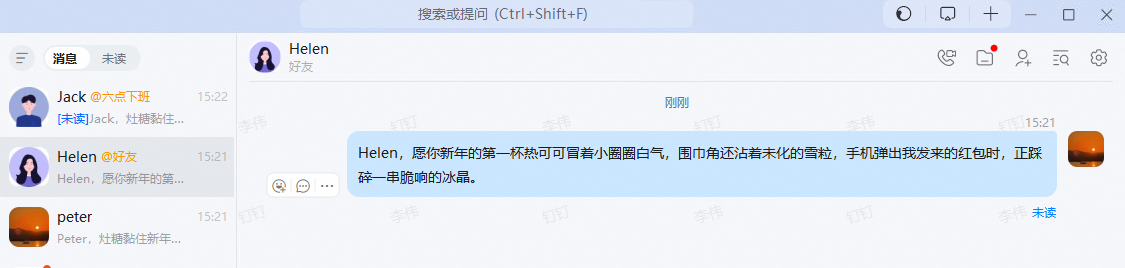
The flow sends an AI-generated message to the specified contacts in DingTalk, as shown below.